Parameter Information
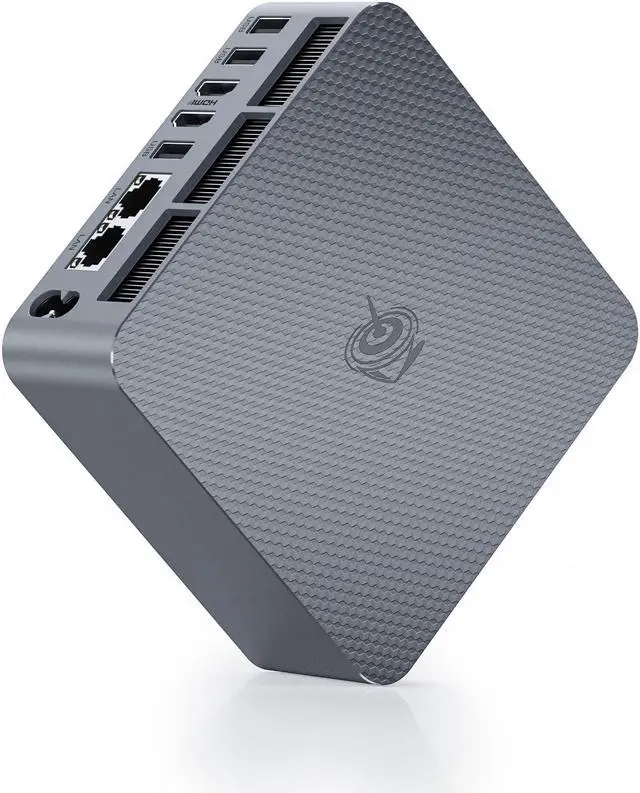
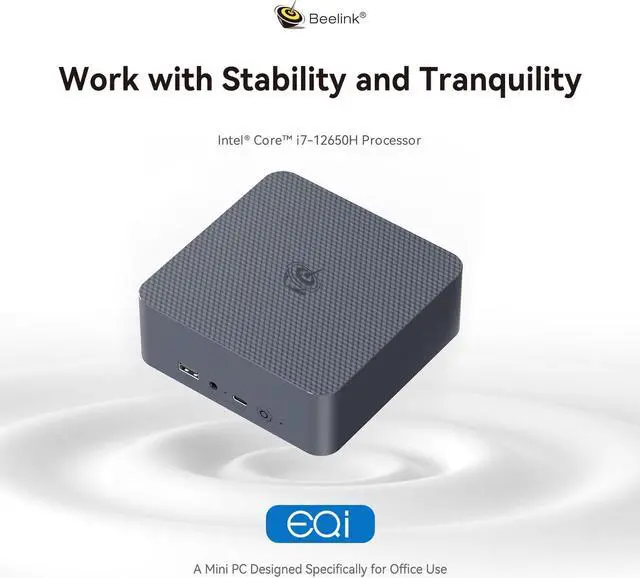
CPU: 12th Generation Intel Core i7 Processors 12650H Max Turbo Frequency 4.7G hz (10C/16T) 24 MB Intel Smart Cache
Graphics: Intel UHD Graphics
Memory: LPDDR5 24GB
RTC: Real-time Clock, Time Boot
Auto Power On: Support auto power on after electrified
Wake On LAN: Supported
TPM: Support TPM 2.0
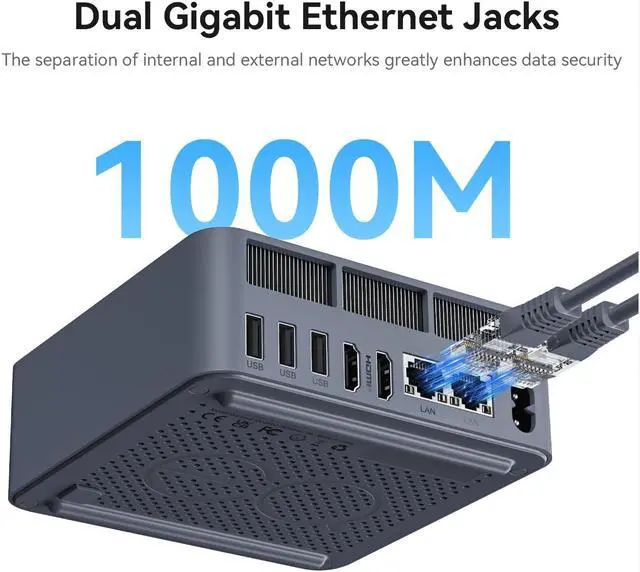
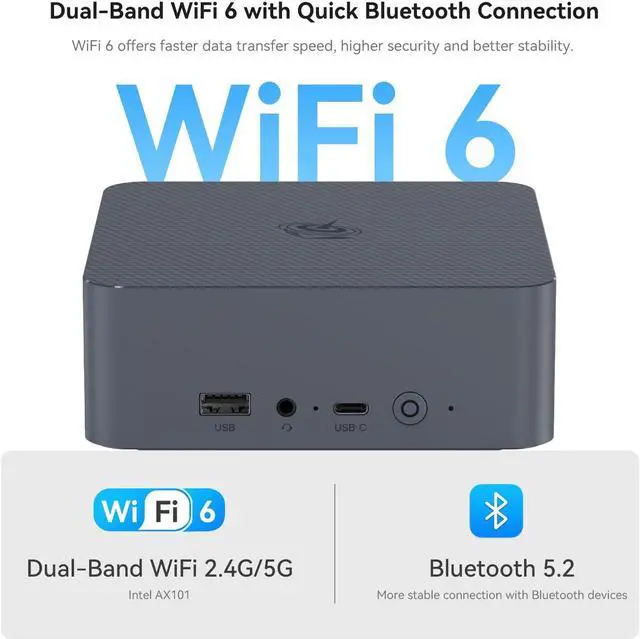
WIFI: Intel AX200, IEEE 802.11 ax
Bluetooth: Intel AX200, Support Bluetooth 5.2
Installation Tips
To avoid initial setup problems, the first time you use the Beelink Mini PC, follow the steps below to set it up.
1) Please do not connect the network or wifi until your mini computer's operating system is working.
Please remember not to fill in the email, skip this step, you can use the machine normally.
2) If you only use the wired network to connect the micro pc, please disconnect the wired network directly,
restart the machine, and connect to the network after successfully entering the operating system.
3) If you have connected to WIFI when it cannot load on OS, please turn off the router you are using.
Cautions
In order to continue improving the user experience, we may occasionally update the application and firmware.
* Do not use chemical solvents or aggressive cleaning products.
* Do not throw the product into fire to avoid accidents.
* Be aware of leaks when cleaning electronic components, be careful of electric shock.
* Check for frayed or damaged cables or plugs.
* Do not arbitrarily discard the product, we must protect the environment.
* Operating environment: -10degC-45, 30%-90% humidity.
* Storage environment: -20-60, 10%-90% humidity.
Excellent Service
1-Free replacement for one year.
Lifetime Technical Support.
Passed FCC, CE, ROHS safety certificates.
Questions & Answers
What do I need to be aware of when using this mini pc for the first time?
To avoid initial setup issues, the first time you use this mini pc,
don't connect network or wifi until the windows system of your mini pc is running.
How to enter BIOS?
Press "delete" to enter the BIOS settings; press "F7" to enter the boot options menu
(click continuously immediately after booting).
How to Switch the Audio Playback Device in Windows?
If your Windows Mini PC is connected to multiple audio playback devices
(e. g. speakers, headphones, webcams with built-in microphones, and Bluetoothheadsets)
simultaneously, you will need to choose one of them for audio playback.
Can I take the mini computer to other countries for use?
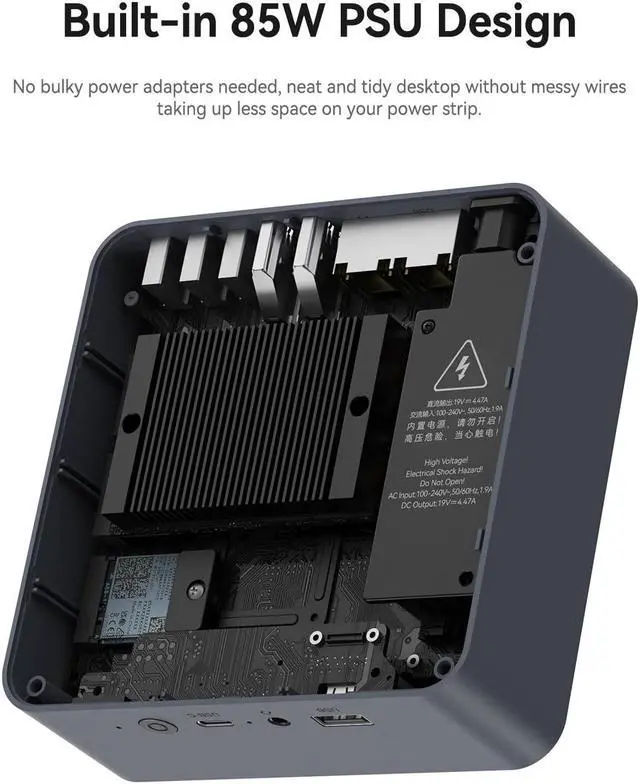
Of course, this beelink mini pc supports 100-240V, you can use a power converter.
If you need other specifications such as British regulations or European regulations,
please contact me and I can send the power cable to you for free.
Does the Beelink Mini PC have a built-in system?
The mini computer has a built-in universal system that meets the needs of more than 99% of people.
If you need other systems such as Linux, you can install the system yourself after receiving the mini pc.
What's in the box?
1 x Mini PC, 1 x HDMI Cable, 1 x Power Adapter, 1 x User Manual
After-sales Solutions
What to do if the machine cannot enter sleep mode?
1 Please disable startup in the power option. In Control Panel, click the Power Options. Select the Choose what the power buttons do.
Uncheck the "Turn on fast startup. " Click Save the changes.
2 Restore Default Power Plan Settings. Open the Control Panel on your PC by clicking on the Start button and by typing "Control Panel" in the search bar.
Select "Control Panel" from the list of search results. In the Control Panel, set your viewing mode to "Large icons" and then click on "Power Options. "
Find your current power plan and click on "Change plan settings" next to it. On the screen that opens, click on "Restore default settings for this plan. "
A prompt will appear asking if you're sure you want to restore the default settings. Click "Yes" to confirm your ac