




 here!
I’m your shopping assistant for PC builds, upgrades, and everything tech.
Got questions? Ask away!
Start a conversation
here!
I’m your shopping assistant for PC builds, upgrades, and everything tech.
Got questions? Ask away!
Start a conversation



Any questions? Ask CelesteSM will help you find out quickly.


Why is the M5 fan a bit noisy?
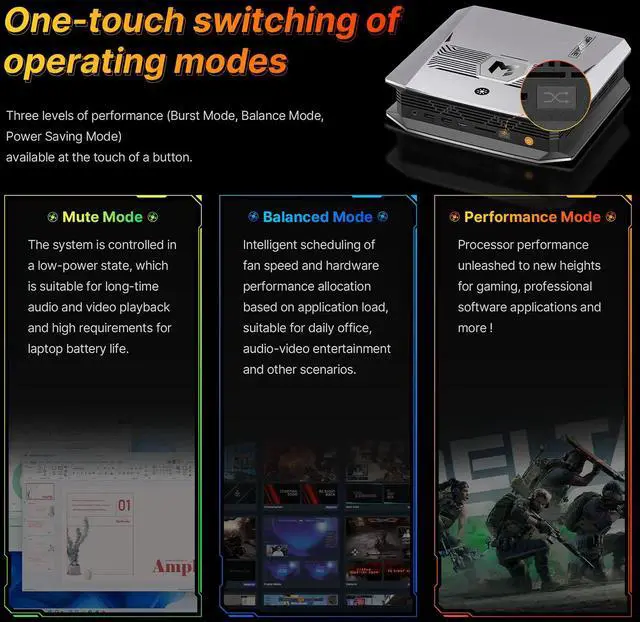
The device features multi-mode performance configurations, where the CPU adjusts performance and operational noise based on the active mode. The three main modes are as follows:
Green Mode: Prioritizes quiet operation, suitable for daily office tasks and light usage.
Green (Quiet Mode): Focuses on quiet operation and battery life, ideal for office work and low-load scenarios.
Yellow (Balanced Mode): Automatically balances performance and noise for everyday multitasking.
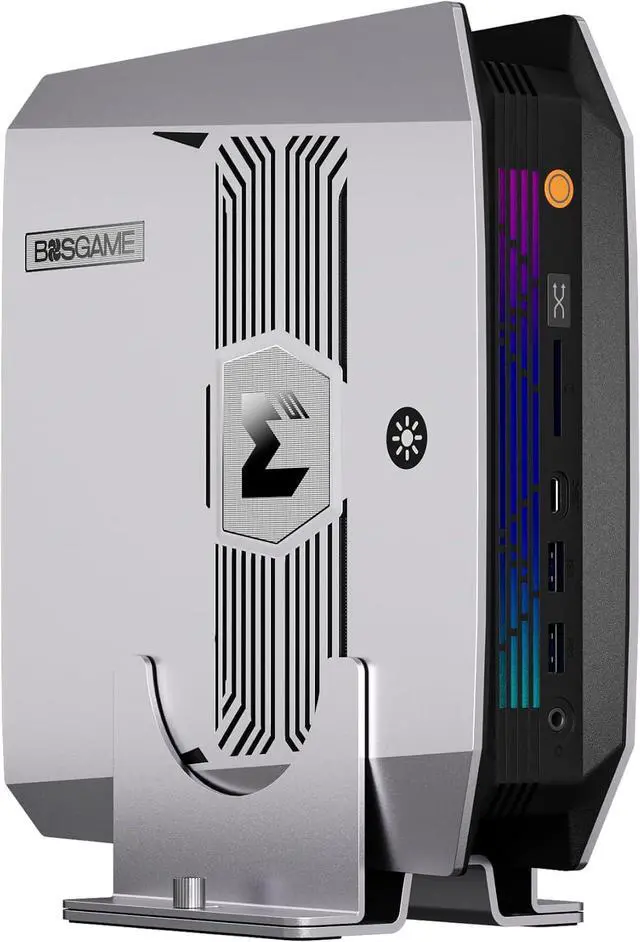
What is the significance of the three lights on the M5?
The lights represent the different modes the device operates in, indicating the active performance and noise settings based on the light color.
Removing the screws ensures that the Oculink interface on the motherboard is aligned with our port. Once your port can connect the Oculink cable, tighten the screws.
How should M5 memory be configured?
This product supports flexible cache allocation configuration with the following rules:
If the system memory is 96GB, a maximum of 48GB can be allocated as cache.
If the system memory is 128GB, a maximum of 96GB can be allocated as cache.
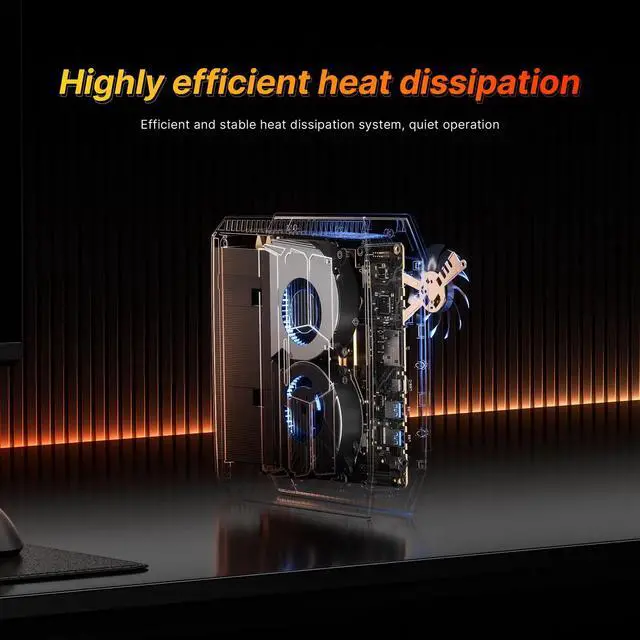
To achieve better heat dissipation, we recommend the following when using it:
To achieve better heat dissipation, we recommend the following when using it:
Place the device on a well-ventilated desktop, avoiding placing it in a closed cabinet or where it is obstructed by clutter;
Regularly clean the dust from the vents and fans;
If needed, consider using it with a small cooling pad.
What should I do if I'm unable to enter my PIN code?
Based on your description, here are two common issues and their solutions:
Issue 1: Only numbers can be entered when setting a PIN code.
Cause: The option to input letters and symbols may not be enabled by default in the PIN code settings interface.
Solution: In the PIN code settings interface, find and check the "Include letters and symbols" checkbox to set a complex PIN code that includes letters and symbols.
Issue 2: PIN code input has no effect at startup or system interface.
Solution: First, please try using a commonly used numeric PIN code for verification. If you still cannot unlock after multiple attempts, please note: Computers usually support both PIN codes and user passwords for verification. If you have forgotten your PIN code, you can log in to the system using your previously set system user password.
How can I find the integrated graphics card configuration (shared GPU memory)?
Press "Delete" to enter the BIOS. Then, under "Advanced," find "GFX configuration set to specified value" and the option will be unlocked.
How do I restore the internal SSD to factory settings?
Perform a System Restore Using the Video Guide: If you wish to restore your existing system, please refer to our video SOP specifically designed for system restore. The process is clear and intuitive. Video Link: https://www.youtube.com/watch?v=qvgVn5OcKAc
Download and Install a Fresh Operating System: If you find the restore process complex, or if your system has many problems, we recommend downloading and installing a fresh E2 system, which usually provides a cleaner experience. Download Address: Please visit the official support page: https://www.bosgame.com/pages/download-center. Installation Guide: You can find a detailed illustrated installation tutorial at the bottom of this page.
What should I do if I'm unable to enter BIOS?
Method 1: Rebooting from within Windows
On the Windows desktop, press and hold the Shift key on your keyboard.
While holding down the Shift key, click the "Start" menu, then select the "Power" button, and click "Restart".
After the computer restarts, you will enter a blue "Options" menu.
Select: Troubleshoot ? Advanced options ? UEFI firmware settings.
Finally, click the Restart button. The computer will directly enter the BIOS/UEFI settings interface upon the next startup.
Method 2: Entering via a key during startup
Completely shut down the computer.
After pressing the power button to turn it on, immediately begin rapidly and continuously pressing the Delete key (or F2, F10, or Esc key on some brands of computers).
Continue pressing until you enter the BIOS/UEFI settings interface.
We want to ensure your holiday shopping this year is hassle-free. That’s why we’re automatically extending our return policies on almost every product! For purchases placed between November 1st, 2026 and December 31, 2026 you will have until January 31, 2027 to return your product.
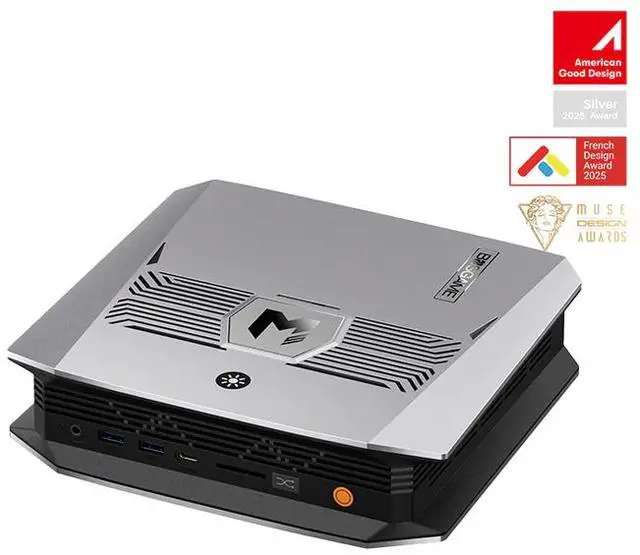
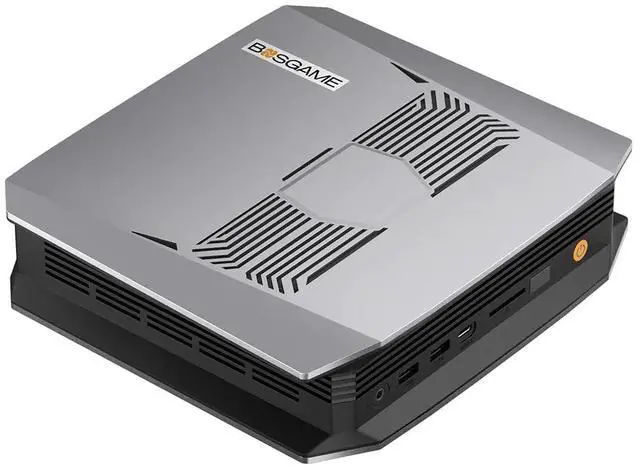
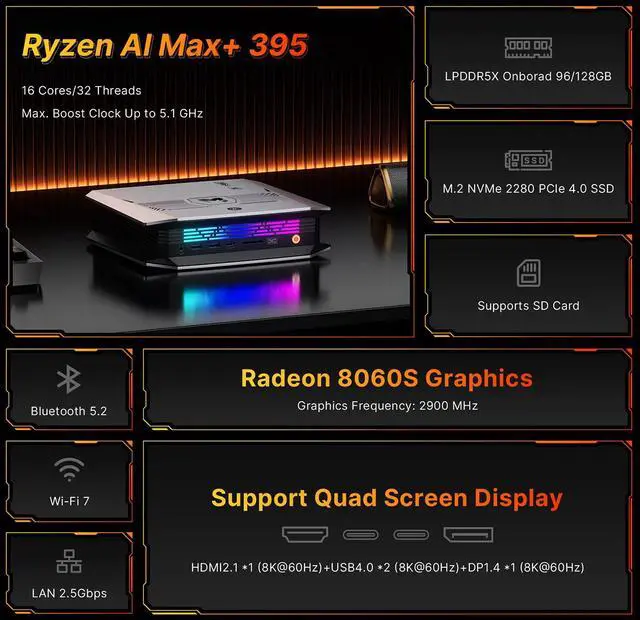
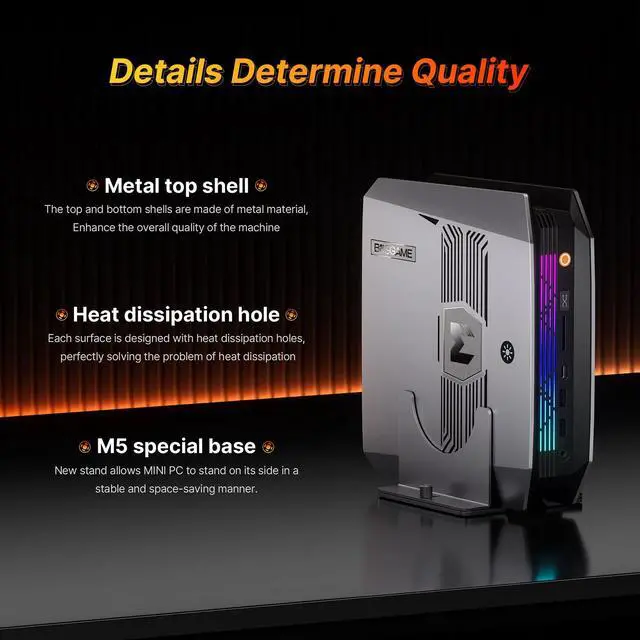
The BOSGAME M5 is a high-performance mini desktop PC for users who want workstation-class memory and storage in a compact system, making it well suited for AI-ready workloads, multitasking, home office use, and high-resolution multi-display setups.
| Attribute | Value |
|---|---|
| Best For | Compact Mini PC for consumer and gaming/home use with AI-ready capabilities, suited to mainstream productivity, multimedia and gaming on Windows 11 Pro |
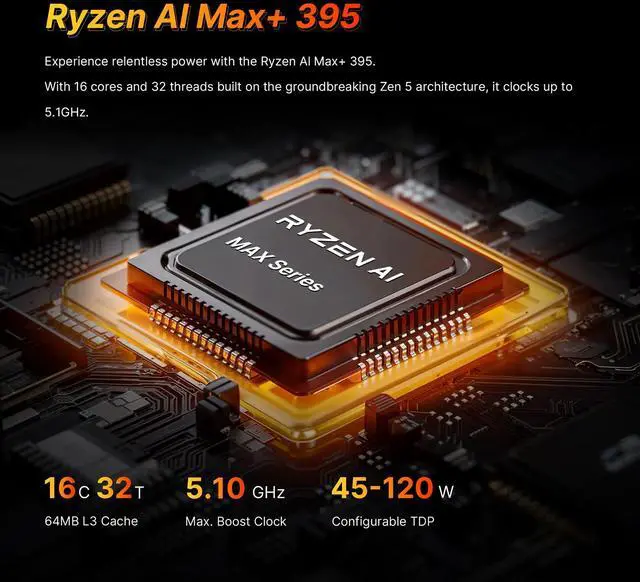
| Processor And Cache | AMD Ryzen AI Max+ 395 processor (Ryzen AI platform) with 16 MB L2 cache and 64 MB L3 cache |
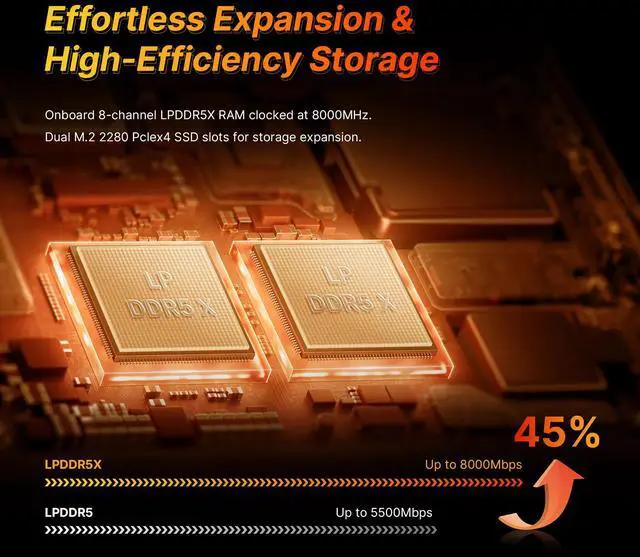
| Memory Configuration | 128GB LPDDR5X onboard memory |
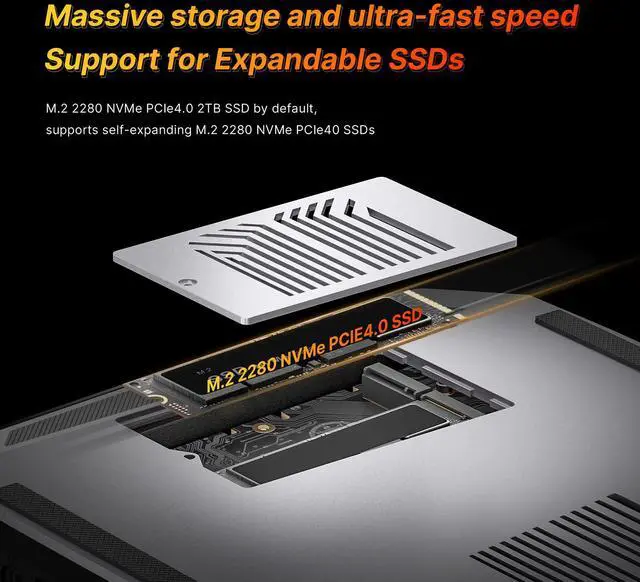
| Storage And Expansion | 2TB PCIe 4.0 M.2 NVMe SSD |
| Graphics | AMD Radeon 8060S graphics |
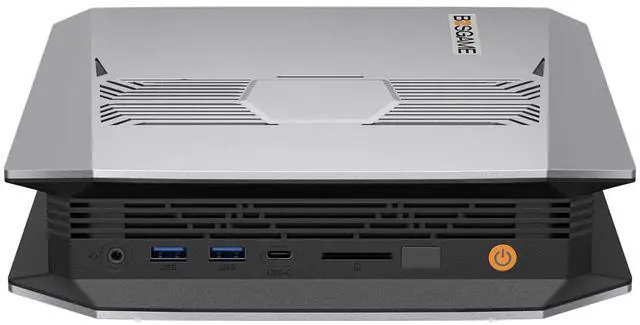
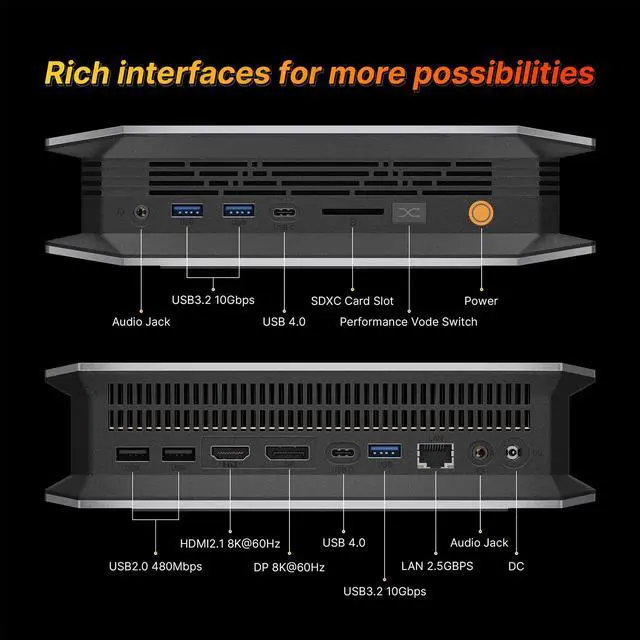
| Ports And Connectivity | I/O includes 2 x USB4 (front), 1 x HDMI 2.1 and 1 x DisplayPort 1.4 for external displays, plus 1x RJ45 Ethernet port |
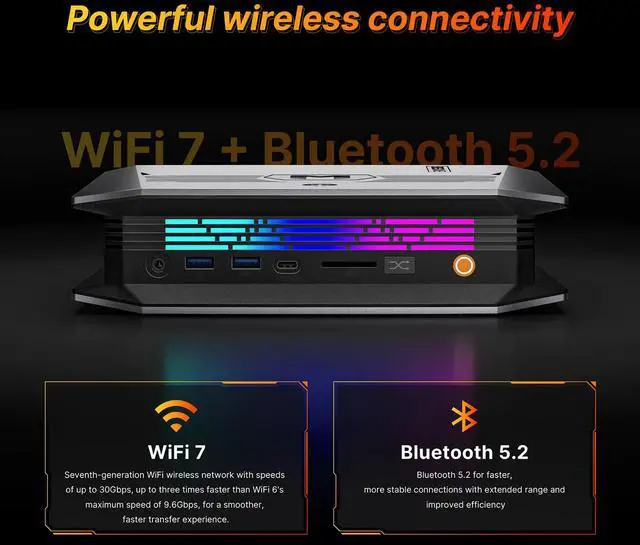
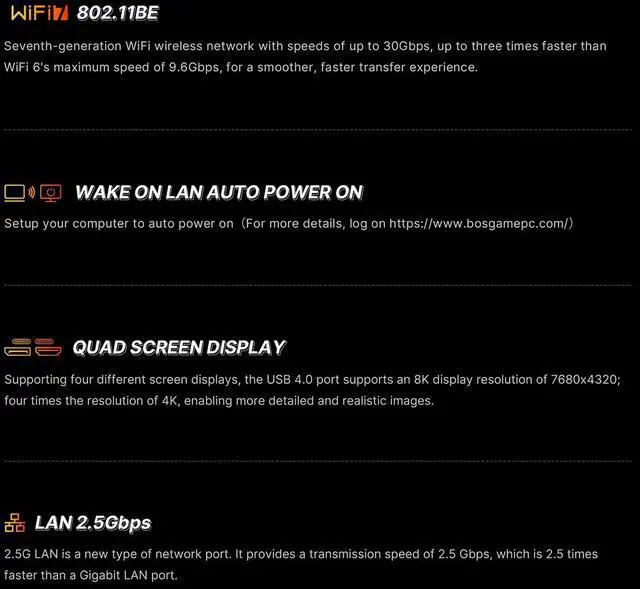
| Wired And Wireless Networking | 2.5Gbps wired Ethernet and 802.11be (Wi‑Fi 7) wireless with Bluetooth 5.4 |
| Power And Physical | 240W power supply; dimensions 7.83 x 8.7 x 2.05 inches; weight 2.95 lbs |
| Operating System | Windows 11 Pro |
| Model Identifiers | BOSGAME, Series M5, Model MINIPC-M5-Max+395-1282T-US |
| Package Contents | Includes Mini M5, VESA mount, HDMI Cable (100cm +/- 10cm), user guide, 10 screws and product manual |
Q: Should I choose the BOSGAME M5 or Framework Desktop if both use Ryzen AI Max+ 395?
A: Choose the BOSGAME M5 if you want a more appliance-style mini PC with the same core AMD platform already configured with 128GB memory and 2TB storage. Choose Framework Desktop if you value a more modular desktop approach, broader I/O, and stronger official positioning around local AI workflows. In practice, both target the same Ryzen AI Max+ 395 use case: compact systems that combine a 16-core CPU, Radeon 8060S graphics, and large unified memory for gaming, creator work, and local AI. The main trade-off is system design and expandability rather than processor class.
Q: Is the BOSGAME M5 a better fit than a Ryzen AI 9 HX 370 mini PC?
A: Choose the BOSGAME M5 when you want a clear step up for heavier multitasking, stronger integrated graphics, and large-memory local AI use. Ryzen AI Max+ 395 moves to 16 cores and Radeon 8060S graphics, while HX 370 systems are typically aimed at lower-cost, lower-power mini PCs with less graphics headroom and less memory capacity. An HX 370 mini PC is the more practical choice when size, price, and everyday office use matter more than high-end integrated GPU performance or 128GB unified memory.
Q: Is 128GB on the BOSGAME M5 worth it over a 64GB version of the same class of mini PC?
A: Choose the 128GB BOSGAME M5 if you specifically plan to run larger local AI models, assign more memory to the integrated GPU, or keep many heavy workloads open at once. Across official AMD messaging and reviews of other Ryzen AI Max+ 395 systems, 128GB is the configuration most often associated with local LLM use because the unified memory pool can be shared between CPU and GPU. A 64GB configuration is usually enough for gaming, productivity, media work, and lighter AI experiments, so the upgrade makes the most sense when memory capacity is the buying priority.
Q: Should I buy the BOSGAME M5 instead of a compact desktop with a dedicated RTX 4060-class GPU?
A: Choose the BOSGAME M5 when you want one compact system for CPU work, strong integrated graphics, and large shared memory for local AI without adding a separate GPU. Choose an RTX 4060-class desktop when gaming is the main goal, especially if you want stronger ray tracing, game-specific features such as DLSS, or easier future GPU upgrades. Reviews and testing around Ryzen AI Max+ 395 show that Radeon 8060S is unusually capable for integrated graphics, but it is still a different value proposition from a conventional desktop with a discrete gaming GPU.
Q: Is the BOSGAME M5 better for portability than a traditional small-form-factor desktop?
A: Choose the BOSGAME M5 if you want maximum performance in a smaller, simpler mini-PC footprint that is easy to place on a desk, behind a display, or move between rooms. A traditional small-form-factor desktop is the better choice if you want more internal expansion, standard desktop parts, or a future discrete GPU path. The practical trade-off is that the BOSGAME M5 is more space-efficient, while a larger SFF desktop usually offers more upgrade flexibility.
Q: Is this a good mini PC for office work, meetings, and heavy multitasking?
A: Yes. For office work, video meetings, browser-heavy workflows, and multitasking, this BOSGAME M5 is far above typical mini PC requirements. It includes a high-end Ryzen AI Max+ 395 processor, 128GB of memory, a 2TB SSD, Windows 11 Pro, and modern wireless and wired connectivity. The main trade-off is that it is likely overpowered and expensive if your workload is only email, documents, and web apps.
Q: Can it run multiple monitors well?
A: Yes. This model is well suited for multi-monitor setups because it offers HDMI 2.1, DisplayPort 1.4, and two USB4 ports, with the product listing stating support for up to four simultaneous 8K displays. For buyers choosing between mini PCs, display support is a repeated decision point on retail Q&A pages, and this BOSGAME configuration is stronger than the typical two- or three-display mini PC setup.
Q: Who is this mini PC best suited for?
A: It is best suited for buyers who want a compact desktop for demanding workloads: AI experimentation, large multitasking loads, content creation, high-resolution multi-display work, and integrated-graphics gaming. It is less suitable for budget buyers or users who only need a basic home-office PC, because the hardware is much higher than standard mini PC needs.
Q: Is it a good choice as a travel or space-saving work desktop?
A: Yes, if you want desktop-class capability in a compact body and can live without a built-in screen or battery. At about 2.95 lbs and under 9 inches wide, it is much easier to move than a tower PC, and mini PCs are commonly chosen for tight desks, shared workspaces, or portable desk setups. The trade-off versus a laptop is that you still need external power, a monitor, and peripherals.
Q: What are the main trade-offs versus a traditional desktop or an upgradeable mini PC?
A: The main advantages are size, modern connectivity, and very high built-in specs. The main trade-offs are likely price and lower upgrade flexibility than a full tower. This model includes 128GB LPDDR5X onboard memory, which is excellent for capacity but typically not as user-upgradeable as socketed desktop RAM. Buyers who prioritize future internal upgrades may prefer a larger desktop or a mini PC that uses replaceable SO-DIMM memory.
Q: Is the BOSGAME M5 a good choice for local AI and LLM use?
A: Yes, if your priority is running larger local AI workloads on an integrated system. Reddit and YouTube discussion around Ryzen AI Max+ 395 mini PCs repeatedly focuses on the value of high unified memory for local inference, and this model pairs that platform with 128GB LPDDR5X and Radeon 8060S graphics. The main trade-off is that it is still an iGPU-based mini PC, so buyers should expect strong local inference flexibility rather than workstation-class discrete-GPU performance.
Q: Who is the BOSGAME M5 most suitable for?
A: It is most suitable for users who want a very compact desktop for AI experimentation, heavy multitasking, content work, or a clean multi-monitor setup without adding a separate GPU. Based on the product specs and the way Reddit and YouTube users discuss this class of system, it fits developers, creators, and power users better than typical office or casual home buyers. It is likely over-specced for basic browsing, documents, and media playback.
Q: Can the BOSGAME M5 replace a larger desktop PC?
A: For many CPU-heavy, memory-heavy, and multi-display workloads, yes. The Ryzen AI Max+ 395, 128GB memory, 2TB SSD, USB4, HDMI 2.1, DisplayPort 1.4, and Wi‑Fi 7 make it viable as a primary compact desktop. The limit is expandability: memory is onboard, graphics are integrated, and the product is better viewed as a high-end small-form desktop than as a modular upgrade platform.
Q: What are the main trade-offs of buying the BOSGAME M5?
A: The main trade-offs are limited upgradeability and value uncertainty versus competing Ryzen AI Max+ 395 mini PCs. Community discussions around this platform repeatedly compare nearly identical systems from different brands, so buyers tend to weigh price, cooling, ports, support, and storage expansion more than raw chip differences. This model includes a large 128GB memory configuration and extra M.2 expansion, but the RAM is onboard and cannot be upgraded later.
Q: Is the BOSGAME M5 worth buying for general home or office use?
A: Usually no, unless you specifically want its AI, memory, or compact high-performance advantages. For ordinary office, note-taking, web, and media tasks, this hardware is far beyond typical needs. It makes more sense for buyers who know they will use the 128GB memory, fast integrated graphics, multi-display support, or local AI capability; otherwise a cheaper mini PC is the more practical choice.


