Your Browsing History
- In Stock
- Sold by Newegg
- AI Ready
- Make an Offer
- New
- Combo Deals Only

Any questions? Our AI mode will help you find out quickly.
Try me now

Quick View
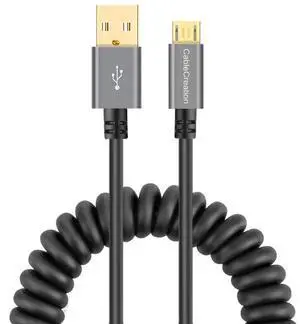
Space Gray Coiled USB 2.0 A to Micro USB Cable, Retractable 0.56ft-4ft Charging & Data Cord for Android Phones, Tablets, Raspberry Pi Zero & Car Charger
Limited time offer, ends 10/08
- Model #: C24W- USB826
Quick View
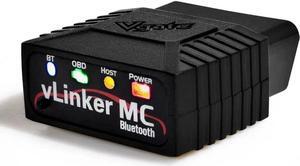
Vgate vLinker MC Bluetooth OBD2 Diagnostic Scanner for Android & Windows
- Type: type
- Model #: TauR885580025687
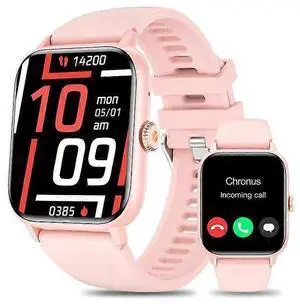
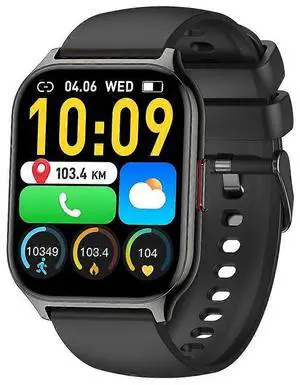
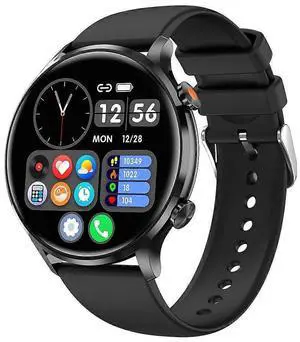
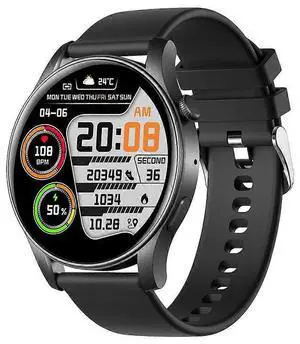
Quick View
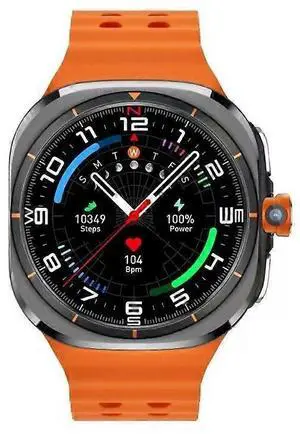
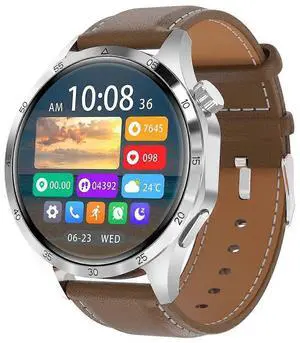
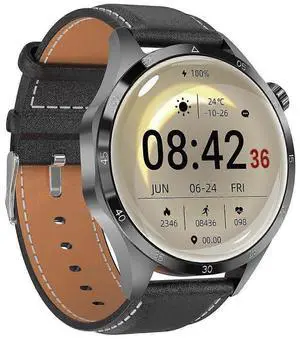
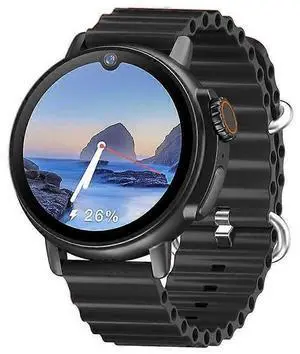
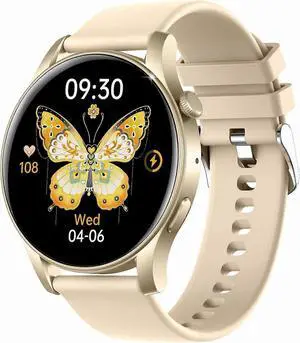
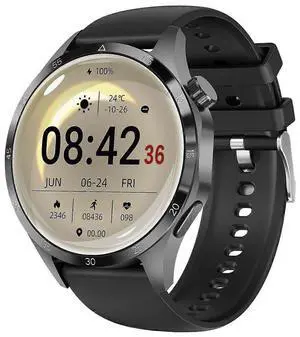
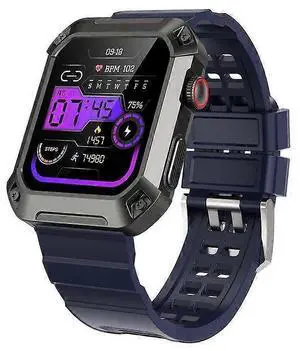
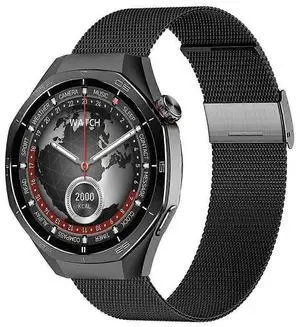
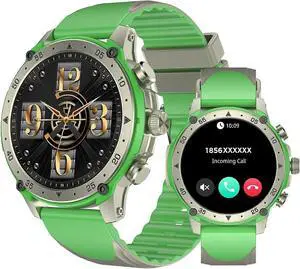
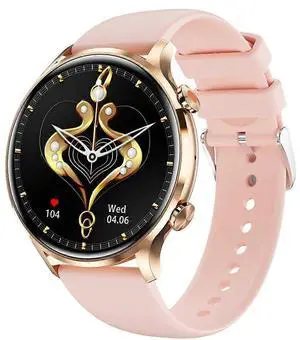
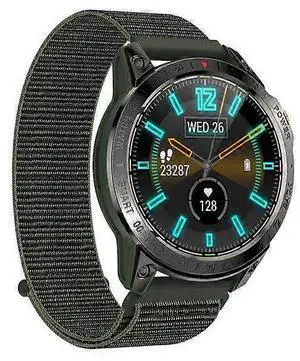
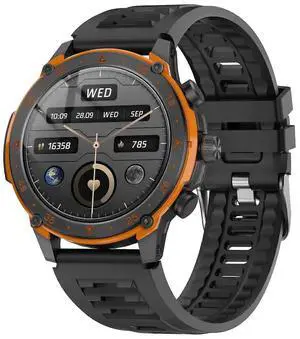
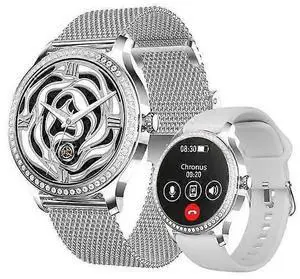
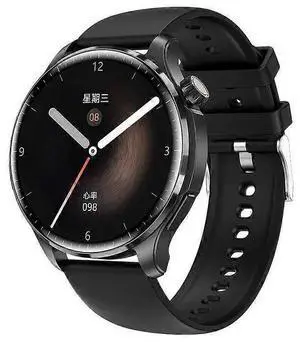
Ecocleanpath S2 Military Smart Watch: 1.82" Rugged, 5ATM Waterproof, 60-Day Battery for Android & iPhone
- Model #: 6925110630876
- $63.99
- $54.99 –
- Save: $9.00 (14%)
- More options from $54.98
- Free Shipping

Quick View
USB Extender Over Ethernet 200ft USB2.0 HUB RJ45 Cat5e/6 up to 480Mbps with Power Adapter Two Cameras Work in Sync Support Windows MacOS Android Linux
- Type: USB Wi-FI Adapter
- Model #: 888134317160ABC
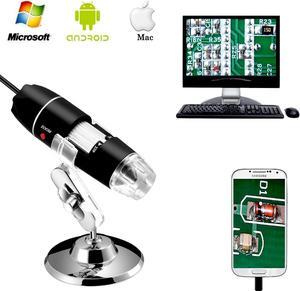
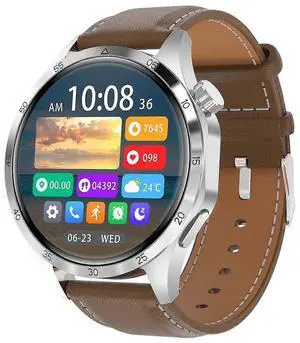
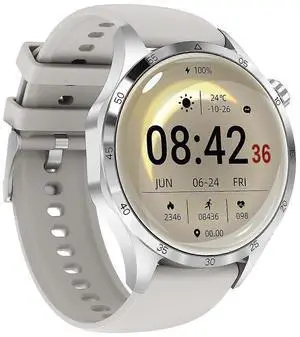
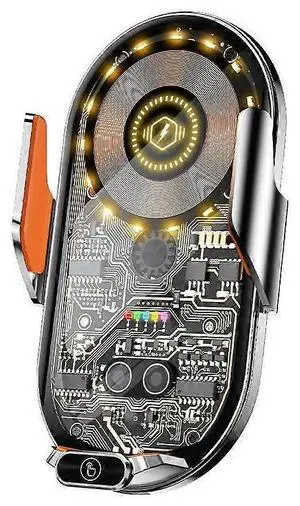

Quick View
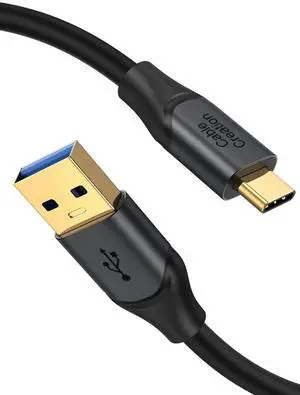
5FT/1.5m CableCreation USB A to USB C Cable, USB 3.2 Gen2 10Gbps Data Cord, 3A Fast Charging for Android Auto, External SSD, MacBook, iPhone 15/16, Galaxy S24/S23+
Limited time offer, ends 10/08
- Model #: C24W- USB1081