Your Browsing History
- Free 30-day Returns
$400.99
Meet Your Seller
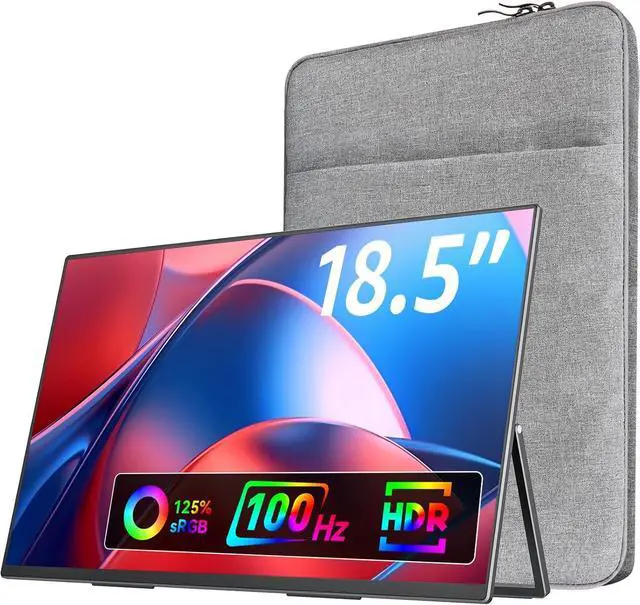
VisionOwl Portable Monitor for Laptop, IPS USB-C HDMI Travel Second Monitor for MacBook Pro Air, PC, PS5, Xbox, Portable Second Screen, Built-in Kickstand, Speakers, VESA Mountable, 18.5 Inch
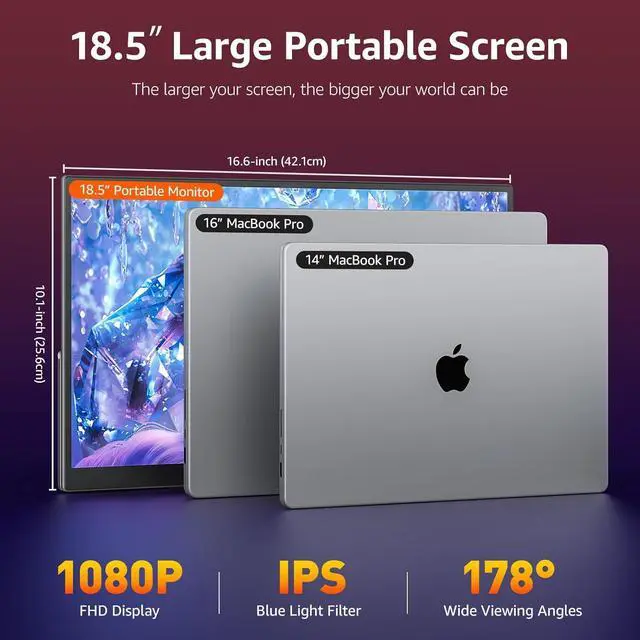
- 18.5-inch Large Screen, Lightweight: Equipped with an 18.5-inch 1080p FHD IPS large screen, the VisionOwl portable gaming monitor was designed to create a larger viewing experience. Weighing only 2.7 Lb, 0.24-inch in minimum thickness, and 0.55-inch in maximum thickness, the VisionOwl portable monitor can also be easily carried for travel, work, or relocation
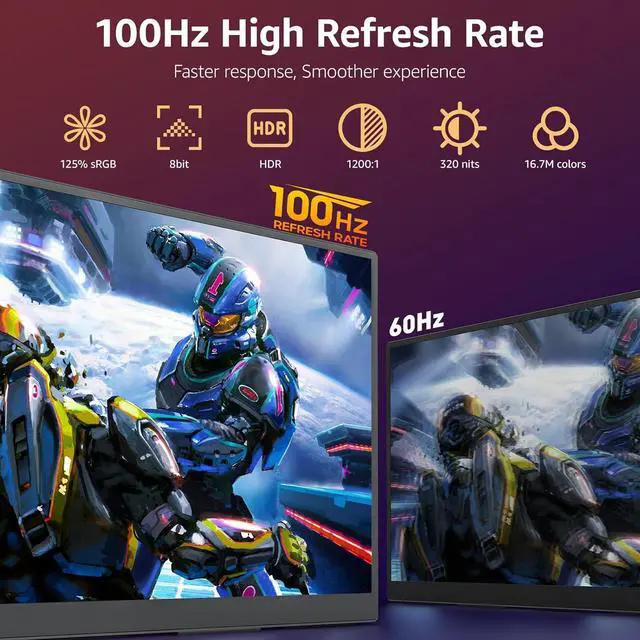
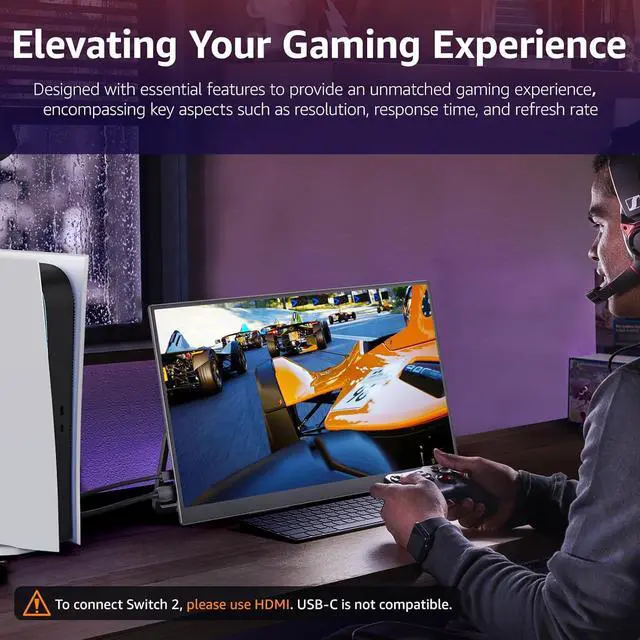
- 100Hz High Refresh Rate Monitor: Compared to low refresh rate monitors, the VisionOwl external monitor for laptop with a 100hz high refresh rate features 125% sRGB (88%NTSC) and 8-bit color depth with 16.7M colors. It is able to provide a smoother and more exciting gaming experience by displaying more frames per second and reducing lag and motion blur, allowing you to gain an advantage over opponents in the game
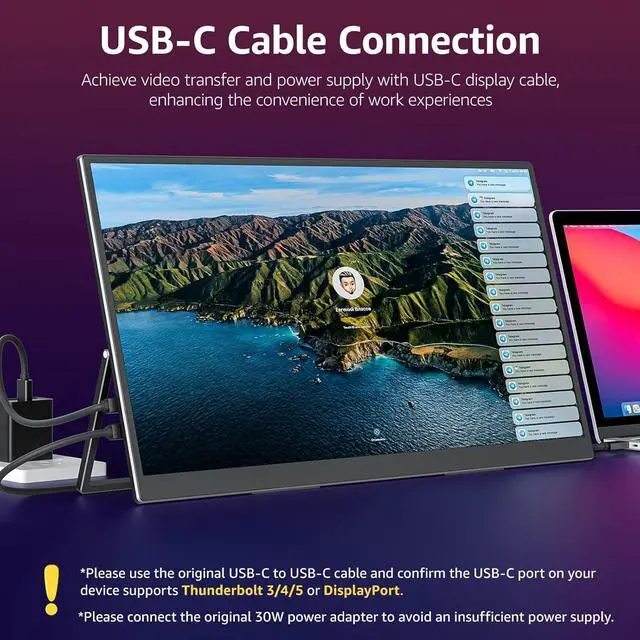
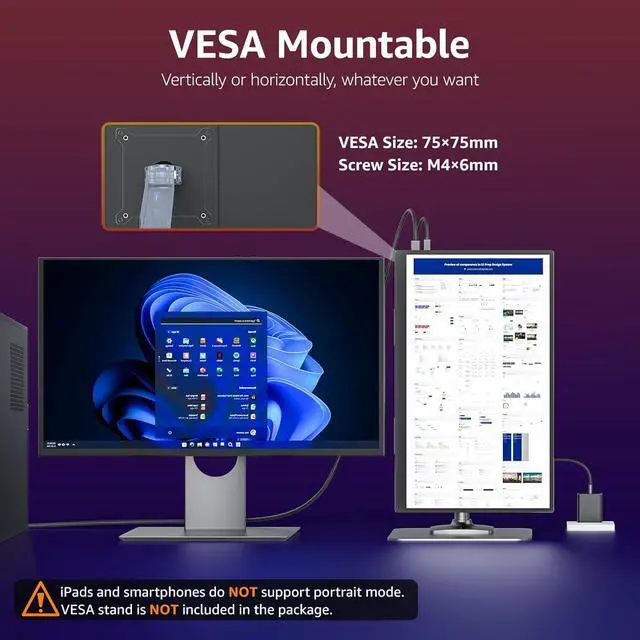
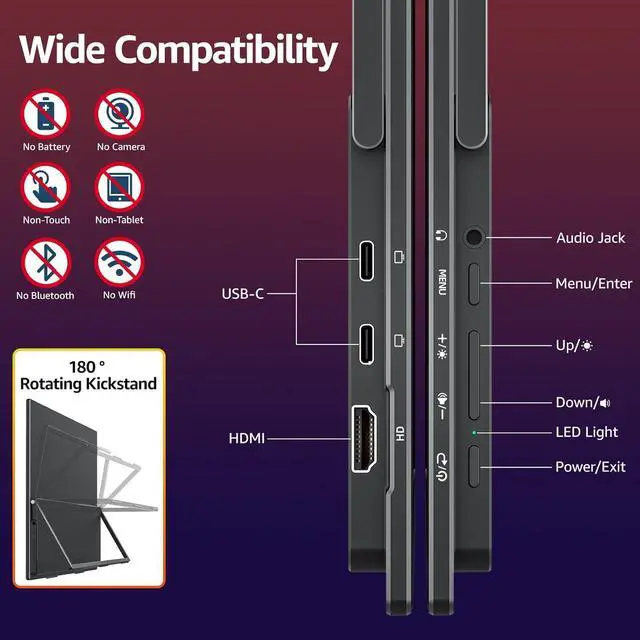
- Wide Compatibility, Well Designed: With two USB-C ports and one upgraded standard HDMI port, the VisionOwl portable screen can be easily connected to any major device on the market, such as all Apple MacBooks, Surface,
+
+
Overview
Specs
Reviews
Any questions? Ask CelesteSM will help you find out quickly.
Try me now
1Extended Mode2Duplicate Mode3Single Screen4Travel Monitor5What's in the Box What should I do if the monitor flickers, looks dim, or appears blurry?
Flickering: Use the included power adapter to provide sufficient power.
Dim or blurry: Reset the monitor in the OSD menu, then increase the brightness and adjust the resolution as needed.
Why doesn't it work when I connect the monitor with my device by my own USB-C to USB-C cable?
1. Use the included USB-C to USB-C display cable. Some cables do not support video.
2. Ensure laptop USB-C port supports Thunderbolt/DP Alt Mode.
3. For work laptops, restart first. If blocked by security settings, contact your IT for permission.
My Android phone has a USB-C port, does this monitor work with my phone/tablet by the original USB-C to USB-C cable?
These Samsung phones (Galaxy S8/S9/S10/S20/S21/S22series; Galaxy Note8/9/10/20series; Galaxy Fold, Z Fold 2/3/4) can work with monitor by our original USB-C cable.
Other phones/tablets need HDTV cable for the connection.
How do I connect an iPhone to the monitor?
1. iPhone 15/16 series (except iPhone 16e) can connect directly using the included USB-C to USB-C cable.
2. iPhones with a Lightning port require an Apple Lightning Digital AV Adapter.
(Please power the monitor separately to ensure sufficient power.)
Is this monitor compatible with Switch/Switch 2?
1. It is compatible with the first-generation Nintendo Switch.
2. For Switch 2, USB-C video connection is not supported. Connect the monitor to the HDMI port on the Switch 2 dock, and power the monitor with the included power adapter.
What should I do if the monitor flickers, looks dim, or appears blurry?
Why doesn't it work when I connect the monitor with my device by my own USB-C to USB-C cable?
My Android phone has a USB-C port, does this monitor work with my phone/tablet by the original USB-C to USB-C cable?
How do I connect an iPhone to the monitor?
Is this monitor compatible with Switch/Switch 2?

Flickering: Use the included power adapter to provide sufficient power.
Dim or blurry: Reset the monitor in the OSD menu, then increase the brightness and adjust the resolution as needed.
Why doesn't it work when I connect the monitor with my device by my own USB-C to USB-C cable?
1. Use the included USB-C to USB-C display cable. Some cables do not support video.
2. Ensure laptop USB-C port supports Thunderbolt/DP Alt Mode.
3. For work laptops, restart first. If blocked by security settings, contact your IT for permission.
My Android phone has a USB-C port, does this monitor work with my phone/tablet by the original USB-C to USB-C cable?
These Samsung phones (Galaxy S8/S9/S10/S20/S21/S22series; Galaxy Note8/9/10/20series; Galaxy Fold, Z Fold 2/3/4) can work with monitor by our original USB-C cable.
Other phones/tablets need HDTV cable for the connection.
How do I connect an iPhone to the monitor?
1. iPhone 15/16 series (except iPhone 16e) can connect directly using the included USB-C to USB-C cable.
2. iPhones with a Lightning port require an Apple Lightning Digital AV Adapter.
(Please power the monitor separately to ensure sufficient power.)
Is this monitor compatible with Switch/Switch 2?
1. It is compatible with the first-generation Nintendo Switch.
2. For Switch 2, USB-C video connection is not supported. Connect the monitor to the HDMI port on the Switch 2 dock, and power the monitor with the included power adapter.
What should I do if the monitor flickers, looks dim, or appears blurry?
Why doesn't it work when I connect the monitor with my device by my own USB-C to USB-C cable?
My Android phone has a USB-C port, does this monitor work with my phone/tablet by the original USB-C to USB-C cable?
How do I connect an iPhone to the monitor?
Is this monitor compatible with Switch/Switch 2?
Warranty & Returns
Warranty, Returns, And Additional Information
Warranty
- Please contact the Seller directly for warranty information. Warranty information may also be found on the Manufacturer's website.
- CONTACT
Return Policies
- Return for refund within: 30 days
- Return for replacement within: 30 days
- This item is covered by XinjintongLimited Return Policy
Manufacturer Contact Info
- For a directory of all our manufacturers, please click below.
- Manufacturers Directory
LOADING...