










ROG Gjallar

Unleash Your Cinematic Arena
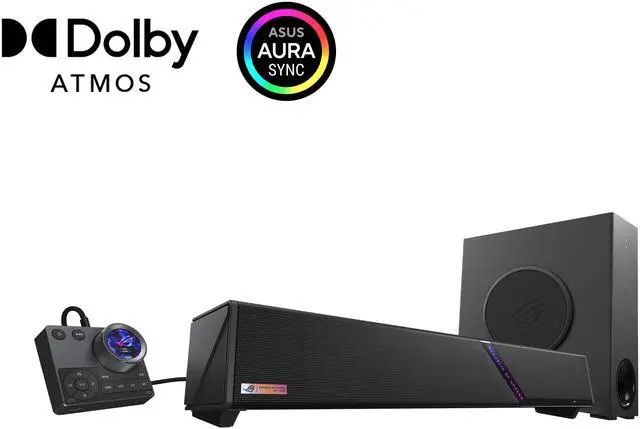
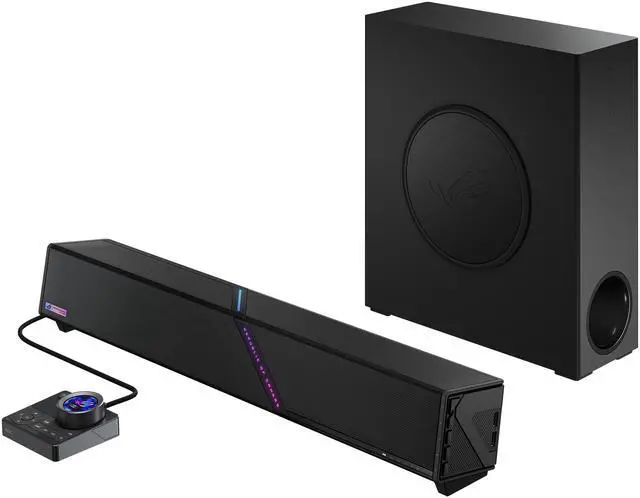
Streamline your gaming setup with the ROG Gjallar gaming soundbar and wireless subwoofer for immersive, cinematic Dolby Atmos® audio. Inspired by the legendary Gjallarhorn from Norse mythology, the ROG Gjallar (pronounced ‘ga-lar’ ) delivers powerful and commanding sound for an expansive soundstage coverage.
The ROG Gjallar also features built-in Acoustic Echo Cancellation (AEC) microphones for clear communication, an all-in-one control hub, and multi-platform connectivity. Engineered for ultimate control and convenience, it allows you to switch between gaming and entertainment without ever swapping devices.
Compact Form Factor
The compact form factor of the ROG Gjallar allows it to fit perfectly under any display. Blending ROG aesthetics with high-end audio performance, it’s the ideal companion for any gaming rig.


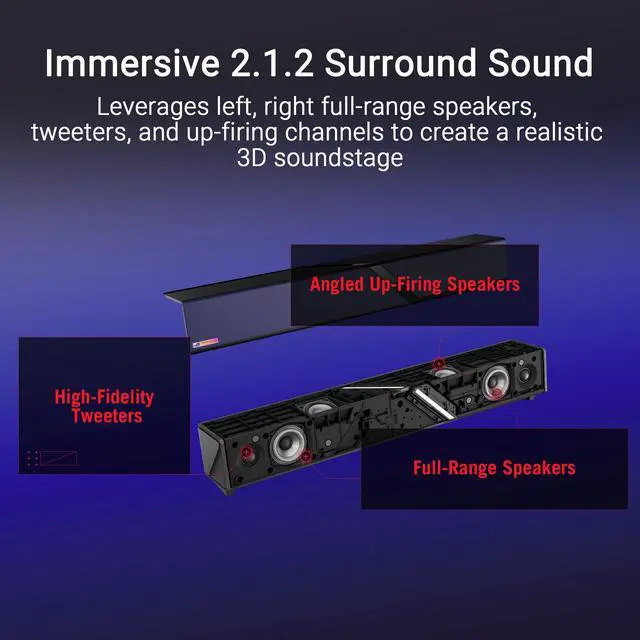
Immersive 2.1.2 Surround Sound
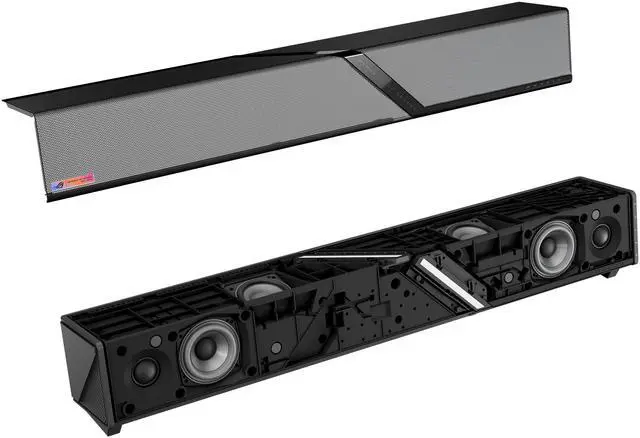
Engineered with full-range drivers, dedicated tweeters, up-firing channels, and a wireless subwoofer, the ROG Gjallar creates a phantom, realistic 3D soundstage for truly lifelike immersion.

Dolby Atmos® Cinematic Experience
Powered by Dolby Atmos, experience cinematic audio with unmatched tactical clarity. Pinpoint incoming planes flying overhead, sense footsteps moving across the room, and feel the music swell all around you. The ROG Gjallar breathes life into every game, movie, and soundtrack—placing you directly at the center of the action.

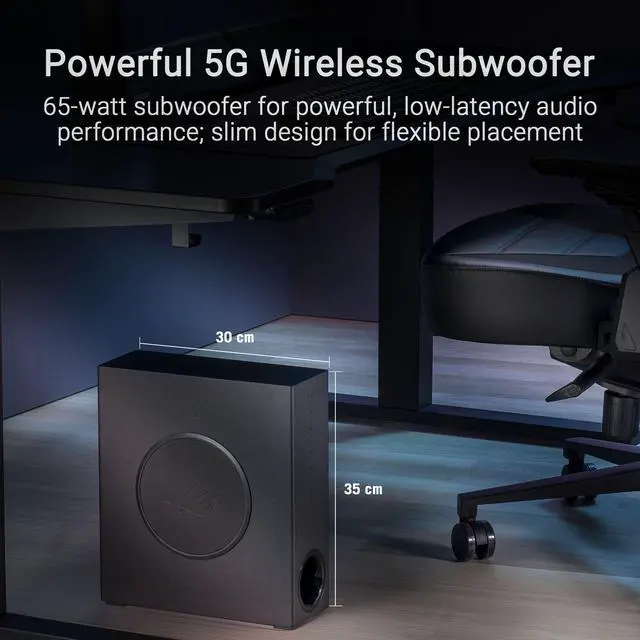
Powerful 5GHz Wireless Subwoofer
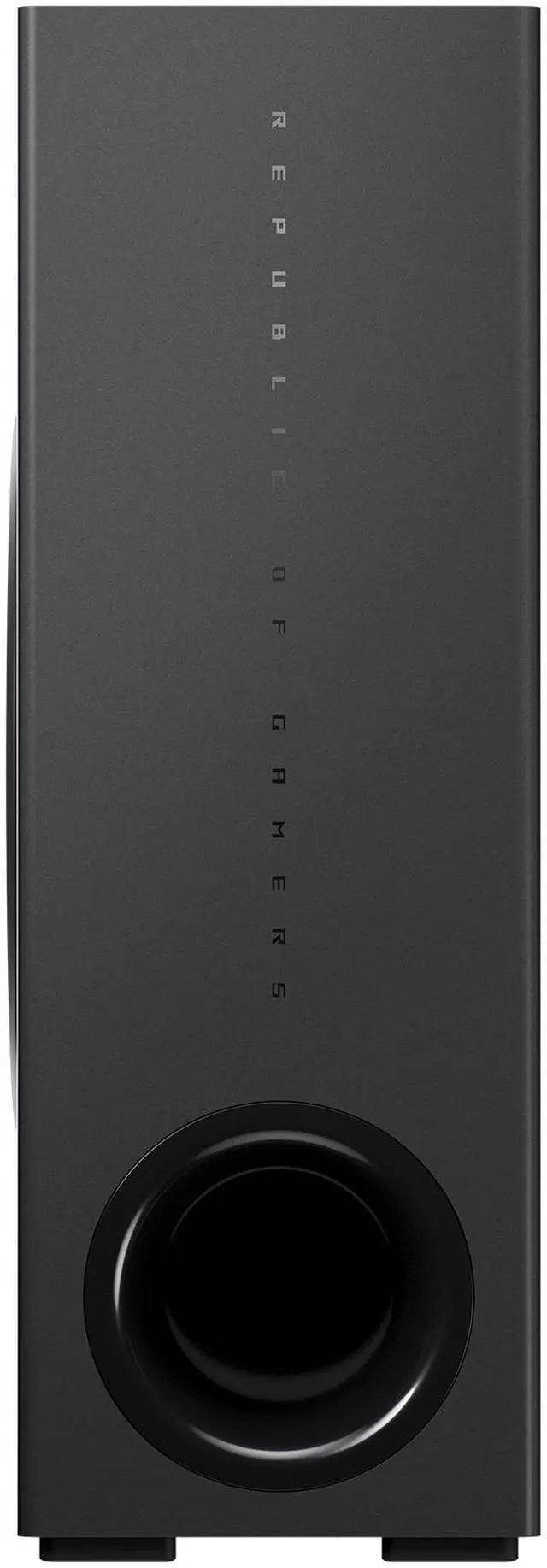
The 6.5-inch 65-watt subwoofer delivers rich low-end frequencies, bringing impactful bass and cinematic audio to explosions and other effects. Plus, 5GHz connectivity ensures reliable, low-latency audio performance. The subwoofer’s slim profile and wireless connection allow for flexible, convenient placement and a clean, cable-free environment.
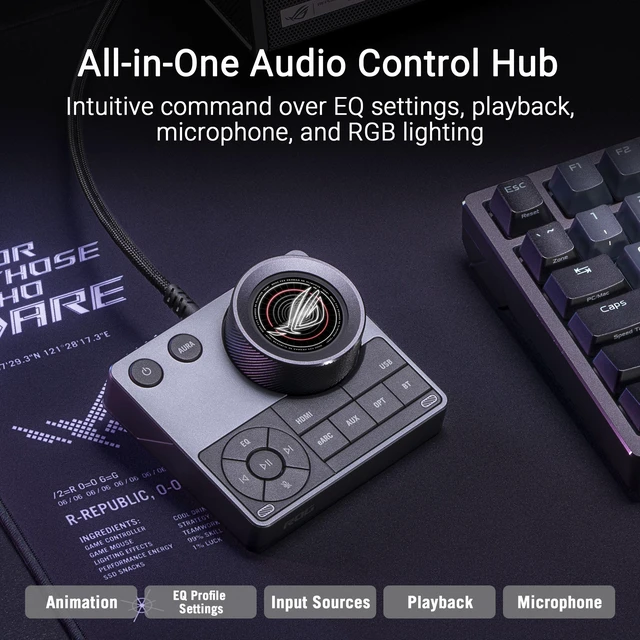
All-in-One Audio Control Hub
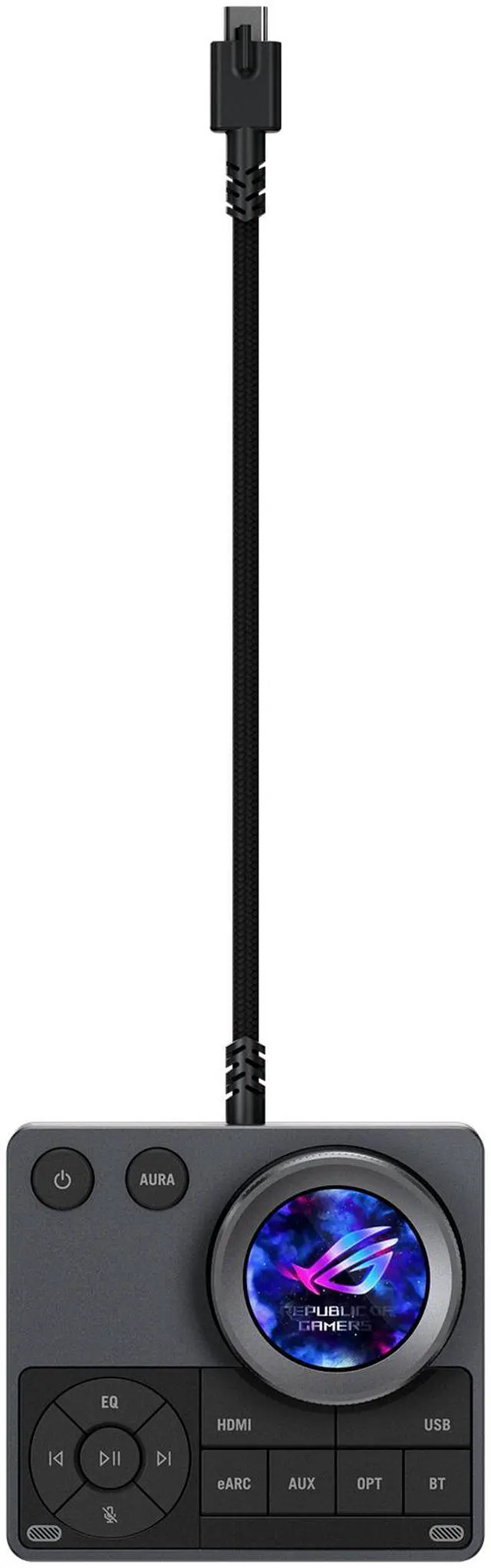
The multi-function control hub provides intuitive command over EQ settings, playback, and RGB lighting. Its vibrant LCD display offers a seamless interface, allowing you to toggle between input sources and switch between EQ profiles optimized for gaming, music, or movies. Plus, the built-in microphones are powered by advanced Acoustic Echo Cancellation (AEC) technology, so your voice always stays sharp and free from background echoes.
Volume
Microphone
EQ Profile Settings
Input Source


Advanced Built-in AEC Microphone
Featuring a dedicated digital signal processor, the integrated microphones leverage Acoustic Echo Cancellation (AEC) to intelligently filter out teammate voices and in-game sound coming from speakers to ensure echo-free, clear communication. Further enhanced by an AI beamforming algorithm, the microphones optimize directional capture and suppress ambient noises to enable exceptionally clear, natural voice pickup.
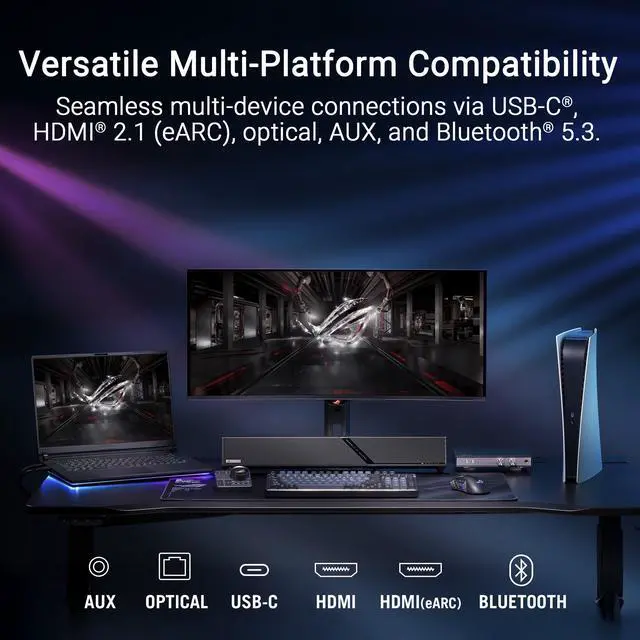
Versatile Multi-Platform Compatibility
Seamless multi-device integration is facilitated via USB-C, HDMI 2.1 (eARC), optical, AUX, and Bluetooth 5.3. Connect to a dedicated DAC for high-fidelity audio or switch effortlessly between PC, Mac, mobile devices, and PlayStation®, Xbox, or Nintendo Switch™ consoles.

AUX

OPTICAL

USB-C

HDMI
HDMI (eARC)

BLUETOOTH


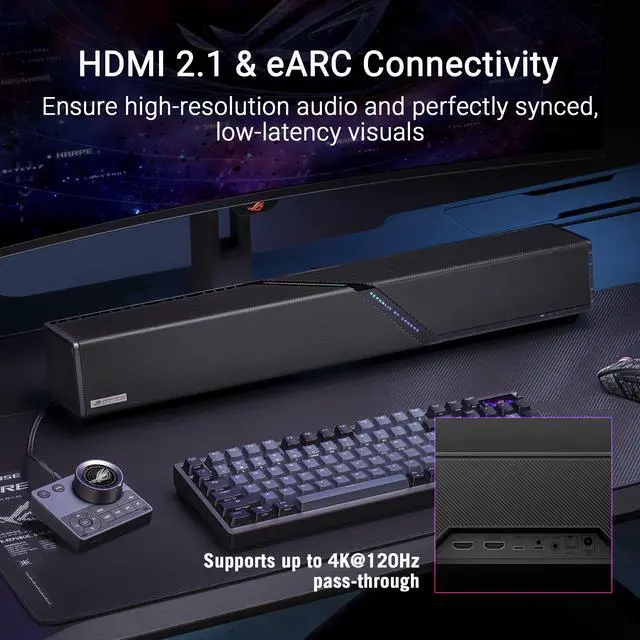
HDMI 2.1 & eARC Connectivity
The ROG Gjallar supports up to 4K@120Hz pass-through via HDMI 2.1, while eARC ensures lossless, high-resolution audio and perfectly synced, low-latency visuals—delivering total immersion without compromising resolution.

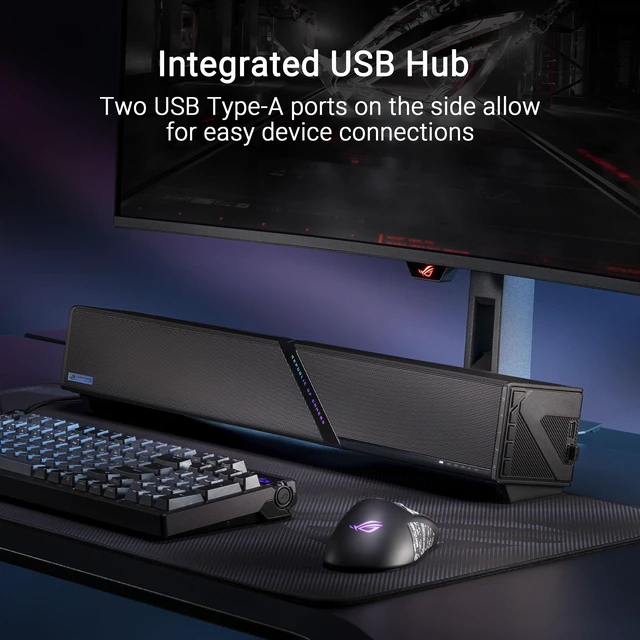
Integrated USB Hub
Expanded connectivity options are offered via two built-in USB-A ports on the right side of the soundbar. Perfect for wireless dongles and external storage, the ports provide effortless peripheral management while streamlining your gaming setup.

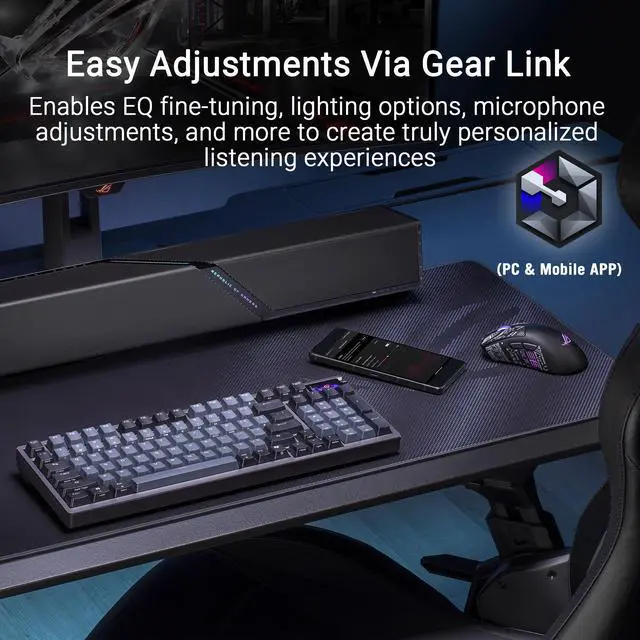
Easy Adjustments with Gear Link
Available via web portal or mobile app, Gear Link lets you customize EQ, lighting, microphone settings, and more—with no downloads or installation required. Simply visit the webpage, connect your device, and instantly personalize your listening experience.

Light Up Your Arena
ASUS Aura RGB lighting offers up to 16.8 million colors and four preset effects. Featuring a unique, ROG-inspired aesthetic and four dynamic preset effects, you can easily express your personal style.
* The Aura Sync is only available via Armoury Crate.
FAQ
What is Dolby Atmos?
Dolby Atmos is an immersive audio technology that creates a 3D sound experience by adding height channels to traditional left, right, and surround channels.When playing Dolby Atmos compatible movies, games, or streaming content, you can enjoy:
- More immersive surround sound
- More accurate sound positioning
- A wider and more spacious soundstage
- A truly cinematic listening experience
Note: For the best Dolby Atmos experience, connect the soundbar to your TV or display using the HDMI eARC port and ensure you are playing Dolby Atmos-compatible content.
What is the difference between the two HDMI ports on the ROG Gjallar?
The ROG Gjallar features two HDMI ports, each engineered for a specific purpose:
HDMI OUT (eARC) port: Connects to your TV’s HDMI eARC/ARC port to receive audio from the display. It also serves as the HDMI video output pass-through when the soundbar is connected to a monitor or TV.
HDMI IN port: Connects to external source devices such as gaming consoles, PCs, Blu-ray players, or streaming devices to receive both audio and video signals.
Can I disable the up-firing speakers?
Yes. The up-firing speaker effect can be toggled on or off via Gear Link or Gear Link Mobile. When disabled, standard audio will not be upmixed, and height-channel audio will be turned off.
Can I adjust the subwoofer level independently?
Yes. You can adjust the subwoofer volume independently through Gear Link or Gear Link Mobile.
The subwoofer level can be fine-tuned from -10 dB to +6 dB. Increasing the level enhances bass impact, while lowering it provides a more balanced listening experience.
Is there a recommended HDMI cable specification?
We recommend using an HDMI cable that complies with the HDMI 2.1 specification. An Ultra High Speed HDMI 2.1 cable provides the necessary bandwidth to ensure optimal performance for advanced features, including:
- Dolby Atmos: High-bandwidth object-based surround sound.
- HDMI eARC: Uncompressed audio transmission from your display.
- 4K @ 120 Hz Video Pass-Through: Smooth, high-refresh-rate gaming visuals.
Using a certified HDMI 2.1 cable helps guarantee the highest possible audio and video quality.
How to customize the animations on the LCD display?
You can fully customize the integrated LCD display via Gear Link. The software allows you to switch between pre-loaded animations, upload your own custom GIFs, and configure advanced display effects.
Can the dedicated USB Type-C port for the Control Hub be used to connect a PC or other USB devices?
No. This dedicated USB Type-C port is designed exclusively for connecting the Control Hub to the soundbar. It does not support standard audio playback, power delivery/charging, or general USB data transfer with PCs or other external devices.
Why does the soundbar automatically enter sleep mode when idle?
To reduce power consumption and comply with international energy-saving regulations, the soundbar automatically enters sleep mode after a period of inactivity (when no audio signal or user interaction is detected).
However, there are two key exceptions and customization options:
- USB-C Connection: If the soundbar is connected to a powered-on PC via the USB Type-C® port, it will remain awake to ensure that the integrated USB hub functions remain uninterrupted.
- Custom Timers: You can adjust or configure the idle timeout duration directly within the Gear Link software to better fit your setup.
Why is the subwoofer LED blinking red after powering on?
A blinking red LED indicates that the subwoofer has not successfully established a wireless connection with the soundbar. Please try the following troubleshooting steps:
Make sure both the soundbar and subwoofer are powered on.
- Check Power: Verify that both the soundbar and the subwoofer are turned on.
- Verify Proximity: Ensure the subwoofer is within the recommended wireless operating range and free from major physical obstructions.
- Power Cycle: Restart both the soundbar and the subwoofer.
- Manually Re-pair: If the issue persists, re-pair the subwoofer by following the pairing instructions outlined in the user manual.
Note: The subwoofer's connection status LED can be enabled or disabled under the Lighting settings within the Gear Link app.

How do I output Dolby Atmos audio from my Windows PC?
To enjoy Dolby Atmos with your ROG gaming soundbar, make sure your system meets the following requirements:
- Connect your PC to the soundbar using an HDMI cable. (Recommended)
- Install and open the Dolby Access app from the Microsoft Store.
- In Windows, go to Settings > System > Sound, select the HDMI audio device connected to the soundbar, then set Spatial Audio to Dolby Atmos for Home Theater.
- Play content or games that support Dolby Atmos.
Notes:
- Dolby Atmos output requires an HDMI connection. Optical (SPDIF), AUX, and Bluetooth connections do not support Dolby Atmos.
- If your PC is connected to a TV first, ensure the TV supports eARC and Dolby Atmos pass-through.
- Windows 11 version 24H2 and later no longer include Dolby audio decoders by default. This may affect streaming content that uses Dolby Digital Plus with Dolby Atmos, preventing Dolby Atmos from being output correctly.
- For a newly installed Windows 11 version 24H2 or later, install the official Dolby AC-3 Decoder from the Microsoft Store before playing Dolby Atmos streaming content. Dolby AC-3 Decoder: ms-windows-store://pdp/?productid=9nvjqjbdkn97
- If Windows 11 was upgraded from an earlier version to version 24H2, the existing Dolby audio decoder may be retained, so this issue may not occur.
How should I place the control hub for the best microphone performance?
The control hub features two hidden microphones located under the two metal plates on the front of the device. For optimal voice pickup, place the control hub on either the left or right side of your keyboard and ensure the front of the control hub is facing your speaking position. The built-in microphones are available only when the soundbar is operating in USB or Bluetooth mode and are not supported in HDMI, Optical (SPDIF), or AUX mode.

Why can’t I hear audio from my monitor through the soundbar when using the HDMI OUT (eARC) connection?
The soundbar‘s HDMI OUT (eARC) port requires the connected display to support ARC/eARC in order to receive audio. Since most PC monitors do not support ARC/eARC, audio can NOT be sent back to the soundbar through the monitor. For the best experience, connect your PC to the soundbar's HDMI IN, then connect the soundbar's HDMI OUT (eARC) to your monitor. This allows video to pass through to the monitor while audio is played by the soundbar.
Can I connect ROG Gjallar to both my gaming PC and a console (PS5 / Xbox Series X) at the same time?
Yes, ROG Gjallar is equipped with multiple input ports (HDMI IN, HDMI OUT with eARC, USB-C, AUX, Optical, and Bluetooth).
You can connect your PC via USB-C and your console via HDMI.
Use the control hub or the source button on the soundbar to seamlessly switch between inputs without unplugging any cables.
Why does my microphone recording sound compressed or unnatural?
This may be caused by voice processing features enabled in your communication software or audio driver.
Please check the following:
- Disable any built-in noise suppression or voice enhancement features in your communication application (such as Discord or Microsoft Teams) and test the microphone again.
- Check your system's audio software (such as Realtek Audio Console) and disable features such as Noise Suppression, AI Noise Cancellation, or other microphone enhancements.
- The soundbar provides three levels of AI Noise Reduction. The default setting is Medium, which may affect the naturalness of your voice in some environments. You can adjust the AI Noise Reduction level in Gear Link and select a lower setting if you prefer more natural voice reproduction.
- Record another sample after disabling these features to determine whether the audio quality has improved.
Note: Multiple noise suppression or voice enhancement features running simultaneously may result in over-processed or compressed voice recordings.
How should I set up and optimize the listening position for the ROG Gjallar?
Optimal placement depends on your room size. Below are setup guides for two common space scenarios to optimize sound wave reflections and maximize bass clarity while preventing resonance:
Scenario 1: compact or enclosed spaces

Scenario 2: spacious or open layouts

What should I do if I experience occasional wireless audio interruptions or noise?
If you experience occasional audio interruptions or noise, try enabling Connection Stability Mode in Gear Link. This mode optimizes the wireless transmission behavior to improve connection stability in environments with higher levels of wireless activity.
You can also try repositioning the Soundbar or Subwoofer to reduce potential wireless interference and improve connection quality.
