


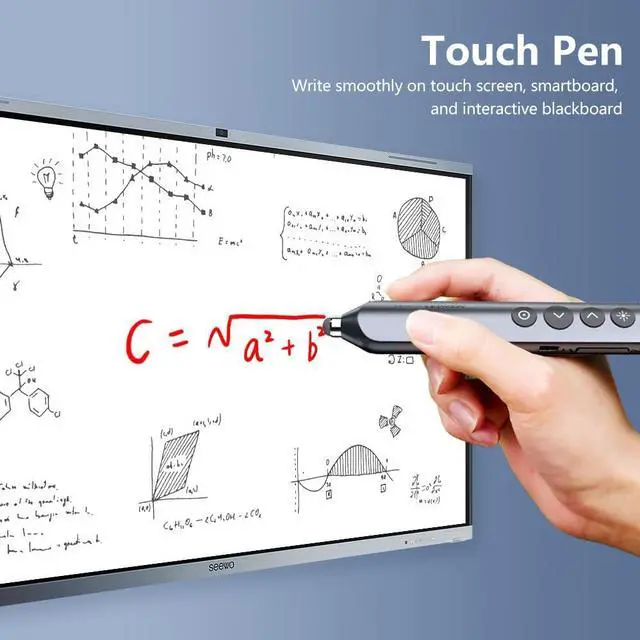


Bluetooth Presentation Clicker With Stylus for LED/TV Screen and smart board

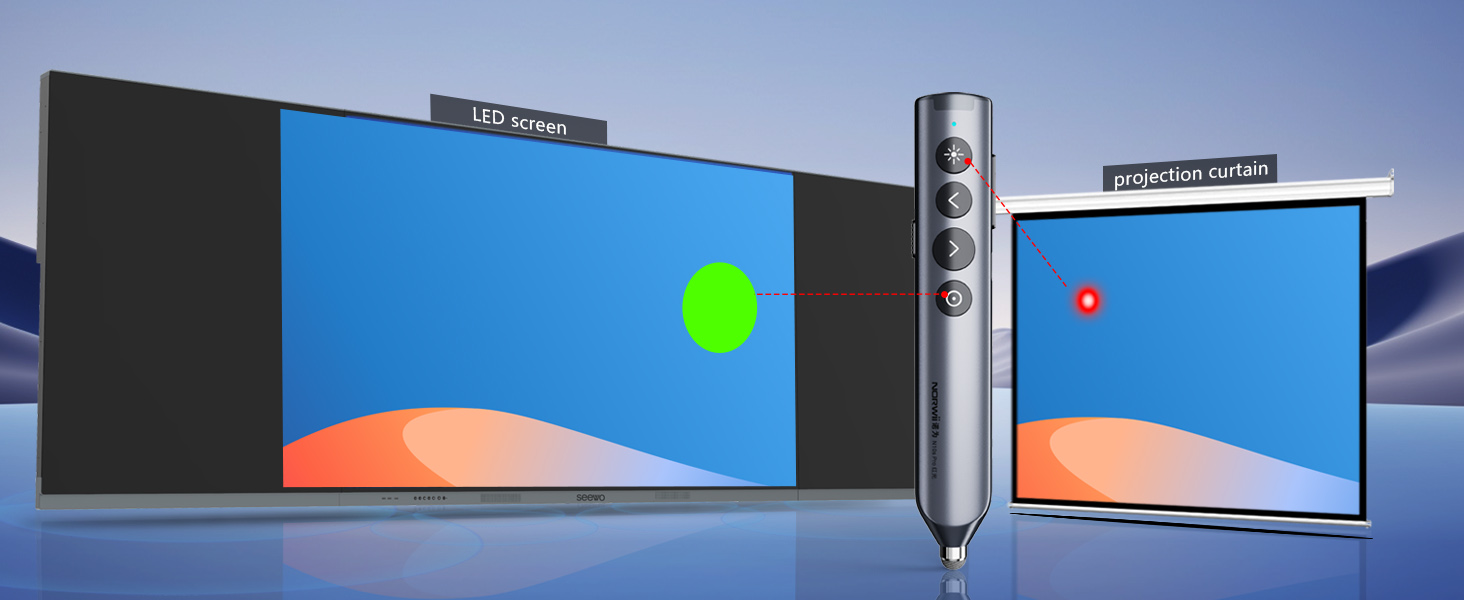
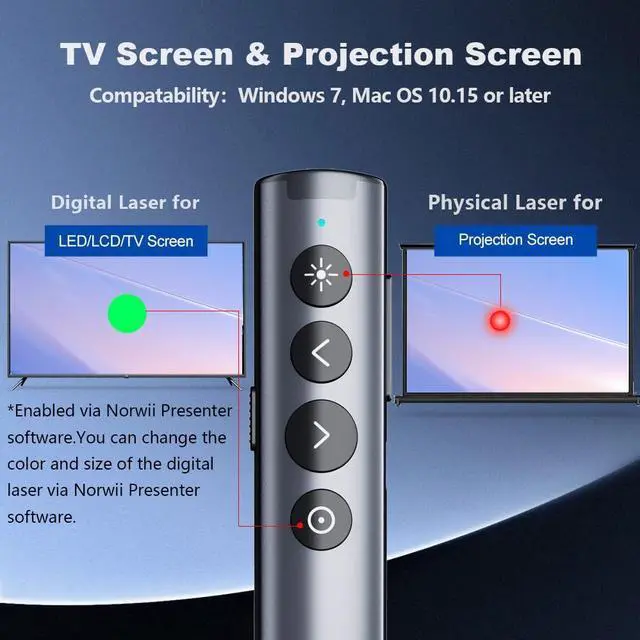
Visible on Any Screen
Clearly visible on LCD/TV screen and projection screen. Enabled via Norwii Presenter software
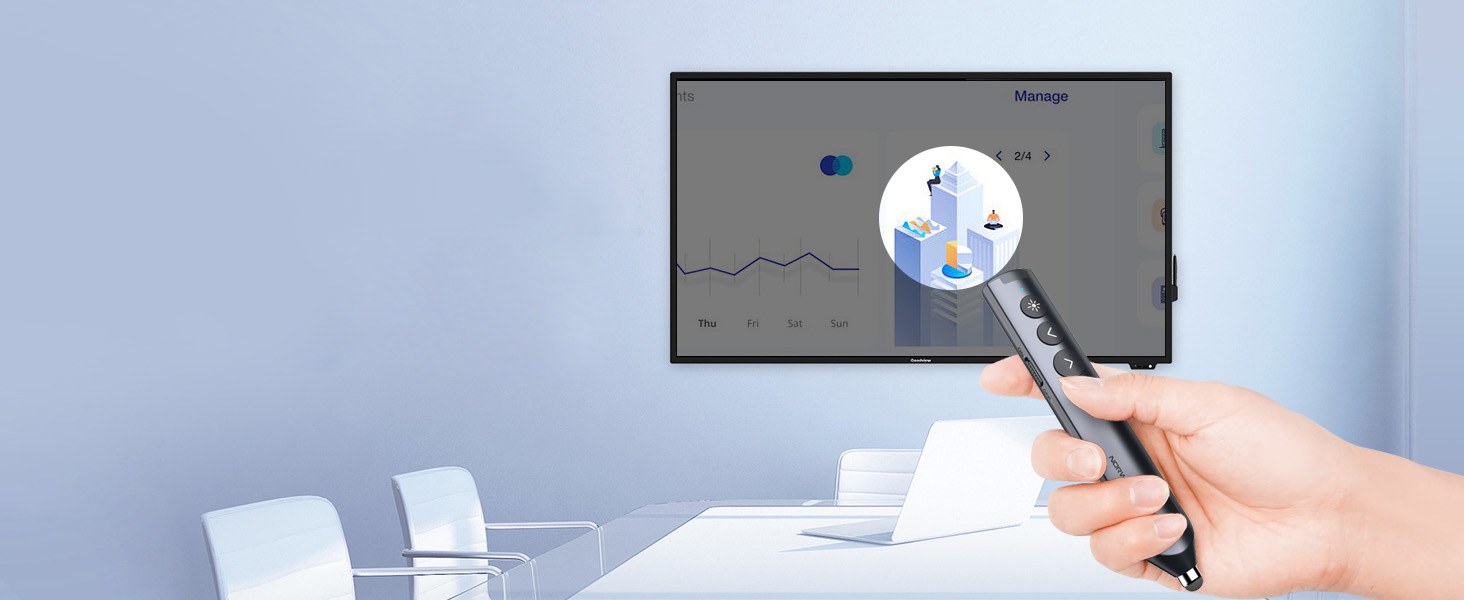
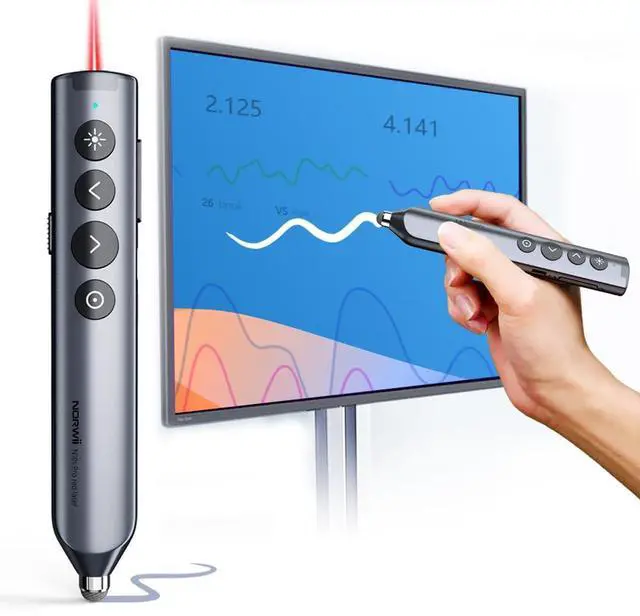
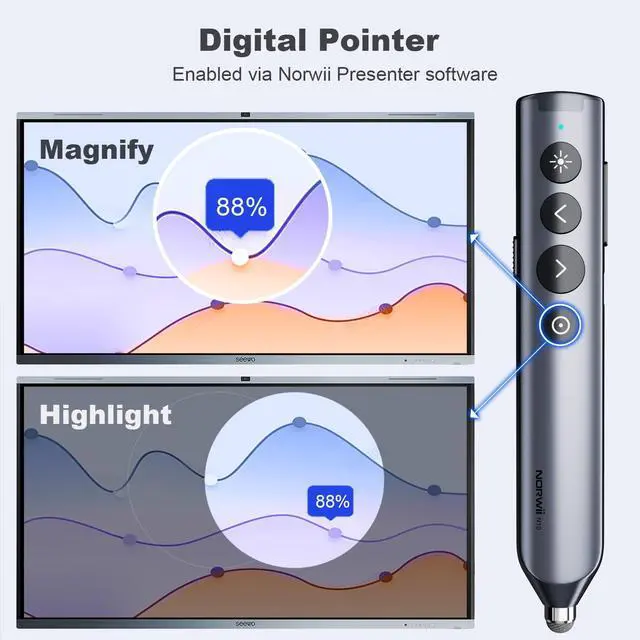
Catch the Audience's Eye
You can adjust the size or opacity of highlighted area via Norwii Presenter software
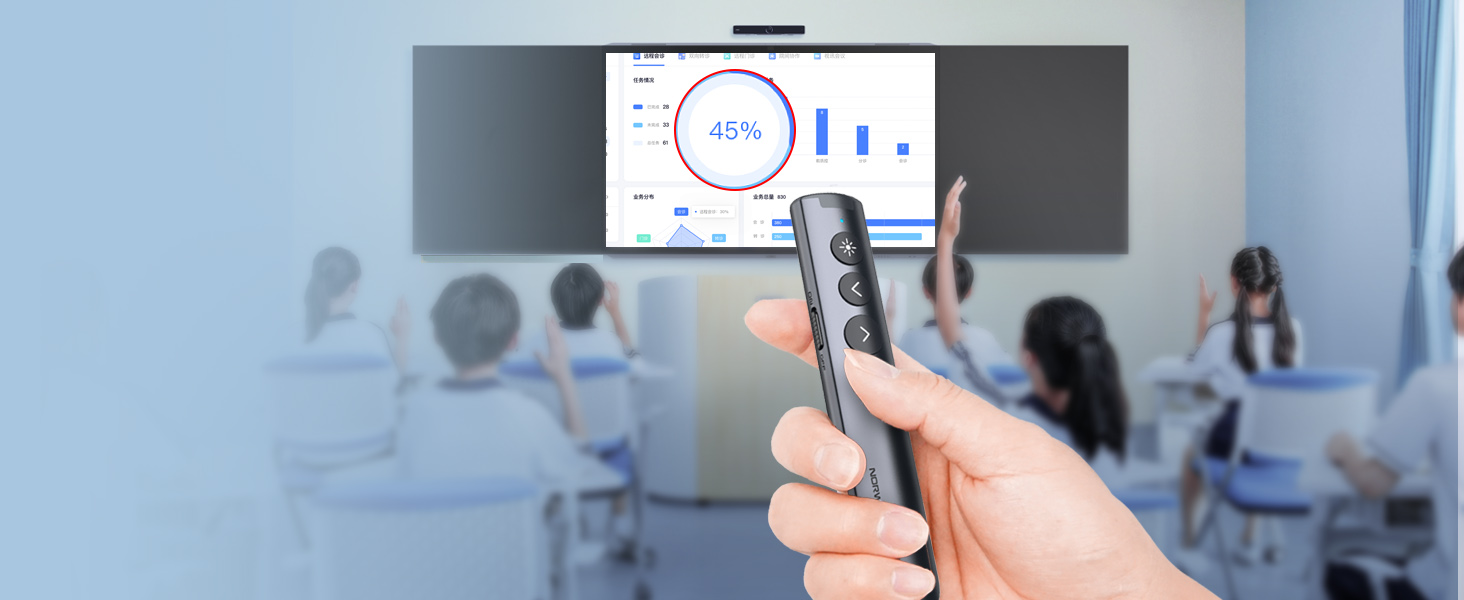
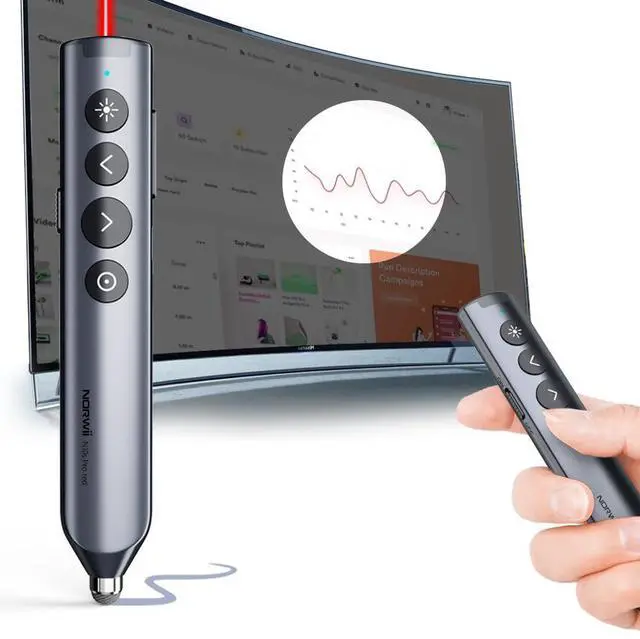
Making the Details Visible
Particularly suitable for presentations that show many details. The size of magnifier is adjustable


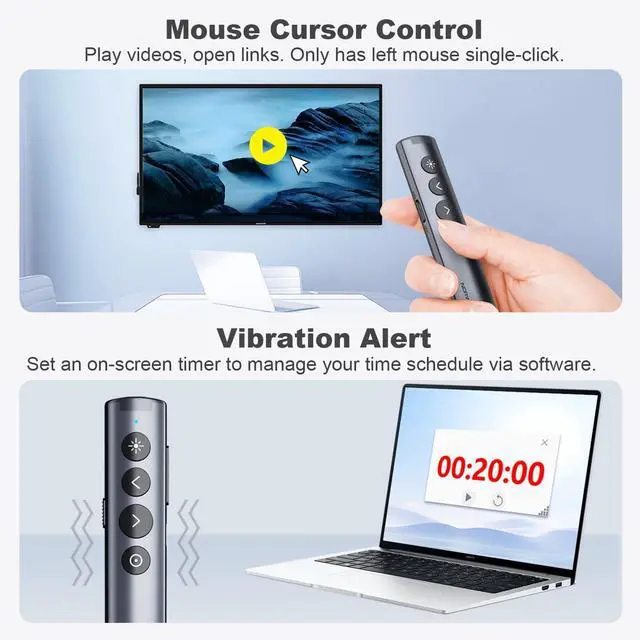
Mouse-like Cursor Control
Play/pause videos, open links, etc. Only left mouse click is supported. If you need left and right mouse buttons, please shop NORWII Store for N86s. The cursor icon can be personally customized.

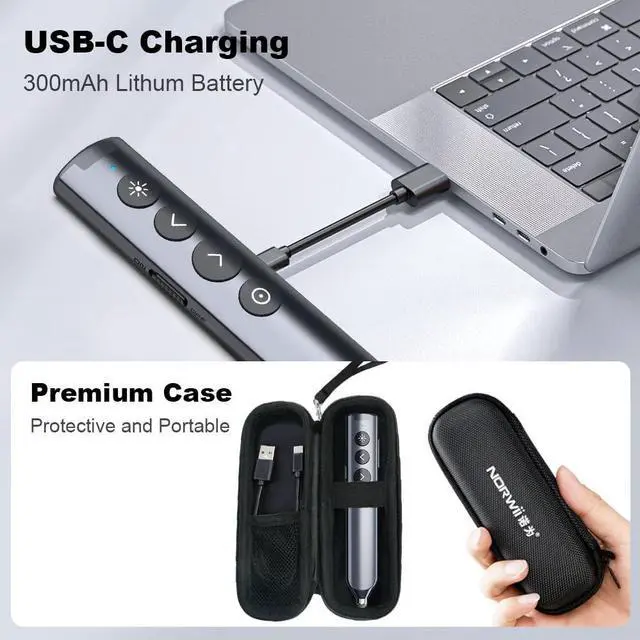
Comes With a Portable Carrying
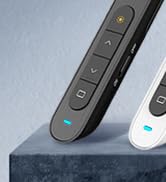
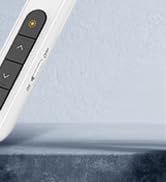
The premium matte metal exterior and portable carrying style not only make it user-friendly, but also make it a great choice for teacher appreciation gifts.

Smart Time Management
Vibrate 5 minutes before the end of the setted time and again at the end. Track and enabled via Norwii Presenter software, manage your time perfectly.

Key-function Customizable
Meet presonal functional requirements. All functions shown in blue text are customisable. Reconfigure via Norwii Presenter software.
Pre-use Instructions
1. Ensure the Norwii Presenter software is running and the presenter is connected by checking the connection status at the lower left of the software window.
2. Ensure that the three authorizations are enabled if it is a macOS system.
3. Learn how to use Pointer by click “Feature tour” in the software or watch the video about “How to use” on detail page.
What should i do if i encounter problems?
Check the Troubleshooting Guide_FAQ on the details page or Contact Norwii for technical support.
Some tips for better experience:
1. Move your hand slowly for better control of the digital pointer and mouse cursor.
2. To avoid frequent double-clicking to cycle through all pointer modes, it is recommended only enable the most frequently used functions.
3. Please search 'calibration' on official web for related help.
4. If you forget to run the software, only parts of the function works.
For more recommendations, visit the Norwii Store
 N10s |  N95s Pro |  N97s |
|---|---|---|
Connectivity BLE&USB-A | Connectivity USB-A | Connectivity BLE&USB-A&C |
Available for TV screens Yes | Available for TV screens Yes | Available for TV screens Yes |
Mouse Function Only mouse left click | Mouse Function Only mouse left click | Mouse Function Only mouse left click |
Reprogrammable Button Yes | Reprogrammable Button Yes | Reprogrammable Button Yes |
Housing Material Aluminium | Housing Material ABS+PC | Housing Material Aluminium |

Norwii is a professional brand and manufacturer with 18 years experiences in Wireless Presenter.
We have experienced R&D team, professional service team and more than 100 skilled workers, which can assure our products and services with top-class quality.
We value the innovation and user experience of our products. We aim to constantly create new possibilities and convey the "joy of speech" to more people

Presenter clicker for LED/TV
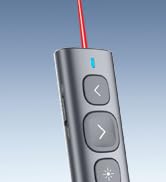
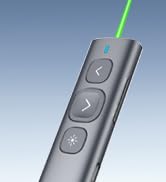
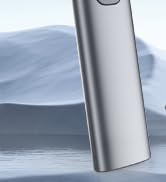
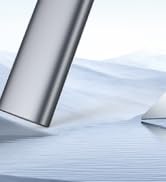
N95 Rechargeable Presenter
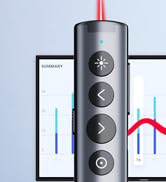
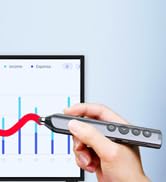
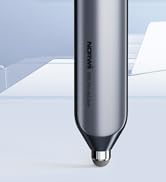
Presenter clicker with Stylus
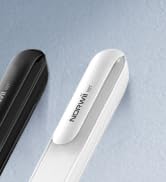
N27 Wireless Presenter
Bluetooth Presentation Clicker With Stylus for LED/TV Screen and smart board

Visible on Any Screen
Clearly visible on LCD/TV screen and projection screen. Enabled via Norwii Presenter software
Catch the Audience's Eye
You can adjust the size or opacity of highlighted area via Norwii Presenter software
Making the Details Visible
Particularly suitable for presentations that show many details. The size of magnifier is adjustable


Mouse-like Cursor Control
Play/pause videos, open links, etc. Only left mouse click is supported. If you need left and right mouse buttons, please shop NORWII Store for N86s. The cursor icon can be personally customized.
Comes With a Portable Carrying
The premium matte metal exterior and portable carrying style not only make it user-friendly, but also make it a great choice for teacher appreciation gifts.
Smart Time Management
Vibrate 5 minutes before the end of the setted time and again at the end. Track and enabled via Norwii Presenter software, manage your time perfectly.
Key-function Customizable
Meet presonal functional requirements. All functions shown in blue text are customisable. Reconfigure via Norwii Presenter software.
Pre-use Instructions
1. Ensure the Norwii Presenter software is running and the presenter is connected by checking the connection status at the lower left of the software window.
2. Ensure that the three authorizations are enabled if it is a macOS system.
3. Learn how to use Pointer by click “Feature tour” in the software or watch the video about “How to use” on detail page.
What should i do if i encounter problems?
Check the Troubleshooting Guide_FAQ on the details page or Contact Norwii for technical support.
Some tips for better experience:
1. Move your hand slowly for better control of the digital pointer and mouse cursor.
2. To avoid frequent double-clicking to cycle through all pointer modes, it is recommended only enable the most frequently used functions.
3. Please search 'calibration' on official web for related help.
4. If you forget to run the software, only parts of the function works.
For more recommendations, visit the Norwii Store
Norwii is a professional brand and manufacturer with 18 years experiences in Wireless Presenter.
We have experienced R&D team, professional service team and more than 100 skilled workers, which can assure our products and services with top-class quality.
We value the innovation and user experience of our products. We aim to constantly create new possibilities and convey the "joy of speech" to more people
Presenter clicker for LED/TV
N95 Rechargeable Presenter
Presenter clicker with Stylus
N27 Wireless Presenter