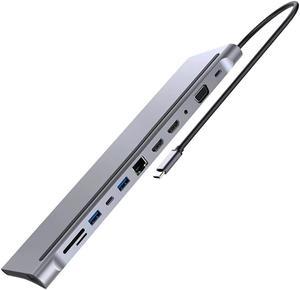
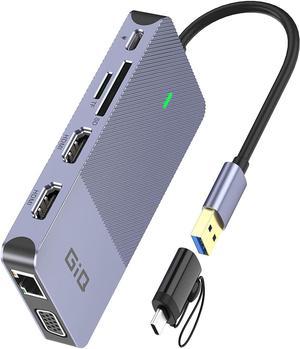
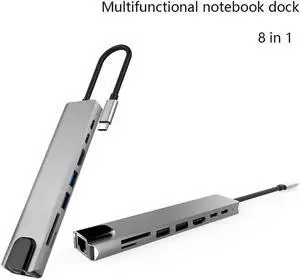
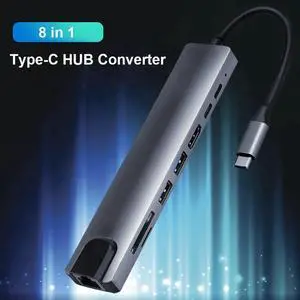
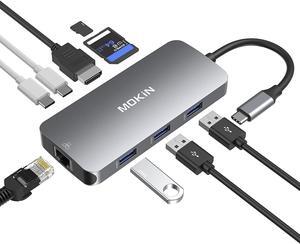
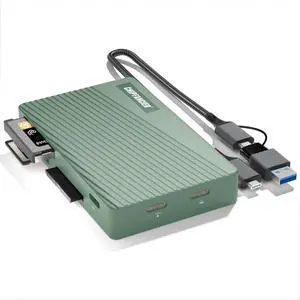
Compatibility: Supports full-featured USB-C, USB4, and Thunderbolt 3 / Thunderbolt 4 systems, including: M1 / M2 / M3/M4 (M1 Pro/Max, M2 Pro/Max, M3 Pro/Max, M4 Pro/Max); Intel-based Thunderbolt 3 MacBooks (late 2016+) Dell XPS, Latitude, Inspiron series with full-featured USB-C, USB4, or Thunderbolt 3 / 4 Microsoft Surface Pro / Go / Book / Laptop models with USB-C, USB4, or Thunderbolt 4 HP ProBook, EliteBook, Spectre x360 series with full-featured USB-C, USB4, or Thunderbolt 3 / 4 Lenovo ThinkPad, IdeaPad, and Yoga with full-featured USB-C, USB4, or Thunderbolt 3 / 4 LG Gram with full-featured USB-C, USB4, or Thunderbolt 3 / 4 & thousands of other laptops which are compliant with full-featured, standards-compliant USB-C ports
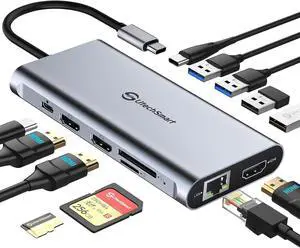
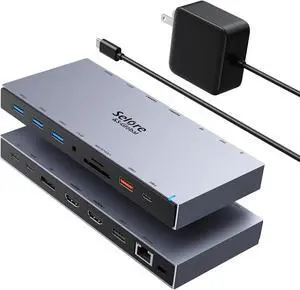
Compatibility: Installation Before using this dock, please make sure that the latest PC/laptop drivers are installed (including USB, graphics card etc) because the network port needs specific drivers. For Windows 10, the system detects and automatically installs them after the dock is connected to the network. If drivers cannot be automatically installed, the network port can’t perform properly. Please install them manually. For MAC OS system, you need to install the network port driver manually, please visit www.wavlink.com > Support > Driver > PC peripherals > USB Docking. 1. The dock is driver free, therefore you don’t need to install any driver before using it. 2. Plug the power adapter of the dock in a power outlet. 3. Connect the USB-C connector of the dock to your host laptop/PC, the LED light on the dock will turn blue. 4. Connect your monitor(s) to video ports of ...