

Your Browsing History

Any questions? Our AI mode will help you find out quickly.
Try me now
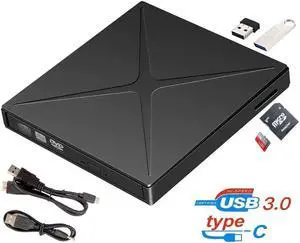
Quick View
Vszerda External CD Drive USB 3.0/Type-C Portable CD/DVD+/-RW Burner Player Writer Support SD cards Reader Compatible with Windows XP/7/8/10, MacOS, Linux for MacBook, Laptop, Desktop
Limited time offer, ends 08/18
- Model #: HT9HGFD
- $48.99 –
- Free Shipping
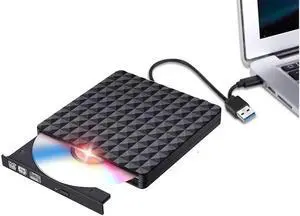
Quick View
Vszerda Diamond Pattern External CD DVD Drive, USB C Writer Type C USB 3.0 CD DVD RAM Burner Combo High Speed Re-Writer for Laptop Notebook PC Desktop Computer
Limited time offer, ends 08/18
- Model #: G141GHJ
- $48.99 –
- Free Shipping
![WISDUM [7 in 1] External CD/DVD Drive for Laptop, Slot-Loading CD Reader for Laptop, Portable USb 3.0 & Type C External CDs Drive DVD Drive Externals CD Burner Compatible with PC Windows Linux MacOS](https://c1.neweggimages.com/productimage/nb300/C72JD26062909905J87.jpg "WISDUM [7 in 1] External CD/DVD Drive for Laptop, Slot-Loading CD Reader for Laptop, Portable USb 3.0 & Type C External CDs Drive DVD Drive Externals CD Burner Compatible with PC Windows Linux MacOS")
Quick View
WISDUM [7 in 1] External CD/DVD Drive for Laptop, Slot-Loading CD Reader for Laptop, Portable USb 3.0 & Type C External CDs Drive DVD Drive Externals CD Burner Compatible with PC Windows Linux MacOS
Limited time offer, ends 08/08
- Model #: Kepler-C72J-1013
- $52.18 –
- Free Shipping
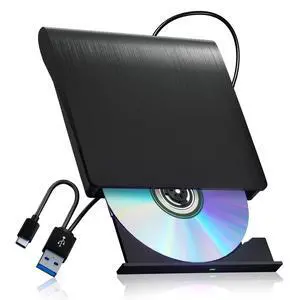
Quick View
External CD/DVD Drive for Laptop PC CD DVD Player USB 3.0 Portable Optical Drive CD Burner Compatible with Windows 10 11 Linux Mac OS (Black)
- Brand: Fellowes
- Part Number: PT-A02
- Pieces: 100
- Specifications: Lightweight, Portable, Plug & Play, Error Correction, DVD:8X CD:24X, 5 gigabits_per_second, Plug and Play, Laptop, Desktop PC, All-in-one Computers, Ultrabooks, Netbooks, Hard Disk Player, PT-A02, juwuoi, Black, 1 Year Manufacturer
- Model #: 922751773986
- $29.99 –
- Free Shipping