


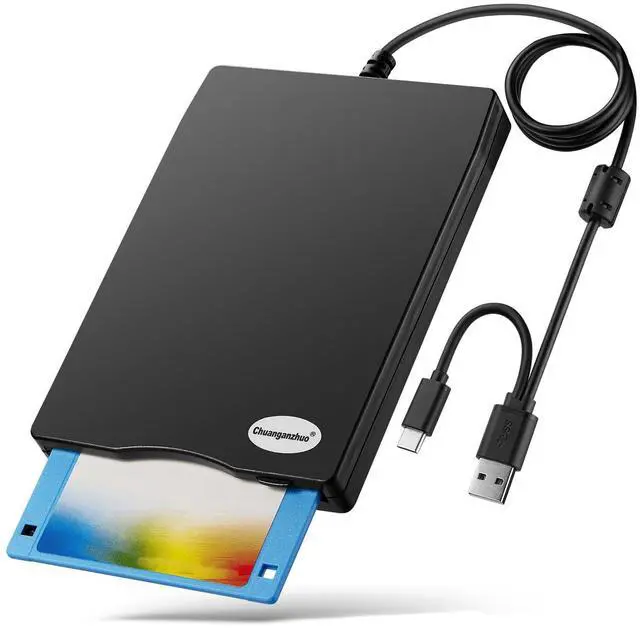



Upgraded External USB 3.5 Inch Floppy Disk Reader Drive for PC, Laptop and Desktop

As a child of the 80s and 90s, I grew up surrounded by floppy disks, cassette tapes, and VHS recordings. I have spent a lot of time and effort to find such a product can help me open my old floppy disk, fortunately I found one, and I recovered lot of important files and photos. This floppy disk reader brought back a flood of memories and allowed me to relive cherished moments. We know that many people around my age still keep a lot of old floppy disks too, sincerely hope that this floppy disk drive can help you retrieve beautiful memories.
However, the times are moving forward, but the floppy disk era has passed, both of the floppy disks and the floppy disk drives are outdated, so you may feel that this product is not smart enough when we use this floppy disk drive, hope your kind understanding. And with the declining number of readable floppy disks, it's unclear how long our products will be available on the market. Use it now, while you still can, and back up your floppy disks now, while you can still read them.
Achieve Your Memories, Return to the Past!

How to use it:
1.First insert your floppy disk into the Floppy Drive, then plug USB connector into an USB port on your computer directly with no hub, no extension cable, no adapter (You need to plug into the motherboard mounted ports, the ports on the back of the computer if yours is a desktop). Wait until your computer recognizes the new USB device, and settles.
2.The Drive will whir for a few seconds. After the disk stops whirring, bring up Windows File Explorer.
3.The Main Menu Tree will appear on the left side of the screen, but the Floppy Drive will probably not show up there. This is normal. If it does show up, skip to Step 7.
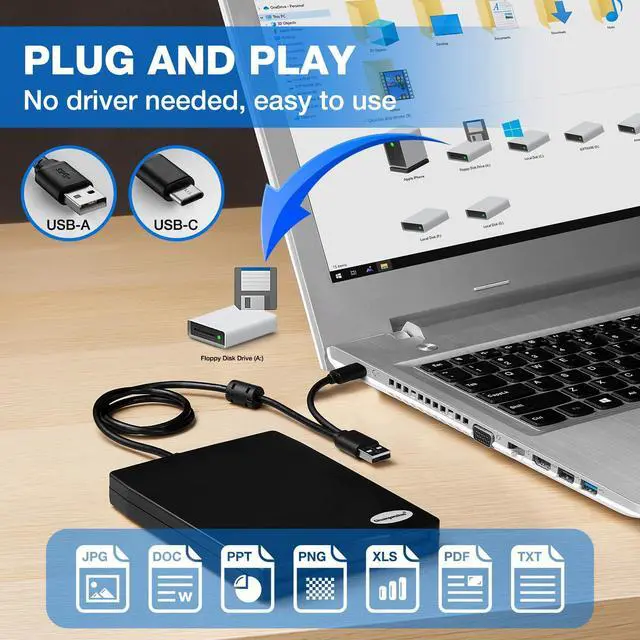
4. Click on the "This PC"listing on the Main Menu Tree. The main screen should show all the drives in the computer, including the new Floppy Drive, which should be shown as “Drive A:” or "Floppy Disk Drive (A:)" .
5. Right-Click on the “Drive A:”Floppy Drive icon. A menu should appear.
6. At the top of the Right-Click Menu should be "open". Click it. This lets the Operating System "see" the Floppy Drive. “Drive A:” Floppy Drive icon should now appear on the left Main Menu Tree, and can be used like any other Drive in the system.
7. To see the files stored on the Floppy Drive, click on “Drive A:” Floppy Drive in the Main Menu Tree, and the files should appear on the Main Screen.
8. Cut, Paste, Copy the files as you would other files in the system.
9. When done, press the mechanical eject button on the unit to eject the disk and insert the second disk, disk contents do refresh after double click the “Drive A:” icon in File Explorer.
Important Notes: 1.Please try different USB connectors if it does not register at your computer. 2. Please let us know if your item makes a buzzing noise. 3. Please check your disk condition before read it, because floppy disks are products of the 80s and 90s of the last century, and has a history of 30 to 40 years, the retention of time is too long, some floppy disks may have been corrupted, got mold or dust, some of your floppy disks may not be opened by our drive successfully.
How to Find the Floppy Disk Drive (A:) in Windows 11

As windows 10/11 has a lot of hidden options for "Windows Files Explorer", sometimes the drive icon will not appera in "Windows Files Explorer",you have to bring up "Devices and Printers" to get it.
Please find "Floppy Disk Drive(A:)" through the following path: Start ? Settings ? Bluetooth & other devices ? Devices ? Related settings ? More device and printer settings ? TEACV0.0. Right - click on TEACV0.0, click "Browse files" and open "Floppy Disk Drive (A:)".

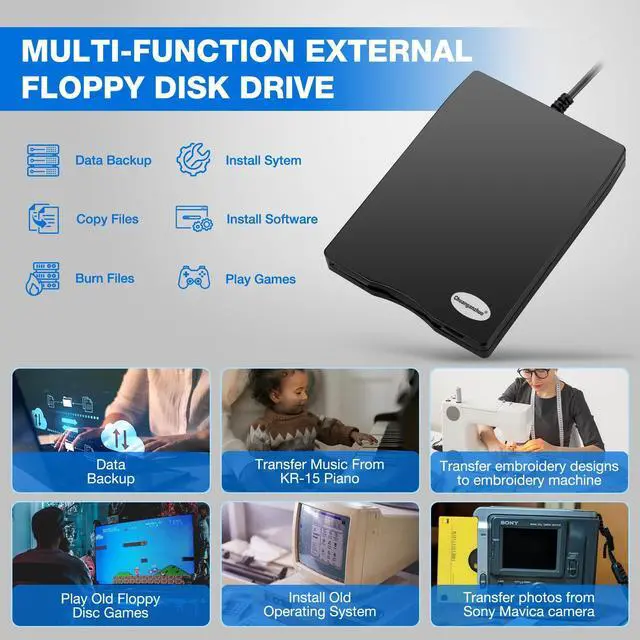
Multi-function 3.5 inch 1.44MB External USB Floppy Disk Drive.
?Data Backup: Transfer your files in the floppy disks to your computer;
?Get embroidery designs from computer to put on your embroidery machine;
?Install old operating system;
?Transfer music that your've written and performed from KR-15 Intelligent Piano to computer;
?Play old floppy disc games;
?Transfer photos from Sony Mavica digital camera to your computers.
Give Your Floppy Disk Some Time

Q: "Reading speed is slow?"
A: "Yes, it is slow, but it's normal, because floppy disks were never fast."
Tips: Please do not expect this external USB floppy disk drive to work with the speed of today's storage devices, as floppy disks are characterized by small capacity and slow reading speed. Make a big glass of iced tea, (coffee or an adult beverage will work, too) turn on the music and transfer those files.
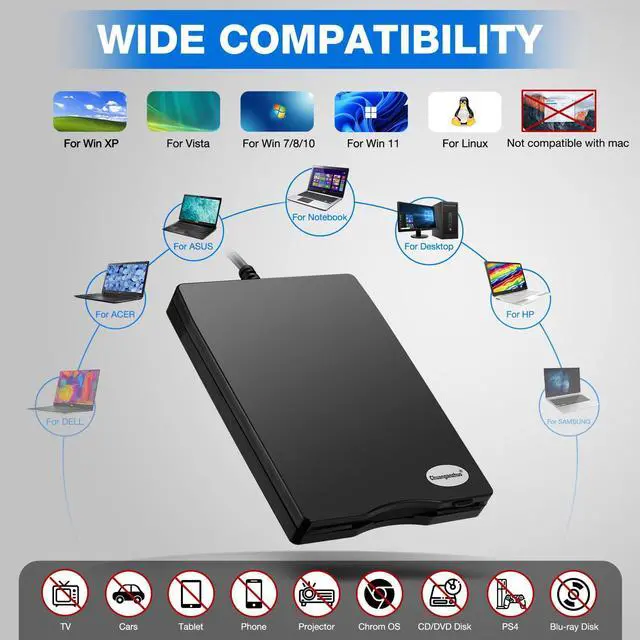
Not Compatible With Mac, only compatible with windows 11/10/10 Pro/8/7/2000/XP.

Tips:
?Not all of yours disks were readable, that is a factor of age, not the drive. Some of the data had been corrupted if they are too old or they are not stored appropriately. Floppy disks are from many years ago, they are very fragile, it is very very difficult for us to preserved well. Maybe you cannot open your floppy disks, the drive cannot be used for a period of time after delivery or still see the content of the frist floppy disks if your floppy disks are too old or the floppy disks get dust on it.
?Not Compatible With Mac, only compatible with windows 11/10/10 Pro/8/7/2000/XP.
?Windows 11/10 system has a lot of show/hide options for File Explore,so you maybe cannot see the drive icon named "Floppy disk drive (A:)" after bring up "Windows File Explorer", please bring up “Devices and Printers” and right-Click on the drive icon named “TEACV0.0” under the “Devices”, Hover cursor over “Browse files” and then click on “Floppy disk drive(A:)”, then you will see the content of your disks.
?It still shows the files from the 1st diskette when you insert 2nd diskette, please go to "more options" and "refresh" in file explorer before it displays the new content. Or disk contents do refresh after double click the A: drive icon in File Explorer, you can browse elsewhere on your computer and then go back to floppy disk drive(A:) and the contents of the disk will be updated. Please skip to Trouble Shooting 3 if you still cannot get the content of second disk.
?Floppy disk is characterized by small capacity and slow reading speed, please give it some time to load the data. It's normal that you hear the nostalgic soft little whirring sound as it loaded your old files. Please always wait for the disks to stop whirring before trying to do anything else.
?This is a universal external 3.5 inch floppy disk reader, can't play 5.25 inch discs,and can't be used with TV, car, smartphone.
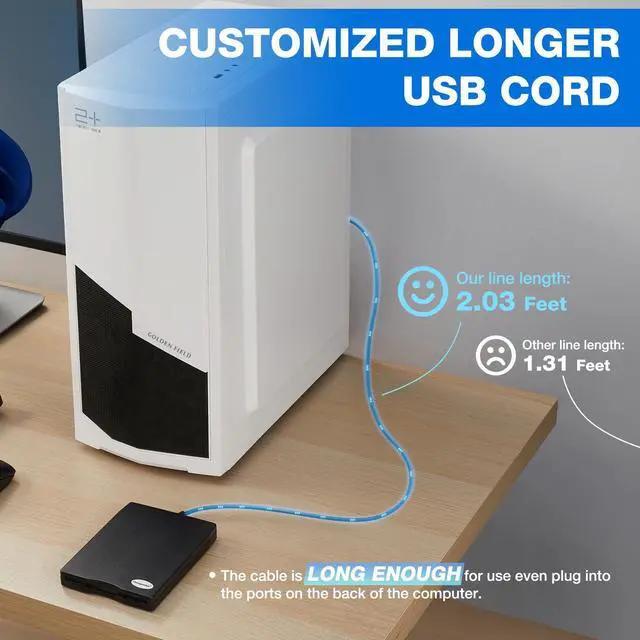
?When using this usb floppy drive, please connect it to the the ports on the back of the computer if yours is a desktop.
?Please insert the disk into the drive firstly, and then plug the USB connector into your computer USB port, then your computers will recognize the drive soon.
?No worries if you don't see a light on the front of the drive when you plug it in, you will see it when your drive start to read/write your disks.
?Please do not use an USB hub,USB extension cable or USB adapter to prevent the drive from working properly due to insufficient power.
?Sometimes you can see the files, copy and move them, but we cannot open it. Because our computer was so new that it did not have correct software on it that would open some of the old files on the disks, you will need the specific application to open the file. It's software problem,not the drive.
?Unlike flash drives you can't unmount the drive or eject the disks from windows. You have to press the button on the unit to eject the disk.

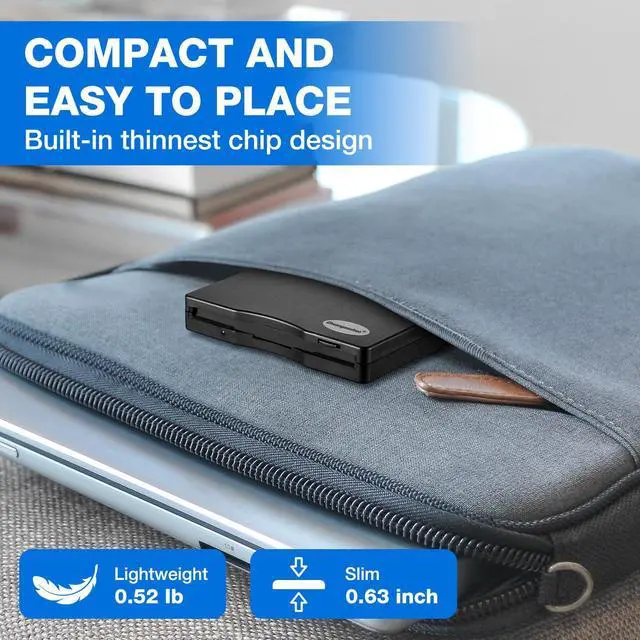
Portable Floppy Disk Drive
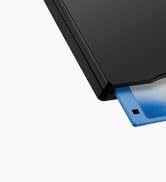
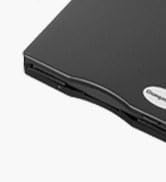
Ultra-slim (Only 0.63inch thick) design and lightweight(Only 0.52Ib) allow us to carry and use this portable external floppy disk reader drive at anytime, anywhere no matter you are at home, in the office, or during a trip.

Customized Longer Cord
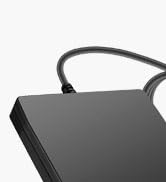
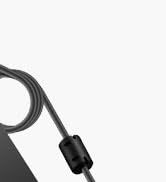
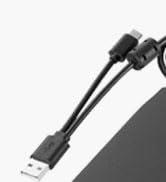
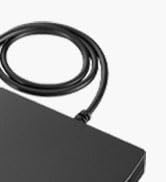
The USB cable of this USB floppy drive is 2.03ft long, 0.72ft longer than others', more convenient to use even though plug it into USB ports on the back of computers. Built-in cable, convenient storage, never don't worry about cable loss.

Nostalgic Soft Whirring Sound
It's normal that you hear the soft little whirring sound as it loaded your old files, it's nostalgic floppy disk's sound, hearing the soft whirring sound was like going back to the past time.

USB Type A & Type C Adapter
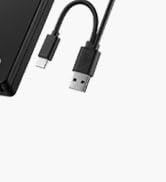
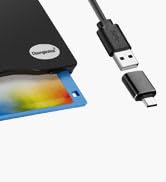
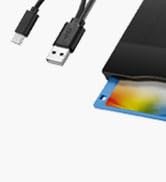
This external floppy disk drive come with a USB Type-C adapter, so it is convenient to switch between USB type-A and type-C ports on on old and new notebook or desktop computer.

Chuanganzhuo
Relive Your Beautiful Memories!

This is the 12th year that we have been producing and selling floppy disk readers, and we are honored that our products have always been loved by everyone.
Although the era of floppy disks has passed, our memories are still there, our emotions are still there, and the time spent with floppy disks is still there.
Open your old floppy disk, achieve the good times of the past, meet your past self.
How did we get our start?
We started in floppy disk readers as one friend was curious about what was on his old floppy disks, fortunately we really find it and successfully open the disks, then the story with it started.
Why do we love what we do?
Floppy disks were eliminated by the times, but the memories inside it are priceless. The future is promising, but the memory of the past is still worth savoring.
Why are we trustworthy?
10 years of production experience - From product development to production, quality inspection, sales and after-sales, we have a perfect system to ensure product quality.

ACM-008 Floppy Disk Reader
ACM-006 Floppy Disk Reader
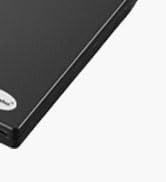
ACM-006C Floppy Disk Reader
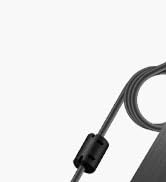
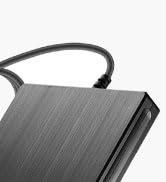
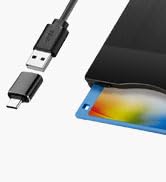
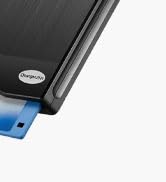
ACM-014 Floppy Disk Reader
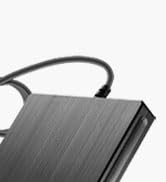
ACM-014C Floppy Disk Reader
Upgraded External USB 3.5 Inch Floppy Disk Reader Drive for PC, Laptop and Desktop
As a child of the 80s and 90s, I grew up surrounded by floppy disks, cassette tapes, and VHS recordings. I have spent a lot of time and effort to find such a product can help me open my old floppy disk, fortunately I found one, and I recovered lot of important files and photos. This floppy disk reader brought back a flood of memories and allowed me to relive cherished moments. We know that many people around my age still keep a lot of old floppy disks too, sincerely hope that this floppy disk drive can help you retrieve beautiful memories.
However, the times are moving forward, but the floppy disk era has passed, both of the floppy disks and the floppy disk drives are outdated, so you may feel that this product is not smart enough when we use this floppy disk drive, hope your kind understanding. And with the declining number of readable floppy disks, it's unclear how long our products will be available on the market. Use it now, while you still can, and back up your floppy disks now, while you can still read them.
Achieve Your Memories, Return to the Past!
How to use it:
1.First insert your floppy disk into the Floppy Drive, then plug USB connector into an USB port on your computer directly with no hub, no extension cable, no adapter (You need to plug into the motherboard mounted ports, the ports on the back of the computer if yours is a desktop). Wait until your computer recognizes the new USB device, and settles.
2.The Drive will whir for a few seconds. After the disk stops whirring, bring up Windows File Explorer.
3.The Main Menu Tree will appear on the left side of the screen, but the Floppy Drive will probably not show up there. This is normal. If it does show up, skip to Step 7.
4. Click on the "This PC"listing on the Main Menu Tree. The main screen should show all the drives in the computer, including the new Floppy Drive, which should be shown as “Drive A:” or "Floppy Disk Drive (A:)" .
5. Right-Click on the “Drive A:”Floppy Drive icon. A menu should appear.
6. At the top of the Right-Click Menu should be "open". Click it. This lets the Operating System "see" the Floppy Drive. “Drive A:” Floppy Drive icon should now appear on the left Main Menu Tree, and can be used like any other Drive in the system.
7. To see the files stored on the Floppy Drive, click on “Drive A:” Floppy Drive in the Main Menu Tree, and the files should appear on the Main Screen.
8. Cut, Paste, Copy the files as you would other files in the system.
9. When done, press the mechanical eject button on the unit to eject the disk and insert the second disk, disk contents do refresh after double click the “Drive A:” icon in File Explorer.
Important Notes: 1.Please try different USB connectors if it does not register at your computer. 2. Please let us know if your item makes a buzzing noise. 3. Please check your disk condition before read it, because floppy disks are products of the 80s and 90s of the last century, and has a history of 30 to 40 years, the retention of time is too long, some floppy disks may have been corrupted, got mold or dust, some of your floppy disks may not be opened by our drive successfully.
How to Find the Floppy Disk Drive (A:) in Windows 11
As windows 10/11 has a lot of hidden options for "Windows Files Explorer", sometimes the drive icon will not appera in "Windows Files Explorer",you have to bring up "Devices and Printers" to get it.
Please find "Floppy Disk Drive(A:)" through the following path: Start ? Settings ? Bluetooth & other devices ? Devices ? Related settings ? More device and printer settings ? TEACV0.0. Right - click on TEACV0.0, click "Browse files" and open "Floppy Disk Drive (A:)".
Multi-function 3.5 inch 1.44MB External USB Floppy Disk Drive.
?Data Backup: Transfer your files in the floppy disks to your computer;
?Get embroidery designs from computer to put on your embroidery machine;
?Install old operating system;
?Transfer music that your've written and performed from KR-15 Intelligent Piano to computer;
?Play old floppy disc games;
?Transfer photos from Sony Mavica digital camera to your computers.
Give Your Floppy Disk Some Time
Q: "Reading speed is slow?"
A: "Yes, it is slow, but it's normal, because floppy disks were never fast."
Tips: Please do not expect this external USB floppy disk drive to work with the speed of today's storage devices, as floppy disks are characterized by small capacity and slow reading speed. Make a big glass of iced tea, (coffee or an adult beverage will work, too) turn on the music and transfer those files.
Not Compatible With Mac, only compatible with windows 11/10/10 Pro/8/7/2000/XP.
Tips:
?Not all of yours disks were readable, that is a factor of age, not the drive. Some of the data had been corrupted if they are too old or they are not stored appropriately. Floppy disks are from many years ago, they are very fragile, it is very very difficult for us to preserved well. Maybe you cannot open your floppy disks, the drive cannot be used for a period of time after delivery or still see the content of the frist floppy disks if your floppy disks are too old or the floppy disks get dust on it.
?Not Compatible With Mac, only compatible with windows 11/10/10 Pro/8/7/2000/XP.
?Windows 11/10 system has a lot of show/hide options for File Explore,so you maybe cannot see the drive icon named "Floppy disk drive (A:)" after bring up "Windows File Explorer", please bring up “Devices and Printers” and right-Click on the drive icon named “TEACV0.0” under the “Devices”, Hover cursor over “Browse files” and then click on “Floppy disk drive(A:)”, then you will see the content of your disks.
?It still shows the files from the 1st diskette when you insert 2nd diskette, please go to "more options" and "refresh" in file explorer before it displays the new content. Or disk contents do refresh after double click the A: drive icon in File Explorer, you can browse elsewhere on your computer and then go back to floppy disk drive(A:) and the contents of the disk will be updated. Please skip to Trouble Shooting 3 if you still cannot get the content of second disk.
?Floppy disk is characterized by small capacity and slow reading speed, please give it some time to load the data. It's normal that you hear the nostalgic soft little whirring sound as it loaded your old files. Please always wait for the disks to stop whirring before trying to do anything else.
?This is a universal external 3.5 inch floppy disk reader, can't play 5.25 inch discs,and can't be used with TV, car, smartphone.
?When using this usb floppy drive, please connect it to the the ports on the back of the computer if yours is a desktop.
?Please insert the disk into the drive firstly, and then plug the USB connector into your computer USB port, then your computers will recognize the drive soon.
?No worries if you don't see a light on the front of the drive when you plug it in, you will see it when your drive start to read/write your disks.
?Please do not use an USB hub,USB extension cable or USB adapter to prevent the drive from working properly due to insufficient power.
?Sometimes you can see the files, copy and move them, but we cannot open it. Because our computer was so new that it did not have correct software on it that would open some of the old files on the disks, you will need the specific application to open the file. It's software problem,not the drive.
?Unlike flash drives you can't unmount the drive or eject the disks from windows. You have to press the button on the unit to eject the disk.
Portable Floppy Disk Drive
Ultra-slim (Only 0.63inch thick) design and lightweight(Only 0.52Ib) allow us to carry and use this portable external floppy disk reader drive at anytime, anywhere no matter you are at home, in the office, or during a trip.
Customized Longer Cord
The USB cable of this USB floppy drive is 2.03ft long, 0.72ft longer than others', more convenient to use even though plug it into USB ports on the back of computers. Built-in cable, convenient storage, never don't worry about cable loss.
Nostalgic Soft Whirring Sound
It's normal that you hear the soft little whirring sound as it loaded your old files, it's nostalgic floppy disk's sound, hearing the soft whirring sound was like going back to the past time.
USB Type A & Type C Adapter
This external floppy disk drive come with a USB Type-C adapter, so it is convenient to switch between USB type-A and type-C ports on on old and new notebook or desktop computer.
Chuanganzhuo
Relive Your Beautiful Memories!
This is the 12th year that we have been producing and selling floppy disk readers, and we are honored that our products have always been loved by everyone.
Although the era of floppy disks has passed, our memories are still there, our emotions are still there, and the time spent with floppy disks is still there.
Open your old floppy disk, achieve the good times of the past, meet your past self.
How did we get our start?
We started in floppy disk readers as one friend was curious about what was on his old floppy disks, fortunately we really find it and successfully open the disks, then the story with it started.
Why do we love what we do?
Floppy disks were eliminated by the times, but the memories inside it are priceless. The future is promising, but the memory of the past is still worth savoring.
Why are we trustworthy?
10 years of production experience - From product development to production, quality inspection, sales and after-sales, we have a perfect system to ensure product quality.
ACM-008 Floppy Disk Reader
ACM-006 Floppy Disk Reader
ACM-006C Floppy Disk Reader
ACM-014 Floppy Disk Reader
ACM-014C Floppy Disk Reader