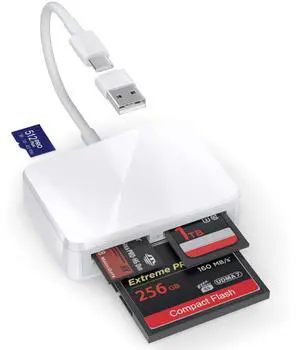
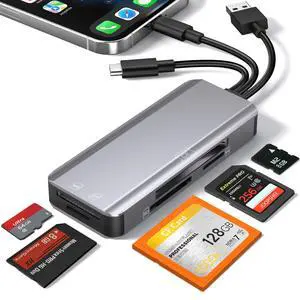
4 IN1 Card Reader for iPhone 15-16,Macbook and Smart Devices with USB-C/USB Port

One card reader for two kinds of smartphone with different ports
No matter which smartphone you are using, iPhone 15-16 or Android smartphone.
Your usb-c smart phone is able to use this card reader to read memory cards.
From iPhone 15 to iPhone16, all iPad with USB-C ports, all smartphone with USB -C ports, are compatible with this card reader.
Just make sure you use this little cute adapter when you use USB-C port smartphone or iPhone, iPad.
USB to USB-C Adapter

It is relly helpful when your card reader is with USB-C plug and your laptop is USB enabled.
Also when you have a power supply with USB socket, you need it to connect with your USB-C to USB-C cable to charge your phone.
it is really convenient, make sure to bring it with you.
One card reader compatible with iPhone 15-16 and MacBook

This is the card reader you bought for your iPhone 15-16 but you also don't have to buy a new product when you need to read the memory card with your MacBook.
How wonderful!
Yes! Equipped with this little adapter, this product is able to work with MacBook or other Laptop which are with USB-C port and USB port.
Enjoy it!
Great compatibility for read four different cards!

Tired of buying different card readers for different cards?
Compatible with four kinds of most popular cards, this card reader can help you to read different cards with only one card reader.
SD card, TF card, CF card, MS card!
Which cards do you have?
Download photos from Memory Card to iPhone 15-16/iPad/iPad Pro for User with iOS 13 or later

Two-way transfer for iOS user with iOS 13.0 or later
Files App ( iOS 13 or later)
Files app is an important app which can transfer files between your memory card to your iPhone & iPad.
Data from your iPhone is “on my iPhone” and data of memory card is on “Untiled” (or "NONAME", which is the name of your memory card)
You can view data and transfer the data between memory card and iPhone.
Files app not only manager can videos and photos, but also manage music, PDF, word, or Excel, etc.
1. Insert a memory card into the reader. Turn on iPhone & iPad and attach the reader to the Lightning port.
2. On iPhone & iPad, open “Files” app. You can view the files in your memory card. You can view most files like jpg, MP3, word, excel, ppt and so on. If you can view the files but can’t open it, you may need to download a third-party app to read this file.
3. You can delete files or copy and paste files from memory card to your iPhone or iPad. Or coy files from iPhone or iPad to memory card.
4. If you can see the data, but not able to open it, you need to download a third-party App to open it.
What can I do if I see nothing on my iPhone 15/16 Series?
1. If you don’t see anything, don’t worry. App won’t pop up automatically, please access “Files” App. Then you will see “On My iPhone” which is the data on your iPhone. If you connect a Cf card, or a SD card or a TF card or Ms Card to your iPhone through this adapter, “Untitled” or “NONAME” will be shown below “On My iPhone”. “Untitled” or “NONAME” are the default name of most memory card. If your memory card were named “ABC”, you will see “ABC” there. Just tap “ABC” you will see what’s inside your memory card.
2. When you get inside “ABC” folder, you have three choices at the bottom of the screen. “Recents”, “Shared” and “Browse”, make sure you choose “Browse”. Other two choice is not what’s in your memory card.
3. If there is no “Files” App, please download it from App Store. “Files” is an App in your iPhone, usually you don’t have to download it.
4. If you still see nothing, make sure the memory card is correctly inserted into the slot. You can check the video if you have no idea how to insert a memory card. The memory card must be Fat32 or exFat format. If NTFS, iPhone will not be able to recognize it.
5. You can view most files like jpg, MP3, word, excel, PDF, etc. directly and read them without any problem. However, if you can see some data there but can't open it, you need to download a third-party app to read this file. It is the same thing as what’s happening in your computer, if you don’t have a MP3 player, even you have a MP3 file in your computer, you click it and it will not able to be played.
4 IN1 Card Reader for iPhone 15-16,Macbook and Smart Devices with USB-C/USB Port

One card reader for two kinds of smartphone with different ports
No matter which smartphone you are using, iPhone 15-16 or Android smartphone.
Your usb-c smart phone is able to use this card reader to read memory cards.
From iPhone 15 to iPhone16, all iPad with USB-C ports, all smartphone with USB -C ports, are compatible with this card reader.
Just make sure you use this little cute adapter when you use USB-C port smartphone or iPhone, iPad.
USB to USB-C Adapter

It is relly helpful when your card reader is with USB-C plug and your laptop is USB enabled.
Also when you have a power supply with USB socket, you need it to connect with your USB-C to USB-C cable to charge your phone.
it is really convenient, make sure to bring it with you.
One card reader compatible with iPhone 15-16 and MacBook

This is the card reader you bought for your iPhone 15-16 but you also don't have to buy a new product when you need to read the memory card with your MacBook.
How wonderful!
Yes! Equipped with this little adapter, this product is able to work with MacBook or other Laptop which are with USB-C port and USB port.
Enjoy it!
Great compatibility for read four different cards!

Tired of buying different card readers for different cards?
Compatible with four kinds of most popular cards, this card reader can help you to read different cards with only one card reader.
SD card, TF card, CF card, MS card!
Which cards do you have?
Download photos from Memory Card to iPhone 15-16/iPad/iPad Pro for User with iOS 13 or later

Two-way transfer for iOS user with iOS 13.0 or later
Files App ( iOS 13 or later)
Files app is an important app which can transfer files between your memory card to your iPhone & iPad.
Data from your iPhone is “on my iPhone” and data of memory card is on “Untiled” (or "NONAME", which is the name of your memory card)
You can view data and transfer the data between memory card and iPhone.
Files app not only manager can videos and photos, but also manage music, PDF, word, or Excel, etc.
1. Insert a memory card into the reader. Turn on iPhone & iPad and attach the reader to the Lightning port.
2. On iPhone & iPad, open “Files” app. You can view the files in your memory card. You can view most files like jpg, MP3, word, excel, ppt and so on. If you can view the files but can’t open it, you may need to download a third-party app to read this file.
3. You can delete files or copy and paste files from memory card to your iPhone or iPad. Or coy files from iPhone or iPad to memory card.
4. If you can see the data, but not able to open it, you need to download a third-party App to open it.
What can I do if I see nothing on my iPhone 15/16 Series?
1. If you don’t see anything, don’t worry. App won’t pop up automatically, please access “Files” App. Then you will see “On My iPhone” which is the data on your iPhone. If you connect a Cf card, or a SD card or a TF card or Ms Card to your iPhone through this adapter, “Untitled” or “NONAME” will be shown below “On My iPhone”. “Untitled” or “NONAME” are the default name of most memory card. If your memory card were named “ABC”, you will see “ABC” there. Just tap “ABC” you will see what’s inside your memory card.
2. When you get inside “ABC” folder, you have three choices at the bottom of the screen. “Recents”, “Shared” and “Browse”, make sure you choose “Browse”. Other two choice is not what’s in your memory card.
3. If there is no “Files” App, please download it from App Store. “Files” is an App in your iPhone, usually you don’t have to download it.
4. If you still see nothing, make sure the memory card is correctly inserted into the slot. You can check the video if you have no idea how to insert a memory card. The memory card must be Fat32 or exFat format. If NTFS, iPhone will not be able to recognize it.
5. You can view most files like jpg, MP3, word, excel, PDF, etc. directly and read them without any problem. However, if you can see some data there but can't open it, you need to download a third-party app to read this file. It is the same thing as what’s happening in your computer, if you don’t have a MP3 player, even you have a MP3 file in your computer, you click it and it will not able to be played.