• $141.99
  • Free 30-day Returns
  • Price alert
    Shop it at NeweggBusiness.

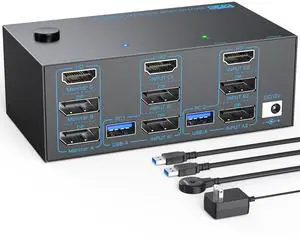
    8K KVM Switch 3 Monitors 2 Computers Triple Monitor 2 Displayport 1.4 and HDMI 2.1 USB 3.0 KVM Switches, DP 1.4 Supports 8K@30Hz/4K@144Hz, HDMI Supports Max 8K@60Hz /4K@120Hz with Wired Remote Control

    • KVM Switch 3 Monitors 2 ComputersThe 2* Displayport and HDMI triple monitor kvm switch is mainly designed to share 3 monitors (1 HDMI and 2 DP) and 4 USB 3.0 devices between 2 computers , easy switching, plug and play, making it an ideal solution for home offices, multimedia classrooms, business meeting rooms, and gaming setups. :To get 3 screens simultaneously, please make sure each PC has 2 DP+1 HDMI ports and connect them to the to the relevant port on the Displayport and HDMI KVM switch
    • Ultra 8K Triple Monitor KVM SwitchThe 3 monitor kvm switch is compliant with DP 1.4 and HDMI 2.1 standard. Displayport part supports max resolution up to 8K@30Hz/4K@144Hz; HDMI part supports max 8K@60Hz/4K@120Hz, which allows you enjoy stunning visual experience and smooth gaming experience at the same time. : To reach the max resolution, please ensure the source, monitor, DP cables and HDMI cables all support the resolution
    • 5Gbps USB 3.0 3 Monitor KVM SwitchThe displayport hdmi 3 port kvm switch features 4 USB 3.0 ports for connecting keyboards, mice, USB drives, printers, USB cameras and other USB devices. Data transfer rate up to 5Gbps, which enables rapid file transfer between connected computers to improve work efficiency. : Please connect the USB cable from each source to make the USB devices work properly
    +
    +
    Overview
    Specs
    Reviews
    avatar

    Any questions? Our AI beta will help you find out quickly.

    3 Monitors 2 Computers 2 Displayport+HDMI Triple Monitor KVM Switch

    3 monitors 2 computers kvm switch

    Connection Steps:

    1. Connect 2*Displayport & 1* HDMI & 1* USB cables from PC1 to "INPUT A1, INPUT B1, INPUT C1 and USB-A (PC1) " separately

    2. Connect 2*Displayport & 1* HDMI & 1* USB cables from PC2 to " INPUT A2, INPUT B2, INPUT C2 and USB-A (PC2)" separately

    3. Connect 3 monitors to "OUT A" ?"OUT B"?“OUT C” seperately

    4. Plug USB peripherals like keyboard mouse into the USB port on the front of the 3 monitors 2 computers KVM switch ; Plug the 12V power cable into "DC/12V" to supply external power for more stable performance

    5. Insert the 1.5M wired remote controller; then turn on the 3 monitors KVM switch

    Important Note: (1) System Requirements & Setup Guide: For 3-monitor output: Requires a graphics card that supports 3 independent displays. And 2x DP and 1x HDMI cables should be connected from each computer to the KVM;(2) For USB function: Connect the included USB 3.0 cable from each computer to the KVM's rear USB-A port. Don't cross-connect

    Create Neat and Efficient Desktop with 3 Monitors 2 Computers 8K KVM Switch

    3 monitors 2 computers kvm switch
    • Because DisplayPort to HDMI adapters on the market are not standardized, we generally do not recommend using any adapter. If you must use one, please be sure to choose the active version Not passive version

    • Generally the 3 monitors KVM switch is compatible with MAC systems, but if you are using a USB-C docking, due to the varying quality of USB-C docking stations on the market, a compatibility issues may arise .

    • (1) Ensure each PC connects 2 *DP+1*HDMI cables to the 3 monitors 2 PCs KVM switch; (2) Ensure adapters are active version and all video cables are within 1.5M; (3) Press " Windows+P" to choose extend or duplicate mode

    3 Monitors 2 Computers 2 Displayport+HDMI Triple Monitor KVM Switch

    3 monitors 2 computers kvm switch

    Connection Steps:

    1. Connect 2*Displayport & 1* HDMI & 1* USB cables from PC1 to "INPUT A1, INPUT B1, INPUT C1 and USB-A (PC1) " separately

    2. Connect 2*Displayport & 1* HDMI & 1* USB cables from PC2 to " INPUT A2, INPUT B2, INPUT C2 and USB-A (PC2)" separately

    3. Connect 3 monitors to "OUT A" ?"OUT B"?“OUT C” seperately

    4. Plug USB peripherals like keyboard mouse into the USB port on the front of the 3 monitors 2 computers KVM switch ; Plug the 12V power cable into "DC/12V" to supply external power for more stable performance

    5. Insert the 1.5M wired remote controller; then turn on the 3 monitors KVM switch

    Important Note: (1) System Requirements & Setup Guide: For 3-monitor output: Requires a graphics card that supports 3 independent displays. And 2x DP and 1x HDMI cables should be connected from each computer to the KVM;(2) For USB function: Connect the included USB 3.0 cable from each computer to the KVM's rear USB-A port. Don't cross-connect

    Create Neat and Efficient Desktop with 3 Monitors 2 Computers 8K KVM Switch

    3 monitors 2 computers kvm switch
    • Because DisplayPort to HDMI adapters on the market are not standardized, we generally do not recommend using any adapter. If you must use one, please be sure to choose the active version Not passive version

    • Generally the 3 monitors KVM switch is compatible with MAC systems, but if you are using a USB-C docking, due to the varying quality of USB-C docking stations on the market, a compatibility issues may arise .

    • (1) Ensure each PC connects 2 *DP+1*HDMI cables to the 3 monitors 2 PCs KVM switch; (2) Ensure adapters are active version and all video cables are within 1.5M; (3) Press " Windows+P" to choose extend or duplicate mode

    8K KVM Switch 3 Monitors 2 Computers Triple Monitor 2 Displayport 1.4 and HDMI 2.1 USB 3.0 KVM Switches, DP 1.4 Supports 8K@30Hz/4K@144Hz, HDMI Supports Max 8K@60Hz /4K@120Hz with Wired Remote Control

    Warranty & Returns

    Warranty, Returns, And Additional Information

    Warranty

    • Please contact the Seller directly for warranty information. Warranty information may also be found on the Manufacturer's website.
    • CONTACT

    Return Policies

    Manufacturer Contact Info

    LOADING...