

Your Browsing History
- In Stock
- Sold by Newegg
- Make an Offer
- New
Quick View
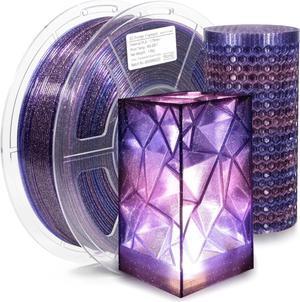
iSANMATE 3D Printer Filament Clear PLA, Multicolor Transparent Transition Glitter Filament, Gradient Purple Blue Multicolor PLA Filament, 3D Printing Filament 1KG/2.2lb, Blue Violet Galactic
- Model #: 433330048631ComputerzoneGANG
- $46.89 –
- Free Shipping
Quick View
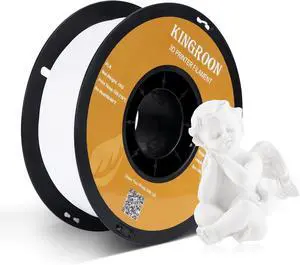
Kingroon PLA 3D Printer Filament, Dimensional Accuracy +/- 0.02 mm, 1 kg Spool(2.2lbs), 1.75 mm,White
- Model #: 433330051587ComputerzoneGANG
- $29.89 –
- Free Shipping
Quick View
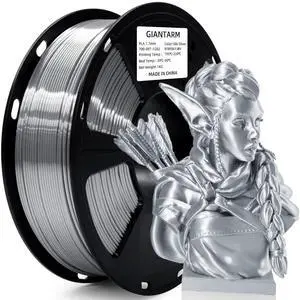
GIANTARM Silk Metallic Silver PLA 3D Printer Filament 1kg Spool, 1.75mm Dimensional Accuracy +/-0.03mm, 1080 Feet per Roll, Vacuum Packaging
- Model #: 433330053574ComputerzoneGANG
- $33.89 –
- Free Shipping
Quick View
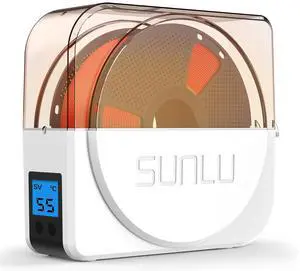
SUNLU Official Filament Dryer S1 Plus, Built-in Circulation Fan, Filament Dryer Box Storage Box for 3D Printer Filament 1.75 2.85 3.00, S1 Plus White
- Model #: 433330048730ComputerzoneGANG
- $63.89 –
- Free Shipping
Quick View
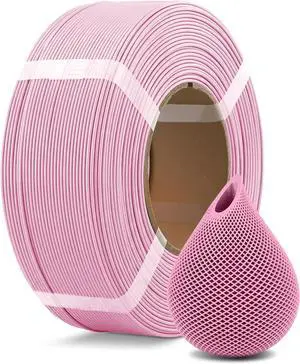
OVERTURE PLA Filament Refill 1.75mm 3D Printer Filament, 1kg (2.2lb) Refilament for Bambu Lab Reusable Spool, Accuracy +/- 0.02 mm, Fit Most FDM 3D Printers (Pink)
- Model #: 433330054908ComputerzoneGANG
- $33.89 –
- Free Shipping
Quick View
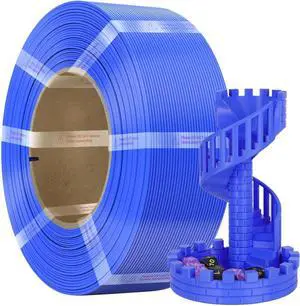
Standard PLA Refilament 1.75mm, 1kg 3D Printer Refill for Reusable Spools(2.2lbs), Dimensional Accuracy +/- 0.02mm, Fit Most FDM Printer (Blue, 1000g)
- Model #: 433330055622ComputerzoneGANG
- $31.89 –
- Free Shipping
Quick View
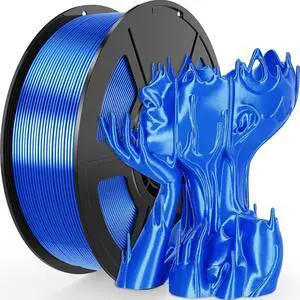
Silk Blue PLA Filament 1.75mm 1kg(2.2lbs), Rapid Shiny 3D Printer Filament PLA for Fast Printing, Low Warp & Clog-Free, Dimensional Accuracy +/- 0.03mm Fits for FDM 3D Printers
- Model #: 433330051006ComputerzoneGANG
- $35.89 –
- Free Shipping
Quick View
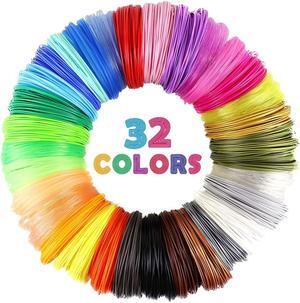
MIKA3D 32 Colors 3D Pen PLA Filament Refills, Each Color 10 Feet, Total 320 feet, Pack with 4 Finger Caps
- Model #: 433330049539ComputerzoneGANG
- $27.89 –
- Free Shipping

Quick View
Weewooday 3D Printer Filament Spool Holder Filament Holder Fits All Spools of Any Size and All Types for PLA/ABS/TPU/Other 3D Printing Materials(6 Set)
- Model #: 433330051068ComputerzoneGANG
- $43.89 –
- Free Shipping
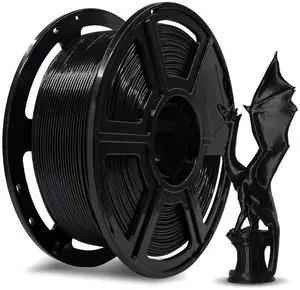
Quick View
FLASHFORGE High Speed PLA Filament, 1.75mm, 500mm/s, High Speed Printing, Fast 3D Printer Filament, Robust and High Flow for Fast Printing, 2.2lbs/Spool
- Model #: 433330053772ComputerzoneGANG
- $37.89 –
- Free Shipping
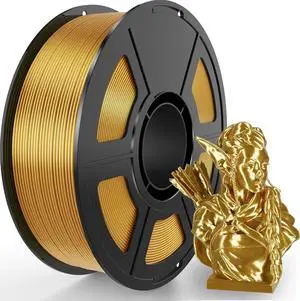
Quick View
Silk Gold PLA Filament 1.75mm, 1kg(2.2lbs) High Speed Shiny Metallic Golden 3D Printer Filament, Low Warp & Clog-Free, Dimensional Accuracy +/- 0.03mm for FDM 3D Printers
- Model #: 433330050894ComputerzoneGANG
- $41.89 –
- Free Shipping
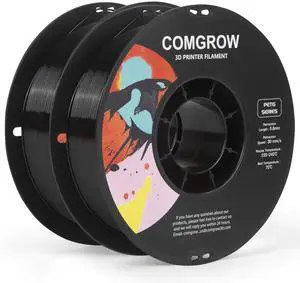
Quick View
Comgrow PETG 3D Printer Filament 1.75mm, High Precision and Tough 3D Printer Filament 2kg (4.4LBS), Dimensional Accuracy +/- 0.02 mm, Fit Most 3D Printers Black+Black
- Model #: 433330048051ComputerzoneGANG
- $41.89 –
- Free Shipping
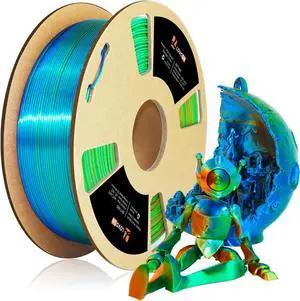
Quick View
LOVOON PLA 3D Printing Filament 1.75MM Silk tricolors, Color Change by Angle Multicolor pla filaments Fit Most FDM Printers and 3D Pen, Silk Orange/Green/Blue, 1KG(2.2lb)/Spool
- Model #: 433330054564ComputerzoneGANG
- $58.89 –
- Free Shipping
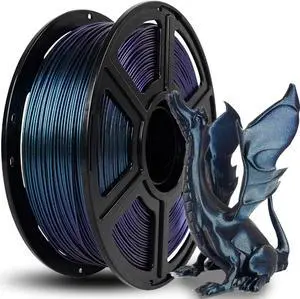
Quick View
FLASHFORGE 3D Printer Filament Chameleon PLA Color Shift Filament 1.75mm, Changes Color with Light and Angles, 1KG Spool (2.2lbs), Dimensional Accuracy +/- 0.02mm for FDM 3D Printers (Burnt Titanium)
- Model #: 433330049348ComputerzoneGANG
- $50.89 –
- Free Shipping
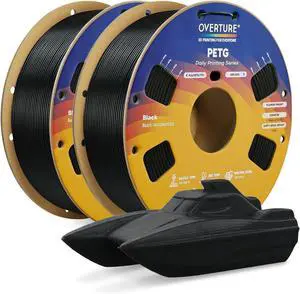
Quick View
OVERTURE PETG 3D Printer Filament 1.75mm, Neatly Wound Durable PETG 2kg Spool (4.4lbs), Strong Toughness Filament, Dimensional Accuracy +/- 0.02mm, Fit Most FDM Printers (Black (2-Pack))
- Model #: 433330053611ComputerzoneGANG
- $44.89 –
- Free Shipping
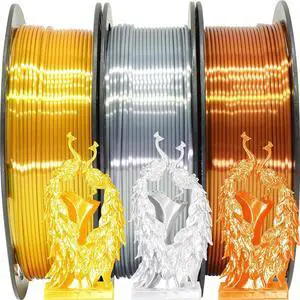
Quick View
Shiny Silk Gold Silver Copper PLA Filament Bundle, 1.75mm 3D Printer Filament, Each Spool 0.5kg, 3 Spools Pack, with One 3D Printer Remove or Stick Tool MIKA3D
- Model #: 433330048655ComputerzoneGANG
- $64.89 –
- Free Shipping
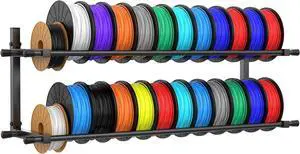
Quick View
3D Printer Filament Storage Rack Wall Mount, Foldable Heavy Duty Metal Shelving with Adjustable Hole Spacing for TPU/ABS/Nylon Filament Rack, 3D Printer Accessories for Studios, Garages, Workshops
- Model #: 433330055714ComputerzoneGANG
- $68.89 –
- Free Shipping
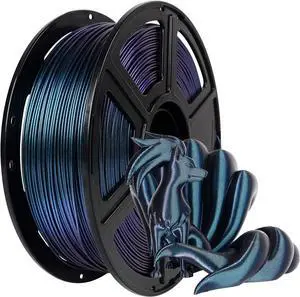
Quick View
FLASHFORGE PETG Pro Filament 1.75mm +/- 0.02mm Burnt Titanium, Color Changeable 3D Printer Filament 1kg, Chameleon 3D Printing Filament Changing Colors with Light, Perfectly Hide The Layer Line
- Model #: 433330050719ComputerzoneGANG
- $70.89 –
- Free Shipping
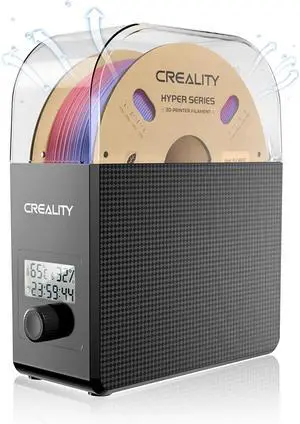
Quick View
2026 New Official CREALITY Filament Dryer Box Pro 2.0 with Fans, Upgraded 360° Hot-air Circulates Heating, 1KG 3D Printer Filament Dehydrator Dry During Printing for 1.75/2.85mm PLA PETG ABS TPU Nylon
- Model #: 433330054731ComputerzoneGANG
- $74.89 –
- Free Shipping
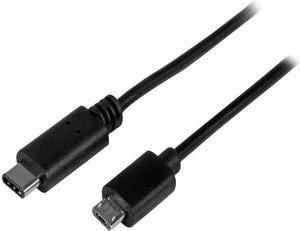
Quick View
StarTech USB2CUB50CM StarTech.com USB C to Micro USB Cable - 0.5m - M / M - Thunderbolt 3 Compatible - Micro USB Cord -USB Type C to Micro USB Cable
- Type: USB 2.0
- Connector Type: USB C to Micro USB
- Connector Number: 2
- Connector Detail: Connector A: 1 x USB Type-C (24-pin) USB 2.0 Male Connector B: 1 x USB Micro-B (5 pin) Male
- Model #: USB2CUB50CM

Quick View
- $123.49 –
- More options from $123.49 - $131.81
- Free Shipping
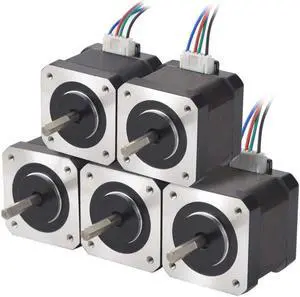
Quick View
STEPPERONLINE 5PCS Nema 17 Stepper Motor 1.5A 12V 45Ncm (63.74oz.in) 4-Lead 39mm Body W/ 1m Cable and Connector for DIY CNC/ 3D Printer/Extruder
- Model #: 433330047634ComputerzoneGANG
- $94.89 –
- Free Shipping
Quick View
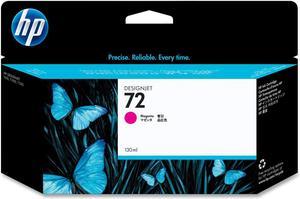
HP 72 High Yield Ink Cartridge - Magenta

- Brand: HP
- Series: HP 72XL
- Part Number: C9372A
- Cartridge Quantity: Single Pack
- Model #: C9372A
- $122.00 –
- Free Shipping
Quick View
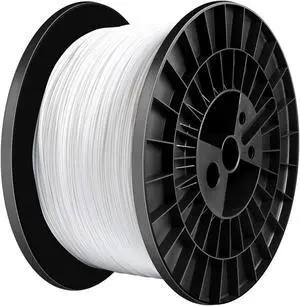
TIANSE PLA Filament 1.75mm PLA 3D Printer Filament, 5kg Cardboard Spool (11 lbs), Dimensional Accuracy +/- 0.03mm (White 1-Pack)
- Model #: 433330049966ComputerzoneGANG
- $156.89 –
- Free Shipping
Quick View
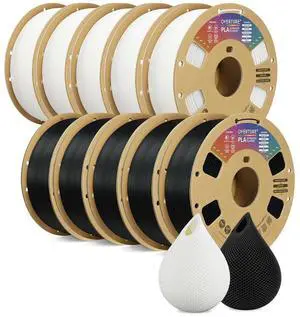
OVERTURE 10KG Bundle PLA Filament 1.75mm, Neatly Wound 3D Printer Filament 10 Pack 1kg Spool (2.2lbs), Dimensional Accuracy +/- 0.02 mm, Fit Most FDM 3D Printers (Black*5 & White*5)
- Model #: 433330056162ComputerzoneGANG
- $176.89 –
- Free Shipping
Quick View
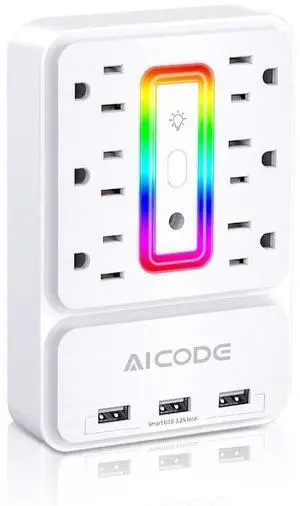
Multi Plug Outlet Extender,AICODE 6 Outlet Surge Outlet Protector with 3 USB Charger(3.2A Total),Wall Outlet Plug Electrical Outlet with 6 Ambient RGB Light , Plug Extender for Home,Office,Dorm,Hotel
Limited time offer, ends 07/28
- Model #: 582935235889
- $37.99
- See price in cart
- More options from $28.49 - $36.99
- Free Shipping
Quick View
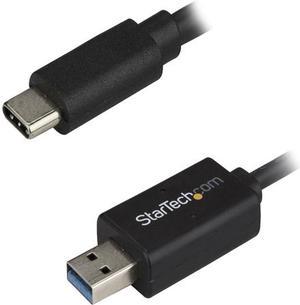
StarTech USBC3LINK USB C to USB Data Transfer Cable for Mac and Windows - USB 3.0
- Type: USB 3.0
- Connector Type: USB C to USB A
- Connector Number: 2
- Connector Detail: Connector A: 1 x USB Type-A (9 pin) USB 3.0 Male Connector B: 1 x USB Type-C (24 pin) USB 3.0 Male
- Model #: USBC3LINK
Quick View
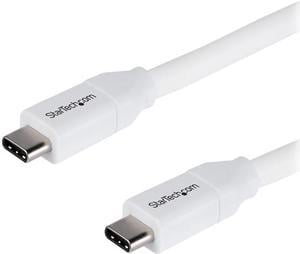
StarTech.com USB2C5C2MW USB C to USB C Cable - 6 ft / 2m - 5A PD - M/M - White - USB 2.0 - USB-IF Certified - USB Type C Cable - USB C Charging Cable
- Type: USB 2.0
- Connector Type: USB C to USB C
- Connector Number: 2
- Connector Detail: Connector A: 1 x USB Type-C (24-pin) USB 2.0 Male Connector B: 1 x USB Type-C (24-pin) USB 2.0 Male
- Model #: USB2C5C2MW
Quick View
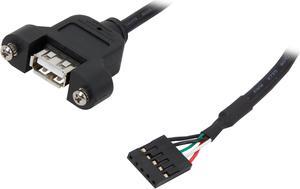
StarTech.com USBPNLAFHD3 Black Panel Mount USB Cable - USB A to Motherboard Header Cable
- Type: USB
- Connector Number: 2
- Connector Detail: Connector A: 1 - USB A (4 pin) Female Connector B: 1 - IDC (5 pin; Motherboard Header) Female
- Terminal Gender: Female to Female
- Model #: USBPNLAFHD3
Quick View

- Model #: 65UH5Q-E
- $1,231.40 –
- More options from $1,231.40 - $1,867.00
- Free Shipping
Quick View
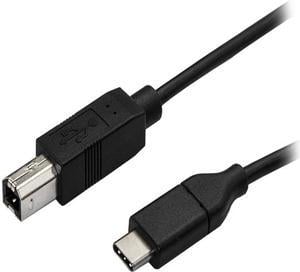
StarTech USB2CB3M StarTech.com USB C to USB B Printer Cable - 10 ft. / 3m - USB C Printer Cable - USB C to USB B Cable - USB Type C to Type B
- Type: USB 2.0
- Connector Type: USB C to USB B
- Connector Number: 2
- Connector Detail: Connector A: 1 x USB Type-C (24-pin) USB 2.0 Male Connector B: 1 x USB B (4 pin) Male
- Model #: USB2CB3M
- $26.99 –
- More options from $26.78 - $28.76
- Free Shipping
Quick View
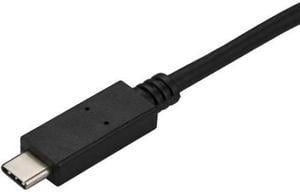
StarTech.com CDP2DPMM3MB 9.8 ft (3 m) USB-C to DisplayPort Cable - USB Type-C to DP Video Adapter Cable - 4K 60Hz - Black
- Cable Length: 9.84 ft. (3.0m)
- Type: USB-C to DisplayPort
- Connector Number: 2
- Connector Detail: Connector A: 1 x USB-C (24 pin) DisplayPort Alt Mode Male Input Connector B: 1 x DisplayPort (20 pin) Male Output Note: Your USB-C port must support DisplayPort over USB-C (DP Alt mode) in order to work with this adapter.
- Model #: CDP2DPMM3MB
Quick View
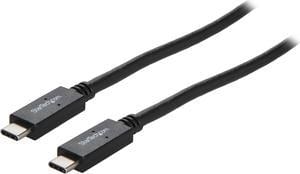
StarTech.com USB31C5C1M USB C Cable – 3 ft / 1m – with Power Delivery (USB PD) – Power Pass Through Charging – USB to USB Cord
- Type: USB 3.1
- Connector Type: USB C to USB C
- Connector Number: 2
- Connector Detail: 1 x USB Type-C (24 pin) USB 3.1 (10 Gbps) Male to 1 x USB Type-C (24 pin) USB 3.1 (10 Gbps) Male
- Model #: USB31C5C1M
Quick View
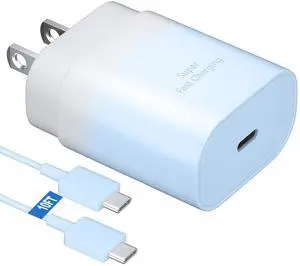
25W Super Fast Charging Cord Type C Block &10Ft USB C Android Phone Charger Cable for Samsung Galaxy S26 Ultra/S26/S26+/S25 Ultra/S25/24 Ultra/S24/S23 Ultra/S22 Ultra//Note 20/10,Blue Gradient
Limited time offer, ends 07/22
- Model #: 823767599026
- $31.99
- See price in cart
- Free Shipping
Quick View
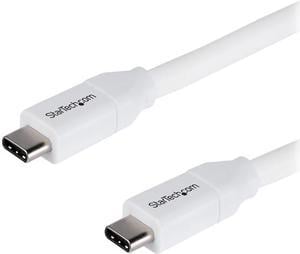
StarTech.com USB2C5C4MW USB C to USB C Cable - 13 ft / 4m - 5A PD - M/M - White - USB 2.0 - USB-IF Certified - USB Type C Cable - USB C Charging Cable
- Type: USB 2.0
- Connector Type: USB C to USB C
- Connector Number: 2
- Connector Detail: Connector A: 1 x USB Type-C (24-pin) USB 2.0 Male Connector B: 1 x USB Type-C (24-pin) USB 2.0 Male
- Model #: USB2C5C4MW
Quick View
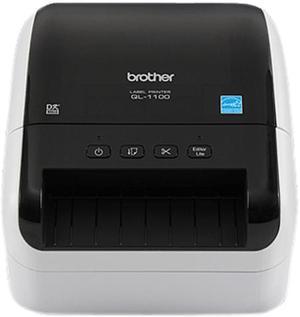
Brother QL-1100 4" Wide Format, Professional Direct Thermal Label Printer, USB, USB Host, Auto Cutter - White/Black
- Printer Type: Desktop
- Memory: Flash (for label templates): 7.8
- Fonts Included: Internal fonts: Bitmap fonts: Letter Gothic Bold, Helsinki, Brussels, San Diego, Brougham Font sizes: 24, 32, 48 dots Outline fonts: Letter Gothic Bold, Helsinki, Brussels Font sizes: 33-400 dots (22 sizes)
- Barcode Type: Barcode symbologies (using P-touch Editor): CODE39, CODE128, UCC/EAN128(GS1-128), ITF(I-2/5), CODABAR(NW-7), UPC-A, UPC-E, EAN13, EAN8, ISBN2(EAN13 AddOn2), ISBN-5(EAN13 AddOn5), Laser Barcode, POSTNET, RSS(RSS14 Standard, RSS14 Truncated, RSS14 Stacked, RSS14 Stacked Omni, RSS Limited, RSS Expanded, RSS Expanded Stacked), PDF417(Standard, Truncate, Micro), QR code(Model1, Model2, Micro), Data Matrix(ECC Square, ECC Rectangular), MaxiCode(Model2, Model3, Model4, Model5) RSS symbols / CODE93 / POSTNET / UPC/EAN EXTENSION / MSI / QR Code (model 1,...
- Model #: QL-1100
- $229.99 –
- More options from $229.99 - $331.88
- $15.35 Shipping

Any questions? Our AI beta will help you find out quickly.
Try me now
Choosing the Right Printer for Your Office Needs
When it comes to office solutions, printers and scanners are essential tools for any business. Whether you need to print important documents, scan invoices, or create professional-quality marketing materials, having the right equipment is crucial. In this article, we will explore the different types of printers and scanners available in the market and provide tips on how to choose the best one for your office.
All-in-One Printers: Versatility and Convenience
all-in-one printers, also known as multifunction printers, are a popular choice for offices. These devices combine the functionality of a printer, scanner, copier, and sometimes even a fax machine into a single unit. They offer versatility and convenience, allowing you to perform multiple tasks without the need for separate devices. All-in-one printers are available in both inkjet and laser options, catering to different printing needs and budgets.
Specialized Printers for Specific Tasks
In addition to all-in-one printers, there are specialized printers designed for specific tasks. For example, 3D printers are ideal for creating prototypes or intricate models, while barcode and label printers are perfect for businesses that require efficient inventory management. laser printers are known for their fast printing speeds and high-quality output, making them suitable for offices with high-volume printing needs. inkjet printers, on the other hand, are more cost-effective and can produce vibrant color prints.
Choosing the Right Supplies
Once you have selected the right printer for your office, it is important to choose the right supplies to ensure optimal performance and longevity. When it comes to inkjet printers, using high-quality ink cartridges is essential to achieve the best print quality and prevent clogging. For laser printers, it is important to choose the right type of toner cartridges that are compatible with your printer model. Additionally, investing in high-quality paper can make a significant difference in the final print results.
FAQs: Common Questions about Printers and Scanners
| Q: How often should I replace the ink cartridges? | A: The frequency of replacing ink cartridges depends on your printing volume. However, it is recommended to replace them when the print quality starts to degrade. |
|---|---|
| Q: Can I use third-party ink cartridges with my printer? | A: While it is possible to use third-party ink cartridges, it is important to ensure compatibility with your printer model. Using incompatible cartridges may result in poor print quality or damage to the printer. |
| Q: How do I clean the scanner glass? | A: To clean the scanner glass, use a soft, lint-free cloth slightly dampened with glass cleaner. Gently wipe the glass surface to remove any smudges or debris. |
| Q: What is the difference between optical and interpolated resolution in scanners? | A: Optical resolution refers to the actual hardware resolution of the scanner, while interpolated resolution is achieved through software enhancements. Optical resolution provides more accurate and detailed scans. |
| Q: How can I improve the scanning speed? | A: To improve scanning speed, reduce the scanning resolution, use black and white mode instead of color, and ensure that the scanner is connected to a high-speed USB port. |