
Your Browsing History
- In Stock
- Sold by Newegg
- Make an Offer
- New

Any questions? Our AI beta will help you find out quickly.
Try me now
Quick View
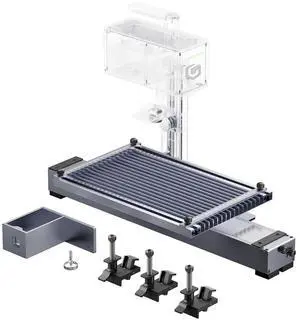
Longer Nano Slide Extension for Nano Series Expands Laser Engraving Area to 120x330mm, Longer Laser Engraving & Cutting for Laser Engraver, Includes 5 Clamps for Enhanced Stability
Limited time offer, ends 03/31
- Model #: Nano Extensions


Quick View

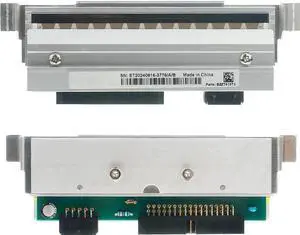
- Part Number: 527G6A
- Storage Humidity: 10 to 90% RH
- Operating Temperature: 59 to 80.6°F
- Storage Temperature: 32 to 95°F
- Model #: 527G6A
Quick View
- Part Number: 527G2A
- Storage Humidity: 10 to 90% RH
- Operating Temperature: 59 to 80.6°F
- Storage Temperature: 32 to 95°F
- Model #: 527G2A
Quick View
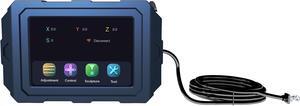
Longer HD 3.5-inch Magnetic Touch Screen, Enhancing The Operating Experience for LONGER B1 Series Laser Engravers
- Model #: B1 3.5-inch Touch Screen
Quick View
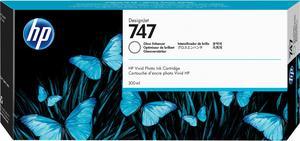
- Part Number: P2V87A
- Ink Type: Dye-based
- Operating Humidity: 40 to 55% RH
- Storage Humidity: 8 to 90% RH
- Model #: P2V87A
- $198.00 –
- More options from $190.00 - $391.73
- $4.99 Shipping

Quick View
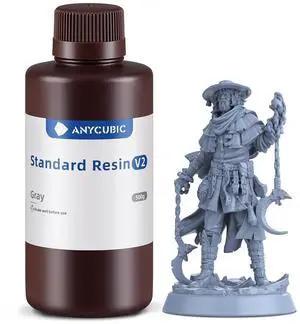
ANYCUBIC 3D Printer Resin, Upgraded 8K Standard Resin V2, Enhanced Toughness and Strength, Lower-Odor, High Precision 3D Printing Resin for All LCD Resin 3D Printers (Grey, 500g)
- Model #: vfrtR302951379465
- $25.72 –
- Free Shipping
Quick View
ANYCUBIC 3D Printer Resin, Upgraded 8K Standard Resin V2, Enhanced Toughness and Strength, Lower-Odor, High Precision 3D Printing Resin for All LCD Resin 3D Printers (Grey, 500g)
- Model #: SOYE517526154426WEI
- $29.23 –
- Free Shipping
Quick View
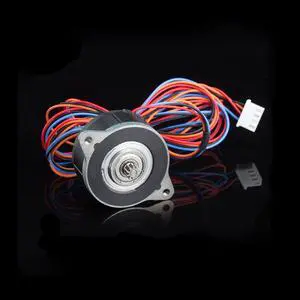
Moons NEMA14 36MM 17MM Enhanced Stepper Motor Compatible with Orbiter Extruder Sherpa Extruder, Ender 3 Pro/Voron 2.4 / BLV / CR10 3D Printer Direct Drive Upgrade
- Model #: vfrtR302951376648
- $45.50 –
- Free Shipping
Quick View
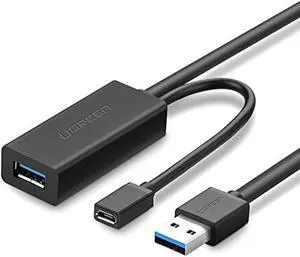
UGREEN USB Extension Cable USB 3.0 Repeater Cable Signal Enhancement Fast Data Transfer Gold Plated Active 10M
- Connector Type: Micro USB to USB A
- Model #: 6957303828272
- $84.58 –
- Free Shipping
Quick View
ANYCUBIC 3D Printer Resin, Upgraded 8K Standard Resin V2, Enhanced Toughness and Strength, Lower-Odor, High Precision 3D Printing Resin for All LCD Resin 3D Printers (Grey, 500g)
- Model #: R625247663312174
- $25.72 –
- Free Shipping
Quick View
Moons NEMA14 36MM 17MM Enhanced Stepper Motor Compatible with Orbiter Extruder Sherpa Extruder, Ender 3 Pro/Voron 2.4 / BLV / CR10 3D Printer Direct Drive Upgrade
- Model #: R330247663309747
- $45.50 –
- Free Shipping
Quick View
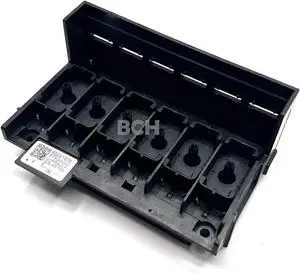
BCH Printhead Nipple Conversion Kit for ET-8550 Compatible V-2 Dampers for DTF & Sublimation Ink Flow Enhancement
- Model #: CHIXB0DM8VW3DX
- $126.99 –
- Free Shipping
Quick View
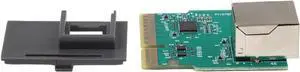
P1112640015 Ethernet Upgrade Module for Zebra ZD421 ZD421T ZD421D Printers Enhanced Network Connectivity
- Model #: CHIPB0GJ4DT3NQ
- $114.99 –
- Free Shipping
Quick View
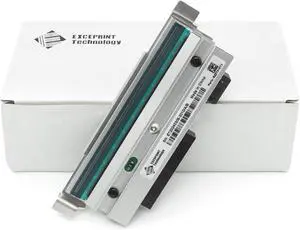
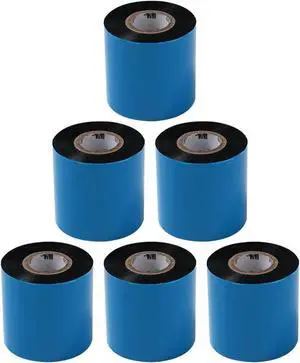
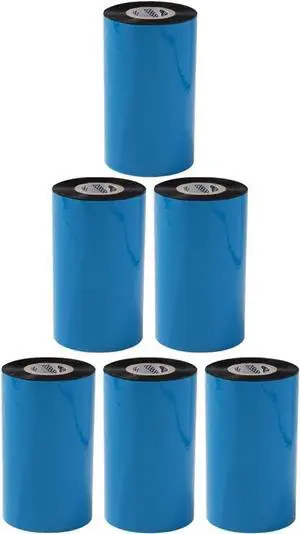
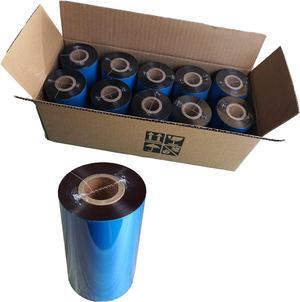
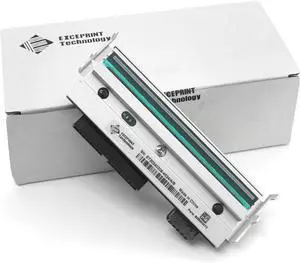
300DPI Thermal Printhead Replacement for Zebra ZT410/ZT411 Printers - Part P1058930-010 | Enhanced Durability & Precision Printing
- Model #: CHIPB0CYSM8377
- $414.99 –
- Free Shipping
Quick View
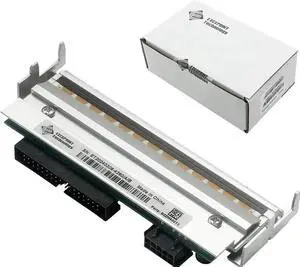
203DPI Thermal Printhead Replacement for Zebra ZM400 Printers - 79800M | Enhanced Durability & Precision Printing
- Model #: CHIDB0CYT17HVM
- $304.99 –
- Free Shipping
Quick View
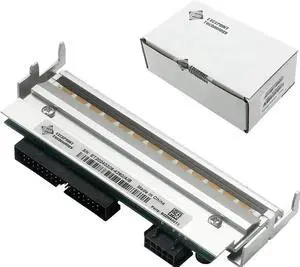
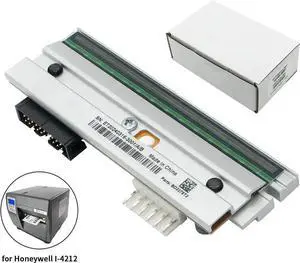
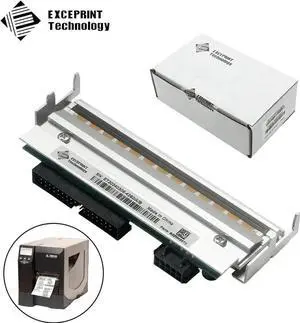
P1004230 Replacement Printhead for Ze bra 110Xi4 105SL Plus - 203dpi Precision Thermal Print Head for Enhanced Label Printing Quality
- Model #: C2ZP-H-121142
- $313.78 –
- More options from $313.78 - $315.91
- Free Shipping
Quick View
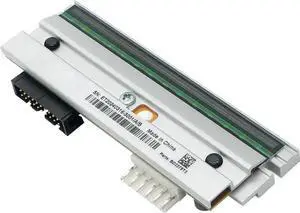
P1004230 Replacement Printhead for Ze bra 110Xi4 105SL Plus - 203dpi Precision Thermal Print Head for Enhanced Label Printing Quality
- Model #: C2ZP-H-121139
- $313.78 –
- More options from $313.78 - $315.91
- Free Shipping
Quick View
P1004230 Replacement Printhead for Ze bra 110Xi4 105SL Plus - 203dpi Precision Thermal Print Head for Enhanced Label Printing Quality
- Model #: C2ZP-H-121143
- $313.78 –
- More options from $313.78 - $316.11
- Free Shipping
Quick View
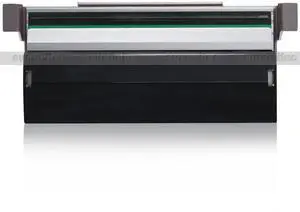
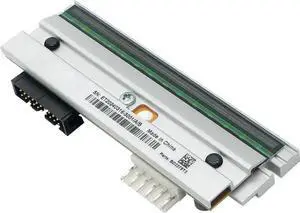
P1058930-010 Replacement Printhead for Ze bra ZT410 ZT411-300dpi Precision Thermal Print Head for Enhanced Label Printing Quality
- Model #: C2ZP-1210114
- $200.48 –
- More options from $200.48 - $203.11
- Free Shipping
Quick View
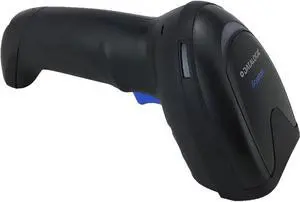
Datalogic Gryphon GD4290 Handheld Corded 1D Enhanced Barcode Scanner/Linear Imager with USB Cable (GD4290-BK)
- Light Source: Illumination: Dual LED Array 612 - 630 nm
- Resolution: 0.077 mm / 3 mils
- Depth of Scan Field: Minimum distance determined by symbol length and scan angle. Printing resolution, contrast, and ambient light dependent. GD4200 Code 39: 5 mils: 5 to 37 cm / 2.0 to 14.6 in Code 39: 7.5 mils: 5 to 54 cm / 2.0 to 21.3 in Code 39: 10 mils: 5 to 73.5 cm / 2.0 to 28.9 in Code 39: 20 mils: 2.5 to 147 cm / 1 to 57.9 in EAN/UPC: 13 mils: 3.5 to 90 cm / 1.4 to 35.4 in
- Print Contrast Ratio (Minimum): 15%
- Model #: GD4290-BK-2
- $119.00 –
- More options from $119.00 - $125.00
- Free Shipping
Quick View
BCH Printhead Nipple Conversion Kit for ET-8550 Compatible V-2 Dampers for DTF & Sublimation Ink Flow Enhancement
- Model #: DARJB0DM8VW3DX
- $126.99 –
- Free Shipping
Quick View
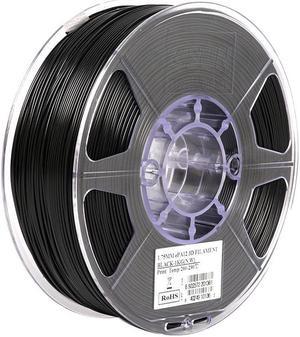
eSUN Super Enhanced Carbon Fiber Filled Nylon Filament 1.75mm, Upgraded PA12 CF 3D Printer Filament, 1KG Spool 3D Printing Filament for 3D Printers, Natural
- Compatible System: For FDM 3D Printer
- Model #: EPA12CF-175N1KG
- $109.99 –
- Free Shipping
Quick View
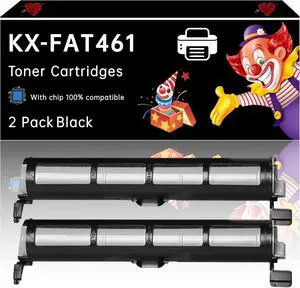
KX-FAT461 Toner Cartridges Compatible with Panasonic KX-MB2000 KX-MB2010 KX-MB2030 KX-MB2061 Printers, Enhanced Durability, Ideal for High-Volume Printing (2-Pack Black)
- Model #: BAMB0F532MDVT
- $151.99 –
- Free Shipping
Quick View
- $197.99 –
- More options from $197.99 - $199.00
- Free Shipping

Quick View
ANYCUBIC ABS-Like Resin Pro 2, Upgraded 8K 3D Printer Resin with Enhanced Strength and Toughness, High Precision, Low Odor, Wide Compatibility for All LCD Resin 3D Printers (Grey, 1kg)
- Model #: Fahint365035841555
- $43.54 –
- Free Shipping
Quick View
Moons NEMA14 36MM 17MM Enhanced Stepper Motor Compatible with Orbiter Extruder Sherpa Extruder, Ender 3 Pro/Voron 2.4 / BLV / CR10 3D Printer Direct Drive Upgrade
- Model #: Fahint365035839231
- $45.50 –
- Free Shipping
Quick View
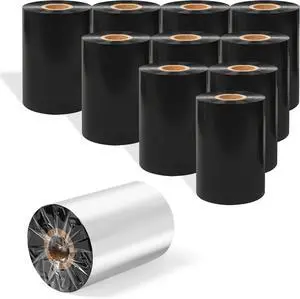
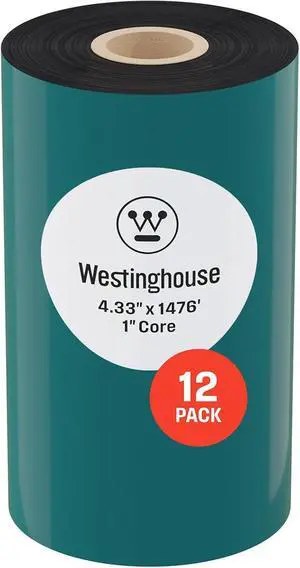
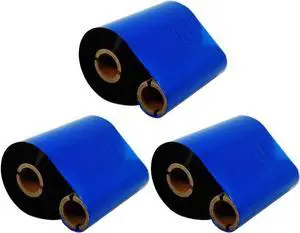
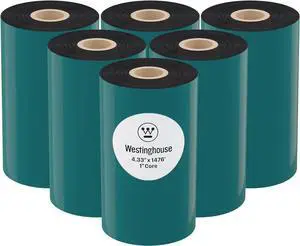
3 Count Pack 4.33" x 1476' Thermal Wax Ribbon Enhanced Wax Resin for Zebra Desktop Printer S4M Z4M 105SE 105S 105SL 105SLPlus 160S S500 S600
- Model #: DARKB07D64ZY3Y
- $108.99 –
- Free Shipping
Quick View
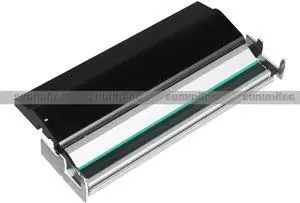
Printhead Replacement for Ze bra S4M Z4M Printers - G41400M 203DPI Thermal Label Printer Print Head | Enhanced Durability
Limited time offer, ends 03/18
- Model #: C2ZP-121071
- $187.48 –
- More options from $187.47
- Free Shipping
Quick View
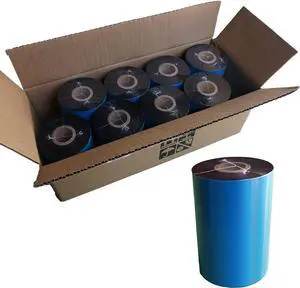
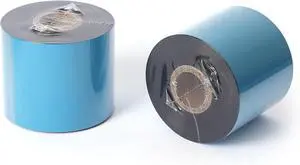
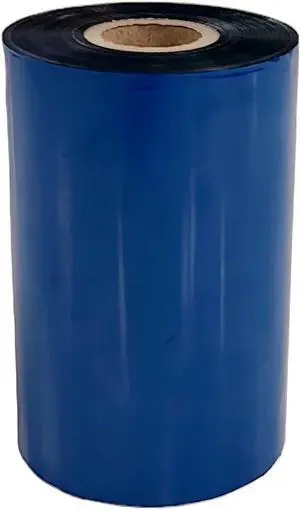
Thermal Transfer Ribbon Roll Printer Ink 24 Rolls Bulk Black Standard Resin-Enhanced Wax Ribbons (4.33" x 1476'/110mm x 450m) (24 Rolls)
- Model #: DARKB07BNQH7CW
- $245.99 –
- Free Shipping
Quick View
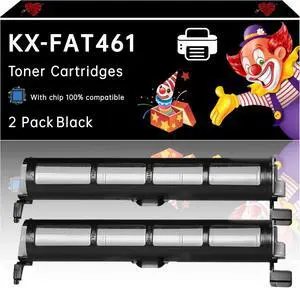
KX-FAT461 Toner Cartridges Compatible with Panasonic KX-MB2000 KX-MB2010 KX-MB2030 KX-MB2061 Printers, Enhanced Durability, Ideal for High-Volume Printing (2-Pack Black)
- Model #: DARKB0F532MDVT
- $162.99 –
- Free Shipping
Quick View
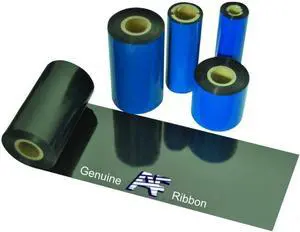
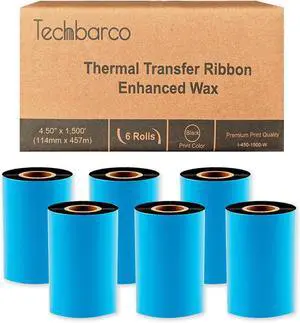
6 Rolls 4.50" x 1500' (114mm x 457m) Enhanced Wax Thermal Transfer Ribbon, Core 1", Black, CSO (Coated Side Out), Barcode Ribbon Compatible with Intermec Printers
- Model #: DARKB0CPPDHY91
- $126.99 –
- Free Shipping

Quick View
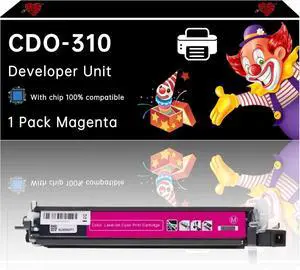
CDO-310 Developer Unit Compatible with Pantum CM7107DN CP2507DN Plus Printers, Enhanced Durability, Ideal for High-Volume Printing (1 Pack Magenta)
- Model #: LEMLB0F18G395F
- $204.99 –
- Free Shipping
Quick View
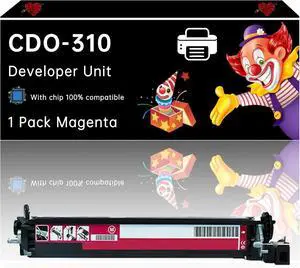
CDO-310 Developer Unit Compatible with Pantum CM7107DN CP2507DN Printers, Enhanced Durability, Ideal for High-Volume Printing (1 Pack Magenta)
- Model #: LEMLB0F1MJ6XNJ
- $225.99 –
- Free Shipping
Quick View
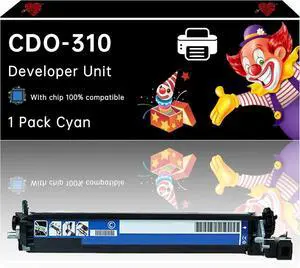
CDO-310 Developer Unit Compatible with Pantum CM7107DN CP2507DN Printers, Enhanced Durability, Ideal for High-Volume Printing (1 Pack Cyan)
- Model #: LEMLB0F1MHL26V
- $225.99 –
- Free Shipping
Quick View
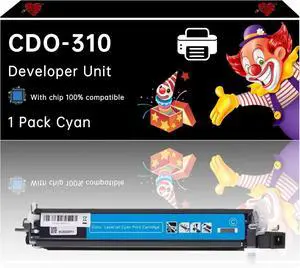
CDO-310 Developer Unit Compatible with Pantum CM7107DN CP2507DN Plus Printers, Enhanced Durability, Ideal for High-Volume Printing (1 Pack Cyan)
- Model #: LEMLB0F18BPH4N
- $204.99 –
- Free Shipping
Quick View
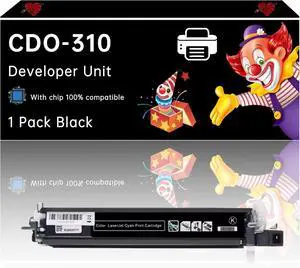
CDO-310 Developer Unit Compatible with Pantum CM7107DN CP2507DN Plus Printers, Enhanced Durability, Ideal for High-Volume Printing (1 Pack Black)
- Model #: LEMLB0F18TVBDW
- $204.99 –
- Free Shipping
Quick View
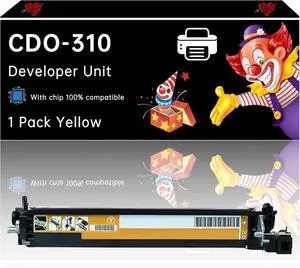
CDO-310 Developer Unit Compatible with Pantum CM7107DN CP2507DN Printers, Enhanced Durability, Ideal for High-Volume Printing (1 Pack Yellow)
- Model #: LEMLB0F1MHGZLQ
- $225.99 –
- Free Shipping
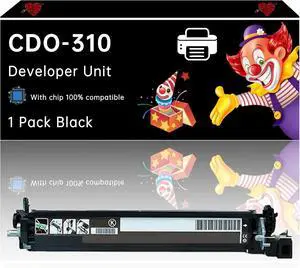
Quick View
CDO-310 Developer Unit Compatible with Pantum CM7107DN CP2507DN Printers, Enhanced Durability, Ideal for High-Volume Printing (1 Pack Black)
- Model #: LEMLB0F1MJPCW6
- $225.99 –
- Free Shipping
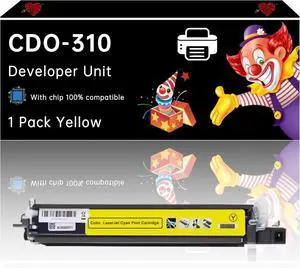
Quick View
CDO-310 Developer Unit Compatible with Pantum CM7107DN CP2507DN Plus Printers, Enhanced Durability, Ideal for High-Volume Printing (1 Pack Yellow)
- Model #: LEMLB0F18DVK5L
- $204.99 –
- Free Shipping
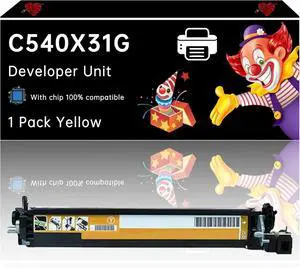
Quick View
C540X31G Developer Unit Compatible with Lexmark C540N C543DN C544DN C544DTN C544DW Printers, Enhanced Durability, Ideal for High-Volume Printing (1 Pack Yellow)
- Model #: LEMLB0F1J9RRMB
- $212.99 –
- Free Shipping
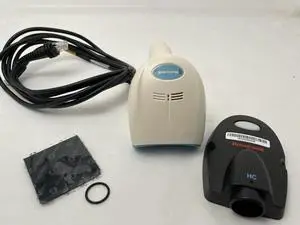
Quick View
- $297.99 –
- More options from $297.99 - $299.00
- Free Shipping
Quick View
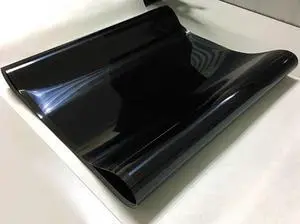
Enhance Print Quality and Reliability with The Transfer Belt for IR C7055 C7065 C7260 C7270 C9065 C9075 C9270 C9280 - Printing Supplies
- Model #: LEMLB0CHYC8RC8
- $232.99 –
- Free Shipping
Quick View
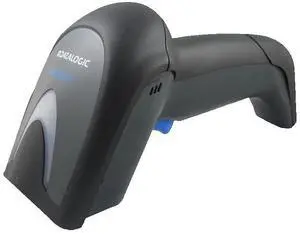
Gryphon GD4290-BK , HANDHELD LINEAR IMAGER , ENHANCED 1D , WIRED USB CABLE
- Model #: GD4290-New
- $177.50 –
- Free Shipping
Quick View
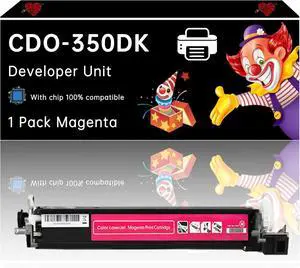
CDO-350DK Developer Unit Compatible with Pantum CP2510DN CM7115DN CM7000FDN Printers, Enhanced Durability, Ideal for High-Volume Printing (1 Pack Magenta)
- Model #: LEMLB0F53289MT
- $176.99 –
- Free Shipping
Quick View
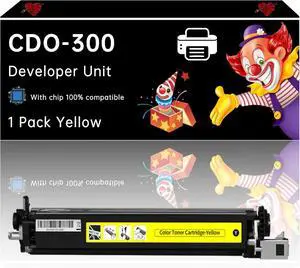
CDO-300 Developer Unit Compatible with Pantum CP2300 CP2500 CP2506DNPLUS CM7105DN CM7100 Printers, Enhanced Durability, Ideal for High-Volume Printing (1 Pack Yellow)
- Model #: LEMLB0F5GQTT2X
- $202.99 –
- Free Shipping
Quick View
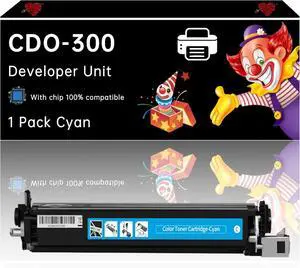
CDO-300 Developer Unit Compatible with Pantum CP2300 CP2500 CP2506DNPLUS CM7105DN CM7100 Printers, Enhanced Durability, Ideal for High-Volume Printing (1 Pack Cyan)
- Model #: LEMLB0F5GR41TF
- $202.99 –
- Free Shipping
Quick View
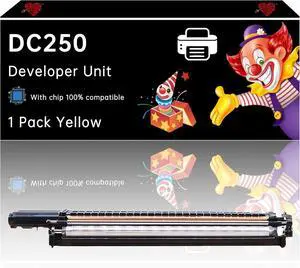
DC250 Developer Unit Compatible with Xerox DocuColor DC240 DC242 DC250 DC252 and DC260 Printers, Enhanced Durability, Ideal for High-Volume Printing (1 Pack Yellow)
- Model #: LEMLB0DZWYLQ97
- $297.99 –
- Free Shipping
Quick View
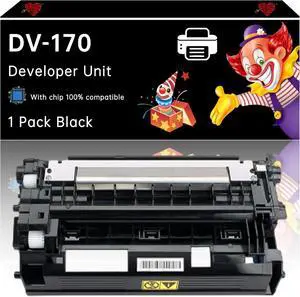
DV-170 Developer Unit Compatible with Kyocera ECOSYS M2035dn M2535dn FS-1035MFP FS-1135MFP Printers, Enhanced Durability, Ideal for High-Volume Printing (1 Pack Black)
- Model #: LEMLB0F438CNVW
- $251.99 –
- Free Shipping
Quick View
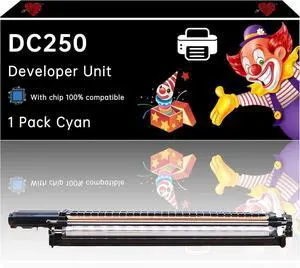
DC250 Developer Unit Compatible with Xerox DocuColor DC240 DC242 DC250 DC252 and DC260 Printers, Enhanced Durability, Ideal for High-Volume Printing (1 Pack Cyan)
- Model #: LEMLB0DZWYF2KG
- $297.99 –
- Free Shipping
Quick View
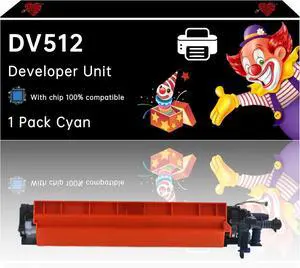
DV512 Developer Unit Compatible with Konica Minolta bizhub C284e C364 C364e C454 C454e C554 C554e Printers, Enhanced Durability, Ideal for High-Volume Printing (1 Pack Cyan)
- Model #: LEMLB0F53BCLVH
- $253.99 –
- Free Shipping
Quick View
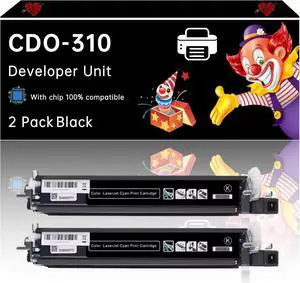
CDO-310 Developer Unit Compatible with Pantum CM7107DN CP2507DN Plus Printers, Enhanced Durability, Ideal for High-Volume Printing (2 Pack Black)
- Model #: LEMLB0F18JCLL3
- $367.99 –
- Free Shipping
Quick View
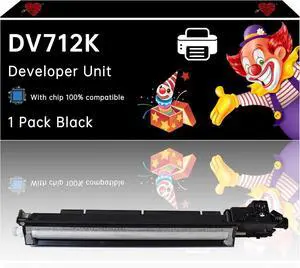
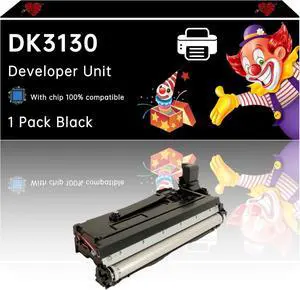
DV712K Developer Unit Compatible with Konica Minolta bizhub C659 bizhub C759 Printers, Enhanced Durability, Ideal for High-Volume Printing (1 Pack Black)
- Model #: LEMLB0F5MMKPW7
- $299.99 –
- Free Shipping
Quick View
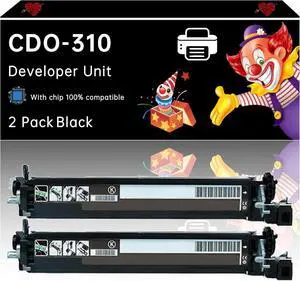
CDO-310 Developer Unit Compatible with Pantum CM7107DN CP2507DN Printers, Enhanced Durability, Ideal for High-Volume Printing (2 Pack Black)
- Model #: LEMLB0F1MHQ9R9
- $403.99 –
- Free Shipping
Quick View
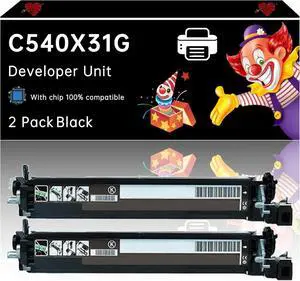
C540X31G Developer Unit Compatible with Lexmark X544DW X544N X546DTN X548DE X548DTE Printers, Enhanced Durability, Ideal for High-Volume Printing (2 Pack Black)
- Model #: LEMLB0F1K4ZQHY
- $378.99 –
- Free Shipping
Quick View
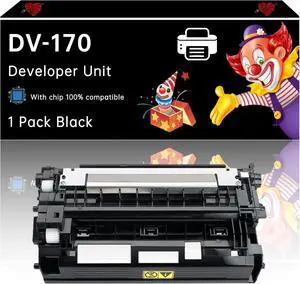
DV-170 Developer Unit Compatible with Toshiba ECOSYS M2035dn M2535dn P2135d P2135dn Printers, Enhanced Durability, Ideal for High-Volume Printing (1 Pack Black)
- Model #: LEMLB0F4WK5XFH
- $300.99 –
- Free Shipping
Quick View
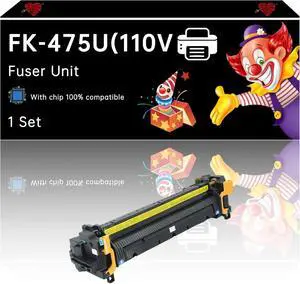
FK-475U(110V) Fuser Unit Compatible with Copystar CS255 CS305 Printers, Enhanced Durability, Ideal for High-Volume Printing (1 Set)
- Model #: LEMLB0DZMMBZV6
- $450.99 –
- Free Shipping
Quick View
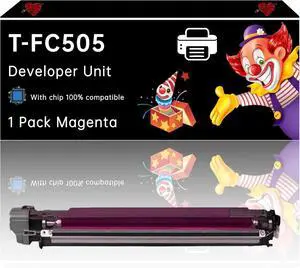
T-FC505 Developer Unit Compatible with Toshiba E Studio 2505AC 3005AC 3505AC 4505AC 5005AC Printers, Enhanced Durability, Ideal for High-Volume Printing (1 Pack Magenta)
- Model #: LEMLB0F1FR5WYD
- $310.99 –
- Free Shipping
Related searches
Choosing the Right Printer for Your Office Needs
When it comes to office solutions, printers and scanners are essential tools for any business. Whether you need to print important documents, scan invoices, or create professional-quality marketing materials, having the right equipment is crucial. In this article, we will explore the different types of printers and scanners available in the market and provide tips on how to choose the best one for your office.
All-in-One Printers: Versatility and Convenience
all-in-one printers, also known as multifunction printers, are a popular choice for offices. These devices combine the functionality of a printer, scanner, copier, and sometimes even a fax machine into a single unit. They offer versatility and convenience, allowing you to perform multiple tasks without the need for separate devices. All-in-one printers are available in both inkjet and laser options, catering to different printing needs and budgets.
Specialized Printers for Specific Tasks
In addition to all-in-one printers, there are specialized printers designed for specific tasks. For example, 3D printers are ideal for creating prototypes or intricate models, while barcode and label printers are perfect for businesses that require efficient inventory management. laser printers are known for their fast printing speeds and high-quality output, making them suitable for offices with high-volume printing needs. inkjet printers, on the other hand, are more cost-effective and can produce vibrant color prints.
Choosing the Right Supplies
Once you have selected the right printer for your office, it is important to choose the right supplies to ensure optimal performance and longevity. When it comes to inkjet printers, using high-quality ink cartridges is essential to achieve the best print quality and prevent clogging. For laser printers, it is important to choose the right type of toner cartridges that are compatible with your printer model. Additionally, investing in high-quality paper can make a significant difference in the final print results.
FAQs: Common Questions about Printers and Scanners
| Q: How often should I replace the ink cartridges? | A: The frequency of replacing ink cartridges depends on your printing volume. However, it is recommended to replace them when the print quality starts to degrade. |
|---|---|
| Q: Can I use third-party ink cartridges with my printer? | A: While it is possible to use third-party ink cartridges, it is important to ensure compatibility with your printer model. Using incompatible cartridges may result in poor print quality or damage to the printer. |
| Q: How do I clean the scanner glass? | A: To clean the scanner glass, use a soft, lint-free cloth slightly dampened with glass cleaner. Gently wipe the glass surface to remove any smudges or debris. |
| Q: What is the difference between optical and interpolated resolution in scanners? | A: Optical resolution refers to the actual hardware resolution of the scanner, while interpolated resolution is achieved through software enhancements. Optical resolution provides more accurate and detailed scans. |
| Q: How can I improve the scanning speed? | A: To improve scanning speed, reduce the scanning resolution, use black and white mode instead of color, and ensure that the scanner is connected to a high-speed USB port. |