
Your Browsing History
- In Stock
- Sold by Newegg
- Make an Offer
- New

Any questions? Our AI beta will help you find out quickly.
Try me now
Quick View
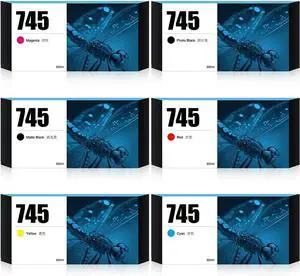
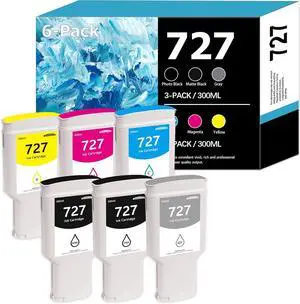
745 Ink Cartridge 6Pack Compatible with HP DesignJet Z2600 Z5600 Postscript Printer (300ML Matte Black/Photo Black/Cyan/Yellow/Magenta/Red)
- Model #: DARKB0FCL6WWV4
- $846.99 –
- Free Shipping
Quick View
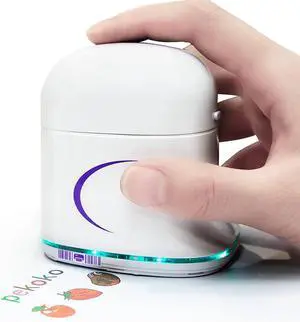
Ennovor Instant Handheld Printer, Portable Color Smart Marking Device, Mini Inkjet Printer, Barcode Printer 1200dpi Wireless, Digital Stamp Printer
- Model #: JAIB0DP6XFG1M
- $383.99 –
- Free Shipping
Quick View
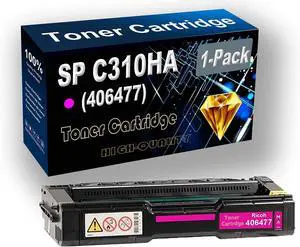
Ennovor 1-Pack (Magenta) Compatible High Yield SP C310HA | 406477 Imaging Toner Cartridge use for Ricoh SP C310HA C311N C312DN C312DN C231N C242DN Printer
- Model #: LIAB098Q1FMPB
- $153.99 –
- Free Shipping
Quick View
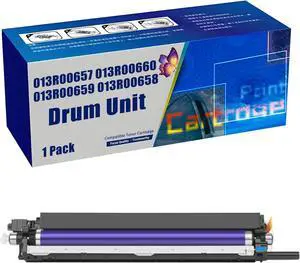
High Yield 013R00657 013R00660 013R00659 013R00658 Drum Unit Replacement for Xerox WorkCentre 7220 7225 7120 7125 Printer Cyan 1 Pack
- Model #: LEMLB0FDW2GQG5
- $183.99 –
- Free Shipping
Quick View

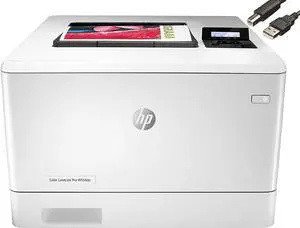
- Output Capacity, std.: Up to 150 sheets
- Black Print Quality: 600 x 600 dpi, Up to 38, 400 x 600 enhanced dpi
- Functions: Print
- Display: 2-line backlit LCD graphic display
- Model #: Pro M454dn
- $380.00 –
- $25.00 Shipping
Quick View
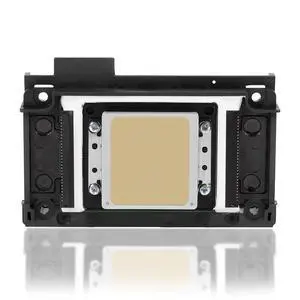
FA09050 Print Head Compatible with Epson XP600 XP601 XP610 XP700 XP701 XP800 XP801 XP820 XP850 UV & DTF Printer
- Model #: DARJB0FK4W5SWX
- $468.99 –
- Free Shipping
![High Yield B241H00 Toner Cartridge 6,000 Pages [with New Chip] B241H00 Black Toner Cartridge Replacement for B2442 B2546 B2650 MB2442 MB2546 MB2650 Laser Printer](https://c1.neweggimages.com/productimage/nb300/C4DRD2512130OOFWV3F.jpg "High Yield B241H00 Toner Cartridge 6,000 Pages [with New Chip] B241H00 Black Toner Cartridge Replacement for B2442 B2546 B2650 MB2442 MB2546 MB2650 Laser Printer")
Quick View
High Yield B241H00 Toner Cartridge 6,000 Pages [with New Chip] B241H00 Black Toner Cartridge Replacement for B2442 B2546 B2650 MB2442 MB2546 MB2650 Laser Printer
- Model #: DARKB0DX6TBWCJ
- $178.99 –
- Free Shipping
Quick View
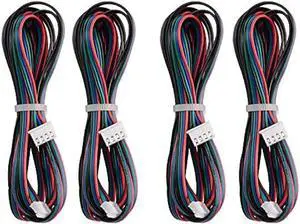
4pcs 2M Motor Connector Cables XH2.54 4pin to XH2.0 6pin White Terminal Paralled Motor Wires for 3D Printer Stepper Motor Extension Cable
- Model #: B3B85375198729539
- $27.70 –
- Free Shipping
Quick View
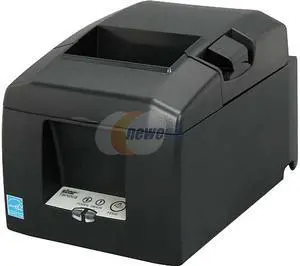
Star Micronics TSP654IIBI2-24 Thermal Cutter
- Color: Gray
- Printer Type: Desktop
- Barcode Type: 9 versions / PDF 417 Option
- Cutter: Reliable Guillotine Cutter
- Model #: 39481270
- $920.30 –
- More options from $914.20 - $968.35
- Free Shipping
Quick View
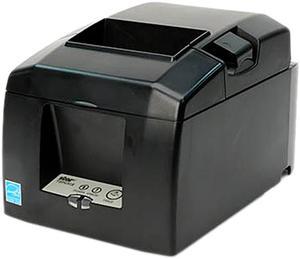
Star Micronics 39449772 TSP650II Series Direct Thermal Receipt Printer - Gray - TSP654IIE3-24 GRY US
- Model #: 39449772
- $326.34
- $288.69 –
- Save: $37.65 (11%)
- More options from $288.49 - $386.41
- Free Shipping
Quick View
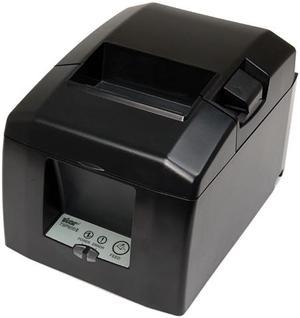
Star Micronics 39449470 TSP650II Series Direct Thermal Receipt Printer - Gray - TSP654IIC-24 GRY US
- Color: Gray
- Cutter: Auto-Cutter
- Media sizes supported: Paper Width: 80mm / 58mm Paper Thickness: 0.053 - 0.085mm
- Interface: Parallel
- Model #: 39449470
- $214.69 –
- More options from $214.69
- Free Shipping
Quick View
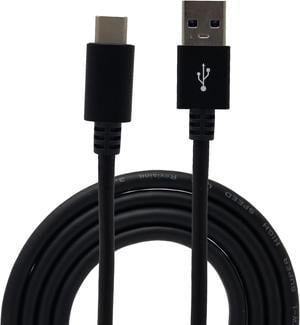
USB Type C Cable 6ft USB C to USB A High Speed Data Sync Fast Charging Cord
- Type: USB Cable
- Model #: TCB402B
- $10.14 –
- Free Shipping
Quick View
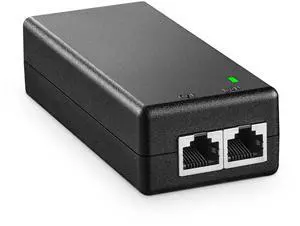
Gigabit PoE Injector, 802.3af/at 30W, 10/100/1000Mbps Ethernet, Plug & Play, Non-PoE to PoE Adapter, Distance Up to 100 Meters (328 ft.)
- Model #: 370912228404
- $25.99 –
- Free Shipping
Quick View
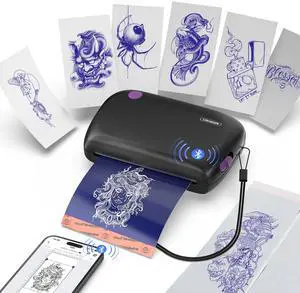
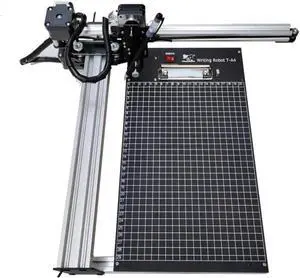
2.0 T-Structure Pen Plotter XY Plotter, iDraw 2.0 XY Plotter Handwriting Robot Machine with A4 Working Range, with Plate, Twice Faster Writing Speed
- Model #: DARKB0BDSDCQWG
- $682.99 –
- Free Shipping
Quick View
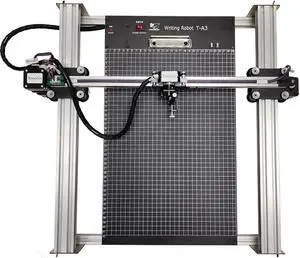
2.0 H-Structure Pen Plotter, iDraw 2.0 XY Plotter A3 Plotting Range, Handwriting Robot Machine with Twice Faster Writing Speed, Stable Structure with Basement Plate
- Model #: DARKB0BFFSFNYT
- $1,076.99 –
- Free Shipping
Quick View
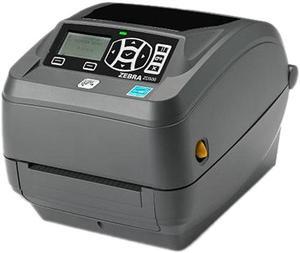
Ze bra ZD500 4" Desktop Thermal Transfer Label Printer, 203 dpi, USB, Serial, Centronics Parallel, Ethernet - ZD50042-T01200FZ
- Model #: SN: ZD50042-T01200FZ
- $798.70 –
- More options from $796.00 - $799.00
- Free Shipping
Quick View
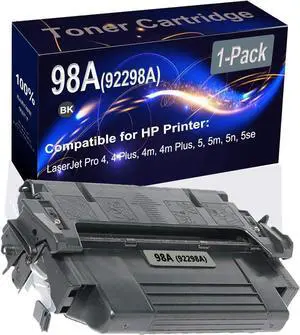
1-Pack (Black) Compatible 98A (92298A) Printer Toner Cartridge (High Capacity) fit for HP 4, 4 Plus, 4m, 4m Plus, 5, 5m, 5n, 5se Printer
- Model #: DARKB09686SDMZ
- $356.99 –
- Free Shipping
Quick View
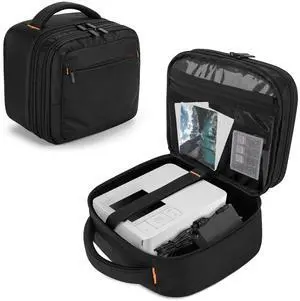
CURMIO Double Layer Photo Printer Case Compatible with Canon SELPHY CP1500 / CP1300 / CP1200, Portable Printer Camera Storage Bag with Multiple Pockets, Bag Only
- Model #: 592395340187
- $49.99 –
- $5.99 Shipping
Quick View
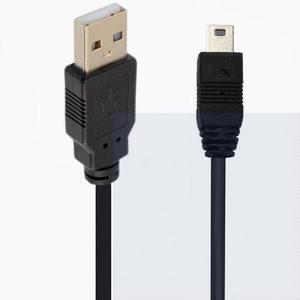
USB2.0 hard disk digital camera phone data cable T-port AM-Mini 5P up and down left and right bend 90°3 meters Straight head
- Model #: wa-1284
- $14.95 –
- Free Shipping
Quick View
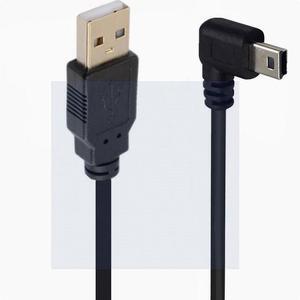
USB2.0 hard disk digital camera phone data cable T-port AM-Mini 5P up and down left and right bend 90°3 meters 1.5m
- Model #: wa-1312
- $14.40 –
- Free Shipping
Quick View
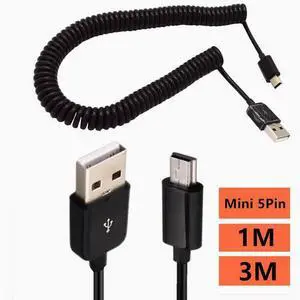
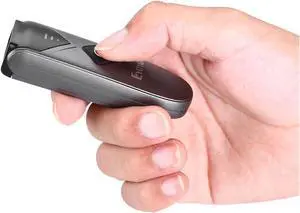
Automatic Barcode Scanning System 2D Barcode Scanner Mini Portable Wireless 1D Bar Code Reader Wired 3-in-1 Connection QR Image PDF417 Data Matrix
- Model #: PB0CGQZ442W
- $137.99 –
- Free Shipping
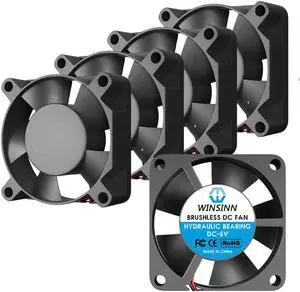
Quick View
WINSINN 30mm Fan 5V, 3D Printer Micro 5 Volt Fans 3010 Hydraulic Bearing, Brushless Cooling 30mmx10mm 2PIN (Pack of 5Pcs)
- Model #: 6402411566603ASDFA11643911

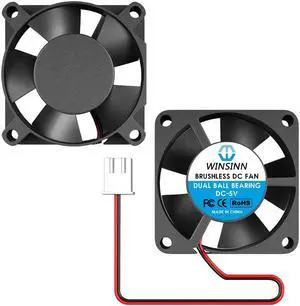
Quick View
WINSINN 30mm Fan 5V, 3D Printer Micro 5 Volt Fans 3010 Dual Ball Bearing, Brushless Cooling 30mmx10mm 2PIN (Pack of 2Pcs)
- Model #: 6402411567907ASDFA15145311
Choosing the Right Printer for Your Office Needs
When it comes to office solutions, printers and scanners are essential tools for any business. Whether you need to print important documents, scan invoices, or create professional-quality marketing materials, having the right equipment is crucial. In this article, we will explore the different types of printers and scanners available in the market and provide tips on how to choose the best one for your office.
All-in-One Printers: Versatility and Convenience
all-in-one printers, also known as multifunction printers, are a popular choice for offices. These devices combine the functionality of a printer, scanner, copier, and sometimes even a fax machine into a single unit. They offer versatility and convenience, allowing you to perform multiple tasks without the need for separate devices. All-in-one printers are available in both inkjet and laser options, catering to different printing needs and budgets.
Specialized Printers for Specific Tasks
In addition to all-in-one printers, there are specialized printers designed for specific tasks. For example, 3D printers are ideal for creating prototypes or intricate models, while barcode and label printers are perfect for businesses that require efficient inventory management. laser printers are known for their fast printing speeds and high-quality output, making them suitable for offices with high-volume printing needs. inkjet printers, on the other hand, are more cost-effective and can produce vibrant color prints.
Choosing the Right Supplies
Once you have selected the right printer for your office, it is important to choose the right supplies to ensure optimal performance and longevity. When it comes to inkjet printers, using high-quality ink cartridges is essential to achieve the best print quality and prevent clogging. For laser printers, it is important to choose the right type of toner cartridges that are compatible with your printer model. Additionally, investing in high-quality paper can make a significant difference in the final print results.
FAQs: Common Questions about Printers and Scanners
| Q: How often should I replace the ink cartridges? | A: The frequency of replacing ink cartridges depends on your printing volume. However, it is recommended to replace them when the print quality starts to degrade. |
|---|---|
| Q: Can I use third-party ink cartridges with my printer? | A: While it is possible to use third-party ink cartridges, it is important to ensure compatibility with your printer model. Using incompatible cartridges may result in poor print quality or damage to the printer. |
| Q: How do I clean the scanner glass? | A: To clean the scanner glass, use a soft, lint-free cloth slightly dampened with glass cleaner. Gently wipe the glass surface to remove any smudges or debris. |
| Q: What is the difference between optical and interpolated resolution in scanners? | A: Optical resolution refers to the actual hardware resolution of the scanner, while interpolated resolution is achieved through software enhancements. Optical resolution provides more accurate and detailed scans. |
| Q: How can I improve the scanning speed? | A: To improve scanning speed, reduce the scanning resolution, use black and white mode instead of color, and ensure that the scanner is connected to a high-speed USB port. |