

Your Browsing History
Quick View
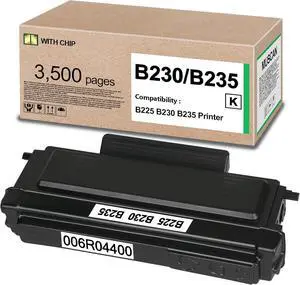
Compatible 006R04399 High Yield Toner Cartridge for Xerox B225 B230 B235
- Model #: HANWB0DQ9NFBD1
- $115.99 –
- More options from $115.19
- Free Shipping
Quick View
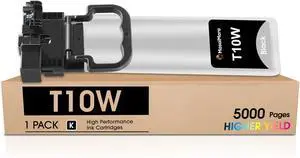
MasaiMara Remanufactured T10W T10W100 Black Compatible Ink Cartridge Replacement for WF-C5390 WF-C5890 WFC5390 WFC5890 Color Printers (1-Pack)
- Model #: HANWB0FBW31KXD
- $128.99 –
- More options from $128.19
- Free Shipping
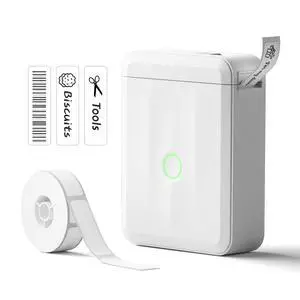
Quick View
D110 Upgrade Mini Label Maker, Bluetooth Thermal Printer for Daily
- Brand: NIIMBOT
- Series: D110_M, 110
- Part Number: D110M
- Print Technology: Inkless
- Model #: 622695431463
- $34.99 –
- Free Shipping
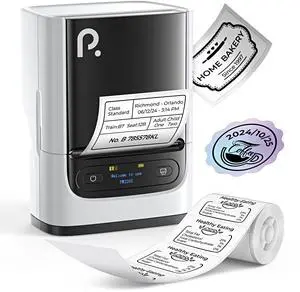
Quick View
PM220S Label Maker Machine with Tape, Bluetooth Label Maker, White
- Brand: POLONO
- Series: PM220S-NEW
- Part Number: PM220S-NEW
- Print Technology: tonerless
- Model #: 673663795978
- $51.99 –
- Free Shipping
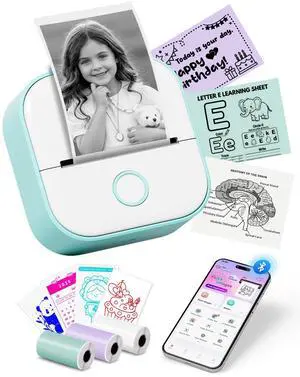
Quick View
Mini Sticker Printer - T02 Mini Thermal Printer Portable Label Printer Bluetooth Sticker Maker for Kids Sticker Box, Print Pods AI Sticker Maker for Gifts, Study Note, Journaling Supplies, DIY, Photos
- Brand: CASIO
- Part Number: T02-GN-A1-3SET(1)
- Print Technology: Direct Thermal
- Memory: 64MB Flash
- Model #: 090314753527
- $51.99 –
- Free Shipping
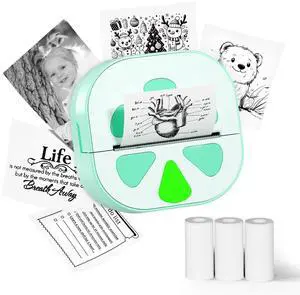
Quick View
Mini Sticker Printer, D20 Portable Bluetooth Inkless Thermal Sticker Maker Machine with 3 Rolls Paper, Pocket Print Pods Label Maker for iphone, Impresora Portátil for Study Note, DIY, Kids Gift
- Part Number: D20
- Print Technology: Direct Thermal
- Printer Type: Desktop
- Barcode Type: color sticker printer, thermal sticker printer
- Model #: 351850214924
- $33.99 –
- Free Shipping
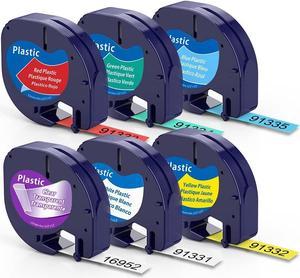
Quick View
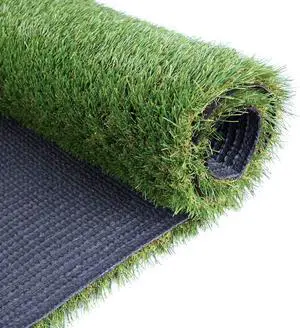
Petgrow Synthetic Artificial Grass Turf Lawn 4ft x 10ft, 1.38" Outdoor/Indoor Fake Grass Rug Astroturf for Dogs,Faux Grass Rug with Drainage Holes/Custom Size Provided
- Model #: EQWER462277178279
- $150.49 –
- Free Shipping
Quick View
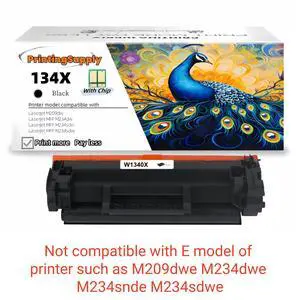
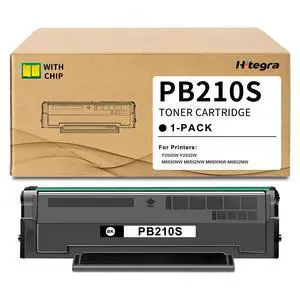
134X Compatible Toner Cartridge Replacement for HP 134X W1340X *With Chip* Black, High-Yield Print, Works with HP LaserJet M209dw MFP M234dw M234sdn M234sdw
- Brand: HP Debranded
- Series: 134X W1340X
- Part Number: 134X W1340X
- Cartridge Quantity: Single Pack
- Model #: WB-H1340X-V2
- $35.99 –
- Free Shipping
Quick View
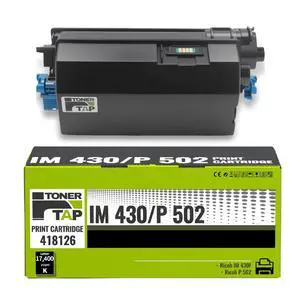
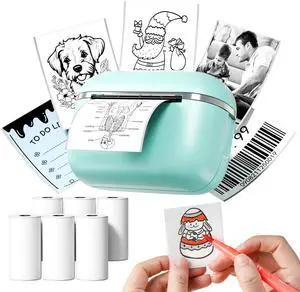
Mini Sticker Printer - T02E Thermal Sticker Maker with 6 Rolls Paper
- Brand: HiHTV
- Part Number: 043U-T02E-6SET-Green
- Print Technology: Thermal
- Printer Type: A Versatile Study Partner, AI Generate Sticker Picture
- Model #: 469175897764
- $26.99 –
- Free Shipping
Quick View
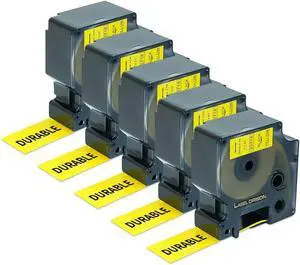
Label Orison D1 Tape Labels 53718 Black on Yellow Label Maker Cassettes 1" x 23 Feet(24mmx7m) Compatible with Dymo LabelManager 420P 450D 500TS Wireless PnP,5 Cartridges
- Model #: ENGEB074TDQHDW
- $85.99 –
- Free Shipping
Quick View
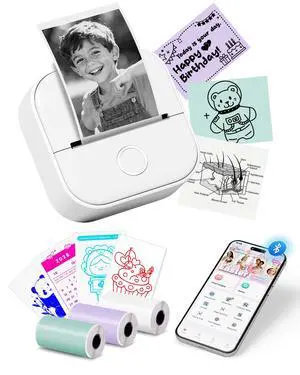
Mini Printer T02 Thermal Sticker Printer with 3 Rolls Paper | Portable Thermal Printer Sticker Maker Machine, Bluetooth Label Printer for Study Graphics, Anatomical Diagrams, DIY, Gift
- Brand: Oki
- Series: T02, 2
- Part Number: T02-WH-A1-3SET(1)
- Print Technology: Inkless
- Model #: 083127834477
- $69.99 –
- Free Shipping
Quick View
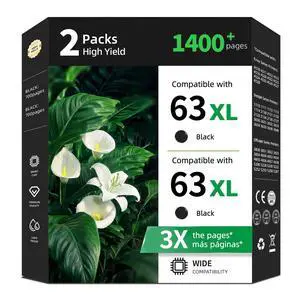
63XL Black Ink Cartridges Replacement for HP 63 XL 4520 3830 5255 5200 3630
- Brand: ReliInk
- Series: 63XL Black
- Part Number: 63XL Black
- Cartridge Quantity: 2
- Model #: 454951002995
- $76.99 –
- Free Shipping
Quick View
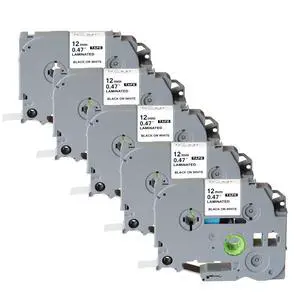
Label Maker Tape 12mm 0.47 Laminated White Tze 231 TZ Tape 5Pack | Compatible with Brother Label Maker Tape for PT-D210 D220 H111,TZE231 1/2" x 26.2,Black on White
Limited time offer, ends 10/14
- Model #: 936046767174
- $35.99
- See price in cart
- Free Shipping
Quick View
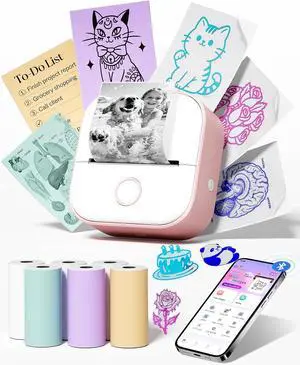
Memoking Sticker Printer T02 Sticker Maker Machine with 6 Rolls Paper
- Model #: HANWB0GQCZK5LC
- $70.99 –
- Free Shipping
Quick View
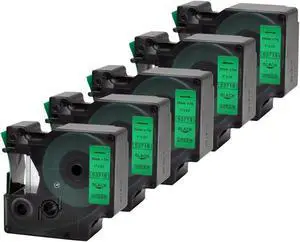
5PK D1 53719 Labeling Tape Compatible Dymo Label Maker Refill Cartridge 1 Inch X 23Feet(24mmx7m)
- Model #: HANZB074TDT35J
- $85.99 –
- Free Shipping
Quick View
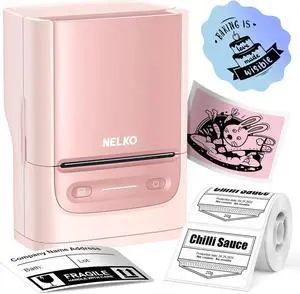
Nelko Label Maker Machine with Tape, PM220 Bluetooth Label Printer, Pink
- Model #: HANWB0D9N8GX8F
- $72.99 –
- Free Shipping
Quick View
TZe-231 TZE231 Compatible for Brother P-Touch Label Maker Tape 12mm 0.47 Laminated White Label Tape for PT-D210 PT-H110 PTD-600 PT-D400, 20 Pack
- Model #: HANZB0GHR87LG7
- $107.99 –
- Free Shipping
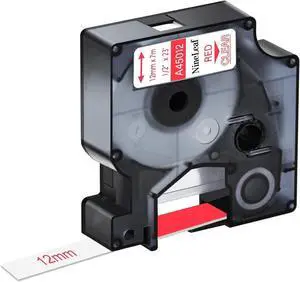
Quick View
NineLeaf 20PK Compatible for Dymo 45012 12mm Red on Clear D1 Label Tape
- Model #: HANZB0GY427Y2P
- $104.99 –
- Free Shipping
Quick View
TZe-231 TZE231 Compatible for Brother P-Touch Label Maker Tape 12mm 0.47 Laminated White Label Tape for PT-D210 PT-H110 PTD-600 PT-D400, 30 Pack
- Model #: HANZB0GHR88LFC
- $157.99 –
- Free Shipping
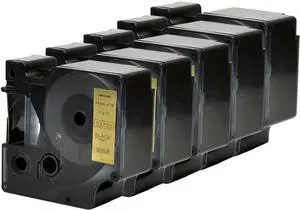
Quick View
5PK Label Maker Tape Compatible with Dymo D1 53723 Compatible Labeling Tape Refill Black on Gold Cassette 1" W X 23'L
- Model #: HANZB074TFBM16
- $85.99 –
- Free Shipping
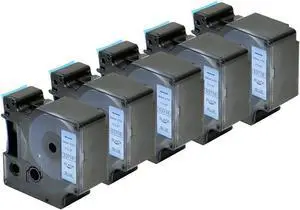
Quick View
5PK Label Maker Tape Dymo D1 53716 Black on Blue Compatible with Dymo Labeling Cassette Refills 1" x 23 Feet(24mmx7m)
- Model #: HANZB074TF5WSG
- $85.99 –
- Free Shipping

Quick View
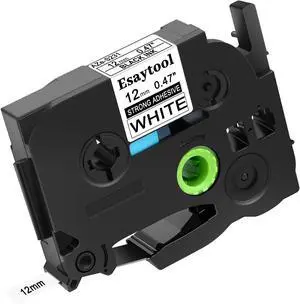
NineLeaf 30PK Compatible for Dymo 45012 12mm Red on Clear D1 Label Tape
- Model #: HANZB0H5CFGDGQ
- $156.99 –
- Free Shipping

Any questions? Our AI mode will help you find out quickly.
Try me now
Choosing the Right Printer for Your Office Needs
When it comes to office solutions, printers and scanners are essential tools for any business. Whether you need to print important documents, scan invoices, or create professional-quality marketing materials, having the right equipment is crucial. In this article, we will explore the different types of printers and scanners available in the market and provide tips on how to choose the best one for your office.
All-in-One Printers: Versatility and Convenience
all-in-one printers, also known as multifunction printers, are a popular choice for offices. These devices combine the functionality of a printer, scanner, copier, and sometimes even a fax machine into a single unit. They offer versatility and convenience, allowing you to perform multiple tasks without the need for separate devices. All-in-one printers are available in both inkjet and laser options, catering to different printing needs and budgets.
Specialized Printers for Specific Tasks
In addition to all-in-one printers, there are specialized printers designed for specific tasks. For example, 3D printers are ideal for creating prototypes or intricate models, while barcode and label printers are perfect for businesses that require efficient inventory management. laser printers are known for their fast printing speeds and high-quality output, making them suitable for offices with high-volume printing needs. inkjet printers, on the other hand, are more cost-effective and can produce vibrant color prints.
Choosing the Right Supplies
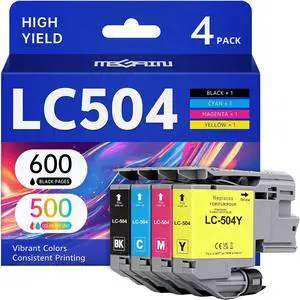
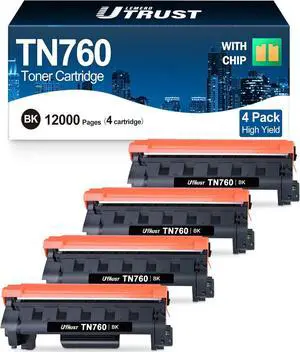
Once you have selected the right printer for your office, it is important to choose the right supplies to ensure optimal performance and longevity. When it comes to inkjet printers, using high-quality ink cartridges is essential to achieve the best print quality and prevent clogging. For laser printers, it is important to choose the right type of toner cartridges that are compatible with your printer model. Additionally, investing in high-quality paper can make a significant difference in the final print results.
FAQs: Common Questions about Printers and Scanners
| Q: How often should I replace the ink cartridges? | A: The frequency of replacing ink cartridges depends on your printing volume. However, it is recommended to replace them when the print quality starts to degrade. |
|---|---|
| Q: Can I use third-party ink cartridges with my printer? | A: While it is possible to use third-party ink cartridges, it is important to ensure compatibility with your printer model. Using incompatible cartridges may result in poor print quality or damage to the printer. |
| Q: How do I clean the scanner glass? | A: To clean the scanner glass, use a soft, lint-free cloth slightly dampened with glass cleaner. Gently wipe the glass surface to remove any smudges or debris. |
| Q: What is the difference between optical and interpolated resolution in scanners? | A: Optical resolution refers to the actual hardware resolution of the scanner, while interpolated resolution is achieved through software enhancements. Optical resolution provides more accurate and detailed scans. |
| Q: How can I improve the scanning speed? | A: To improve scanning speed, reduce the scanning resolution, use black and white mode instead of color, and ensure that the scanner is connected to a high-speed USB port. |