

Your Browsing History
- In Stock
- New

Any questions? Our AI beta will help you find out quickly.
Try me now
Quick View
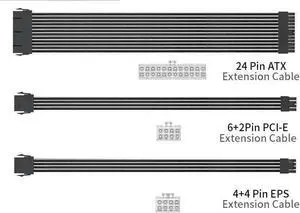
Wen ST EPS ATX PCI-E Extension Cable 350mm 24PIN 4+4PIN 6+2PIN 8PIN PSU CPU GPU Motherboard Extension Cord(CPU 4-4P WH)
- Model #: DEEUB0FQ2C7J49
- $85.99 –
- Free Shipping
Quick View
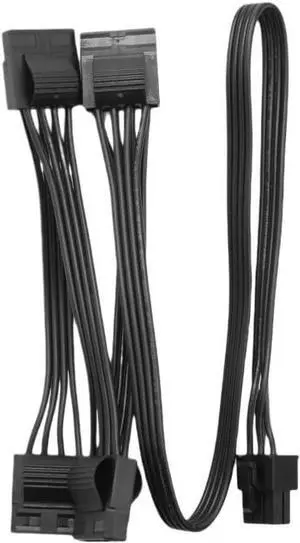
Modular Power Cable for AX1600i Type 4 PSU, GPU PCI-E 8Pin 6+2Pin, CPU 4+4Pin, HDD SSD SATA, IDE, Main 24Pin Net(4 MOL Straight)
- Model #: DEEUB0FN4MW1XJ
- $83.99 –
- Free Shipping
Quick View
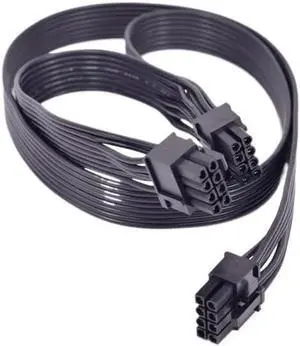
PCI-e 6+2Pin CPU 4+4P ATX 24 Pin 20+4Pin Cable for HX1200 HX1000 HX850 HX750 HX650(8pin to Dual 8pin)
- Model #: DEEUB0FLF5CLXF
- $77.99 –
- Free Shipping
Quick View
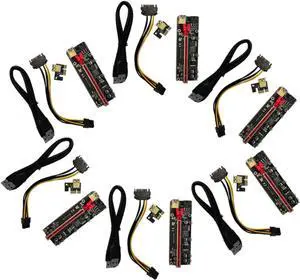
6sets Pci-e to Extender Riser Adapter Card with Capacitors for Stable Power Supply and Led Indicator Easy Installation for Gpu Mining and Gaming Use
- Model #: DEEUB0DVKMVYRV
- $70.99 –
- Free Shipping
Quick View
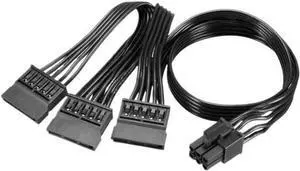
Modular Power Cable for RM1000x RM850x RM750x RM650x RM550x Power, GPU PCIe 8Pin, SATA, IDE, CPU 4+4Pin, ATX 24Pin(3 SATA Straight)
- Model #: DEEUB0FL895KJB
- $88.99 –
- Free Shipping
Quick View
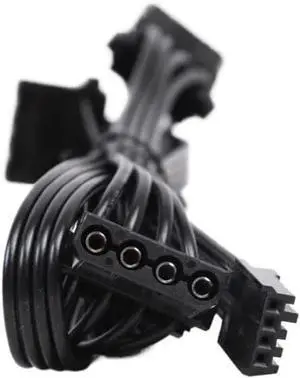
HX1200i, HX1000i, HX850i, HX750i HXi Type 3 Power, GPU PCI-e 8Pin 6+2Pin, CPU 4+4Pin, SATA IDE 4Pin, 24Pin Net(3 Mo 1 FDD 4Pin)
- Model #: DEEUB0FHGPCS7J
- $69.99 –
- Free Shipping
Quick View
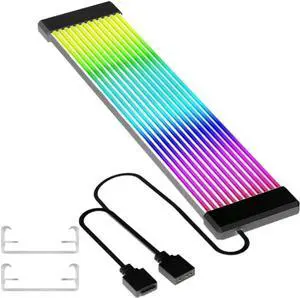
5V 3Pin RGB L*/ED Light Strip Bar 8/24PIN Motherboard Power Extension Cable PC RGB GPU Cable for Computer Power Supply(X12)
- Model #: DEEUB0FLKKC8RP
- $141.99 –
- Free Shipping
Quick View
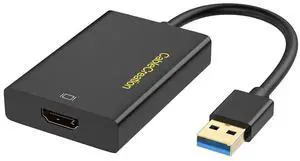
USB 3.0 to HDMI Adapter with DisplayLink, USB External Display Graphics Adapter Compatible with Windows 11,10 and macOS, Black
Limited time offer, ends 07/05
- Model #: LC6W1J16-632
- $196.01 –
- Free Shipping
Quick View
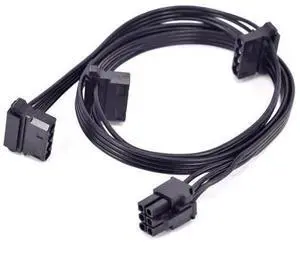
PCI-e 6Pin 1 to 3 Molex Peripheral 4Pin Power Supply Cable GPU 6 Pin to IDE for C.ORSAIR TX850M TX750M TX650M Modular PSU
Limited time offer, ends 07/07
- Model #: BLC73X-616-ZM-727
- $21.98 –
- Free Shipping
Quick View
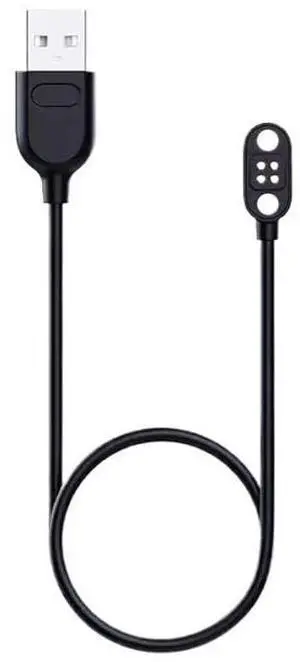
Conduction Earphones Cable for X7/X8/X18pro Swimming Headset Cable with Data Transmission
- Model #: DEEUB0FJ51MPRB
- $77.99 –
- Free Shipping
Quick View
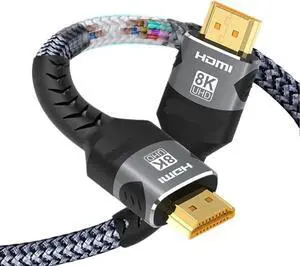
8K@60Hz HDMI 2.1 Cable 4K@120Hz 48Gbps Ultra High Speed HDMI Braided Cord for 3080 HDR10+ PC(690 8K HDMI2.1,5m)
- Model #: DEEUB0FH674F82
- $99.99 –
- Free Shipping
Quick View
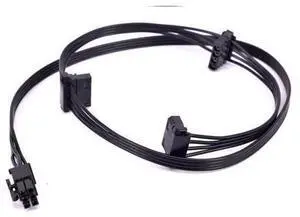
PCIe 6Pin to 3 Peripheral 4Pin Molex Power Cable GPU 6 Pin to IDE Female for C.ORSAIR HX1200i HX1000i HX850i HX750i Modular PSU
Limited time offer, ends 07/07
- Model #: BLC73X-616-ZM-959
- $19.98 –
- Free Shipping
Quick View
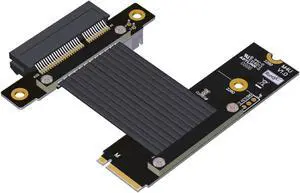
ADT-Link Pcie 4.0 M.2 Nvme to x4 Extension Flat Riser Cable Corner 90 Degrees Ful Speed for PCIE 4X SSD RAID, LAN, GPU, Capture Card Extender (M42UF, 40cm)
- Model #: DEEUB0D1VCNDN4
- $78.99 –
- Free Shipping
Quick View
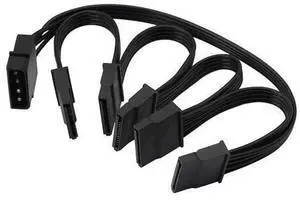
IDE to SATA Power Splitter Cable,LP4 4Pin IDE to 5 x15 Pin SATA Power Conversion Line Extension Y-Cable for Hard Disk
Limited time offer, ends 07/07
- Model #: BLC73X-616-ZM-793
- $18.99 –
- Free Shipping
Quick View
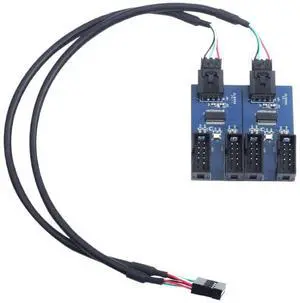
9Pin USB Splitter Motherboard 1 to 2/4 Extension Cable Adapter 9-Pin 1 to 4 USB Female Header HUB Connectors(1 to 4)
- Model #: DEEUB0FHJHTNL4
- $224.99 –
- Free Shipping
Quick View
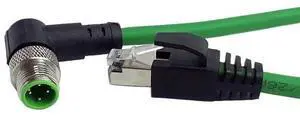
M12 to RJ45 Connector Cable Industrial Cable M12 8Pin 4Pin A/D Type Encoding to Shielding RJ45 Ethernet(M12 D-RJ45(Elbow),10M)
- Model #: DEEUB0FJ4M6BNM
- $303.99 –
- Free Shipping
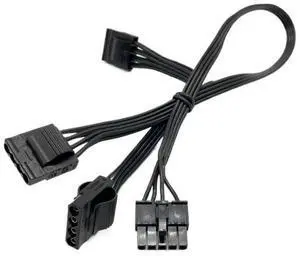
Quick View
Modular Power Cable for 750, HG750, HGE450, HGE550, HGE650 PSU, GPU PCIe 8Pin 6+2Pin, CPU 4+4Pin, SATA(3 MOL Straight)
- Model #: DEEUB0FL8SBS36
- $199.99 –
- Free Shipping
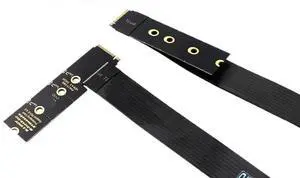
Quick View
NVME NGFF M-Key SSD Extension Cable Support PCle4.0 M.2 NVME Extender Sol*/id Drive Riser Card for M.2 2230 2242 2260 2280 SSD(Model a)
- Model #: DEEUB0FM8GDD87
- $157.99 –
- Free Shipping
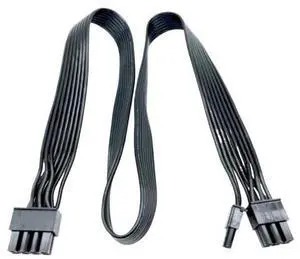
Quick View
RM Gold PSU, Type 3 Modular Power Cable for RM1000 RM850 RM750 RM650 RM550 RM450, 6+2 PCIe & CPU, SATA & PATA, 24Pin(Dual CPU)
- Model #: DEEUB0FL84L2YG
- $159.99 –
- Free Shipping
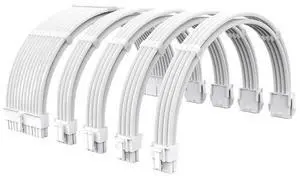
Quick View
35CM CPU PSU Extension Cable Kit 3 in 1 24Pin ATX GPU PCI-E EPS Extension Cable(MZ-5-Rainbow)
- Model #: DEEUB0FJ6WVYJ8
- $410.99 –
- Free Shipping
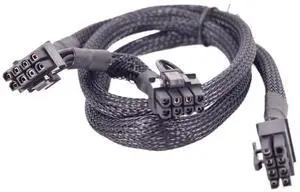
Quick View
PCIe 8Pin 6+2Pin IDE SATA CPU 4+4Pin ATX 24Pin PSU Cable for FS750 SF600 SF450 Output Cables(Dual PCIe 8P Sleeved)
- Model #: DEEUB0FLN3BXRY
- $74.99 –
- Free Shipping
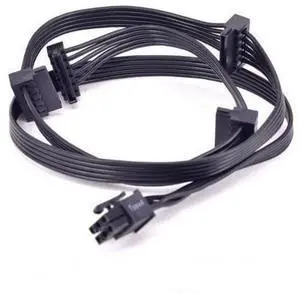
Quick View
PCIe GPU 6Pin Male 1 to 4 SATA 15Pin Power Supply Cable Minning Cable for RM HX AXi Serial PSU RM450 RM550 RM650 RM750 RM850 HX650 HX750 HX850 HX1200 AX760i AX860i AX1200i
Limited time offer, ends 07/07
- Model #: BLC73X-616-ZM-1239
- $22.47 –
- Free Shipping
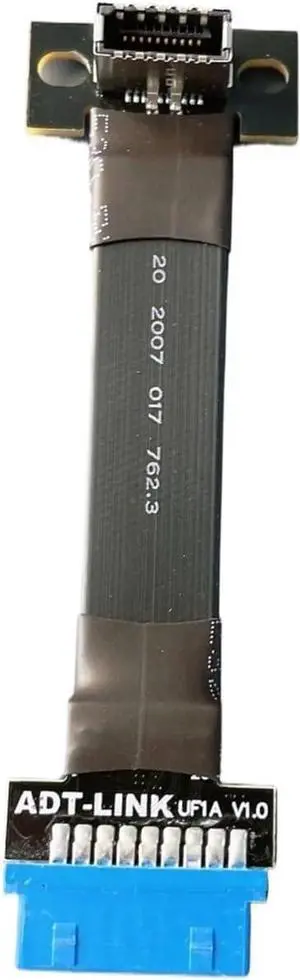
Quick View
Internal Type C USB3.1 Front Panel USB 3.0 Socket to Type-E 19/20P Header Flat Extension Adapter Ribbon Cable for PC Motherboard(30cm)
- Model #: DEEUB0FN8CTDGG
- $98.99 –
- Free Shipping
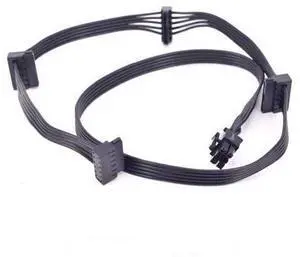
Quick View
6Pin Male 1 to 4 SATA 15Pin PCIe Power Supply Cable GPU Minning Cable for C.ORSAIR RMX RMi SF CS CX HXi TX Serial PSU RM650X RM750X/850X/650i/750i SF450/600/750 CS450M/550M/650M/750M
Limited time offer, ends 07/07
- Model #: BLC73X-616-ZM-1217
- $22.38 –
- Free Shipping
Quick View
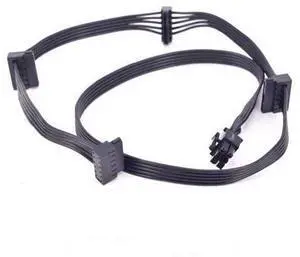
6Pin Male 1 to 4 SATA 15Pin PCIe Power Supply Cable GPU Minning Cable for RMX RMi SF CS CX HXi TX Serial PSU RM650X RM750X/850X/650i/750i SF450/600/750 CS450M/550M/650M/750M
Limited time offer, ends 07/07
- Model #: BLC73X-616-ZM-1218
- $22.48 –
- Free Shipping
Quick View
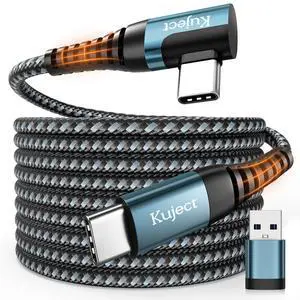
Link Cable 20FT Compatible for Quest 3S/3, Quest 2/Pro, Pico 4, Nylon Braided Charging Cord for Rift S/Steam VR Games, USB 3.0 Type C to C High Speed Data Transfer Cables for Gaming PC
- Cable Length: 20
- Brand: Kuject
- Type: USB
- Connector Type: USB Type C
- Model #: 963395774269
- $53.99 –
- Free Shipping
Quick View
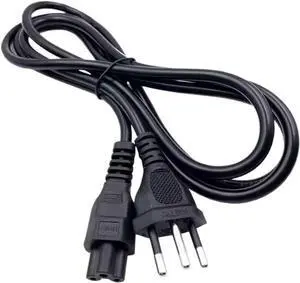
Cord All Power Cable for Laptops 1.2M Power Cable(BR)
- Model #: DEEUB0FM2HHDVN
- $75.99 –
- Free Shipping
Quick View
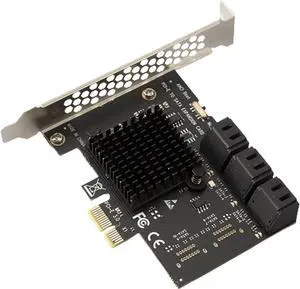
20 Port PCI-E SATA3.0 PCI-E 1X PCI 3.0 GEN3 Expansion Card 6Gbps Converter Adapter for ASM1166 Adapter Accessories(X1 to 6 Port SATA)
- Model #: DEEUB0FM4778G2
- $200.99 –
- Free Shipping
Quick View
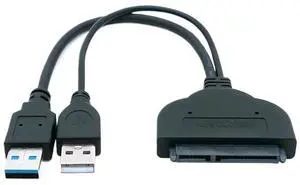
Wen ST USB 3.0 to SATA 22 pin Adapter Cable for 2.5/3.5 inch HDD External Power Hard Drive Converter
- Model #: DEEUB0FPRFKL7C
- $78.99 –
- Free Shipping
Quick View
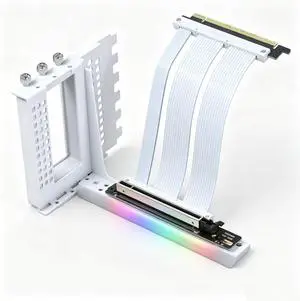
PCIe X16 GEN5 Right Angle Riser Cable PCIe 4.0 and 5.0 with GPU Vertical Mount Bracket for RTX4090,RTX5090D, RX7900XT, RX9070 ATX (16cm GEN5 White Bracket V3)
- Model #: DEEUB0FSRPW71G
- $126.99 –
- Free Shipping
Quick View
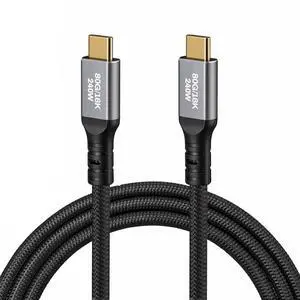
SZRMCC USB 5 USB C Cable 80Gbps Data Transfer,240W PD Fast Charging,120Gbps Bandwidth for 16K Video Display,Compatible with iPhone 16, MacBook, Studio Display. (2m)
- Model #: DEEUB0GV461M2B
- $90.99 –
- Free Shipping
Quick View
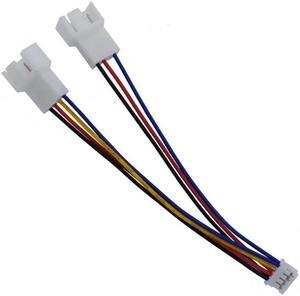
1pc Graphics Card Fan Power Cable 12cm PH2.0 Small 4Pin to Double 3Pin/4Pin PVC Fan Cable Power Adapter Cable Lead Wire
Limited time offer, ends 07/04
- Connector Type: Micro USB to USB A
- Model #: DF-PowerCable0794
- $23.48 –
- More options from $23.48 - $26.25
- Free Shipping
Quick View
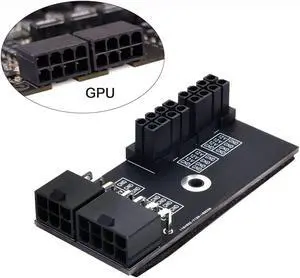
Dual ATX 8Pin Female to 6+8pin Male 180 Degree Angled Power Adapter for NVIDIA 3080 3090 Graphics Card GPU
Limited time offer, ends 07/05
- Model #: ZZL-RNU-ASD537485
- $19.99 –
- More options from $18.89 - $19.99
- Free Shipping
Choosing the Right Printer for Your Office Needs
When it comes to office solutions, printers and scanners are essential tools for any business. Whether you need to print important documents, scan invoices, or create professional-quality marketing materials, having the right equipment is crucial. In this article, we will explore the different types of printers and scanners available in the market and provide tips on how to choose the best one for your office.
All-in-One Printers: Versatility and Convenience
all-in-one printers, also known as multifunction printers, are a popular choice for offices. These devices combine the functionality of a printer, scanner, copier, and sometimes even a fax machine into a single unit. They offer versatility and convenience, allowing you to perform multiple tasks without the need for separate devices. All-in-one printers are available in both inkjet and laser options, catering to different printing needs and budgets.
Specialized Printers for Specific Tasks
In addition to all-in-one printers, there are specialized printers designed for specific tasks. For example, 3D printers are ideal for creating prototypes or intricate models, while barcode and label printers are perfect for businesses that require efficient inventory management. laser printers are known for their fast printing speeds and high-quality output, making them suitable for offices with high-volume printing needs. inkjet printers, on the other hand, are more cost-effective and can produce vibrant color prints.
Choosing the Right Supplies
Once you have selected the right printer for your office, it is important to choose the right supplies to ensure optimal performance and longevity. When it comes to inkjet printers, using high-quality ink cartridges is essential to achieve the best print quality and prevent clogging. For laser printers, it is important to choose the right type of toner cartridges that are compatible with your printer model. Additionally, investing in high-quality paper can make a significant difference in the final print results.
FAQs: Common Questions about Printers and Scanners
| Q: How often should I replace the ink cartridges? | A: The frequency of replacing ink cartridges depends on your printing volume. However, it is recommended to replace them when the print quality starts to degrade. |
|---|---|
| Q: Can I use third-party ink cartridges with my printer? | A: While it is possible to use third-party ink cartridges, it is important to ensure compatibility with your printer model. Using incompatible cartridges may result in poor print quality or damage to the printer. |
| Q: How do I clean the scanner glass? | A: To clean the scanner glass, use a soft, lint-free cloth slightly dampened with glass cleaner. Gently wipe the glass surface to remove any smudges or debris. |
| Q: What is the difference between optical and interpolated resolution in scanners? | A: Optical resolution refers to the actual hardware resolution of the scanner, while interpolated resolution is achieved through software enhancements. Optical resolution provides more accurate and detailed scans. |
| Q: How can I improve the scanning speed? | A: To improve scanning speed, reduce the scanning resolution, use black and white mode instead of color, and ensure that the scanner is connected to a high-speed USB port. |