
Your Browsing History
- Sold by Newegg
- Make an Offer
- New

Any questions? Our AI beta will help you find out quickly.
Try me now
Quick View
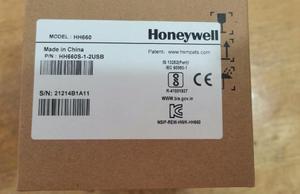
Honey,well HH660 1D/2D High Resolution Area-Imaging USB Scan,ner
- Model #: J2HY-A34
- $197.00 –
- More options from $197.00
- Free Shipping
Quick View
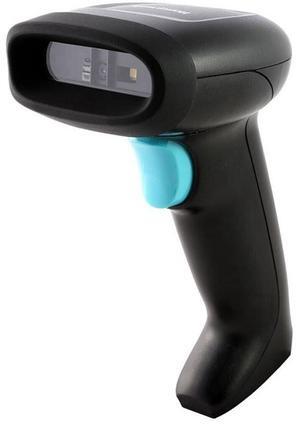
Honey,well Bar,code Scan,ner HH400 2D
- Model #: J2HY-A02
- $197.00 –
- More options from $197.00
- Free Shipping
Quick View
- $194.00 –
- More options from $194.00 - $198.00
- Free Shipping
Quick View
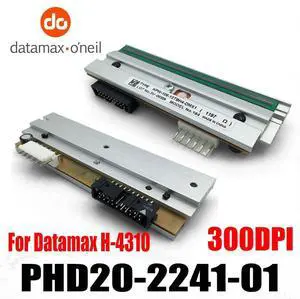
PHD20-2241-01 Printhead for Datamax H-4310 H-4310X Thermal Printer 300dpi
- Model #: PHD20-2241-01-JR13
- $519.99 –
- Free Shipping
Quick View
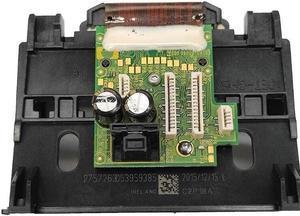
Replacement Printhead for h-p934 935 Printhead Print for Head Fit for 934XL 935XL 6220 6230 6830 6812 6815 6835 C2P18A P
- Model #: fzw-ff-042
- $109.69 –
- More options from $109.69
- Free Shipping
Quick View
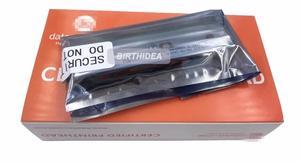
H-4310 Thermal Printhead PHD20-2241-01 for Datamax H-4310, A-4310 Mark Bar code Printhead 300DPI Printer Head New Original
- Model #: BADGE-786
- $310.50 –
- More options from $310.00
- Free Shipping
Quick View
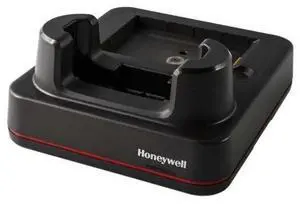
Honeywell EDA52 Single Charging Cradle Base EDA52-HB-1
- Model #: EDA52-HB-1
- $162.99 –
- More options from $58.62 - $162.99
- Free Shipping
Quick View
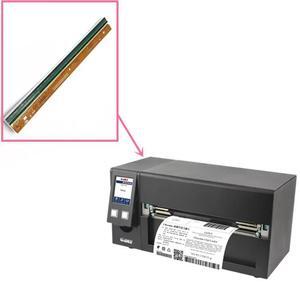
HD830i Thermal Printhead 300dpi for Godex H830i Eight Inch Wide Industrial Bar code Printer Head
- Model #: BADGE-945
- $549.30 –
- More options from $549.00
- Free Shipping
Quick View
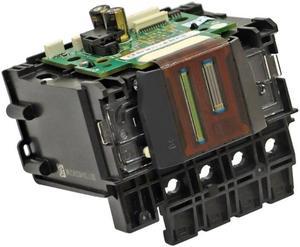
90% New High Quality Printhead h-p933 h-p932 Print for Head for h-p933 h-p932 h-p6100 h-p6600 h-p6700 h-p7110 h-p7610 h-p7510
- Model #: fzw-ff-401
- $175.69 –
- More options from $175.69
- Free Shipping
Quick View
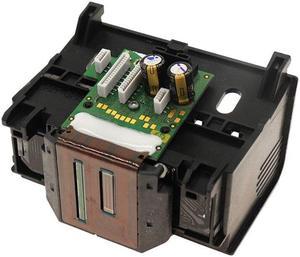
High quality Print Head: for h-p934 935 934XL 935XL Suitable for h-p- Officejet Pro 6220 6230 6830 6812 6815 683
- Model #: fzw-ff-129
- $133.69 –
- More options from $133.69
- Free Shipping
Quick View
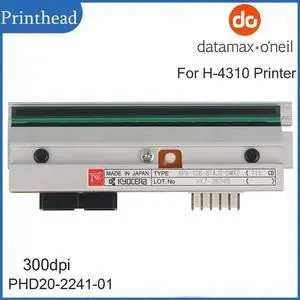
Datamax H-4310 (PHD20-2241-01) OEM-Compatible 300 dpi Printhead. USA Stocked!
- Model #: PHD20-2241-01-wsd22
- $395.59 –
- More options from $392.00 - $395.59
- Free Shipping
Quick View
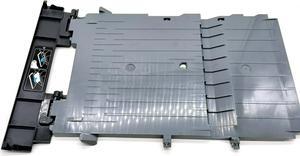
Output Exit Tray E3E01-40091 Fit Forhp- 8720 8724 8725 8726 8727 8728 8730 8732M 8734 8735 8736 8740 8743 8744 8745 8746 8747
- Product Type: Printhead
- Model #: Dyj-231218-210
- $138.69 –
- More options from $138.69
- Free Shipping
Quick View
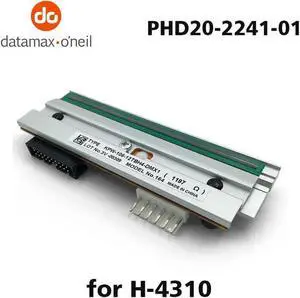
300dpi for Datamax H-4310 Thermal Label PHD20-2241-01 Printhead Kyocera Thermal
- Product Type: Printhead
- Model #: PHD20-2241-01-300dpiw22
- $437.70 –
- More options from $436.00 - $437.70
- Free Shipping
Quick View
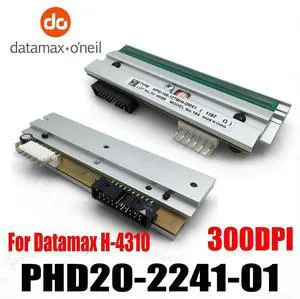
New Printhead for Datamax H-4310 Thermal Label Printer 300dpi PHD20-2241-01
- Model #: PHD20-2241-01-JR5
- $492.99 –
- Free Shipping
Quick View
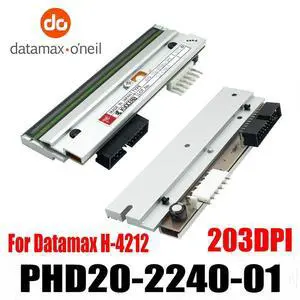
203dpi Printhead for Datamax H-4212 Thermal Label Printer PHD20-2240-01
- Model #: PHD20-2240-01-JR10
- $392.89 –
- Free Shipping
Quick View
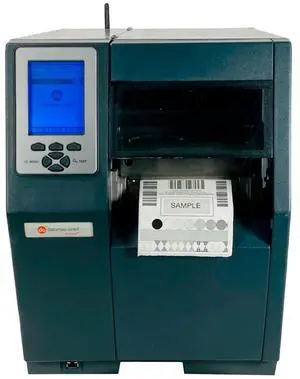
Datamax H-4212X Industrial Thermal Label Printer Rewinder WiFi LAN USB
- Printer Type: Industrial
- Model #: 305118308936
- $519.50
- Request Price
- More options from $518.50 - $520.00
- Free Shipping
Quick View
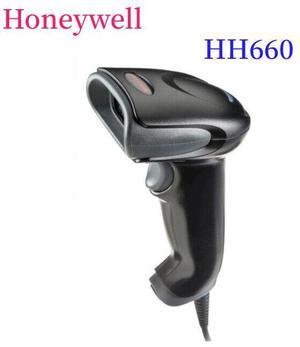
Honey,well HH660 1D/2D/ PDF417 High Resolution Area-Imaging USB Scan,ner
Limited time offer, ends 01/15
- Model #: J2HY-A70
- $195.00 –
- More options from $195.00 - $198.00
- Free Shipping
Quick View
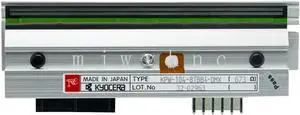
203dpi Printhead for Datamax H4212 A4212 Compatible Thermal Printer Head Replacement KPW-104-8TBB4-DMX
- Model #: BAMB0F5ZGWMD5
- $570.99 –
- Free Shipping
Quick View
New Printhead for Datamax H-4310 Thermal Label Printer 300dpi PHD20-2241-01
- Model #: PHD20-2241-01-wsd13
- $395.59 –
- More options from $392.00 - $395.59
- Free Shipping
Quick View
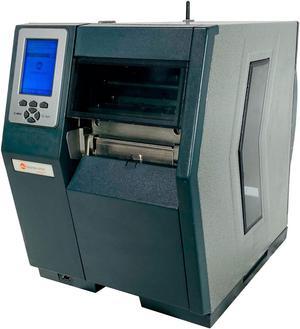
Datamax H-4212X High-Speed Thermal Label Printer WiFi LAN USB
- Printer Type: Industrial
- Interface: WiFi / Parallel / Serial / USB / Lan
- Model #: 306059481092
- $497.00
- Request Price
- More options from $496.00 - $497.50
- Free Shipping
Quick View
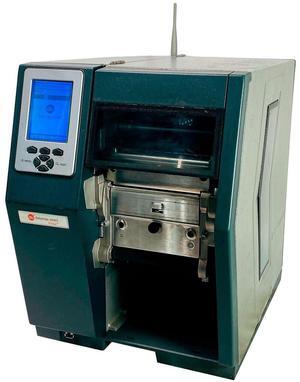
Datamax-O'Neil H-4212X Thermal Label Printer WiFi LAN USB Serial Parallel
- Printer Type: Industrial
- Interface: WiFi / Parallel / Serial / USB / Lan
- Model #: 304706365130
- $499.00
- Request Price
- More options from $498.00 - $499.50
- Free Shipping
Quick View
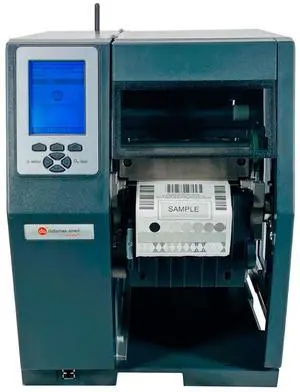
Datamax H-4212X Thermal Transfer Label Printer Peel Rewind WiFi LAN USB Unlocked
- Printer Type: Industrial
- Model #: 305118126980
- $519.50
- Request Price
- More options from $518.50 - $520.00
- Free Shipping
Quick View
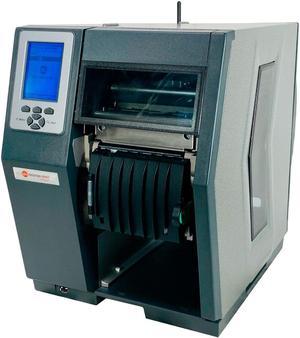
Datamax H-4212X Thermal Transfer Label Printer Peeler WiFi LAN USB Unlocked
- Printer Type: Industrial
- Model #: 306059490664
- $519.50
- Request Price
- More options from $518.50 - $520.00
- Free Shipping
Quick View
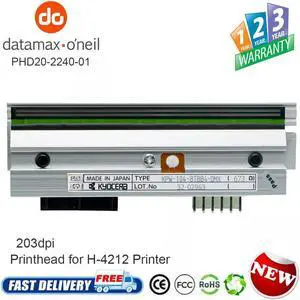
Datamax PHD20-2240-01 Printhead for Datamax H-4212 Thermal Label Printer 203dpi
- Product Type: Printhead
- Model #: PHD20-2240-01-w2wqw1
- $312.59 –
- More options from $309.00 - $312.59
- Free Shipping
Quick View
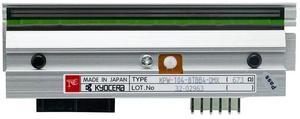
PHD20-2241-01 New Printhead for Datamax H-Class H-4310 Mark II Printers 300dpi
- Product Type: Printhead
- Model #: PHD20-2241-01-300dpiw8
- $437.70 –
- More options from $436.00 - $437.70
- Free Shipping
Quick View
New Printhead for Datamax H-4212 Thermal Label Printer 203dpi PHD20-2240-01
- Model #: PHD20-2240-01-01
- $426.68 –
- More options from $420.00 - $426.68
- Free Shipping
Quick View
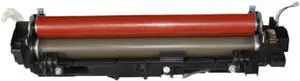
Fuser Unit Assembly LJA483001 Compatible with HL1110 1118 1218 1208 Printers(HL1110-110V)
- Model #: LEMLB0FH9R9B54
- $134.99 –
- Free Shipping
Quick View
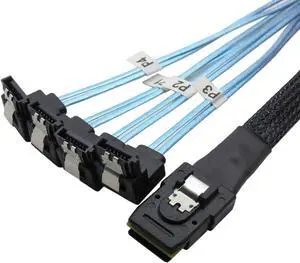
18' Mini SAS 36P SFF-8087 To 4 SATA 7Pin 90 Degrees Target Hard Disk Data Cable 0.5M (H0304)
- Model #: cy-2496
- $22.94 –
- Free Shipping
Quick View
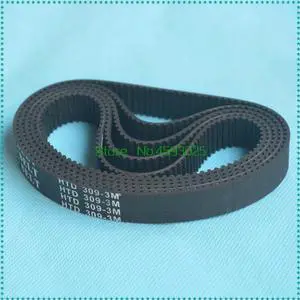
HTD-255-3M Timing Belt Pitch Length Width 10mm Rubber HTD3M Synchronous Belt 300 In Closed-loop
- Model #: LXS-DYJ-0062
- $56.40 –
- More options from $56.00
- Free Shipping
Quick View
HTD-255-3M Timing Belt Pitch Length Width 15mm Rubber HTD3M Synchronous Belt 300 In Closed-loop
- Model #: LXS-DYJ-0063
- $64.40 –
- More options from $64.10
- Free Shipping
Quick View
HTD-255-3M Timing Belt Pitch Length Width 9mm Rubber HTD3M Synchronous Belt 309 In Closed-loop
- Model #: LXS-DYJ-0064
- $53.96 –
- More options from $53.70
- Free Shipping
Quick View
HTD-255-3M Timing Belt Pitch Length Width 10mm Rubber HTD3M Synchronous Belt 225 In Closed-loop
- Model #: LXS-DYJ-0066
- $55.20 –
- More options from $54.90
- Free Shipping
Quick View
HTD-255-3M Timing Belt Pitch Length Width 15mm Rubber HTD3M Synchronous Belt 309 In Closed-loop
- Model #: LXS-DYJ-0068
- $65.96 –
- More options from $65.60
- Free Shipping
Quick View
HTD-255-3M Timing Belt Pitch Length Width 10mm Rubber HTD3M Synchronous Belt 309 In Closed-loop
- Model #: LXS-DYJ-0065
- $57.96 –
- More options from $57.70
- Free Shipping
Quick View
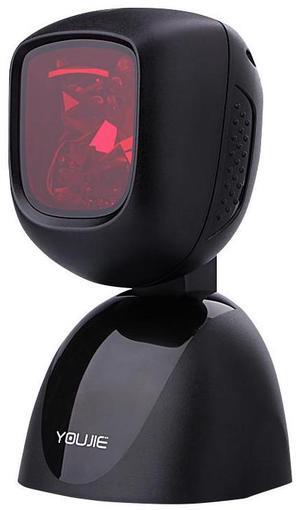
Xenon HF600 , DESKTOP 2D IMAGER , 1D/2D/PDF417 , BLACK , USB CABLE KIT
- Model #: HF600-New
- $199.00 –
- Free Shipping
Quick View
HTD-255-3M Timing Belt Pitch Length Width 15mm Rubber HTD3M Synchronous Belt 225 In Closed-loop
- Model #: LXS-DYJ-0067
- $61.96 –
- More options from $61.70
- Free Shipping
Choosing the Right Printer for Your Office Needs
When it comes to office solutions, printers and scanners are essential tools for any business. Whether you need to print important documents, scan invoices, or create professional-quality marketing materials, having the right equipment is crucial. In this article, we will explore the different types of printers and scanners available in the market and provide tips on how to choose the best one for your office.
All-in-One Printers: Versatility and Convenience
all-in-one printers, also known as multifunction printers, are a popular choice for offices. These devices combine the functionality of a printer, scanner, copier, and sometimes even a fax machine into a single unit. They offer versatility and convenience, allowing you to perform multiple tasks without the need for separate devices. All-in-one printers are available in both inkjet and laser options, catering to different printing needs and budgets.
Specialized Printers for Specific Tasks
In addition to all-in-one printers, there are specialized printers designed for specific tasks. For example, 3D printers are ideal for creating prototypes or intricate models, while barcode and label printers are perfect for businesses that require efficient inventory management. laser printers are known for their fast printing speeds and high-quality output, making them suitable for offices with high-volume printing needs. inkjet printers, on the other hand, are more cost-effective and can produce vibrant color prints.
Choosing the Right Supplies
Once you have selected the right printer for your office, it is important to choose the right supplies to ensure optimal performance and longevity. When it comes to inkjet printers, using high-quality ink cartridges is essential to achieve the best print quality and prevent clogging. For laser printers, it is important to choose the right type of toner cartridges that are compatible with your printer model. Additionally, investing in high-quality paper can make a significant difference in the final print results.
FAQs: Common Questions about Printers and Scanners
| Q: How often should I replace the ink cartridges? | A: The frequency of replacing ink cartridges depends on your printing volume. However, it is recommended to replace them when the print quality starts to degrade. |
|---|---|
| Q: Can I use third-party ink cartridges with my printer? | A: While it is possible to use third-party ink cartridges, it is important to ensure compatibility with your printer model. Using incompatible cartridges may result in poor print quality or damage to the printer. |
| Q: How do I clean the scanner glass? | A: To clean the scanner glass, use a soft, lint-free cloth slightly dampened with glass cleaner. Gently wipe the glass surface to remove any smudges or debris. |
| Q: What is the difference between optical and interpolated resolution in scanners? | A: Optical resolution refers to the actual hardware resolution of the scanner, while interpolated resolution is achieved through software enhancements. Optical resolution provides more accurate and detailed scans. |
| Q: How can I improve the scanning speed? | A: To improve scanning speed, reduce the scanning resolution, use black and white mode instead of color, and ensure that the scanner is connected to a high-speed USB port. |