

Your Browsing History
Quick View
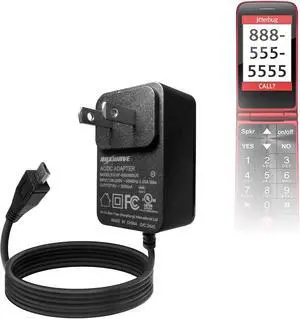
BoxWave Charger Compatible with Jitterbug Flip - Wall Charger Direct (15W), Rapid Charge Your Device with Built-in 3ft Cable
- Model #: Tong409397165017miao
- $31.88 –
- Free Shipping
Quick View
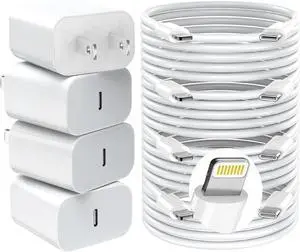
GREPHONE iPhone Charger Fast Charging,20W PD USB C Wall Charger 4 Pack with 6FT Fast Charging Cable - Fast Charger for iPhone 14/14 Pro Max/13/13 Pro/12/12 Pro/11/11 Pro/XS, iPad
- Model #: Tong409397173371miao
- $33.88 –
- Free Shipping
Quick View
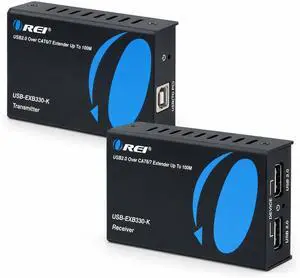
OREI USB 2.0 Over Ethernet Extender Upto 330 Feet Power Over Cable, KVM
- Model #: Tong409397159719miao
- $138.88 –
- Free Shipping
Quick View
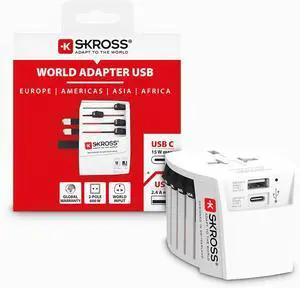
SKROSS Universal Travel Plug with USB and USB C, 1.302962, White
- Model #: TOLKB08G5SC9GK
- $82.99 –
- Free Shipping
Quick View
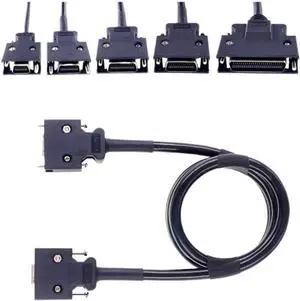
SCSI Servo Data Cable 14P 20P 26P 36P 50P SCSI Connector Cable CN14Pin CN20Pin CN26Pin CN36Pin CN50Pin(1.0 Meter,14 Pin)
- Model #: TOLKB0GDQM5QC8
- $93.99 –
- Free Shipping
Quick View
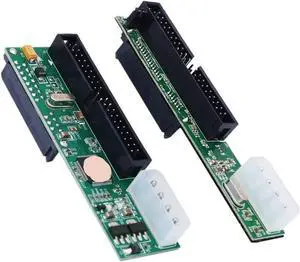
40PIN IDE to S1A1T1A Card Hard Disk Optical Drive Recorder PATA to Serial to Parallel Conversion(Wide Board)
- Model #: TOLKB0GRZLWYN6
- $78.99 –
- Free Shipping
Quick View
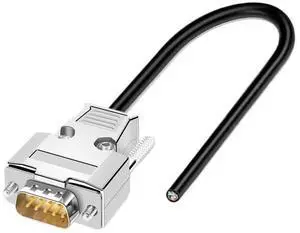
DB9 DB15 DB25 Connector Cable 24AWG 9/15/25 Pin Signal Line Male Female RS232 Serial Port Plug Shielded Data Wire(DB9 Metal Female,0.5M)
- Model #: TOLKB0FWVX8SZX
- $78.99 –
- Free Shipping
Quick View
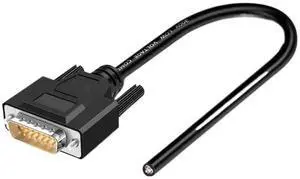
DB9 DB15 DB25 Connector Cable 24AWG 9/15/25 Pin Signal Line Male Female RS232 Serial Port Plug Shielded Data Wire(DB15 Male,1.5M)
- Model #: TOLKB0FWW9HHJY
- $90.99 –
- Free Shipping
Quick View
SCSI Servo Data Cable 14P 20P 26P 36P 50P SCSI Connector Cable CN14Pin CN20Pin CN26Pin CN36Pin CN50Pin(5 Meter,50 Pin)
- Model #: TOLKB0GDQQ4N75
- $230.99 –
- Free Shipping
Quick View
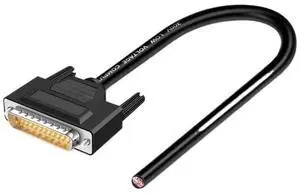
DB9 DB15 DB25 Connector Cable 24AWG 9/15/25 Pin Signal Line Male Female RS232 Serial Port Plug Shielded Data Wire(DB25 Male,1.5M)
- Model #: TOLKB0FWWJR4CW
- $108.99 –
- Free Shipping
Quick View
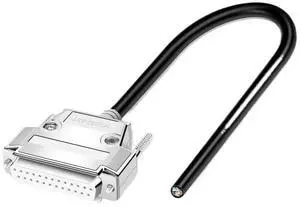
DB9 DB15 DB25 Connector Cable 24AWG 9/15/25 Pin Signal Line Male Female RS232 Serial Port Plug Shielded Data Wire(DB25 Metal Male,1M)
- Model #: TOLKB0FWW3V45F
- $115.99 –
- Free Shipping
Quick View
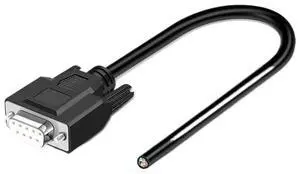
DB9 DB15 DB25 Connector Cable 24AWG 9/15/25 Pin Signal Line Male Female RS232 Serial Port Plug Shielded Data Wire(DB9 Female,5M)
- Model #: TOLKB0FWWHQLS4
- $144.99 –
- Free Shipping
Quick View
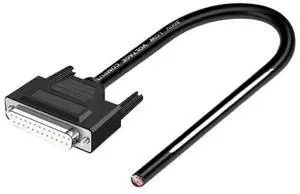
DB9 DB15 DB25 Connector Cable 24AWG 9/15/25 Pin Signal Line Male Female RS232 Serial Port Plug Shielded Data Wire(DB25 Female,300CM)
- Model #: TOLKB0FWW6XNZS
- $149.99 –
- Free Shipping
Quick View
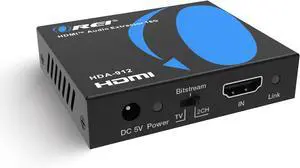
OREI 4K 60Hz 18G HDMI 2.0 Audio Converter Extractor - SPDIF + 3.5mm Output - HDCP 2.2 - Dolby Digital/DTS Passthrough CEC, HDR, Dolby Vision, HDR10 Support (HDA-912)
- Model #: EQWER462277179054
- $69.49 –
- Free Shipping
Quick View
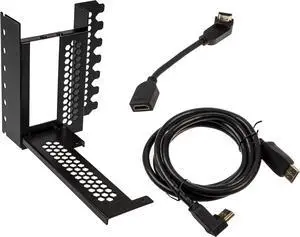
CableMod Vertical PCI-e Bracket (Black, HDMI + DisplayPort)
- Model #: TOLKB07D7NM2P6
- $186.99 –
- Free Shipping
Quick View
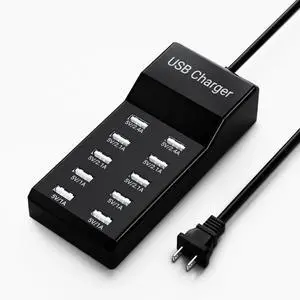
10-Port USB Charger Block, Multi USB Charging Station, for iPhone/iPad/Samsung Galaxy Note Tablet Android Smartphone Multi-Function Device, 50W10A Power Strip(BIack)
Limited time offer, ends 09/26
- Model #: C5PY-C03010-8
- $39.89 –
- Free Shipping
Quick View
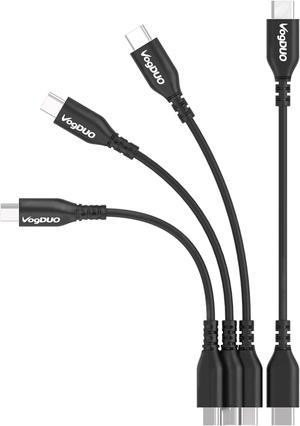
VOGDUO USB-C to USB-C short cable- 4 inches, 4 packs, travel friendly and pocket friendly, compatible with Samsung Galaxy, Google Pixel, and laptops with USB-C port.
- Compatible Phone Manufacturer: Google, Samsung, ASUS, HUAWEI, OPPO, HTC, Acer, and more
- Adapter: USB Type-C
- Warranty: 1 year
- Model #: UCC10-4-B

Quick View
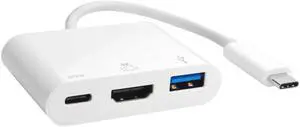
USB-C to HDMI Multi-Port Hub (HDMI (4K) + USB 3.0 + USB-C Charging)
- Cable Length: 4 in.
- Brand: PPA
- Type: Adapter
- Color: White
- Model #: 6320NP

Any questions? Our AI mode will help you find out quickly.
Try me now
Choosing the Right Printer for Your Office Needs
When it comes to office solutions, printers and scanners are essential tools for any business. Whether you need to print important documents, scan invoices, or create professional-quality marketing materials, having the right equipment is crucial. In this article, we will explore the different types of printers and scanners available in the market and provide tips on how to choose the best one for your office.
All-in-One Printers: Versatility and Convenience
all-in-one printers, also known as multifunction printers, are a popular choice for offices. These devices combine the functionality of a printer, scanner, copier, and sometimes even a fax machine into a single unit. They offer versatility and convenience, allowing you to perform multiple tasks without the need for separate devices. All-in-one printers are available in both inkjet and laser options, catering to different printing needs and budgets.
Specialized Printers for Specific Tasks
In addition to all-in-one printers, there are specialized printers designed for specific tasks. For example, 3D printers are ideal for creating prototypes or intricate models, while barcode and label printers are perfect for businesses that require efficient inventory management. laser printers are known for their fast printing speeds and high-quality output, making them suitable for offices with high-volume printing needs. inkjet printers, on the other hand, are more cost-effective and can produce vibrant color prints.
Choosing the Right Supplies
Once you have selected the right printer for your office, it is important to choose the right supplies to ensure optimal performance and longevity. When it comes to inkjet printers, using high-quality ink cartridges is essential to achieve the best print quality and prevent clogging. For laser printers, it is important to choose the right type of toner cartridges that are compatible with your printer model. Additionally, investing in high-quality paper can make a significant difference in the final print results.
FAQs: Common Questions about Printers and Scanners
| Q: How often should I replace the ink cartridges? | A: The frequency of replacing ink cartridges depends on your printing volume. However, it is recommended to replace them when the print quality starts to degrade. |
|---|---|
| Q: Can I use third-party ink cartridges with my printer? | A: While it is possible to use third-party ink cartridges, it is important to ensure compatibility with your printer model. Using incompatible cartridges may result in poor print quality or damage to the printer. |
| Q: How do I clean the scanner glass? | A: To clean the scanner glass, use a soft, lint-free cloth slightly dampened with glass cleaner. Gently wipe the glass surface to remove any smudges or debris. |
| Q: What is the difference between optical and interpolated resolution in scanners? | A: Optical resolution refers to the actual hardware resolution of the scanner, while interpolated resolution is achieved through software enhancements. Optical resolution provides more accurate and detailed scans. |
| Q: How can I improve the scanning speed? | A: To improve scanning speed, reduce the scanning resolution, use black and white mode instead of color, and ensure that the scanner is connected to a high-speed USB port. |