

Your Browsing History
- In Stock
- Sold by Newegg
- New
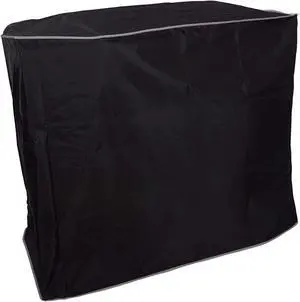
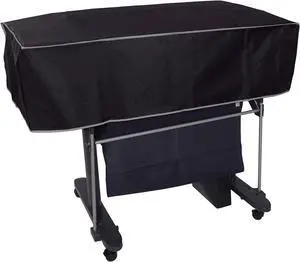
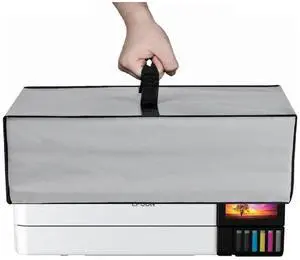
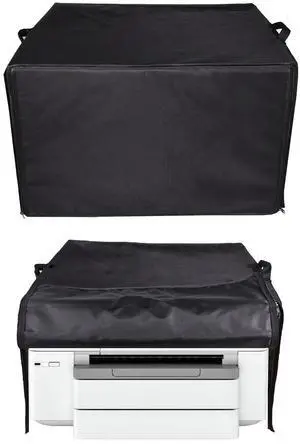
![DigitalDeckCovers Printer Dust Cover for HP Designjet T120 / T125 / T130 - 24" Wide Format Plotter Protector [Antistatic, Water Resistant, Heavy Duty Premium Fabric, Dust-Proof, Black]](https://c1.neweggimages.com/productimage/nb300/BRESD2507280UF04LF8.jpg "DigitalDeckCovers Printer Dust Cover for HP Designjet T120 / T125 / T130 - 24\" Wide Format Plotter Protector [Antistatic, Water Resistant, Heavy Duty Premium Fabric, Dust-Proof, Black]")
Quick View
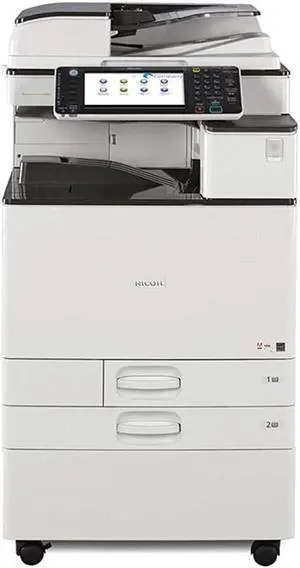
Refurbished Ricoh MP C2003 Color Multi-Function 11 x 17
- Product Type: Base Station
- Model #: 2003
- $2,199.00 –
- Free Shipping
Quick View
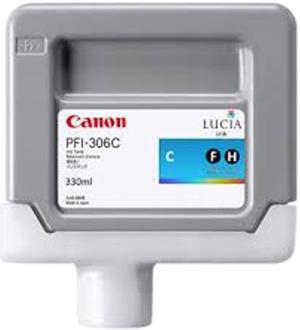
Canon PFI-306 Ink Cartridge - Cyan
OUT OF STOCK
- Part Number: 6658B001
- Cartridge Quantity: Single Pack
- Compatible Products: Canon Large Format Printers: - iPF8400 - iPF9400S - iPF9400 - iPF8300
- Capacity: 330 ml
- Model #: 6658B001
- $232.99 –
- Free Shipping
Quick View
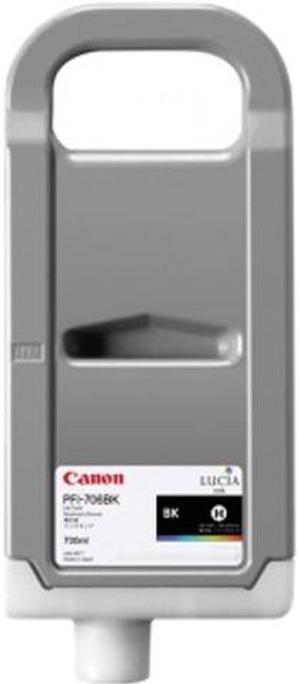
Canon PFI-706 High Yield Ink Cartridge - Black
OUT OF STOCK
- Part Number: 6681B001
- Cartridge Quantity: Single Pack
- Compatible Products: Canon Large Format Printers: iPF8400 iPF9400S iPF9400 iPF8300
- Ink Type: Dye-based
- Model #: 6681B001
- $385.99 –
- Free Shipping
Quick View
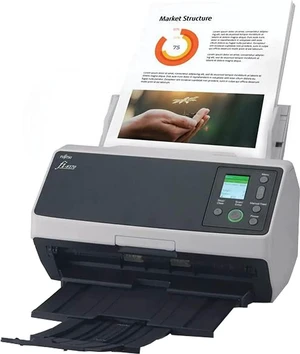
Fujitsu Professional High Speed Large Format ADF/Manual Color Duplex Document Scanner FI8170 Up to 70 double sided- Network Enabled
OUT OF STOCK
- Brand: Fujitsu
- Series: fi Series
- Part Number: FI8170
- Type: Document Scanner
- Model #: PA03810-B055
- $1,280.99 –
- Free Shipping
Quick View
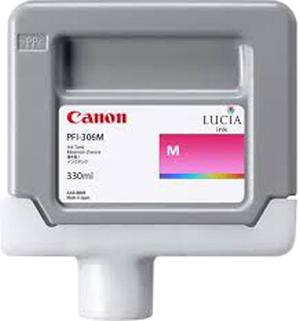
Canon PFI-306 Ink Cartridge - Magenta
OUT OF STOCK
- Part Number: 6659B001
- Cartridge Quantity: Single Pack
- Compatible Products: Canon Large Format Printers: - iPF8400 - iPF9400S - iPF9400 - iPF8300
- Capacity: 330 ml
- Model #: 6659B001
- $232.99 –
- Free Shipping

Quick View
Canon PFI-306 Ink Cartridge - Blue
OUT OF STOCK
- Compatible Products: Canon Large Format Printers: iPF8400 iPF9400S iPF9400 iPF8300
- Model #: 6665B001AA
- $225.00 –
- Free Shipping
Quick View
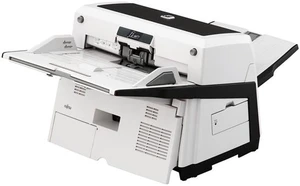
Refurbished Fujitsu fi Series FI-6670 CCD 600 dpi Duplex Document Scanner
OUT OF STOCK
- Brand: Fujitsu
- Series: fi Series
- Part Number: FI-6670
- Type: Document Scanner
- Model #: PA03576-B005
- $685.00 –
- Free Shipping
Quick View

OUT OF STOCK
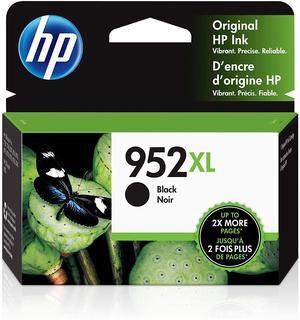
- Part Number: F6U19AN
- Cartridge Quantity: Single Pack
- Compatible Products: HP OfficeJet Pro 7720 Wide Format (Y0S18A#B1H); HP OfficeJet Pro 8740 (K7S42A#B1H); HP OfficeJet Pro 7740 Wide Format (G5J38A#B1H); HP OfficeJet Pro 8710 (M9L66A#B1H); HP OfficeJet Pro 8210 (D9L64A#B1H); HP OfficeJet Pro 8216 (T0G70A#B1H); HP OfficeJet Pro 8720 (M9L75A#B1H); HP OfficeJet Pro 8730 (D9L20A#B1H); HP OfficeJet Pro 8720 (M9L74A#B1H)
- Ink Drop Size: 10.5 pl
- Model #: F6U19AN
- $70.99 –
- $4.99 Shipping
Quick View
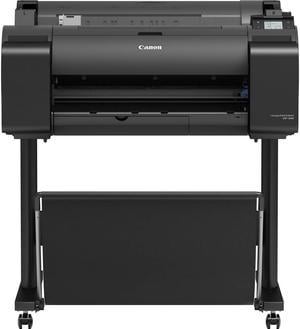
Canon imagePROGRAF GP-200 6-Color 24" Large Format Thermal Inkjet Printer
OUT OF STOCK
- Model #: 5249C002AB
- $3,782.00 –
- More options from $3,699.00 - $3,782.00
- Free Shipping

Any questions? Our AI mode will help you find out quickly.
Try me now
Choosing the Right Printer for Your Office Needs
When it comes to office solutions, printers and scanners are essential tools for any business. Whether you need to print important documents, scan invoices, or create professional-quality marketing materials, having the right equipment is crucial. In this article, we will explore the different types of printers and scanners available in the market and provide tips on how to choose the best one for your office.
All-in-One Printers: Versatility and Convenience
all-in-one printers, also known as multifunction printers, are a popular choice for offices. These devices combine the functionality of a printer, scanner, copier, and sometimes even a fax machine into a single unit. They offer versatility and convenience, allowing you to perform multiple tasks without the need for separate devices. All-in-one printers are available in both inkjet and laser options, catering to different printing needs and budgets.
Specialized Printers for Specific Tasks
In addition to all-in-one printers, there are specialized printers designed for specific tasks. For example, 3D printers are ideal for creating prototypes or intricate models, while barcode and label printers are perfect for businesses that require efficient inventory management. laser printers are known for their fast printing speeds and high-quality output, making them suitable for offices with high-volume printing needs. inkjet printers, on the other hand, are more cost-effective and can produce vibrant color prints.
Choosing the Right Supplies
Once you have selected the right printer for your office, it is important to choose the right supplies to ensure optimal performance and longevity. When it comes to inkjet printers, using high-quality ink cartridges is essential to achieve the best print quality and prevent clogging. For laser printers, it is important to choose the right type of toner cartridges that are compatible with your printer model. Additionally, investing in high-quality paper can make a significant difference in the final print results.
FAQs: Common Questions about Printers and Scanners
| Q: How often should I replace the ink cartridges? | A: The frequency of replacing ink cartridges depends on your printing volume. However, it is recommended to replace them when the print quality starts to degrade. |
|---|---|
| Q: Can I use third-party ink cartridges with my printer? | A: While it is possible to use third-party ink cartridges, it is important to ensure compatibility with your printer model. Using incompatible cartridges may result in poor print quality or damage to the printer. |
| Q: How do I clean the scanner glass? | A: To clean the scanner glass, use a soft, lint-free cloth slightly dampened with glass cleaner. Gently wipe the glass surface to remove any smudges or debris. |
| Q: What is the difference between optical and interpolated resolution in scanners? | A: Optical resolution refers to the actual hardware resolution of the scanner, while interpolated resolution is achieved through software enhancements. Optical resolution provides more accurate and detailed scans. |
| Q: How can I improve the scanning speed? | A: To improve scanning speed, reduce the scanning resolution, use black and white mode instead of color, and ensure that the scanner is connected to a high-speed USB port. |