
Your Browsing History
- In Stock
- Sold by Newegg
- Make an Offer
- New

Any questions? Our AI beta will help you find out quickly.
Try me now
Quick View
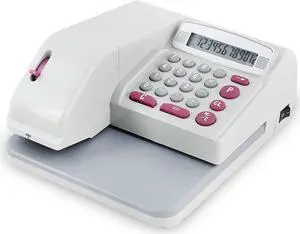
UBICON Checkwriter with Two Additional Ink Cartridges (RX200UBI), Red
- Model #: DARKB002Z9G2C4
- $268.99 –
- Free Shipping
Quick View
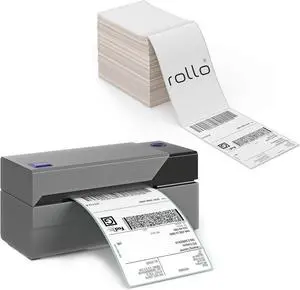
Rollo USB Thermal Shipping Label Printer and 500 4x6 Thermal Labels Bundle - High Speed Printer for Shipping Packages with Shipping Labels
- Model #: DARKB0D3CQWSB2
- $392.99 –
- Free Shipping
Quick View
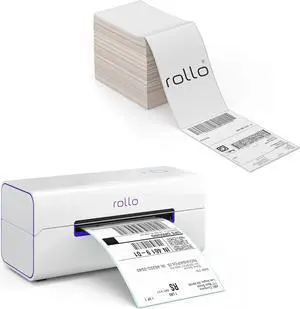
Rollo Wireless Thermal Shipping Label Printer and 500 4x6 Thermal Labels Bundle - High Speed Printer for Shipping Packages with Shipping Labels
- Model #: DARKB0D3CQK58Y
- $535.99 –
- Free Shipping
Quick View
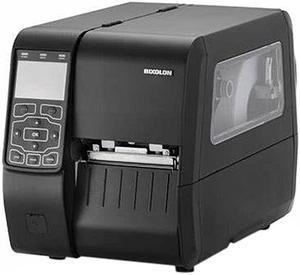
Bixolon XT5-40S 4 inch Thermal Transfer Industrial Label Printer
- Printer Type: Desktop
- Memory: 512MB Flash
- Fonts Included: 10 SLCS Resident Bitmap Fonts One SLCS Resident Scalable Font 16 BPL-Z Resident Bitmap Fonts One BPL-Z Resident Scalable Font 9 BPL-D Resident Bitmap Fonts Two BPL-D Resident Scalable Font 5 BPL-E Resident Bitmap Fonts 23 Code Page Unicode supported (UTF-8, UTF-16LE, UTF-16BE)
- Media Type: Gap, Black Mark, Notch, Continuous, Fan-Fold
- Model #: XT5-40S
- $984.62 –
- More options from $984.62 - $992.99
- Free Shipping
Quick View
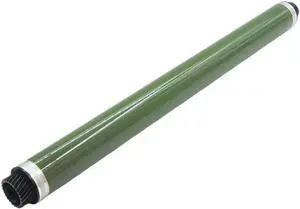
OPC Drum Compatible with Versalink B7000 B7020 B7025 B7030 B7035 V2060 1060 3060 3065 3560
- Model #: DARUB0G5WVB1ZY
- $100.99 –
- Free Shipping
Quick View
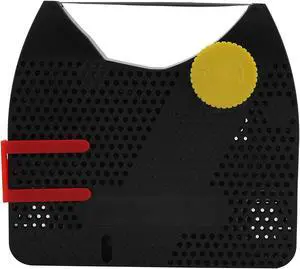
UBICON brand Ribbon for Maverick 3 encoder (six pack)
- Model #: DARKB002XHCYV6
- $126.99 –
- Free Shipping
Quick View
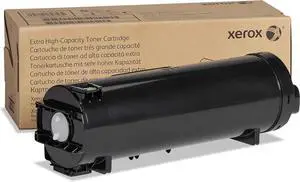
Xerox VersaLink B600/B610 Black Extra High Capacity Toner Cartridge (46,700 Pages) - 106R03944
- Model #: DARKB076JVKD6J
- $855.99 –
- Free Shipping
Quick View
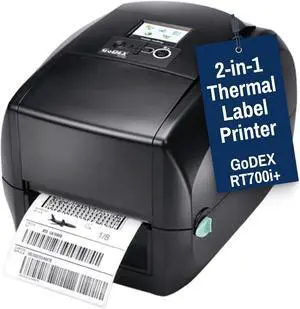
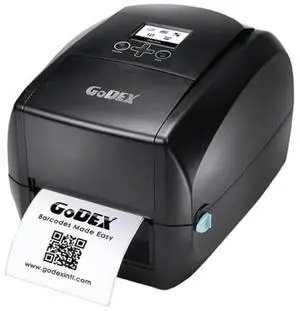
McAuley Labels GoDEX RT700i+ 4 Thermal Transfer Label Printer 203 DPI Barcode Printer with Color Display Fast, Reliable Output
- Model #: DARKB0F6VSKB4H
- $1,046.99 –
- Free Shipping
Quick View
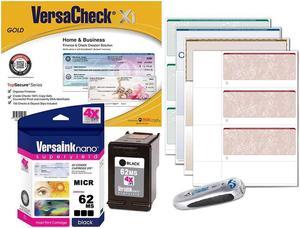
VersaCheck 62 MICR Ink Check Printer Conversion Kit, MICR Black
- Model #: OB08T16TP2R
- $260.69 –
- More options from $260.69 - $261.99
- Free Shipping
Quick View
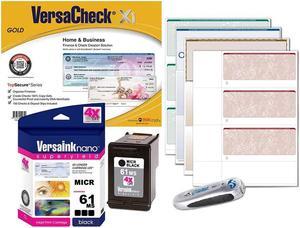
VersaCheck 61 MICR Ink Check Printer Conversion Kit, MICR Black
- Model #: OB08SZK7ZJN
- $240.69 –
- More options from $240.69 - $241.99
- Free Shipping
Quick View
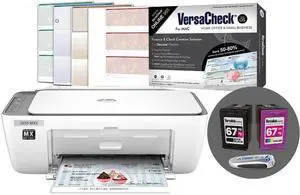
VersaCheck 2855 MXE MICR All-in-One Color Check Printer for MAC Check Printing Software Bundle
- Model #: DARKB0DQF9NDN8
- $612.99 –
- Free Shipping
Quick View
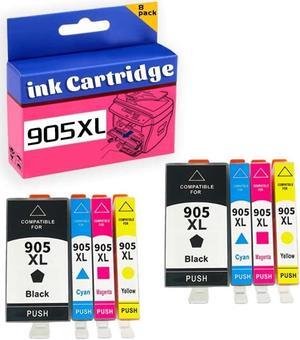
905XL Ink Cartridge High Yield Compatible for OFFICEJET PRO 6960 6970 6950 Printer 2 Set
- Model #: PB0CHRTX4ZG
- $157.69 –
- More options from $157.69
- Free Shipping
Quick View
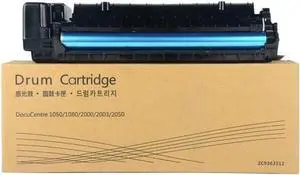
Drum Unit Compatible with DocuCentre WC1080 WC1050 WC1080 WC2000 WC200 WC2050 95 Percent Japan Black
- Model #: DARUB0G5GM2TP5
- $772.99 –
- Free Shipping

Quick View
VersaCheck HP DeskJet 3755 MXE MICR Check Printer Presto Check Printing Software Bundle
- Model #: DARKB0BXBJY9HV
- $630.99 –
- Free Shipping
Quick View
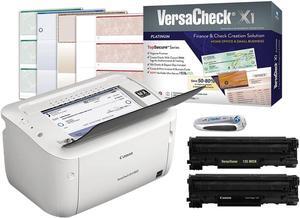
VersaCheck M15 MXD MICR Check Printer and VersaCheck X1 Platinum Check Printing Software Bundle
- Model #: DARKB0CQ9MLK8F
- $720.99 –
- Free Shipping
Quick View
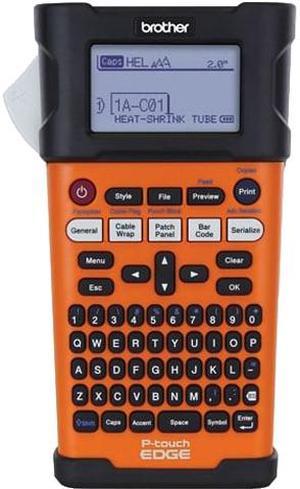
Brother PTE300 Laminated Thermal Transfer 0.8 ips (20 mm/sec) 180 dpi Industrial Handheld Labeling Tool With Rechargeable Li-ion Battery
- Printer Type: Handheld
- Memory: Up to 2,400 characters
- Fonts Included: Bitmap Fonts: Helsinki, Brussels, Los Angeles, Atlanta, Adams, Sofia, Letter Gothic
- Barcode Type: Code39, Code128, ITF(I-2/5), UPC-A, UPC-E, EAN-8, EAN-13, GS1-128 (UCC/EAN-128), Codabar (NW-7)
- Model #: PTE300
- $175.92 –
- More options from $128.97 - $271.99
- Free Shipping
Quick View
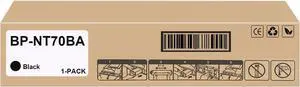
BP-NT70 BP-NT70BA Toner Cartridge Use for Sharp BP-50C26 BP-50C31 BP-50C36 BP-50C45 BP-70C31 BP-70C36 BP-70C45 Printers (1-Black)
- Model #: DARKB0DYMVPNN2
- $169.99 –
- Free Shipping
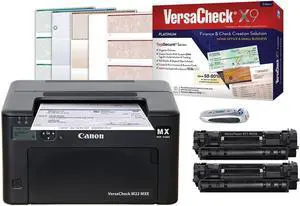
Quick View
VersaCheck M22 MXE MICR Check Printer and VersaCheck X9 Platinum 5-User Check Printing Software Bundle
- Model #: DARKB0CN1RM9PL
- $940.99 –
- Free Shipping
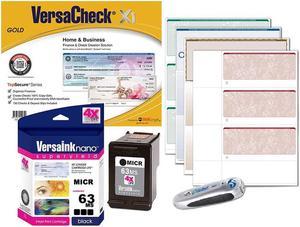
Quick View
VersaCheck 63 MICR Ink Check Printer Conversion Kit, MICR Black
- Model #: OB08SYZPRS7
- $298.69 –
- More options from $298.69 - $299.99
- Free Shipping
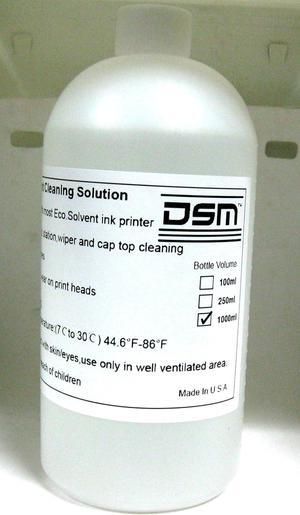
Quick View
DSM Eco Solvent Cleaning Solution1000 ml (1 Liter) for Mimaki Roland Mutoh Epson Ink Line Head Flushing Liquid (Made in USA)
- Model #: DARKB01FWOB958
- $108.99 –
- Free Shipping
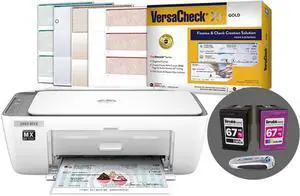
Quick View
VersaCheck 2855 MXE MICR All-in-One Color Check Printer and VersaCheck Gold Check Printing Software Bundle
- Model #: DARKB0D6TFDL5M
- $600.99 –
- Free Shipping
Quick View
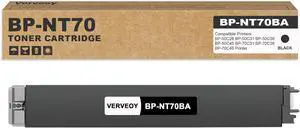
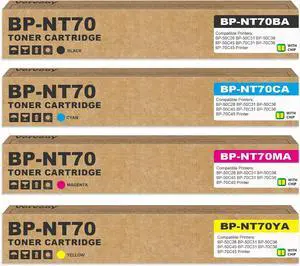
BP-NT70 BP-NT70BA High Yield Black Toner Cartridge Replacement for Sharp BP-NT70 for BP-50C26 BP-50C31 BP-50C36 BP-50C45 BP-70C31 BP-70C36 BP-70C45 Printer (1-Pack, Black)
- Model #: DARKB0DYD275HR
- $205.99 –
- Free Shipping

Quick View
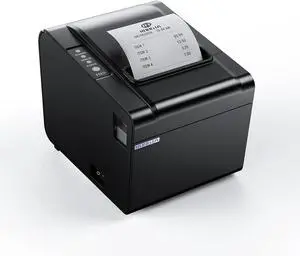
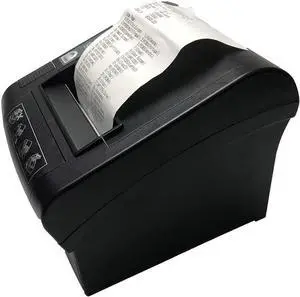
NETUM 80mm Thermal Receipt Printer, WiFi POS Printer with Auto Cutter, USB Serial Ethernet LAN Port Support Cash Drawer ESC/POS
- Model #: DARKB07Y5B55PP
- $245.99 –
- Free Shipping
Quick View
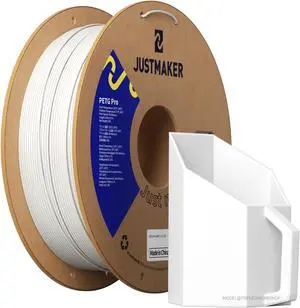
PETG Pro (PETG+) 3D Printer Filament, Updated Stronger Impact Resistance, Dimensional Accuracy +/-0.03mm, 1.75mm, 1 kg, White
- Model #: R559247663311641
- $31.66 –
- Free Shipping
Quick View
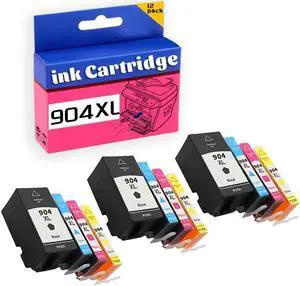
904XL Ink Cartridge High Yield Replacement Pack,Compatible for OfficeJet Pro 6970 All-in-One Printer 3 Set
- Model #: PB0CHRWNR6B
- $215.69 –
- More options from $215.69
- Free Shipping
Quick View
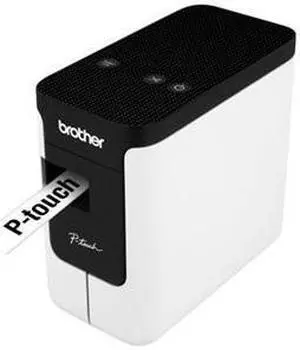
Brother P-touch PT-P700 Electronic Label Maker
- Weight: 3.05
- Model #: PTP700_
- $94.99
- $89.99 –
- Save: $5.00 (5%)
- More options from $89.99 - $97.99
- Free Shipping
Quick View
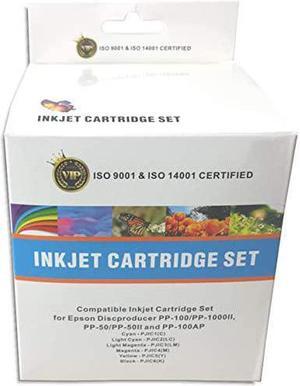
Discproducer Compatible PP-100/PP-50 6-Color Ink Cartridge Multipak Set
- Model #: OB07X5CYCY1
- $335.69 –
- More options from $335.69
- Free Shipping
Quick View
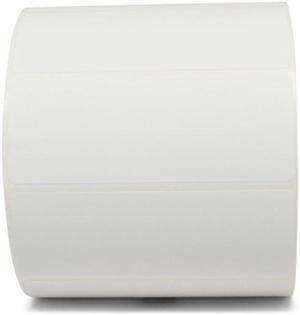
TSC/PTX Desktop Label, Thermal Transfer Paper (4" x 2") (1" Core) (5" OD) (1250 Labels/Roll) (4 Rolls/Ctn)
- Model #: TT-400200-5-01
- $50.99
- Request Price
- More options from $50.94
- Free Shipping

Quick View
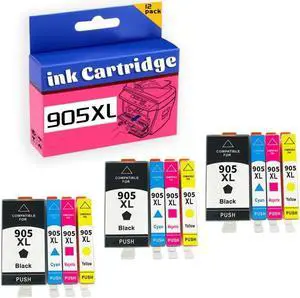
905XL Ink Cartridge High Yield Compatible for OFFICEJET PRO 6960 6970 6950 Printer 3 Set
- Model #: PB0CHRW8R97
- $213.69 –
- More options from $213.69
- Free Shipping
Quick View
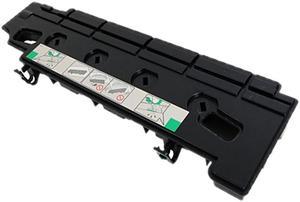
Waste Toner Container for Genuine Toshiba E STUDIO Series
- Replacement Model: TBFC505 TBFC50 6AG00007690 6AG00005100
- Compatible Products: Toshiba E STUDIO 3055C, Toshiba E STUDIO 3555C, Toshiba E STUDIO 3005AC, Toshiba E STUDIO 3505AC, Toshiba E STUDIO 4505AC, Toshiba E STUDIO 4555C, Toshiba E STUDIO 2555C, Toshiba E STUDIO 2505AC, Toshiba E STUDIO 5055C, Toshiba E STUDIO 5015AC, Toshiba E STUDIO 5005AC, Toshiba E STUDIO 3515AC, Toshiba E
- Approximate Page Yield: 120000 Pages
- Coverage: 5%
- Model #: TBFC505
- $24.17
- $23.98 –
- More options from $23.98 - $38.68
- Free Shipping
Choosing the Right Printer for Your Office Needs
When it comes to office solutions, printers and scanners are essential tools for any business. Whether you need to print important documents, scan invoices, or create professional-quality marketing materials, having the right equipment is crucial. In this article, we will explore the different types of printers and scanners available in the market and provide tips on how to choose the best one for your office.
All-in-One Printers: Versatility and Convenience
all-in-one printers, also known as multifunction printers, are a popular choice for offices. These devices combine the functionality of a printer, scanner, copier, and sometimes even a fax machine into a single unit. They offer versatility and convenience, allowing you to perform multiple tasks without the need for separate devices. All-in-one printers are available in both inkjet and laser options, catering to different printing needs and budgets.
Specialized Printers for Specific Tasks
In addition to all-in-one printers, there are specialized printers designed for specific tasks. For example, 3D printers are ideal for creating prototypes or intricate models, while barcode and label printers are perfect for businesses that require efficient inventory management. laser printers are known for their fast printing speeds and high-quality output, making them suitable for offices with high-volume printing needs. inkjet printers, on the other hand, are more cost-effective and can produce vibrant color prints.
Choosing the Right Supplies
Once you have selected the right printer for your office, it is important to choose the right supplies to ensure optimal performance and longevity. When it comes to inkjet printers, using high-quality ink cartridges is essential to achieve the best print quality and prevent clogging. For laser printers, it is important to choose the right type of toner cartridges that are compatible with your printer model. Additionally, investing in high-quality paper can make a significant difference in the final print results.
FAQs: Common Questions about Printers and Scanners
| Q: How often should I replace the ink cartridges? | A: The frequency of replacing ink cartridges depends on your printing volume. However, it is recommended to replace them when the print quality starts to degrade. |
|---|---|
| Q: Can I use third-party ink cartridges with my printer? | A: While it is possible to use third-party ink cartridges, it is important to ensure compatibility with your printer model. Using incompatible cartridges may result in poor print quality or damage to the printer. |
| Q: How do I clean the scanner glass? | A: To clean the scanner glass, use a soft, lint-free cloth slightly dampened with glass cleaner. Gently wipe the glass surface to remove any smudges or debris. |
| Q: What is the difference between optical and interpolated resolution in scanners? | A: Optical resolution refers to the actual hardware resolution of the scanner, while interpolated resolution is achieved through software enhancements. Optical resolution provides more accurate and detailed scans. |
| Q: How can I improve the scanning speed? | A: To improve scanning speed, reduce the scanning resolution, use black and white mode instead of color, and ensure that the scanner is connected to a high-speed USB port. |