

Your Browsing History
- Free 30-day Returns
$76.69
Ships from Hong Kong.


Meet Your Seller


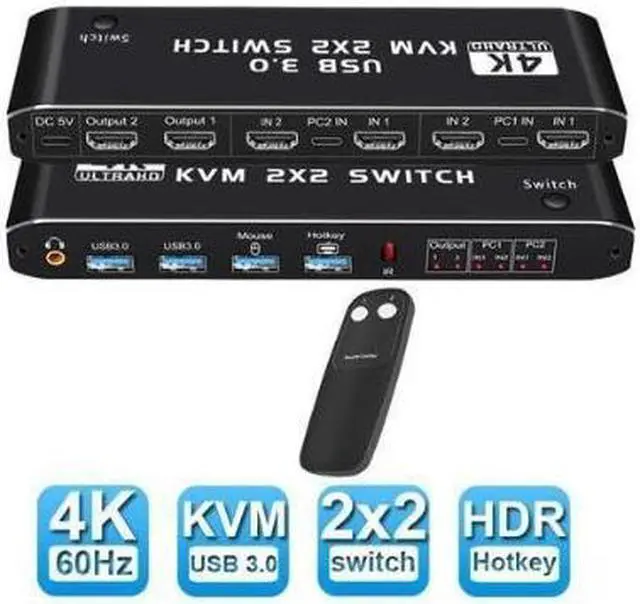


Aomoproing 8K HDMI KVM Switch 2 in 2 Out Dual Monitor 8K@60Hz 4K@120Hz 2 PC to 2 Monitor with 2 USB 3.0 Ports and Keyboard, Mouse port for Sharing Keyboard, Mouse, U Disk
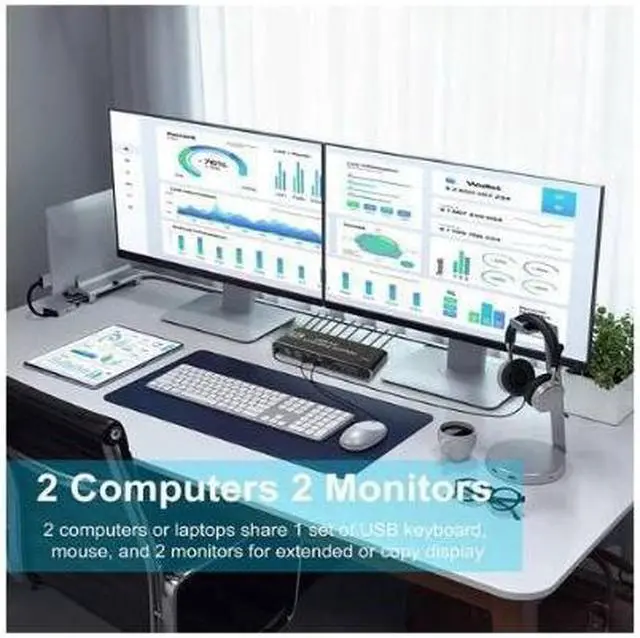
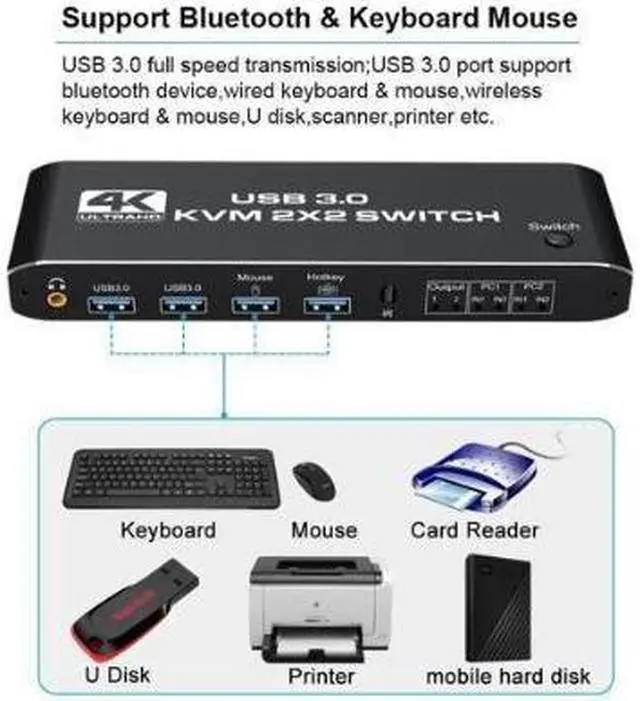
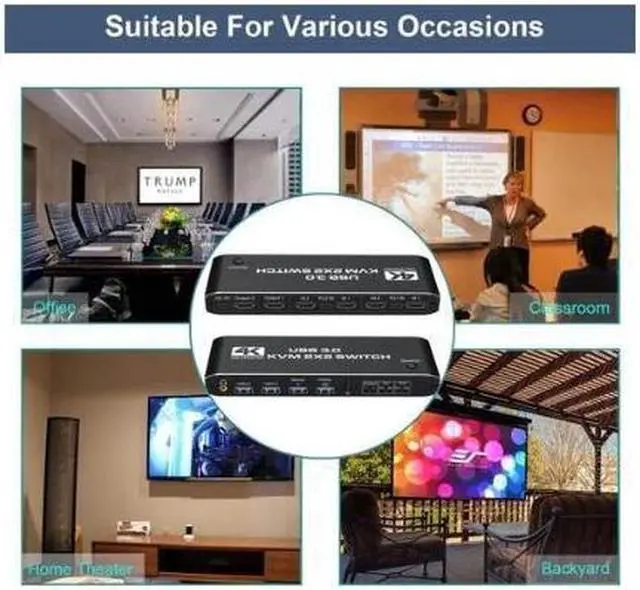
- 4K HDMI USB KVM Switch allows you to share one USB keyboard, USB mouse, and two HDMI monitor to control 2 computers, laptops, game consoles.
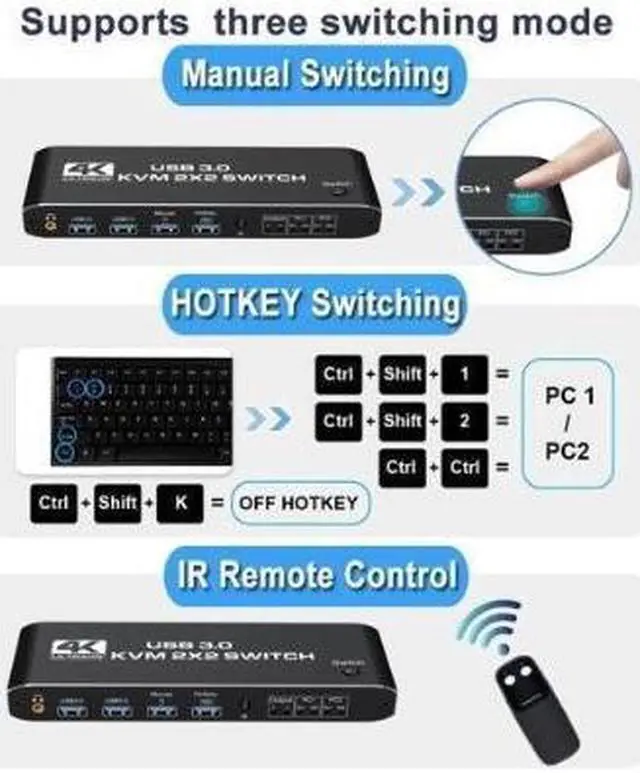
- It is designed for multitask with two computers at your necessary, increasing productivity in the office or at home ; You can switch between 2 computers using a manual switch located on the top of the KVM unit.
- Specifications:
- 2 In 2 Out 4K USB 3.0 HDMI KVM Switch Box dual monitor for 2 PC Sharing Keyboard Mouse Printer Plug Play Video 2 Display USB Swltch Splitter
- - Product Type: HDMI USB 3.0 KVM Switch (2 in 2 out)
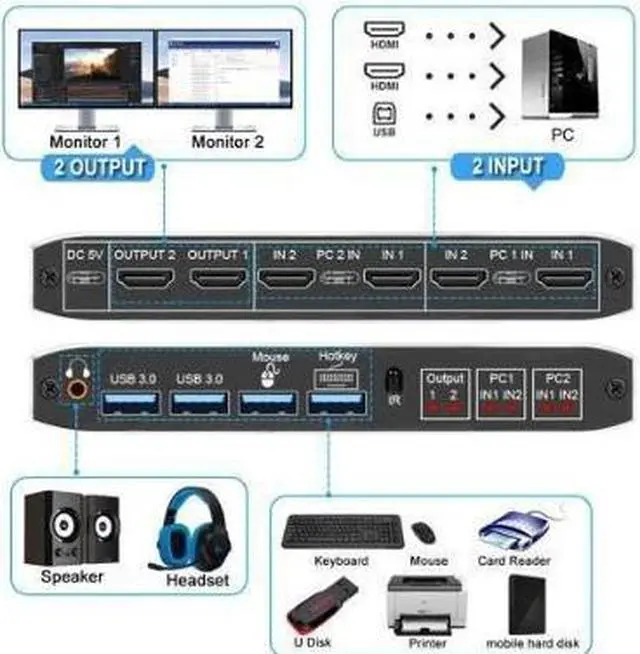
- - Input Port: HDMI 2.0 x 4,USB-C x2, USB 3.0 x 4
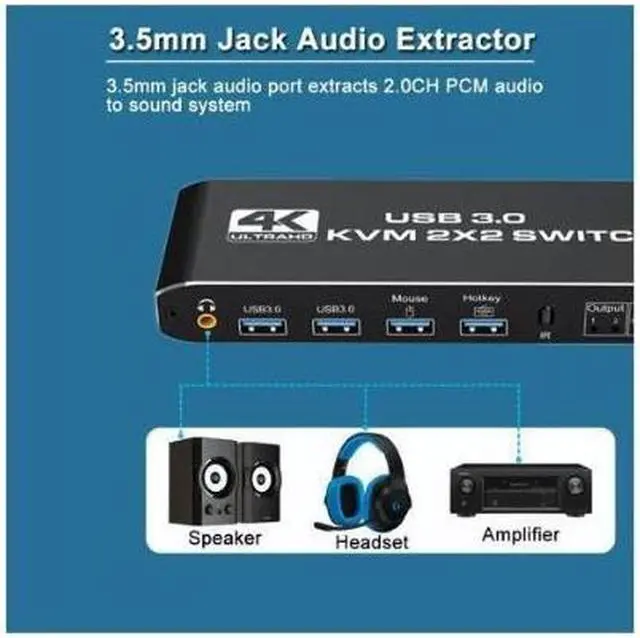
- - Output Port: 2 x HDMI 2.0,1 x L/R audio
- - Dimensions: 111.8x63.2x24.5mm
- - Material: Aluminum Alloy shellanti-rust, anti-corrosion, anti-interference, fast transmission, surtace oxidation
+
+
Overview
Specs
Reviews

Any questions? Our AI mode will help you find out quickly.
Try me now
Installation Step:
1. Turn off all devices and unplug all the cables;
2. Plug HDMI cables and USB cables into KVM switch and your computers/laptops (
HDMI cables not included):
Please check the PC1-"HDMI IN 1 & IN 2", and PC2-"HDMI IN 1 & IN 2"USB IN1 & IN2 is corresponding, HDMI OUTPU 1, HDMI OUTPU 2 is corresponding, NOT support mixed insertion.
PC1 HDMI IN 1 + PC1 HDMI IN 2 +PC1 USB IN=PC1
PC2 HDMI IN 1 + PC2 HDMI IN 2 +PC2 USB IN=PC1
3. Plug mouse and keyboard into KVM switch;
4. Plug HDMI cables and USB cables into KVM switch and monitors;
5. Plug power supply into KVM switch;
6. Boot computers/laptops.
IMPORTANT NOTE:
Your device must have 2 HDMI interfaces and 1 USB interface.
This kvm can not work with dock. If your device has one HDMI interfaces, you can use a converter to add HDMI interfaces.
If your computer has just one HDMI interface, you can use a converter cable, such as VGA/DVI/DP to HDMI converter or conversion cable.
1. Turn off all devices and unplug all the cables;
2. Plug HDMI cables and USB cables into KVM switch and your computers/laptops (
HDMI cables not included):
Please check the PC1-"HDMI IN 1 & IN 2", and PC2-"HDMI IN 1 & IN 2"USB IN1 & IN2 is corresponding, HDMI OUTPU 1, HDMI OUTPU 2 is corresponding, NOT support mixed insertion.
PC1 HDMI IN 1 + PC1 HDMI IN 2 +PC1 USB IN=PC1
PC2 HDMI IN 1 + PC2 HDMI IN 2 +PC2 USB IN=PC1
3. Plug mouse and keyboard into KVM switch;
4. Plug HDMI cables and USB cables into KVM switch and monitors;
5. Plug power supply into KVM switch;
6. Boot computers/laptops.
IMPORTANT NOTE:
Your device must have 2 HDMI interfaces and 1 USB interface.
This kvm can not work with dock. If your device has one HDMI interfaces, you can use a converter to add HDMI interfaces.
If your computer has just one HDMI interface, you can use a converter cable, such as VGA/DVI/DP to HDMI converter or conversion cable.
Warranty & Returns
Warranty, Returns, And Additional Information
Warranty
- Please contact the Seller directly for warranty information. Warranty information may also be found on the Manufacturer's website.
- CONTACT
Return Policies
- Return for refund within: 30 days
- Return for replacement within: non-replaceable
- This item is covered by E-tech Return Policy
Manufacturer Contact Info
- For a directory of all our manufacturers, please click below.
- Manufacturers Directory
LOADING...