Your Browsing History
- Free 30-day Returns
$56.39
Ships from China.
Meet Your Seller
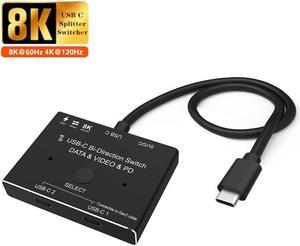
USB-C Splitter Type-C 8K Switch USB 3.1 C Gen 2 Cable for Video Bi-Direction (2 in 1 Out, 1 In 2 Out) 8K@60Hz 4K@120Hz Power Delivery 100W 10Gbps Data Transfer Multi-Function USB C Splitter Converter
Limited time offer, ends 07/09 By Electronics store
- [IMPORTANT NOTE] Don't connect USB-C/Thunderbolt Docking Station/Hub, otherwise it will flicker or the screen will turn black. Two displays CANNOT display simultaneously. You need to use a standard USB-C USB3.1 version Gen-2 Cable to connect this usb-c switch and use the usb cable to power the switch.
- [Max 10Gbps Data Transfer Rate] Supports Max Transmissions Speed 10Gbps(USB3.1 Gen2), Transfer music, movies in seconds. you can charge your mobile phone, tablet and other devices, and you can also transfer data from your computer etc. to your U disk and other devices.
- [8K Ultra HD Video Output] You can output max 8K@30Hz 4K@120Hz 1080P@165Hz via our USB-C Switch/Splitter to your USB-C Displays. The maximum resolution of your output depends on your Source device, monitor and cable used.
- [Rapid Charging] Supports Max 100w Power Delivery. Press"Select"button to switch between two displays. Do not use too long cable(1.5 meters) for connection between the switcher and your devices.
+
+
Overview
Specs
Reviews
Any questions? Our AI beta will help you find out quickly.
Try me now
Bi-Direction USB-C Switcher 2 in 1 Out / 1 in 2 Out Support 8K@60Hz Video
Operation Instruction
In this connection Method, please follow the following instruction to operate:
1: Connect two USB 3.1 Gen 2 Cable from our USB-C Switch 's USB-C 1 and USB-C 2 Port to your USB-C Source Devices
2: Connect the Fixed USB-C Cable in the USB-C Position to your Monitor's USB-C Port(Please make sure USB-C Port in the Monitor support video transfer and the video function had been opened)
3: Connect the supplied Micro USB to USB Cable to power with the switch(This is necessary Step, or the display can not show anything)
4: Press"Select"Button to switch between two source devices.
Function 1: 2 IN 1 Out
1. Connect two sources to the port "USB-C 1" and port "USB-C 2"
2. Connect the display from the Supplied and Fixed USB-C Cable on the switch.
3. Power the switch with the supplied USB to DC cable
4: Press"Select"Button to switch between two Sources
Function 2: 1 In 2 Out
1. Connect the source from the supplied and Fixed USB-C cable on the switch.
2. Connect two displays to the port "USB-C 1" and port "USB-C 2"(Note: two displays cannot work at the same time). In this connection, you can also connect USB-C to HDMI or Displayport Cable from the Switch to relatively Monitor.
3. Power the switch with the supplied USB to DC cable
4: Press"Select"Button to switch between two Displays
Function 3: Power Delivery&Data
1: Data Transfer, using USB 3.1 Gen 2 Cable for Max 10Gbps data Transmissions from your Host devices to your data storage devices.
2: Max 100w Power Delivery for your relatively devices.
USB-C Switch/Spliiter with 8K Video Transfer, 100W Power Delivery and 10Gbps Data
Notes when use
Important notes While using:
(1): Don't connect USB-C/Thunderbolt Docking Station/Hub, otherwise it will flicker or the screen will turn black. Two displays CANNOT display simultaneously. You need to use a standard USB-C USB 3.1 version Gen-2 Cable to connect this switch and use the usb cable to power the switch.
(2): Please make sure your source devices, like laptop or PC had selected duplicate or extend your screen, not only dispaly screen-1.
(3): Please do not use "usb-c hdmi" or'usb-c dp"cable to connect from our USB-C 1 and USB-C 2 Port to your source Devices.
(4): Please do not use USB-C Gen 2 cable longer than 1.5 meters to connect the USB-C switch to your source devices.
Operation Instruction
In this connection Method, please follow the following instruction to operate:
1: Connect two USB 3.1 Gen 2 Cable from our USB-C Switch 's USB-C 1 and USB-C 2 Port to your USB-C Source Devices
2: Connect the Fixed USB-C Cable in the USB-C Position to your Monitor's USB-C Port(Please make sure USB-C Port in the Monitor support video transfer and the video function had been opened)
3: Connect the supplied Micro USB to USB Cable to power with the switch(This is necessary Step, or the display can not show anything)
4: Press"Select"Button to switch between two source devices.
Function 1: 2 IN 1 Out
1. Connect two sources to the port "USB-C 1" and port "USB-C 2"
2. Connect the display from the Supplied and Fixed USB-C Cable on the switch.
3. Power the switch with the supplied USB to DC cable
4: Press"Select"Button to switch between two Sources
Function 2: 1 In 2 Out
1. Connect the source from the supplied and Fixed USB-C cable on the switch.
2. Connect two displays to the port "USB-C 1" and port "USB-C 2"(Note: two displays cannot work at the same time). In this connection, you can also connect USB-C to HDMI or Displayport Cable from the Switch to relatively Monitor.
3. Power the switch with the supplied USB to DC cable
4: Press"Select"Button to switch between two Displays
Function 3: Power Delivery&Data
1: Data Transfer, using USB 3.1 Gen 2 Cable for Max 10Gbps data Transmissions from your Host devices to your data storage devices.
2: Max 100w Power Delivery for your relatively devices.
USB-C Switch/Spliiter with 8K Video Transfer, 100W Power Delivery and 10Gbps Data
Notes when use
Important notes While using:
(1): Don't connect USB-C/Thunderbolt Docking Station/Hub, otherwise it will flicker or the screen will turn black. Two displays CANNOT display simultaneously. You need to use a standard USB-C USB 3.1 version Gen-2 Cable to connect this switch and use the usb cable to power the switch.
(2): Please make sure your source devices, like laptop or PC had selected duplicate or extend your screen, not only dispaly screen-1.
(3): Please do not use "usb-c hdmi" or'usb-c dp"cable to connect from our USB-C 1 and USB-C 2 Port to your source Devices.
(4): Please do not use USB-C Gen 2 cable longer than 1.5 meters to connect the USB-C switch to your source devices.
Warranty & Returns
Warranty, Returns, And Additional Information
Warranty
- Please contact the Seller directly for warranty information. Warranty information may also be found on the Manufacturer's website.
- CONTACT
Return Policies
- Return for refund within: 30 days
- Return for replacement within: 30 days
- This item is covered by Electronics store Return Policy
Manufacturer Contact Info
- For a directory of all our manufacturers, please click below.
- Manufacturers Directory
LOADING...