

Your Browsing History

Any questions? Our AI mode will help you find out quickly.
Try me now
Quick View
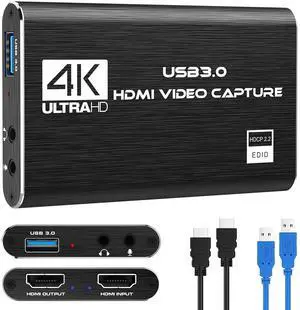
Capture Card Nintendo Switch, 4K HDMI Video Capture Card, 1080P 60FPS, HDMI to USB 3.0 Capture Card for Streaming Work with Camera/Xbox/PS4/PS5/PC/OBS
- Brand: AVer
- Series: V316B-FR
- Part Number: V316-Black
- Housing Color: Black
- Model #: 123735615125
- $51.99 –
- Free Shipping
Quick View
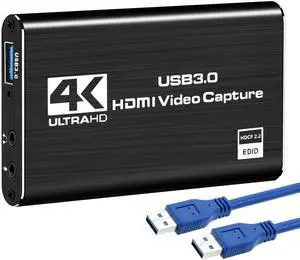
4K Audio Video Capture Card, USB 3.0 HDMI Video Capture Device Full HD
- Model #: E363369166478
- $38.99 –
- Free Shipping
Quick View
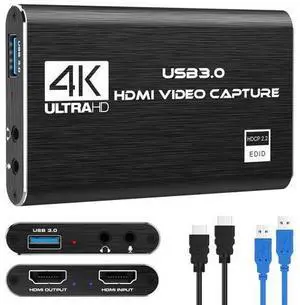
Capture Card Nintendo Switch, 4K HDMI Video Capture Card, 1080P 60FPS, HDMI to USB 3.0 Capture Card for Streaming Work with Camera/Xbox/PS4/PS5/PC/OBS
- Model #: C75J*OYJ*G1*0624-64
- $39.85 –
- Free Shipping
Quick View
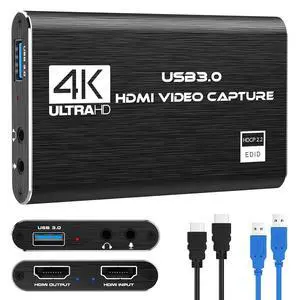
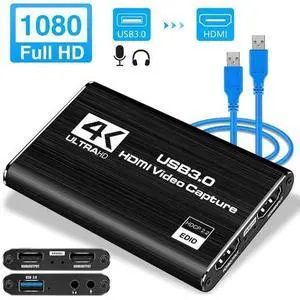
4K Audio Video Capture Card USB 3.0 HDMI Video Capture Device Full HD Recording
- Brand: Elgato
- Type: Video Capture & Editing
- Interface: HDMI
- Specification: Video Capture, Unbranded
- Model #: 336455490131
- $38.99 –
- Free Shipping
Quick View
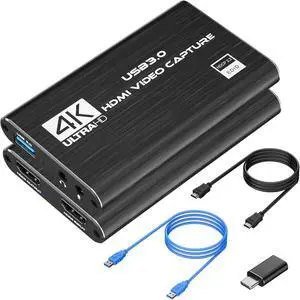
WRIARICH 4K HDMI Capture Card for Streaming, Full HD 1080P 60FPS USB 3.0 Cam Link Game Audio Video Capture Card, Work with Camera/Nintendo Switch/Xbox/PS4/PS5/PC/OBS (Black)
- Brand: Elgato
- Series: 4K HDMI Capture Card
- Part Number: 4K HDMI Capture Card
- Housing Color: gray
- Model #: Capture Card
- $39.79 –
- Free Shipping
Quick View
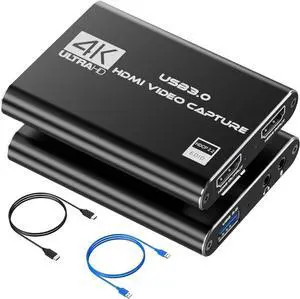
4K HDMI Capture Card for Streaming, Full HD 1080P 60FPS USB 3.0 Cam Link Game Audio Video Capture Card, Work with Camera/Nintendo Switch/Xbox/PS4/PS5/PC/OBS (Black)
- Brand: AVer
- Series: 4K HDMI Capture Card
- Part Number: 4K HDMI Capture Card
- Housing Color: gray
- Model #: 188689890530
- $39.99 –
- Free Shipping
Quick View
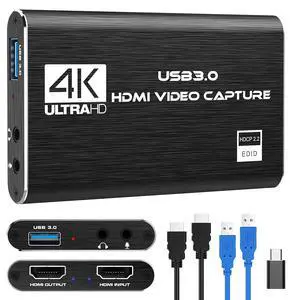
4K HDMI Capture Card for Streaming, Full HD 1080P 60FPS USB 3.0 Cam Link Game Audio Video Capture Card, Work with Camera/Nintendo Switch/Xbox/PS4/PS5/PC/OBS (Black)
- Brand: Elgato
- Series: 4K HDMI Capture Card
- Part Number: 4K HDMI Capture Card
- Housing Color: gray
- Model #: 387383492542
- $44.99 –
- Free Shipping
Quick View
KEHIPI 4K HDMI Capture Card for Streaming, Full HD 1080P 60FPS USB 3.0 Cam Link Game Audio Video Capture Card, Work with Camera/Nintendo Switch/Xbox/PS4/PS5/PC/OBS (Black)
- Brand: VIXLW
- Part Number: 4K HDMI Capture Card
- Interface: usb3.0, hdmi
- Feature: , , , ,
- Model #: 4K HDMI Capture Card

Quick View
WRIARICH Capture Card Nintendo Switch, 4K HDMI Video Capture Card, 1080P 60FPS, HDMI to USB 3.0 Capture Card for Streaming Work with Camera/Xbox/PS4/PS5/PC/OBS
- Brand: Elgato
- Series: V316B-FR
- Part Number: V316-Black
- Housing Color: Black
- Model #: FS5EDF59
- $36.69 –
- Free Shipping