




![40Gbps USB 4 Cable for Thunderbolt 4 [Red, 3.3Ft, Durable], High-Speed Data Transfer, USB C Monit...](//c1.neweggimages.com/sellingpilot/modules/product/a-plus/d7af807b7c06c927a0ffac287999f2a5444b154b9dc2a19f593736a7de52ce53.jpg)
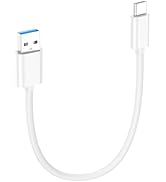
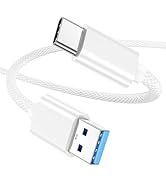
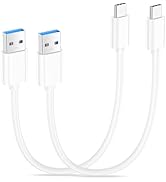
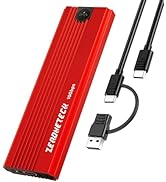
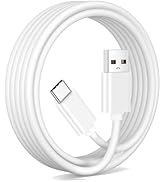
USB A-C data Cable 10Gbps
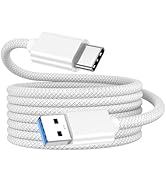
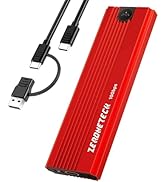
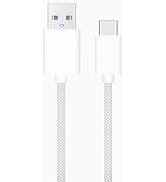
USB A-C 10Gbps Data Transfer
![40Gbps USB 4 Cable for Thunderbolt 4 [Red, 0.5FT Durable], 6inch High-Speed Data Transfer, Short ...](//c1.neweggimages.com/sellingpilot/modules/product/a-plus/06070eaa39dcda0e3b4da597b8d3c368c8407485ac6a5dce55b83e07739738a7.jpg)
![[3.3FT-2Pack] Car Carplay Cable for iPhone 15/15 Plus, 15 Pro/Pro Max, MacBook, iPad 4/5, iPad Mi...](//c1.neweggimages.com/sellingpilot/modules/product/a-plus/55a7271a5d5b4a8f2b41abbf40b380b4949e22c423de319059e3bf2238fe6c49.jpg)
USB A-C 10Gbps Data Transfer
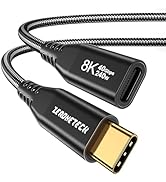
![USB C to USB C Video Cable for Monitor 3.3FT, [8K@60Hz/4K@144Hz]Display Cable,40Gbps High Speed D...](//c1.neweggimages.com/sellingpilot/modules/product/a-plus/6053439d953b7af7ec123aeb055e8a43909ef97b74eb41ef5b1785a2b41eca52.jpg)
USB C Monitor Cable Multi Pack
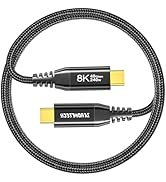
![40Gbps USB 4 Cable for Thunderbolt 4 [Red, 6.6FT, Durable], USB C Monitor Cable 8K@60Hz/4K@144Hz,...](//c1.neweggimages.com/sellingpilot/modules/product/a-plus/ba12d30f06d11988846a5961f528d0095b27d4564e7160b848cbe6d79d3ea31b.jpg)
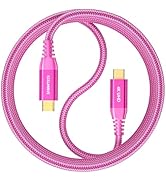
USB4 8K@60Hz & 40Gbps & 240W
![40Gbps USB 4 Cable for Thunderbolt 4 [Red, 5FT, Durable], USB C Monitor Cable 8K@60Hz/Dual 4K@60H...](//c1.neweggimages.com/sellingpilot/modules/product/a-plus/6ae161b7f38dc2a53ab1ad5393fe9fbe3642d765ac22a2856440ae0fd32b9c3d.jpg)
![40Gbps USB 4 Cable for Thunderbolt 4 [Red, 5FT-2Pack], USB C Monitor Cable 8K@60Hz/4K@144Hz, High...](//c1.neweggimages.com/sellingpilot/modules/product/a-plus/e76b1ba8f174a03f5defadaddfa0154dfbcbc7d1ae40f158d080f603961a8a00.jpg)
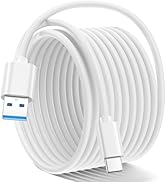
![USB 4 Cable [3.3FT White], USB C Monitor Cable for 8K@60Hz/4K@144Hz Display, 40Gbps Data Fast Tra...](//c1.neweggimages.com/sellingpilot/modules/product/a-plus/7d547018d8548dd189052321f887b232a66e86f708b49abab6aca365f98eb647.jpg)
USB C Monitor Cable 4K/8K

7*24 Hours After-Sales Service
- 7*24H Professional Customer Support
- Hassle-free Replace/Return

Mature Production Plant
- Mature production with high standards of quality control to produce the best products and deliver them to customers who trust us.

Shipping-Low Carbon Action
Considering global carbon emissions, we give preference to modes of transport with lower carbon emissions, such as shipping and rail.

Efficient Warehouse Management
- An efficient management system ensures that every product is delivered to you in perfect condition
![40Gbps USB 4 Cable for Thunderbolt 4 [Red, 3.3Ft, Durable], High-Speed Data Transfer, USB C Monit...](http://c1.neweggimages.com/sellingpilot/modules/product/a-plus/d7af807b7c06c927a0ffac287999f2a5444b154b9dc2a19f593736a7de52ce53.jpg)
![40Gbps USB 4 Cable for Thunderbolt 4 [Red, 0.5FT Durable], 6inch High-Speed Data Transfer, Short ...](http://c1.neweggimages.com/sellingpilot/modules/product/a-plus/06070eaa39dcda0e3b4da597b8d3c368c8407485ac6a5dce55b83e07739738a7.jpg)
![[3.3FT-2Pack] Car Carplay Cable for iPhone 15/15 Plus, 15 Pro/Pro Max, MacBook, iPad 4/5, iPad Mi...](http://c1.neweggimages.com/sellingpilot/modules/product/a-plus/55a7271a5d5b4a8f2b41abbf40b380b4949e22c423de319059e3bf2238fe6c49.jpg)
![USB C to USB C Video Cable for Monitor 3.3FT, [8K@60Hz/4K@144Hz]Display Cable,40Gbps High Speed D...](http://c1.neweggimages.com/sellingpilot/modules/product/a-plus/6053439d953b7af7ec123aeb055e8a43909ef97b74eb41ef5b1785a2b41eca52.jpg)
![40Gbps USB 4 Cable for Thunderbolt 4 [Red, 6.6FT, Durable], USB C Monitor Cable 8K@60Hz/4K@144Hz,...](http://c1.neweggimages.com/sellingpilot/modules/product/a-plus/ba12d30f06d11988846a5961f528d0095b27d4564e7160b848cbe6d79d3ea31b.jpg)
![40Gbps USB 4 Cable for Thunderbolt 4 [Red, 5FT, Durable], USB C Monitor Cable 8K@60Hz/Dual 4K@60H...](http://c1.neweggimages.com/sellingpilot/modules/product/a-plus/6ae161b7f38dc2a53ab1ad5393fe9fbe3642d765ac22a2856440ae0fd32b9c3d.jpg)
![40Gbps USB 4 Cable for Thunderbolt 4 [Red, 5FT-2Pack], USB C Monitor Cable 8K@60Hz/4K@144Hz, High...](http://c1.neweggimages.com/sellingpilot/modules/product/a-plus/e76b1ba8f174a03f5defadaddfa0154dfbcbc7d1ae40f158d080f603961a8a00.jpg)
![USB 4 Cable [3.3FT White], USB C Monitor Cable for 8K@60Hz/4K@144Hz Display, 40Gbps Data Fast Tra...](http://c1.neweggimages.com/sellingpilot/modules/product/a-plus/7d547018d8548dd189052321f887b232a66e86f708b49abab6aca365f98eb647.jpg)
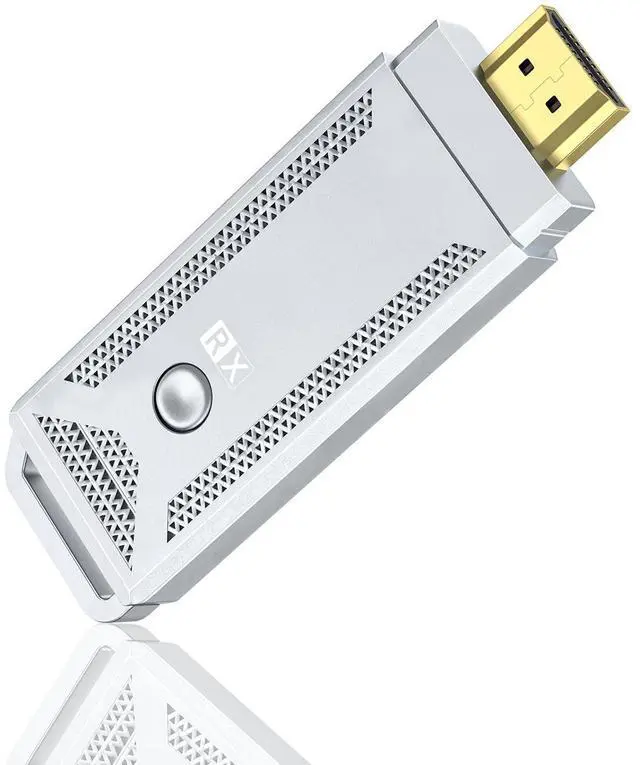
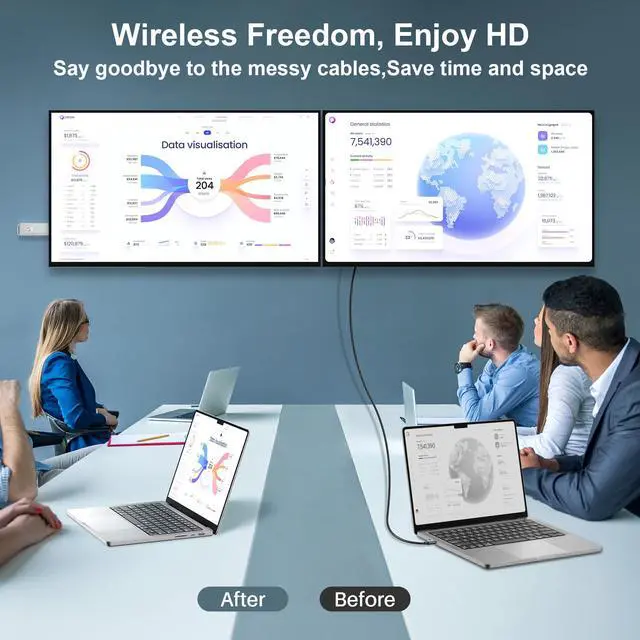
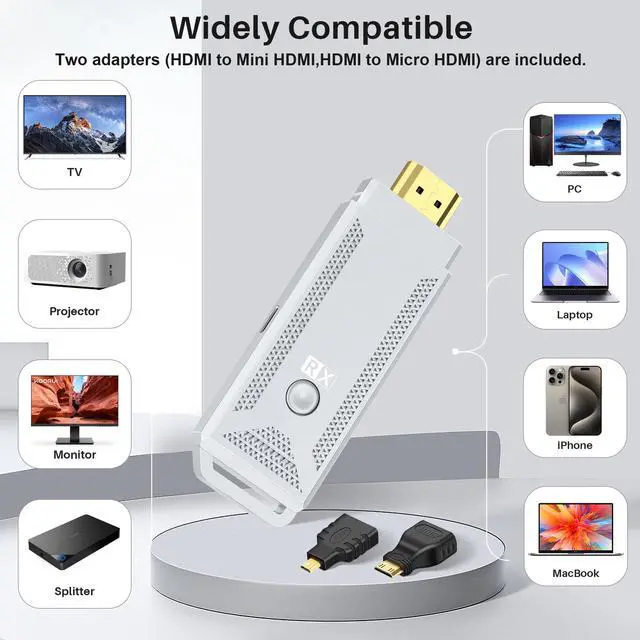
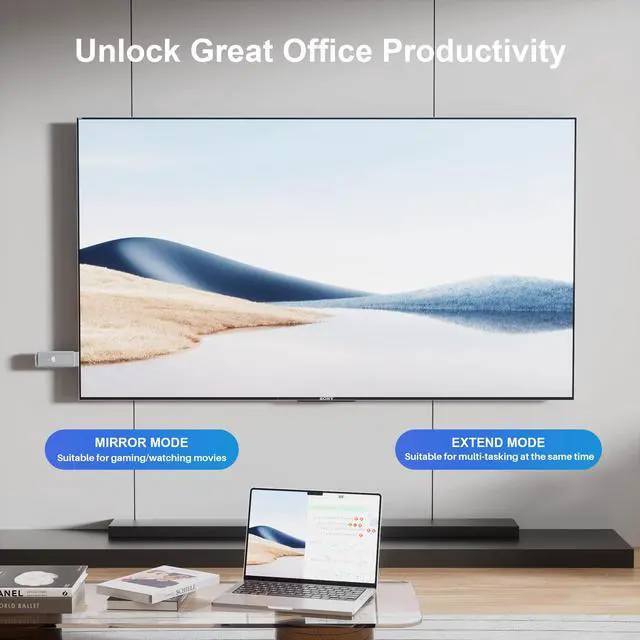
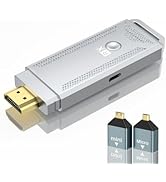
What is Wireless HDMI Dongle?
To help you better understand the distinctions between the two products, here's a simplified explanation of how the Wireless HDMI Display Dongle and the Wireless HDMI Transmitter and Receiver function differently:
Wireless HDMI Display Dongle:
- Function: This device is essentially a receiver that connects directly to your TV or monitor via an HDMI port.
- Signal Transmission: It receives signals directly from a transmitting device like a smartphone, tablet, or laptop. The device itself wirelessly sends the signal to the dongle.
- Usage: Ideal for streaming video and audio content from portable devices to a larger display without needing a separate transmitter unit.
Wireless HDMI Transmitter and Receiver:
Components: This setup includes two separate units – a transmitter and a receiver.
- Function of Transmitter: The transmitter connects to the source device, such as a mini PC, via a USB or HDMI port. It sends the signal out wirelessly.
- Function of Receiver: The receiver, connected to the TV or another display via an HDMI port, picks up the signal from the transmitter and displays the content.
- Usage: Suitable for more permanent setups where the source device is not typically moved, like connecting a desktop PC to a TV across the room.
Key Differences:
- The Dongle acts as a single unit that both receives from and communicates directly with the source device.
- The Transmitter and Receiver are two distinct units, where the transmitter sends signals to the receiver, which then outputs to the display. This setup allows for greater flexibility in terms of placement and potential range between devices.
Understanding these distinctions can help in choosing the right device based on your specific needs, whether for casual content streaming or more complex multimedia setups.
How to connect to streaming videos

1.Connect the HD port of the receiver to the video input port of the display device such as the monitor or TV.
2.Connect the power supply port of the receiver to the charging cable and plug it into the power adapter ( Voltage above 5V. current above 2A)

3.Adjust the HD source of your monitor or TV to the appropriate HD port until the power-on screen is displayed and the default page is Mode 1:P2P mode (peer to peer).
4.Turn on the WIFI function of the transmitting device, Note: Only for searching signal, you can still connect to use your home WIFI.


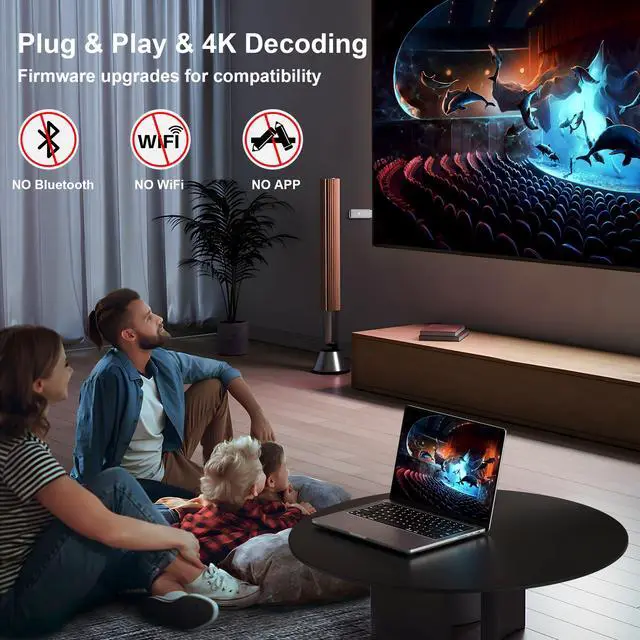
Are there any requirements for the device's system for wireless screen casting?
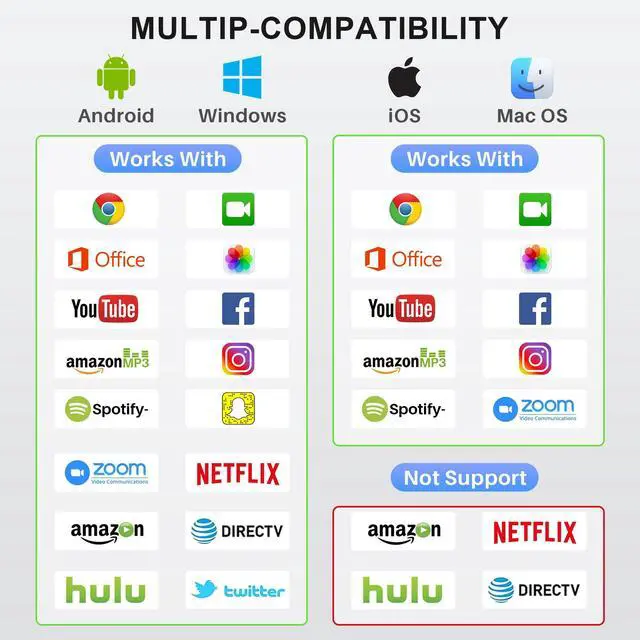
System Version Requirements: Android 10 or higher, Windows 8 or higher, Apple iOS 11 or higher, macOS 10.14 or higher;
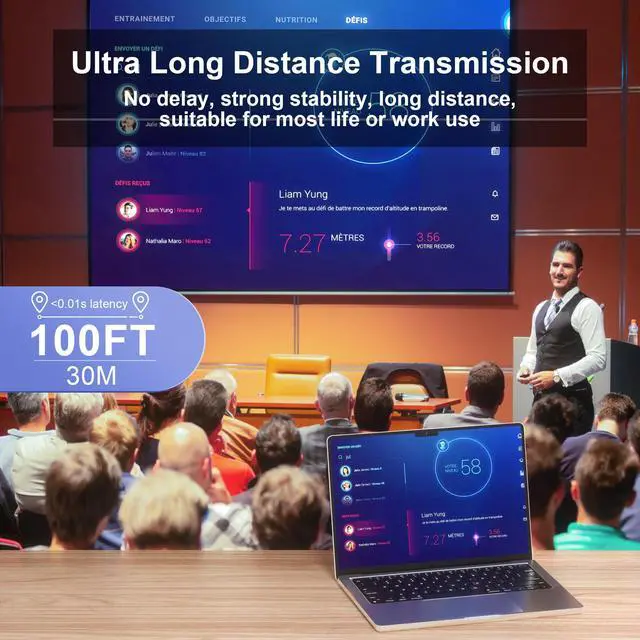
What is the distance used for wireless screen casting?
Transmission distance: 15 meters without obstruction, extending up to 30 meters;Please ensure your device has a strong and stable signal.
Why does the image appear to shake/disconnect?
Please make sure you are using a 5V/2A power supply. Unstable currents from power banks and some computers can lead to image shaking issues.Switch to a 5V/2A power supply before use.
What is Wireless HDMI Dongle?
To help you better understand the distinctions between the two products, here's a simplified explanation of how the Wireless HDMI Display Dongle and the Wireless HDMI Transmitter and Receiver function differently:
Wireless HDMI Display Dongle:
- Function: This device is essentially a receiver that connects directly to your TV or monitor via an HDMI port.
- Signal Transmission: It receives signals directly from a transmitting device like a smartphone, tablet, or laptop. The device itself wirelessly sends the signal to the dongle.
- Usage: Ideal for streaming video and audio content from portable devices to a larger display without needing a separate transmitter unit.
Wireless HDMI Transmitter and Receiver:
Components: This setup includes two separate units – a transmitter and a receiver.
- Function of Transmitter: The transmitter connects to the source device, such as a mini PC, via a USB or HDMI port. It sends the signal out wirelessly.
- Function of Receiver: The receiver, connected to the TV or another display via an HDMI port, picks up the signal from the transmitter and displays the content.
- Usage: Suitable for more permanent setups where the source device is not typically moved, like connecting a desktop PC to a TV across the room.
Key Differences:
- The Dongle acts as a single unit that both receives from and communicates directly with the source device.
- The Transmitter and Receiver are two distinct units, where the transmitter sends signals to the receiver, which then outputs to the display. This setup allows for greater flexibility in terms of placement and potential range between devices.
Understanding these distinctions can help in choosing the right device based on your specific needs, whether for casual content streaming or more complex multimedia setups.
How to connect to streaming videos
1.Connect the HD port of the receiver to the video input port of the display device such as the monitor or TV.
2.Connect the power supply port of the receiver to the charging cable and plug it into the power adapter ( Voltage above 5V. current above 2A)
3.Adjust the HD source of your monitor or TV to the appropriate HD port until the power-on screen is displayed and the default page is Mode 1:P2P mode (peer to peer).
4.Turn on the WIFI function of the transmitting device, Note: Only for searching signal, you can still connect to use your home WIFI.


Are there any requirements for the device's system for wireless screen casting?
System Version Requirements: Android 10 or higher, Windows 8 or higher, Apple iOS 11 or higher, macOS 10.14 or higher;
What is the distance used for wireless screen casting?
Transmission distance: 15 meters without obstruction, extending up to 30 meters;Please ensure your device has a strong and stable signal.
Why does the image appear to shake/disconnect?
Please make sure you are using a 5V/2A power supply. Unstable currents from power banks and some computers can lead to image shaking issues.Switch to a 5V/2A power supply before use.
USB A-C data Cable 10Gbps
USB A-C 10Gbps Data Transfer
USB A-C 10Gbps Data Transfer
USB C Monitor Cable Multi Pack
USB4 8K@60Hz & 40Gbps & 240W
USB C Monitor Cable 4K/8K
7*24 Hours After-Sales Service
- 7*24H Professional Customer Support
- Hassle-free Replace/Return

Mature Production Plant
- Mature production with high standards of quality control to produce the best products and deliver them to customers who trust us.
Shipping-Low Carbon Action
Considering global carbon emissions, we give preference to modes of transport with lower carbon emissions, such as shipping and rail.
Efficient Warehouse Management
- An efficient management system ensures that every product is delivered to you in perfect condition
