




 here!
I’m your shopping assistant for PC builds, upgrades, and everything tech.
Got questions? Ask away!
Start a conversation
here!
I’m your shopping assistant for PC builds, upgrades, and everything tech.
Got questions? Ask away!
Start a conversation



Any questions? Ask CelesteSM will help you find out quickly.
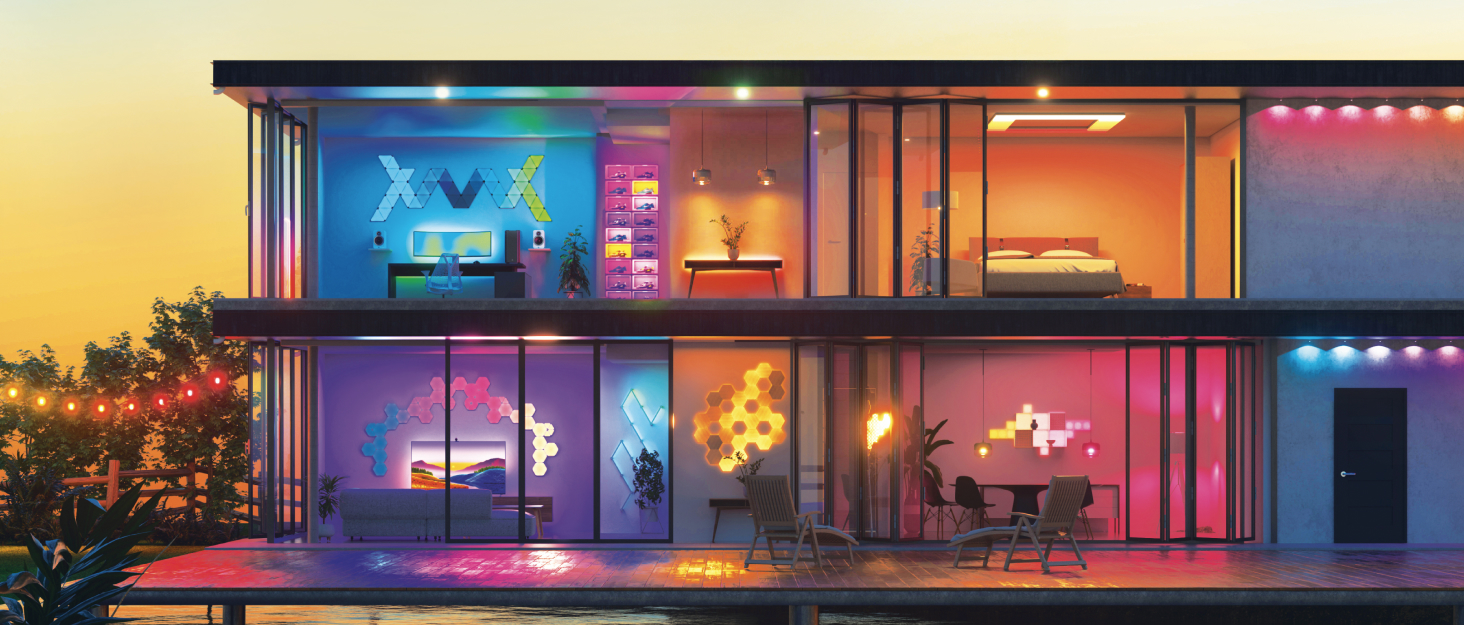

At Nanoleaf, we create smart home products that transform ordinary experiences into extraordinary ones. We do this by rethinking what is possible, and creating products that can help to improve the way we experience our everyday lives.
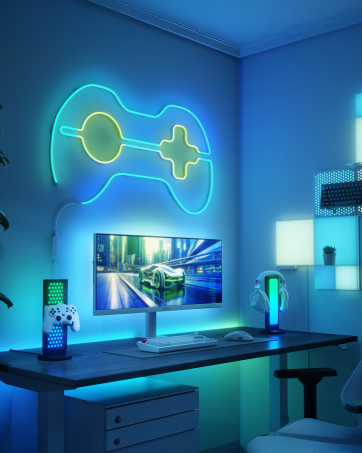
At Nanoleaf, we create products ranging from smart indoor and outdoor lighting to wellness devices.
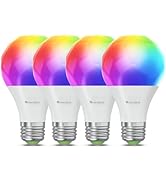
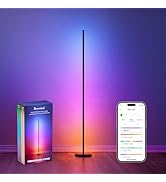

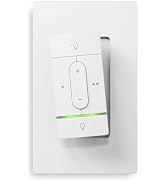
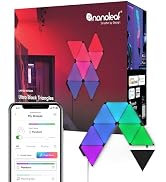
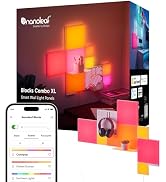
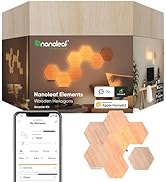
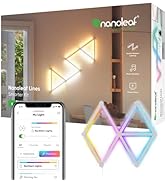
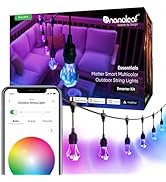
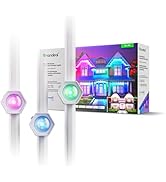
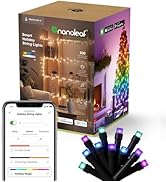
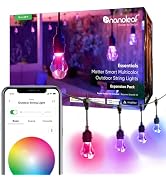
Nanoleaf is the creator of the first light panels in the industry and has a history of being a first-mover in the smart home space while constantly innovating.
We firmly believe that to create a winning product, great technology and great design must go hand in hand. There can be no compromises when it comes to user experience.
We'd like to leave the world a better place for our future generations, and we hope to do this through our innovations and giving back to our communities.
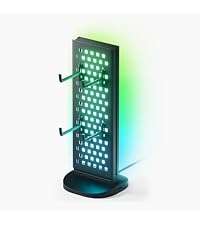 Pegboard Desk Dock | 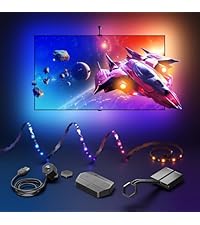 4D 65" TV LED Backlights | 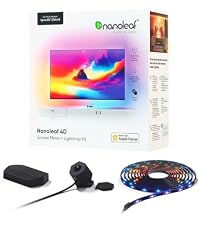 4D 85" TV LED Backlights | 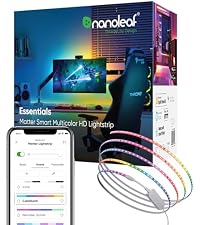 HD Lightstrip | 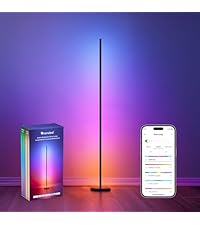 Smart Floor Lamp | 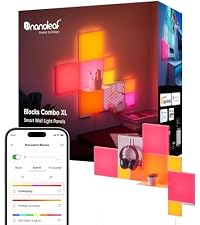 Blocks Combe XL | 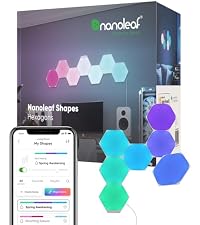 Shapes Hexagons | |
|---|---|---|---|---|---|---|---|
Price | — | — | — | — | — | — | — |
Work with | Nanoleaf Desktop App | Apple & Google Home | Apple & Google Home | Alexa & Google Assistant | Alexa & Google Assistant | Alexa & Google Assistant | Alexa & Google Assistant |
Connection | USB-A & USB-C | Wi-Fi | Wi-Fi | Wi-Fi, Bluetooth | Wi-Fi, Bluetooth, Matter | Wi-Fi | Wi-Fi |
Light Mode | Multicolor RGB | Multicolor RGB | Multicolor RGB | RGBW | RGBTW | RGBW | RGBW |
Color | 16M+ | 16M+ | 16M+ | 16M+ | 16M+ | 16M+ | 16M+ |
Music Sync | ? | ? | ? | ? | ? | ? | ? |
Can I connect multiple Pegboard Desk Docks together?
Yes! You can daisychain them but you will require an additional power source.
Connect your first Pegboard Desk Dock to your Computer USB-C port, and then plug second Pegboard Desk Dock into the USB-C port on the first.
Can I control the Pegboard Desk Dock with a mobile app?
The Pegboard Desk Dock is not compatible with mobile apps (like the Nanoleaf Mobile App or other smart home ecosystem apps).
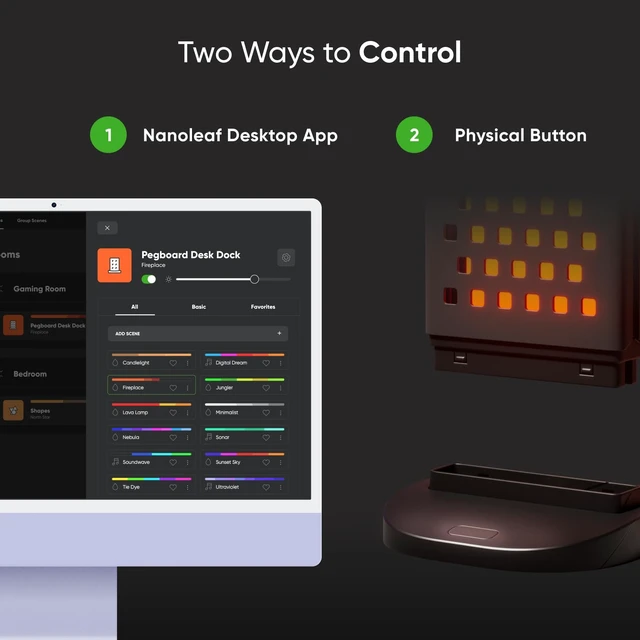
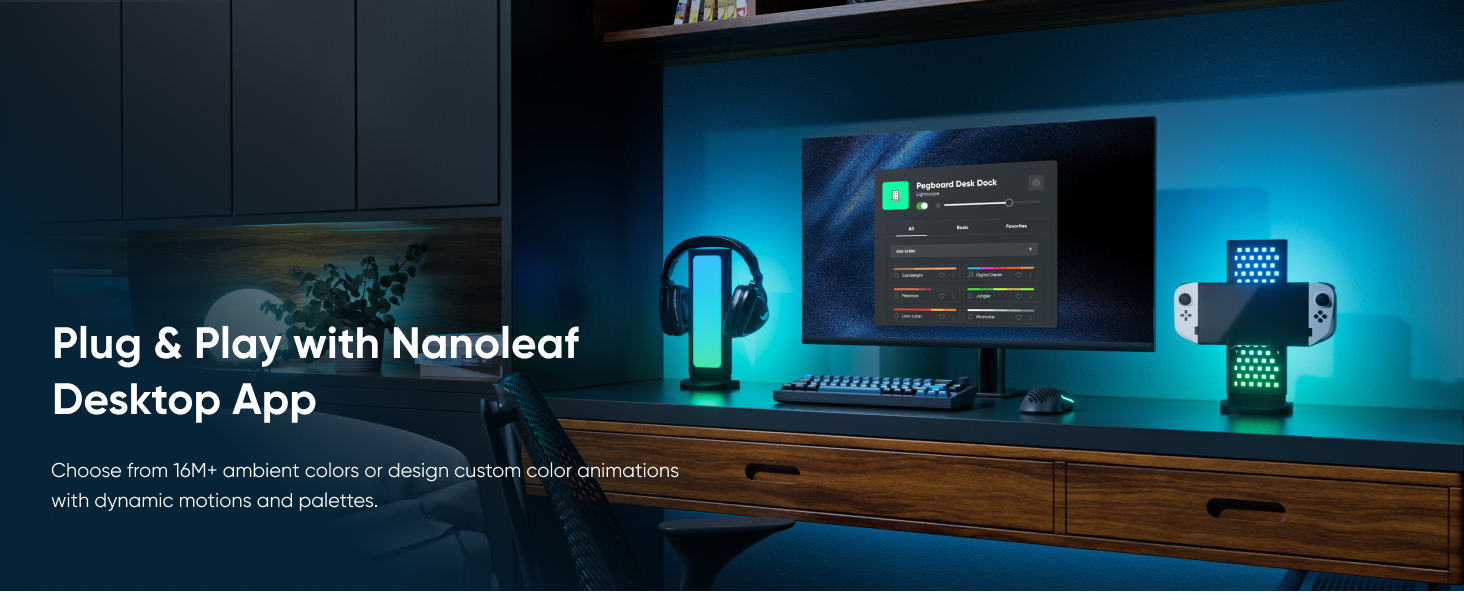
It is a computer only product, and works on both Mac and Windows computers with the Nanoleaf Desktop App.
Can I connect it to any USB-C port?
It must be connected to aComputer USB-Cport (Windows or Mac) The port must support both data and power. If the port only supports power, it will not work with the Nanoleaf Desktop App.
What USB ports does it have?
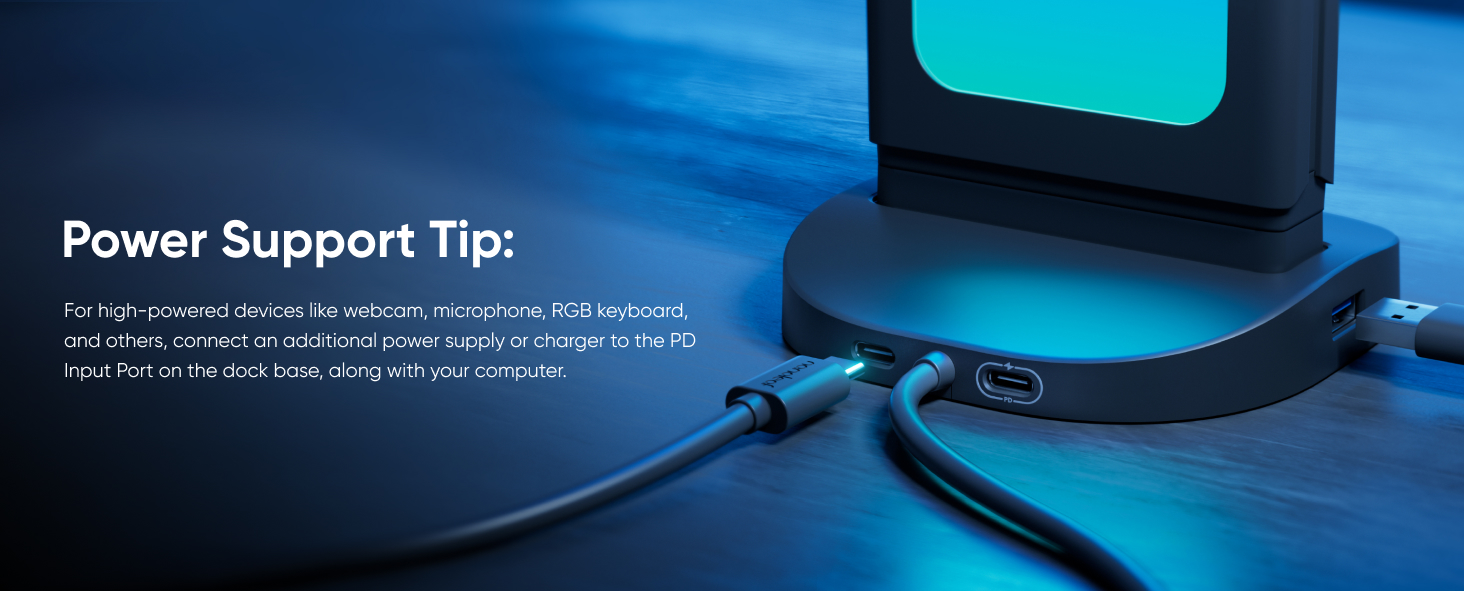
The Pegboard Desk Dock has:
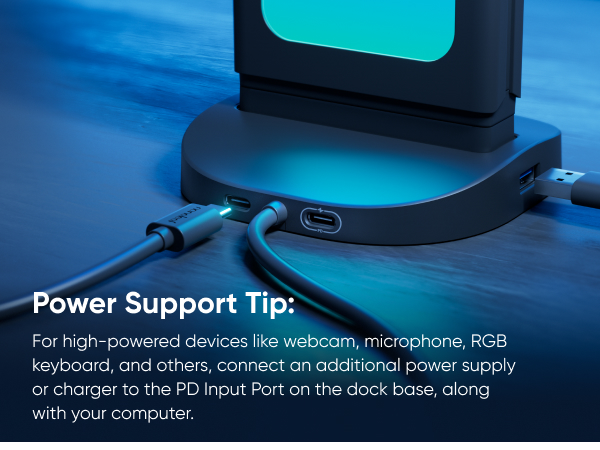
2× USB-C (Output, 5V DC)
1× USB-A (Output, 5V DC)
1× USB-C PD Input Port (Input, 9V)
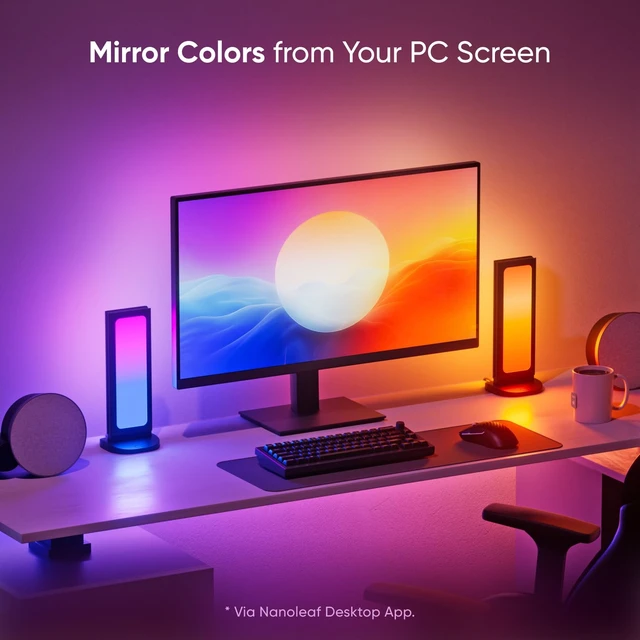
Can the Pegboard Desk Dock display regular colours and Scenes in addition to Screen Mirroring?
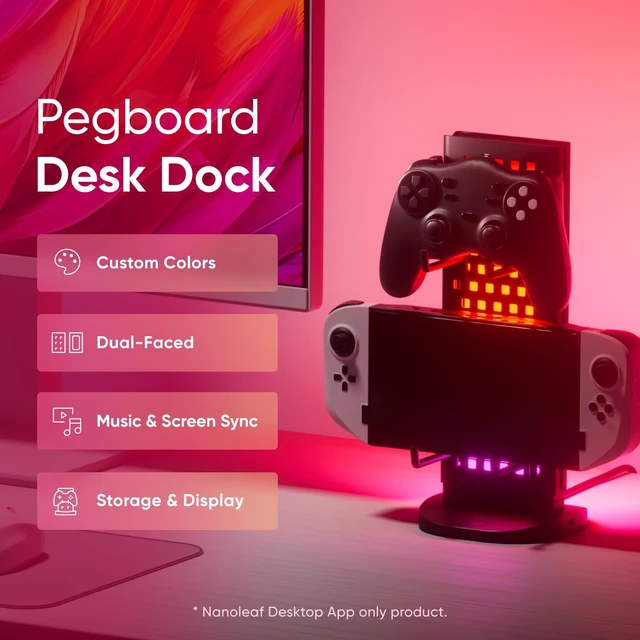
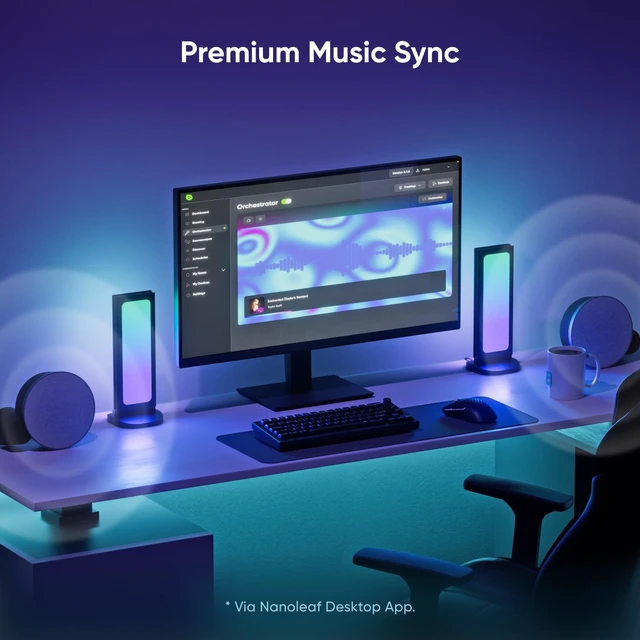
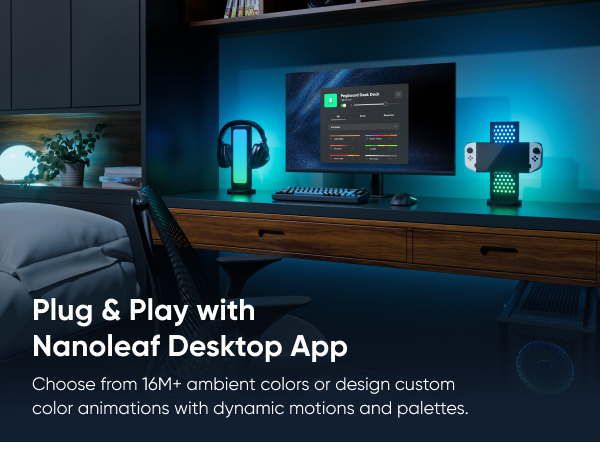
Yes, the Pegboard Desk Dock can display colors and Scenes with the Nanoleaf Desktop App, and can also access other Nanoleaf Desktop features like Orchestrator and Scenescapes.
At Nanoleaf, we create smart home products that transform ordinary experiences into extraordinary ones. We do this by rethinking what is possible, and creating products that can help to improve the way we experience our everyday lives.
At Nanoleaf, we create products ranging from smart indoor and outdoor lighting to wellness devices.
Nanoleaf is the creator of the first light panels in the industry and has a history of being a first-mover in the smart home space while constantly innovating.
We firmly believe that to create a winning product, great technology and great design must go hand in hand. There can be no compromises when it comes to user experience.
We'd like to leave the world a better place for our future generations, and we hope to do this through our innovations and giving back to our communities.
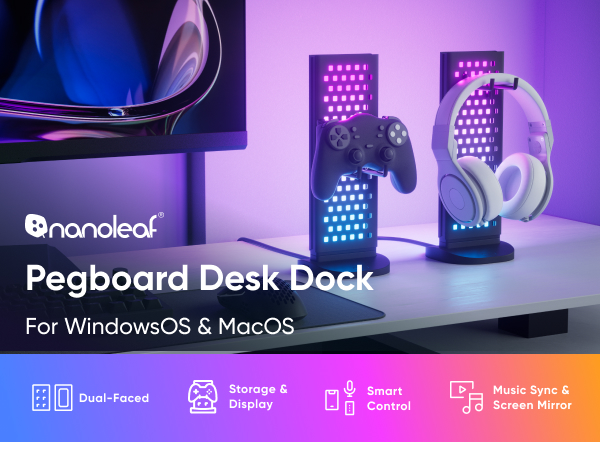
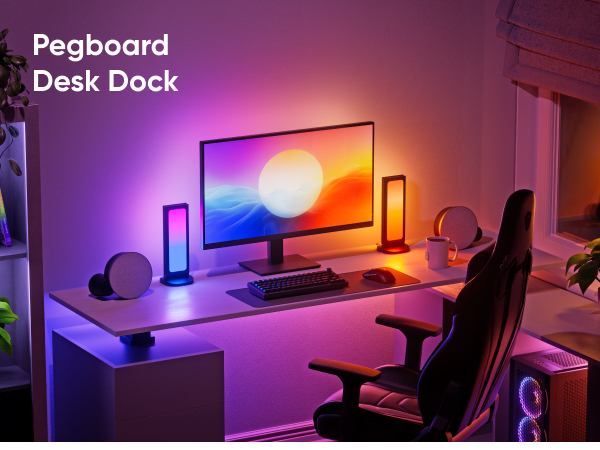
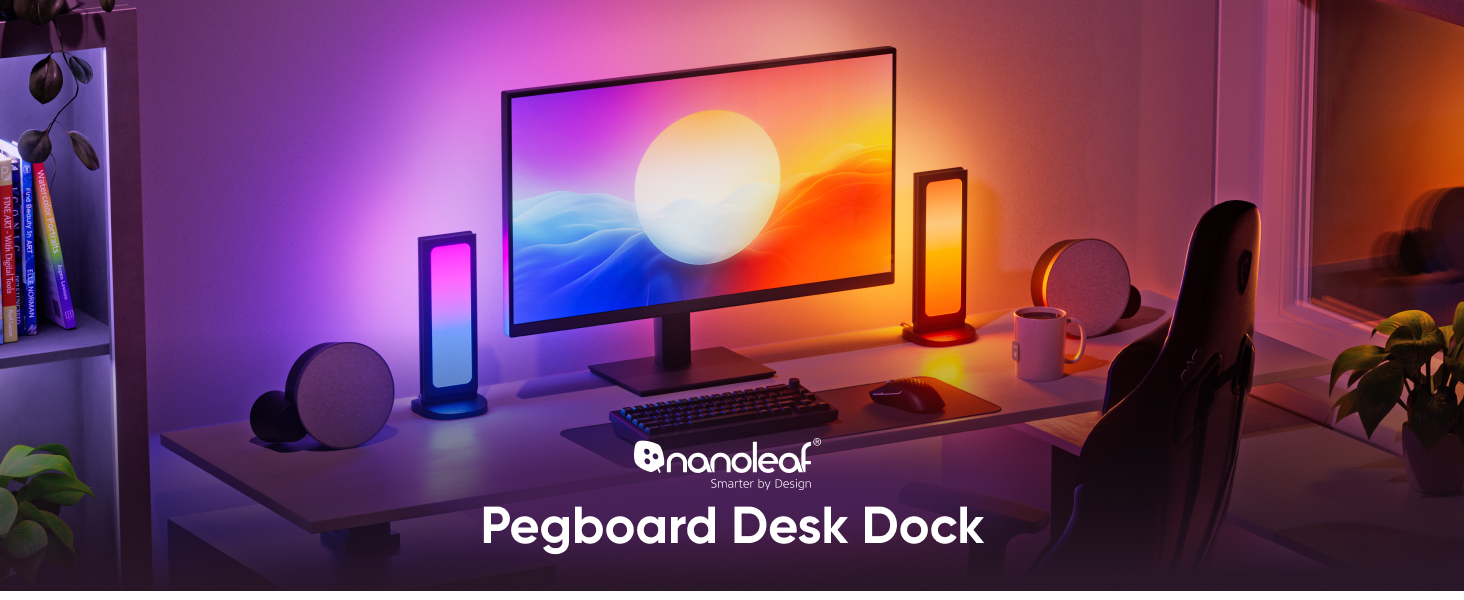
Bring your setup into the future with animated Scenes like the retro "Lava Lamp", zen "Waterfall", classic "Digital Dream", and more.
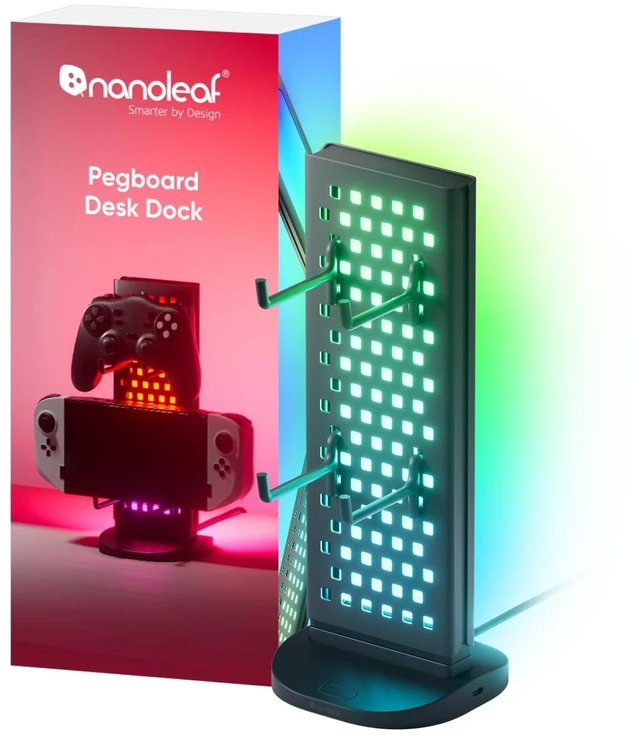
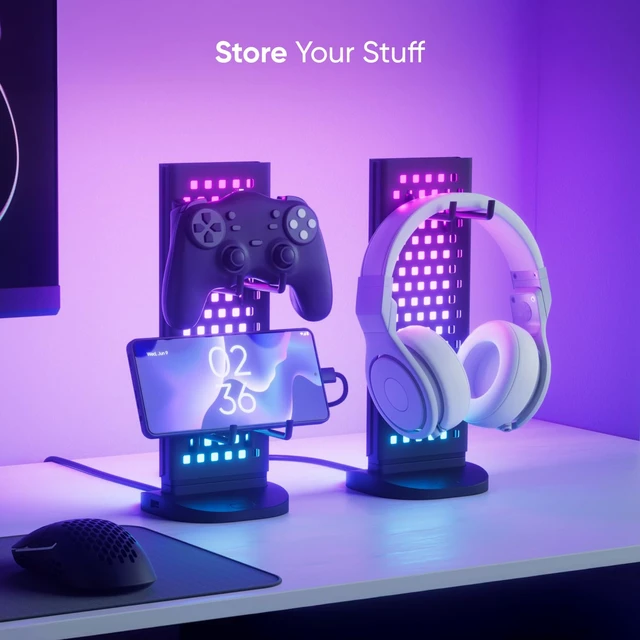
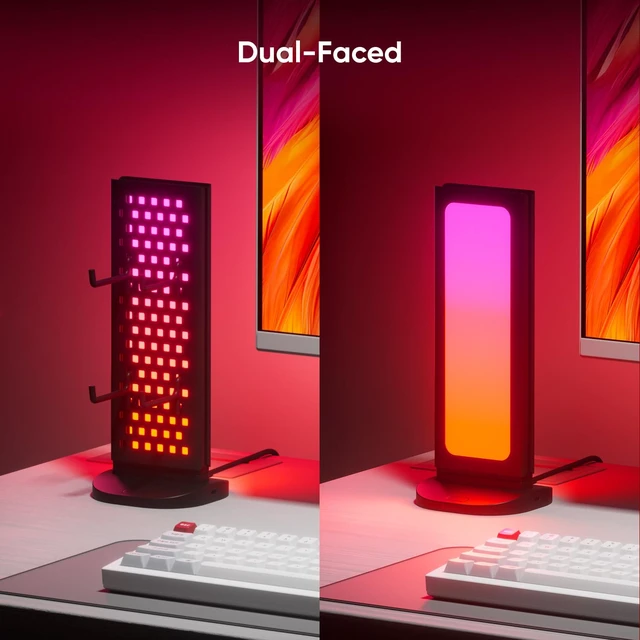
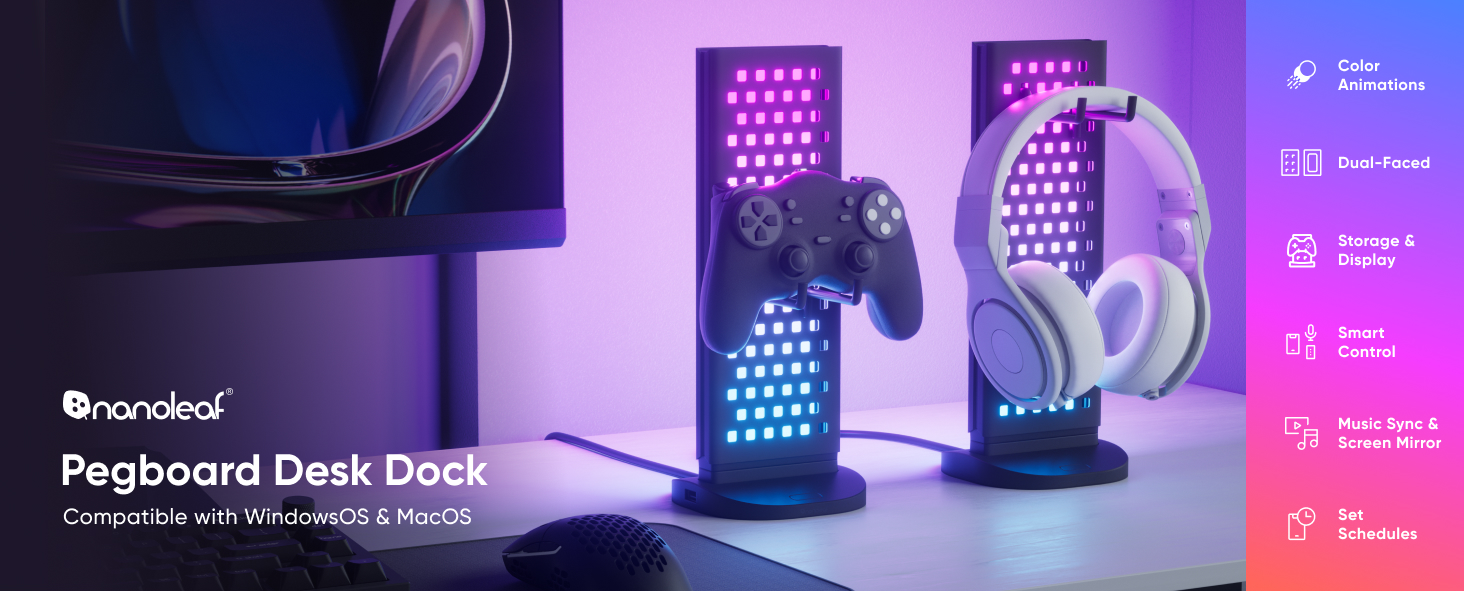
Use the pegboard side to display accessories or rotate 180º for full-face lighting. Click, lift, and rotate!
Charge and control your devices with 2 built-in ports on each Pegboard Desk Dock:? 1× USB-A, 1× USB-C.
Pegboard Desk Dock | 4D 65" TV LED Backlights | 4D 85" TV LED Backlights | HD Lightstrip | Smart Floor Lamp | 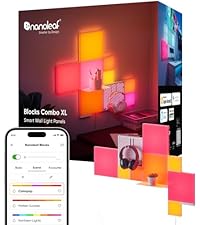 Blocks Combe XL | 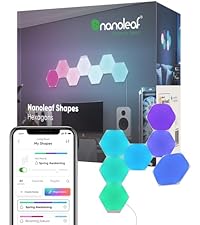 Shapes Hexagons |
|---|---|---|---|---|---|---|
| Price | ||||||
| — | — | — | — | — | — | — |
| Work with | ||||||
| Nanoleaf Desktop App | Apple & Google Home | Apple & Google Home | Alexa & Google Assistant | Alexa & Google Assistant | Alexa & Google Assistant | Alexa & Google Assistant |
| Connection | ||||||
| USB-A & USB-C | Wi-Fi | Wi-Fi | Wi-Fi, Bluetooth | Wi-Fi, Bluetooth, Matter | Wi-Fi | Wi-Fi |
| Light Mode | ||||||
| Multicolor RGB | Multicolor RGB | Multicolor RGB | RGBW | RGBTW | RGBW | RGBW |
| Color | ||||||
| 16M+ | 16M+ | 16M+ | 16M+ | 16M+ | 16M+ | 16M+ |
| Music Sync | ||||||
| ? | ? | ? | ? | ? | ? | ? |
Can I connect multiple Pegboard Desk Docks together?
Yes! You can daisychain them but you will require an additional power source.
Connect your first Pegboard Desk Dock to your Computer USB-C port, and then plug second Pegboard Desk Dock into the USB-C port on the first.
Can I control the Pegboard Desk Dock with a mobile app?
The Pegboard Desk Dock is not compatible with mobile apps (like the Nanoleaf Mobile App or other smart home ecosystem apps).
It is a computer only product, and works on both Mac and Windows computers with the Nanoleaf Desktop App.
Can I connect it to any USB-C port?
It must be connected to aComputer USB-Cport (Windows or Mac) The port must support both data and power. If the port only supports power, it will not work with the Nanoleaf Desktop App.
What USB ports does it have?
The Pegboard Desk Dock has:
2× USB-C (Output, 5V DC)
1× USB-A (Output, 5V DC)
1× USB-C PD Input Port (Input, 9V)
Can the Pegboard Desk Dock display regular colours and Scenes in addition to Screen Mirroring?
Yes, the Pegboard Desk Dock can display colors and Scenes with the Nanoleaf Desktop App, and can also access other Nanoleaf Desktop features like Orchestrator and Scenescapes.


