




 here!
I’m your shopping assistant for PC builds, upgrades, and everything tech.
Got questions? Ask away!
Start a conversation
here!
I’m your shopping assistant for PC builds, upgrades, and everything tech.
Got questions? Ask away!
Start a conversation



Any questions? Ask CelesteSM will help you find out quickly.


Gaming Products / In-Ear
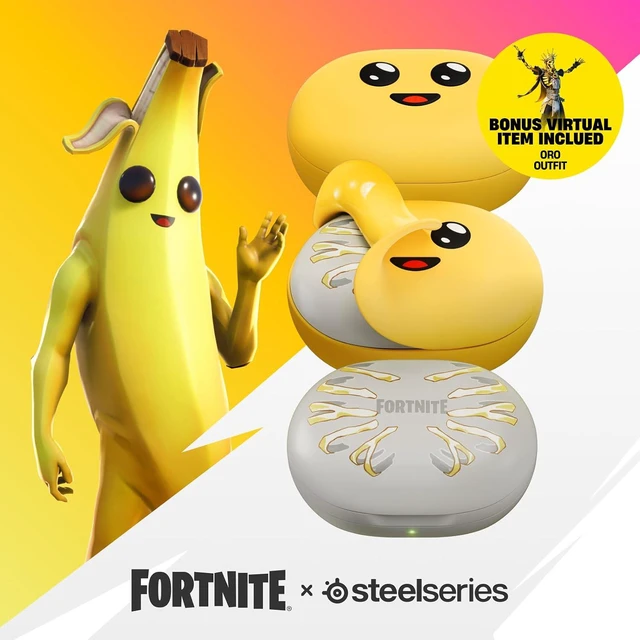
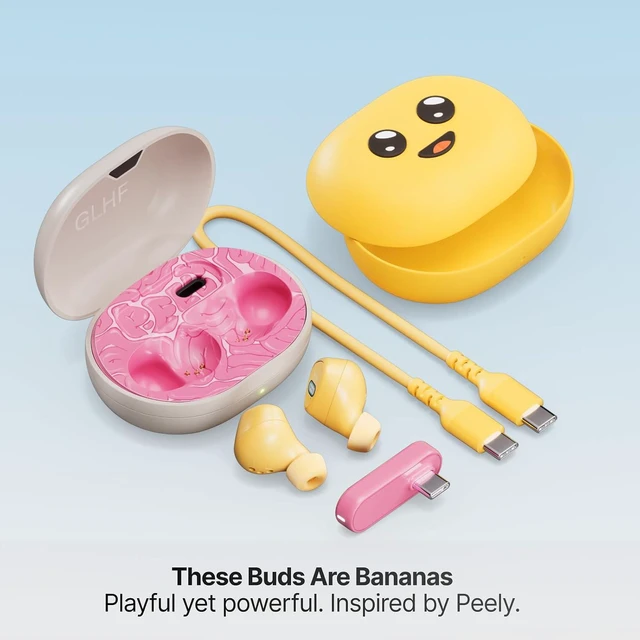
Bring Fortnite to the real world with a new-look set of Arctis GameBuds™ inspired by Fortnite's iconic banana man, Peely.

Arctis GameBuds™ Fortnite Edition comes with a silicone case cover that you can peel right off - kinda like a banana. Sorry if it makes you hungry.


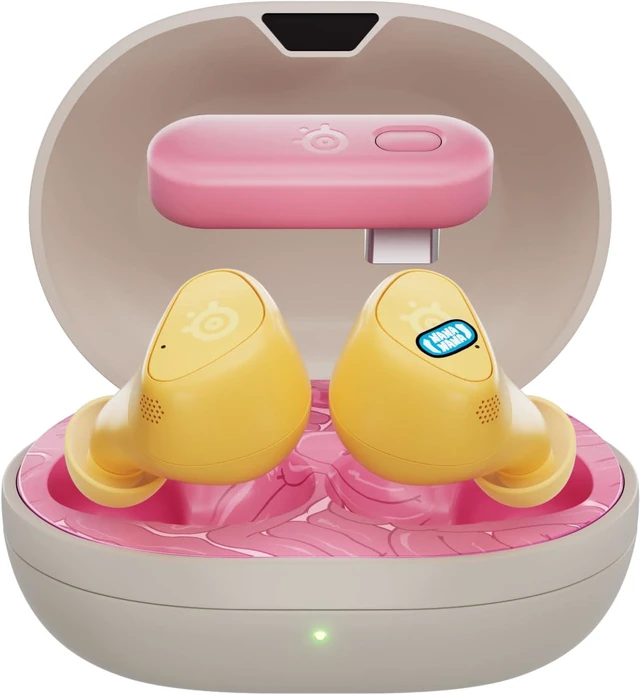
We've given our award-winning Arctis GameBuds™ a Peely-infused makeover with a banana yellow finish and a unique charging case design with ribs on the outside and pink intestines inside, all inspired by the Peely Bone outfit.

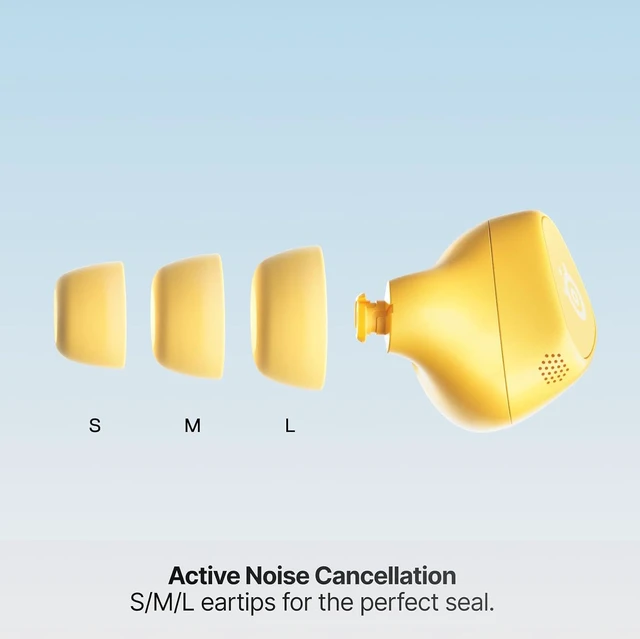
Powerful 4-mic hybrid ANC helps you lock in for that Victory Royale. S/M/L eartips included for a comfortable seal.

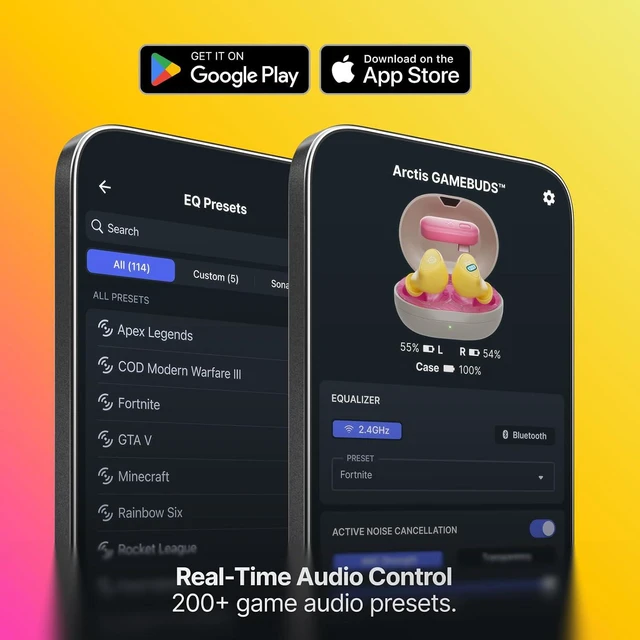
Get perfectly tuned audio presets tailor-made for Fortnite and 200+ other games, all accessible in real time. Simply select your game and hear what matters most.

Seamlessly swap between low-latency 2.4GHz Wireless for gaming on your PlayStation, PC or Switch and Bluetooth 5.3 for your mobile devices.

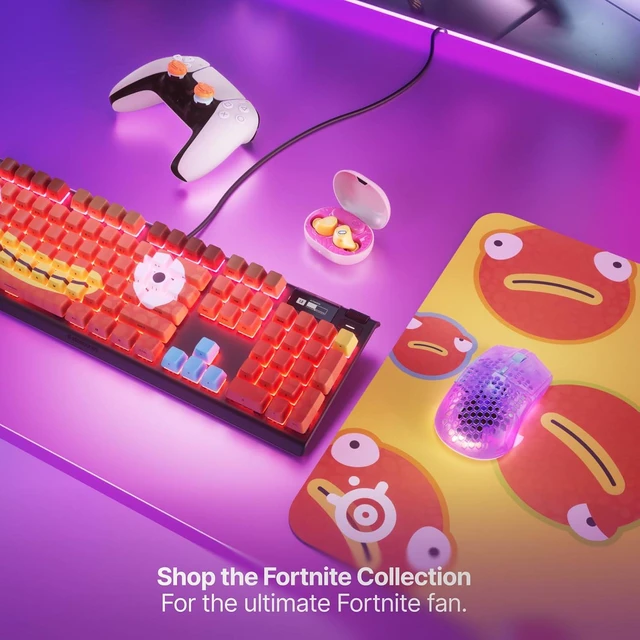
Up to 40 hours of total battery life with the Qi Wireless Charging Case lets you stay in the game as long as you want. Skin your desk with matching gear from the collection to lock in.

Complement your Arctis GameBuds™ with more Fortnite x SteelSeries gear, including Aerox mice, Arctis Nova headsets, QcK mousepads, SteelSeries PBT keycaps and KontrolFreek® No-Slip Thumb Grips and Thumbsticks.
How do I put my Arctis GameBuds™ into pairing mode?
To enter pairing mode, place both earbuds in the case.
Hold the left or right earbud button down for 3 seconds. Once you release it, the buds enter in Bluetooth pairing mode and the LEDs begin blinking blue. Now just switch to your device and follow the standard Bluetooth pairing process.
How do I pair my Arctis GameBuds™ with the 2.4GHz dongle?
The Arctis GameBuds™ come already paired to their 2.4GHz dongle, so you should not need to. If you experience any issues, please follow these steps;
Plug in your dongle to your PS5 or other device. Press and hold the button on the dongle for 3 seconds. The buds and dongle should now be paired.
My Arctis GameBuds™ turned off, how do I power them back on?
To power on your Arctis GameBuds™ or power cycle them, we suggest putting them in the case and removing them again.
If the buds are still in your ears, you can hold down the left and right earbud buttons for 3 seconds. You should hear them power on and reconnect.
* When inactive, the earbuds will automatically power down after 30 minutes. This default time setting can be changed either in the app, or via SteelSeries GG on PC.
Why does my music keep pausing when I take the earbuds out?
Arctis GameBuds™ feature something called WearSense. This feature pauses media when you remove one or both earbuds. If you do not like this feature or it is not functioning as expected, you can disable it using the mobile app (SteelSeries Arctis Companion) or PC software (SteelSeries GG/Engine). In your Arctis GameBuds™ settings go to "Settings" and uncheck "WearSense."
Can I change what happens when I press the earbud buttons?
Yes, you can remap the controls for single and double presses on either side using the mobile app (SteelSeries Arctis Companion) or the PC software (SteelSeries GG/Engine). Triple tap (Quick-Switch between 2.4GHz and Bluetooth), and double tap + hold (volume up/down) cannot be remapped.
I can't update my Arctis GameBuds for Xbox using my PC.
To update your earbuds using GG/Engine, please ensure the dongle switch is set to PC mode to enable usage on non-Xbox platforms, including to update via PC.
We want to ensure your holiday shopping this year is hassle-free. That’s why we’re automatically extending our return policies on almost every product! For purchases placed between November 1st, 2026 and December 31, 2026 you will have until January 31, 2027 to return your product.


