

Your Browsing History

Meet Your Seller

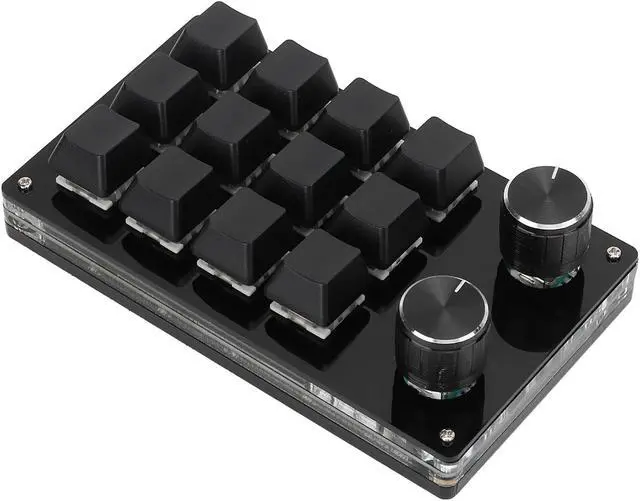
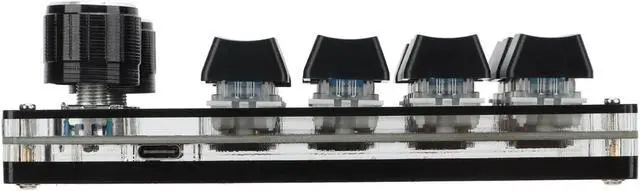
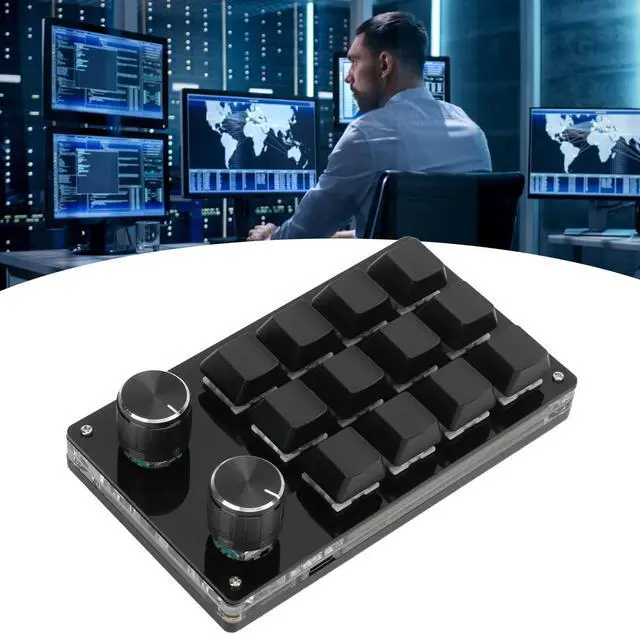
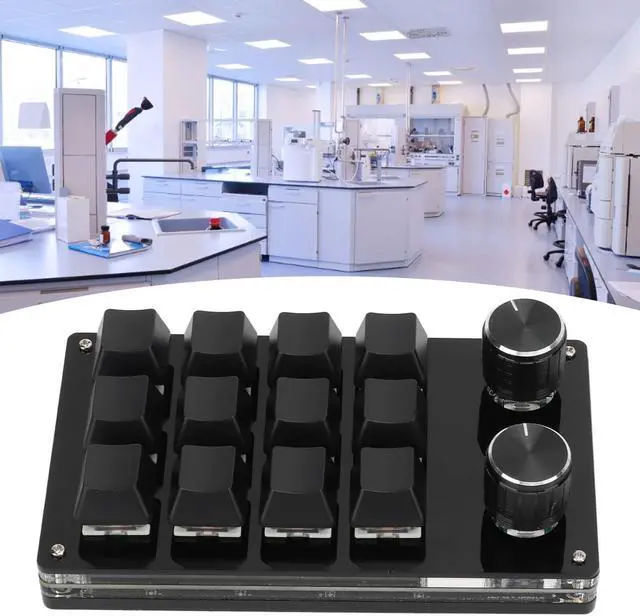
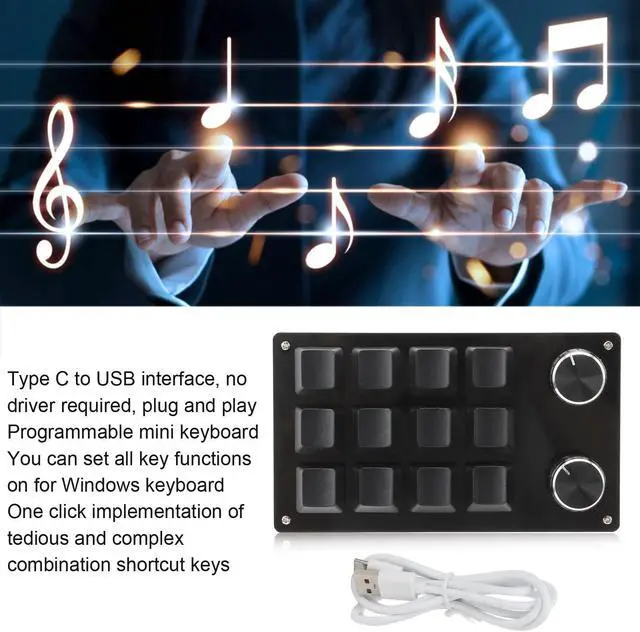


Tbest 12 Keys Programmable Keyboard,One Handed Macro Mechanical Keyboard 12 Key Multifunction DIY Programmable Keypad for Office Gaming Lab
- Bring You Convenience This One Handed Programmable Mechanical Keyboard with Knob features an adjustment knob that allows you to customize shortcut keys to streamline your workflow. By reducing repetitive actions, this keyboard simplifies complex tasks, helping you work more efficiently and with fewer interruptions.
- Multifunction The Mini Gaming Keypad is packed with multifunctionality, enabling you to configure the keys to replicate all the functions of a standard keyboard. This capability allows you to execute complicated and complex shortcut commands with just a single keystroke, significantly speeding up your productivity.Its multifunctional design and customizable features make it a valuable addition to any professional's toolkit.
- Memory Function Equipped with a built-in memory function, this Multifunctional USB Mechanical Gaming Keyboard retains your settings even when used on different systems that support USB protocols, such as Linux and OS X. Once configur
+
+
Overview
Specs
Reviews

Any questions? Our AI beta will help you find out quickly.
Try me now
Specification
Item Type: Macro Mechanical Keyboard
Material: Acrylic, PCB
Usage: Suitable for office, games, music, media, industrial control, laboratory, production line testing and other fields
System Support: For Windows, for VISTA, for Linux, for OS X
Button Life: Up to 50 Million Times
Type: Green Shaft
Quantity of Keys: 12 Keys
Size: Approx. 132 x 77 x 38mm / 5.2 x 3 x 1.5 in (L x W x H)
Current and Voltage: DC 5V/1A
Working Temperature: -10-50
How to Use
1. Small keyboard, open the custom software on the computer.
2. On the custom software, click the "key setting area" or "Knob setting area" (yellow area) and then click the key key1key12 or any key of knob 1 or knob 2 (green area) to be set; If selected, it will appear red.
3. Click the function key corresponding to the simulated keyboard on the custom software, click download, prompting download success, the custom keypad can be used. For example, if you want to set small keyboard key 1 as the shortcut key of copy (Ctrl+C), click "Key Setting area" on the software, click "KEY1", then click Ctrl and C on the software simulation keyboard, click Download, and the message "download successful" is displayed.
Common troubleshooting methods:
Problem 1: When the keyboard is connected to the computer, there is no response or a message indicating that the device is running abnormally.
Solution: Check whether the cable and interface are connected properly, and remove and reinsert them. Replace the USB port on the computer and plug it back in.
Fault 2: The custom software cannot be opened after being downloaded.
Solution: Check whether the antivirus software intercepts the set it as a trusted file.
Question 3: After connecting the computer, why is it always "a" when pressing a key or knob?
Solution: Output a is the normal factory setting, please open the custom software to redefine the key function.
Package List
1 x
Item Type: Macro Mechanical Keyboard
Material: Acrylic, PCB
Usage: Suitable for office, games, music, media, industrial control, laboratory, production line testing and other fields
System Support: For Windows, for VISTA, for Linux, for OS X
Button Life: Up to 50 Million Times
Type: Green Shaft
Quantity of Keys: 12 Keys
Size: Approx. 132 x 77 x 38mm / 5.2 x 3 x 1.5 in (L x W x H)
Current and Voltage: DC 5V/1A
Working Temperature: -10-50
How to Use
1. Small keyboard, open the custom software on the computer.
2. On the custom software, click the "key setting area" or "Knob setting area" (yellow area) and then click the key key1key12 or any key of knob 1 or knob 2 (green area) to be set; If selected, it will appear red.
3. Click the function key corresponding to the simulated keyboard on the custom software, click download, prompting download success, the custom keypad can be used. For example, if you want to set small keyboard key 1 as the shortcut key of copy (Ctrl+C), click "Key Setting area" on the software, click "KEY1", then click Ctrl and C on the software simulation keyboard, click Download, and the message "download successful" is displayed.
Common troubleshooting methods:
Problem 1: When the keyboard is connected to the computer, there is no response or a message indicating that the device is running abnormally.
Solution: Check whether the cable and interface are connected properly, and remove and reinsert them. Replace the USB port on the computer and plug it back in.
Fault 2: The custom software cannot be opened after being downloaded.
Solution: Check whether the antivirus software intercepts the set it as a trusted file.
Question 3: After connecting the computer, why is it always "a" when pressing a key or knob?
Solution: Output a is the normal factory setting, please open the custom software to redefine the key function.
Package List
1 x
Warranty & Returns
Warranty, Returns, And Additional Information
Warranty
- Please contact the Seller directly for warranty information. Warranty information may also be found on the Manufacturer's website.
- CONTACT
Return Policies
- Return for refund within: 30 days
- Return for replacement within: 30 days
- This item is covered by kaipuda Return Policy
Manufacturer Contact Info
- For a directory of all our manufacturers, please click below.
- Manufacturers Directory
LOADING...