
Your Browsing History
- In Stock
- Sold by Newegg
- AI Ready
- Make an Offer
- New
- Combo Deals

Any questions? Our AI beta will help you find out quickly.
Try me now

Quick View
Microsoft Windows 11 Pro 64-bit, DVD - OEM

Downloadable version also available
- Disclaimer: Use of this OEM System Builder Channel software is subject to the terms of the Microsoft OEM System Builder License. This software is intended for pre-installation on a new personal computer for resale. This OEM System Builder Channel software requires the assembler to provide end user support for the Windows software and cannot be transferred to another computer once it is installed. To acquire Windows software with support provided by Microsoft please see our full package "Retail" product offerings.
- Operating Systems: Windows 11
- Bit Version: 64-bit
- Version: Pro
- Model #: FQC-10529
- $168.49
- $146.76 –
- Save: $21.73 (12%)
- More options from $146.76 - $174.09
- Free Shipping

Quick View
Lotus Mark IX #79 "12 Hours of Sebring" (1955) "Mythos Series" Limited Edition to 50 pieces 1/18 Model Car by Tecnomodel
- Brand: Tecnomodel
- Type: Car
- Model #: TM18-236B
- $289.99 –
- Free Shipping
Quick View
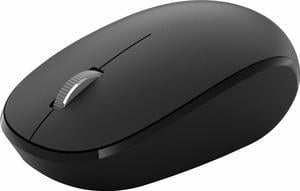
Microsoft Bluetooth Mouse - Black. Comfortable design, Right/Left Hand Use, 4-Way Scroll Wheel, Wireless Bluetooth Mouse for PC/Laptop/Desktop, works with for Mac/Windows Computers
- Hand Orientation: Both Hands
- Distance: Up to 33 feet
- Parts: 1 Year
- Model #: RJN-00001
- $26.55
- $21.06 –
- Save: $5.49 (20%)
- More options from $18.15 - $111.55
- Free Shipping
Quick View
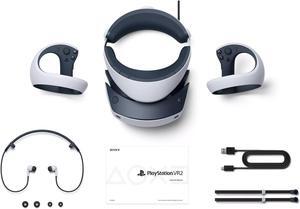
PlayStation VR2 Horizon Call of the Mountain bundle with Zero-Kirin Carrying Case, includes Shoulder Strap, Lens Cover and Microfiber Cleaning Cloth - White - PSVR2
- Model #: 850010034591
- $474.99 –
- $13.99 Shipping

Quick View
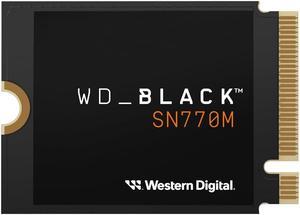
WD_BLACK 1TB SN770M M.2 2230 NVMe SSD for Handheld Gaming Devices, Speeds up to 5,150MB/s, TLC 3D NAND, Great for Steam Deck and Microsoft Surface - WDBDNH0010BBK-WRSN

- Max Sequential Read: Up to 5150 MBps
- Max Sequential Write: Up to 4900 MBps
- 4KB Random Read: Up to 740,000 IOPS
- 4KB Random Write: Up to 800,000 IOPS
- Model #: WDBDNH0010BBK-WRSN
- $289.50 –
- More options from $95.88 - $299.99
- Free Shipping
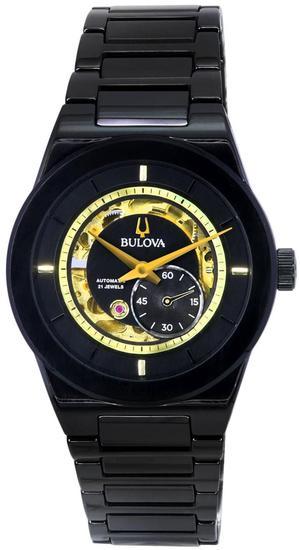
Quick View
Bulova Modern Millennia Semi Skeleton Black Dial Automatic 98A291 Men's Watch
- Brand: Bulova
- Style: Casual
- Material: Ceramic
- Movement: Automatic
- Model #: 98A291
- $511.71 –
- More options from $495.02 - $511.71
- Free Shipping
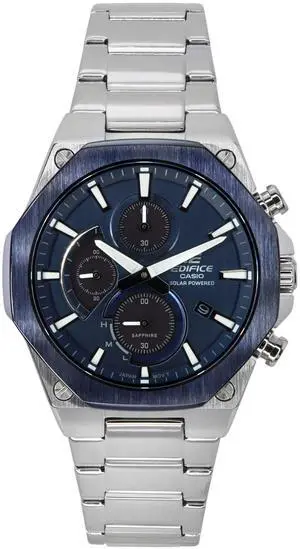
Quick View
Citizen Stainless Steel Bracelet Silver Dial Quartz BI5000-87A Men's Watch
- Style: Dress
- Material: Stainless Steel
- Movement: Quartz
- Shape: Round
- Model #: BI5000-87A
- $124.79 –
- Free Shipping
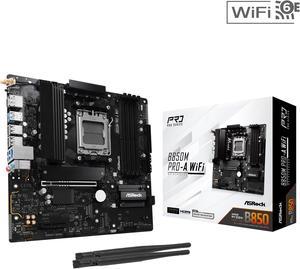
Quick View
ASRock B850M PRO-A WIFI AM5 AMD B850 Micro ATX Motherboard

- Brand: ASRock
- CPU Socket Type: AM5
- Chipset: AMD B850
- Serial ATA (SATA): 4 x SATA 6Gb/s
- Model #: B850M Pro-A WiFi
- $192.19 –
- More options from $119.99 - $192.19
- Free Shipping

Quick View
YUNZII B75 PRO Wireless Mechanical Keyboard,75% Layout with Knob,Hot Swap Gasket Custom Structure,Creamy Pre-lubed Switches,RGB Backlit,Bluetooth/Type-C/2.4G for Win/Mac(Milk Switch,Pink)
Limited time offer, ends 01/20
- Model #: BZ59-3981
- $96.07 –
- More options from $66.00 - $96.07
- Free Shipping
Quick View
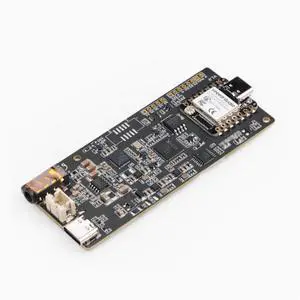
SeeedStudio ReSpeaker Lite 2 Microphone on-board AI speech recognition control module development kit with XIAO S3 motherboard
Limited time offer, ends 01/20
- Model #: BZ59-1112
- $82.60 –
- More options from $82.60
- Free Shipping
Quick View
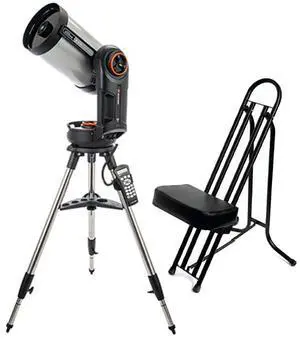
Celestron NexStar Evolution 8 203mm f/10 Schmidt-Cassegrain Telescope with Astronomy Chair
- Model #: 12091 A
- $2,571.00 –
- Free Shipping
Quick View
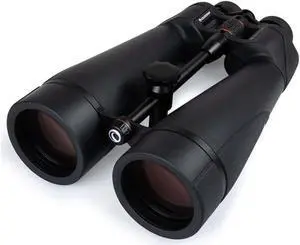
Celestron Skymaster Pro ED 20 x 80mm Fully Multi-Coated Optics Porro Binoculars
- Type: Binoculars
- Model #: 72035
- $449.95
- $414.93 –
- Save: $35.02 (7%)
- More options from $414.93 - $465.55
- $20.35 Shipping
Quick View
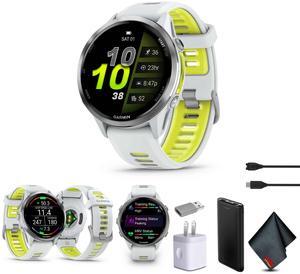
Garmin Forerunner 970 Running Smartwatch, GPS Fitness Smart Watch For Men And Women, Titanium with Whitestone Case and Whitestone/Translucent Amp Yellow Band, Bundle
- Type: Smart Watch
- Screen Size: 1.3
- Width: 0.5
- Model #: AG2GAR01002969011
- $764.99 –
- Free Shipping
Quick View
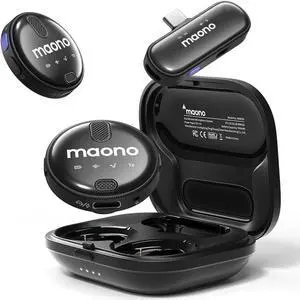
MAONO Wireless Lavalier Microphone for iPhone 15 & Android, USB C Wireless Lapel Mic with 48kHz/16Bit, Noise Cancellation, 328ft Range, 18H Battery for YouTube, Vlogging, Video Recording, Streaming
Limited time offer, ends 01/20
- Model #: 886001383683810
- $97.18 –
- More options from $97.18
- Free Shipping
Quick View
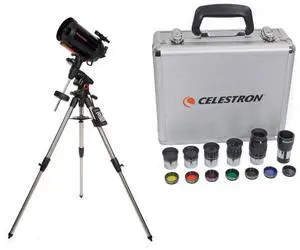
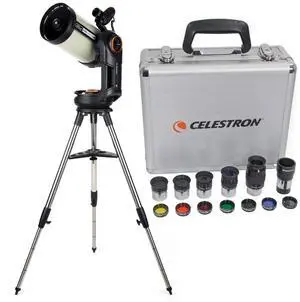
Celestron NexStar Evolution 8 EdgeHD Schmidt-Cassegrain Telescope with 1.25" Eyepiece and Filter Kit
- Model #: 12096 B
- $3,216.85 –
- Free Shipping
Quick View
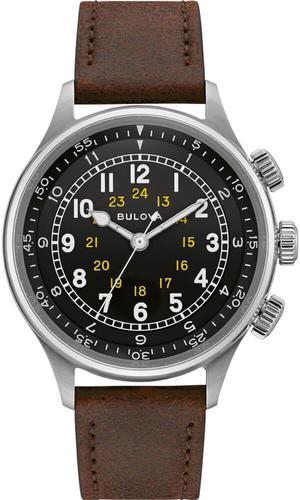
Bulova 96A245 A-15 Pilot Watch
- Brand: Bulova
- Model: 96A245
- Style: Dress/Formal
- Series Name: A-15 Pilot
- Model #: 96A245
- $419.87 –
- More options from $419.87 - $521.25
- Free Shipping
Quick View
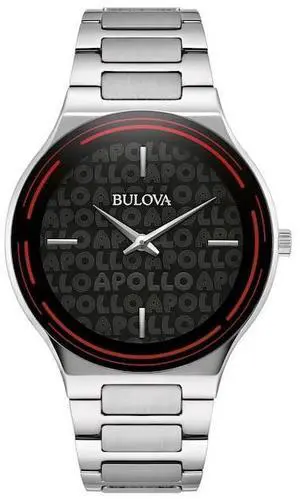
Bulova Apollo Theatre Special Edition Mens Watch
- Brand: Bulova
- Material: Stainless Steel
- Age: Adult
- Model #: 96A296
- $212.66 –
Quick View
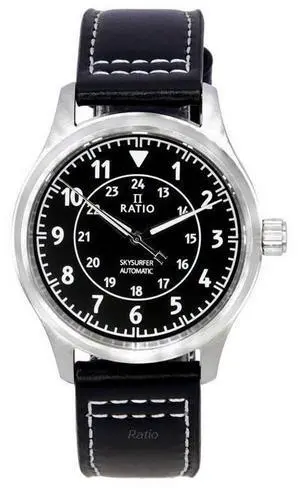
Ratio Skysurfer Pilot Black Sunray Dial Leather Automatic RTS314 200M Men's Watch
- Part Number: RTS309
- Style: Divers
- Series Name: Skysurfer
- Movement: Automatic
- Model #: RTS314
Quick View
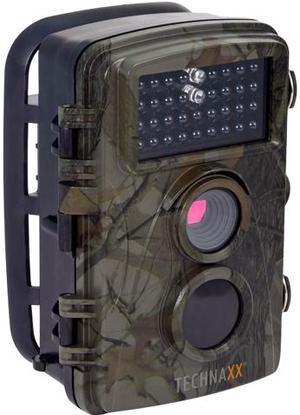
Technaxx TX-69 4719 Binoculars
- Type: Hunting Rangefinders
- Accessory: Kit
- Specifications: 1/2.5" CMOS Sensor 5.0 MP Video resolution: 1920 x 1080 / 15 fps, 1280 x 720 / 30 fps, 720 x 480 / 30 fps, 640 x 480 / 30 fps, 320 x 240 / 30fps Photo resolution: 12.0 MP (4000 x 3000 interpolated), 8.0 MP (3264 x 2448 interpolated), 5.0 MP (2592 x 1944), 3.0 MP (2048 x 1536), 1.0 MP (1280 x 960) Video length: 3 seconds - 10 minutes programmable File format: JPEG / AVI Lens: f=3.62mm, F/NO2.2, FOV=70 degree, Auto IR filter Trigger interval: 5 seconds - 60 minutes programmable Timer & Time Lapse function (3 seconds - 24 hours) programmable Power supply: 8 x AA batteries* (*included); external 6V power supply, at least 1.5A Standby time: Up to 12 months Working temperature: -7 degree Celcius up to +40 Degree Celcius
- Night Vision: Yes
- Model #: 4719
Quick View
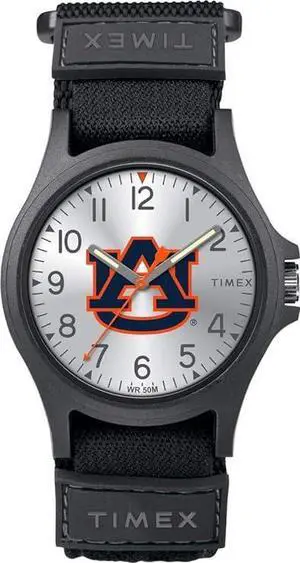
Timex Tribute Base Styles Watch
- Brand: Timex
- Material: Stainless Steel
- Age: Adult
- Model #: TWZUAUBMA
- $25.31 –
- Free Shipping
Quick View
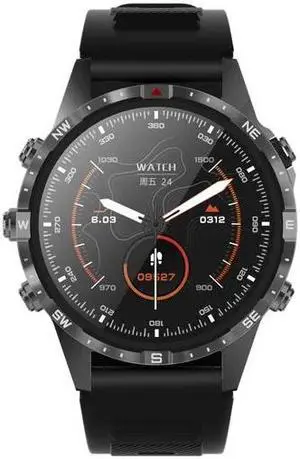
MARQ Sport Smart Watch Compass 1.6" Screen 5 Buttons Men Smartwatch NFC Bluetooth Call 100+ Sports Modes Rugged Fitness Watches
- Compatibility: Android / IOS
- Model #: 1005005945781520Black
Quick View
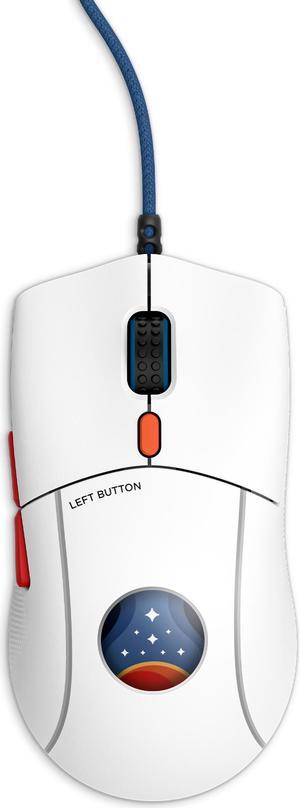
NZXT Lift 2 Starfield ULTRA LIGHTWEIGHT Symmetrical Wired Gaming Mouse, 26,000 DPI, 58g, White
- Part Number: MS-001NW-04-FS
- Mouse Grip Style: All
- Resolution (DPI): 26000 dpi
- Hand Orientation: Right Hand
- Model #: MS-001NW-04-FS

Quick View
Meta Quest $25 Gift Card (Email Delivery)

- Disclaimer: Terms and Conditions: Meta Quest is for ages 13+. Meta Quest Gift Cards are solely for the purchase of content, apps, and services from the Meta Quest Store. Cards do not expire and carry no service or dormancy fees. Cards are not redeemable for cash and cannot be transferred, resold, returned, refunded, or exchanged, except as required by law. Issued by Meta Platforms Technologies, LLC or its affiliates (“Meta”). Meta is not responsible for lost or stolen gift cards or unauthorized use. Terms and Conditions apply; see store.meta.com/qgc/. For assistance, visit meta.com/help/quest/.
- Specifications: Redemption Instructions: Meta Quest Mobile App: 1. Install the Meta Quest app on your iPhone or Android phone 2. Sign in with (or create) your Meta account 3. Go to ‘Wallet’ in the Menu of the Meta Quest app 4. Click on ‘+’ button to open ‘Add...
- Model #: MEQU2500
- $25.00 –

Quick View
- $44.99
- See price in cart
- Free Shipping
Quick View
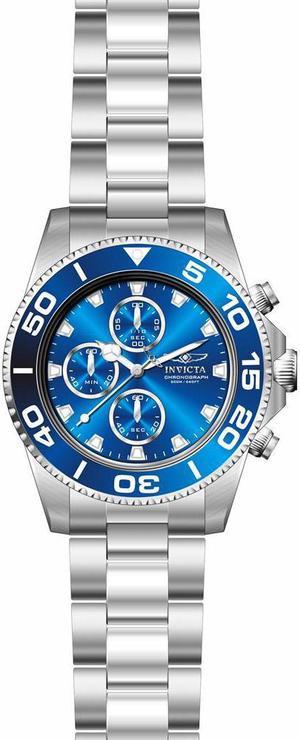
Invicta Men's Pro Diver Steel Bracelet & Case Quartz Blue Dial Watch 28690
- Style: Casual
- Series Name: Pro Diver
- Adjustable: Yes
- Dial Color: Blue
- Model #: 28690
- $98.00 –

Quick View
Invicta Men's 7026 Signature Quartz Chronograph Black Dial Watch
- Style: Sports
- Material: Stainless Steel
- Movement: Quartz
- Color: Black
- Model #: 7026
- $120.00 –
Quick View
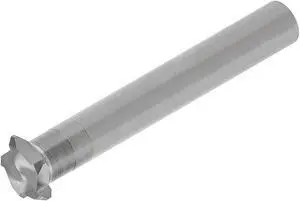
MICRO 100 MBC-375 Back Chamfer Milling Cutter, 2 1/2 in L, Solid Carbide
- Brand: Micro 100
- Type: Cutting Tools
- Model #: MBC-375
- $96.65 –
Quick View
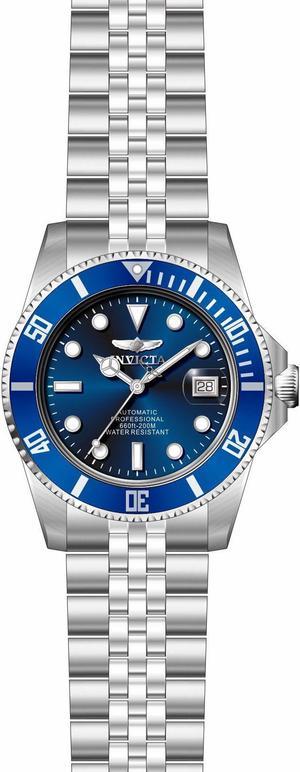
Invicta Men's Pro Diver Steel Bracelet & Case Automatic Blue Dial Watch 29179
- Style: Casual
- Series Name: Pro Diver
- Adjustable: Yes
- Dial Color: Blue
- Model #: 29179
- $109.99 –
Quick View
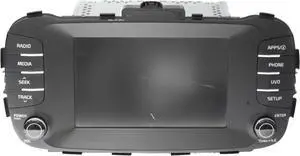
Refurbished 2017-2019 Kia Soul AM FM Radio Bluetooth Mp3 Player Part Number ID 96160-B2310CA
- Model #: 96160-B2310CA-BLEM
- $220.00 –
- Free Shipping