







As one of the earliest professional external optical drive manufacturers invited to join , ROOFULL has sold over 3,240,000 pieces of CD/DVD drives since 2015.
We prioritize exceptional product quality, with each drive undergoing rigorous testing. Additionally, we are ready to assist with any inquiries or issues, ensuring support and satisfaction at every step.
Choose ROOFULL for reliable optical drives and outstanding customer support.
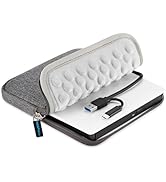
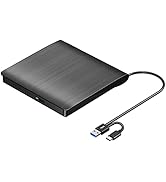
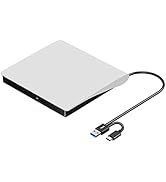
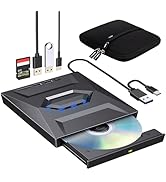
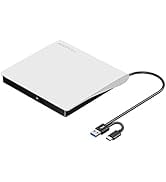
USB 3.0 & USB-C CD/DVD Drive
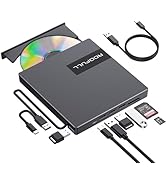
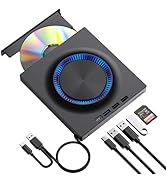
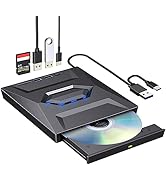
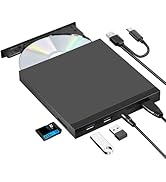
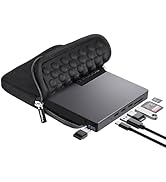
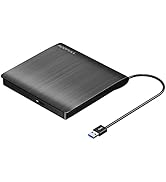
CD/DVD Drive with USB Hub
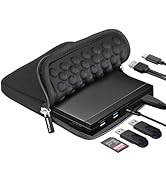
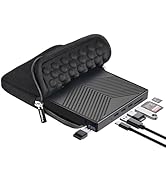
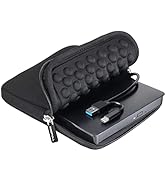
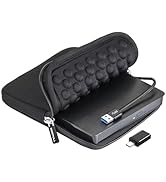
CD/DVD Drive with Hub & Case
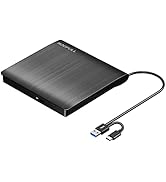
USB 3.0 CD/DVD-RW Drive

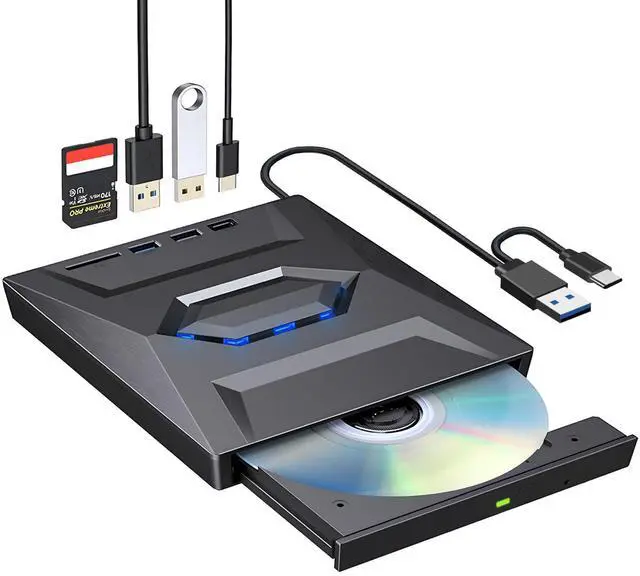
All-in-One External CD/DVD Drive with USB Hub & SD Card Reader – A Must-Have Companion for Modern Laptops
As modern laptops continue to get thinner and lighter, many no longer include a built-in CD/DVD drive and often come with only a limited number of USB ports. That’s where this multifunctional external CD/DVD drive comes in — offering a complete solution for anyone who still values access to physical media and needs more connectivity options.
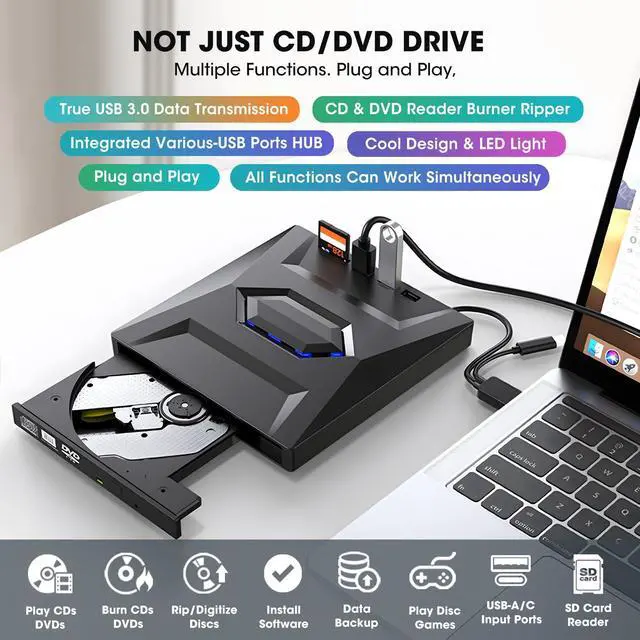
Whether you want to revisit your collection of classic CDs from the 90s, enjoy your favorite DVD movie box sets, digitize and import music from old audio CDs to your computer, burn audio or video files to blank discs, back up important photos and documents, or simply install software or games from a disc — this versatile drive has you covered. It functions as a reader, writer, burner, ripper, and data backup tool all in one.
But it doesn't stop there. This external drive is also equipped with a built-in USB 3.0/2.0/Type-C hub and SD/TF card slots, allowing you to easily connect other peripherals like a wireless mouse receiver, Bluetooth dongle, USB flash drive, external hard drive, or SD memory cards. This eliminates the need for a separate USB hub, helping you keep your desktop organized and efficient.
Despite its rich features, the setup is incredibly simple. Just plug the data cable into your laptop or desktop — your PC will recognize the drive automatically. (For Mac users, the icon will appear after a disc is inserted.) Then insert a CD or DVD and use your preferred media player, burning, or ripping software to access the content. No drivers or complicated setup required — just plug and play.
Please note: This CD/DVD drive is not compatible with Chrome OS, smart TVs, cars, trucks, projectors, tablets, iPads, smartphones, gaming consoles (PS4/PS5, Xbox, Switch), and it does not support Blu-ray/4K discs.

100% True USB 3.0 Tech
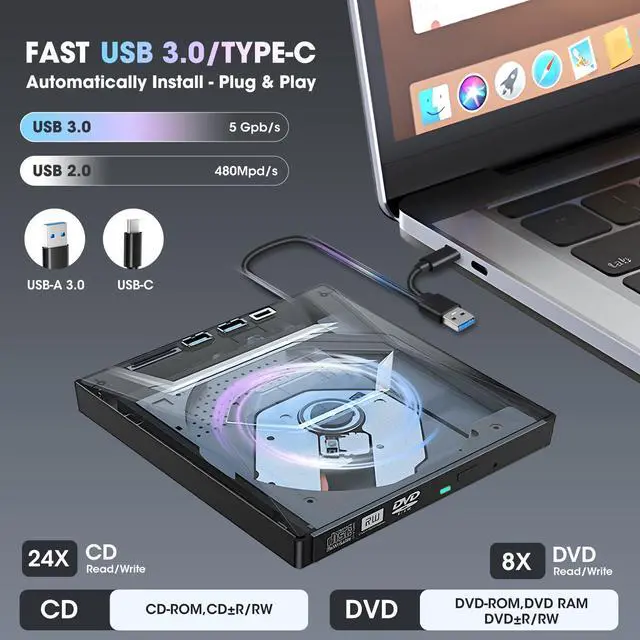
Unlike other cheap drives that advertise USB 3.0 but actually use USB 2.0 (only 4 wires inside), this ROOFULL CD drive features a real USB 3.0 solution with a full 9-wire cable, proper 3.0 PCB design, and a dedicated controller. Supports up to 5 Gbps (625MB/s) data transfer speeds, nearly 10× faster than USB 2.0.

2 Kinds of Connectors
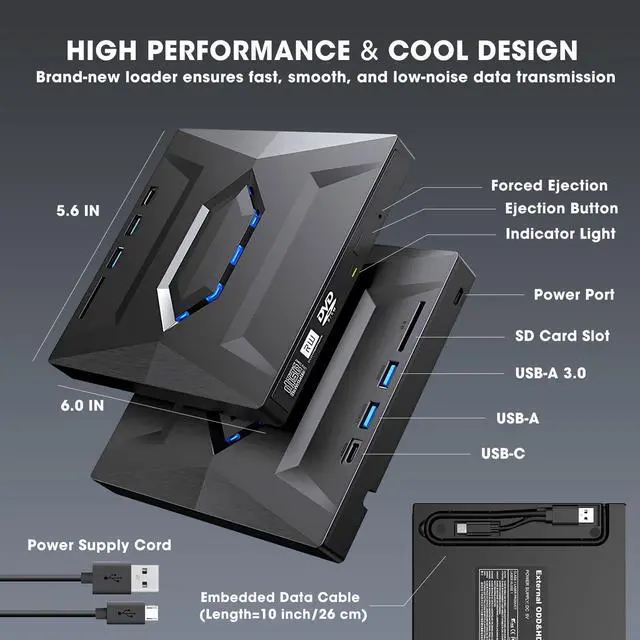
The data cable hidden at the bottom of the device has both USB-A and USB-C connectors, you can plug it into most computers without an adapter.
No need to install the driver, your computer will automatically recognize the drive, then you can use software to play your CDs/DVDs. Plug and play!

Extra Power Supply
In addition to the data cable, this drive also comes with a USB to micro-USB power supply cord. If the USB ports on your computer cannot supply enough power via a single data cable, you can connect this separate power supply cord to a 5V USB power bank or power adapter to ensure sufficient power supply.
* The power cord is not a data cable, avoid using it independently.
Powerful Performance
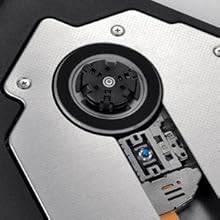
With over 10 years of experience in external CD/DVD drives, ROOFULL is committed to delivering top-quality products. Each drive features a brand-new loader with advanced error correction, low impedance, and anti-interference capabilities, ensuring stable, quiet, and smooth performance.

Supported Disc Type & Speed
Support the reading, burning, and ripping (digitizing) of multi-types of discs including CD-ROM, CD-R, CD±RW, DVD-ROM, DVD-RAM, DVD±R, DVD±RW, DVD±R DL, VCD, SVCD.
Recommend burning or ripping at 10X or lower for CDs, and 4X to 8X for DVDs. These speeds enable more precise data encoding, reducing the risk of read errors.

USB 3.0/Type-C Hub & SD Slot
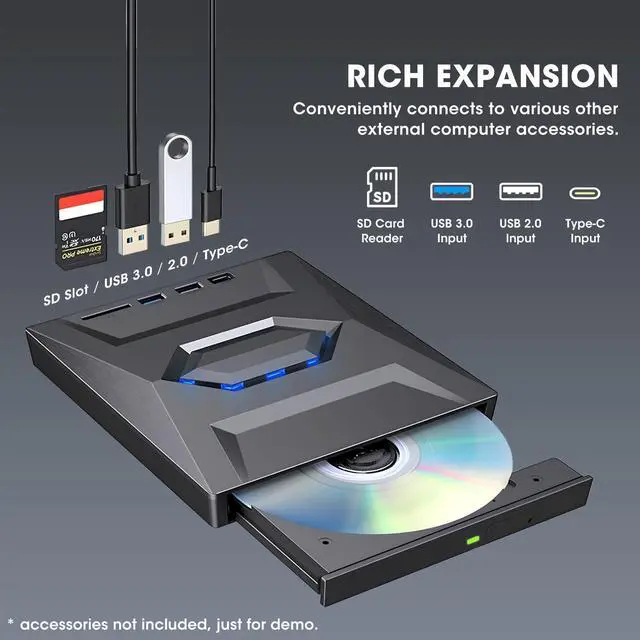
It cannot only read/write discs but also equipped with additional 1* USB 3.0 port, 1* USB 2.0 port, 1* USB-C port, and 1*SD card slot to hook up your other external devices such as USB flash drive, wireless mouse receiver, etc., alleviating the trouble of insufficient interfaces on your computer.

Compact and Cool Design
The ROOFULL B21-Y external CD/DVD drive features a compact and cool design, it's easy to carry and use on most laptop and desktop computers. Whether at home, in the office, or on a journey, it serves as an excellent companion.
* Approximate size: ?5.12 x 5.12 x 0.53 inches

What's Included
Package Contains:
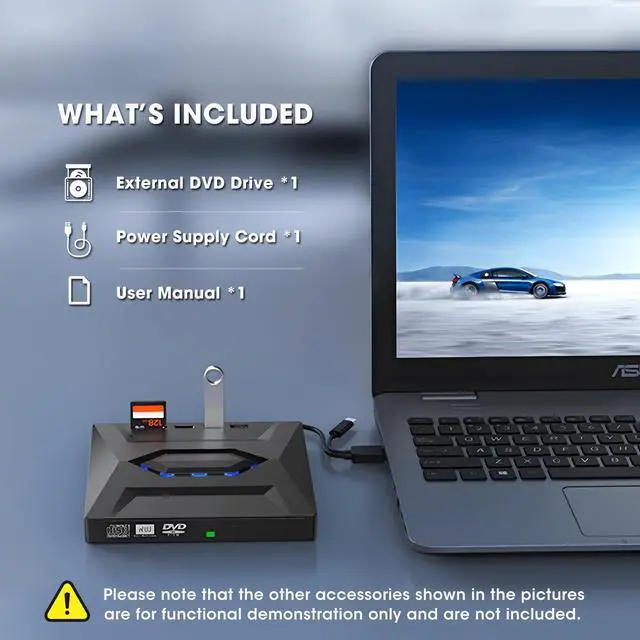
1* All-In-One External CD/DVD Drive with 2 In 1 Data Cable Under The Device + 1* User Manual + 1* USB-A to Micro-USB Power Supply Cord
Note: Other accessories shown in the pictures are for functional demonstration only and are not included.

Compatibility, Incompatibility, Recommended Software, and Usage Instructions
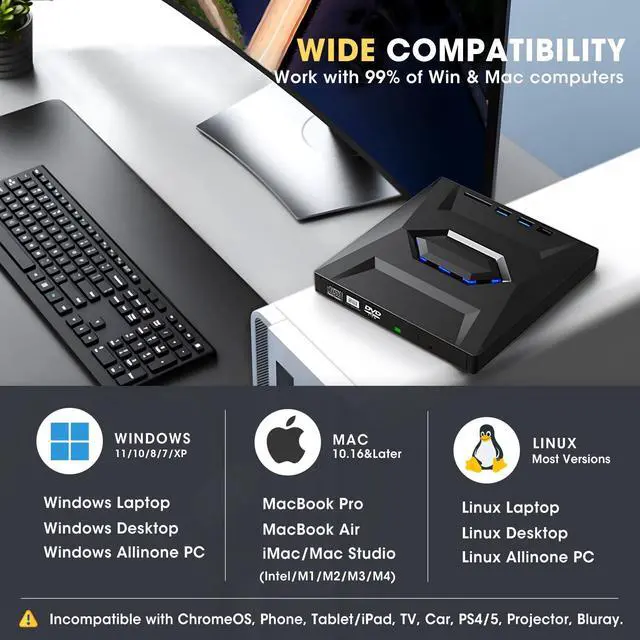
Compatibility: This USB external CD/DVD player for PC is compatible with Windows laptops and desktops (11, 10, 8, 7, Vista, XP), Linux computers, and Apple devices including MacBook Pro, MacBook Air, iMac, Mac mini, and Mac Studio (including M1, M2, M3, and M4 chips).
Incompatibility: This drive is not compatible with Chrome OS (Chromebooks), TVs, cars, trucks, projectors, tablets, iPads, smartphones, gaming consoles (PS4/PS5, Xbox, Nintendo Switch), and it cannot play Blu-ray discs.
How to Use on Windows Computers: Prepare playback, burning, or ripping software based on your needs, and network connection for Windows 11 > Connect the data cable (located under the drive) to your computer's USB-A or USB-C port directly, or through a self-powered USB hub > The system will automatically install the necessary driver, and a “DVD RW” icon will appear in Windows Explorer > For video DVDs, make sure to set the DVD region code to match your disc (e.g., Region 1 for US/Canada); CDs do not require a region setting > Insert the CD or DVD, then use your chosen software to play, burn, or rip > When finished, eject the disc by pressing the physical button or right-clicking the icon and selecting “Eject.”
Trusted Free Software for Windows: For audio CD playback, use Windows Media Player or VLC; for video DVD playback, try VLC, Kodi, or 5KPlayer; to burn audio CDs, use CDBurnerXP or ImgBurn; for burning video DVDs, use ImgBurn, BurnAware Free, or CDBurnerXP; to rip audio CDs, consider Windows Media Player, iTunes, Exact Audio Copy (EAC), or Fre:ac; to rip video DVDs, use HandBrake or MakeMKV.
How to Set the Region Code in Windows: Right-click the "DVD-RW Drive" icon and select "Properties" > Go to the "Hardware" tab and select your CD/DVD drive > Click "Properties" at the bottom > Open the "DVD Region" tab > Choose the correct region (e.g. Region 1 for US/Canada) and click "OK". (Note: You can only change the region code 4~5 times.)
How to Use it on Apple Mac Computers: Open Finder > Settings (or Preferences, depending on your macOS version) > Ensure "CDs, DVDs, and iOS Devices" is checked in the General Tab and Sidebar Tab if available > Prepare the media player, burning, or ripping software based on your needs (not all) > Plug the data cable (located under the drive) into your computer's USB-A or USB-C port directly or a self-powered USB hub > Insert your CDs or DVDs > The disc drive icon will appear on the desktop after a disc is successfully read > Use your installed software to play, burn, or rip the disc > After playback/burning, the tray cannot open via the button due to macOS limitations. To eject a disc on Mac computers after playback/burning, right-click on the desktop icon and select "eject," or choose "File" > "Eject" from the menu.
Trusted Free Software for Apple Mac: For audio CDs, use Apple Music, iTunes, or VLC; for video DVD playback, use VLC or Apple DVD Player; for burning audio CDs, try Apple Music, Burn, or Express Burn; to burn video DVDs, use Burn for Mac, HandBrake, DVDStyler, or iDVD (for older systems); to rip audio CDs, use Apple Music, X Lossless Decoder (XLD), or HandBrake; to rip video DVDs, use MakeMKV or HandBrake with VLC (to read protected DVDs).
What's the Burning & Ripping: “Burning” means copying music, videos, or files from your computer onto a blank CD or DVD, while “ripping” means copying content from a CD or DVD onto your computer. These processes let you create custom discs or save physical media digitally.
Note Before Burning Discs: Before burning, ensure your blank disc capacity is sufficient (CD-R/CD-RW: 700MB or 80 min audio; DVD-R/DVD+R: 4.7GB or 2 hours video; Dual Layer DVD: 8.5GB for long videos), use the proper burning software, set a safe burning speed (10X or lower for CDs and 4X to 8X for DVDs), and confirm the file format is compatible with the blank disc (Supported audio formats: WAV, MP3, WMA, AAC [M4A]. For car or home CD players, burn in CD-DA format; Use MPEG-2, VOB, or MPG for DVD-Video.). To convert files into disc-compatible formats, use Burn (for Mac), DVDStyler (for Windows & Mac), or CDBurnerXP (for Windows). If burning a data disc for storage, you can include any standard file types without format conversion.
About Photo/Image Discs: Some photos cannot be viewed or downloaded on Mac and Windows due to incompatible disc formats, unsupported image files, copy protection, or disc damage. Both systems support JPEG, PNG, TIFF, BMP, GIF, HEIF, and most RAW formats, but some RAW files may need Preview, Photos, or third-party software to open.
About Data Cable & Power Supply Cord: The USB-A/C data cable is integrated into the bottom of the drive and connects to your computer. If the computer’s USB port does not supply enough power, use the included power cable to connect the drive to a 5V USB charger or power bank to ensure stable operation and prevent read or burn errors.

Common Faults That May Occur & Troubleshooting Steps
[Windows OS] If your Windows computer recognizes the optical drive, you can see the DVD-RW icon in Windows Explorer. If your Windows laptop PC cannot recognize this CD/DVD drive, please try the following suggestions:
- Use the Type A and Type C cables on the back (bottom) of the optical drive to connect your computer's USB port or a self-powered USB hub. For Windows 11/10, please make sure a network connection and a media player software (Such as Windows Media Player for audio CDs, VLC player for audio CDs and video DVDs)
- Try a different USB: Move the data cable to different USB ports on your computer.
- Reinstall the driver: 1. Right-click the Windows Start Button in the lower left corner of the screen, or press the Windows Logo + X key combination on the keyboard, from the list, and click to select Device Manager. 2. Click View. 3. Click Show Hidden Devices. 4. Find this DVD/CD-ROM drive or similar name. 5. Right-click and select Uninstall. 6. Reboot your computer and replug the external drive, Windows will detect the drive and then reinstall it.
[Windows OS] This drive supports CDs and DVDs. If this drive can only play audio CDs but cannot play video/movie DVDs on your Windows PC, please try the methods below:
- Use the right media player software (such as VLC player). Some media players, such as Windows Media Player, cannot play video DVDs.
- Before playing video DVDs, please set the region code to number 1 to play the U.S. or CA DVDs. Steps: 1. Right-click the "DVD-RW Drive" icon and select "Properties". 2. Go to the "Hardware" tab and select your CD/DVD drive. 3. Click "Properties" at the bottom. 4. Open the "DVD Region" tab. 5. Choose the correct region (e.g. Region 1 for US/Canada) and click "OK". (Note: You can only change the region code 4-5 times.)
[Mac OS] The Mac computer will show the device icon after the disc is placed in the optical drive. If your MacBook, iMac, or Mac Pro/Studio cannot recognize this CD/DVD drive, please try the following suggestions:
- Open Finder > Settings (or Preferences, depending on your macOS version) > Ensure "CDs, DVDs, and iOS Devices" is checked in General Tab and Sidebar Tab if available.
- The Mac OS computer will not display the device icon until the disc is placed in the optical drive and the disc is read successfully.
- Move the data cable to different USB ports on your mac computer, and try different discs.
These things you need to know before buying
 ROOFULL External CD DVD Drive USB 3.0 & USB-C CD ROM Burner DVD Player with U... | 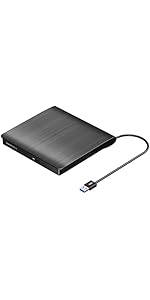 ROOFULL External CD DVD Drive True USB 3.0 Portable DVD & CD-ROM +/-RW Player... |  USB 3.0 Type-C External CD/DVD RW Drive Burner |  USB 3.0 Type-C External CD/DVD RW Drive Burner with Protective Carrying Case | 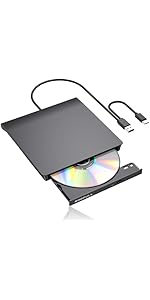 ROOFULL External CD DVD Drive for Laptop Mac, USB & USB-C CD DVD Reader Write... | 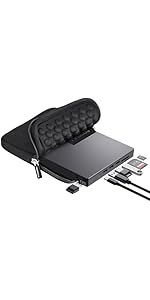 ROOFULL External CD DVD Drive USB 3.0 & USB-C, 8 IN 1 CD/DVD-ROM Player Burne... | |
|---|---|---|---|---|---|---|
| Customer Reviews | — | — | — | — | — | — |
| Price | — | — | — | — | — | — |
| Connector Type | USB 3.0 Type-A & USB Type-C | USB 3.0 | USB 3.0 Type-A & USB Type-C | USB 3.0 Type-A & Type-C | USB Type-A & Type-C | USB 3.0 Type-A & USB Type-C |
| Compatible OS | Windows 11 / 10 / 8.1 / 8 / 7 / XP, Linux, All versions of Mac OS | Windows 11 / 10 / 8.1 / 8 / 7 / XP, Linux, All versions of Mac OS | Windows 11 / 10 / 8.1 / 8 / 7 / XP, Linux, All versions of Mac OS | Windows 11 / 10 / 8.1 / 8 / 7 / XP, Linux, All versions of Mac OS | Windows 11 / 10 / 8.1 / 8 / 7 / XP, Linux, All versions of Mac OS | Windows 11 / 10 / 8.1 / 8 / 7 / XP, Linux, All versions of Mac OS |
| Compatible Devices | Laptops & Desktop PCs | Laptops & Desktop PCs | Laptops & Desktop PCs | Laptops & Desktop PCs | Laptops & Desktop PCs | Laptops & Desktop PCs |
| Supported Disc | CD-R, CD-ROM, CD+/-RW, DVD-ROM, DVD-R, DVD+/-RW, DVD-R DL | CD-R, CD-ROM, CD+/-RW, DVD-ROM, DVD-R, DVD+/-RW, DVD-R DL | CD-R, CD-ROM, CD+/-RW, DVD-ROM, DVD-R, DVD+/-RW, DVD-R DL | CD-R, CD-ROM, CD+/-RW, DVD-ROM, DVD-R, DVD+/-RW, DVD-R DL | CD-R, CD-ROM, CD+/-RW, DVD-ROM, DVD-R, DVD+/-RW, DVD-R DL | CD-R, CD-ROM, CD+/-RW, DVD-ROM, DVD-R, DVD+/-RW, DVD-R DL |
| Max R/W Speed | 24xCD / 8xDVD | 24xCD / 8xDVD | 24xCD / 8xDVD | 24xCD / 8xDVD | 24xCD / 8xDVD | 24xCD / 8xDVD |
| Read & Burning & Ripping | ? | ? | ? | ? | ? | ? |
| Reader/Writer | ? | ? | ? | ? | ? | ? |
| Automatic Installation | ? | ? | ? | ? | ? | ? |
| Extra USB Ports & SD Slot | ? | no data | no data | no data | no data | ? |
All-in-One External CD/DVD Drive with USB Hub & SD Card Reader – A Must-Have Companion for Modern Laptops
As modern laptops continue to get thinner and lighter, many no longer include a built-in CD/DVD drive and often come with only a limited number of USB ports. That’s where this multifunctional external CD/DVD drive comes in — offering a complete solution for anyone who still values access to physical media and needs more connectivity options.
Whether you want to revisit your collection of classic CDs from the 90s, enjoy your favorite DVD movie box sets, digitize and import music from old audio CDs to your computer, burn audio or video files to blank discs, back up important photos and documents, or simply install software or games from a disc — this versatile drive has you covered. It functions as a reader, writer, burner, ripper, and data backup tool all in one.
But it doesn't stop there. This external drive is also equipped with a built-in USB 3.0/2.0/Type-C hub and SD/TF card slots, allowing you to easily connect other peripherals like a wireless mouse receiver, Bluetooth dongle, USB flash drive, external hard drive, or SD memory cards. This eliminates the need for a separate USB hub, helping you keep your desktop organized and efficient.
Despite its rich features, the setup is incredibly simple. Just plug the data cable into your laptop or desktop — your PC will recognize the drive automatically. (For Mac users, the icon will appear after a disc is inserted.) Then insert a CD or DVD and use your preferred media player, burning, or ripping software to access the content. No drivers or complicated setup required — just plug and play.
Please note: This CD/DVD drive is not compatible with Chrome OS, smart TVs, cars, trucks, projectors, tablets, iPads, smartphones, gaming consoles (PS4/PS5, Xbox, Switch), and it does not support Blu-ray/4K discs.
100% True USB 3.0 Tech
Unlike other cheap drives that advertise USB 3.0 but actually use USB 2.0 (only 4 wires inside), this ROOFULL CD drive features a real USB 3.0 solution with a full 9-wire cable, proper 3.0 PCB design, and a dedicated controller. Supports up to 5 Gbps (625MB/s) data transfer speeds, nearly 10× faster than USB 2.0.
2 Kinds of Connectors
The data cable hidden at the bottom of the device has both USB-A and USB-C connectors, you can plug it into most computers without an adapter.
No need to install the driver, your computer will automatically recognize the drive, then you can use software to play your CDs/DVDs. Plug and play!
Extra Power Supply
In addition to the data cable, this drive also comes with a USB to micro-USB power supply cord. If the USB ports on your computer cannot supply enough power via a single data cable, you can connect this separate power supply cord to a 5V USB power bank or power adapter to ensure sufficient power supply.
* The power cord is not a data cable, avoid using it independently.
Powerful Performance
With over 10 years of experience in external CD/DVD drives, ROOFULL is committed to delivering top-quality products. Each drive features a brand-new loader with advanced error correction, low impedance, and anti-interference capabilities, ensuring stable, quiet, and smooth performance.
Supported Disc Type & Speed
Support the reading, burning, and ripping (digitizing) of multi-types of discs including CD-ROM, CD-R, CD±RW, DVD-ROM, DVD-RAM, DVD±R, DVD±RW, DVD±R DL, VCD, SVCD.
Recommend burning or ripping at 10X or lower for CDs, and 4X to 8X for DVDs. These speeds enable more precise data encoding, reducing the risk of read errors.
USB 3.0/Type-C Hub & SD Slot
It cannot only read/write discs but also equipped with additional 1* USB 3.0 port, 1* USB 2.0 port, 1* USB-C port, and 1*SD card slot to hook up your other external devices such as USB flash drive, wireless mouse receiver, etc., alleviating the trouble of insufficient interfaces on your computer.
Compact and Cool Design
The ROOFULL B21-Y external CD/DVD drive features a compact and cool design, it's easy to carry and use on most laptop and desktop computers. Whether at home, in the office, or on a journey, it serves as an excellent companion.
* Approximate size: ?5.12 x 5.12 x 0.53 inches
What's Included
Package Contains:
1* All-In-One External CD/DVD Drive with 2 In 1 Data Cable Under The Device + 1* User Manual + 1* USB-A to Micro-USB Power Supply Cord
Note: Other accessories shown in the pictures are for functional demonstration only and are not included.
Compatibility, Incompatibility, Recommended Software, and Usage Instructions
Compatibility: This USB external CD/DVD player for PC is compatible with Windows laptops and desktops (11, 10, 8, 7, Vista, XP), Linux computers, and Apple devices including MacBook Pro, MacBook Air, iMac, Mac mini, and Mac Studio (including M1, M2, M3, and M4 chips).
Incompatibility: This drive is not compatible with Chrome OS (Chromebooks), TVs, cars, trucks, projectors, tablets, iPads, smartphones, gaming consoles (PS4/PS5, Xbox, Nintendo Switch), and it cannot play Blu-ray discs.
How to Use on Windows Computers: Prepare playback, burning, or ripping software based on your needs, and network connection for Windows 11 > Connect the data cable (located under the drive) to your computer's USB-A or USB-C port directly, or through a self-powered USB hub > The system will automatically install the necessary driver, and a “DVD RW” icon will appear in Windows Explorer > For video DVDs, make sure to set the DVD region code to match your disc (e.g., Region 1 for US/Canada); CDs do not require a region setting > Insert the CD or DVD, then use your chosen software to play, burn, or rip > When finished, eject the disc by pressing the physical button or right-clicking the icon and selecting “Eject.”
Trusted Free Software for Windows: For audio CD playback, use Windows Media Player or VLC; for video DVD playback, try VLC, Kodi, or 5KPlayer; to burn audio CDs, use CDBurnerXP or ImgBurn; for burning video DVDs, use ImgBurn, BurnAware Free, or CDBurnerXP; to rip audio CDs, consider Windows Media Player, iTunes, Exact Audio Copy (EAC), or Fre:ac; to rip video DVDs, use HandBrake or MakeMKV.
How to Set the Region Code in Windows: Right-click the "DVD-RW Drive" icon and select "Properties" > Go to the "Hardware" tab and select your CD/DVD drive > Click "Properties" at the bottom > Open the "DVD Region" tab > Choose the correct region (e.g. Region 1 for US/Canada) and click "OK". (Note: You can only change the region code 4~5 times.)
How to Use it on Apple Mac Computers: Open Finder > Settings (or Preferences, depending on your macOS version) > Ensure "CDs, DVDs, and iOS Devices" is checked in the General Tab and Sidebar Tab if available > Prepare the media player, burning, or ripping software based on your needs (not all) > Plug the data cable (located under the drive) into your computer's USB-A or USB-C port directly or a self-powered USB hub > Insert your CDs or DVDs > The disc drive icon will appear on the desktop after a disc is successfully read > Use your installed software to play, burn, or rip the disc > After playback/burning, the tray cannot open via the button due to macOS limitations. To eject a disc on Mac computers after playback/burning, right-click on the desktop icon and select "eject," or choose "File" > "Eject" from the menu.
Trusted Free Software for Apple Mac: For audio CDs, use Apple Music, iTunes, or VLC; for video DVD playback, use VLC or Apple DVD Player; for burning audio CDs, try Apple Music, Burn, or Express Burn; to burn video DVDs, use Burn for Mac, HandBrake, DVDStyler, or iDVD (for older systems); to rip audio CDs, use Apple Music, X Lossless Decoder (XLD), or HandBrake; to rip video DVDs, use MakeMKV or HandBrake with VLC (to read protected DVDs).
What's the Burning & Ripping: “Burning” means copying music, videos, or files from your computer onto a blank CD or DVD, while “ripping” means copying content from a CD or DVD onto your computer. These processes let you create custom discs or save physical media digitally.
Note Before Burning Discs: Before burning, ensure your blank disc capacity is sufficient (CD-R/CD-RW: 700MB or 80 min audio; DVD-R/DVD+R: 4.7GB or 2 hours video; Dual Layer DVD: 8.5GB for long videos), use the proper burning software, set a safe burning speed (10X or lower for CDs and 4X to 8X for DVDs), and confirm the file format is compatible with the blank disc (Supported audio formats: WAV, MP3, WMA, AAC [M4A]. For car or home CD players, burn in CD-DA format; Use MPEG-2, VOB, or MPG for DVD-Video.). To convert files into disc-compatible formats, use Burn (for Mac), DVDStyler (for Windows & Mac), or CDBurnerXP (for Windows). If burning a data disc for storage, you can include any standard file types without format conversion.
About Photo/Image Discs: Some photos cannot be viewed or downloaded on Mac and Windows due to incompatible disc formats, unsupported image files, copy protection, or disc damage. Both systems support JPEG, PNG, TIFF, BMP, GIF, HEIF, and most RAW formats, but some RAW files may need Preview, Photos, or third-party software to open.
About Data Cable & Power Supply Cord: The USB-A/C data cable is integrated into the bottom of the drive and connects to your computer. If the computer’s USB port does not supply enough power, use the included power cable to connect the drive to a 5V USB charger or power bank to ensure stable operation and prevent read or burn errors.
Common Faults That May Occur & Troubleshooting Steps
[Windows OS] If your Windows computer recognizes the optical drive, you can see the DVD-RW icon in Windows Explorer. If your Windows laptop PC cannot recognize this CD/DVD drive, please try the following suggestions:
- Use the Type A and Type C cables on the back (bottom) of the optical drive to connect your computer's USB port or a self-powered USB hub. For Windows 11/10, please make sure a network connection and a media player software (Such as Windows Media Player for audio CDs, VLC player for audio CDs and video DVDs)
- Try a different USB: Move the data cable to different USB ports on your computer.
- Reinstall the driver: 1. Right-click the Windows Start Button in the lower left corner of the screen, or press the Windows Logo + X key combination on the keyboard, from the list, and click to select Device Manager. 2. Click View. 3. Click Show Hidden Devices. 4. Find this DVD/CD-ROM drive or similar name. 5. Right-click and select Uninstall. 6. Reboot your computer and replug the external drive, Windows will detect the drive and then reinstall it.
[Windows OS] This drive supports CDs and DVDs. If this drive can only play audio CDs but cannot play video/movie DVDs on your Windows PC, please try the methods below:
- Use the right media player software (such as VLC player). Some media players, such as Windows Media Player, cannot play video DVDs.
- Before playing video DVDs, please set the region code to number 1 to play the U.S. or CA DVDs. Steps: 1. Right-click the "DVD-RW Drive" icon and select "Properties". 2. Go to the "Hardware" tab and select your CD/DVD drive. 3. Click "Properties" at the bottom. 4. Open the "DVD Region" tab. 5. Choose the correct region (e.g. Region 1 for US/Canada) and click "OK". (Note: You can only change the region code 4-5 times.)
[Mac OS] The Mac computer will show the device icon after the disc is placed in the optical drive. If your MacBook, iMac, or Mac Pro/Studio cannot recognize this CD/DVD drive, please try the following suggestions:
- Open Finder > Settings (or Preferences, depending on your macOS version) > Ensure "CDs, DVDs, and iOS Devices" is checked in General Tab and Sidebar Tab if available.
- The Mac OS computer will not display the device icon until the disc is placed in the optical drive and the disc is read successfully.
- Move the data cable to different USB ports on your mac computer, and try different discs.
These things you need to know before buying
| Incompatible Devices and Discs | This drive is only designed for Windows, Linux, and Mac computers. It can not work with Chrome OS (Chromebook), Ubuntu OS, TVs, cars, trucks, projectors, tablets, iPads, phones, PS4/5, Xbox, Nintendo Switch, and cannot play Blu-ray and 4K discs. |
| Open the Tray After Playing | For Windows, simply press the button on the front of the drive to eject the tray. For Mac OS, the drive button is limited by Mac OS and cannot open the tray, right-click the drive icon on the desktop and select "Eject", or select "File" - "Eject". If the device fails and cannot be opened, don't worry and let us know, we will solve the problem or resend you a new drive for free. |
| Data Cable & Power Cord | The USB A/C data cable is located at the bottom of the drive, and the charging cord (power cord) is a separate USB cord that comes with the package. The charging cord cannot be used as a data cable alone, it must be used together with the USB A/C data cable built into the back of the drive. Due to the limitation of the design, the length of the data cable is only about 10 inches / 26 cm. |
| Windows 11 Requirements | Windows 11 needs a media player (such as VideoLAN VLC player) and a network connection. |
| Setting Region Code in Windows | To play video DVDs with a media player other than VLC player, the region code on your drive must match the DVD. Here's how to set it on Windows: 1. Right-click the "DVD-RW Drive" icon and select "Properties". 2. Go to the "Hardware" tab and select your CD/DVD drive. 3. Click "Properties" at the bottom. 4. Open the "DVD Region" tab. 5. Choose the correct region (e.g., USA is 1) and click "OK". (Note: You can only change the region code 4-5 times.) |
| What's the Burning & Ripping | When you copy music, pictures, and videos from your PC to a blank CD or DVD, it's called "burning." When you copy music, pictures, and videos from a CD or DVD to your PC, it's called "ripping." |
| Recommended Burning Speed | While the maximum read/write speeds for CDs are 24X and 8X for DVDs, we recommend burning or ripping at 10X or lower for CDs, and 4X to 8X for DVDs. Slower speeds, such as 4X or 8X, are ideal for ensuring data integrity, especially with high-capacity or dual-layer discs. These speeds enable more precise data encoding, reducing the risk of read errors. |
| About Audio & Video Formats | Before burning an audio or video disc, ensure the multimedia format is compatible with the blank disc; otherwise, the burned disc will not play properly. You can use software (such as HandBrake or Freemake Video Converter) to convert video files to DVD-compatible formats (e.g., MPEG-2) or audio files to CD-compatible formats (e.g., WAV or MP3). If you're burning a data CD or DVD just to store files (like saving them as you would on a USB drive), it can hold any audio/ video image format. |
| Other Notes Before Burning | In addition to the speed and media format, before burning an audio or video disc, make sure your blank disc capacity is sufficient, use the right burning software. |
| About Photo/Image Discs | Some photos cannot be viewed or downloaded on Mac and Windows due to incompatible disc formats, unsupported image files, copy protection, or disc damage. Both systems support JPEG, PNG, TIFF, BMP, GIF, HEIF, and most RAW formats, but some RAW files may need Preview, Photos, or third-party software to open. |
ROOFULL External CD DVD Drive USB 3.0 & USB-C CD ROM Burner DVD Player with U... | ROOFULL External CD DVD Drive True USB 3.0 Portable DVD & CD-ROM +/-RW Player... | USB 3.0 Type-C External CD/DVD RW Drive Burner | USB 3.0 Type-C External CD/DVD RW Drive Burner with Protective Carrying Case | ROOFULL External CD DVD Drive for Laptop Mac, USB & USB-C CD DVD Reader Write... | ROOFULL External CD DVD Drive USB 3.0 & USB-C, 8 IN 1 CD/DVD-ROM Player Burne... | |
|---|---|---|---|---|---|---|
| Customer Reviews | — | — | — | — | — | — |
| Price | — | — | — | — | — | — |
| Connector Type | USB 3.0 Type-A & USB Type-C | USB 3.0 | USB 3.0 Type-A & USB Type-C | USB 3.0 Type-A & Type-C | USB Type-A & Type-C | USB 3.0 Type-A & USB Type-C |
| Compatible OS | Windows 11 / 10 / 8.1 / 8 / 7 / XP, Linux, All versions of Mac OS | Windows 11 / 10 / 8.1 / 8 / 7 / XP, Linux, All versions of Mac OS | Windows 11 / 10 / 8.1 / 8 / 7 / XP, Linux, All versions of Mac OS | Windows 11 / 10 / 8.1 / 8 / 7 / XP, Linux, All versions of Mac OS | Windows 11 / 10 / 8.1 / 8 / 7 / XP, Linux, All versions of Mac OS | Windows 11 / 10 / 8.1 / 8 / 7 / XP, Linux, All versions of Mac OS |
| Compatible Devices | Laptops & Desktop PCs | Laptops & Desktop PCs | Laptops & Desktop PCs | Laptops & Desktop PCs | Laptops & Desktop PCs | Laptops & Desktop PCs |
| Supported Disc | CD-R, CD-ROM, CD+/-RW, DVD-ROM, DVD-R, DVD+/-RW, DVD-R DL | CD-R, CD-ROM, CD+/-RW, DVD-ROM, DVD-R, DVD+/-RW, DVD-R DL | CD-R, CD-ROM, CD+/-RW, DVD-ROM, DVD-R, DVD+/-RW, DVD-R DL | CD-R, CD-ROM, CD+/-RW, DVD-ROM, DVD-R, DVD+/-RW, DVD-R DL | CD-R, CD-ROM, CD+/-RW, DVD-ROM, DVD-R, DVD+/-RW, DVD-R DL | CD-R, CD-ROM, CD+/-RW, DVD-ROM, DVD-R, DVD+/-RW, DVD-R DL |
| Max R/W Speed | 24xCD / 8xDVD | 24xCD / 8xDVD | 24xCD / 8xDVD | 24xCD / 8xDVD | 24xCD / 8xDVD | 24xCD / 8xDVD |
| Read & Burning & Ripping | ? | ? | ? | ? | ? | ? |
| Reader/Writer | ? | ? | ? | ? | ? | ? |
| Automatic Installation | ? | ? | ? | ? | ? | ? |
| Extra USB Ports & SD Slot | ? | no data | no data | no data | no data | ? |
As one of the earliest professional external optical drive manufacturers invited to join , ROOFULL has sold over 3,240,000 pieces of CD/DVD drives since 2015.
We prioritize exceptional product quality, with each drive undergoing rigorous testing. Additionally, we are ready to assist with any inquiries or issues, ensuring support and satisfaction at every step.
Choose ROOFULL for reliable optical drives and outstanding customer support.
USB 3.0 & USB-C CD/DVD Drive
CD/DVD Drive with USB Hub
CD/DVD Drive with Hub & Case
USB 3.0 CD/DVD-RW Drive