




 here!
here!
I’m your shopping assistant for PC builds, upgrades, and everything tech.
Got questions? Ask away!
Start a conversation
here!
I’m your shopping assistant for PC builds, upgrades, and everything tech.
Got questions? Ask away!
Start a conversation



Any questions? Ask CelesteSM will help you find out quickly.


As one of the earliest professional external optical drive manufacturers invited to join , ROOFULL has sold over 3,240,000 pieces of CD/DVD drives since 2015.
We prioritize exceptional product quality, with each drive undergoing rigorous testing. Additionally, we are ready to assist with any inquiries or issues, ensuring support and satisfaction at every step.
Choose ROOFULL for reliable optical drives and outstanding customer support.
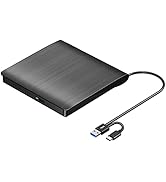
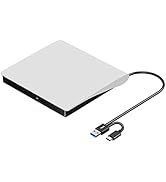
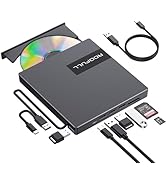
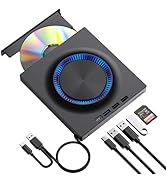
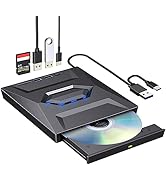
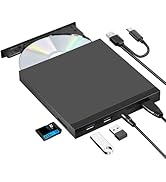
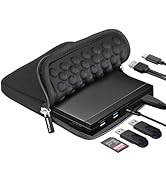
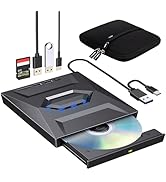
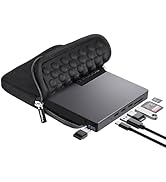
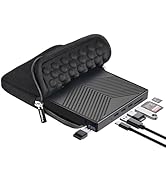
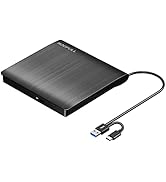
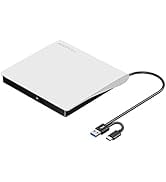
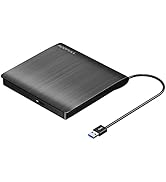
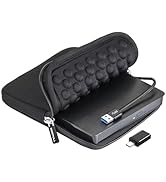
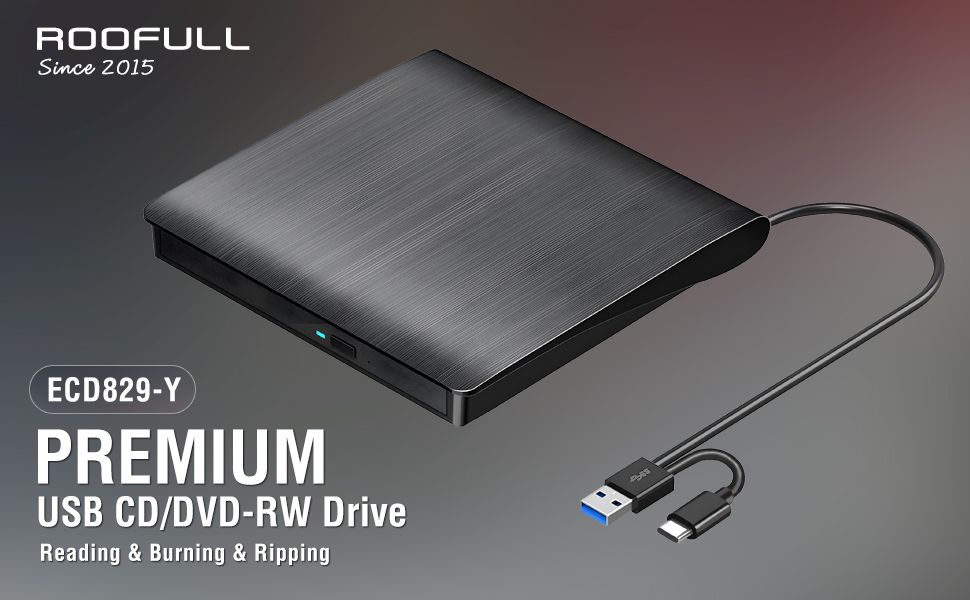
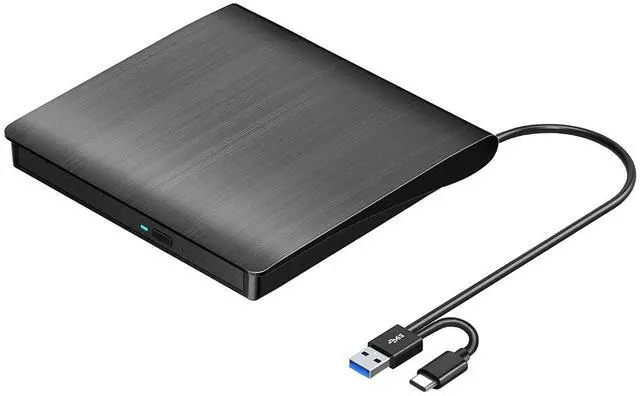
As laptops become thinner and lighter, internal CD and DVD drives are becoming a rarity. However, many people still treasure their collections of CDs and DVDs from the 90s. The ROOFULL BCD829-Y external CD/DVD drive is an essential tool for anyone who wants to revisit their old music albums and enjoy a DVD movie collection.
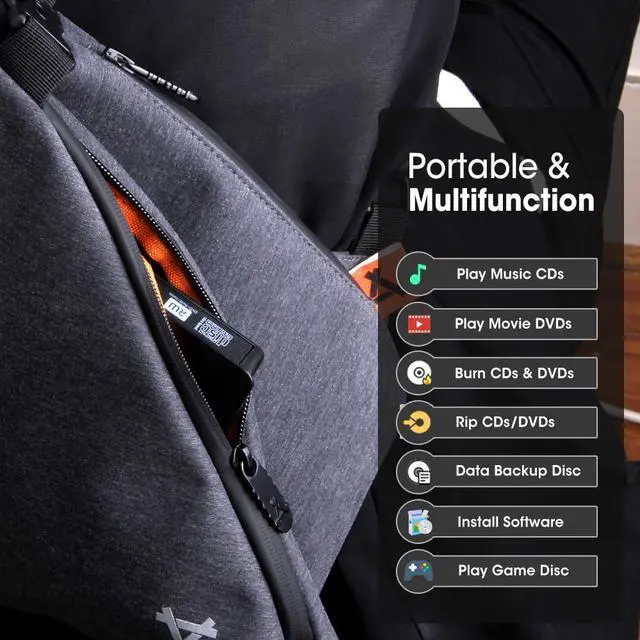
In addition, this is not just a simple CD/DVD player for playing music CDs, and movie DVDs, it's also a burner writer rewriter ripper recorder. You can use it to burn your music CDs, digitize your old music CDs, convert them to MP3, copy audio files to your computer, create custom mixtapes or back up your photos and videos, install software or games from a disk, or have a reliable solution for data transfer and system backups. It’s easy with the ROOFULL BCD829-Y. The drive supports a variety of disc formats, including CD-R/RW, DVD±R/RW, DVD-RAM, VCD, and SVCD, making it a valuable tool for various multimedia tasks.
Luckily, we’ve got you covered. This ?ECD829-Y not only has an ultra-thin and compact shape, but it also uses a true high-speed USB 3.0 solution. Simply connect the data cable to your computer, and it will automatically install the driver, and then you can experience smooth reading, burning, and ripping CD/DVD functions through the media player or burning software. Scroll down to view supported disc types, detailed usage steps, and recommended software.
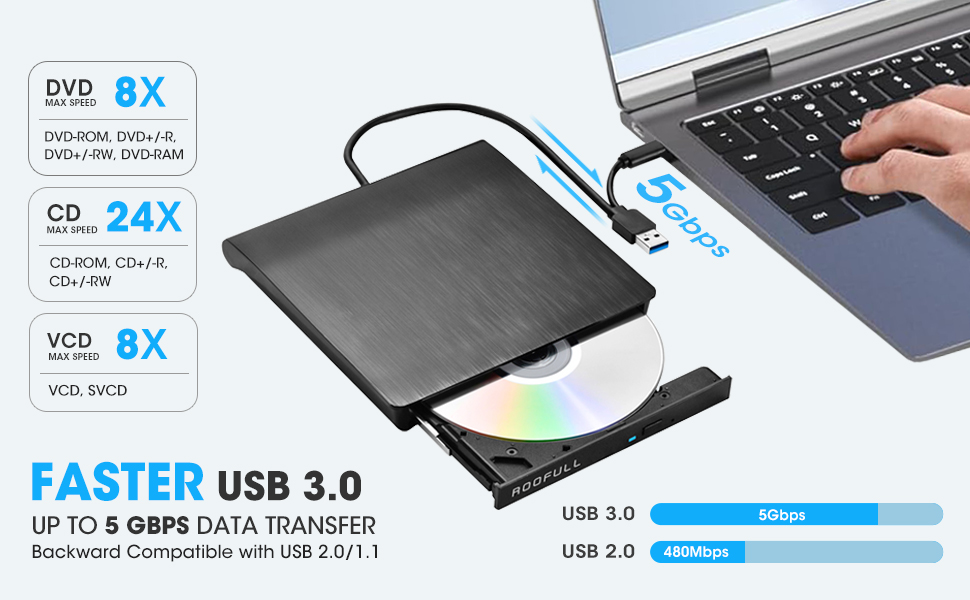
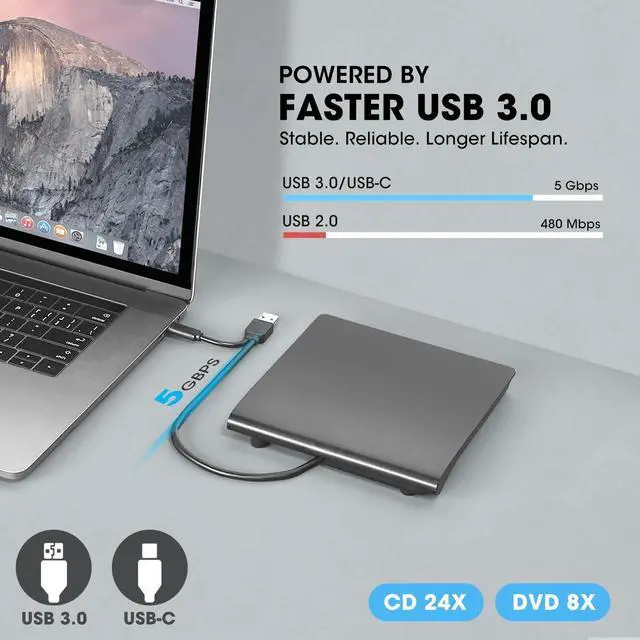
Upgraded USB 3.0 not only supports high-speed transfers up to 5 Gbps — 10 times faster than USB 2.0 — with DVD 8X and CD 24X max read/write, but also offers smooth, stable, and reliable operation with enhanced error correction and noise reduction for long-lasting use.
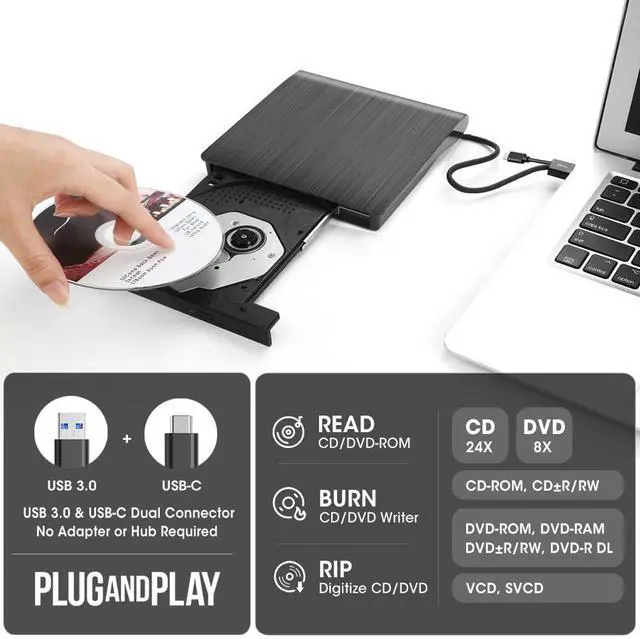
Supported Disc Types: Support the reading, burning (writing/rewriting), and ripping (digitizing) of multiple types of discs, including CD-ROM, CD-R, CD±RW, DVD-ROM, DVD-RAM, DVD±R, DVD±RW, DVD±R DL, VCD, SVCD. (Blu-ray Disc is NOT supported)
Max Read/Write Speeds: CD-ROM 24x, CD-R 24x, CD±RW 8x, DVD-ROM 8x, DVD±R 8x, DVD±RW 8x, DVD±R DL 4x. (Tips: The drive gradually increases speed from the inner to the outer edge, with a slower startup speed that reaches maximum performance as it progresses.)
Recommended Burning & Ripping Speed: While the maximum read/write speeds for CDs are 24X and 8X for DVDs, we recommend burning or ripping at 10X or lower for CDs, and 4X to 8X for DVDs. Slower speeds, such as 4X or 8X, are ideal for ensuring data integrity, especially with high-capacity or dual-layer discs. These speeds enable more precise data encoding, reducing the risk of read errors.
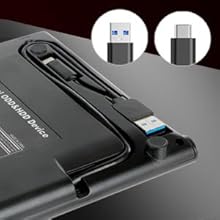
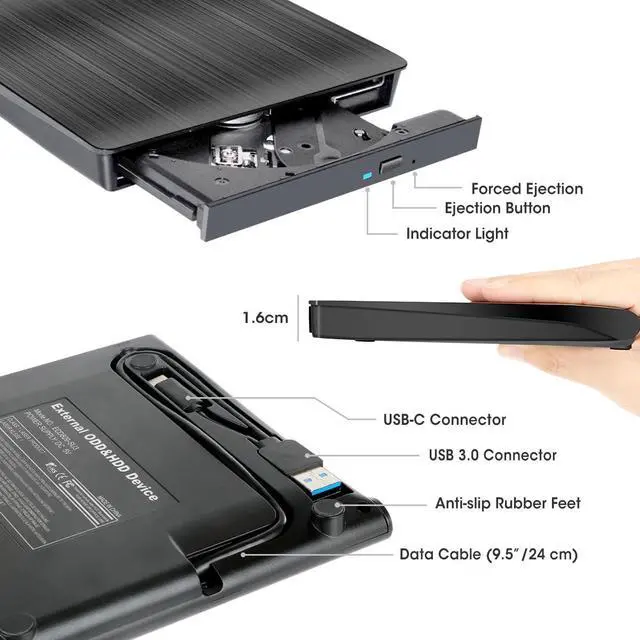
The data cable embedded under the drive has USB 3.0 & USB-C two kinds of connectors on the end, making it easier to connect different laptop or desktop computers without an adapter required and no worries about losing the data cable.
Plug this data cable into your computer, it will install automatically, insert your disc, it will show the device icon.
* Due to the limitation of the design, the data cable length is only about 25 cm/ 9.8 inches.
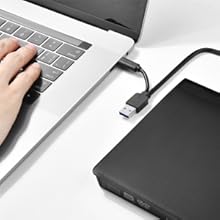
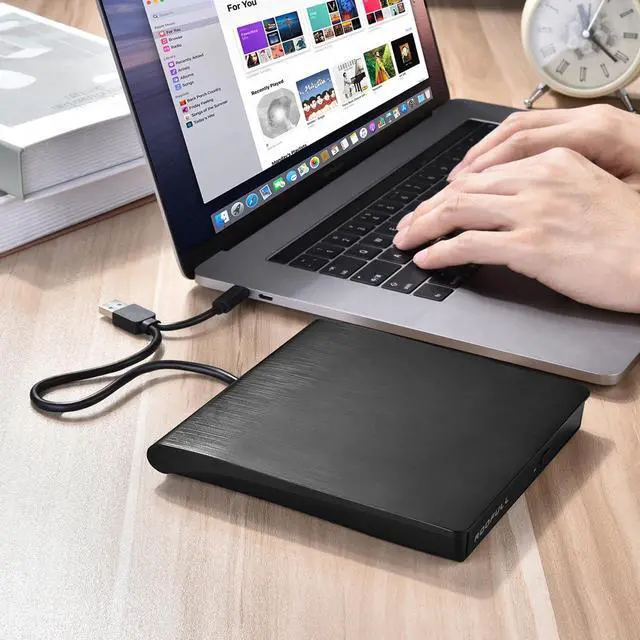
Simply plug the data cable into your computer directly or self-powered USB hub, and the drive will be recognized (on Mac, a disc icon appears on the desktop once a disc is inserted). Then you can use your preferred software to read, burn, or rip discs easily, just like using an internal optical drive.
* Note: Software is required for reading, writing, or copying discs.
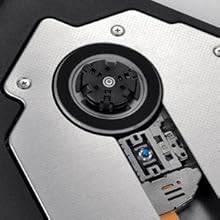
As a professional manufacturer with 10 years of experience dedicated to producing reliable-quality external CD/DVD drives. Each ROOFULL USB CD/DVD drive is equipped with a 100% loader with high speed, strong error correction, anti-shock, noise reduction, and low power consumption, bringing you a faster and smoother experience.
* Please keep your CD/DVD drive flat and ensure that your disc is securely fixed on the tray.
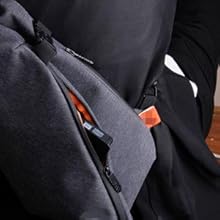
Slim design and lightweight allow us to carry and use this portable external CD/DVD drive anytime, anywhere no matter you are at home, in the office, or during a trip.
* Approximate size: 14.6*14.9*1.7 cm ( 5.74* 5.86* 0.67 inch)
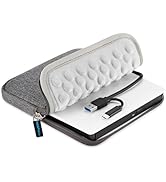
* If you need protective storage carrying case, you can search "B07V4J3WBW" on .
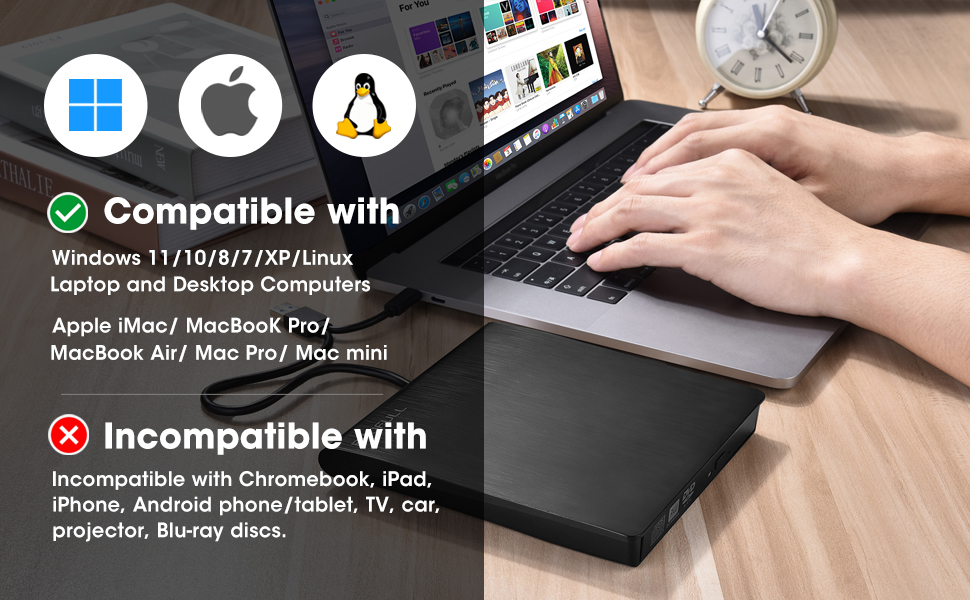
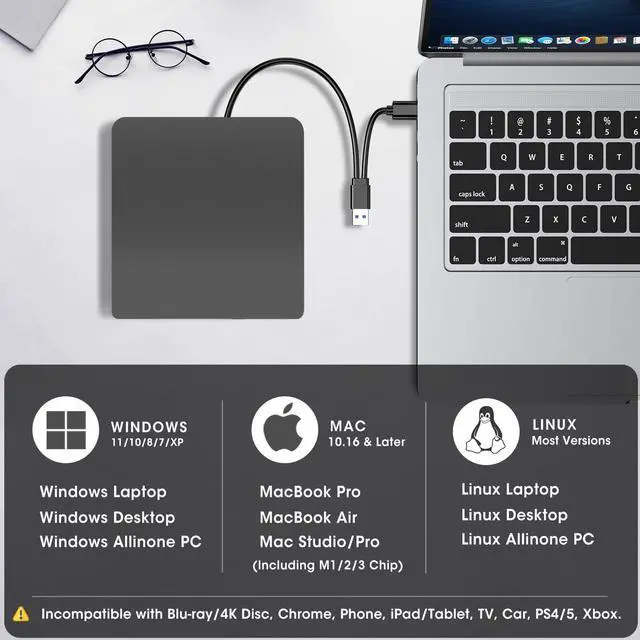
Compatibility: This USB external CD DVD player works with Windows (11, 10, 8, 7, Vista, XP) laptops or desktop PCs, Linux computers, or an Apple MacBook Pro, MacBook Air, iMac, Mac mini, and Mac Studio (Including M1/M2/M3/M4).
Incompatibility: Not working with Chrome OS (Chromebook), Ubuntu OS, TVs, cars, trucks, projectors, tablets, iPads, phones, PS4/5, Xbox, Nintendo Switch, and cannot play Blu-ray discs.
How to Use it on Windows Computers: Prepare the media player, burning, or ripping software based on your needs (not all), and network connection (for Windows 11) > Plug the data cable (located under the drive) into your computer's USB-A or USB-C port directly or a self-powered USB hub. > It will install the driver automatically and you will see a DVD RW icon in Windows Explorer > For video DVDs, set the DVD drive’s region code to match the DVD (e.g. Region 1 for US/Canada) (CDs do not have region code) > Insert your CDs or DVDs > Use the software you’ve prepared to play, burn, or rip the disc > After playback/burning is complete, you can press the button on the panel or right-click the icon to eject the disc.
Recommended Free Software for Windows: Audio CD Media Player (Windows Media Player or VideoLAN VLC Player); Video/Movie DVD Media Player (VideoLAN VLC Player, Kodi, 5KPlayer); Audio CD Burning Software (CDBurnerXP, ImgBurn); Video DVDs Burning Software (ImgBurn, BurnAware Free, CDBurnerXP); Audio CD Ripping Software (Windows Media Player, iTunes, Exact Audio Copy [EAC], Fre:ac); Video DVD Ripping Software (HandBrake, MakeMKV)
How to Set the Region Code in Windows: Right-click the "DVD-RW Drive" icon and select "Properties" > Go to the "Hardware" tab and select your CD/DVD drive > Click "Properties" at the bottom > Open the "DVD Region" tab > Choose the correct region (e.g., USA and CA is 1) and click "OK". (Note: You can only change the region code 4~5 times.)
How to Use it on Apple Mac Computers: Open Finder > Settings (or Preferences, depending on your macOS version) > Ensure "CDs, DVDs, and iOS Devices" is checked in the General Tab and Sidebar Tab if available > Prepare the media player, burning, or ripping software based on your needs (not all) > Take out the data cable (located under the drive) and plug it directly into your computer's USB-A or USB-C port or a self-powered USB hub. > Insert your CDs or DVDs > The disc drive icon will appear on the desktop after a disc is successfully read > Use the software you’ve prepared to play, burn, or rip the disc > After playback/burning, the tray cannot open via the button due to macOS limitations. To eject a disc on Mac computers after playback/burning, right-click on the desktop icon and select "eject," or choose "File" > "Eject" from the menu.
Recommended Free Software for Apple Mac: Audio CDs Media Player (Apple Music, iTunes, VLC Player); Video/Movie DVDs Media Player (VideoLAN VLC Player, Apple DVD Player); Audio CDs Burning Software (Apple Music, Burn, Express Burn); Audio CD Ripping Software (Apple Music, X Lossless Decoder, HandBrake); Video DVDs Burning Software (Burn for Mac, HandBrake, iDVD (Legacy), DVDStyler, iDVD [for old mac]); Video DVD Ripping Software (MakeMKV, HandBrake with VLC - Use VLC to read the DVD, and HandBrake to convert and rip it to your desired format).
Note Before Burning Discs: Before burning an audio or video disc, make sure your blank disc capacity is sufficient, use the right burning software, set the recommended burning speed (10X or lower for CDs and 4X to 8X for DVDs), and the multimedia format is compatible with the blank disc, otherwise the burned disc will not play properly. You can use software (such as HandBrake or Freemake Video Converter) to convert video files to DVD-compatible formats (e.g., MPEG-2) or audio files to CD-compatible formats (e.g., WAV or MP3).

[Windows OS] If your Windows computer recognizes the optical drive, you can see the DVD RW icon in Windows Explorer. If your Windows laptop PC cannot recognize this CD/DVD drive, please try the following suggestions:
[Windows OS] This drive supports CDs and DVDs. If this drive can only play audio CDs but cannot play video/movie DVDs on your Windows PC, please try the methods below:
[Mac OS] The Mac computer will show the device icon after the disc is placed in the optical drive. If your MacBook, iMac, or Mac Pro/Studio cannot recognize this CD/DVD drive, please try the following suggestions:
 ROOFULL External CD DVD +/-RW Drive USB 3.0 & USB-C Portable CD/DVD ROM Playe... |  ROOFULL External CD DVD +/-RW Drive USB 3.0 & USB-C CD Burner DVD Player Read... |  ROOFULL External CD DVD Drive for Mac Laptop, USB 3.0 & USB-C CD DVD Reader W... |  ROOFULL Premium External CD/DVD Drive for Laptop USB 3.0 CD DVD Reader Writer... | 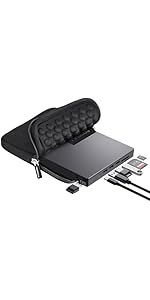 ROOFULL External CD DVD Drive for Laptop 8-in-1 USB 3.0 & USB-C DVD Player CD... | 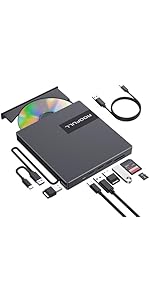 ROOFULL External CD DVD Drive with 4* USB Ports and 2* SD/TF Card Slot for La... | |
|---|---|---|---|---|---|---|
| Customer Reviews | — | — | — | — | — | — |
| Price | — | — | — | — | — | — |
| Connector Type | USB 3.0 Type-A & USB Type-C | USB 3.0 Type-A & USB Type-C | USB 3.0 Type-A & USB Type-C | USB 3.0 Type-A | USB Type-A & USB Type-C | USB 3.0 Type-A & USB Type-C |
| Compatible OS | Windows 11 / 10 / 8.1 / 8 / 7 / XP, Linux, Mac OS 10.16 & Later | Windows 11 / 10 / 8.1 / 8 / 7 / XP, Linux, Mac OS 10.16 & Later | Windows 11 / 10 / 8.1 / 8 / 7 / XP, Linux, Mac OS 10.16 & Later | Windows 11 / 10 / 8.1 / 8 / 7 / XP, Linux, Mac OS 10.16 & Later | Windows 11 / 10 / 8.1 / 8 / 7 / XP, Linux, Mac OS 10.16 & Later | Windows 11 / 10 / 8.1 / 8 / 7 / XP, Linux, Mac OS 10.16 & Later |
| Compatible Devices | Laptops, Desktop, All-In-One PC, MacBook Pro/Air, iMac, Mac Studio | Laptops, Desktop, All-In-One PC, MacBook Pro/Air, iMac, Mac Studio | Laptops, Desktop, All-In-One PC, MacBook Pro/Air, iMac, Mac Studio | Laptops, Desktop, All-In-One PC, MacBook Pro/Air, iMac, Mac Studio | Laptops, Desktop, All-In-One PC, MacBook Pro/Air, iMac, Mac Studio | Laptops, Desktop, All-In-One PC, MacBook Pro/Air, iMac, Mac Studio |
| Supported Disc | CD-R, CD-ROM, CD+/-RW, DVD-ROM, DVD-R, DVD+/-RW, DVD-R DL | CD-R, CD-ROM, CD+/-RW, DVD-ROM, DVD-R, DVD+/-RW, DVD-R DL | CD-R, CD-ROM, CD+/-RW, DVD-ROM, DVD-R, DVD+/-RW, DVD-R DL | CD-R, CD-ROM, CD+/-RW, DVD-ROM, DVD-R, DVD+/-RW, DVD-R DL | CD-R, CD-ROM, CD+/-RW, DVD-ROM, DVD-R, DVD+/-RW, DVD-R DL | CD-R, CD-ROM, CD+/-RW, DVD-ROM, DVD-R, DVD+/-RW, DVD-R DL |
| Max Read/Write Speed | 24xCD / 8xDVD | 24xCD / 8xDVD | 24xCD / 8xDVD | 24xCD / 8xDVD | 24xCD / 8xDVD | 24xCD / 8xDVD |
| Support Read & Burning & Ripping | ? | ? | ? | ? | ? | ? |
| Automatic Installation | ? | ? | ? | ? | ? | ? |
| Incompatible | Chromebook, TV, Car, iPad/Tablet, PS3/4/5, Xbox, Projector, Blu-ray Disc | Chromebook, TV, Car, iPad/Tablet, PS3/4/5, Xbox, Projector, Blu-ray Disc | Chromebook, TV, Car, iPad/Tablet, PS3/4/5, Xbox, Projector, Blu-ray Disc | Chromebook, TV, Car, iPad/Tablet, PS3/4/5, Xbox, Projector, Blu-ray Disc | Chromebook, TV, Car, iPad/Tablet, PS3/4/5, Xbox, Projector, Blu-ray Disc | Chromebook, TV, Car, iPad/Tablet, PS3/4/5, Xbox, Projector, Blu-ray Disc |
| Integrated USB Ports & SD Slot | no data | no data | no data | no data | ? | ? |
As laptops become thinner and lighter, internal CD and DVD drives are becoming a rarity. However, many people still treasure their collections of CDs and DVDs from the 90s. The ROOFULL BCD829-Y external CD/DVD drive is an essential tool for anyone who wants to revisit their old music albums and enjoy a DVD movie collection.
In addition, this is not just a simple CD/DVD player for playing music CDs, and movie DVDs, it's also a burner writer rewriter ripper recorder. You can use it to burn your music CDs, digitize your old music CDs, convert them to MP3, copy audio files to your computer, create custom mixtapes or back up your photos and videos, install software or games from a disk, or have a reliable solution for data transfer and system backups. It’s easy with the ROOFULL BCD829-Y. The drive supports a variety of disc formats, including CD-R/RW, DVD±R/RW, DVD-RAM, VCD, and SVCD, making it a valuable tool for various multimedia tasks.
Luckily, we’ve got you covered. This ?ECD829-Y not only has an ultra-thin and compact shape, but it also uses a true high-speed USB 3.0 solution. Simply connect the data cable to your computer, and it will automatically install the driver, and then you can experience smooth reading, burning, and ripping CD/DVD functions through the media player or burning software. Scroll down to view supported disc types, detailed usage steps, and recommended software.
Upgraded USB 3.0 not only supports high-speed transfers up to 5 Gbps — 10 times faster than USB 2.0 — with DVD 8X and CD 24X max read/write, but also offers smooth, stable, and reliable operation with enhanced error correction and noise reduction for long-lasting use.
Supported Disc Types: Support the reading, burning (writing/rewriting), and ripping (digitizing) of multiple types of discs, including CD-ROM, CD-R, CD±RW, DVD-ROM, DVD-RAM, DVD±R, DVD±RW, DVD±R DL, VCD, SVCD. (Blu-ray Disc is NOT supported)
Max Read/Write Speeds: CD-ROM 24x, CD-R 24x, CD±RW 8x, DVD-ROM 8x, DVD±R 8x, DVD±RW 8x, DVD±R DL 4x. (Tips: The drive gradually increases speed from the inner to the outer edge, with a slower startup speed that reaches maximum performance as it progresses.)
Recommended Burning & Ripping Speed: While the maximum read/write speeds for CDs are 24X and 8X for DVDs, we recommend burning or ripping at 10X or lower for CDs, and 4X to 8X for DVDs. Slower speeds, such as 4X or 8X, are ideal for ensuring data integrity, especially with high-capacity or dual-layer discs. These speeds enable more precise data encoding, reducing the risk of read errors.
The data cable embedded under the drive has USB 3.0 & USB-C two kinds of connectors on the end, making it easier to connect different laptop or desktop computers without an adapter required and no worries about losing the data cable.
Plug this data cable into your computer, it will install automatically, insert your disc, it will show the device icon.
* Due to the limitation of the design, the data cable length is only about 25 cm/ 9.8 inches.
Simply plug the data cable into your computer directly or self-powered USB hub, and the drive will be recognized (on Mac, a disc icon appears on the desktop once a disc is inserted). Then you can use your preferred software to read, burn, or rip discs easily, just like using an internal optical drive.
* Note: Software is required for reading, writing, or copying discs.
As a professional manufacturer with 10 years of experience dedicated to producing reliable-quality external CD/DVD drives. Each ROOFULL USB CD/DVD drive is equipped with a 100% loader with high speed, strong error correction, anti-shock, noise reduction, and low power consumption, bringing you a faster and smoother experience.
* Please keep your CD/DVD drive flat and ensure that your disc is securely fixed on the tray.
Slim design and lightweight allow us to carry and use this portable external CD/DVD drive anytime, anywhere no matter you are at home, in the office, or during a trip.
* Approximate size: 14.6*14.9*1.7 cm ( 5.74* 5.86* 0.67 inch)
* If you need protective storage carrying case, you can search "B07V4J3WBW" on .
Compatibility: This USB external CD DVD player works with Windows (11, 10, 8, 7, Vista, XP) laptops or desktop PCs, Linux computers, or an Apple MacBook Pro, MacBook Air, iMac, Mac mini, and Mac Studio (Including M1/M2/M3/M4).
Incompatibility: Not working with Chrome OS (Chromebook), Ubuntu OS, TVs, cars, trucks, projectors, tablets, iPads, phones, PS4/5, Xbox, Nintendo Switch, and cannot play Blu-ray discs.
How to Use it on Windows Computers: Prepare the media player, burning, or ripping software based on your needs (not all), and network connection (for Windows 11) > Plug the data cable (located under the drive) into your computer's USB-A or USB-C port directly or a self-powered USB hub. > It will install the driver automatically and you will see a DVD RW icon in Windows Explorer > For video DVDs, set the DVD drive’s region code to match the DVD (e.g. Region 1 for US/Canada) (CDs do not have region code) > Insert your CDs or DVDs > Use the software you’ve prepared to play, burn, or rip the disc > After playback/burning is complete, you can press the button on the panel or right-click the icon to eject the disc.
Recommended Free Software for Windows: Audio CD Media Player (Windows Media Player or VideoLAN VLC Player); Video/Movie DVD Media Player (VideoLAN VLC Player, Kodi, 5KPlayer); Audio CD Burning Software (CDBurnerXP, ImgBurn); Video DVDs Burning Software (ImgBurn, BurnAware Free, CDBurnerXP); Audio CD Ripping Software (Windows Media Player, iTunes, Exact Audio Copy [EAC], Fre:ac); Video DVD Ripping Software (HandBrake, MakeMKV)
How to Set the Region Code in Windows: Right-click the "DVD-RW Drive" icon and select "Properties" > Go to the "Hardware" tab and select your CD/DVD drive > Click "Properties" at the bottom > Open the "DVD Region" tab > Choose the correct region (e.g., USA and CA is 1) and click "OK". (Note: You can only change the region code 4~5 times.)
How to Use it on Apple Mac Computers: Open Finder > Settings (or Preferences, depending on your macOS version) > Ensure "CDs, DVDs, and iOS Devices" is checked in the General Tab and Sidebar Tab if available > Prepare the media player, burning, or ripping software based on your needs (not all) > Take out the data cable (located under the drive) and plug it directly into your computer's USB-A or USB-C port or a self-powered USB hub. > Insert your CDs or DVDs > The disc drive icon will appear on the desktop after a disc is successfully read > Use the software you’ve prepared to play, burn, or rip the disc > After playback/burning, the tray cannot open via the button due to macOS limitations. To eject a disc on Mac computers after playback/burning, right-click on the desktop icon and select "eject," or choose "File" > "Eject" from the menu.
Recommended Free Software for Apple Mac: Audio CDs Media Player (Apple Music, iTunes, VLC Player); Video/Movie DVDs Media Player (VideoLAN VLC Player, Apple DVD Player); Audio CDs Burning Software (Apple Music, Burn, Express Burn); Audio CD Ripping Software (Apple Music, X Lossless Decoder, HandBrake); Video DVDs Burning Software (Burn for Mac, HandBrake, iDVD (Legacy), DVDStyler, iDVD [for old mac]); Video DVD Ripping Software (MakeMKV, HandBrake with VLC - Use VLC to read the DVD, and HandBrake to convert and rip it to your desired format).
Note Before Burning Discs: Before burning an audio or video disc, make sure your blank disc capacity is sufficient, use the right burning software, set the recommended burning speed (10X or lower for CDs and 4X to 8X for DVDs), and the multimedia format is compatible with the blank disc, otherwise the burned disc will not play properly. You can use software (such as HandBrake or Freemake Video Converter) to convert video files to DVD-compatible formats (e.g., MPEG-2) or audio files to CD-compatible formats (e.g., WAV or MP3).
[Windows OS] If your Windows computer recognizes the optical drive, you can see the DVD RW icon in Windows Explorer. If your Windows laptop PC cannot recognize this CD/DVD drive, please try the following suggestions:
[Windows OS] This drive supports CDs and DVDs. If this drive can only play audio CDs but cannot play video/movie DVDs on your Windows PC, please try the methods below:
[Mac OS] The Mac computer will show the device icon after the disc is placed in the optical drive. If your MacBook, iMac, or Mac Pro/Studio cannot recognize this CD/DVD drive, please try the following suggestions:
ROOFULL External CD DVD +/-RW Drive USB 3.0 & USB-C Portable CD/DVD ROM Playe... | ROOFULL External CD DVD +/-RW Drive USB 3.0 & USB-C CD Burner DVD Player Read... | ROOFULL External CD DVD Drive for Mac Laptop, USB 3.0 & USB-C CD DVD Reader W... | ROOFULL Premium External CD/DVD Drive for Laptop USB 3.0 CD DVD Reader Writer... | ROOFULL External CD DVD Drive for Laptop 8-in-1 USB 3.0 & USB-C DVD Player CD... | ROOFULL External CD DVD Drive with 4* USB Ports and 2* SD/TF Card Slot for La... | |
|---|---|---|---|---|---|---|
| Customer Reviews | — | — | — | — | — | — |
| Price | — | — | — | — | — | — |
| Connector Type | USB 3.0 Type-A & USB Type-C | USB 3.0 Type-A & USB Type-C | USB 3.0 Type-A & USB Type-C | USB 3.0 Type-A | USB Type-A & USB Type-C | USB 3.0 Type-A & USB Type-C |
| Compatible OS | Windows 11 / 10 / 8.1 / 8 / 7 / XP, Linux, Mac OS 10.16 & Later | Windows 11 / 10 / 8.1 / 8 / 7 / XP, Linux, Mac OS 10.16 & Later | Windows 11 / 10 / 8.1 / 8 / 7 / XP, Linux, Mac OS 10.16 & Later | Windows 11 / 10 / 8.1 / 8 / 7 / XP, Linux, Mac OS 10.16 & Later | Windows 11 / 10 / 8.1 / 8 / 7 / XP, Linux, Mac OS 10.16 & Later | Windows 11 / 10 / 8.1 / 8 / 7 / XP, Linux, Mac OS 10.16 & Later |
| Compatible Devices | Laptops, Desktop, All-In-One PC, MacBook Pro/Air, iMac, Mac Studio | Laptops, Desktop, All-In-One PC, MacBook Pro/Air, iMac, Mac Studio | Laptops, Desktop, All-In-One PC, MacBook Pro/Air, iMac, Mac Studio | Laptops, Desktop, All-In-One PC, MacBook Pro/Air, iMac, Mac Studio | Laptops, Desktop, All-In-One PC, MacBook Pro/Air, iMac, Mac Studio | Laptops, Desktop, All-In-One PC, MacBook Pro/Air, iMac, Mac Studio |
| Supported Disc | CD-R, CD-ROM, CD+/-RW, DVD-ROM, DVD-R, DVD+/-RW, DVD-R DL | CD-R, CD-ROM, CD+/-RW, DVD-ROM, DVD-R, DVD+/-RW, DVD-R DL | CD-R, CD-ROM, CD+/-RW, DVD-ROM, DVD-R, DVD+/-RW, DVD-R DL | CD-R, CD-ROM, CD+/-RW, DVD-ROM, DVD-R, DVD+/-RW, DVD-R DL | CD-R, CD-ROM, CD+/-RW, DVD-ROM, DVD-R, DVD+/-RW, DVD-R DL | CD-R, CD-ROM, CD+/-RW, DVD-ROM, DVD-R, DVD+/-RW, DVD-R DL |
| Max Read/Write Speed | 24xCD / 8xDVD | 24xCD / 8xDVD | 24xCD / 8xDVD | 24xCD / 8xDVD | 24xCD / 8xDVD | 24xCD / 8xDVD |
| Support Read & Burning & Ripping | ? | ? | ? | ? | ? | ? |
| Automatic Installation | ? | ? | ? | ? | ? | ? |
| Incompatible | Chromebook, TV, Car, iPad/Tablet, PS3/4/5, Xbox, Projector, Blu-ray Disc | Chromebook, TV, Car, iPad/Tablet, PS3/4/5, Xbox, Projector, Blu-ray Disc | Chromebook, TV, Car, iPad/Tablet, PS3/4/5, Xbox, Projector, Blu-ray Disc | Chromebook, TV, Car, iPad/Tablet, PS3/4/5, Xbox, Projector, Blu-ray Disc | Chromebook, TV, Car, iPad/Tablet, PS3/4/5, Xbox, Projector, Blu-ray Disc | Chromebook, TV, Car, iPad/Tablet, PS3/4/5, Xbox, Projector, Blu-ray Disc |
| Integrated USB Ports & SD Slot | no data | no data | no data | no data | ? | ? |
As one of the earliest professional external optical drive manufacturers invited to join , ROOFULL has sold over 3,240,000 pieces of CD/DVD drives since 2015.
We prioritize exceptional product quality, with each drive undergoing rigorous testing. Additionally, we are ready to assist with any inquiries or issues, ensuring support and satisfaction at every step.
Choose ROOFULL for reliable optical drives and outstanding customer support.
External CD/DVD Drive for Mac & Windows laptops a versatile, all-in-one solution designed to enhance your digital experience. Whether you need a reliable CD burner for Mac, a CD reader for laptops, or simply an external DVD drive for your everyday media needs, this sleek device is built to deliver superior performance while fitting perfectly into your modern lifestyle. Versatile Functionality This portable disk drive isnt just an external CD drive for laptop use; its also an excellent external CD DVD drive for PC and Mac users alike. Use it as a dvd player for laptop when enjoying your favorite movies, or switch to cd burner mode for laptop and cd writer functions when transferring important data or converting cd to digital formats. Its dual compatibility makes it a smart choice whether youre burning a DVD, reading a CD-ROM, or converting discs to USB for quick backups. Seamless Connectivity & User-Friendly Design Equipped with a USB interface, the external CD/DVD drive offers plug-and-play simplicity. Connect it to your laptop or desktop computer without the need for additional drivers or complicated setup procedures. Its compact design ensures that its an ideal external optical drive for those on the go perfect for turning your laptop into a fully functional media center wherever you are. Whether youre using it as a usb dvd drive external, usb cd drive, or usb cd dvd external drive, its convenience and efficiency will meet all your data transfer and media playback needs. Broad Application and Wide Compatibility Designed with versatility in mind, this device serves multiple roles: CD/DVD Burning & Reading: Acts as a reliable cd burner for Mac, cd burner for laptop, and cd reader for both PC and Mac. Media Playback: Enjoy your favorite discs with ease, whether its using it as a dvd player for laptop or a portable dvd player for laptop. Data Conversion: Easily convert cd to digital formats, transfer cd to computer, or even use cd to usb converter features for quick data backups. Multiple Formats: From cd rom external drive for laptop use to external cd dvd drive for desktop setups, this device handles a range of formats including dvd burner, dvd drive usb external, and more. Built for Convenience and Portability The drive is more than just a disk drive its a multi-functional tool designed to simplify your digital life. Use it as an external cd burner, an external dvd burner, or an external disc drive for laptop. Its compatibility spans across different devices and operating systems, making it the perfect accessory whether youre at home, in the office, or on the road. Enjoy the ease of cd adapter for laptop and cd adapter for Mac functionalities without sacrificing performance or style. Upgrade your digital toolkit with the External CD/DVD Drive where reliability, versatility, and simplicity converge to provide a seamless media experience. Whether youre converting old discs, backing up important files, or simply watching a movie, this drive is engineered to deliver consistent, high-quality performance that fits perfectly into your lifestyle.


