




 here!
here!
I’m your shopping assistant for PC builds, upgrades, and everything tech.
Got questions? Ask away!
Start a conversation
here!
I’m your shopping assistant for PC builds, upgrades, and everything tech.
Got questions? Ask away!
Start a conversation



Any questions? Ask CelesteSM will help you find out quickly.

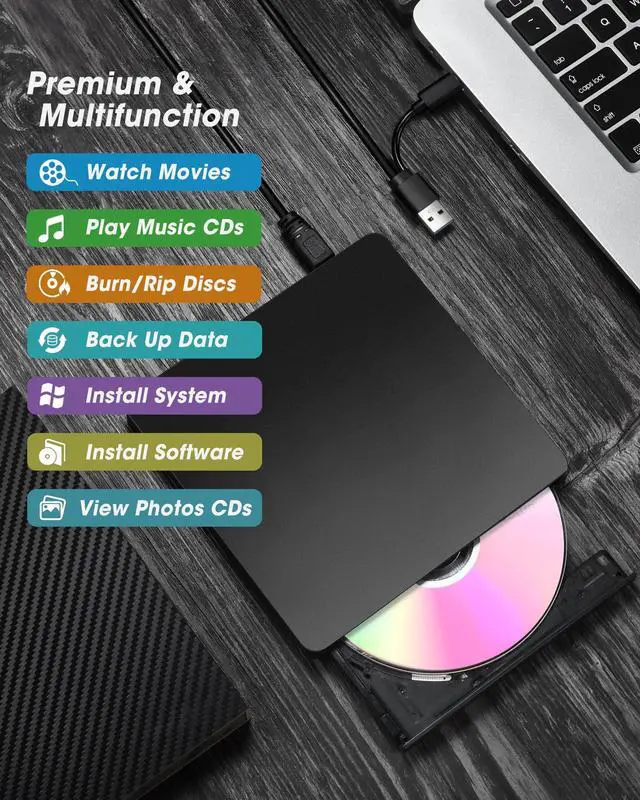
As laptops and desktops become thinner and more compact, most no longer include built-in CD/DVD drives. However, many of us still need to use discs from time to time—whether it's revisiting a collection of old music CDs or movie DVDs, viewing precious family photos and videos stored on discs, or burning a custom music CD. In these moments, a compact external CD/DVD drive is the perfect solution.
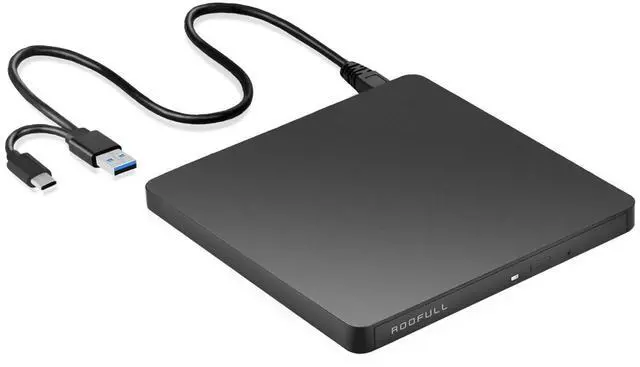
The ROOFULL ultra-slim external CD/DVD reader and writer makes it easy to:
Plug and Play? Yes. No extra driver installation or complicated setup required. Just plug the USB 3.0 type-A or type-C connector on the data cable into your computer, and it will be automatically recognized. Then simply insert a disc and use your preferred media player, burning, or ripping software (yes, software is required) to read, write, or digitize your disks. It’s just as easy to use as the built-in drives we used to rely on.
Tips: On Mac, the disc icon won't appear on the desktop until the disc is inserted and successfully read. Due to macOS limitations, the tray cannot be opened via the button after playing or burning a disc. To eject a disc on a Mac, right-click the desktop icon and select "Eject," or go to "File" > "Eject" from the menu.

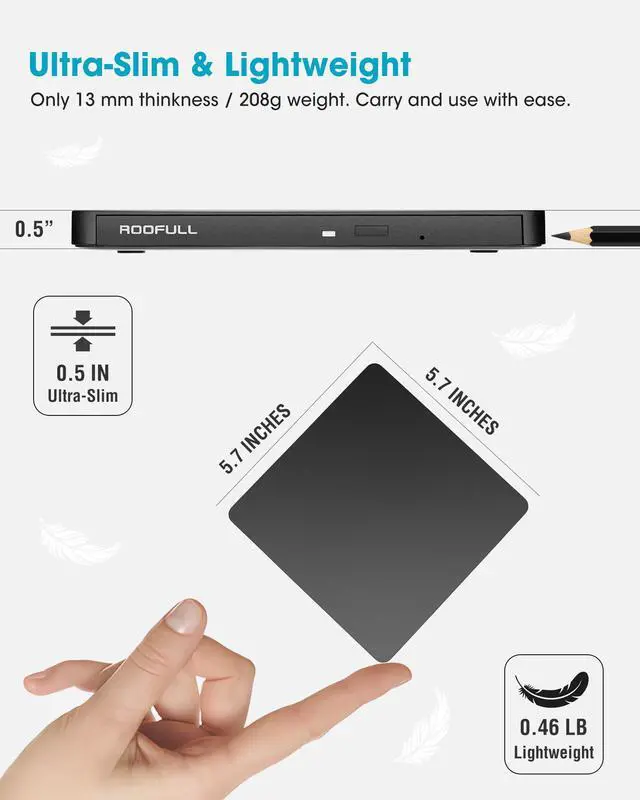
For ultimate portability, this CD drive eliminates unnecessary design elements, boasts a compact and sleek design with a thickness of just 13mm, making it one of the slimmest external drives available. Its lightweight and space-saving build makes it perfect for those always on the go, whether you're a student, professional, or traveler. Easily fitting into your bag without adding noticeable bulk, you can conveniently play, burn, and back up CDs/DVDs anytime, anywhere, without increasing the size of your device.
After carefully analyzing customer feedback across the market, we found that most external DVD drives come with very short data cables due to power limitations. To address this issue, we optimized the power management of our drive and extended the cable to 48cm (18.9 inches), making it much more convenient to use in various scenarios.

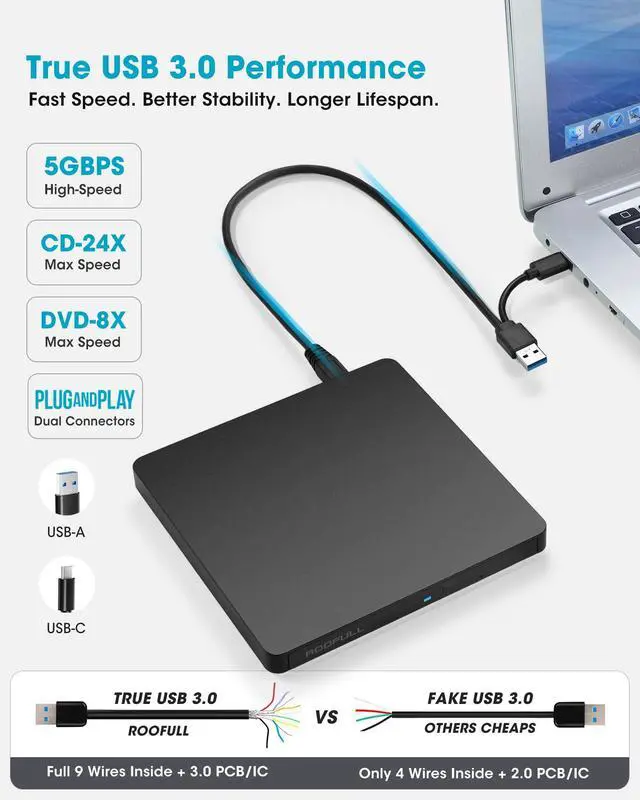
True USB 3.0 Compliance: Unlike those low-cost DVD drives that claim USB 3.0 by using a look-alike blue connector but internally rely on a USB 20 setup (e.g., only 4 internal wires), our CD/DVD drive burner features a genuine USB 3.0 solution with a genuine 9-pin connector and fully implemented data lines, backed by a dedicated USB 3.0 PCB design and controller IC. It delivers data transfer speeds of up to 5 Gbps/625 MB/s (approximately 10 times faster than USB 2.0) and supports maximum read/write speeds of 24x for CDs and 8x for DVDs, ensuring smooth, efficient performance and longer working lifespan.
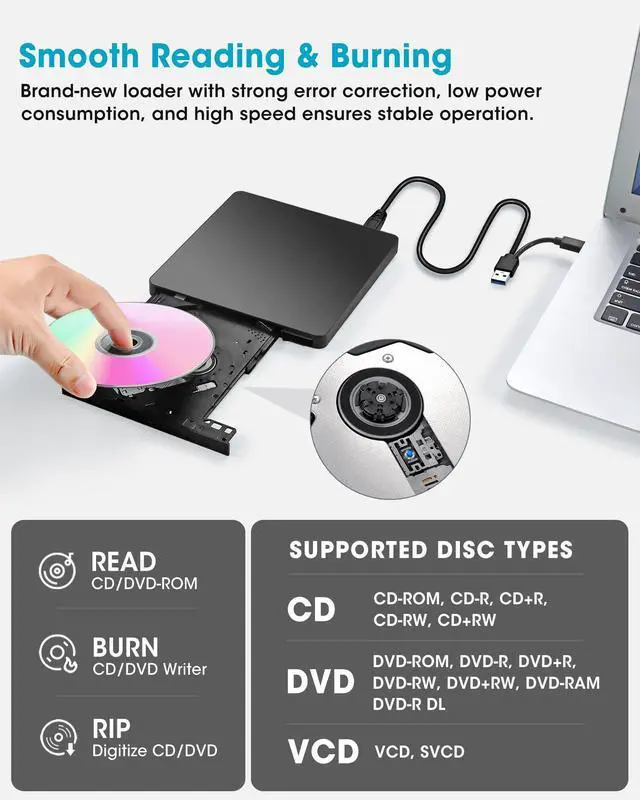
Supported Disc Types: Support the reading, burning (writing/rewriting), and ripping (digitizing) of multiple types of discs, including CD-ROM, CD-R, CD±RW, DVD-ROM, DVD-RAM, DVD±R, DVD±RW, DVD±R DL, VCD, SVCD. (Blu-ray, 4K, and some M-discs are NOT supported)
Max Read/Write Speeds: CD-ROM 24x, CD-R 24x, CD±RW 8x, DVD-ROM 8x, DVD±R 8x, DVD±RW 8x, DVD±R DL 4x. (Tips: The drive gradually increases speed from the inner to the outer edge, with a slower startup speed that reaches maximum performance as it progresses.)
Safe Burning & Ripping Speed: While the maximum read/write speeds for CDs are 24X and 8X for DVDs, we recommend burning or ripping at 10X or lower for CDs, and 4X to 8X for DVDs. Slower speeds, such as 4X or 8X, are ideal for ensuring data integrity, especially with high-capacity or dual-layer discs. These speeds enable more precise data encoding, reducing the risk of read errors.

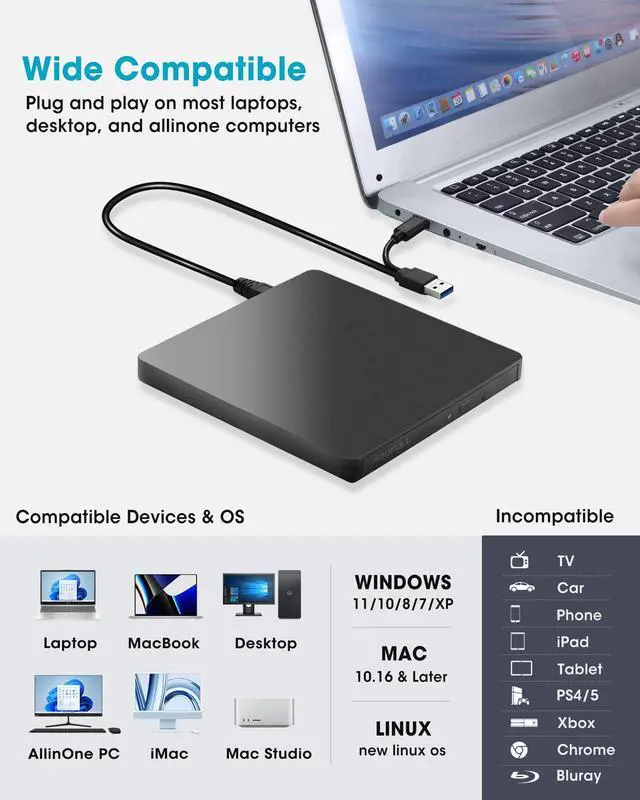
The attached data cable is not only long enough for flexible use, but also features both USB 3.0 and USB-C connectors on the end, making it easy to connect to most new and old laptops or desktop computers without the need for an adapter or hub.

In addition to the data cable, this drive also comes with a USB to 2.5mm power cord. If your computer’s USB port can’t provide enough power, simply connect this extra power cord to a power bank or adapter to ensure stable and sufficient power for smooth operation.

In addition to its ultra-thin design, this CD drive features a sleek, modern look. Crafted from quality materials with fine workmanship, it offers durability and a refined texture. Its stylish design and reliable performance make it ideal for daily use or travel.
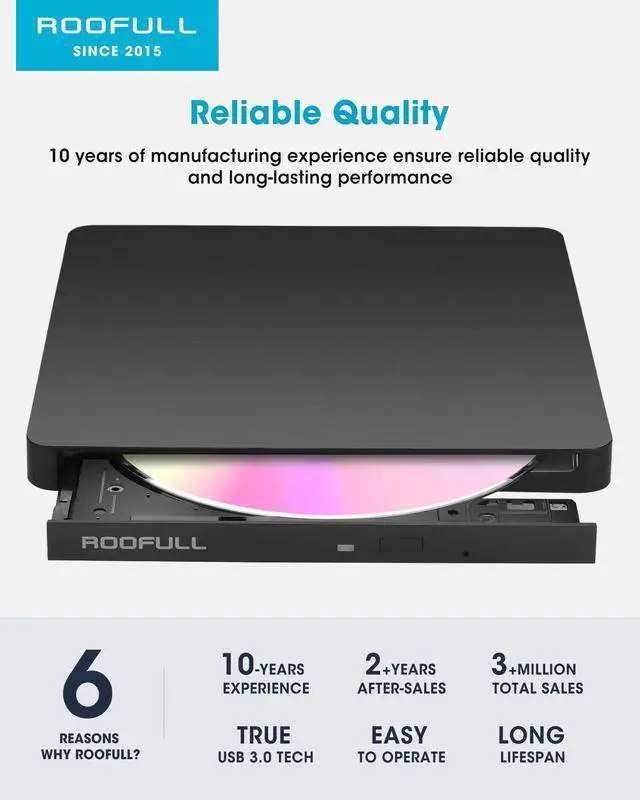
As a professional manufacturer with 10 years of experience in external DVD drives, ROOFULL delivers reliable quality. Each drive uses a high-speed loader with strong error correction, anti-shock, noise reduction, and low power consumption for smooth performance.
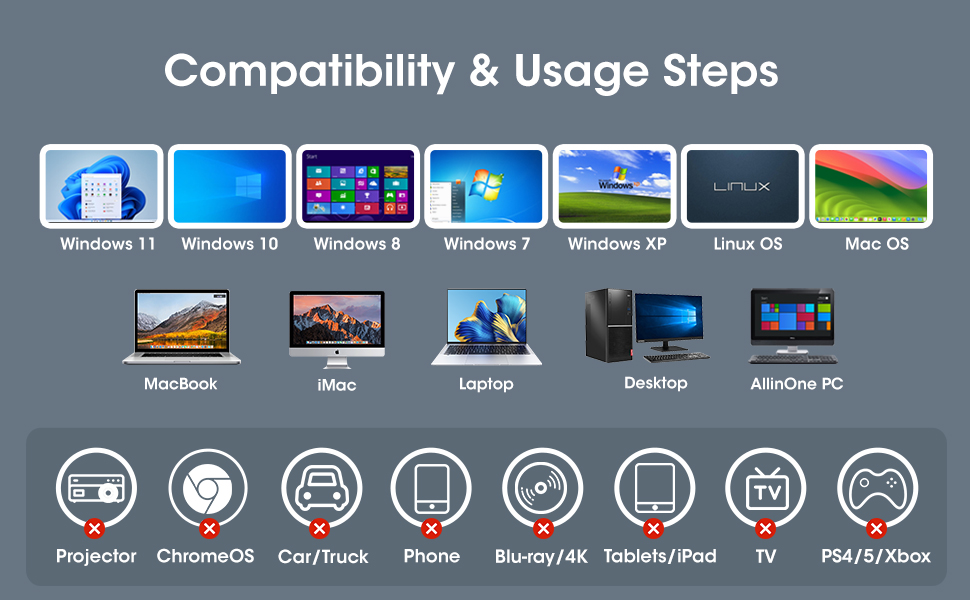
Compatibility: This USB external CD/DVD player for PC is compatible with Windows laptops and desktops (11, 10, 8, 7, Vista, XP), Linux computers, and Apple devices including MacBook Pro, MacBook Air, iMac, Mac mini, and Mac Studio (including M1, M2, M3, and M4 chips).
Incompatibility: This drive is not compatible with Chrome OS (Chromebooks), TVs, cars, trucks, projectors, tablets, iPads, smartphones, gaming consoles (PS4/PS5, Xbox, Nintendo Switch), and it cannot play Blu-ray discs.
How to Use on Windows Computers: Prepare playback, burning, or ripping software based on your needs, and network connection for Windows 11 > Connect the data cable to your computer's USB-A or USB-C port directly, or through a self-powered USB hub > The system will automatically install the necessary driver, and a “DVD RW” icon will appear in Windows Explorer > For video DVDs, make sure to set the DVD region code to match your disc (e.g., Region 1 for US/Canada); CDs do not require a region setting > Insert the CD or DVD, then use your chosen software to play, burn, or rip > When finished, eject the disc by pressing the physical button or right-clicking the icon and selecting “Eject.”
Trusted Free Software for Windows: For audio CD playback, use Windows Media Player or VLC; for video DVD playback, try VLC, Kodi, or 5KPlayer; to burn audio CDs, use CDBurnerXP or ImgBurn; for burning video DVDs, use ImgBurn, BurnAware Free, or CDBurnerXP; to rip audio CDs, consider Windows Media Player, iTunes, Exact Audio Copy (EAC), or Fre:ac; to rip video DVDs, use HandBrake or MakeMKV.
How to Set the Region Code in Windows: Right-click the "DVD-RW Drive" icon and select "Properties" > Go to the "Hardware" tab and select your CD/DVD drive > Click "Properties" at the bottom > Open the "DVD Region" tab > Choose the correct region (e.g. Region 1 for US/Canada) and click "OK". (Note: You can only change the region code 4~5 times.)
How to Use it on Apple Mac Computers: Open Finder > Settings (or Preferences, depending on your macOS version) > Ensure "CDs, DVDs, and iOS Devices" is checked in the General Tab and Sidebar Tab if available > Prepare the media player, burning, or ripping software based on your needs (not all) > Plug the data cable into your computer's USB-A or USB-C port directly or a self-powered USB hub > Insert your CDs or DVDs > The disc drive icon will appear on the desktop after a disc is successfully read > Use your installed software to play, burn, or rip the disc > After playback/burning, the tray cannot open via the button due to macOS limitations. To eject a disc on Mac computers after playback/burning, right-click on the desktop icon and select "eject," or choose "File" > "Eject" from the menu.
Trusted Free Software for Apple Mac: For audio CDs, use Apple Music, iTunes, or VLC; for video DVD playback, use VLC or Apple DVD Player; for burning audio CDs, try Apple Music, Burn, or Express Burn; to burn video DVDs, use Burn for Mac, HandBrake, DVDStyler, or iDVD (for older systems); to rip audio CDs, use Apple Music, X Lossless Decoder (XLD), or HandBrake; to rip video DVDs, use MakeMKV or HandBrake with VLC (to read protected DVDs).
What's the Burning & Ripping: “Burning” means copying music, videos, or files from your computer onto a blank CD or DVD, while “ripping” means copying content from a CD or DVD onto your computer. These processes let you create custom discs or save physical media digitally.
Note Before Burning Discs: Before burning, ensure your blank disc capacity is sufficient (CD-R/CD-RW: 700MB or 80 min audio; DVD-R/DVD+R: 4.7GB or 2 hours video; Dual Layer DVD: 8.5GB for long videos), use the proper burning software, set a safe burning speed (10X or lower for CDs and 4X to 8X for DVDs), and confirm the file format is compatible with the blank disc (Supported audio formats: WAV, MP3, WMA, AAC [M4A]. For car or home CD players, burn in CD-DA format; Use MPEG-2, VOB, or MPG for DVD-Video.). To convert files into disc-compatible formats, use Burn (for Mac), DVDStyler (for Windows & Mac), or CDBurnerXP (for Windows). If burning a data disc for storage, you can include any standard file types without format conversion.
About Photo/Image Discs: Some photos cannot be viewed or downloaded on Mac and Windows due to incompatible disc formats, unsupported image files, copy protection, or disc damage. Both systems support JPEG, PNG, TIFF, BMP, GIF, HEIF, and most RAW formats, but some RAW files may need Preview, Photos, or third-party software to open.
About Data Cable & Power Supply Cord: The data cable connects your PC and has both USB 3.0 Type-A and Type-C connectors for easy use. It handles data transfer and power from your computer. If your PC’s USB port doesn’t supply enough power, use the separate power cord included to plug into a 5V USB charger or power bank. This helps keep the drive running smoothly and avoids read or burn errors.

[Windows OS] If your Windows computer recognizes the optical drive, you can see the DVD-RW icon in Windows Explorer. If your Windows laptop PC cannot recognize this CD/DVD drive, please try the following suggestions:
[Windows OS] This drive supports CDs and DVDs. If this drive can only play audio CDs but cannot play video/movie DVDs on your Windows PC, please try the methods below:
[Mac OS] The Mac computer will show the device icon after the disc is placed in the optical drive. If your MacBook, iMac, or Mac Pro/Studio cannot recognize this CD/DVD drive, please try the following suggestions:
 ROOFULL External CD DVD Drive for Laptop PC, USB 3.0 & USB-C 13mm Ultra Slim ... |  ROOFULL External CD DVD +/-RW Drive USB 3.0 & USB-C CD Burner DVD Player Read... |  ROOFULL External CD DVD Drive USB 3.0 Portable DVD & CD-ROM +/-RW Player Burn... |  ROOFULL External CD DVD Drive for Laptop, USB 3.0 Type-C Portable DVD/CD ROM ... |  ROOFULL External CD DVD Drive, CD Burner DVD Player USB 3.0 with 4 USB Port H... |  ROOFULL External CD DVD Drive USB 3.0 & USB-C, 8 IN 1 CD/DVD-ROM Player Burne... | |
|---|---|---|---|---|---|---|
| Customer Reviews | — | — | — | — | — | — |
| Price | — | — | — | — | — | — |
| Connector Type | USB 3.0 Type-A & USB Type-C | USB 3.0 Type-A & USB Type-C | USB 3.0 Type-A | USB 3.0 Type-A & Type-C Adapter | USB Type-A & USB Type-C | USB 3.0 Type-A & USB Type-C |
| Compatible OS | Windows 11 / 10 / 8.1 / 8 / 7 / XP, Linux, MacOS 10.16 and Later | Windows 11 / 10 / 8.1 / 8 / 7 / XP, Linux, MacOS 10.16 and Later | Windows 11 / 10 / 8.1 / 8 / 7 / XP, Linux, MacOS 10.16 and Later | Windows 11 / 10 / 8.1 / 8 / 7 / XP, Linux, MacOS 10.16 and Later | Windows 11 / 10 / 8.1 / 8 / 7 / XP, Linux, MacOS 10.16 and Later | Windows 11 / 10 / 8.1 / 8 / 7 / XP, Linux, MacOS 10.16 and Later |
| Compatible Devices | Laptops & Desktop & All-in-One PCs | Laptops & Desktop & All-in-One PCs | Laptops & Desktop & All-in-One PCs | Laptops & Desktop & All-in-One PCs | Laptops & Desktop & All-in-One PCs | Laptops & Desktop & All-in-One PCs |
| Supported Disc | CD-R, CD-ROM, CD+/-RW, DVD-ROM, DVD-R, DVD+/-RW, DVD-R DL | CD-R, CD-ROM, CD+/-RW, DVD-ROM, DVD-R, DVD+/-RW, DVD-R DL | CD-R, CD-ROM, CD+/-RW, DVD-ROM, DVD-R, DVD+/-RW, DVD-R DL | CD-R, CD-ROM, CD+/-RW, DVD-ROM, DVD-R, DVD+/-RW, DVD-R DL | CD-R, CD-ROM, CD+/-RW, DVD-ROM, DVD-R, DVD+/-RW, DVD-R DL | CD-R, CD-ROM, CD+/-RW, DVD-ROM, DVD-R, DVD+/-RW, DVD-R DL |
| Max R/W Speed | 24xCD / 8xDVD | 24xCD / 8xDVD | 24xCD / 8xDVD | 24xCD / 8xDVD | 24xCD / 8xDVD | 24xCD / 8xDVD |
| Read & Burning & Ripping | ? | ? | ? | ? | ? | ? |
| Automatic Installation | ? | ? | ? | ? | ? | ? |
| Incompatible | Phone/ Tablet/ iPad/ ChromeOS/ TV/ Car/ Projector/ PS4/5/ Blu-ray Disc | Phone/ Tablet/ iPad/ ChromeOS/ TV/ Car/ Projector/ PS4/5/ Blu-ray Disc | Phone/ Tablet/ iPad/ ChromeOS/ TV/ Car/ Projector/ PS4/5/ Blu-ray Disc | Phone/ Tablet/ iPad/ ChromeOS/ TV/ Car/ Projector/ PS4/5/ Blu-ray Disc | Phone/ Tablet/ iPad/ ChromeOS/ TV/ Car/ Projector/ PS4/5/ Blu-ray Disc | Phone/ Tablet/ iPad/ ChromeOS/ TV/ Car/ Projector/ PS4/5/ Blu-ray Disc |
| Extra USB Port Hub & SD Card Slot | no data | no data | no data | no data | ? | ? |
As laptops and desktops become thinner and more compact, most no longer include built-in CD/DVD drives. However, many of us still need to use discs from time to time—whether it's revisiting a collection of old music CDs or movie DVDs, viewing precious family photos and videos stored on discs, or burning a custom music CD. In these moments, a compact external CD/DVD drive is the perfect solution.
The ROOFULL ultra-slim external CD/DVD reader and writer makes it easy to:
Plug and Play? Yes. No extra driver installation or complicated setup required. Just plug the USB 3.0 type-A or type-C connector on the data cable into your computer, and it will be automatically recognized. Then simply insert a disc and use your preferred media player, burning, or ripping software (yes, software is required) to read, write, or digitize your disks. It’s just as easy to use as the built-in drives we used to rely on.
Tips: On Mac, the disc icon won't appear on the desktop until the disc is inserted and successfully read. Due to macOS limitations, the tray cannot be opened via the button after playing or burning a disc. To eject a disc on a Mac, right-click the desktop icon and select "Eject," or go to "File" > "Eject" from the menu.
For ultimate portability, this CD drive eliminates unnecessary design elements, boasts a compact and sleek design with a thickness of just 13mm, making it one of the slimmest external drives available. Its lightweight and space-saving build makes it perfect for those always on the go, whether you're a student, professional, or traveler. Easily fitting into your bag without adding noticeable bulk, you can conveniently play, burn, and back up CDs/DVDs anytime, anywhere, without increasing the size of your device.
After carefully analyzing customer feedback across the market, we found that most external DVD drives come with very short data cables due to power limitations. To address this issue, we optimized the power management of our drive and extended the cable to 48cm (18.9 inches), making it much more convenient to use in various scenarios.
True USB 3.0 Compliance: Unlike those low-cost DVD drives that claim USB 3.0 by using a look-alike blue connector but internally rely on a USB 20 setup (e.g., only 4 internal wires), our CD/DVD drive burner features a genuine USB 3.0 solution with a genuine 9-pin connector and fully implemented data lines, backed by a dedicated USB 3.0 PCB design and controller IC. It delivers data transfer speeds of up to 5 Gbps/625 MB/s (approximately 10 times faster than USB 2.0) and supports maximum read/write speeds of 24x for CDs and 8x for DVDs, ensuring smooth, efficient performance and longer working lifespan.
Supported Disc Types: Support the reading, burning (writing/rewriting), and ripping (digitizing) of multiple types of discs, including CD-ROM, CD-R, CD±RW, DVD-ROM, DVD-RAM, DVD±R, DVD±RW, DVD±R DL, VCD, SVCD. (Blu-ray, 4K, and some M-discs are NOT supported)
Max Read/Write Speeds: CD-ROM 24x, CD-R 24x, CD±RW 8x, DVD-ROM 8x, DVD±R 8x, DVD±RW 8x, DVD±R DL 4x. (Tips: The drive gradually increases speed from the inner to the outer edge, with a slower startup speed that reaches maximum performance as it progresses.)
Safe Burning & Ripping Speed: While the maximum read/write speeds for CDs are 24X and 8X for DVDs, we recommend burning or ripping at 10X or lower for CDs, and 4X to 8X for DVDs. Slower speeds, such as 4X or 8X, are ideal for ensuring data integrity, especially with high-capacity or dual-layer discs. These speeds enable more precise data encoding, reducing the risk of read errors.
The attached data cable is not only long enough for flexible use, but also features both USB 3.0 and USB-C connectors on the end, making it easy to connect to most new and old laptops or desktop computers without the need for an adapter or hub.
In addition to the data cable, this drive also comes with a USB to 2.5mm power cord. If your computer’s USB port can’t provide enough power, simply connect this extra power cord to a power bank or adapter to ensure stable and sufficient power for smooth operation.
In addition to its ultra-thin design, this CD drive features a sleek, modern look. Crafted from quality materials with fine workmanship, it offers durability and a refined texture. Its stylish design and reliable performance make it ideal for daily use or travel.
As a professional manufacturer with 10 years of experience in external DVD drives, ROOFULL delivers reliable quality. Each drive uses a high-speed loader with strong error correction, anti-shock, noise reduction, and low power consumption for smooth performance.
Compatibility: This USB external CD/DVD player for PC is compatible with Windows laptops and desktops (11, 10, 8, 7, Vista, XP), Linux computers, and Apple devices including MacBook Pro, MacBook Air, iMac, Mac mini, and Mac Studio (including M1, M2, M3, and M4 chips).
Incompatibility: This drive is not compatible with Chrome OS (Chromebooks), TVs, cars, trucks, projectors, tablets, iPads, smartphones, gaming consoles (PS4/PS5, Xbox, Nintendo Switch), and it cannot play Blu-ray discs.
How to Use on Windows Computers: Prepare playback, burning, or ripping software based on your needs, and network connection for Windows 11 > Connect the data cable to your computer's USB-A or USB-C port directly, or through a self-powered USB hub > The system will automatically install the necessary driver, and a “DVD RW” icon will appear in Windows Explorer > For video DVDs, make sure to set the DVD region code to match your disc (e.g., Region 1 for US/Canada); CDs do not require a region setting > Insert the CD or DVD, then use your chosen software to play, burn, or rip > When finished, eject the disc by pressing the physical button or right-clicking the icon and selecting “Eject.”
Trusted Free Software for Windows: For audio CD playback, use Windows Media Player or VLC; for video DVD playback, try VLC, Kodi, or 5KPlayer; to burn audio CDs, use CDBurnerXP or ImgBurn; for burning video DVDs, use ImgBurn, BurnAware Free, or CDBurnerXP; to rip audio CDs, consider Windows Media Player, iTunes, Exact Audio Copy (EAC), or Fre:ac; to rip video DVDs, use HandBrake or MakeMKV.
How to Set the Region Code in Windows: Right-click the "DVD-RW Drive" icon and select "Properties" > Go to the "Hardware" tab and select your CD/DVD drive > Click "Properties" at the bottom > Open the "DVD Region" tab > Choose the correct region (e.g. Region 1 for US/Canada) and click "OK". (Note: You can only change the region code 4~5 times.)
How to Use it on Apple Mac Computers: Open Finder > Settings (or Preferences, depending on your macOS version) > Ensure "CDs, DVDs, and iOS Devices" is checked in the General Tab and Sidebar Tab if available > Prepare the media player, burning, or ripping software based on your needs (not all) > Plug the data cable into your computer's USB-A or USB-C port directly or a self-powered USB hub > Insert your CDs or DVDs > The disc drive icon will appear on the desktop after a disc is successfully read > Use your installed software to play, burn, or rip the disc > After playback/burning, the tray cannot open via the button due to macOS limitations. To eject a disc on Mac computers after playback/burning, right-click on the desktop icon and select "eject," or choose "File" > "Eject" from the menu.
Trusted Free Software for Apple Mac: For audio CDs, use Apple Music, iTunes, or VLC; for video DVD playback, use VLC or Apple DVD Player; for burning audio CDs, try Apple Music, Burn, or Express Burn; to burn video DVDs, use Burn for Mac, HandBrake, DVDStyler, or iDVD (for older systems); to rip audio CDs, use Apple Music, X Lossless Decoder (XLD), or HandBrake; to rip video DVDs, use MakeMKV or HandBrake with VLC (to read protected DVDs).
What's the Burning & Ripping: “Burning” means copying music, videos, or files from your computer onto a blank CD or DVD, while “ripping” means copying content from a CD or DVD onto your computer. These processes let you create custom discs or save physical media digitally.
Note Before Burning Discs: Before burning, ensure your blank disc capacity is sufficient (CD-R/CD-RW: 700MB or 80 min audio; DVD-R/DVD+R: 4.7GB or 2 hours video; Dual Layer DVD: 8.5GB for long videos), use the proper burning software, set a safe burning speed (10X or lower for CDs and 4X to 8X for DVDs), and confirm the file format is compatible with the blank disc (Supported audio formats: WAV, MP3, WMA, AAC [M4A]. For car or home CD players, burn in CD-DA format; Use MPEG-2, VOB, or MPG for DVD-Video.). To convert files into disc-compatible formats, use Burn (for Mac), DVDStyler (for Windows & Mac), or CDBurnerXP (for Windows). If burning a data disc for storage, you can include any standard file types without format conversion.
About Photo/Image Discs: Some photos cannot be viewed or downloaded on Mac and Windows due to incompatible disc formats, unsupported image files, copy protection, or disc damage. Both systems support JPEG, PNG, TIFF, BMP, GIF, HEIF, and most RAW formats, but some RAW files may need Preview, Photos, or third-party software to open.
About Data Cable & Power Supply Cord: The data cable connects your PC and has both USB 3.0 Type-A and Type-C connectors for easy use. It handles data transfer and power from your computer. If your PC’s USB port doesn’t supply enough power, use the separate power cord included to plug into a 5V USB charger or power bank. This helps keep the drive running smoothly and avoids read or burn errors.
[Windows OS] If your Windows computer recognizes the optical drive, you can see the DVD-RW icon in Windows Explorer. If your Windows laptop PC cannot recognize this CD/DVD drive, please try the following suggestions:
[Windows OS] This drive supports CDs and DVDs. If this drive can only play audio CDs but cannot play video/movie DVDs on your Windows PC, please try the methods below:
[Mac OS] The Mac computer will show the device icon after the disc is placed in the optical drive. If your MacBook, iMac, or Mac Pro/Studio cannot recognize this CD/DVD drive, please try the following suggestions:
ROOFULL External CD DVD Drive for Laptop PC, USB 3.0 & USB-C 13mm Ultra Slim ... | ROOFULL External CD DVD +/-RW Drive USB 3.0 & USB-C CD Burner DVD Player Read... | ROOFULL External CD DVD Drive USB 3.0 Portable DVD & CD-ROM +/-RW Player Burn... | ROOFULL External CD DVD Drive for Laptop, USB 3.0 Type-C Portable DVD/CD ROM ... | ROOFULL External CD DVD Drive, CD Burner DVD Player USB 3.0 with 4 USB Port H... | ROOFULL External CD DVD Drive USB 3.0 & USB-C, 8 IN 1 CD/DVD-ROM Player Burne... | |
|---|---|---|---|---|---|---|
| Customer Reviews | — | — | — | — | — | — |
| Price | — | — | — | — | — | — |
| Connector Type | USB 3.0 Type-A & USB Type-C | USB 3.0 Type-A & USB Type-C | USB 3.0 Type-A | USB 3.0 Type-A & Type-C Adapter | USB Type-A & USB Type-C | USB 3.0 Type-A & USB Type-C |
| Compatible OS | Windows 11 / 10 / 8.1 / 8 / 7 / XP, Linux, MacOS 10.16 and Later | Windows 11 / 10 / 8.1 / 8 / 7 / XP, Linux, MacOS 10.16 and Later | Windows 11 / 10 / 8.1 / 8 / 7 / XP, Linux, MacOS 10.16 and Later | Windows 11 / 10 / 8.1 / 8 / 7 / XP, Linux, MacOS 10.16 and Later | Windows 11 / 10 / 8.1 / 8 / 7 / XP, Linux, MacOS 10.16 and Later | Windows 11 / 10 / 8.1 / 8 / 7 / XP, Linux, MacOS 10.16 and Later |
| Compatible Devices | Laptops & Desktop & All-in-One PCs | Laptops & Desktop & All-in-One PCs | Laptops & Desktop & All-in-One PCs | Laptops & Desktop & All-in-One PCs | Laptops & Desktop & All-in-One PCs | Laptops & Desktop & All-in-One PCs |
| Supported Disc | CD-R, CD-ROM, CD+/-RW, DVD-ROM, DVD-R, DVD+/-RW, DVD-R DL | CD-R, CD-ROM, CD+/-RW, DVD-ROM, DVD-R, DVD+/-RW, DVD-R DL | CD-R, CD-ROM, CD+/-RW, DVD-ROM, DVD-R, DVD+/-RW, DVD-R DL | CD-R, CD-ROM, CD+/-RW, DVD-ROM, DVD-R, DVD+/-RW, DVD-R DL | CD-R, CD-ROM, CD+/-RW, DVD-ROM, DVD-R, DVD+/-RW, DVD-R DL | CD-R, CD-ROM, CD+/-RW, DVD-ROM, DVD-R, DVD+/-RW, DVD-R DL |
| Max R/W Speed | 24xCD / 8xDVD | 24xCD / 8xDVD | 24xCD / 8xDVD | 24xCD / 8xDVD | 24xCD / 8xDVD | 24xCD / 8xDVD |
| Read & Burning & Ripping | ? | ? | ? | ? | ? | ? |
| Automatic Installation | ? | ? | ? | ? | ? | ? |
| Incompatible | Phone/ Tablet/ iPad/ ChromeOS/ TV/ Car/ Projector/ PS4/5/ Blu-ray Disc | Phone/ Tablet/ iPad/ ChromeOS/ TV/ Car/ Projector/ PS4/5/ Blu-ray Disc | Phone/ Tablet/ iPad/ ChromeOS/ TV/ Car/ Projector/ PS4/5/ Blu-ray Disc | Phone/ Tablet/ iPad/ ChromeOS/ TV/ Car/ Projector/ PS4/5/ Blu-ray Disc | Phone/ Tablet/ iPad/ ChromeOS/ TV/ Car/ Projector/ PS4/5/ Blu-ray Disc | Phone/ Tablet/ iPad/ ChromeOS/ TV/ Car/ Projector/ PS4/5/ Blu-ray Disc |
| Extra USB Port Hub & SD Card Slot | no data | no data | no data | no data | ? | ? |
Ultra-Slim External CD/DVD Drive Your All-in-One Disc Solution Looking for a reliable external CD/DVD drive for your laptop or desktop? This ultra-slim, portable CD/DVD drive is designed to meet all your disc-related needs, whether you're using Windows 11, 10, 8.1, 8, 7, Vista, XP, MacBook Pro, MacBook Air, iMac, Mac mini, or Linux computers. Key Features & Benefits Plug & Play No Drivers Needed Simply connect the CD/DVD drive USB external to your computer via USB 3.0 or USB-C (both cables included), and you're ready to go. No complicated setup or additional software required. Watch Movies & Listen to Music Turn your laptop into a DVD player for laptop or a CD player for laptop, allowing you to enjoy your favorite movies, music, or audiobooks anytime, anywhere. Burn & Backup Your Data Easily create backup discs or burn CDs/DVDs for music, videos, documents, and more. A perfect DVD burner for laptop for students, professionals, and home users. Install Software & Games Need to install old software or classic games? This CD ROM external drive for laptop allows you to access legacy programs and drivers effortlessly. Read & Write Various Disc Formats Supports CD, CD-R, CD-RW, DVD-R, DVD+R, DVD-RW, DVD+RW, and DVD-ROM, making it a versatile DVD drive for laptop and desktop users alike. Dual Interface (USB & USB-C) for Universal Compatibility Works with both older and newer laptops & desktops, ensuring hassle-free connectivity whether you're using a MacBook, iMac, or Windows PC. Portable & Travel-Friendly Designed for mobility, this external DVD player for laptop is lightweight and ultra-slim, making it easy to carry in your bag for work, travel, or school. Quiet & Reliable Performance Equipped with an advanced noise reduction and error correction system, this USB DVD drive ensures smooth, stable operation for a better user experience. Upgrade your computing experience with this high-speed external CD/DVD driveideal for watching DVDs, playing CDs, burning discs, installing software, and backing up important files. Whether you need a CD drive for Mac, a DVD player for PC, or an external CD ROM drive for laptop, this device is your perfect solution. Order yours today and enjoy the convenience of disc playback and burning anywhere, anytime.


