




Bi-Directional HDMI Switch 8K
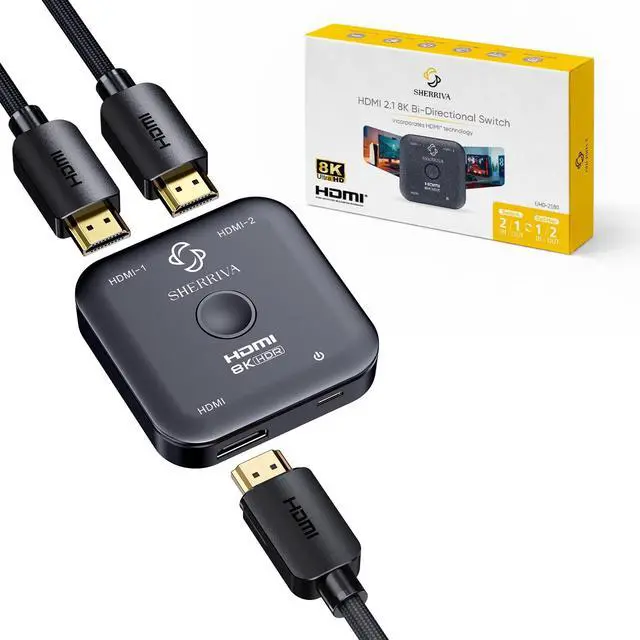
SHERRIVA 8K HDMI Switch 2 in 1 Out
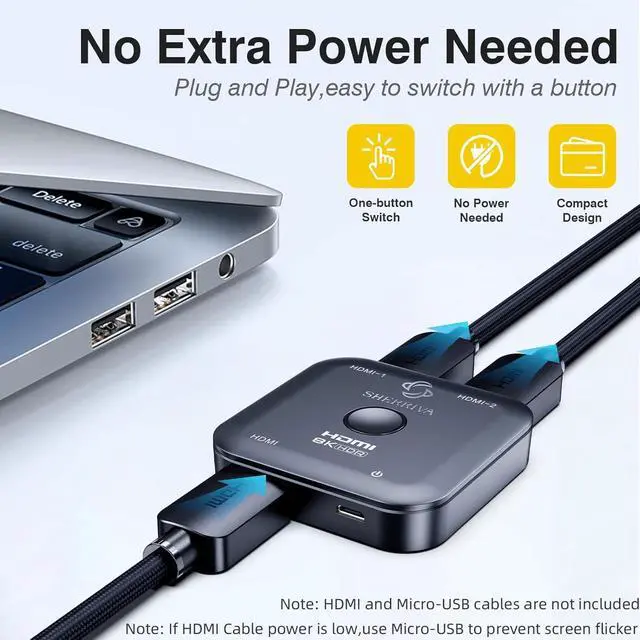
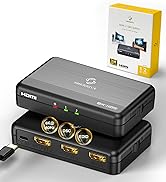
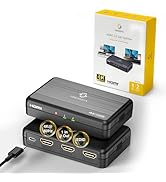
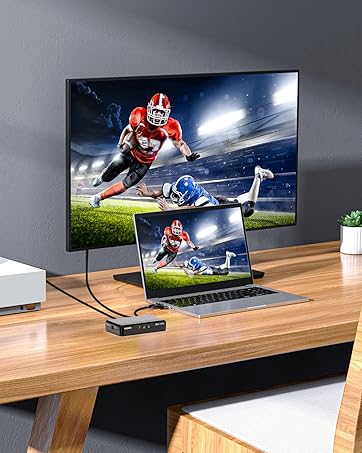
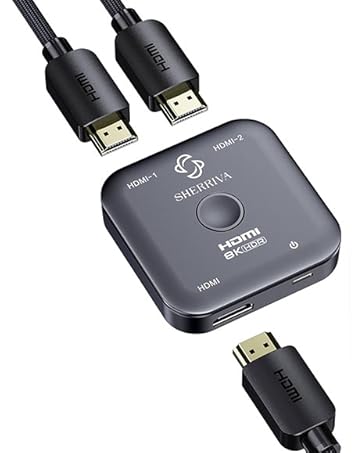
Merchant VideoEasily switch between two HDMI sources or split one device to two displays with this bi-directional HDMI switch. Supports 8K@60Hz, 4K@120Hz, Dolby Audio, and HDR. Features a one-button switch, no power needed, and delivers smooth, lag-free visuals for gaming, streaming, or home theater.
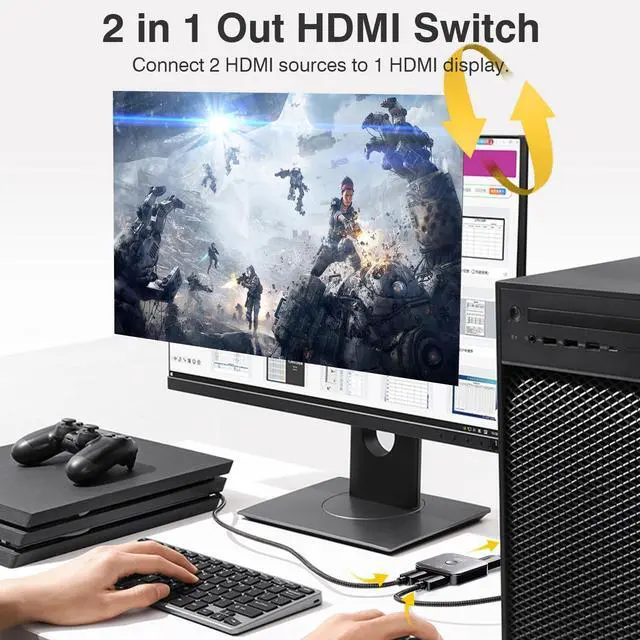
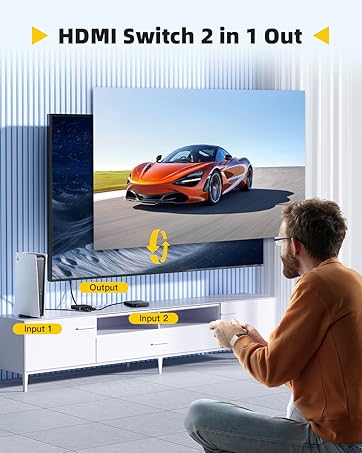
HDMI Switch 2 in 1 Out

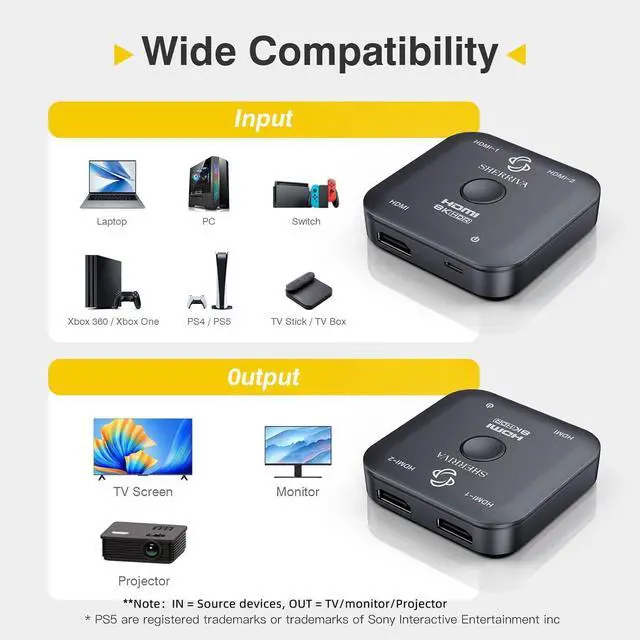
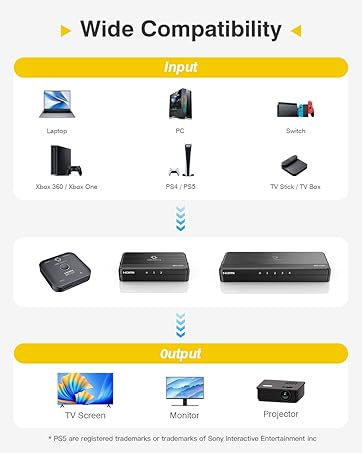
Connect two HDMI sources (like consoles or PCs) to a single display with ease. Switch between devices instantly using the one-button selector—no need to plug or unplug cables. Supports HDMI 2.1, 8K@60Hz, 4K@120Hz, delivering stable, high-quality visuals for gaming, movies, and work.


SHERRIVA HDMI 2.1 8K Bi-Directional Switch
FEATURES
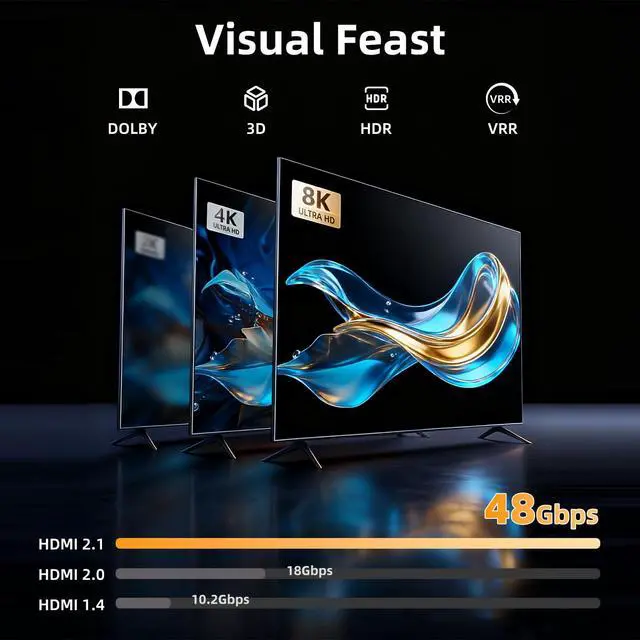
- HDMI 2.1(8K) standard
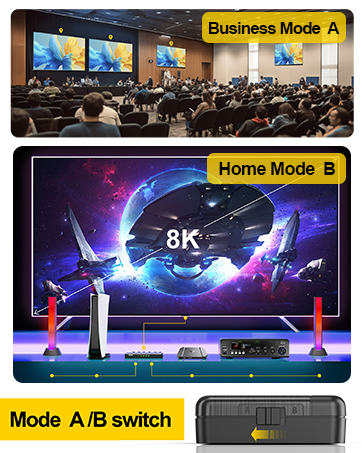
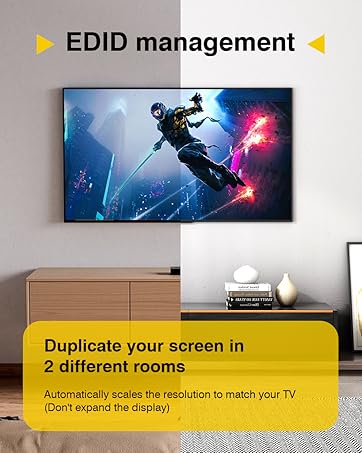
- Bi-Directional function: Switch mode: 2 to 1 / Splitter mode: 1 to 2
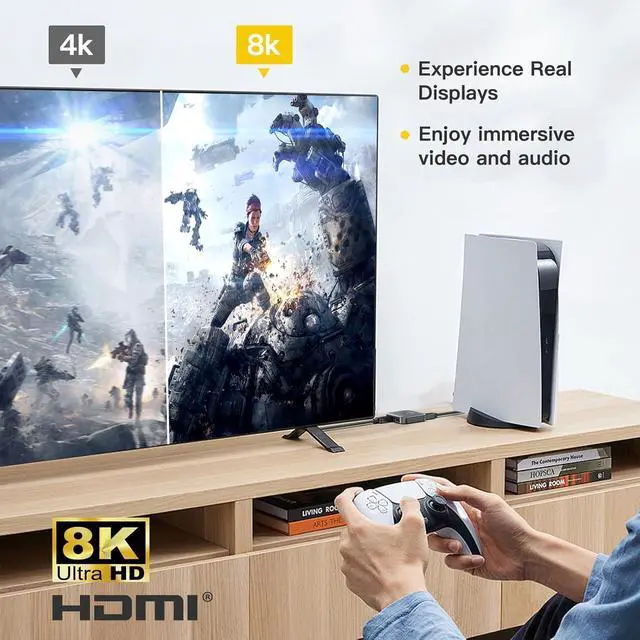
- Supports 8K@60Hz, 4K@165, 144, 120, 60 Hz
- Supports HDR
- Two power supply methods (1). Power by HDMI (2). Micro USB power supply
- Supports Dolby Atmos by HDMI
- Supports CEC
- Supports Video Data Rate 48Gbps
- HDCP 2.3 compliant ? Plug and play, no audio and video delay
Which SHERRIVA HDMI Product Is Right for You?
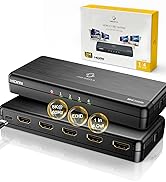
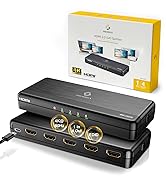
 8K Switch 2 In 1 Out |  4K Splitter 1 In 2 Out |  4K Splitter 1 In 4 Out |  8K Splitter 1 in 2 out |  8K Splitter 1 in 4 out | |
|---|---|---|---|---|---|
Customer Reviews | — | — | — | — | — |
Price | — | — | — | — | — |
Category | Switch | Splitter | Splitter | Splitter | Splitter |
Connector Type | HDMI | HDMI | HDMI | HDMI | HDMI |
Max Resolution | 8K 60Hz | 4K 60Hz | 4K 60Hz | 8K 60Hz | 8K 60Hz |
Max Bandwidth | 48Gbps (HDMI 2.1) | 18Gbps (HDMI 2.0) | 18Gbps (HDMI 2.0) | 48Gbps (HDMI 2.1) | 48Gbps (HDMI 2.1) |
Input (HD Source) | 2 HDMI Sources (Switch) | 1 HDMI Source | 1 HDMI Source | 1 HDMI Source | 1 HDMI Source |
Output (Display) | 1 Port Output | Mirror to 2 Screens | Mirror to 4 Screens | Mirror to 2 Screens | Mirror to 4 Screens |
Gaming Ready | Yes – Up to 240Hz | Yes – 4K 60Hz | Yes – 4K 60Hz | Yes – 4K 120Hz | Yes – 4K 120Hz |
Recommended Use | Switch Between 2 Sources | Home Theater & Dual TV Use | Office / Presentation | Gaming 4K 120Hz | Gaming 4K 120Hz |
Why is there no image on the monitor?
1.Check if all connectors are connected well
2.Check the main unit is powered on
3.If the main unit is not powered on or there is no signal, please connect devices that support USB standard power delivery formats(e.g. TV’s USB port / power adaptor)
Why wouldn’t the resolution display in 8K?
1. Make sure your sources and displays are fully supporting 8K.
2. Make sure your HDMI cables are capable of transmit 8K video signal.
3. Make sure used HDMI 2.1 certification HDMI cable.
Why can’t it display on two monitors at the same time?
1. UHD-2180 does not support dual display output. Only one monitor can be active at a time.
2. If you need to show the same content on two screens simultaneously (e.g., TV + projector), please use a HDMI splitter that supports mirrored dual output.
Why does the screen go black when switching sources?
This is normal HDMI handshaking behavior.
A brief black screen (1–2 seconds) may appear while the devices re-establish the connection.
Why does the screen flicker, go black, or show “No Signal”?
1. Use certified HDMI 2.1 cables (=2m) and connect a Micro-USB cable for power support.
2. Ensure your display supports the resolution and refresh rate.
3. Enable “Enhanced Mode” in your display settings, or try a different HDMI port.


As fellow gamers and tech enthusiasts, we get the frustration of complicated setups, which is why we're here to make it easy and enjoyable for you.
Come join our community and experience the joy of effortless tech at SHERRIVA, where simplicity meets innovation.
8K 4K HDMI Splitter

HDMI Bi-directional 8K Switch
Bi-Directional HDMI Switch 8K
SHERRIVA 8K HDMI Switch 2 in 1 Out
Merchant VideoEasily switch between two HDMI sources or split one device to two displays with this bi-directional HDMI switch. Supports 8K@60Hz, 4K@120Hz, Dolby Audio, and HDR. Features a one-button switch, no power needed, and delivers smooth, lag-free visuals for gaming, streaming, or home theater.
HDMI Switch 2 in 1 Out

Connect two HDMI sources (like consoles or PCs) to a single display with ease. Switch between devices instantly using the one-button selector—no need to plug or unplug cables. Supports HDMI 2.1, 8K@60Hz, 4K@120Hz, delivering stable, high-quality visuals for gaming, movies, and work.


SHERRIVA HDMI 2.1 8K Bi-Directional Switch
FEATURES
- HDMI 2.1(8K) standard
- Bi-Directional function: Switch mode: 2 to 1 / Splitter mode: 1 to 2
- Supports 8K@60Hz, 4K@165, 144, 120, 60 Hz
- Supports HDR
- Two power supply methods (1). Power by HDMI (2). Micro USB power supply
- Supports Dolby Atmos by HDMI
- Supports CEC
- Supports Video Data Rate 48Gbps
- HDCP 2.3 compliant ? Plug and play, no audio and video delay
Which SHERRIVA HDMI Product Is Right for You?
8K Switch 2 In 1 Out | 4K Splitter 1 In 2 Out | 4K Splitter 1 In 4 Out | 8K Splitter 1 in 2 out | 8K Splitter 1 in 4 out |
|---|---|---|---|---|
| Customer Reviews | ||||
| — | — | — | — | — |
| Price | ||||
| — | — | — | — | — |
| Category | ||||
| Switch | Splitter | Splitter | Splitter | Splitter |
| Connector Type | ||||
| HDMI | HDMI | HDMI | HDMI | HDMI |
| Max Resolution | ||||
| 8K 60Hz | 4K 60Hz | 4K 60Hz | 8K 60Hz | 8K 60Hz |
| Max Bandwidth | ||||
| 48Gbps (HDMI 2.1) | 18Gbps (HDMI 2.0) | 18Gbps (HDMI 2.0) | 48Gbps (HDMI 2.1) | 48Gbps (HDMI 2.1) |
| Input (HD Source) | ||||
| 2 HDMI Sources (Switch) | 1 HDMI Source | 1 HDMI Source | 1 HDMI Source | 1 HDMI Source |
| Output (Display) | ||||
| 1 Port Output | Mirror to 2 Screens | Mirror to 4 Screens | Mirror to 2 Screens | Mirror to 4 Screens |
| Gaming Ready | ||||
| Yes – Up to 240Hz | Yes – 4K 60Hz | Yes – 4K 60Hz | Yes – 4K 120Hz | Yes – 4K 120Hz |
| Recommended Use | ||||
| Switch Between 2 Sources | Home Theater & Dual TV Use | Office / Presentation | Gaming 4K 120Hz | Gaming 4K 120Hz |
Why is there no image on the monitor?
1.Check if all connectors are connected well
2.Check the main unit is powered on
3.If the main unit is not powered on or there is no signal, please connect devices that support USB standard power delivery formats(e.g. TV’s USB port / power adaptor)
Why wouldn’t the resolution display in 8K?
1. Make sure your sources and displays are fully supporting 8K.
2. Make sure your HDMI cables are capable of transmit 8K video signal.
3. Make sure used HDMI 2.1 certification HDMI cable.
Why can’t it display on two monitors at the same time?
1. UHD-2180 does not support dual display output. Only one monitor can be active at a time.
2. If you need to show the same content on two screens simultaneously (e.g., TV + projector), please use a HDMI splitter that supports mirrored dual output.
Why does the screen go black when switching sources?
This is normal HDMI handshaking behavior.
A brief black screen (1–2 seconds) may appear while the devices re-establish the connection.
Why does the screen flicker, go black, or show “No Signal”?
1. Use certified HDMI 2.1 cables (=2m) and connect a Micro-USB cable for power support.
2. Ensure your display supports the resolution and refresh rate.
3. Enable “Enhanced Mode” in your display settings, or try a different HDMI port.
As fellow gamers and tech enthusiasts, we get the frustration of complicated setups, which is why we're here to make it easy and enjoyable for you.
Come join our community and experience the joy of effortless tech at SHERRIVA, where simplicity meets innovation.
8K 4K HDMI Splitter
HDMI Bi-directional 8K Switch