here!
here!
I’m your shopping assistant for PC builds, upgrades, and everything tech.
Got questions? Ask away!
Start a conversation
here!
I’m your shopping assistant for PC builds, upgrades, and everything tech.
Got questions? Ask away!
Start a conversation



Any questions? Ask CelesteSM will help you find out quickly.

Use the steps below to add a printer that is connected via the PM1115U2 Print Server to your workstation.
Before you create the print server port, you need to configure your print server for your local network:
1. Power on the Print Server by connecting it to a power outlet using the included power adapter.
2. Connect the print server directly to your computer using a Cat5e/Cat6 Ethernet cable.
3. Configure the network adapter settings the computer to the following settings: IP address: 192.168.0.xxx; Subnet mask: 255.255.255.0; Gateway: N/A
4. Access the web interface of the print server by entering “192.168.0.10” in the address bar of a web browser. Log into the web interface (default username: admin, no default password).
5. select the Setup tab, then the TCP/IP sub-tab, then apply the following TCP/IP settings: Set IP Address to an available IP address within the default range of your network; Set Subnet Mask to the subnet mask of your network (Typically it is 255.255.255.0); Set Default Router to the IP address of your router.
6. Select Save & Restart at the bottom of the page. Allow the print server to reboot.
The print server has now been configured for your local network, and the network adapter settings on your computer can be reconfigured to their original settings. If you've chosen to connect the print server to a network gateway (such as a router or switch) the print server can now be disconnected from your computer and connected directly to network gateway.
1. Press the Windows key.
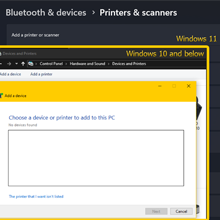
2. On Windows 11: Settings > Bluetooth & devices > Printers & scanners > Add device > wait 10s > Add manually.
On Windows 10 and below: Control Panel > Devices and Printers > Add a printer > The printer that I want isn’t listed.
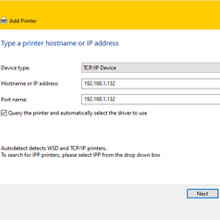
3. Select Add a printer using a TCP/IP address or hostname and click Next.
4. Set TCP/IP Device as Device type and under the Hostname or IP address field, enter the IP address of the print server, and click Next.
5. On the Additional port information required screen, set the Device Type to Custom, then click Settings….
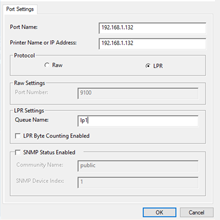
6. Select “LPR” as the Protocol and then in LPR Settings, input “lp1” as the Queue name. and then click Ok followed by Next.
7. Select your printer’s brand and model and click Next (if you do not see your model listed, you need to download and install your printer’s drivers from the printer’s manufacturer’s site).
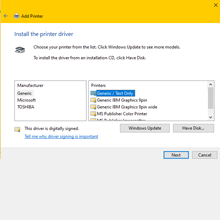
8. Click Next until you are asked if you want to print a test page. To confirm that the printer was successfully added, send a test page to your printer.
Your Printer has now been setup on Windows.
Repeat this process on any Windows computer on your network, to setup the printer server on that machine.
To add a network printer on other operating systems, the process should be similar but will vary depending on the system in question. Here are the important points to follow:
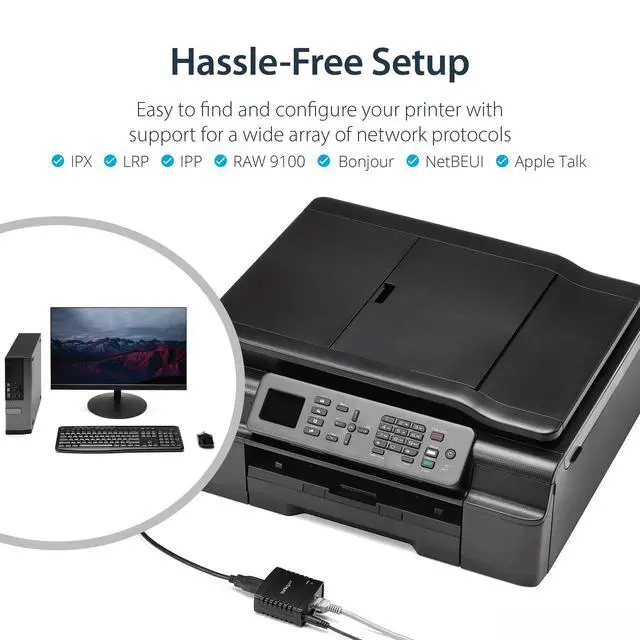
Communication type must be over TCP/IP (input the IP of the print server).
Protocol must be LPR/LPD and queue name lp1.
Have the right printer drivers installed and selected.
As long as these 3 items are followed, you should be able to setup your printer with most other operating systems which support standard network printing protocols.
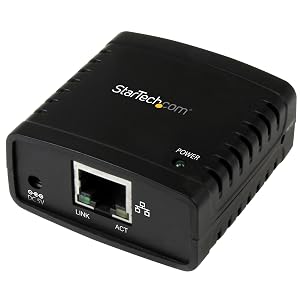
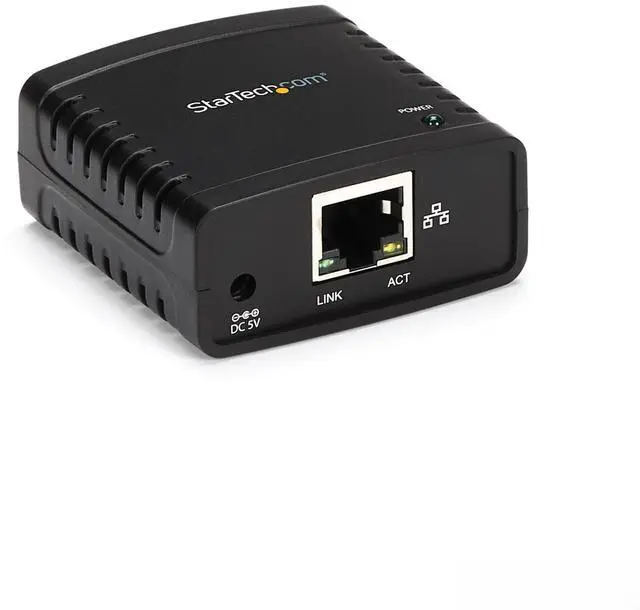
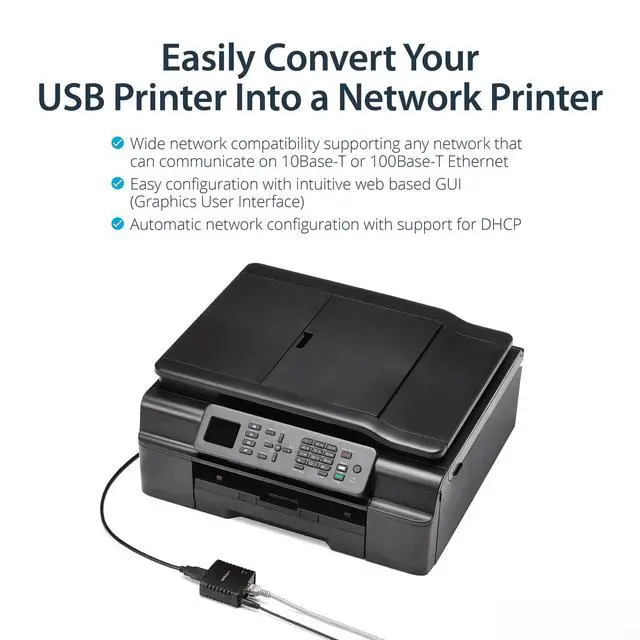
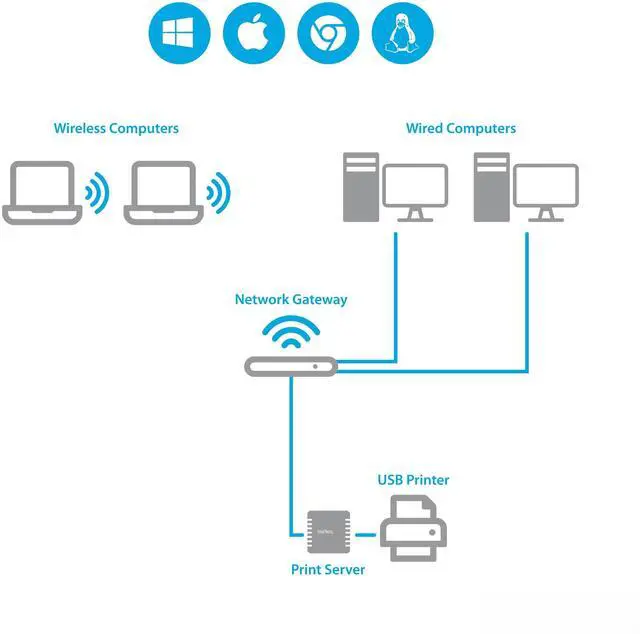
Enjoy cost-efficient network printing for multiple users. The USB 10/100 Mbps print server lets you share one USB printer with multiple users on your network, instead of having to buy separate printers for each individual workstation.
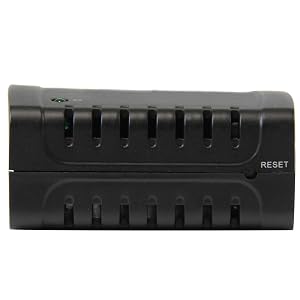
With web-based management, you can set up and monitor the printer server through a web browser, so you can place your printer at any convenient shared location - there’s no need to put your printer next to your computer. You can send print jobs to another user in your home or office, or even to a printer in another country.
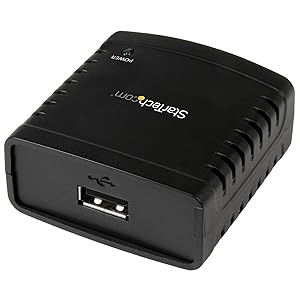
Compact and lightweight, the print server is easy to install with its straightforward installation wizards and remote web-based management.
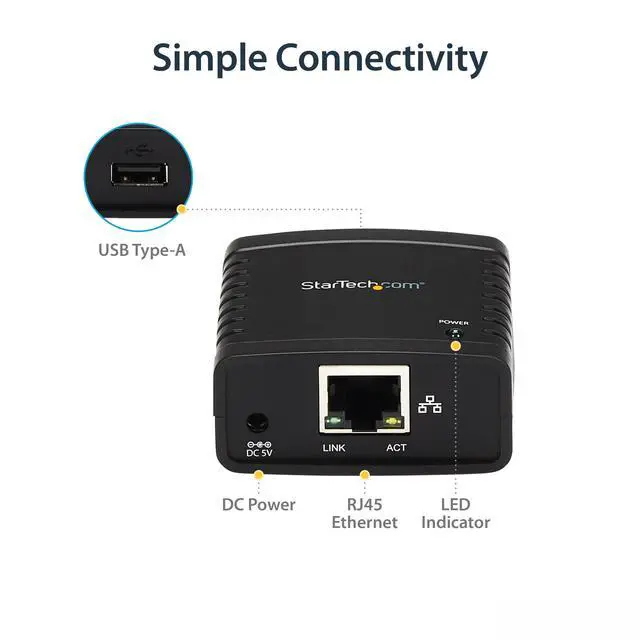
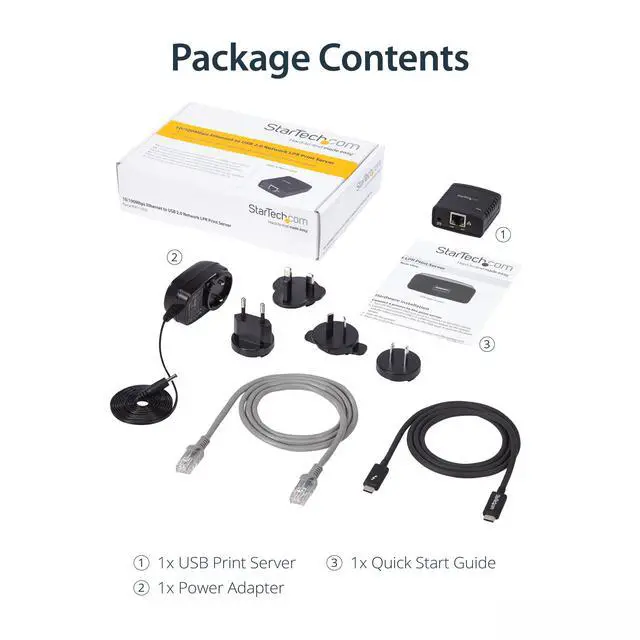
You simply use a USB cable to connect the print server to your printer’s USB port, then use an RJ45 networking cable to connect it to the rest of your network.
Use the steps below to add a printer that is connected via the PM1115U2 Print Server to your workstation.
Before you create the print server port, you need to configure your print server for your local network:
1. Power on the Print Server by connecting it to a power outlet using the included power adapter.
2. Connect the print server directly to your computer using a Cat5e/Cat6 Ethernet cable.
3. Configure the network adapter settings the computer to the following settings: IP address: 192.168.0.xxx; Subnet mask: 255.255.255.0; Gateway: N/A
4. Access the web interface of the print server by entering “192.168.0.10” in the address bar of a web browser. Log into the web interface (default username: admin, no default password).
5. select the Setup tab, then the TCP/IP sub-tab, then apply the following TCP/IP settings: Set IP Address to an available IP address within the default range of your network; Set Subnet Mask to the subnet mask of your network (Typically it is 255.255.255.0); Set Default Router to the IP address of your router.
6. Select Save & Restart at the bottom of the page. Allow the print server to reboot.
The print server has now been configured for your local network, and the network adapter settings on your computer can be reconfigured to their original settings. If you've chosen to connect the print server to a network gateway (such as a router or switch) the print server can now be disconnected from your computer and connected directly to network gateway.
1. Press the Windows key.
2. On Windows 11: Settings > Bluetooth & devices > Printers & scanners > Add device > wait 10s > Add manually.
On Windows 10 and below: Control Panel > Devices and Printers > Add a printer > The printer that I want isn’t listed.
3. Select Add a printer using a TCP/IP address or hostname and click Next.
4. Set TCP/IP Device as Device type and under the Hostname or IP address field, enter the IP address of the print server, and click Next.
5. On the Additional port information required screen, set the Device Type to Custom, then click Settings….
6. Select “LPR” as the Protocol and then in LPR Settings, input “lp1” as the Queue name. and then click Ok followed by Next.
7. Select your printer’s brand and model and click Next (if you do not see your model listed, you need to download and install your printer’s drivers from the printer’s manufacturer’s site).
8. Click Next until you are asked if you want to print a test page. To confirm that the printer was successfully added, send a test page to your printer.
Your Printer has now been setup on Windows.
Repeat this process on any Windows computer on your network, to setup the printer server on that machine.
To add a network printer on other operating systems, the process should be similar but will vary depending on the system in question. Here are the important points to follow:
Communication type must be over TCP/IP (input the IP of the print server).
Protocol must be LPR/LPD and queue name lp1.
Have the right printer drivers installed and selected.
As long as these 3 items are followed, you should be able to setup your printer with most other operating systems which support standard network printing protocols.
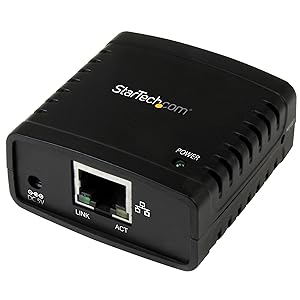
Enjoy cost-efficient network printing for multiple users. The USB 10/100 Mbps print server lets you share one USB printer with multiple users on your network, instead of having to buy separate printers for each individual workstation.
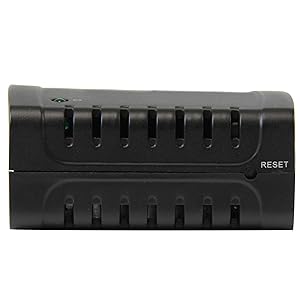
With web-based management, you can set up and monitor the printer server through a web browser, so you can place your printer at any convenient shared location - there’s no need to put your printer next to your computer. You can send print jobs to another user in your home or office, or even to a printer in another country.
Compact and lightweight, the print server is easy to install with its straightforward installation wizards and remote web-based management.
You simply use a USB cable to connect the print server to your printer’s USB port, then use an RJ45 networking cable to connect it to the rest of your network.