here!
here!
I’m your shopping assistant for PC builds, upgrades, and everything tech.
Got questions? Ask away!
Start a conversation
here!
I’m your shopping assistant for PC builds, upgrades, and everything tech.
Got questions? Ask away!
Start a conversation



Any questions? Ask CelesteSM will help you find out quickly.


Focuses on trading high-quality electronic products. We primarily sell display solutions such as TFT LCD, OLED, and AMOLED panels.
Our experienced sourcing and quality control teams work closely with international suppliers to deliver dependable products and responsive service.
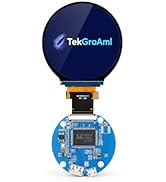
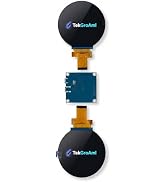
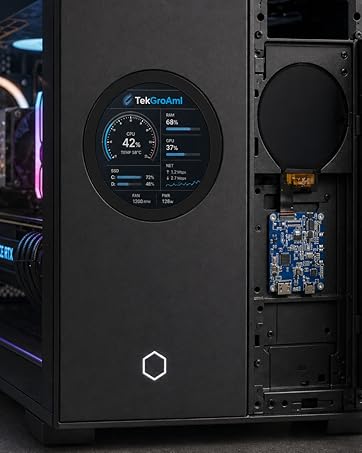
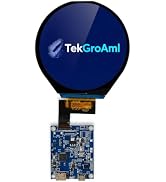
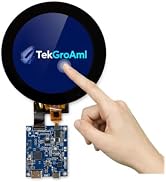
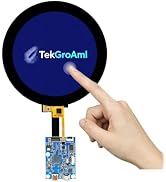
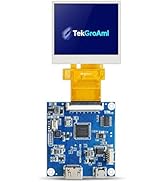
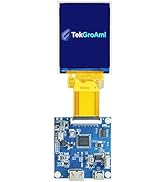
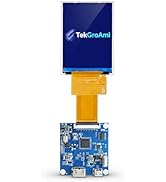
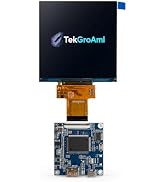
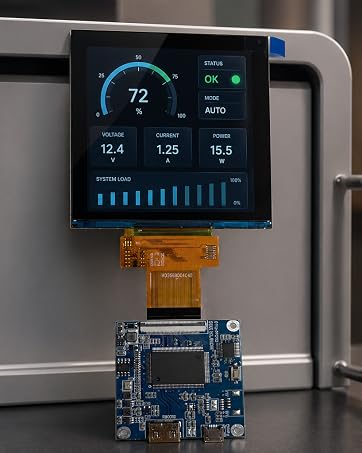
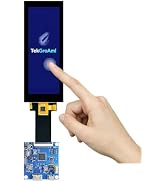
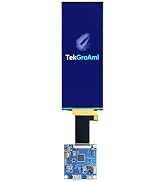
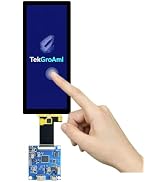
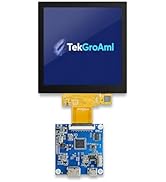
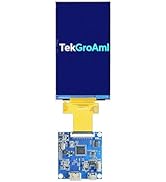
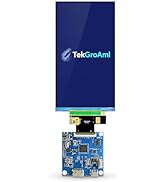
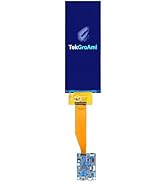


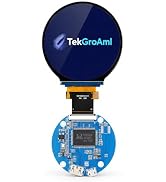
TekGroAml 2.1 Inch Round LCD Screen, 480x480 400 nits IPS Circle Display with...
|

TekGroAml Portable mini IPS LCD Round Screen,2.8 inch 480x480 Circle Display ...
|

TekGroAml 2.1 Inch Round Touch LCD Display with H/D Controller Board, 480x480...
|

TekGroAml 2.8 Inch Round Touch LCD Display with H/D Controller Board, 480x480...
|

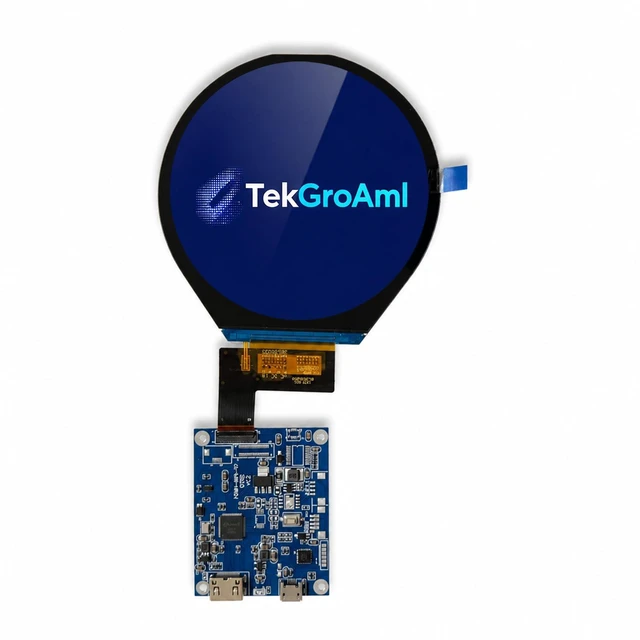
3.4 Inch Round 330nit LCD Display & HDMI Board, 800x800 IPS Circular Screen |...
|

TekGroAml 4 Inch Round LCD Display with Micro H/D Controller Board 720x720 | ...
|
|
|---|---|---|---|---|---|---|
| Customer Reviews | — | — |
—
|
—
|
— |
—
|
| Price | — | — | — | — | — | — |
| Screen size | 2.1 inch | 2.8 inch | 2.1 inch | 2.8 inch | 3.4 inch | 4 inch |
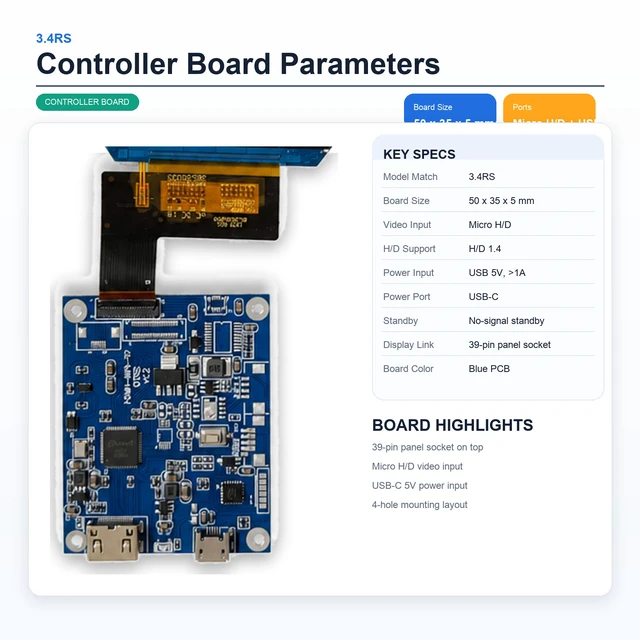
| Video input | mini H/D 1.4 | mini H/D 1.4 | mini H/D 1.4 | mini H/D 1.4 | mini H/D 1.4 | micro H/D 1.4 |
| Resolution | 480x480 | 480x480 | 480x480 | 480x480 | 800x800 | 720x720 |
| Touch | NO | NO | ? | NO | NO | NO |


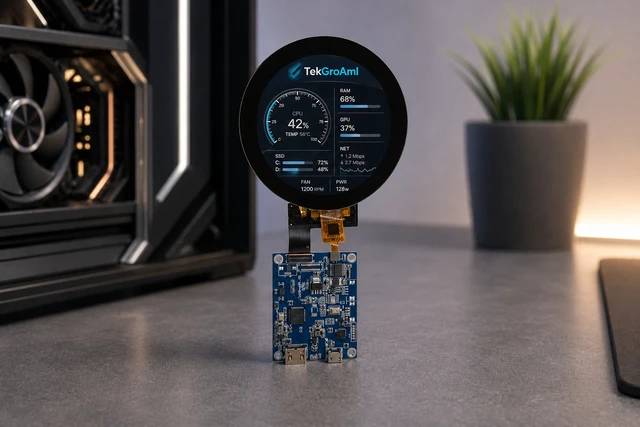
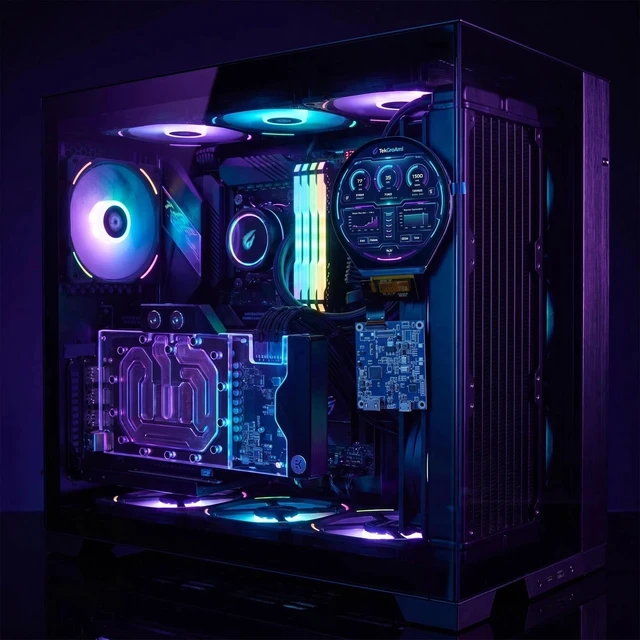
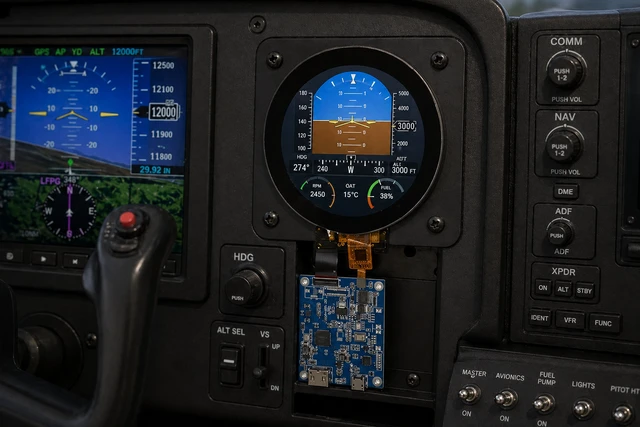
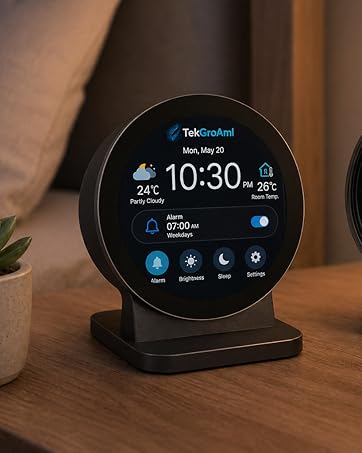
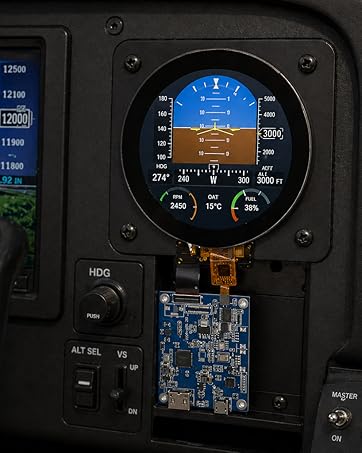
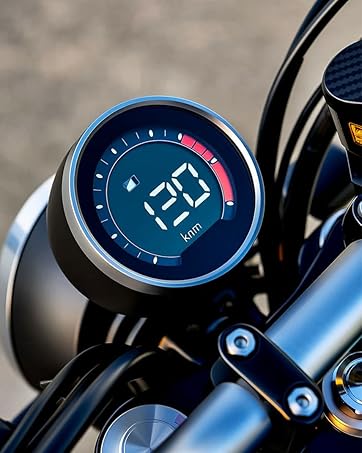
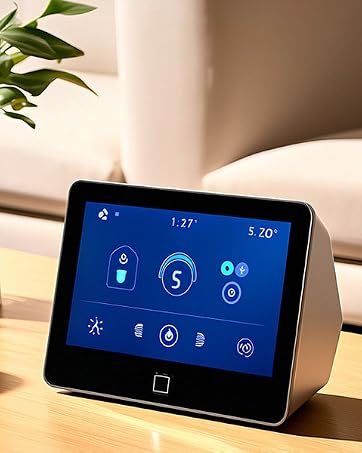
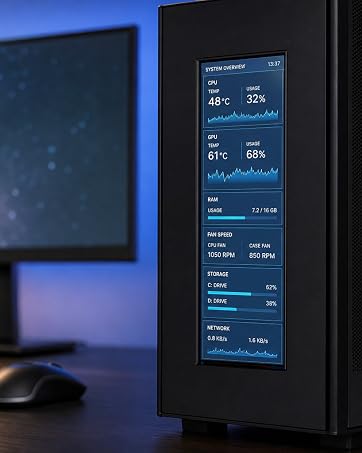
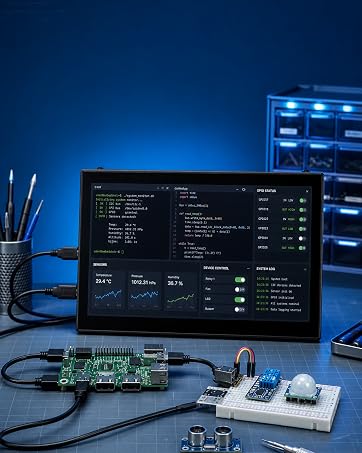
This display is a fantastic fit for all sorts of projects, including:
Windows Quick Setup
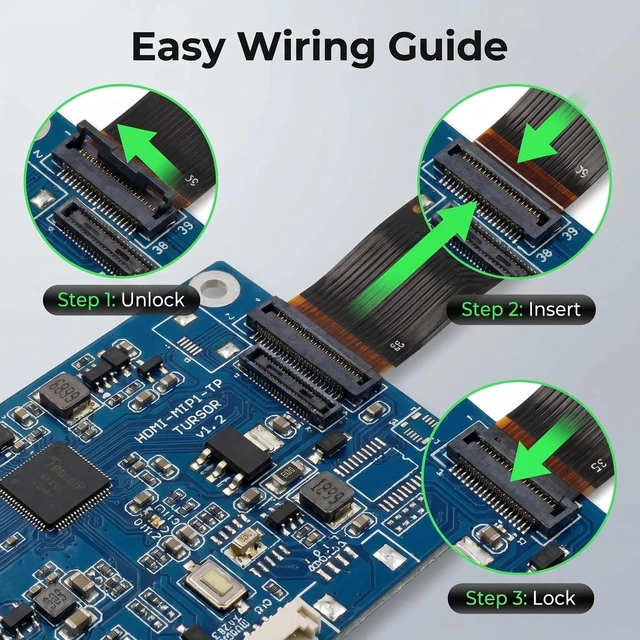
Single-Board-Computer Setup Notes
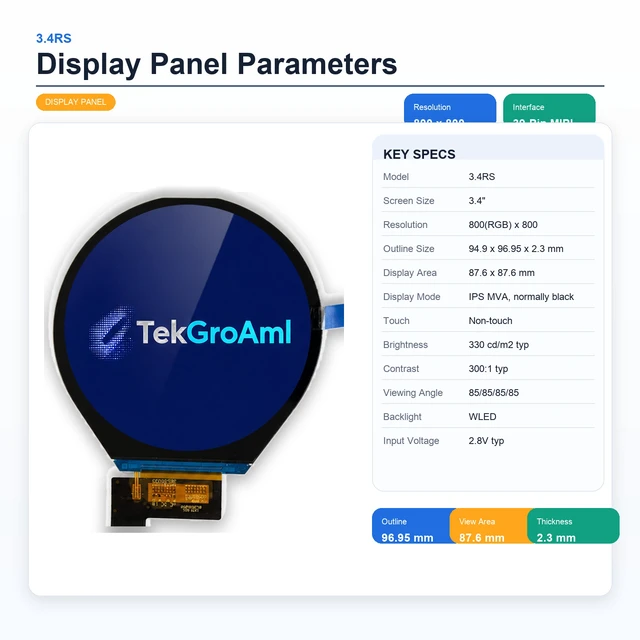
| Screen size | 3.4 inch |
| Resolution | 800 x 800 |
| Display Type | a-Si TFT |
| Display Mode | Normally Black |
| Viewing Angle | ALL |
| Outline Dimensions | 94.9x96.95x2.3 /104.4x104.4x4(W×H×D)mm,the touch screen with larger outline size |
| Active Area | 87.6x 87.6 (H) x (V) mm |
| Brightness | 330 nits |
| Operating Voltage (VDD) | 2.8V |
| Feature | No OSD ,can't adjust the brightness or setting menu |
|
TekGroAml 2.1 Inch Round LCD Screen, 480x480 400 nits IPS Circle Display with...
|
TekGroAml Portable mini IPS LCD Round Screen,2.8 inch 480x480 Circle Display ...
|

TekGroAml 2.1 Inch Round Touch LCD Display with H/D Controller Board, 480x480...
|

TekGroAml 2.8 Inch Round Touch LCD Display with H/D Controller Board, 480x480...
|
3.4 Inch Round 330nit LCD Display & HDMI Board, 800x800 IPS Circular Screen |...
|
TekGroAml 4 Inch Round LCD Display with Micro H/D Controller Board 720x720 | ...
|
|
|---|---|---|---|---|---|---|
| Customer Reviews | — | — |
—
|
—
|
— |
—
|
| Price | — | — | — | — | — | — |
| Screen size | 2.1 inch | 2.8 inch | 2.1 inch | 2.8 inch | 3.4 inch | 4 inch |
| Video input | mini H/D 1.4 | mini H/D 1.4 | mini H/D 1.4 | mini H/D 1.4 | mini H/D 1.4 | micro H/D 1.4 |
| Resolution | 480x480 | 480x480 | 480x480 | 480x480 | 800x800 | 720x720 |
| Touch | NO | NO | ? | NO | NO | NO |
This display is a fantastic fit for all sorts of projects, including:
Windows Quick Setup
Single-Board-Computer Setup Notes

Focuses on trading high-quality electronic products. We primarily sell display solutions such as TFT LCD, OLED, and AMOLED panels.
Our experienced sourcing and quality control teams work closely with international suppliers to deliver dependable products and responsive service.