





As a dedicated manufacturer of external CD/DVD drives and tech accessories, YADIANSU combines smart functionality with intuitive design to simplify your digital life. Every product undergoes rigorous quality checks to deliver consistent performance you can trust. Backed by 20 years of expertise and experience, we empower users with reliable technology solutions.
What problem are we solving?
We deliver reliable external CD/DVD drive solutions for seamless CD/DVD reading and burning, ensuring instant data access across all locations and scenarios.
Why do we love what we do?
Customers keep telling us how our products solved their problems when other devices failed. That's why we're passionate about making dependable products.
What makes our products unique?
• Certified by CE/FCC/RoHS for quality
• Built to last with premium components for reliability
• Supported by our professional service team for reliability
Proven by satisfied customers worldwid

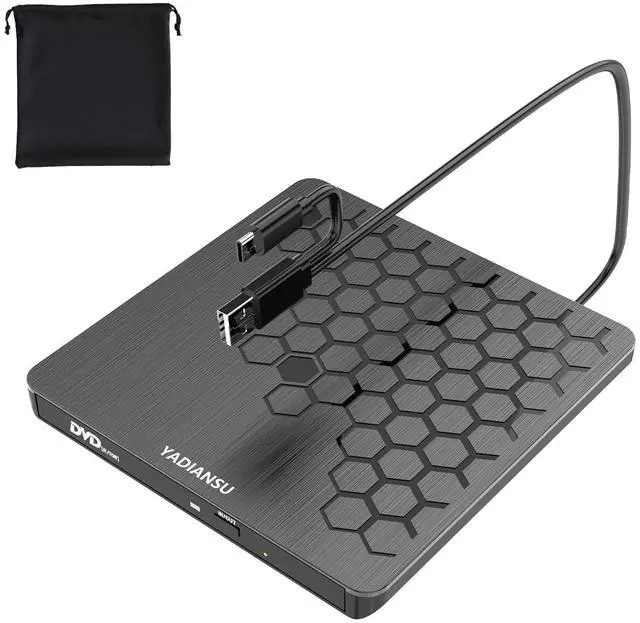
YADIANSU External CD/DVD Drive For Laptop
- This is a powerful and versatile optical drive. While modern laptops may no longer include built-in drives, your treasured CDs and DVDs still have life left in them! This external DVD burner bridges the gap between old and new technology, featuring a convenient 2-in-1 USB-A/USB-C cable that works seamlessly with any computer.
- Enjoy effortless access to your entire media library - from music albums and classic movies to important backup discs and installation files. Write new discs just as easily with the built-in burning function. Compact yet powerful, it's the perfect solution for keeping your physical media relevant in our digital world.

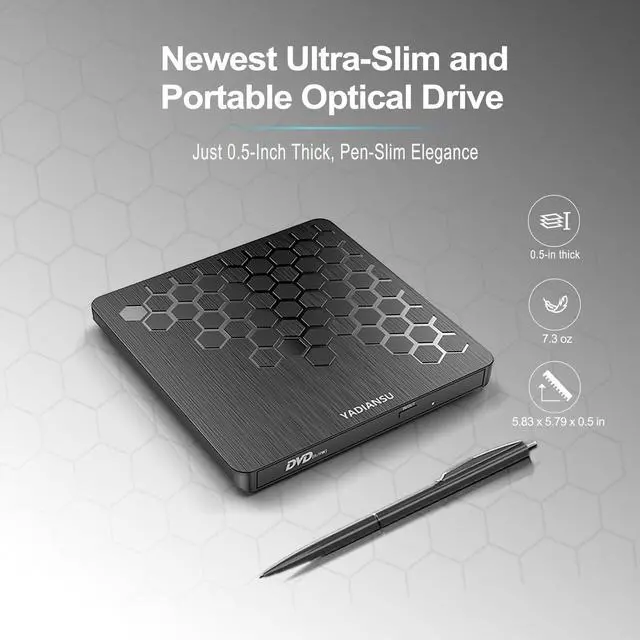
Ultra-Slim and Portable Design
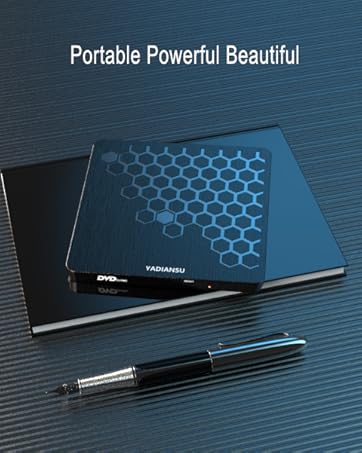
- With a thickness of only 0.5 inches and a weight of 200 grams, this slim and portable external DVD drive is simply the perfect partner for mobile office and traveling! Whether you're traveling for business, commuting, working at home or studying on campus, it fits easily in your bag and is ready to read discs and install software wherever you are.
- Imagine when others are still worried about finding the CD-ROM drive, you have already taken out this exquisite and compact partner from your bag. It is not only a practical assistant for digital life, but also a thoughtful gift for friends and relatives - making reading important data and playing classic video and audio so simple and elegant. Get it now and make every data access easy!

Portable Multi-Function Laptop DVD Drive
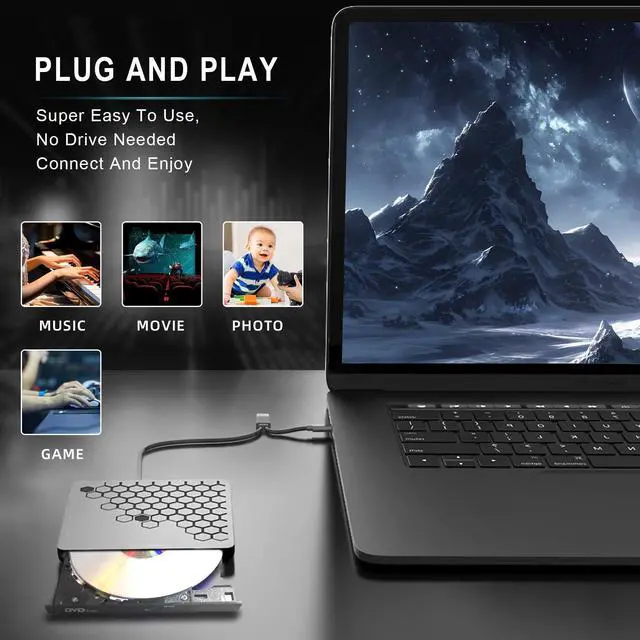
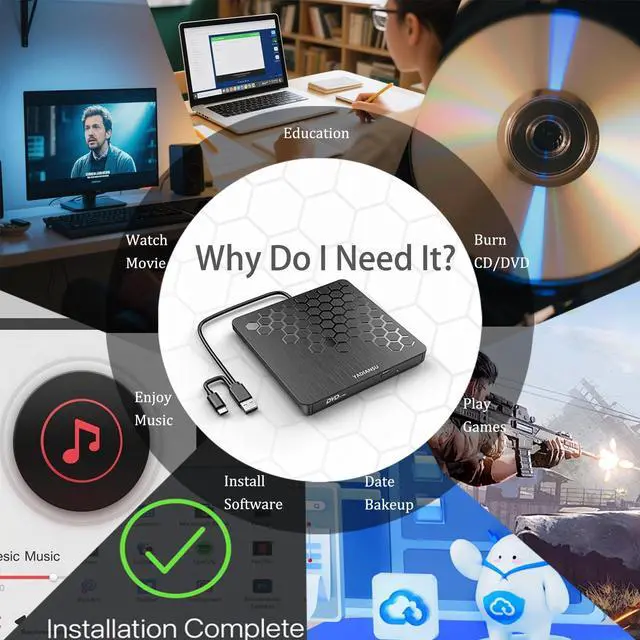
- Whether you're a student needing to access educational discs, a professional looking to install legacy software, or a movie lover wanting to enjoy your DVD collection, this versatile external drive does it all. Seamlessly read, write, and preserve your important data - from backing up precious family photos to rescuing files from old archival discs. It's the perfect tool for burning custom music CDs, watching classic films, or even installing retro games, bridging the gap between modern laptops and decades of digital content.
- With plug-and-play simplicity, this compact powerhouse works instantly with any laptop or desktop, eliminating the need for drivers or adapters. Its ultra-slim design fits effortlessly in your bag, ready to transform any space into your personal media station or productivity hub. More than just hardware, it's your gateway to rediscovering forgotten memories and unlocking new possibilities - all from the convenience of a single, future-proof device that keeps your entire disc collection alive and accessible.

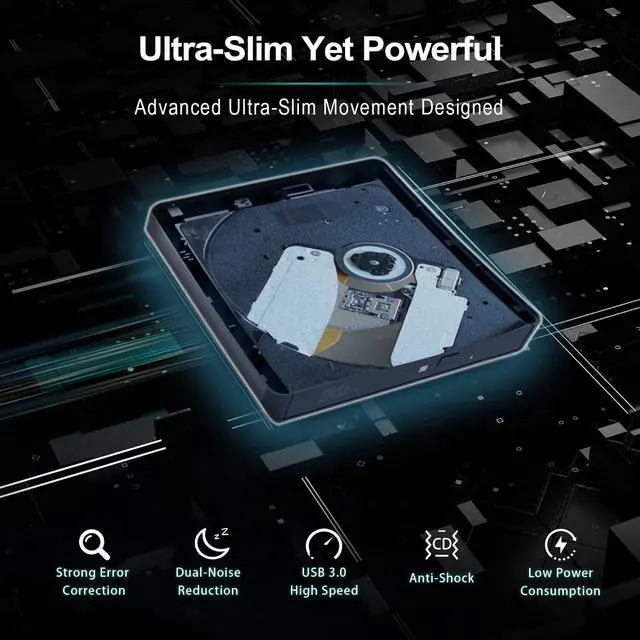
USB 3.0 High-Performance Transfer Speed
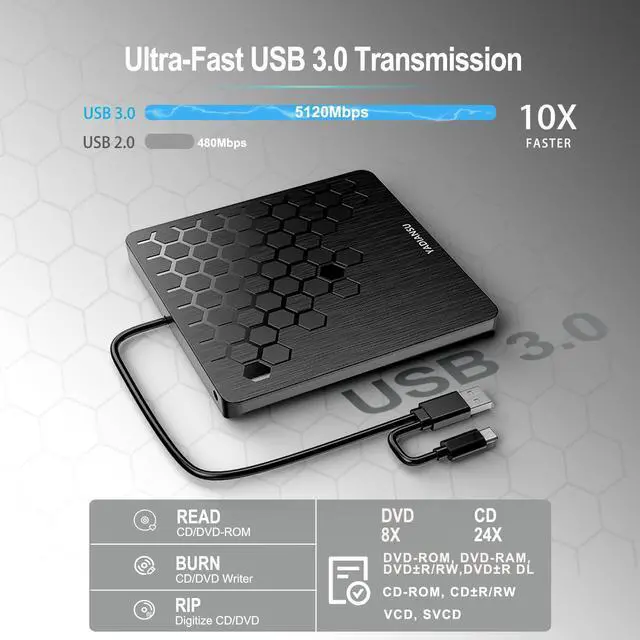
- Experience blazing-fast data transfers at up to 5Gbps with this USB 3.0 external CD/DVD drive. Featuring 8x DVD and 24x CD read/write speeds, it employs intelligent variable-speed technology - starting smoothly and gradually accelerating to maximum speed as it reaches the disc's outer edge for optimal performance.
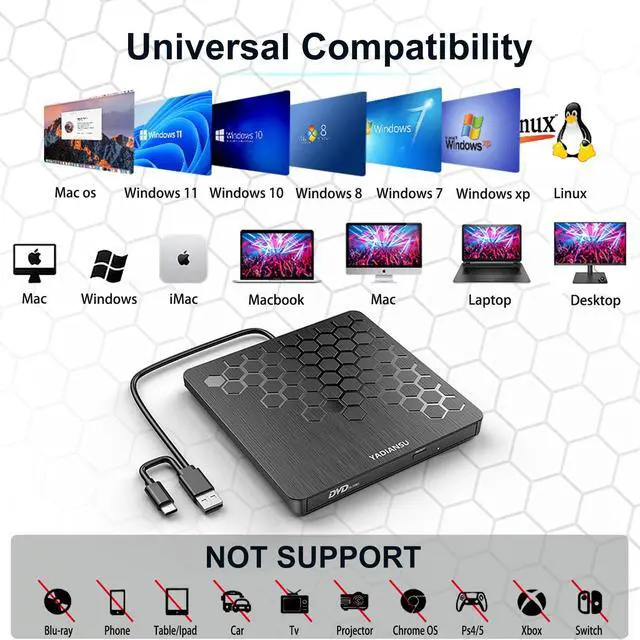
- Dual-Connectivity Ready: Features both USB-C and USB-A ports for universal compatibility with any laptop or desktop. Simply plug and play - no drivers or adapters required for instant access to your discs.
- Supported Disc Types: CD-ROM, CD-R, CD±RW, DVD-ROM, DVD-RAM, DVD±R, DVD±RW, DVD±R DL, VCD and SVCD
- Supported Discs Read and Write Speeds: CD-ROM 24x, CD-R 24x, CD±RW 8x, DVD-ROM 8x, DVD±R 8x, DVD±RW 8x, DVD±R DL 4x

Must Read Before Use
- Windows System Use
Step 1: Connect the external drive to the laptop via the USB A/Type C cable and wait until “DVD Drive” appears under the My Computer menu.
Step 2: Press the eject button on the external drive.
Step 3: Place the disc on the tray with the label side up and push the tray closed.
Step 4: After reading the disc, if the disc area and the machine area are inconsistent, please set the machine area to the corresponding area.
Note: Windows 11 systems require a media player(for example: VLC media players) and the Internet.
- Apple System Use
Step 1: Connect the external drive to the laptop via USB A/Type C cable.
Step 2: Press the eject button on the external drive.
Step 3: Place the disc on the tray with the label side up and close the tray by pushing it.
Step 4: Wait for the CD icon to appear on the desktop. Indicates that the disc has been read. After reading the disc, if the disc area and the machine area are inconsistent, please set the machine area to the corresponding area.
Note: After the Apple system reads the disc, the eject button of the external drive becomes invalid due to macOS limitations. Please right-click the icon and select the corresponding option to eject the disc.

Troubleshooting Steps for Windows
[Windows] Not Recognizing External Drive? Try These Fixes
If Windows computer recognizes the optical drive successfully, the DVD RW icon will appear in Windows Explorer. If your Windows laptop PC fail to recognize this CD/DVD drive, please try following suggestions:
- Connect external drive to your computer's USB port or a self-powered USB hub using the provided Type A or Type C cables on the back (bottom) of the drive. For Windows 11/10 users, ensure you have an active network connection and compatible media player software installed (Windows Media Player for audio CDs, VLC player for both audio CDs and video DVDs).
- Test different USB ports: move the data cable to different USB ports on your computer.
- Reinstall the driver: 1. Right-click the Windows Start button in the bottom-left corner (or press Win+X), then select "Device Manager" from the menu. 2. Click "View" in the top menu bar and enable "Show hidden devices." 3. Locate the "DVD/CD-ROM drives" section, right-click your optical drive, and choose "Uninstall device." 4. After uninstalling, restart your computer and reconnect the external drive - Windows will automatically reinstall the driver. If the issue persists, please get access to us for a dedicated driver troubleshooting tool (the download link is not allowed here).
[Windows] Not Playing DVDs? Try These Fixes
This drive supports both CDs and DVDs. If it plays audio CDs but not video DVDs on your Windows PC, try these solutions:
- Use compatible media player software: Some media players (like Windows Media Player) don't support video DVDs, We recommend using VLC Media Player for DVD playback
- Set the correct DVD region code to 1 to play the U.S. or CA DVDs. Right-click your "DVD-RW Drive" icon and select "Properties" > Go to the "Hardware" tab and select your CD/DVD drive > Click "Properties" at the bottom > Open the "DVD Region" tab > Select the appropriate region (e.g., Region 1 for USA/Canada) and click "OK".(important note: You can only change the region code 4-5 times before it becomes permanently set.)
[Windows] Power Supply Issues? Try These Fixes
Some computers don't have enough power to support the operation of the drive, you can connect the separate power supply cord to a 5V USB power bank or power adapter to ensure sufficient power supply. If there is no power shortage issue, this power supply cord can be removed later.

Troubleshooting Steps for Mac OS
[Mac OS] Not Detecting CD/DVD Drive? Try These Fixes
Your Mac won't show the drive icon until a disc is properly inserted and recognized. If your Apple Computer fails to recognize this CD/DVD drive, please try:
Solution 1: Opne Finder > Settings(or Preferences, depending on macOS version) > Verify "CDs, DVDs, and iOS Devices" is selected in both the General and Sidebar tabs where available. Solution 2: Try connecting the drive to different USB ports on your Mac and test with multiple discs.
[Mac OS] Eject Button Not Ejecting the Disc? Try These Fixes
After the Apple system reads the disc, the eject button of the external drive becomes INVALID due to macOS limitations. Please right-click the icon on the desktop and select the "Eject" option to eject the disc.
[Mac OS] Power Supply Issues? Try These Fixes
If power supply is insufficient, please use a 5V charger/power bank to charge it. First connect drive to Mac, then connect the additional power to disc drive, otherwise the Apple computer may not recognize the device.
YADIANSU External CD/DVD Drive For Laptop
- This is a powerful and versatile optical drive. While modern laptops may no longer include built-in drives, your treasured CDs and DVDs still have life left in them! This external DVD burner bridges the gap between old and new technology, featuring a convenient 2-in-1 USB-A/USB-C cable that works seamlessly with any computer.
- Enjoy effortless access to your entire media library - from music albums and classic movies to important backup discs and installation files. Write new discs just as easily with the built-in burning function. Compact yet powerful, it's the perfect solution for keeping your physical media relevant in our digital world.
Ultra-Slim and Portable Design
- With a thickness of only 0.5 inches and a weight of 200 grams, this slim and portable external DVD drive is simply the perfect partner for mobile office and traveling! Whether you're traveling for business, commuting, working at home or studying on campus, it fits easily in your bag and is ready to read discs and install software wherever you are.
- Imagine when others are still worried about finding the CD-ROM drive, you have already taken out this exquisite and compact partner from your bag. It is not only a practical assistant for digital life, but also a thoughtful gift for friends and relatives - making reading important data and playing classic video and audio so simple and elegant. Get it now and make every data access easy!
Portable Multi-Function Laptop DVD Drive
- Whether you're a student needing to access educational discs, a professional looking to install legacy software, or a movie lover wanting to enjoy your DVD collection, this versatile external drive does it all. Seamlessly read, write, and preserve your important data - from backing up precious family photos to rescuing files from old archival discs. It's the perfect tool for burning custom music CDs, watching classic films, or even installing retro games, bridging the gap between modern laptops and decades of digital content.
- With plug-and-play simplicity, this compact powerhouse works instantly with any laptop or desktop, eliminating the need for drivers or adapters. Its ultra-slim design fits effortlessly in your bag, ready to transform any space into your personal media station or productivity hub. More than just hardware, it's your gateway to rediscovering forgotten memories and unlocking new possibilities - all from the convenience of a single, future-proof device that keeps your entire disc collection alive and accessible.
USB 3.0 High-Performance Transfer Speed
- Experience blazing-fast data transfers at up to 5Gbps with this USB 3.0 external CD/DVD drive. Featuring 8x DVD and 24x CD read/write speeds, it employs intelligent variable-speed technology - starting smoothly and gradually accelerating to maximum speed as it reaches the disc's outer edge for optimal performance.
- Dual-Connectivity Ready: Features both USB-C and USB-A ports for universal compatibility with any laptop or desktop. Simply plug and play - no drivers or adapters required for instant access to your discs.
- Supported Disc Types: CD-ROM, CD-R, CD±RW, DVD-ROM, DVD-RAM, DVD±R, DVD±RW, DVD±R DL, VCD and SVCD
- Supported Discs Read and Write Speeds: CD-ROM 24x, CD-R 24x, CD±RW 8x, DVD-ROM 8x, DVD±R 8x, DVD±RW 8x, DVD±R DL 4x
Must Read Before Use
- Windows System Use
Step 1: Connect the external drive to the laptop via the USB A/Type C cable and wait until “DVD Drive” appears under the My Computer menu.
Step 2: Press the eject button on the external drive.
Step 3: Place the disc on the tray with the label side up and push the tray closed.
Step 4: After reading the disc, if the disc area and the machine area are inconsistent, please set the machine area to the corresponding area.
Note: Windows 11 systems require a media player(for example: VLC media players) and the Internet.
- Apple System Use
Step 1: Connect the external drive to the laptop via USB A/Type C cable.
Step 2: Press the eject button on the external drive.
Step 3: Place the disc on the tray with the label side up and close the tray by pushing it.
Step 4: Wait for the CD icon to appear on the desktop. Indicates that the disc has been read. After reading the disc, if the disc area and the machine area are inconsistent, please set the machine area to the corresponding area.
Note: After the Apple system reads the disc, the eject button of the external drive becomes invalid due to macOS limitations. Please right-click the icon and select the corresponding option to eject the disc.
Troubleshooting Steps for Windows
[Windows] Not Recognizing External Drive? Try These Fixes
If Windows computer recognizes the optical drive successfully, the DVD RW icon will appear in Windows Explorer. If your Windows laptop PC fail to recognize this CD/DVD drive, please try following suggestions:
- Connect external drive to your computer's USB port or a self-powered USB hub using the provided Type A or Type C cables on the back (bottom) of the drive. For Windows 11/10 users, ensure you have an active network connection and compatible media player software installed (Windows Media Player for audio CDs, VLC player for both audio CDs and video DVDs).
- Test different USB ports: move the data cable to different USB ports on your computer.
- Reinstall the driver: 1. Right-click the Windows Start button in the bottom-left corner (or press Win+X), then select "Device Manager" from the menu. 2. Click "View" in the top menu bar and enable "Show hidden devices." 3. Locate the "DVD/CD-ROM drives" section, right-click your optical drive, and choose "Uninstall device." 4. After uninstalling, restart your computer and reconnect the external drive - Windows will automatically reinstall the driver. If the issue persists, please get access to us for a dedicated driver troubleshooting tool (the download link is not allowed here).
[Windows] Not Playing DVDs? Try These Fixes
This drive supports both CDs and DVDs. If it plays audio CDs but not video DVDs on your Windows PC, try these solutions:
- Use compatible media player software: Some media players (like Windows Media Player) don't support video DVDs, We recommend using VLC Media Player for DVD playback
- Set the correct DVD region code to 1 to play the U.S. or CA DVDs. Right-click your "DVD-RW Drive" icon and select "Properties" > Go to the "Hardware" tab and select your CD/DVD drive > Click "Properties" at the bottom > Open the "DVD Region" tab > Select the appropriate region (e.g., Region 1 for USA/Canada) and click "OK".(important note: You can only change the region code 4-5 times before it becomes permanently set.)
[Windows] Power Supply Issues? Try These Fixes
Some computers don't have enough power to support the operation of the drive, you can connect the separate power supply cord to a 5V USB power bank or power adapter to ensure sufficient power supply. If there is no power shortage issue, this power supply cord can be removed later.
Troubleshooting Steps for Mac OS
[Mac OS] Not Detecting CD/DVD Drive? Try These Fixes
Your Mac won't show the drive icon until a disc is properly inserted and recognized. If your Apple Computer fails to recognize this CD/DVD drive, please try:
Solution 1: Opne Finder > Settings(or Preferences, depending on macOS version) > Verify "CDs, DVDs, and iOS Devices" is selected in both the General and Sidebar tabs where available. Solution 2: Try connecting the drive to different USB ports on your Mac and test with multiple discs.
[Mac OS] Eject Button Not Ejecting the Disc? Try These Fixes
After the Apple system reads the disc, the eject button of the external drive becomes INVALID due to macOS limitations. Please right-click the icon on the desktop and select the "Eject" option to eject the disc.
[Mac OS] Power Supply Issues? Try These Fixes
If power supply is insufficient, please use a 5V charger/power bank to charge it. First connect drive to Mac, then connect the additional power to disc drive, otherwise the Apple computer may not recognize the device.
As a dedicated manufacturer of external CD/DVD drives and tech accessories, YADIANSU combines smart functionality with intuitive design to simplify your digital life. Every product undergoes rigorous quality checks to deliver consistent performance you can trust. Backed by 20 years of expertise and experience, we empower users with reliable technology solutions.
What problem are we solving?
We deliver reliable external CD/DVD drive solutions for seamless CD/DVD reading and burning, ensuring instant data access across all locations and scenarios.
Why do we love what we do?
Customers keep telling us how our products solved their problems when other devices failed. That's why we're passionate about making dependable products.
What makes our products unique?
• Certified by CE/FCC/RoHS for quality
• Built to last with premium components for reliability
• Supported by our professional service team for reliability
Proven by satisfied customers worldwid