
Your Browsing History
 Holiday Shipping Details & Extended Holiday Returns Holiday Shipping Details & Extended Holiday Returns

Joined on 10/12/13
My favorite flawed mouse
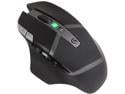
Pros: - Insane battery life, and I prefer having AA's that I can swap out and use my own Eneloops and charger as needed (about 250 hours in Endurance mode) - Perfect fit for my hand (avge build 6 ft guy) - Programmable buttons with the Logitech software can be configured for virtually any program, with tons of single or multi-key options
Cons: - One major fatal flow - the inevitable left click failure. - No free scroll wheel - Kinda mid range pricey if not on sale. It goes on sale fairly often though - It will sometimes lose the assigned button command in an application, if you have multiple programs open designating a command for that button. In those instances it requires opening and closing the software program. That action just re-associates, or re-finds the button assignment.
Overall Review: This is my second G602 purchase and my fourth G602 mouse. The first one was warrantied twice in the three year warranty period for a total of three actual mice on the one purchase, when including the original. both warranties were for the exact same problem: The left click starts failing. So why am I repurchasing this mouse if it has the well known left click flaw that makes it last about a year under heavy use? (research it and you'll see) Because I can't find another mouse like this one. It's not the best wireless gaming mouse (that goes to the G900) and it's not the best wireless productivity mouse (that goes to the MX master 2S), but I think it is the best combo mouse out there, meaning you can still game and be productive with it. It's just not the 100 % best mouse for either application. But as an all round daily driver I find it's perfect for me in terms of fit, function and application to task, when using the Logitech software. With the six thumb buttons, I find I can reach five of them easily: the three bottom and the forward two on top. Whether using Adobe products, Vegas, other NLE's or programs, or gaming, those five are easily reachable for me. The top back one is an awkward placement for me so I barely use it. You can program these buttons for single or multi-button commands to your hearts content. In Vegas I use them for forward / back scroll, send to timeline, marker, and split. The top two left finger DPI buttons can also be reprogrammed per individual application but I tend to use them for the same command as it's too easy to hit both at once and not distinguish them properly in game or application. They're my delete key in programs. Middle click becomes pause / play in NLE's, or switch weapon / secondary weapon in game. I should say I am not a hard core gamer so other's complaints about lag may be warranted; but I find this mouse is fine for me playing occasional WoW, ROTTR, COD or Battlefield. In games I switch to performance; in editing I used Endurance mode. I also don't use high DPI settings so 2500 DPI is fine for me. I'm more comfortable between 800 to 1,000 There are better per application mice out there but I can't find a wireless one to replace this with, considering all the reasons I like it as a multi-performer. Logitech has replaced the warrantied ones without much hassle so I'm OK with that. Yah it's an inconvenience, but I have a backup. It's an odd rationale to keep using a mouse that fails but I refuse to shell out the CAD $200 + change for a G900 Chaos Spectrum, and can't find a number one replacement from any other company. I jumped on this one on Black Friday for $56 CAD, to have as the backup for when - not if - my current G602 fails. Call me crazy but until I can find something that beats this, I'll continue to shell out for it knowing it will most definitely fail after one year of heavy use. Buyer beware. This is a flawed mouse with mid to high end performance in gaming, and excellent multi-use in applications.
Dying two months after warranty expired
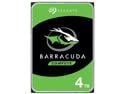
Pros: - Worked for 26 months
Cons: - Dying after 26 months - Second Seagate drive fail in two years
Overall Review: Drive bad sectors count has increased form 20 to 100 in a week, a sign that it's failing. Seagate drives continue to be a problem. You get what you pay for. Don't be fooled by Seagate's attractive lower pricing scheme. 2020 and they are still making junk drives.
An excellent Z390 option
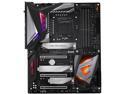
Pros: - Great build quality. This board is premium. - The backplate provides more than improved structural support as it acts as a heat sink. Search for Der8auer’s Utube vid “Z390 AORUS MASTER - Aka the VRM MASTER (en)” to see the cooling difference between this board with and without the backplate. - Cooler VRM’s than similar Z390’s – much better than an XI Hero that I had initially - Easy to turn off the LED’s if that’s not your thing. - Gigabyte’s T topology for RAM favors 4 slot population, which worked great for my 4 x 16 64GB editing setup
Cons: - I’d like to see only two USB 2.0’s (not four) and add two more USB 3.0 or 3.1’s, or a Thunderbolt connection. - The rear I\O Clear Cmos and Power On\Off buttons should be onboard. Makes little sense to have them where they are. - Audio isolation problem where you can get noise (scratches, buzz, etc) from rear audio port. - There’s that painful Gigabyte BIOS to deal with, and conflicts between the BIOS and app center
Overall Review: **UPDATE Mar 13 2019: The audio scratching noise through rear audio port comes and goes intermittently. What I have found that works best to mitigate it is to keep Master volume at or below 50%, then just raise the volume on my headphones or an app itself. I know some people are reporting coil whine with their boards, but I've never had any coil whine at all. That's a mystery to me. The Z390 Master could be summed up as: Amazing hardware, terrible BIOS and horrible software (app center) This Z390 Master replaced a Z390 XI Hero that I was not happy with for many reasons. This board's hardware is better, but the BIOS and Gigabyte software are worse. But what matters most – the build quality and components – are really good. At stock, non-overclocked CPU temps are resonable-ish …. idle temp mid 30’s, vid editing and rendering around low mid 60’s. Prime95 v26.6 (non AVX) FFT test push it to mid 70’s. I built a closed case editing rig so bling and lights were not factors; It's easy to turn off all LED’s with a single BIOS toggle. I had no intent to push my 9900K with an OC as I’m already seeing massive gains over my previous i7 4790 so I’m completely happy where I am. Stock = mostly full time 4700MHz with the CPU still auto ramping. There are some really slick and easy OC’ing tutorials for this board if that’s your goal, on overclock.net but I can’t link them here or the review will get removed, so here’s a sum (full credit to Porksmuggler): In Windows, disable Hibernation and Sleep. Also make sure Power Options is set to Balanced (allows the CPU to auto ramp – there are other methods but this is easy) Reset the CMOS, or in the BIOS, load defaults. Then its just 8 steps to OC to 5.0. BIOS > M.I.T. tab 1 Advanced Frequency Settings - Set X.M.P. 2----Advanced CPU Core Settings: AVX Offset - Set -4 (I use -4 for 4.6 GHz so the newest Prime95 Small FFT runs stay under 80 C.) 3-----------------------------------Turbo Ratio (x Core Active) - Set all at 50 --Advanced Voltage Settings 4----Advanced Power Settings: CPU Vcore Loadline Calibration - Set Normal 5----CPU Core Voltage Control: CPU Vcore - Set Normal 6-------------------------------Dynamic Vcore (DVID) - Set -0.110 V (Start with -0.030 V, then stress test in -30 mV intervals. CPUs typically step 100 MHz per 60 mV. Below -0.110 V, I have idle freezes < 0.550 V idle.) Chipset tab 7 VT-d - Set Disabled 8 Internal Graphics - Set Disabled That's it, no manual voltages, no messing with LLC levels, etc. The only auto voltage that the Z390 Aorus Master sets high seems to be VCCSA at 1.3 V. If you’ve never used Gigabytes BIOS layout before, and even if you have, it will probably be frustrating at first to find where everything is with the the poor layout, some of the languaging decisions, & seeming conflicts between BIOS and App center. It can make for a very frustrating experience. Here’s two examples: - Gigabyte uses language like ‘Normal’, ‘High’, ‘Low’, ete, where a numeric scale is otherwise the industry standard and far better. - If you use sysfan5 in the BIOS to custom set your fan profiles, & then decide to install the App Center software with “System Information Viewer Smart Fan 5” from the desktop, then all your settings get reset. The install scans your system and auto-tunes. You can’t stop the auto-tune – so annoying. You can change it afterwards, but the fact that it tries to auto manage your settings makes zero sense if you’ve just set it in the BIOS and now you’re having to do it twice. Better yet, don’t install “System Information Viewer Smart Fan 5” and just use the BIOS - There’s more problems between BIOS and App center, features and language, this is just two examples. In general ... the BIOS and App center almost seem to compete with rather than enhance each other. The App Center itself is riddled with problems and my suggestion is to not install it at at all unless there is a feature you need. For drivers I just manually installed the Chipset drivers, Audio, VGA, LAN & W-LAN. Also if you're using a 970 EVO, then be sure to install Samsung's "Samsung_NVM_Express_Driver_3.0.exe" to get full speeds. My board shipped with F4 BIOS and one of the first things I did was upgrade to F6 using the QFlash method in the BIOS. Easy. With Gigabytes T topology favoring 4 slot population, I was able to modestly oc a 3000 MHz CL14 kit to 3200 by just selecting the 3200 XMP profile and setting 14 – 14 – 14 - 34 timing. All else including variable voltage was auto set by Gigabyte, and it is 100% stable and cool Memtested. That at least was super easy. My system (this is mainly an editing rig – I rarely game): i9 9900K – no OC Noctua NH D15 MSI GTX 1080 4x16 – 64GB 3000 CL14 RAM – oc’d to 3200 CL 14 (RAM kit is G.SKILL Ripjaws V Series 64GB (4 x 16GB) Model F4-3000C14Q-64GVK) Z390 Master EVGA Supernova 750 G2 Gold PSU Samsung 970 EVO NVMe (in bottom M2 slot) 5 x 7200 HDD’s Design R6 case w additional Noctua case fans
Excellent
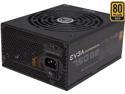
Pros: - Modular - Quiet - Quality sleeved cabling - I love how EVGA's fan grills are molded into the body of the PSU rather than a separate add on. Looks nice and makes them really indestructible tanks. - EVGA's 10 year warranty (make sure you register @ EVGA for this)
Cons: - Longer overall footprint might not fit in some tight cases
Overall Review: I've had great luck with EVGA. I had to RMA a GPU once and they were awesome to deal with. How many companies can you say that about for RMA's? This is one of the most popular, reasonably priced Gold PSU's that still has excellent reviews everywhere. (9.8 / 10 JGuru review) It's a little longer than many other 750 W PSU's but this is also because it has a 140 mm fan - that in turn means lower noise. There is also the option to just leave the fan off with the ECO switch and have it auto turn on when needed - either way, this is a super quiet PSU. For me it powers i9 9900K Noctua NH D15 Z390 Aorus Master 4 x 16 - 64GB DDR4 MSI GTX 1080 Samsung 970 EVO NVMe 5 x 7200 rpm HDD's half a dozen case fans Great unit, highly recommended
Don't underestimate this kit
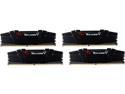
Pros: - Samsung B -die w great tight timings (14-14-14-34) - no RGB, save a few bucks over the expensive trident series - Plug n Play, ran out of box with no errors and no problems. Required one click XMP to hit speed and timings but that's standard. - After setting XMP profile, RAM was ID'd correctly, and worked @ rated 3000 14-14-14-34 - I'm able to run this currently at 3200 CL14 with minimal settings (still 14-14-14-34) @ 1.356 - 1.36 variable volts, still runs cool - 64 GB’s – great for my editing rig. (coming from 32GB 1866 DDR3 this is a dream) - Because this is an editing rig, I’m favoring the lower CL over higher speeds, with 3200 – 14 being the intended target form the outset.
Cons: - Price of RAM in Canada is still ridiculous - Tall spreaders may interfere with some coolers. Required moving my first Noctua D15 fan up about 1 cm
Overall Review: This is for the G.SKILL Ripjaws V Series 64GB (4 x 16GB) F4-3000C14Q-64GVK I took a gamble on this kit and here's why I chose it: - I don't need bling so I went with a kit that had no RGB. This made it slightly cheaper. - This is the good Samsung B-die with the tight CL14 timings (14-14-14-34). It’s slightly more expensive than the hynix kits, but the timings are better, it’s more universally compatible, and you can probably OC it with less effort. - And It’s oc’ing great, but understand why …. A big fair warning … I’m using this 4 x16 – 64GB kit on a Gigabyte Z390 Aorus Master motherboard. Gigabyte’s flagship Z390 boards use T topology for DRAM, which actually favors four slots populated. Look this up if you don’t understand. So I knew that the chances of getting a decent stable OC increased by using the Z390 Master board populated in all four slots. That was a very important part of my decision. I used Z390 Master BIOS F6 (current stable) under MIT > Advanced Memory Settings > Extreme Memory Profile > select Profile 1 (this should initially ID your ram at the correct 3000) Then under System Memory Multiplier > select DDR4 3200 from the drop down (After doing this don’t worry if second column still shows 3000 or whatever lower your currently running at – your save and reboot will reset this) After selecting DDR4 3200 go to ‘Memory Timing Mode’ and set it to ‘Advanced manual’ - this allows you to control and set both channels. Then under ‘Channel A Memory Sub Timings’ make sure it’s on Advanced Manual Then under Channel A Standard Timing Control > manually set Cas latency > 14 tRCD > 14 tRD > 14 tRAS > 14 And that’s it! This Z390 Master setup is not Ryzen where you have to mess with a calculator, or use Taiphoon burner, or cross your fingers and hope this works. Or go deeper into sub timings. Voltages adjusted automatically on the Z390 Master and this runs around 1.35 to 1.36 ram vltge to maintain the RAM OC. Tested with Aida64 and Memtest – stable. Idle RAM temp low 30’s, prolonged stress test maxed around 43C – that’s in a very well ventilated case with a total 7 Noctua case fans in a custom setup favoring cooling the HDD's, including a 120mm intake fan blowing directly on the RAM. Operating \ editing RAM temp around mid 30’s. This worked on the Z390 Master and would probably work the same on the Gigabyte Z390 Extreme, Ultra or Pro Wifi – all boards favoring population of 4 slots. Buying 2 sticks of this? Then maybe, maybe not. The whole point of the OC gamble was to take advantage of Gigabytes T topology favoring 4 slot population. Using Asus or Asrock? Again… maybe this will OC well, maybe not. This is still also as silicon lottery and setup dependent as any potential RAM OC. ymmv and what worked for me my or may not work for you. Also, OC voids your warranty. Total setup – this is an editing rig (why I went 64GB); I very rarely game: i9 9900K not OC’d, but custom settings for performance (favoring high pwr draw), but no extra CPU vltge was set or needed to support the RAM OC - all auto Z390 Aorus Master this 4 x 16 – 64GB kit oc’d to 3200 - 14 GTX 1080 Noctua NH D15 EVGA 750 W G2 Gold 5 x 7200 rpm HDD’s 1 970 EVO nVME Design R6 – 7 Noctua case fans Happy oc'ing!
4 phase VRM's, lies, board lockups, and searing temps
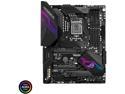
Pros: Pros: - I was one of the lucky ones who was able to return my board to Newegg for full refund. Now I own the Aorus Master -Asus's BIOS is good
Cons: Cons: - This is an overpriced, over-hyped board with 4 phases - not 8. - board lockups - overheating
Overall Review: I paired this with a 990K and a NH D15 in a well ventilated high airflow case with 120 and 140 mm all Noctua case fans. Owned and built PC's since my first in the 80's and switched hardware camps more times than I can count. Usually I rely on Asus, but this is just a bad choice any way you look at it. If you're looking at this board then you've probably done the rounds, wondering which board to buy. You can safely give this a pass. No matter how good Asus's BIOS is (and yes it's still very good), there is the underlying elephant in the room which is that this is an overpriced, over-hyped board with 4 phases - not 8. No amount of explanations from Asus about improved latency, or pretty graphs demonstrating that will magically make this an 8 phase board. You will be buying heartache for yourself. At the end of the day, the one thing that matters the most, the power phasing design and VRM \ build quality that your processor sits on, will be lacking compared to other equivalent tiered boards. Think about that. The one thing that matters the most is a fail on this board. There is a problem initially reported on overclock dot net with some of the XI Hero's having lockups. I experienced that. I attempted to diagnose, which was frustrating, and after a terrible experience with Asus support and hours of selective startups in Win 10 and frustrating lockups I gave up. I was able to do some oc testing between lockups and doing a manual OC (the der8auer method, or variations of with setting vltges and LDP limits) I was unable to sustain 5.0. The P95 26.6 non AVX test seared into the mid 90's. I also experienced the same problem that Steve from HU had, where temps just didn't seem to stabilize and incrementally increased over time. I shut down uncompleted tests. Interesting that a (now former) member of Asus's team said on OC dot net, and I quote: "The hardware unboxed test results are pretty much in line and paint a fair picture. At the same price point you'll have lower VRM temperatures on other boards." This is a board with insufficient VRM's. That's not speculation or opinion, that's a fact. Look at the overclock dot net Z390 thread and their long time user trusted opinions. Watch buildzoids teardown. Read the reviews. For those pointing to the LN2 results? Great! Is the avge person using LN2? Are you planning on using LN2? There is more relevance comparing this on a D15 or AIO that a regular person would be using, to equivalent tiered Z390 boards from other manufacturers also using D15's (or 240's or 360's or AIO comparisons ). Pointing to exotic cooling solution results as proof of build quality doesn’t equate to a user building in their well ventilated case. And those board comparison tests have been done. Those are the tests that Steve form HU did that the former Asus employee references. If you're a pretty constant Asus user, which I was, then this is a major disappointment form Asus. Their higher tiered Extreme or Gene appear good, but for Asus's ridiculous prices. You'll do better with equivalent tiered boards from other manufactures at far lower prices with better qulaity. Do your research. This board is a hot mess and it was a happy day when I handed it to UPS for return to Newegg. I'm sure Asus is going to weigh in here with recommendations to contact them, etc, etc. I did contact you. Here's how that went .... 45 minutes on hold, a 5 minute conversation then being told I needed to be put on hold again while they checked on giving me an answer ... 25 minutes later I hung up because no one came back to the line. So that part of Asus hasn't changed. I had conversations with another Asus rep on a forum who said that proof of phase simply amounted to counting the chokes, lol. If only it were that simple. Asus ... remember when 'that other company' pulled that ?? How quick everyone was to jump down their throats (rightly so)? So when it's you we're supposed to give you the magic pass because why ? You present an improved latency argument? Great! The latency is great .... wow! look at that pretty graph with all the nice colors .... It doesn't make your board 8 phases.
Terrible experience
First, the company substituted my order, charged my credit card, and generated a Purolator shipping and tracking # before even verifying that I would accept the substitution. Communicating with the company was very difficult and required multiple emails because their English is so poor. After confirming that their substitution was only a color substitution I said it would be OK, even though according to the emails I received from them, it had already shipped via Purolator and I had a tracking number. After nearly two weeks I tried to use the Purolator tracking # and Purolator said that it was not one of their numbers. I had to make three email inquiries with Orico before the rep finally said in an email "To be honest ,it has not shipped" This was two weeks after they had sent me an email with the tracking info. So they had generated a false Purolator racking # and led me to believe in two separate emails that it had already shipped. I contacted Newegg and Newegg refunded my money immediately.
Great company making great products
Shipped promptly, arrived quick, superb quality.
I'd rate this seller 0 out of 5 if I could
Uncooperative seller. After being informed of product misinformation weeks ago, they've refused to change the info. Now they no longer respond to my emails. Also very slow shipping speeds. Buyer beware of this seller