
 Holiday Shipping Details & Extended Holiday Returns




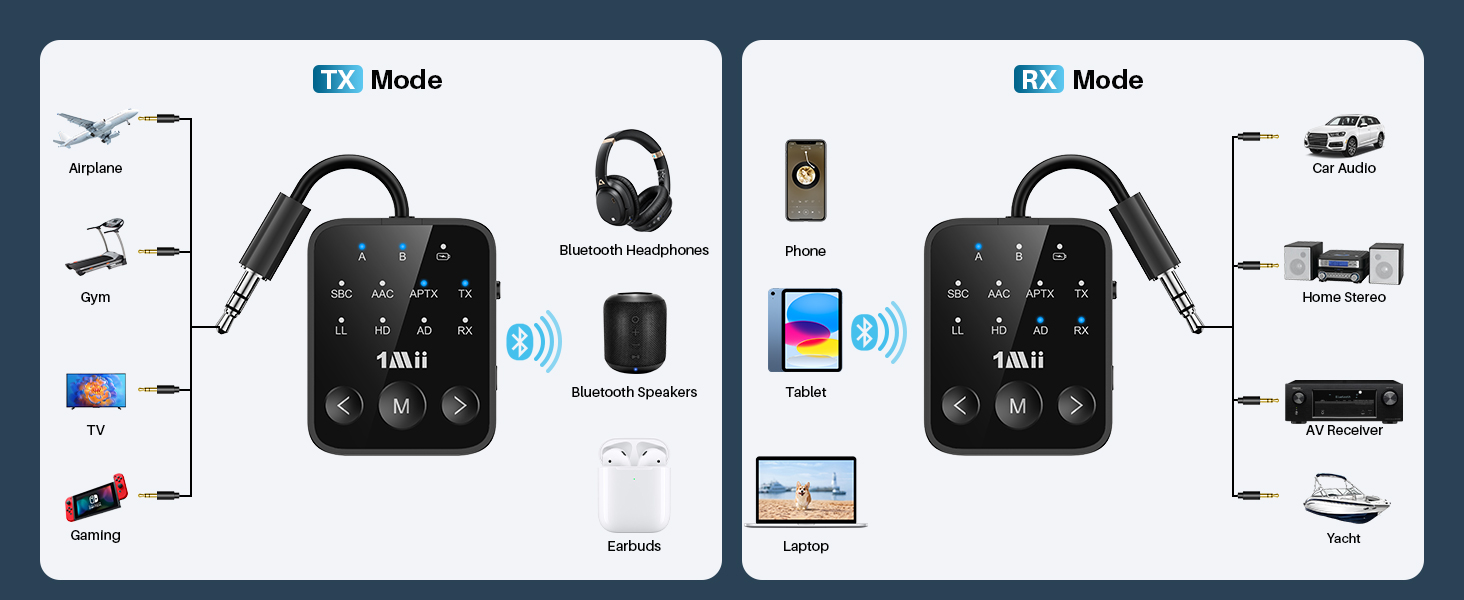
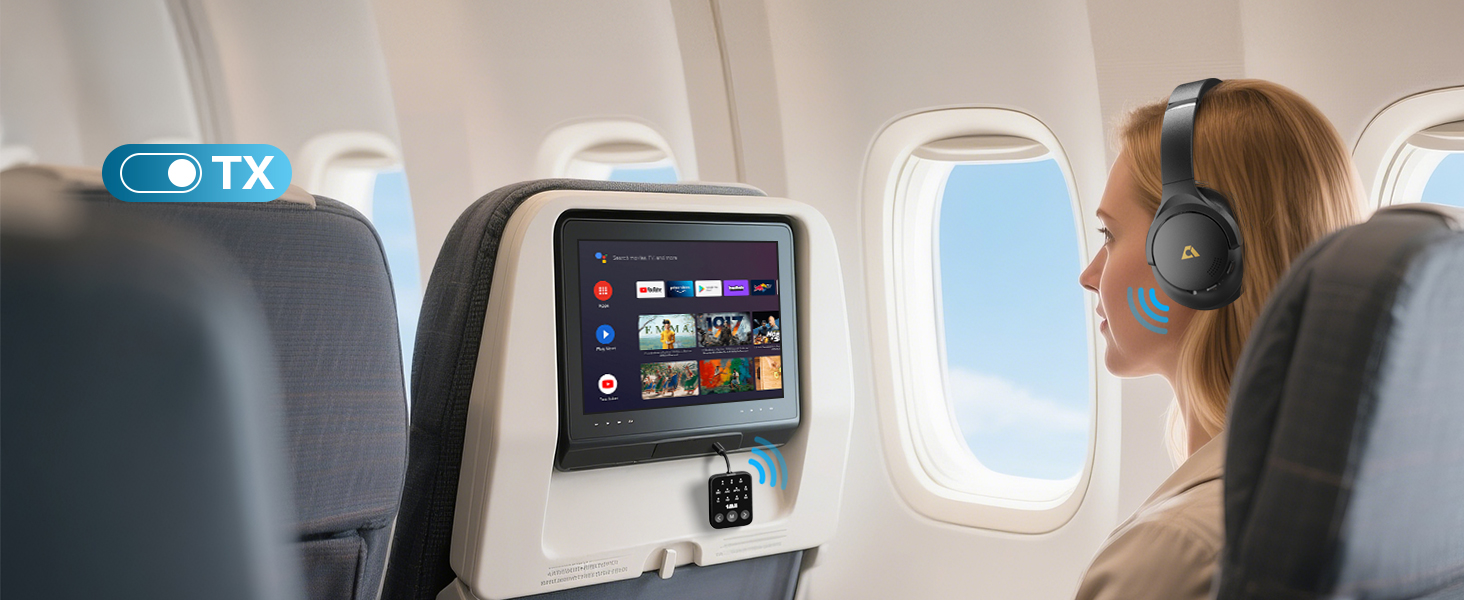
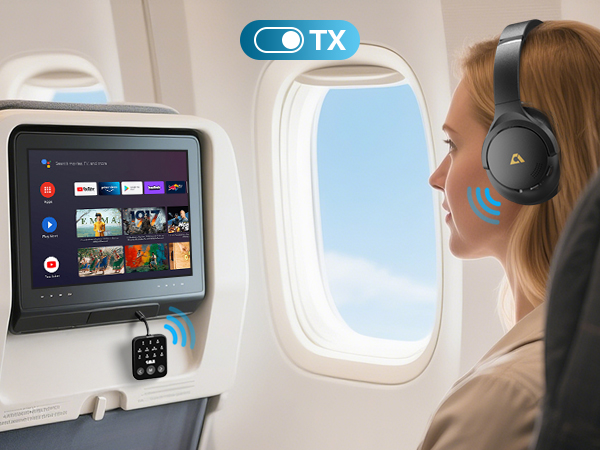
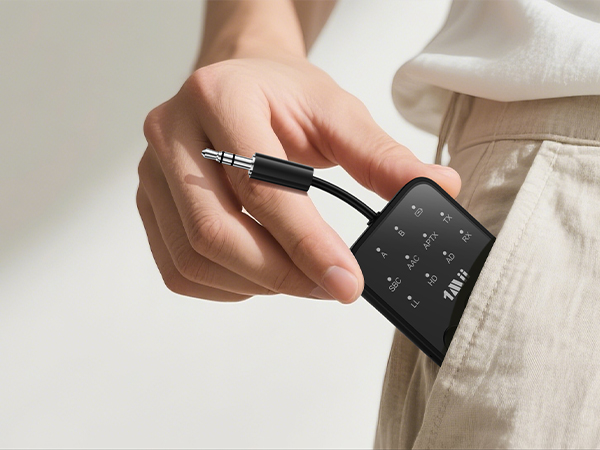
Perfect For Travel
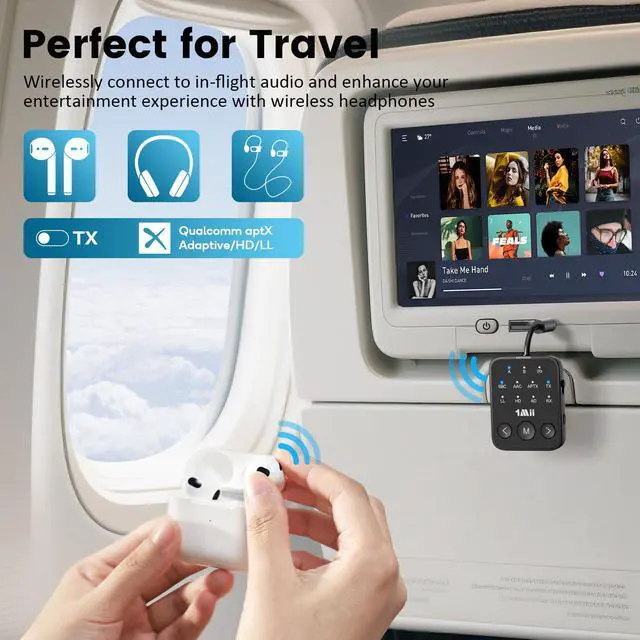
Stream movies & music wirelessly on flights with low-latency audio.
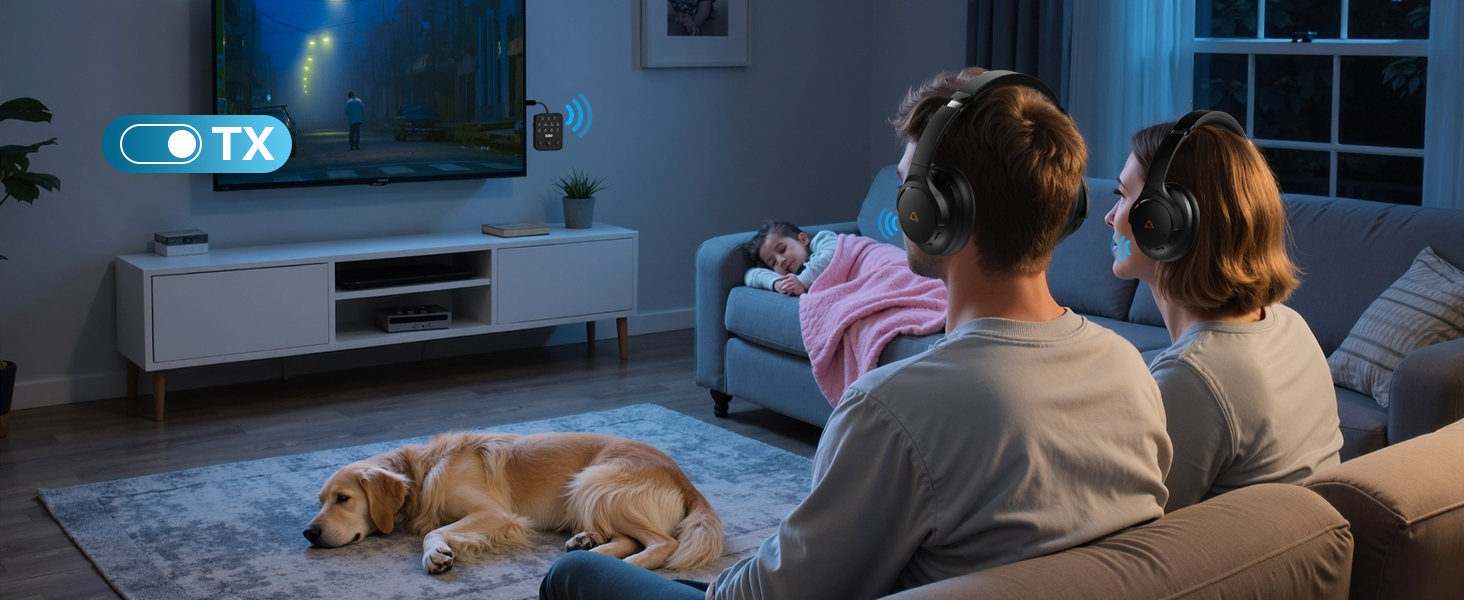
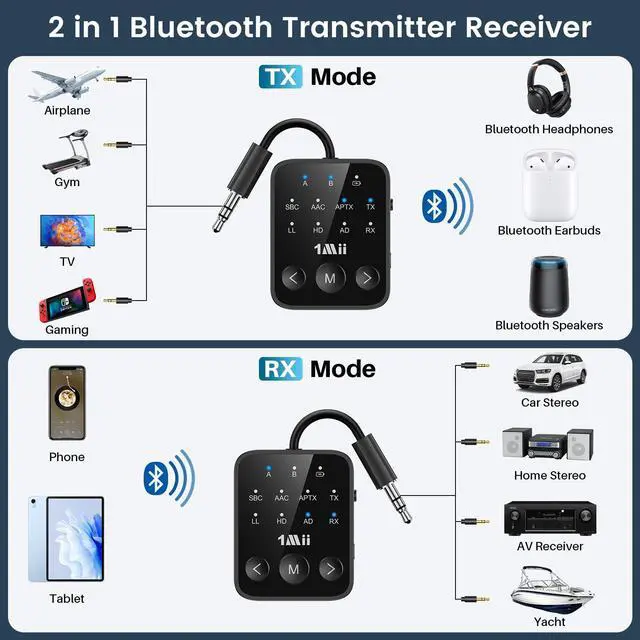
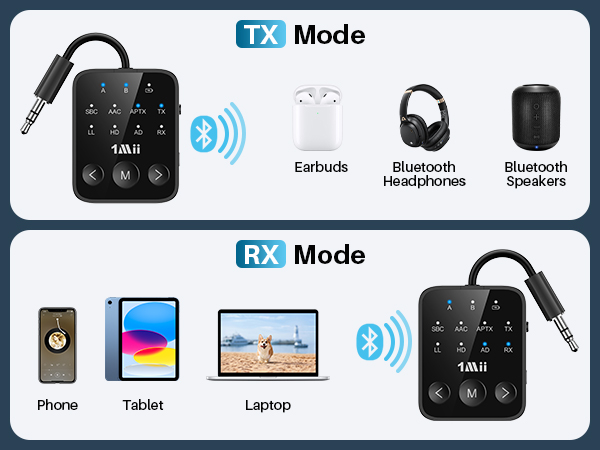
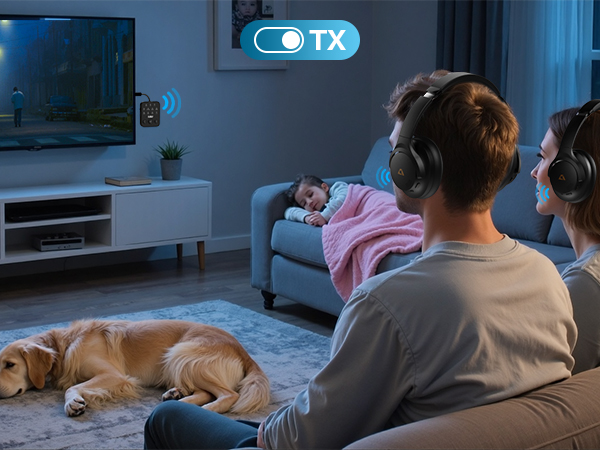
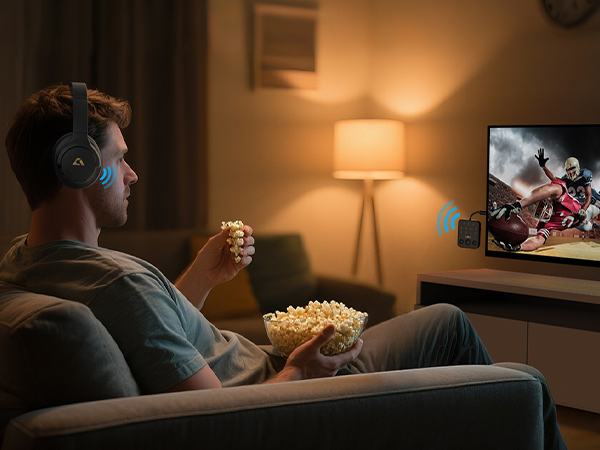
Stream audio to Bluetooth headphones/speakers
Perfect for late-night movies or immersive gaming without disturbing others.
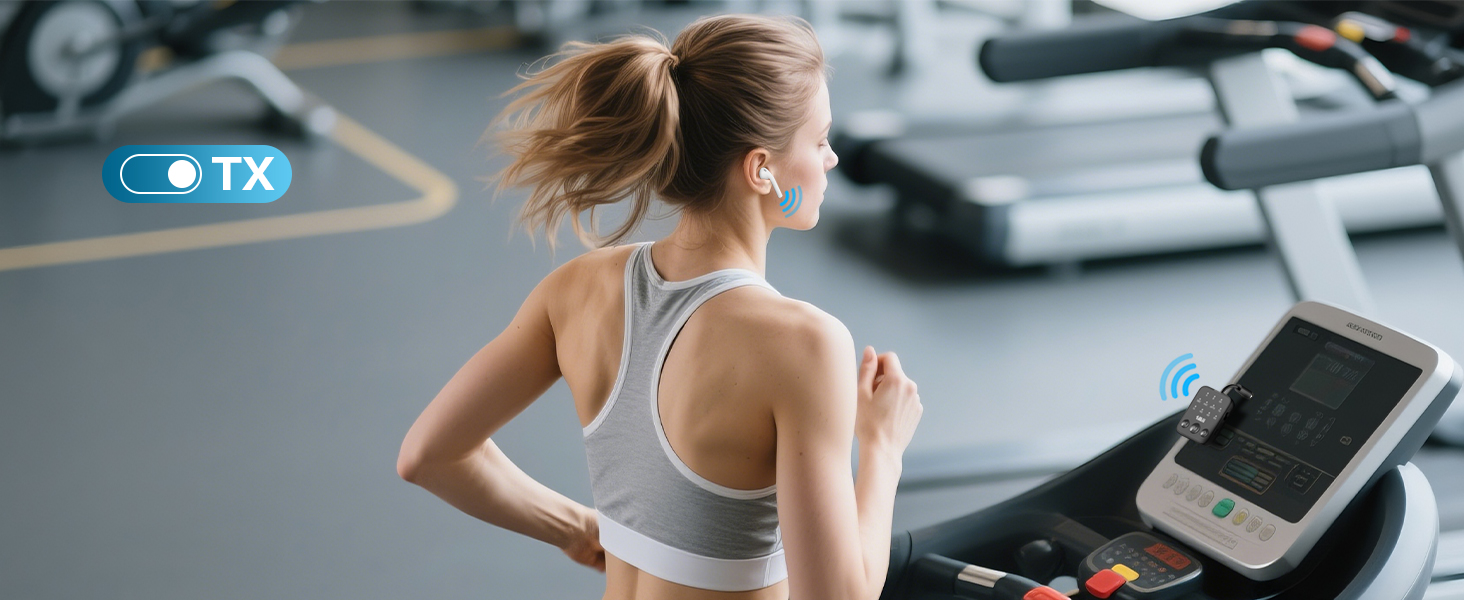
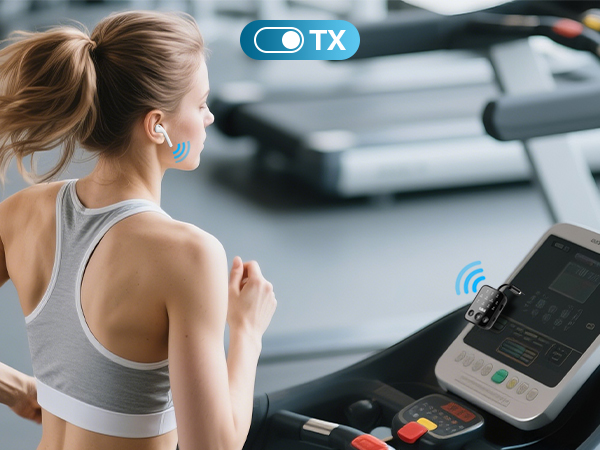
No More Cords
Wireless audio from gym Equipment to Headphone. Stay in sync with every beat, rep after rep.
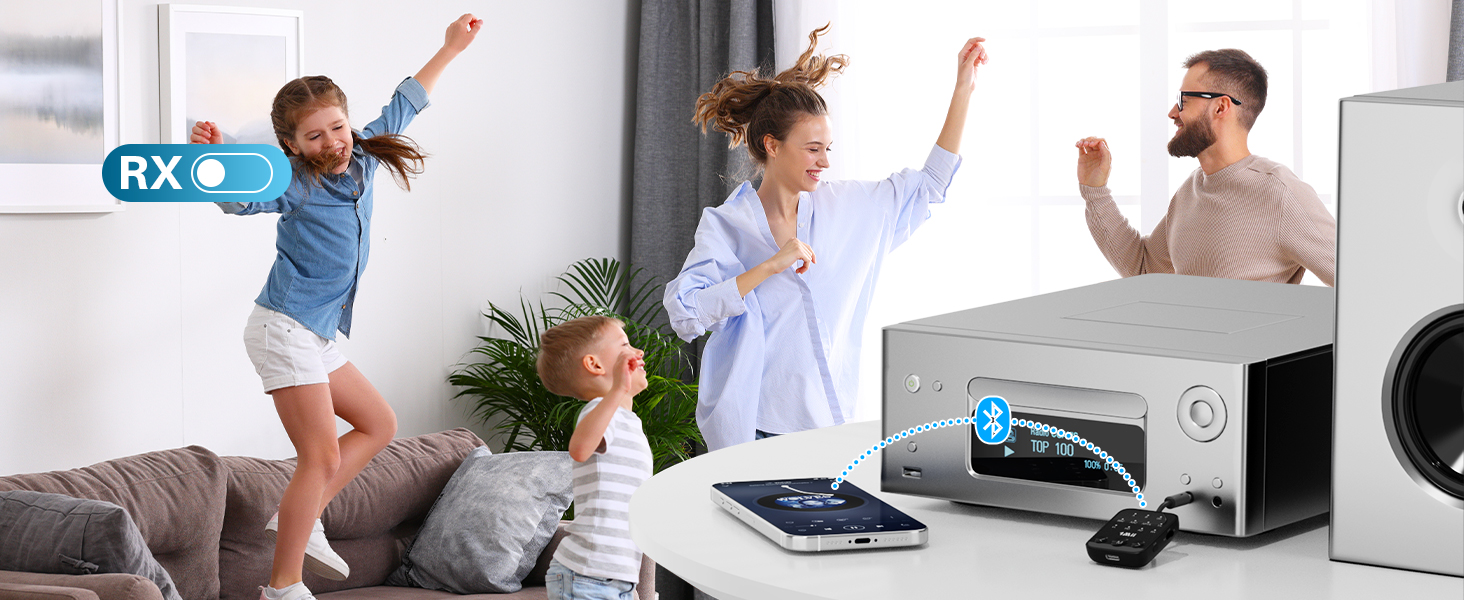
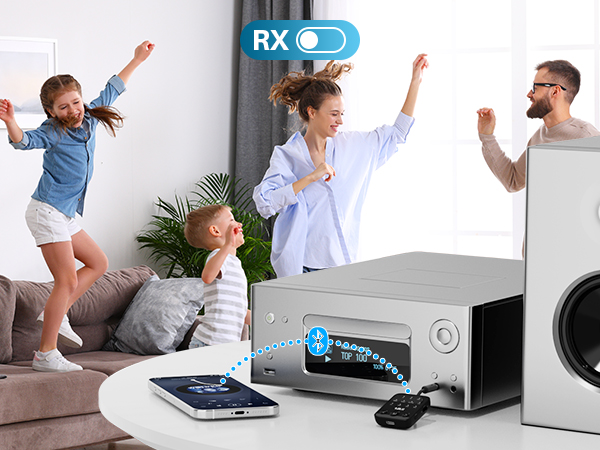
Whole-Home Audio Freedom
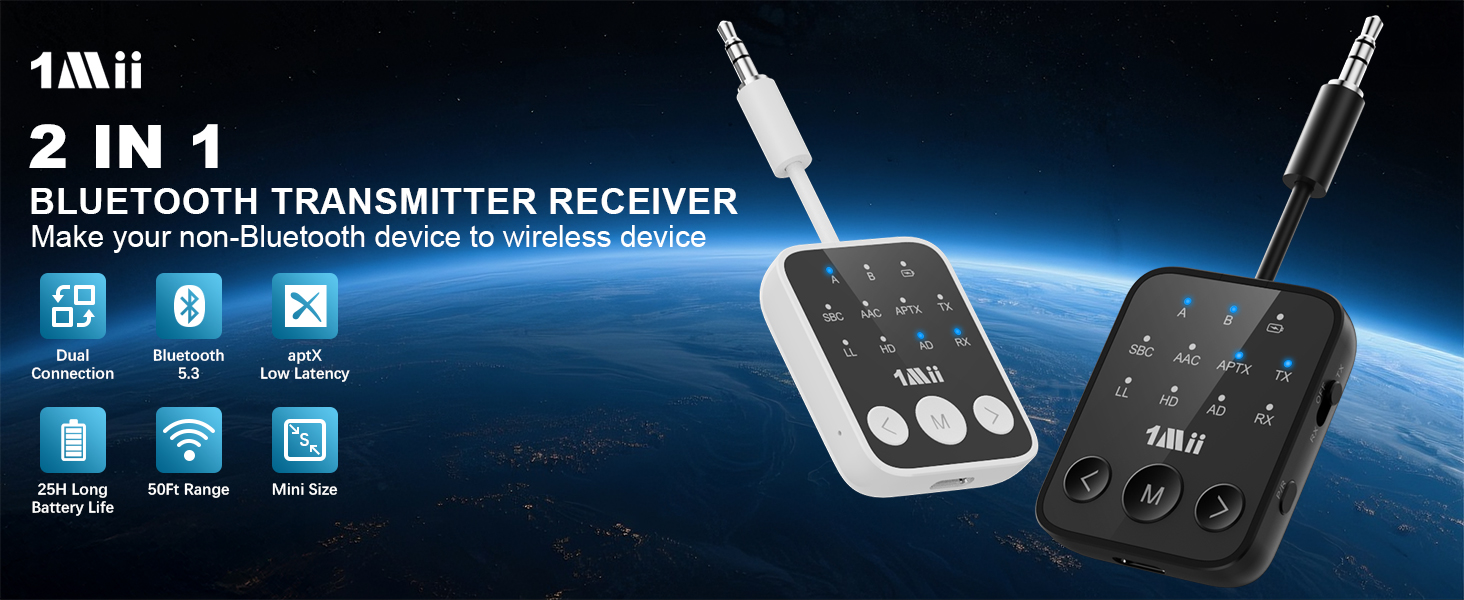
aptX HD/Adaptive codecs deliver 24-bit/48kHz lossless audio, enjoy your music!
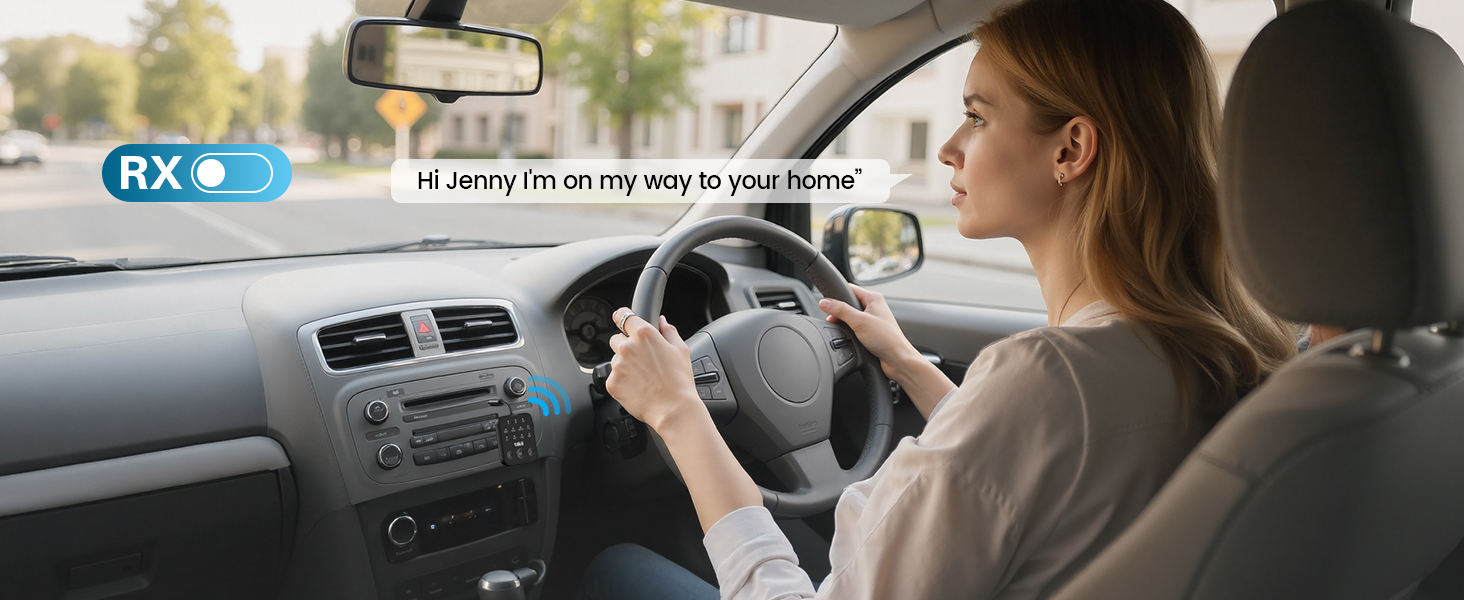
Seamless Calls & Tunes on the Road
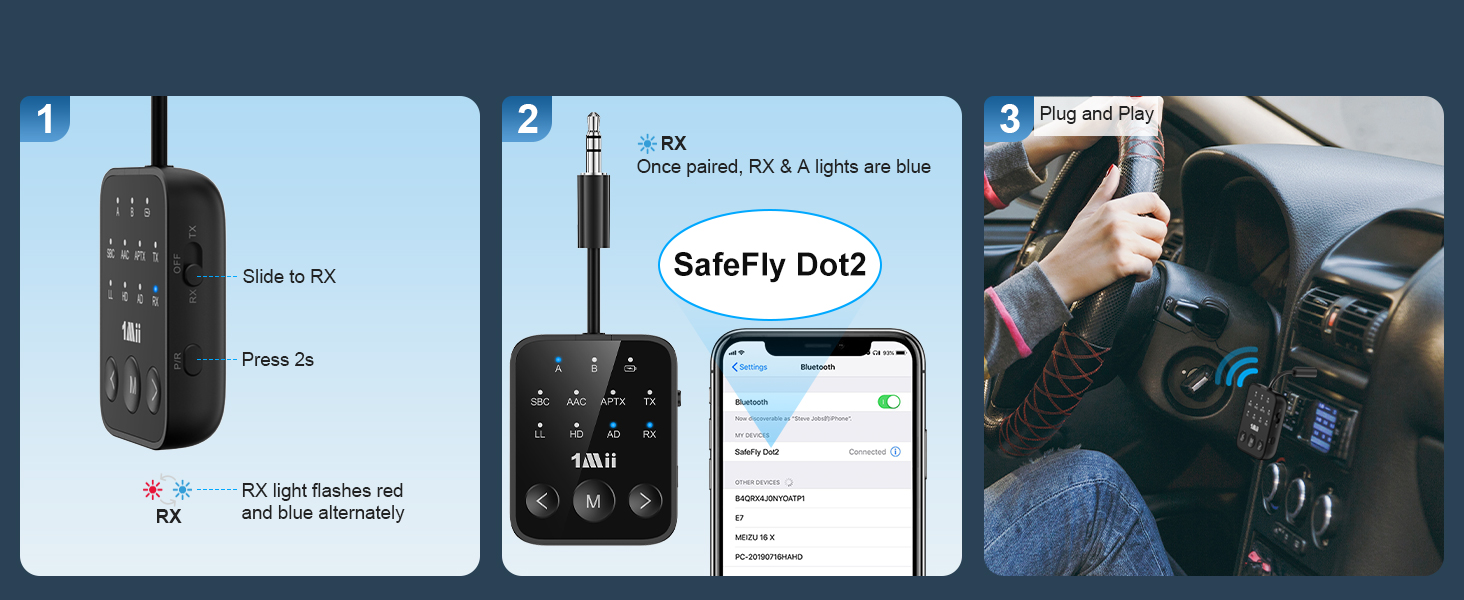
Stream music via aptX HD, activate Siri/Google hands-free, enjoy your journey!
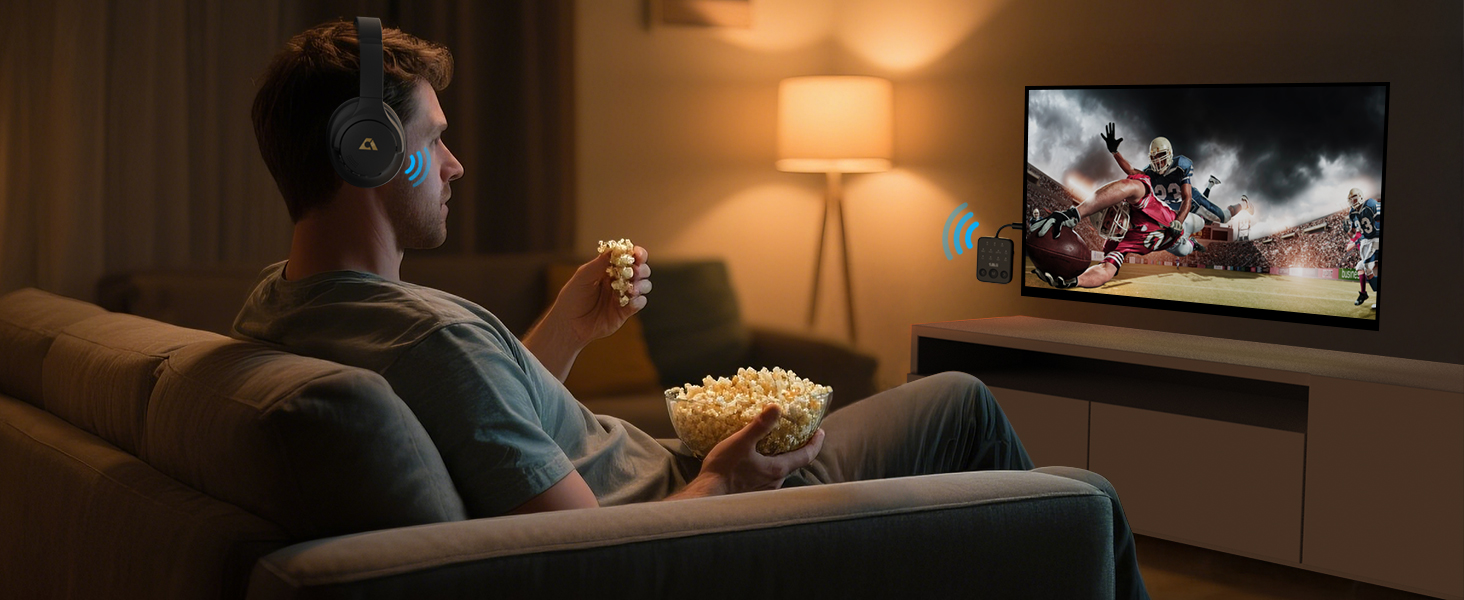
Headphones required aptX-LL/Adaptive support
Perfect audio-video synchronization for immersive movies & gaming.
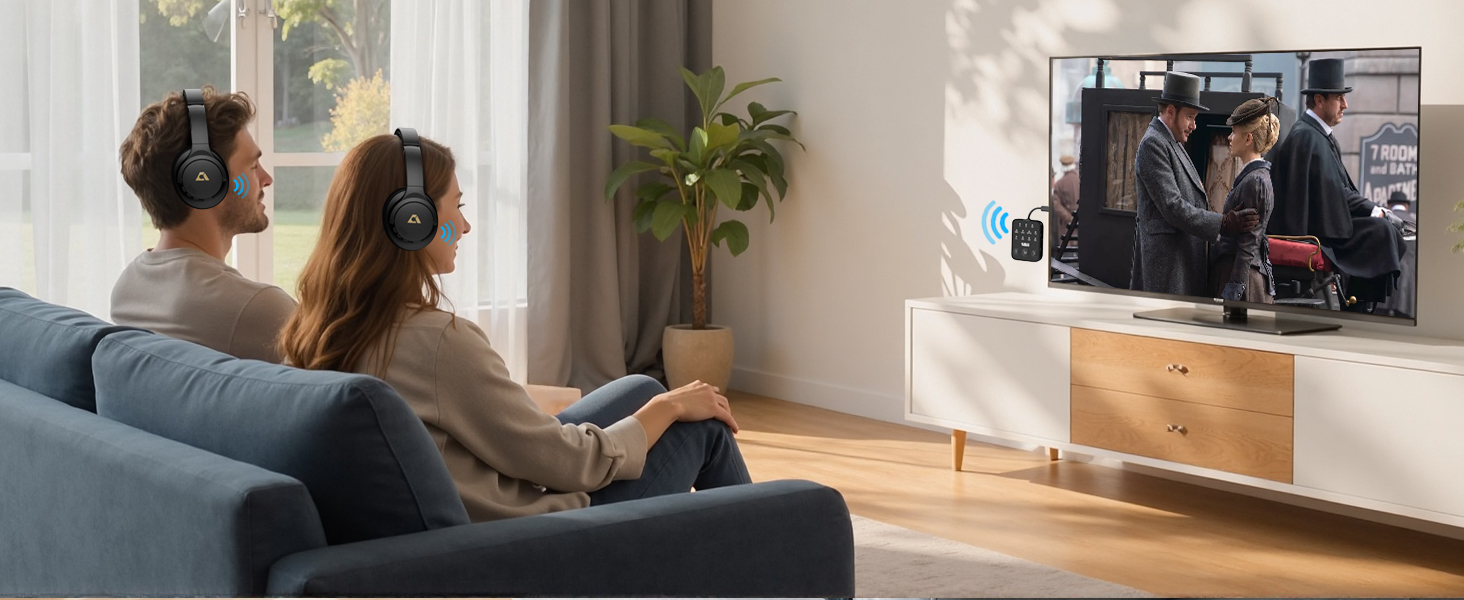
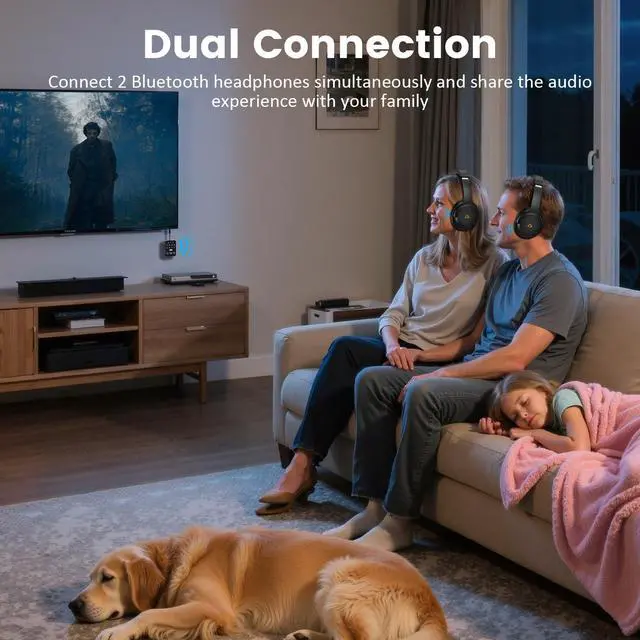
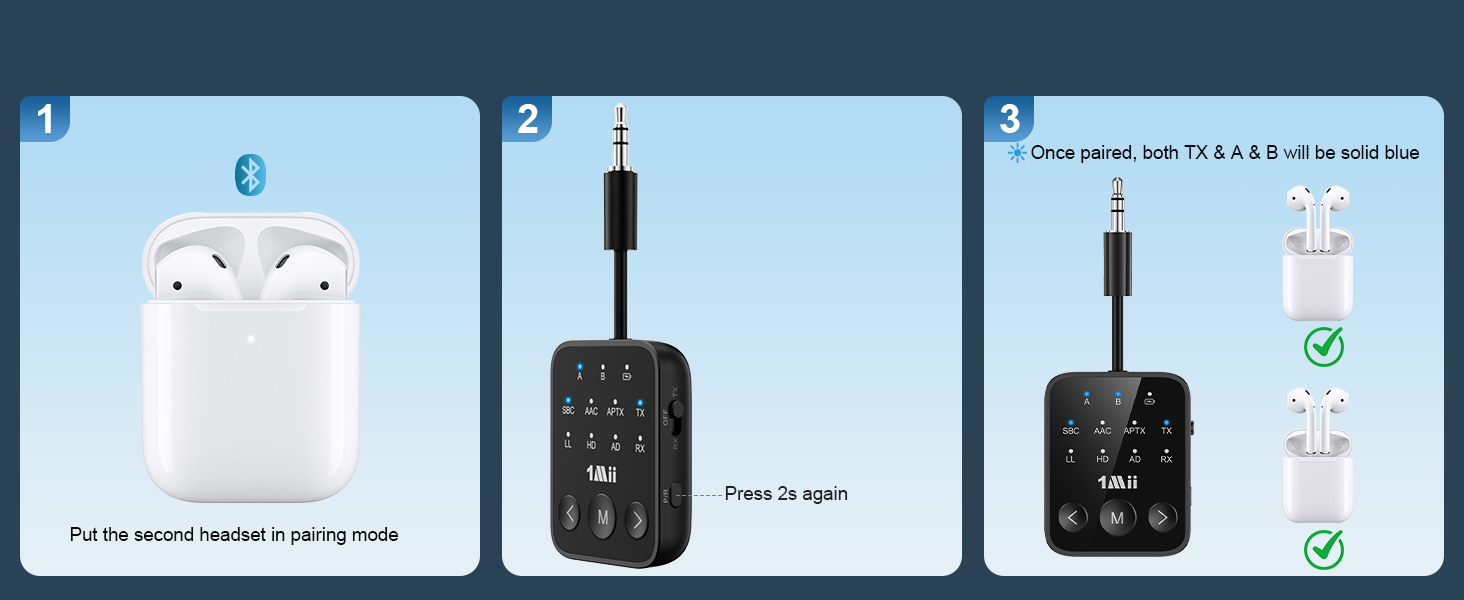
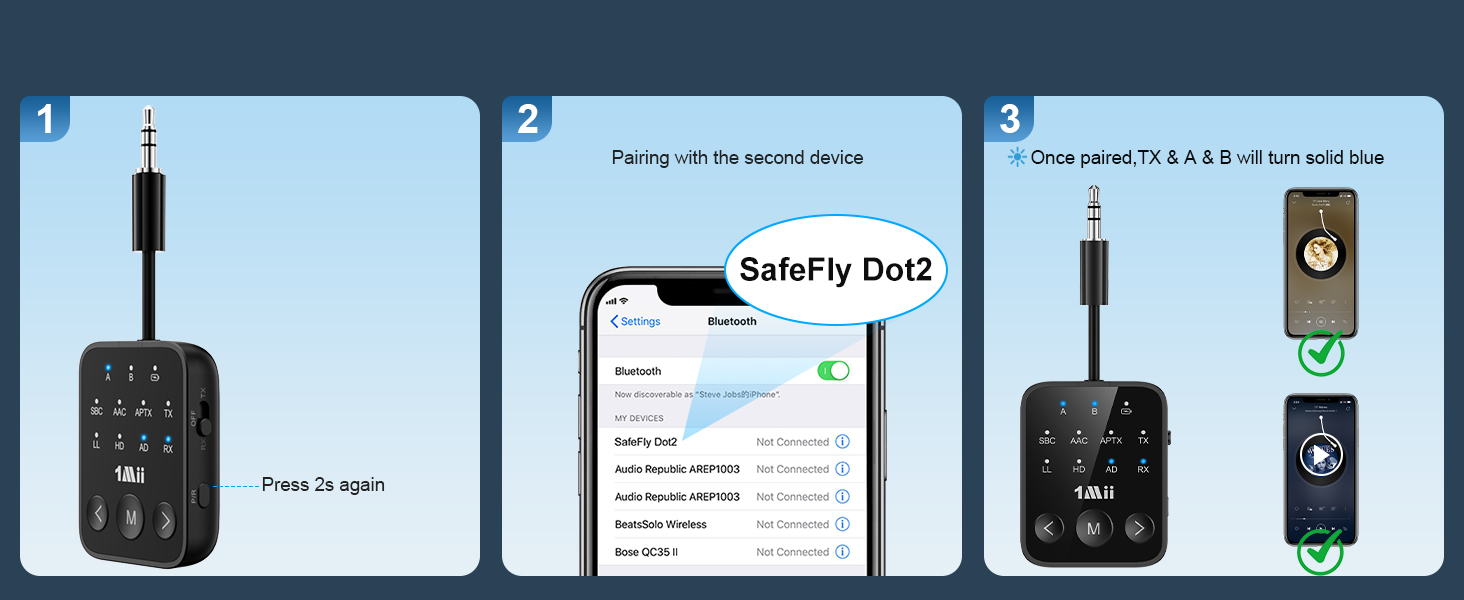
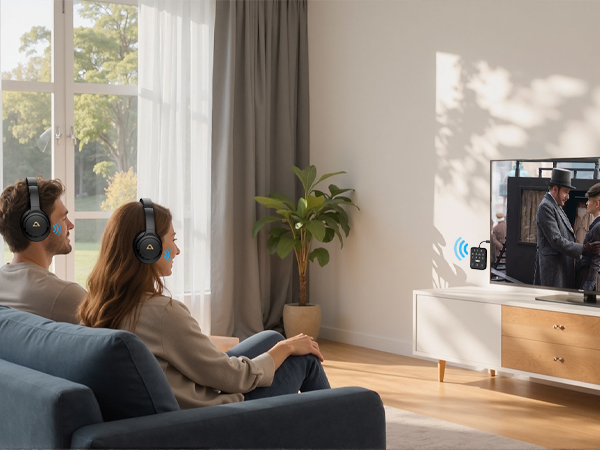
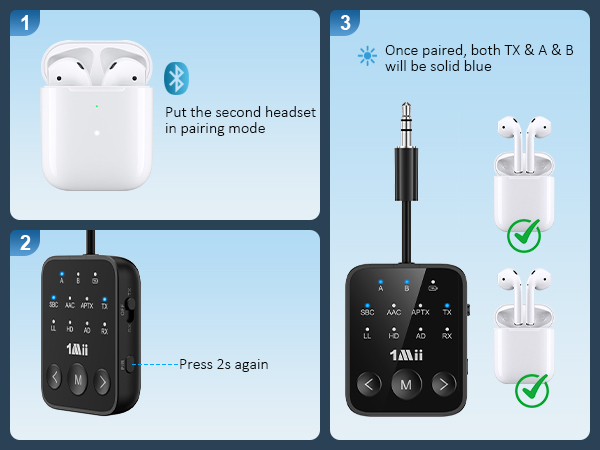
Connect 2 devices simultaneously
Share the TV experience with family, friends or your partner with this TV Bluetooth transmitter.

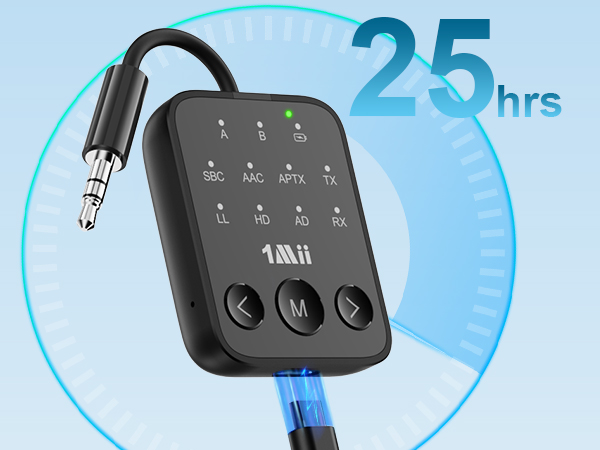
Can be used while charging
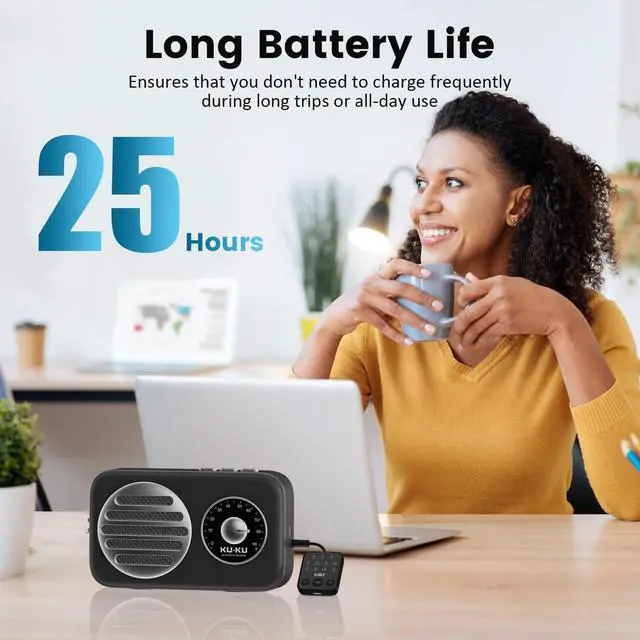
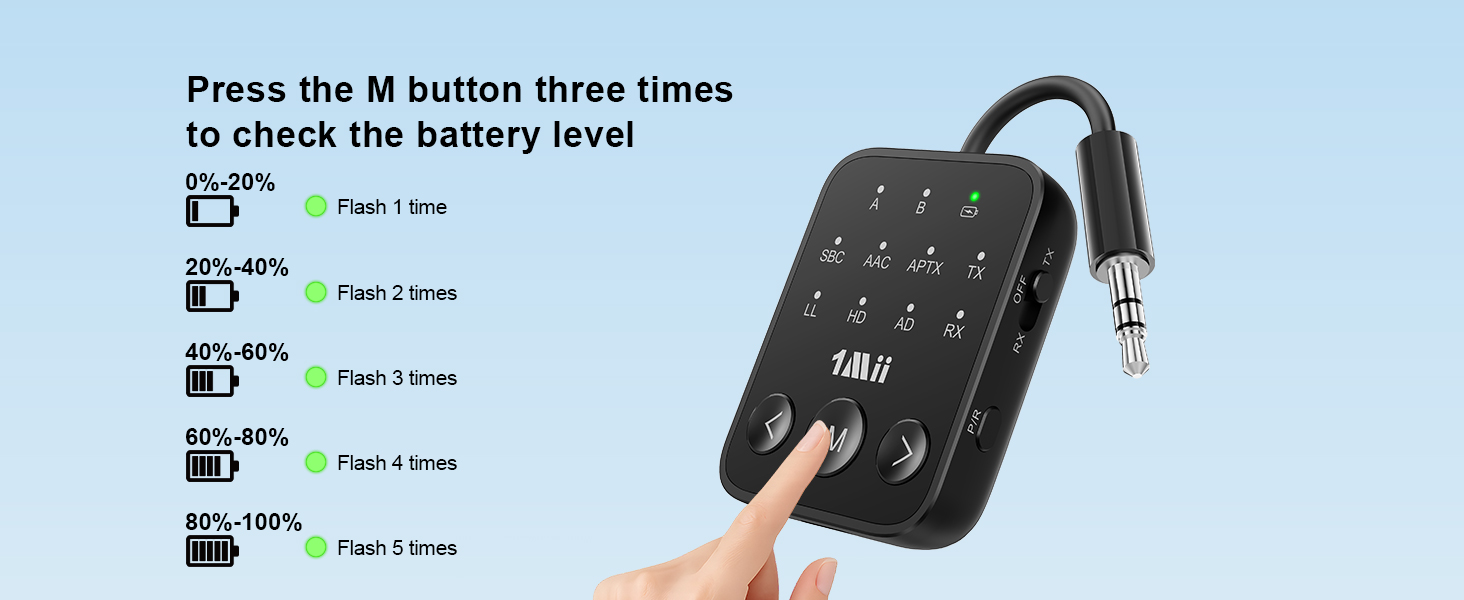
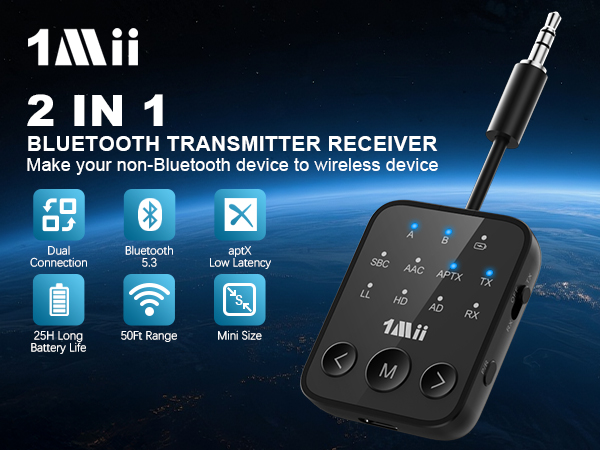
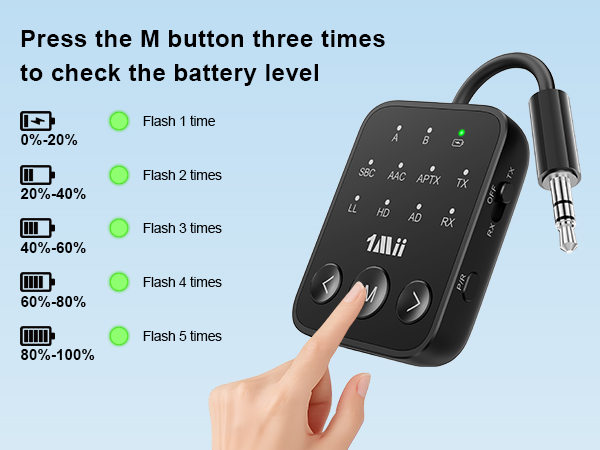
The battery life of up to 25 hours is enough to last through long trips or a full day of use.
Frequently Asked Questions
Perfect For Travel
Stream movies & music wirelessly on flights with low-latency audio.
Stream audio to Bluetooth headphones/speakers
Perfect for late-night movies or immersive gaming without disturbing others.
No More Cords
Wireless audio from gym Equipment to Headphone. Stay in sync with every beat, rep after rep.
Whole-Home Audio Freedom
aptX HD/Adaptive codecs deliver 24-bit/48kHz lossless audio, enjoy your music!
Seamless Calls & Tunes on the Road
Stream music via aptX HD, activate Siri/Google hands-free, enjoy your journey!
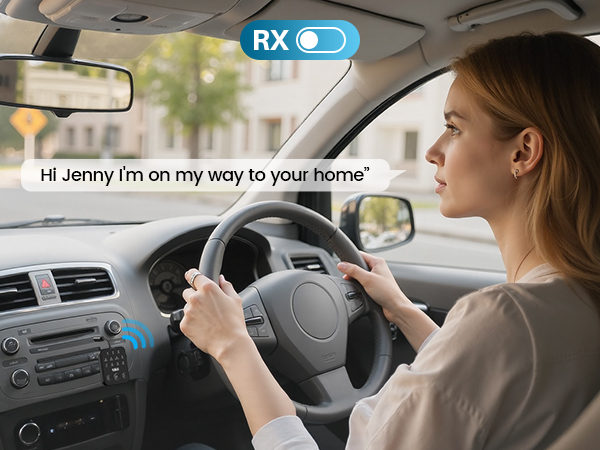
Headphones required aptX-LL/Adaptive support
Perfect audio-video synchronization for immersive movies & gaming.
Connect 2 devices simultaneously
Share the TV experience with family, friends or your partner with this TV Bluetooth transmitter.
Can be used while charging
The battery life of up to 25 hours is enough to last through long trips or a full day of use.
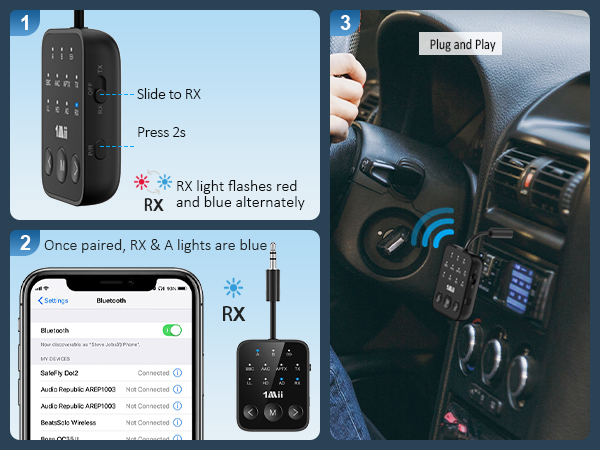
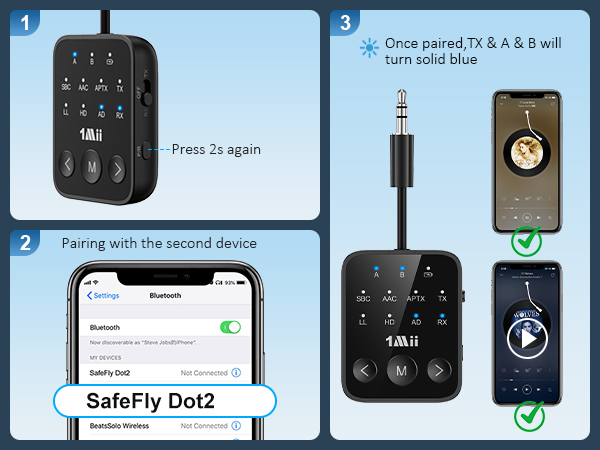
Frequently Asked Questions
| Q1. | How to connect Bluetooth headphones or speakers? |
|---|---|
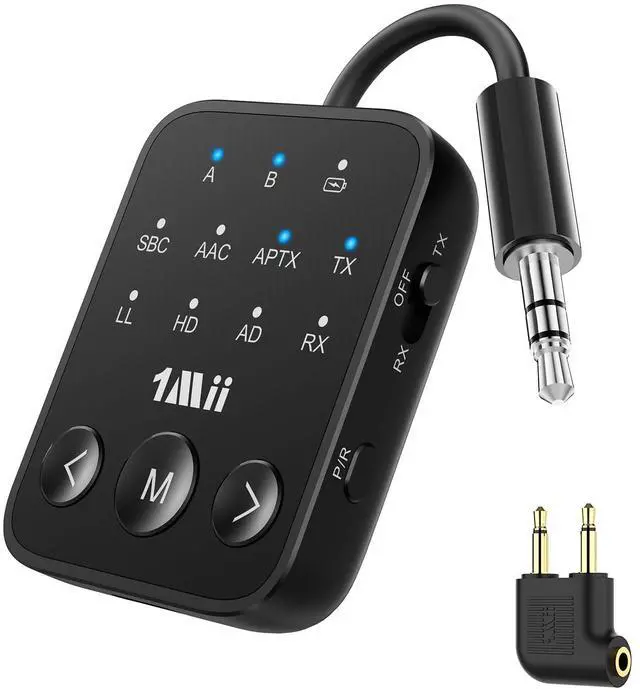
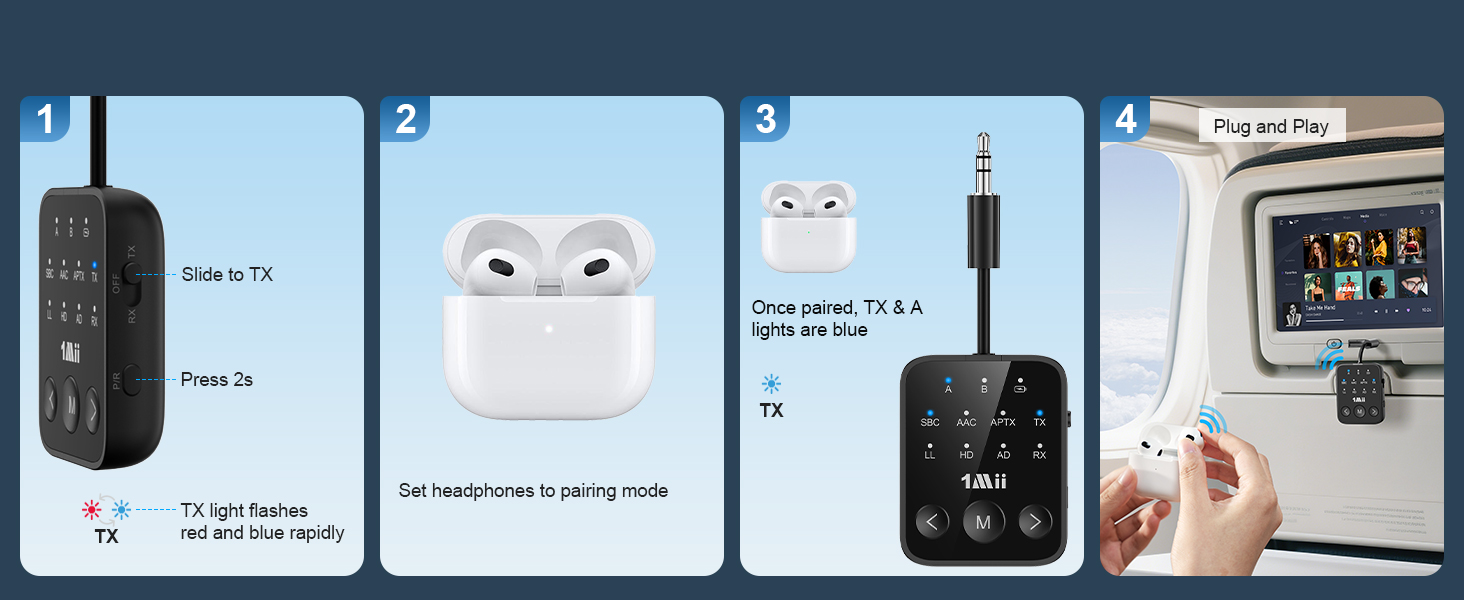
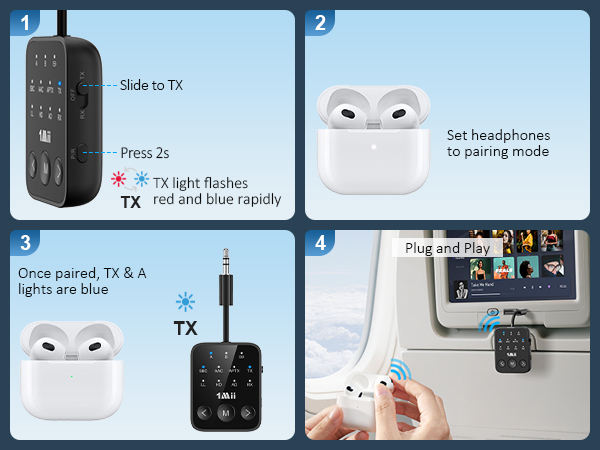
| A1: | 1. Turn on the Bluetooth headhones/speaker and set it to Bluetooth pairing mode (please turn off Bluetooth on all phones, pcs, and TVs at home to ensure the headhones are not paired with other devices). 2. Set the SafeFly Dot2 to "TX" mode. Press and hold the "P/R" button for 2 seconds to enter pairing mode. The "TX" indicator will blink rapidly. When both the "TX" and "A" indicators are on, pairing is successful. 3. Plug the device's 3.5mm audio cable into the audio output jack of your TV. |
| Q2. | Why is there audio delay? |
| A2: | To achieve low latency, your receiving device (e.g., Bluetooth headset or speaker)should also support aptX Adaptive/Low Latency. Otherwise, the receiving device may use a different codec (such as SBC or aptX), causing an audio delay of 70-200 milliseconds, which may be noticeable to some users. |
| Q3. | Cannot connect to my device? |
| A3: | Please check the SafeFly Dot2 during use to see if it is occupied (the blue light is always on). If it is occupied, please turn off other Bluetooth devices or clear the connected Bluetooth devices. To reset the SafeFly Dot2, press and hold the "P/R" button for 8 seconds while it is powered on, until all the LED lights flash once, indicating a successful reset. Then, you can pair and connect again. |
| Q4. | No sound from TV? |
| A4: | Please ensure that the aux cable is securely plugged into the "AUDIO OUT" or headphone jack on your TV, and confirm that both devices are successfully paired. Then, adjust the TV's sound settings from "TV speaker" to "Audio out." |
| Q5. | Is it compatible with AirPods? |
| A5: | Yes, it is compatible with AirPods, but not with AirPods Pro 2nd generation, AirPods 3 and AirPods Max. |
| Q6. | Can it be used for guitar or piano? |
| A6: | When using professional music equipment, such as guitar, piano, live music, musical instruments. etc., we recommend that you purchase dedicated equipment. |
| Q7: | Can I make voice calls using the Bluetooth receiver in my car? |
| A7: | Yes! The SafeFly Dot2 bluetooth aux adapter has a built-in microphone, so you can answer calls with a single button press while using it in your car. |
| Q8. | How to pair AirPods with SafeFly Dot2? |
| A8: | 1. Place the AirPods in the charging case and open the lid. Press and hold the button on the back of the charging case until the light flashes white. 2. Set the SafeFly Dot2 to "TX" mode. Press and hold the "P/R" button for 2 seconds to enter pairing mode, and the TX indicator will blink rapidly. When both the "TX" and "A" indicators are on, the pairing is successful. |