here!
here!
I’m your shopping assistant for PC builds, upgrades, and everything tech.
Got questions? Ask away!
Start a conversation
here!
I’m your shopping assistant for PC builds, upgrades, and everything tech.
Got questions? Ask away!
Start a conversation




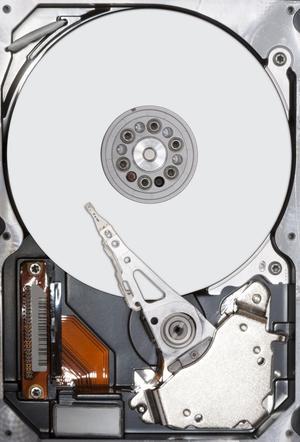
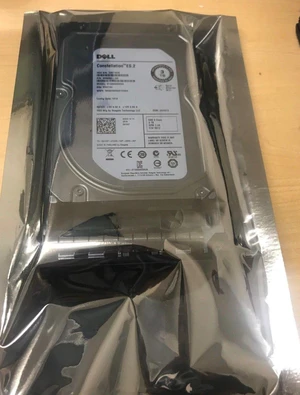

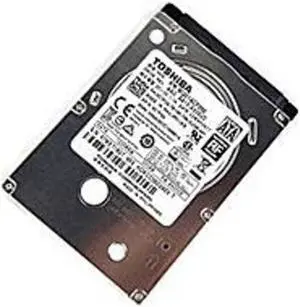
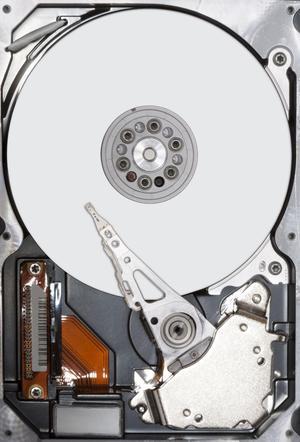
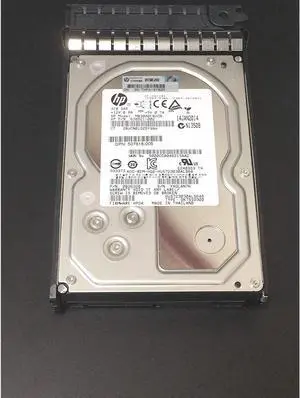
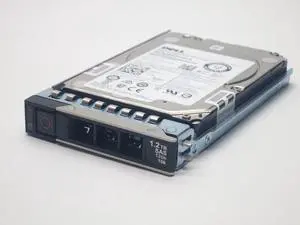
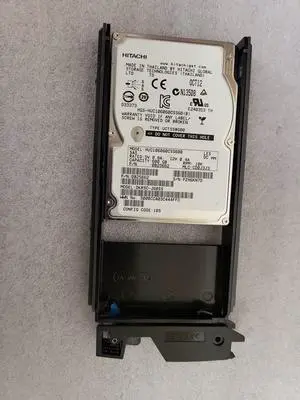
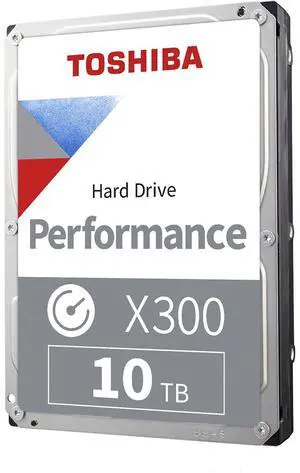
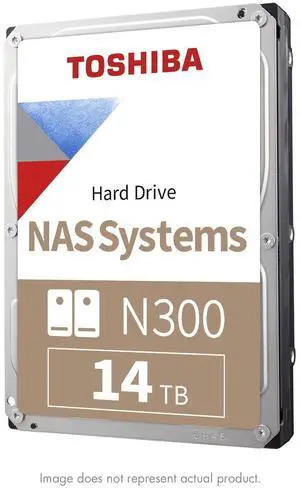
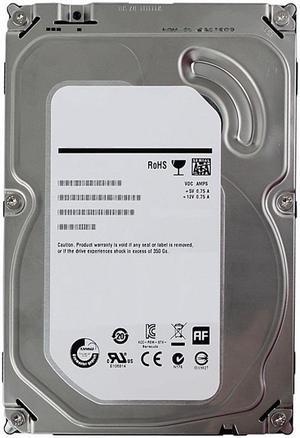

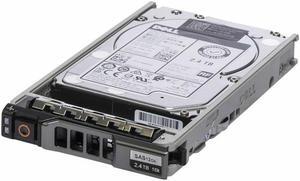
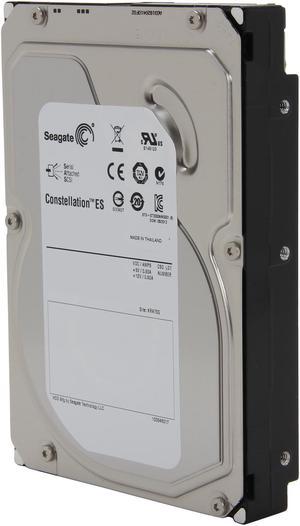
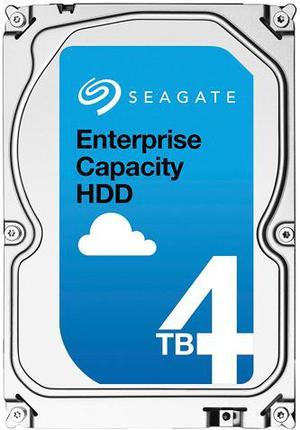
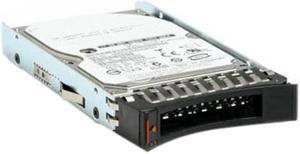
Explore a wide selection of desktop internal hard drives, including SATA HDDs and SSDs, ideal for upgrading your PC storage. Find the right drive by capacity, RPM, or SATA interface to fit your needs, plus check out Black November deals and Black Friday deals for added savings.
When upgrading or building your desktop storage, it’s essential to consider a blend of features to find the right internal hard drive. Here’s what matters most:
The rotational speed or RPM of a hard drive is a critical spec that directly impacts the drive’s performance. Most desktop internal HDDs run at either 5400 or 7200 RPM:
Manufacturers often couple 7200 RPM drives with larger cache sizes to further boost performance. When looking through options, keep in mind that faster RPM can correlate with a higher purchase price and heat output, so balance your demands accordingly. For instance, options ranging from 5TB to 6TB HDDs often incorporate this speed tier for versatile desktop use.
For professionals managing high-demand environments like video editing suites, software development servers, or extensive media libraries, selecting the right internal hard drive means balancing capacity, speed, and reliability. Drives sized between 12TB - 16TB provide ample room without sacrificing performance, making them excellent candidates for robust NAS setups or workstation drives.
Increased platter density and technologies like PMR and SMR offer efficiency tuned to specific workloads, so knowing your application profile is crucial. Some users might also consider RAID arrays pairing multiple drives, which accentuates the importance of vibration control and error correction for long-term stability.
Stay organized during Black November deals and Black Friday deals by filtering drives that best match your professional criteria — this can maximize value and ensure your projects run without storage bottlenecks.
Newegg shopping tip: When choosing a desktop internal hard drive, consider both capacity and speed—higher RPM drives offer faster performance but usually at a higher cost. Also, compare SATA interface versions to ensure compatibility with your motherboard, especially if you're eyeing Black November deals or Black Friday deals.
Bulk up your storage with 18TB+ drives designed for massive-scale data archiving and professional video editing workflows, using the latest SMR or PMR tech for efficiency and reliability.
Handle extensive libraries and backups effortlessly with 12TB-16TB HDDs, offering a balance of capacity and enterprise-grade performance ideal for NAS and media servers.
Hit the sweet spot in capacity and speed: 6TB-10TB drives deliver ample room plus RPM options that cater to gaming rigs, workstations, and creative projects.
If you’re new to upgrading your PC’s storage, understanding desktop internal hard drives is key. These drives connect inside your computer via the SATA interface, offering reliable performance for storing your operating system, games, photos, and documents. Beginners often start with solid capacities and RPM speeds that fit common workflows—1TB to 5TB models provide ample room for most average users while maintaining fast data access. Whether you want a traditional spinning hard disk drive (HDD) or a solid-state drive (SSD) that boots quickly, Newegg’s selection helps you find what fits your PC’s needs and budget. Explore our collection of 1TB - 5TB desktop internal hard drives as a solid starting point during the Black November deals.
Gamers and performance users demand hard drives that deliver both speed and capacity to handle large game libraries and intensive load times. Desktop internal hard drives in the 6TB to 10TB range strike a perfect balance, providing ample storage space and higher RPM options designed to keep up with the rapid read/write speeds gaming requires. Drives in this capacity range come with added features such as enhanced cache and vibration reduction to maintain smooth gameplay and reliability in multi-drive configurations. When hunting for Black Friday deals on desktop internal hard drives, look into 6TB - 10TB capacity options to upgrade your rig.
Content creators, video editors, and professionals working with massive files require dependable, high-capacity storage that supports hefty workloads and long sessions. Desktop internal hard drives starting at the 12TB size can meet these needs by offering enterprise-grade performance, excellent throughput, and increased drive endurance. Maximizing workflow efficiency often means selecting drives designed for sustained operation with features like SMR or PMR technology, which help optimize storage for large media libraries and backups. Consider browsing 12TB - 16TB drives as part of your plan when evaluating Black November deals for desktop internal hard drives.
Research more: When choosing a desktop internal hard drive, consider factors like capacity, speed (RPM for HDDs), and interface type to match your performance needs. For a deeper dive into these options, check out Newegg Insider’s buying guides to make a well-informed decision during Black November deals and Black Friday deals.
Last Updated: November 2026 | Newegg Desktop Internal Hard Drives Buying Guide
SSDs are much faster than traditional HDDs because they have no moving parts, which also makes them more durable and reliable over time. However, HDDs typically offer more storage for less money if you need high capacity on a budget.
Both Seagate and Western Digital are well-established brands with solid performance, but WD drives often have quieter operation and better warranty options, while Seagate can sometimes offer slightly better pricing or faster speeds depending on the model.
SATA drives use an older connection standard and are generally slower, while NVMe drives connect via PCIe and offer much faster data transfer speeds, making them ideal for gaming and heavy multitasking.
Desktop internal hard drives usually range from 500GB to several terabytes, with 1TB to 4TB being the most popular choices for everyday users who need plenty of space for files and programs.
It depends on what you need—SSDs are faster and more durable but usually cost more per gigabyte, while HDDs offer more storage space for less money but are slower. For everyday use or gaming, an SSD is a solid choice; for bulk storage or backups, an HDD works well.
You can find decent 1TB drives around $40 to $60 for HDDs, while a 500GB SSD might start near $50 but offers better speed. Setting your budget depends on capacity needs and whether performance or storage is more important to you.
Most desktop internal hard drives are pretty reliable if you stick with well-known brands, but like any mechanical part, they can fail eventually. Regular backups are key since even good drives can die unexpectedly after a few years.
Pay attention to comments about unusual noises, slow performance, or early failures, as these often hint at reliability issues. Also, check if users mention firmware updates or compatibility problems with certain systems.
First, power down your computer and unplug it. Open the case, mount the drive in an empty bay using screws or brackets, connect the SATA data and power cables, then close the case and turn your PC back on.
After installation, go to Disk Management in Windows, find the new drive listed as unallocated, right-click it, and choose to create a new partition and format it with NTFS for optimal performance.
“ This SSD has done yeoman work for a couple years. I have it attached via USB on my desktop and it has all my work on it, safe from Windoze crash damage or erasure on OS re-installs. ”
WD Blue 500GB Desktop Hard Disk Drive - 7200 RPM SATA 6 Gb/s 16MB Cache 3.5 Inch - WD5000AAKX