




 here!
here!
I’m your shopping assistant for PC builds, upgrades, and everything tech.
Got questions? Ask away!
Start a conversation
here!
I’m your shopping assistant for PC builds, upgrades, and everything tech.
Got questions? Ask away!
Start a conversation








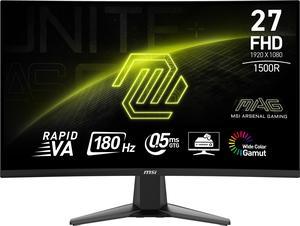
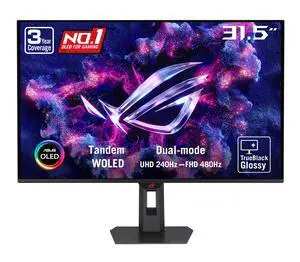
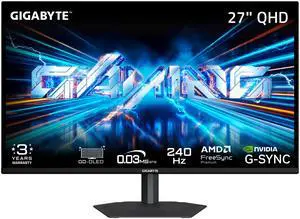
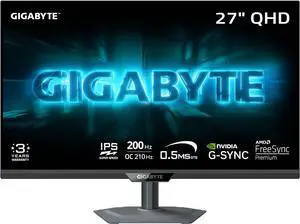
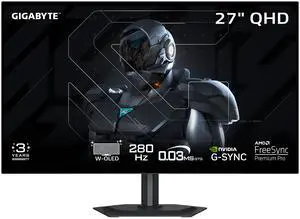
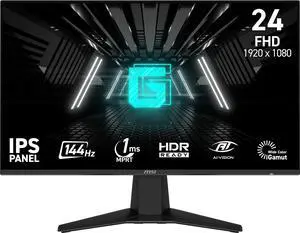
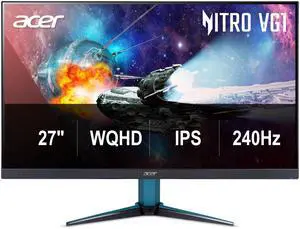
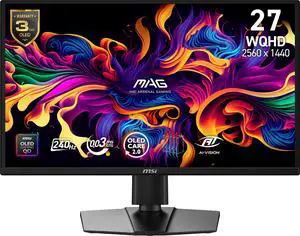
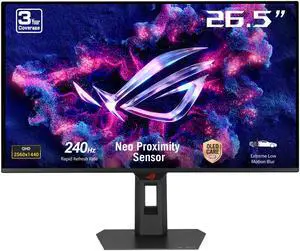
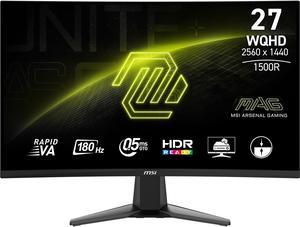
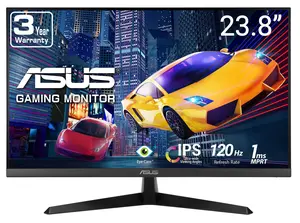
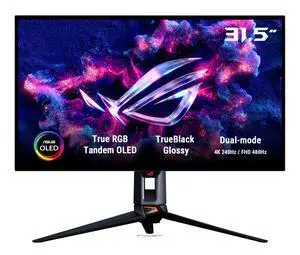
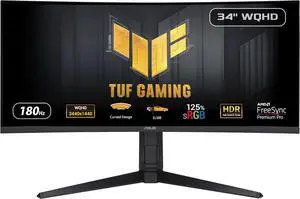
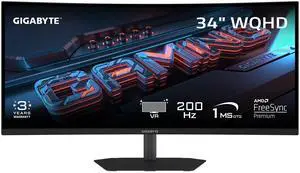
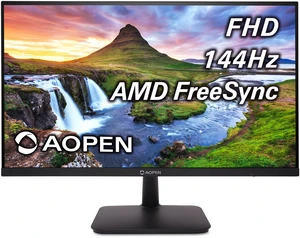
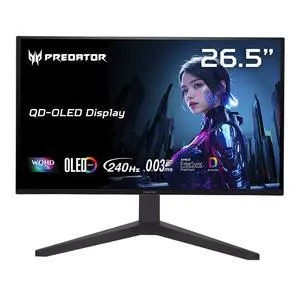
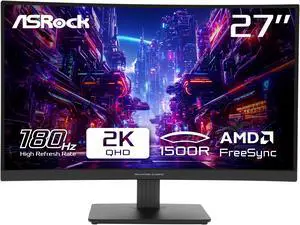
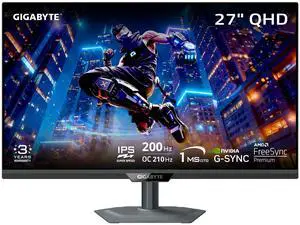
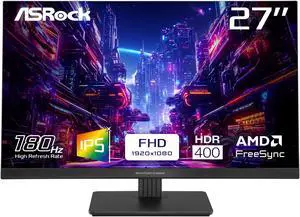
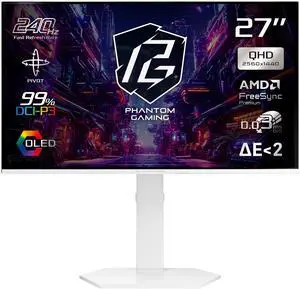
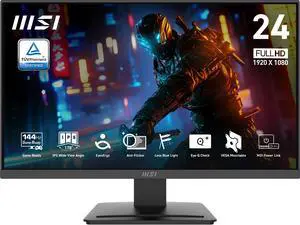
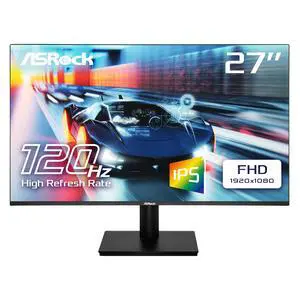
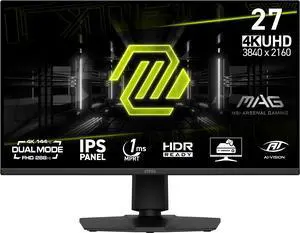
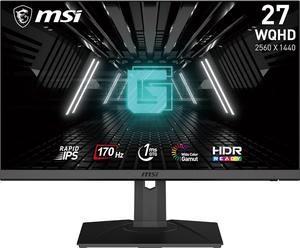
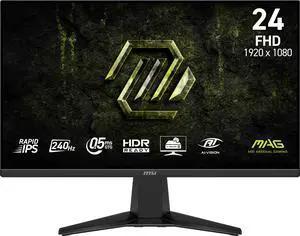
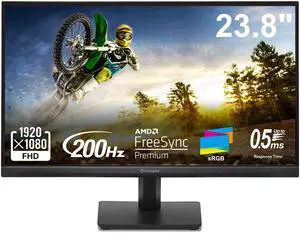
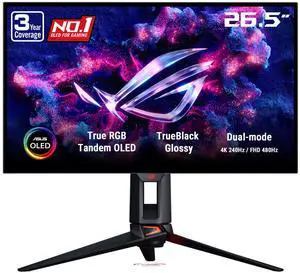
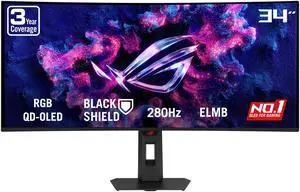
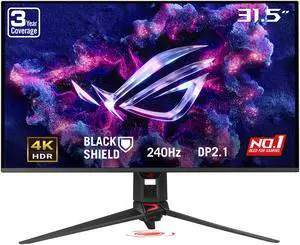
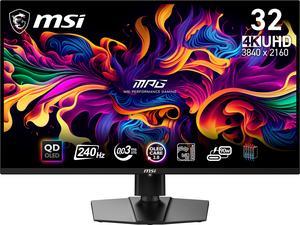
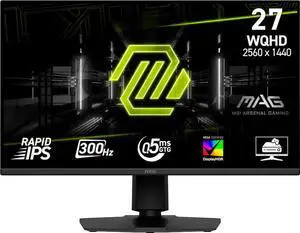
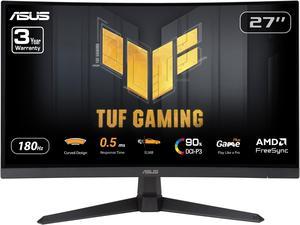
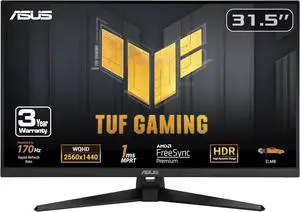
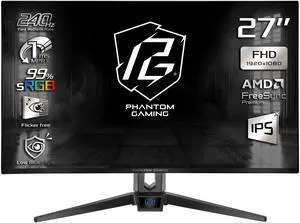

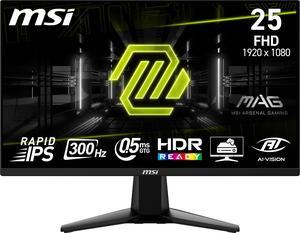
For gamers looking to enhance their setup, this page features gaming monitors with 144Hz+ refresh rates, ultra-low response times, and advanced sync technologies. Explore 4K OLED and HDR screens designed to deliver smooth gameplay and vivid visuals.
Among all technical specs, the refresh rate is arguably the single most decisive factor when picking a gaming display. A 144Hz or faster monitor delivers fluid on-screen motion, which can be a game-changer in genres like first-person shooters, racing, and real-time strategy. Higher refresh rates mean your screen updates more frequently per second—resulting in smoother animation and less motion blur. This clarity reduces eye strain over marathon sessions and can give you a competitive edge through faster visual feedback. While gamers often balance resolution and screen size preferences, prioritizing a high refresh rate ensures responsive gameplay without sacrificing immersion. Pairing these monitors with adaptive sync technologies like G-Sync or FreeSync eliminates stutter and tearing, making 144Hz+ displays the sweet spot for serious gaming.
For developers, streamers, or creative pros who demand multitasking and expansive workspace, ultrawide monitors and multi-display configurations open new productivity avenues. Consider stepping into the ultrawide category, such as the 34" monitors or even larger curved panels beyond 32", which provide massive horizontal screen real estate without bezels breaking the visual flow. These displays are ideal for coding, debugging, or video editing alongside live gameplay capture. Sync tech and high refresh rates remain crucial here to keep both work and play buttery smooth. By integrating these setups with gaming-grade monitors, professionals elevate their workflow while enjoying top-tier gaming responsiveness.
Newegg shopping tip: Before buying a gaming monitor, focus on refresh rate and response time to ensure smooth gameplay without motion blur. Also, check if it supports sync technologies like G-Sync or FreeSync to reduce screen tearing based on your graphics card.
Dive into ultra-immersive gameplay with displays beyond 32", perfect for expansive FOV and high-res setups like 4K or ultrawide formats, ideal for strategy and simulation games.
A sweet spot for competitive and immersive gaming, 27" to 32" monitors offer 1440p resolution and high refresh rates, balancing sharp visuals with smooth, responsive play.
Compact yet sharp, 24" to 26.9" monitors deliver 1080p or 1440p clarity with blistering 144Hz+ refresh rates, optimal for esports and fast-paced FPS titles.
Stepping into the world of gaming monitors can feel overwhelming, but it’s all about matching your setup to your gaming style and budget. For those new to gaming displays, look for a monitor with a refresh rate of at least 144Hz and low response times to ensure smooth gameplay without motion blur. Full HD or 1440p resolution provides sharp visuals whether you’re playing casual titles or diving into more detailed worlds. Size also matters: compact 24" - 26.9" models are an excellent starting point, balancing desk space and immersive quality.
For players focused on esports or competitive FPS titles, performance is king. A monitor with ultra-low input lag, a refresh rate of 165Hz or higher, plus adaptive sync technology like G-Sync or FreeSync, helps keep every movement crisp and responsive. The popular 27" size strikes the perfect balance—offering sharp QHD resolution with a responsive experience that won’t leave you behind in fast-paced matches.
If your heart lies in exploring sprawling open-world adventures or story-driven AAA titles, visual fidelity and immersion come first. Look towards larger displays that bring your game world to life with rich colors and crisp detail. 4K UHD resolution with HDR support lets you see environments in stunning clarity. Many gamers choose 32" monitors or even 34"” ultrawides, offering expansive fields of view to truly pull you into the game’s universe.
Research more: Choosing the right gaming monitor depends on more than just resolution and refresh rate; factors like response time, panel type, and adaptive sync technology play crucial roles. For a deeper dive into these details, check out the Newegg Insider buying guides to help you find the perfect match for your setup.
Last Updated: October 2026 | Newegg Gaming Monitor Buying Guide
For single-player RPGs, 144Hz is usually enough to provide smooth gameplay and good visuals. The jump to 240Hz mainly benefits fast-paced competitive games where every frame counts.
A 27-inch 1440p monitor will give you sharper images and more screen space without making things look pixelated, while a 32-inch 1080p might feel less crisp because of the lower resolution stretched over a bigger screen. For gaming, the 1440p option usually hits the sweet spot.
For smooth gameplay, aim for at least a 144Hz refresh rate. Higher rates like 240Hz or 360Hz are better if you play fast-paced competitive games.
Yes, these technologies help reduce screen tearing by syncing your monitor with your graphics card. Pick the one compatible with your GPU for a better visual experience.
Look for a 1080p monitor with at least a 75Hz refresh rate and low response time; you can find solid options under $200 that still deliver smooth gameplay without breaking the bank.
If you mainly play fast-paced games, a higher refresh rate is more important for smoothness, but if you want stunning visuals and play slower games, a higher resolution makes a bigger difference.
Look for consistent feedback on build quality and performance over time, not just initial impressions. Red flags include frequent mentions of dead pixels, flickering, or connectivity issues.
Common complaints involve ghosting, backlight bleed, and input lag. Check if reviewers mention these issues and how the manufacturer handled any defects or returns.
Start by connecting your monitor using a DisplayPort cable for the highest refresh rates. Then, adjust the resolution and refresh rate in your PC’s display settings to match the monitor’s native specs for smooth gameplay.
Look for a “Game Mode” or “Low Latency Mode” in the monitor’s menu and turn it on. Also, disabling extra image processing features like motion smoothing can help cut down response times.
“ the best gaming monitor in the market is here guys i can't belive the quality and it's so sexy on my desk tho really recommended ”
ASUS ROG Swift 27" (26.5" viewable) Dual Mode QHD 1440P 540Hz Full HD 720Hz AMD FreeSync Premium Pro & G-SYNC compatible 0.02ms HDR500 OLED Gaming Computer Monitor White/Silver PG27AQWP-W“ its a solid budget 1440p gaming monitor. ”
ASUS TUF Gaming 27 inch QHD 2K 1440P 180Hz IPS AMD FreeSync Premium & G-SYNC Compatible 1ms Built-in Speakers Gaming Computer Monitor with Swivel & Tilt Stand VG27AQ3A“ If you need a good gaming monitor and don't care if it's slightly older technology that works really well, this is a good one! ”
Acer Nitro 27 inch WQHD 2K 1440P 240HZ IPS 0.5ms with AMD FreeSync Premium HDR400 Gaming Computer Monitor with Speakers VG272U W2BMIIPX“ Absolutely would recommend this to anyone looking for a fast, bright gaming monitor or even just a high resolution easy on the eyes general use monitor. ”
HKC 27 inch Dual Mode UHD 4K 160Hz Full HD 320Hz 1ms HDR1400 98% DCI-P3 90W DIC USB-C Mini LED Gaming Computer Monitor with Height Adjustable, Swivel, Pivot & Tilt Stand G27M7Pro“ I would definitely recommend it to anyone looking for a reliable gaming monitor, and I would buy it again without hesitation. ”
ASUS TUF Gaming 27 inch QHD 2K 1440P 180Hz with AMD FreeSync, 0.5ms, 1500R, Extreme Low Motion Blur Curved Gaming Computer Monitor VG27WQ3B“ Perfect gaming monitor at perfect size and resolution ”
MSI 27 inch QHD 2K 1440P 240Hz AMD FreeSync Premium Pro & G-Sync Compatible 0.03ms OLED Gaming Computer Monitor with Height Adjustable, Pivot, Swivel & Tilt stand MAG 272QP QD-OLED X24“ I recommend this gaming monitor to anyone who wants vibrant OLED colors, and 240Hz refresh rate ”
MSI 27 inch QHD 2K 1440P 240Hz AMD FreeSync Premium Pro & G-Sync Compatible 0.03ms OLED Gaming Computer Monitor with Height Adjustable, Pivot, Swivel & Tilt stand MAG 272QP QD-OLED X24“ Great gaming monitor with no complaints so far!! ”
MSI 32 inch UHD 4K 240Hz with Nvidia G-Sync compatible 0.03ms 90W USB-C OLED Gaming Computer Monitor with Height Adjustable & Swivel Stand MPG 321URX QD-OLED


