Meet Your Seller
Uineer Vertical Ergonomic Mouse, Wireless Bluetooth Mouse, 3-Device,Quiet | Rechargeable multi-device wireless Bluetooth mouse, ergonomic vertical design relieves wrist fatigue, 4-level DPI up to 2400
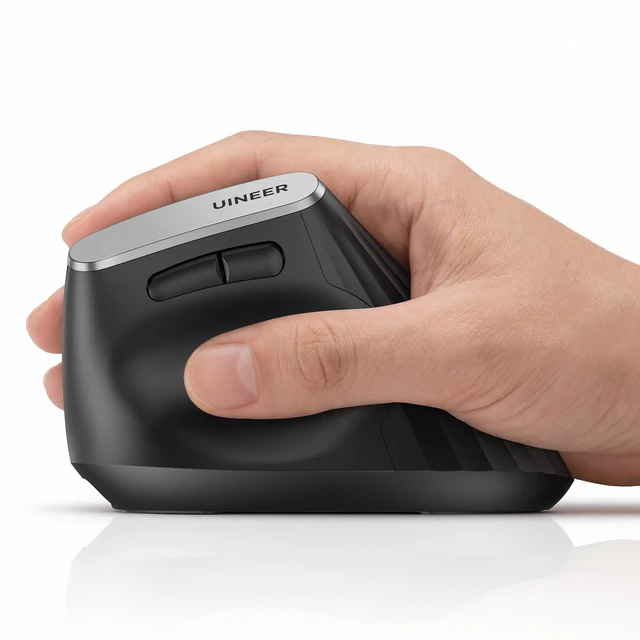
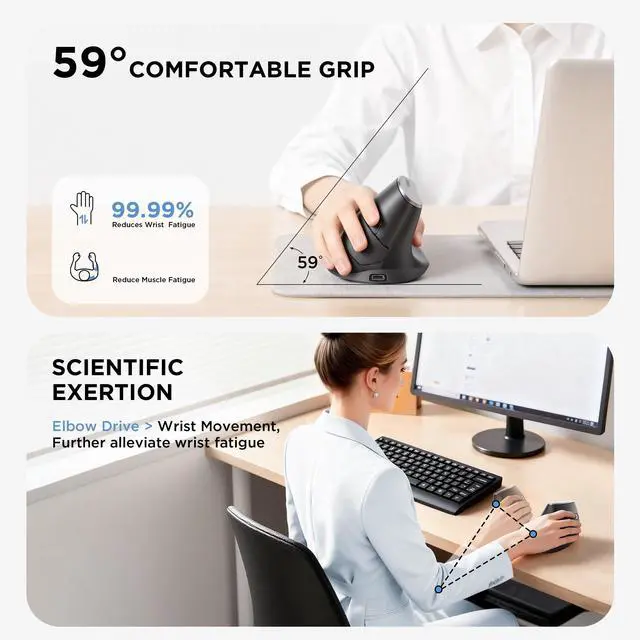
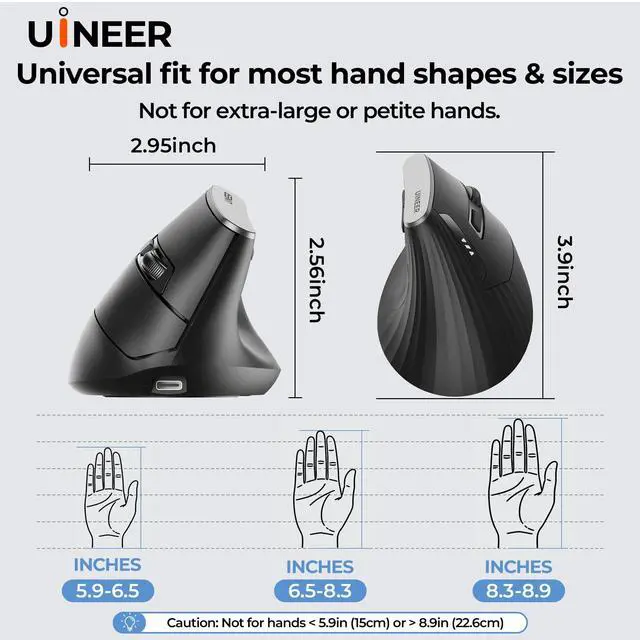
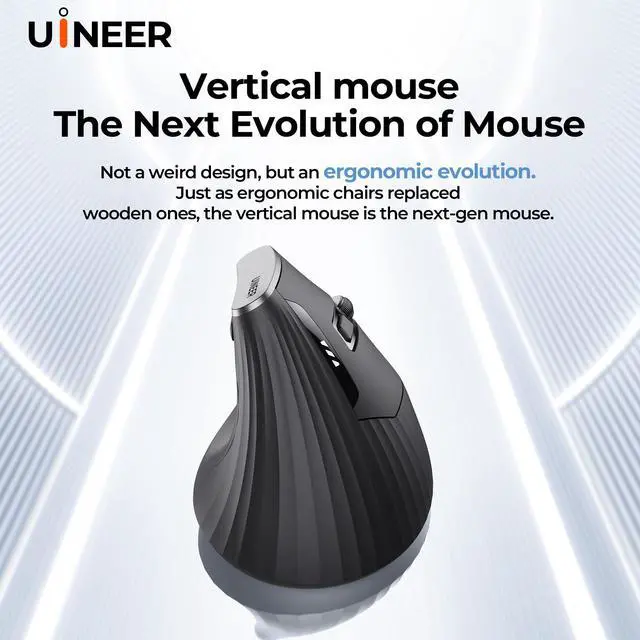
- [Ergonomic Vertical Mouse Design Reduces Wrist Strain]This Wireless Ergonomic Vertical Mouse features a natural handshake grip that keeps your wrist straight and forearm relaxed, effectively cutting down on discomfort and repetitive strain injuries from long hours of use. Ideal for small to medium handsmeasure your hand size before ordering for a perfect fit.
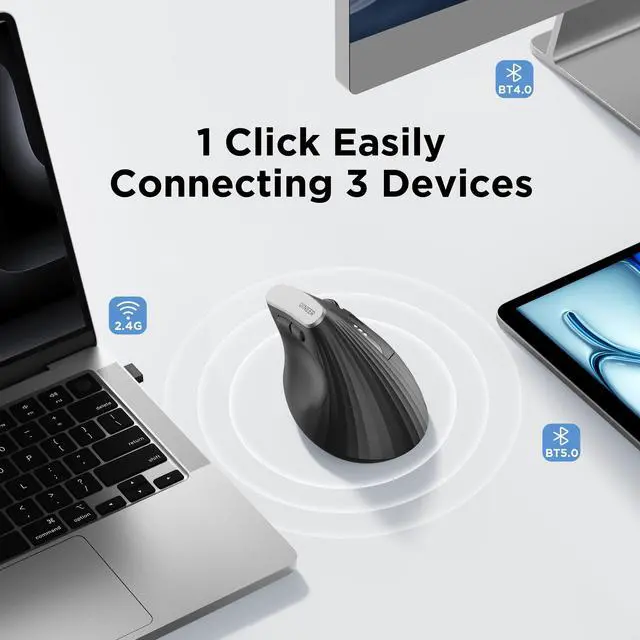
- [Dual BT 5.0/4.0 + 2.4G Wireless Mouse, Sync 3 Devices]UINEER Bluetooth Mouse supports stable dual wireless modes, letting you connect up to 3 devices (laptops, PCs, phones, tablets) at once. Switch seamlessly between devices without re-pairing, enjoy lag-free performance for office and daily use.
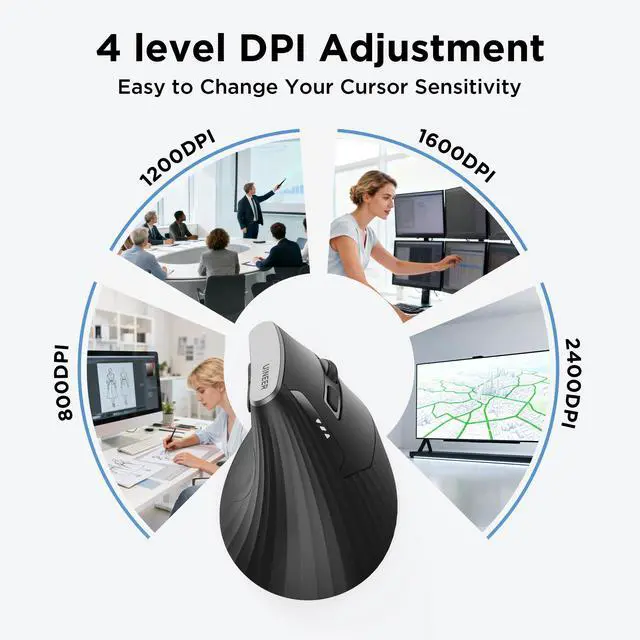
- [4-Level DPI Adjustment & Soft Clicks for Precise Control] This Vertical Ergonomic Wireless Mouse has 4 adjustable DPI levels (800/1200/1600/2400) for customized sensitivityperfect for precise graphic design or fast gaming/browsing. Left & right buttons with soft clicks reduce distractions. Note: Scroll wheel, back/forward buttons are not soft-click; back/forward buttons dont work with Mac OS.
- [Rechargeable 500mAh Battery with Visible Power Indicator] This Bluetooth Ergonomic Mouse has a built-in 500mAh rechargeable battery, coming with a Type-C cable for easy recharging. The clear power indicator shows remaining battery in real time, avoiding sudden shutdowns. No frequent battery replacementslong-lasting use on a full charge.
Any questions? Ask CelesteSM will help you find out quickly.
How to Use
USB Receiver Connection
1. Before first use, charge the mouse for about 2 hours.
2.Turn on the mouse
3.Press the MODE button and select 2.4G (red light)
4. Remove the USB receiver and Insert it into the USB port of your device
Bluetooth Connection
1. Before first use, charge the mouse for about 2 hours.
2. Switch the mouse mode to BT5.0 (the blue light flashes rapidly) or BT4.0 (the blue light flashes rapidly) mode. (If the indicator light is flashing slowly, long - press the "MODE" button to enter the fast - flash pairing state.)
3. Enable the Bluetooth function on your device, search for and select the Bluetooth name "UineerBT5.0" or "UineerBT4.0" to connect.
Notes
1. If your computer has a Type - C port, you may need to add an extra Type - C adapter to connect the mouse to your device.
2. If you find that the mouse cursor moves slowly or stops working, try charging the mouse.
3. It is recommended to use the USB interface of the computer to charge the wireless mouse.
Warranty & Returns
Warranty, Returns, And Additional Information
Warranty
- Please contact the Seller directly for warranty information. Warranty information may also be found on the Manufacturer's website.
- CONTACT
Return Policies
- Return for refund within: 30 days
- Return for replacement within: 30 days
- This item is covered by Artbloont Return Policy
Manufacturer Contact Info
- For a directory of all our manufacturers, please click below.
- Manufacturers Directory