








We Are Magenius!



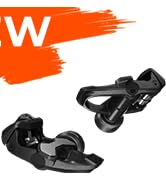
Magene 2025 New Power Meter

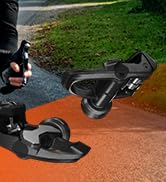
Lead to the Ridge of Cycling

“Magene” is a combined word of “magnetic” and “gene”, which means that Magene is a technology company possessing magnetic gene.
Founded in December 2015, Magene has always been committed to the development of intelligent, interesting and information-based cycling sports.

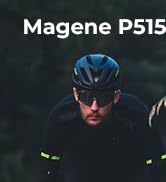


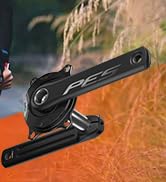
Fuel Your Desire for Speed
Smart GPS Computer



NEW RELEASE
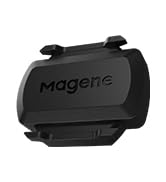
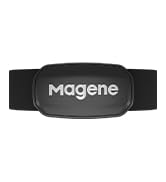
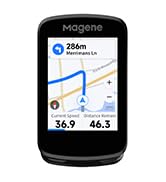
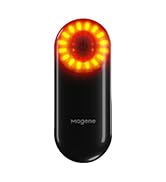
Magene innovation for cycling
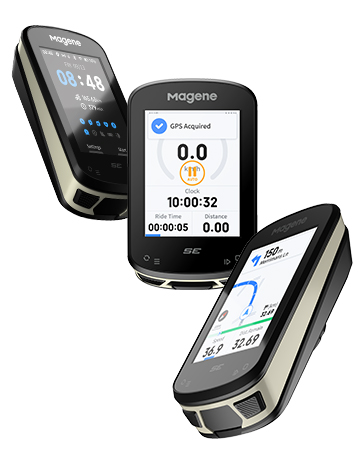
Magene C506SE
What makes our products unique?
Focusing on user needs and oriented by the development trend of cycling, Magene applies cutting-edge R&D technologies, innovative scientific and technological products and smart sports equipment to both outdoor and indoor cycling scenes, so as to create excellent and pleased cycling experience for users in a scientific way
Why do we love what we do?
Our vision:To be the leading brand for smart-cycling ecosystem
Our mission:Enable cyclists to have a safe, easy-to-use, enjoyable biking experience
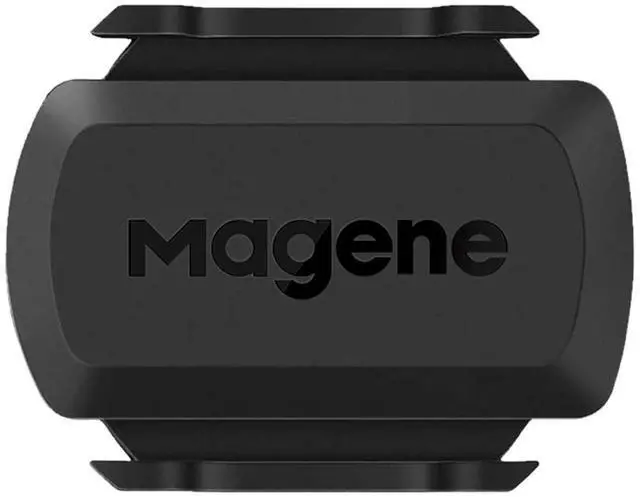
Magene S3+ Sensor (Connection Troubleshooting Guide)
To ensure a smooth experience with your Magene S3+ sensor, please carefully review the following key points. These tips address the most common reasons why the device may fail to connect.
1. Power-On Check: Make Sure the Sensor Is Properly Activated
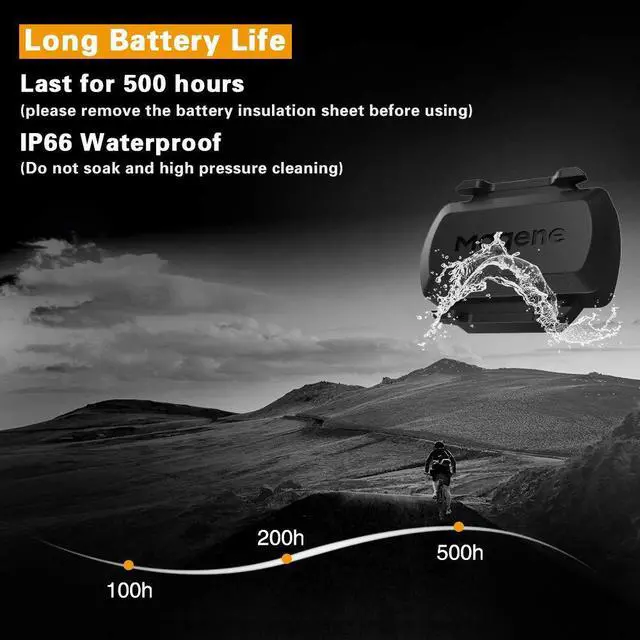
Review Instructions First: If you're experiencing connection issues, start by watching the operation video in the main listing image and reading the detailed user manual included in the product packaging. Remove the Battery Insulation Film: Before first use, ensure the insulation film on the battery has been completely removed. Secure the Battery Cover Properly: Rotate the battery cover clockwise until the white dot aligns with the lock mark. This ensures proper contact. Check for LED Indicator: Once powered, the sensor should flash a green or red light. If no light appears, the sensor is not powered on and cannot be connected. Lack of power is the most common cause of connection failure.
2. Wake-Up the Sensor: Ensure It’s Detectable
Speed Mode: Spin the wheel to activate the sensor and allow it to be detected. Cadence Mode: Rotate the crank arm to trigger the sensor. If the sensor remains idle, it will stay in sleep mode and cannot be connected. The sensor must be awakened through movement before pairing.
3. Connect via App: Do Not Use Phone Bluetooth Directly
Do NOT connect via your phone’s Bluetooth settings. Make sure your phone’s Bluetooth is turned on. Open a compatible cycling app (e.g., Magene, Wahoo, Zwift). Add the S3+ sensor within the app interface. Direct Bluetooth pairing from phone settings will not work.
Magene S3+ Sensor Troubleshooting: For “Didn't hook up to bike” complaints
Step 1: Verify Operating Mode Remove the battery, wait 5 seconds, then reinstall (tighten cover to LOCK).
- Green flashing: Speed mode (mount on rear wheel spokes).
- Red flashing: Cadence mode (mount on left crank arm). If indicator does not match intended use, repeat battery removal/reinstall.
Step 2: Correct Mounting Position
- Speed mode: Secure to rear wheel spokes, sensor near hub, sensing area <5mm from rim/metal.
- Cadence mode: Attach to left crank arm exterior, ensure clear rotation path. After mounting, manually spin wheel/crank and check for data in app.
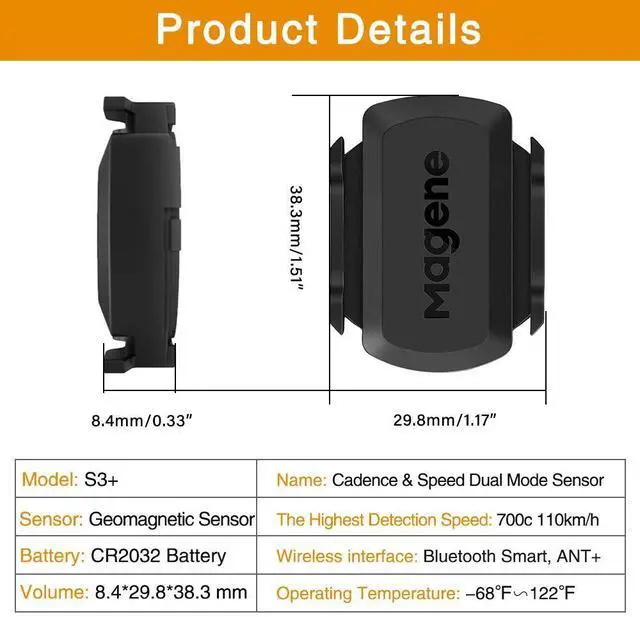
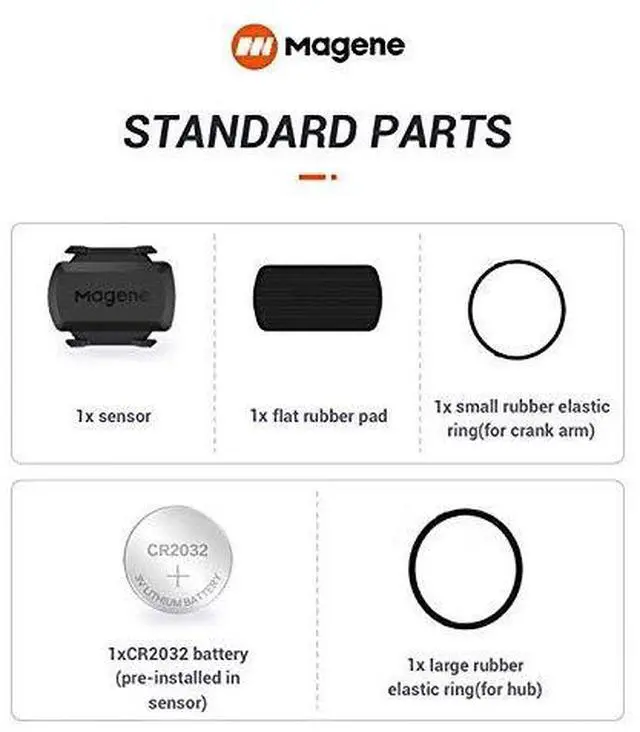
Step 3: Wake-up and Battery CheckEnsure plastic battery tab is removed. Sensor enters sleep after 1 minute inactivity; spin wheel/crank to wake. Replace with fresh CR2032 battery if unused for extended periods.
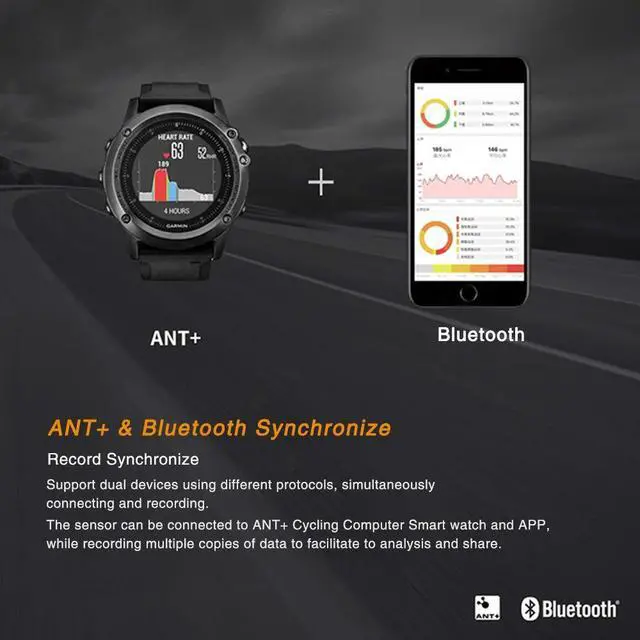
Step 4: Connection CheckOpen app (Zwift, Garmin Connect, Magene Utility, etc.) and search for sensor (BLE & ANT+ supported). If not detected: Disable nearby Bluetooth devices ? wake sensor ? rescan. Test first with official Magene Utility app.
Step 5: Further Assistance If unresolved, contact support with photos/video of LED and mounting setup.
Magene S3+ Sensor (Connection Troubleshooting Guide)
To ensure a smooth experience with your Magene S3+ sensor, please carefully review the following key points. These tips address the most common reasons why the device may fail to connect.
1. Power-On Check: Make Sure the Sensor Is Properly Activated
Review Instructions First: If you're experiencing connection issues, start by watching the operation video in the main listing image and reading the detailed user manual included in the product packaging. Remove the Battery Insulation Film: Before first use, ensure the insulation film on the battery has been completely removed. Secure the Battery Cover Properly: Rotate the battery cover clockwise until the white dot aligns with the lock mark. This ensures proper contact. Check for LED Indicator: Once powered, the sensor should flash a green or red light. If no light appears, the sensor is not powered on and cannot be connected. Lack of power is the most common cause of connection failure.
2. Wake-Up the Sensor: Ensure It’s Detectable
Speed Mode: Spin the wheel to activate the sensor and allow it to be detected. Cadence Mode: Rotate the crank arm to trigger the sensor. If the sensor remains idle, it will stay in sleep mode and cannot be connected. The sensor must be awakened through movement before pairing.
3. Connect via App: Do Not Use Phone Bluetooth Directly
Do NOT connect via your phone’s Bluetooth settings. Make sure your phone’s Bluetooth is turned on. Open a compatible cycling app (e.g., Magene, Wahoo, Zwift). Add the S3+ sensor within the app interface. Direct Bluetooth pairing from phone settings will not work.
Magene S3+ Sensor Troubleshooting: For “Didn't hook up to bike” complaints
Step 1: Verify Operating Mode Remove the battery, wait 5 seconds, then reinstall (tighten cover to LOCK).
- Green flashing: Speed mode (mount on rear wheel spokes).
- Red flashing: Cadence mode (mount on left crank arm). If indicator does not match intended use, repeat battery removal/reinstall.
Step 2: Correct Mounting Position
- Speed mode: Secure to rear wheel spokes, sensor near hub, sensing area <5mm from rim/metal.
- Cadence mode: Attach to left crank arm exterior, ensure clear rotation path. After mounting, manually spin wheel/crank and check for data in app.
Step 3: Wake-up and Battery CheckEnsure plastic battery tab is removed. Sensor enters sleep after 1 minute inactivity; spin wheel/crank to wake. Replace with fresh CR2032 battery if unused for extended periods.
Step 4: Connection CheckOpen app (Zwift, Garmin Connect, Magene Utility, etc.) and search for sensor (BLE & ANT+ supported). If not detected: Disable nearby Bluetooth devices ? wake sensor ? rescan. Test first with official Magene Utility app.
Step 5: Further Assistance If unresolved, contact support with photos/video of LED and mounting setup.
We Are Magenius!
Magene 2025 New Power Meter
Lead to the Ridge of Cycling
“Magene” is a combined word of “magnetic” and “gene”, which means that Magene is a technology company possessing magnetic gene.
Founded in December 2015, Magene has always been committed to the development of intelligent, interesting and information-based cycling sports.
Fuel Your Desire for Speed
Smart GPS Computer
NEW RELEASE
Magene innovation for cycling
Magene C506SE
What makes our products unique?
Focusing on user needs and oriented by the development trend of cycling, Magene applies cutting-edge R&D technologies, innovative scientific and technological products and smart sports equipment to both outdoor and indoor cycling scenes, so as to create excellent and pleased cycling experience for users in a scientific way
Why do we love what we do?
Our vision:To be the leading brand for smart-cycling ecosystem
Our mission:Enable cyclists to have a safe, easy-to-use, enjoyable biking experience