





Important Compatibility Notice:Please check your laptop type-c Port if it's Thunderbolt 3 , Thunderbolt 4 or displayport output mode(DP ALT mode) or not before purchase.
Simple 4-Step Check--How do I know if my device supports DisplayPort over USB-C?
1.Check Your Computer’s Specifications:
Refer to your computer’s user manual or the manufacturer’s website for detailed information about your USB-C ports. Look for mentions of "DisplayPort Alt Mode" or "USB-C with video output."
2.Look for Symbols:
Some laptops and devices have symbols next to the USB-C port. A symbol that looks like a small monitor or a "DP" (for DisplayPort) indicates that the port supports video transmission.
3.Test with a Monitor (If Possible)
If you have a USB-C to HDMI or USB-C to DisplayPort adapter, you can test it by connecting it to your computer and an external display. If the display works, your USB-C port supports video transmission.
4.Contact the Manufacturer:
If you are still unsure, contact the manufacturer for confirmation. They can provide specific information about your device’s capabilities. Basically, Thunderbolt 3, Thunderbolt 4, and USB C 3.1 Gen 2 (or above) support video output. If you are not sure, you are welcome to ask us for a device compatibility check before purchase.


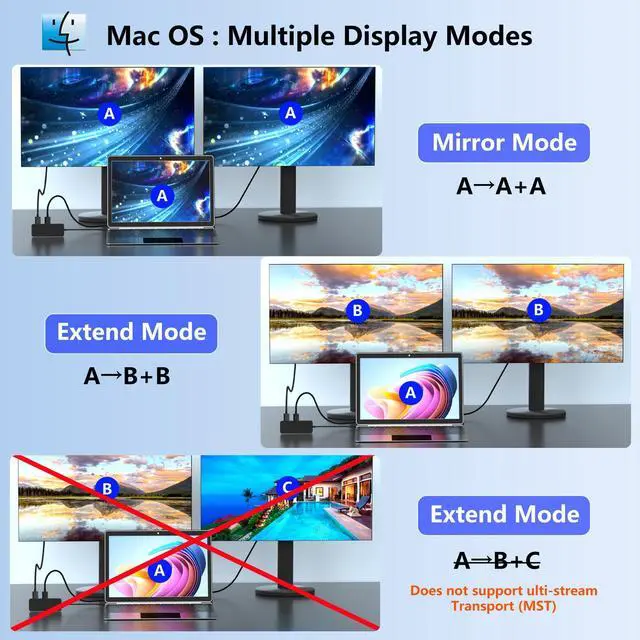
Note:DP1.2 on Windows only support 4K@30hz while use dual HDMI

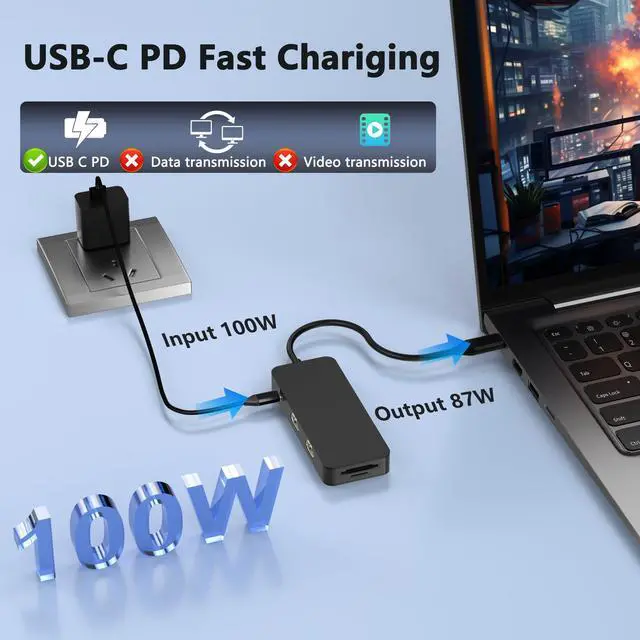
Note: Please provide power for USB C Docking Station first when connecting monitors or multiple devices or high power devices.


Important Compatibility Notice:Please check your laptop type-c Port if it's Thunderbolt 3 , Thunderbolt 4 or displayport output mode(DP ALT mode) or not before purchase.
Simple 4-Step Check--How do I know if my device supports DisplayPort over USB-C?
1.Check Your Computer’s Specifications:
Refer to your computer’s user manual or the manufacturer’s website for detailed information about your USB-C ports. Look for mentions of "DisplayPort Alt Mode" or "USB-C with video output."
2.Look for Symbols:
Some laptops and devices have symbols next to the USB-C port. A symbol that looks like a small monitor or a "DP" (for DisplayPort) indicates that the port supports video transmission.
3.Test with a Monitor (If Possible)
If you have a USB-C to HDMI or USB-C to DisplayPort adapter, you can test it by connecting it to your computer and an external display. If the display works, your USB-C port supports video transmission.
4.Contact the Manufacturer:
If you are still unsure, contact the manufacturer for confirmation. They can provide specific information about your device’s capabilities. Basically, Thunderbolt 3, Thunderbolt 4, and USB C 3.1 Gen 2 (or above) support video output. If you are not sure, you are welcome to ask us for a device compatibility check before purchase.


Note:DP1.2 on Windows only support 4K@30hz while use dual HDMI

Note: Please provide power for USB C Docking Station first when connecting monitors or multiple devices or high power devices.


