




 Aisizon Wireless lavalire Microphone, Wireless Clip on Microphones, Hi-Fi Aud... |  Aisizon Wireless Lavalier Microphone for iPhone15, Wireless Clip Mic, Wireles... |  Aisizon Wireless Clip Mic, Wireless Lavalier Microphones, Lapel Clip-on Micro... |  Aisizon Wireless Mics, Wireless Clip on Microphones, Lapel Microphone A2d One... |  Wireless Lavalier Microphone with Noise Cancellation, HI-FI Audio, Wireless L... |  Wireless Lavalier Microphone with Noise Cancellation, HI-FI Audio, Wireless L... | |
|---|---|---|---|---|---|---|
| Customer Reviews | — | — | — | — | — | — |
| Price | — | — | — | — | — | — no data |
| Connector | Lightning/USB | Lightning/USB | Type-C/Lightning/USB | Type-C/Lightning/USB | Type-C/lightning/USB | Type-C/Lightning/USB |
| Indoor Transmission Distance | 65FT | 65FT | 65FT | 65FT | 100FT | 100FT |
| Applicable system | iPhone7-14/Pro/WIN/MAC | iPhone7-14/Pro/WIN/MAC | iPhone15-16/Android/Windows/MAC | iPhone15-16/Android/Windows/MAC | iPhone15-16/Android/Windows/MAC | IOS/Android/Windows/MAC |
| Standby time | 25 hours | 25 hours | 25 hours | 25 hours | 30 hours | 30 hours |
| Surrounding noise reduction | ? | ? | ? | ? | ? | ? |
| Pair 2 microphones | no data | ? | no data | ? | ? | ? |
| powerful magnetic suction | no data | no data | no data | no data | ? | ? |
| HI-FI Audio | no data | no data | no data | no data | ? | ? |
| 2.4G transmission | no data | no data | no data | no data | ? | ? |

new model: Aisizon A5d wireless mic
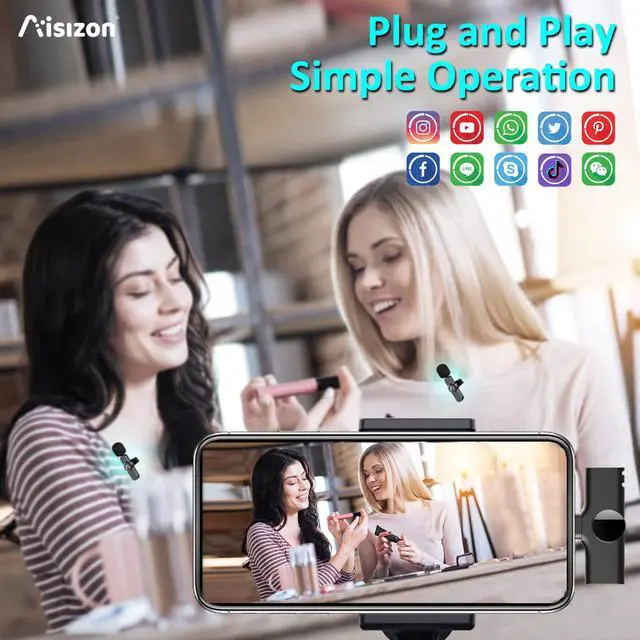
Aisizon A5d Wireless Lavalier Microphone with Noise Cancellation,HI-FI AUDIO, Wireless Lapel Microphone for iPhone 15/Pro/iPad, Android, for Tiktok, YouTube, Video Recording, Live Streaming.


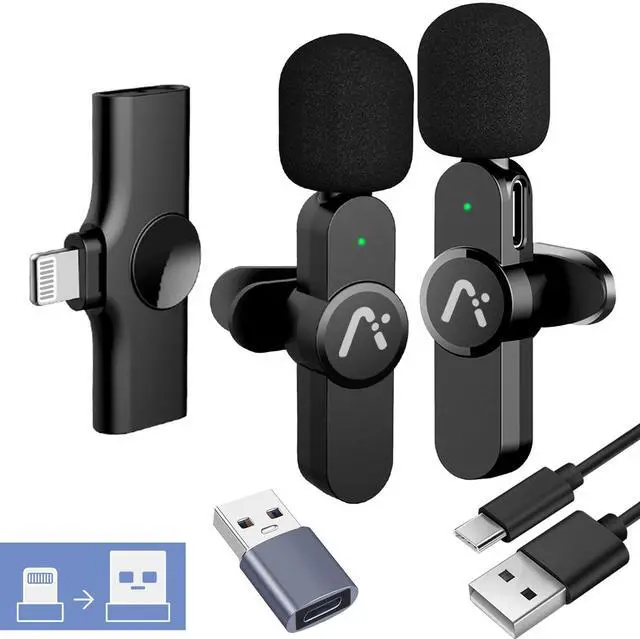
Package Included:
· 1 x receiver
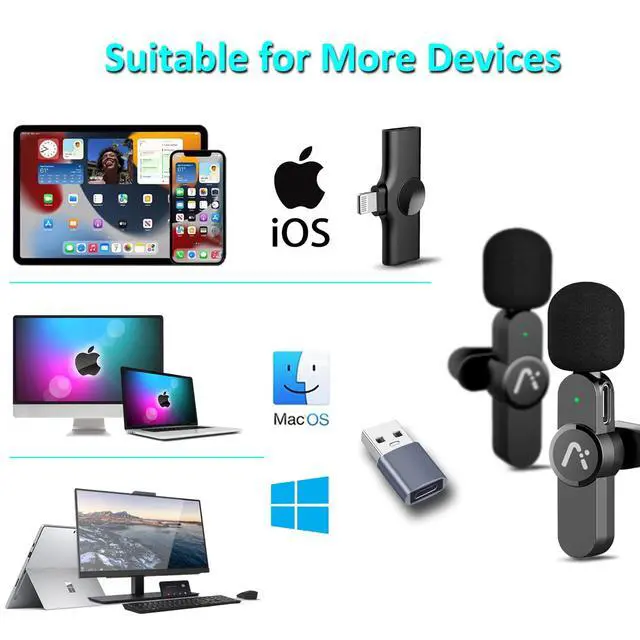
· 1 x Lightning to USB adapter
· 1 x USB data cable
· 1 x User Manual
How to make the microphone work better?
1.After use, please press and hold the power button to turn off the power, otherwise the microphone will continue to work until the battery runs out.
2. Please charge the microphone for 1 hour before using the device.
3. Please read the user manual before use.
Product information
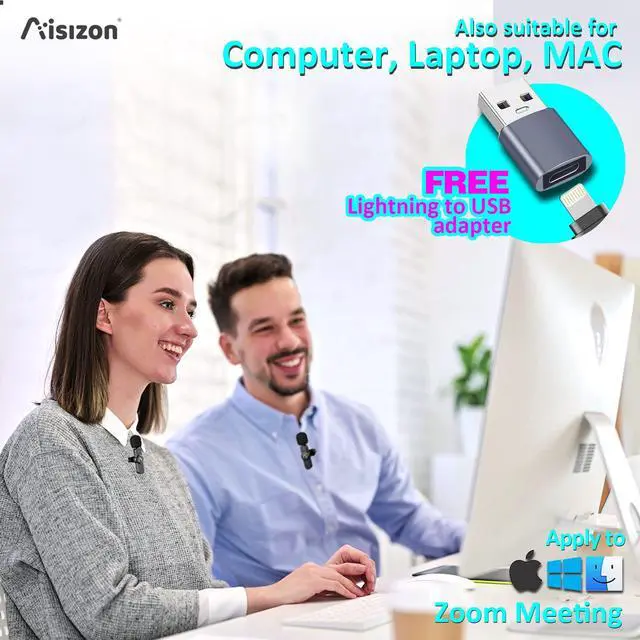
How to use the wireless mic on a computer/laptop by the usb adapter for zoom video conferencing?

Key: Set the Aisizon wireless microphone as your computer's audio input device.
Step 1:Find the speaker in the bottom right corner of the desktop, mouse over it, right click on "Open Sound Settings (E)"
Step 2: In the "Sound" interface, find "Input" and select the sound input device as "Microphone".
The setting is finished.
Now, You can use your computer to record, make videos, or use ZOOM to video conference with colleagues.
One tip:
In the upper right corner of the "Sound" screen, find the "Sound Control Panel".
Click on the "Sound" device, find the microphone, and click on the properties in the lower right corner.
The microphone properties screen appears, click "Listen", then the sound of the microphone can be emitted from the computer speakers.
Now, your computer will become a loudspeaker.

How to use the Lightning to USB Adapter?
According to the protocol of each system, please make sure to connect this adapter to the lightning port on the receiver of the microphone first, and then connect the USB port.
Aisizon Wireless lavalire Microphone, Wireless Clip on Microphones, Hi-Fi Aud... | Aisizon Wireless Lavalier Microphone for iPhone15, Wireless Clip Mic, Wireles... | Aisizon Wireless Clip Mic, Wireless Lavalier Microphones, Lapel Clip-on Micro... | Aisizon Wireless Mics, Wireless Clip on Microphones, Lapel Microphone A2d One... | Wireless Lavalier Microphone with Noise Cancellation, HI-FI Audio, Wireless L... | Wireless Lavalier Microphone with Noise Cancellation, HI-FI Audio, Wireless L... | |
|---|---|---|---|---|---|---|
| Customer Reviews | — | — | — | — | — | — |
| Price | — | — | — | — | — | — no data |
| Connector | Lightning/USB | Lightning/USB | Type-C/Lightning/USB | Type-C/Lightning/USB | Type-C/lightning/USB | Type-C/Lightning/USB |
| Indoor Transmission Distance | 65FT | 65FT | 65FT | 65FT | 100FT | 100FT |
| Applicable system | iPhone7-14/Pro/WIN/MAC | iPhone7-14/Pro/WIN/MAC | iPhone15-16/Android/Windows/MAC | iPhone15-16/Android/Windows/MAC | iPhone15-16/Android/Windows/MAC | IOS/Android/Windows/MAC |
| Standby time | 25 hours | 25 hours | 25 hours | 25 hours | 30 hours | 30 hours |
| Surrounding noise reduction | ? | ? | ? | ? | ? | ? |
| Pair 2 microphones | no data | ? | no data | ? | ? | ? |
| powerful magnetic suction | no data | no data | no data | no data | ? | ? |
| HI-FI Audio | no data | no data | no data | no data | ? | ? |
| 2.4G transmission | no data | no data | no data | no data | ? | ? |
new model: Aisizon A5d wireless mic
Aisizon A5d Wireless Lavalier Microphone with Noise Cancellation,HI-FI AUDIO, Wireless Lapel Microphone for iPhone 15/Pro/iPad, Android, for Tiktok, YouTube, Video Recording, Live Streaming.
How to make the microphone work better?
Package Included:
· 1 x receiver
· 1 x Lightning to USB adapter
· 1 x USB data cable
· 1 x User Manual
1.After use, please press and hold the power button to turn off the power, otherwise the microphone will continue to work until the battery runs out.
2. Please charge the microphone for 1 hour before using the device.
3. Please read the user manual before use.
Product information
| Battery composition | polymer |
| Battery type/size | lithium_polymer |
| Number of batteries | 2 |
| Watt hours per battery | 65mAh |
| Item Weight | 105g |
| Connector Type | lightning |
| Audio Sensitivity | 38DB |
| Frequency Response | 20KHz |
| Material_type | ABS |
| Color | Black |
| Size | 65*18.5*26mm / 44.5*27.5*7.8mm |
How to use the wireless mic on a computer/laptop by the usb adapter for zoom video conferencing?
Key: Set the Aisizon wireless microphone as your computer's audio input device.
Step 1:Find the speaker in the bottom right corner of the desktop, mouse over it, right click on "Open Sound Settings (E)"
Step 2: In the "Sound" interface, find "Input" and select the sound input device as "Microphone".
The setting is finished.
Now, You can use your computer to record, make videos, or use ZOOM to video conference with colleagues.
One tip:
In the upper right corner of the "Sound" screen, find the "Sound Control Panel".
Click on the "Sound" device, find the microphone, and click on the properties in the lower right corner.
The microphone properties screen appears, click "Listen", then the sound of the microphone can be emitted from the computer speakers.
Now, your computer will become a loudspeaker.
How to use the Lightning to USB Adapter?
According to the protocol of each system, please make sure to connect this adapter to the lightning port on the receiver of the microphone first, and then connect the USB port.