




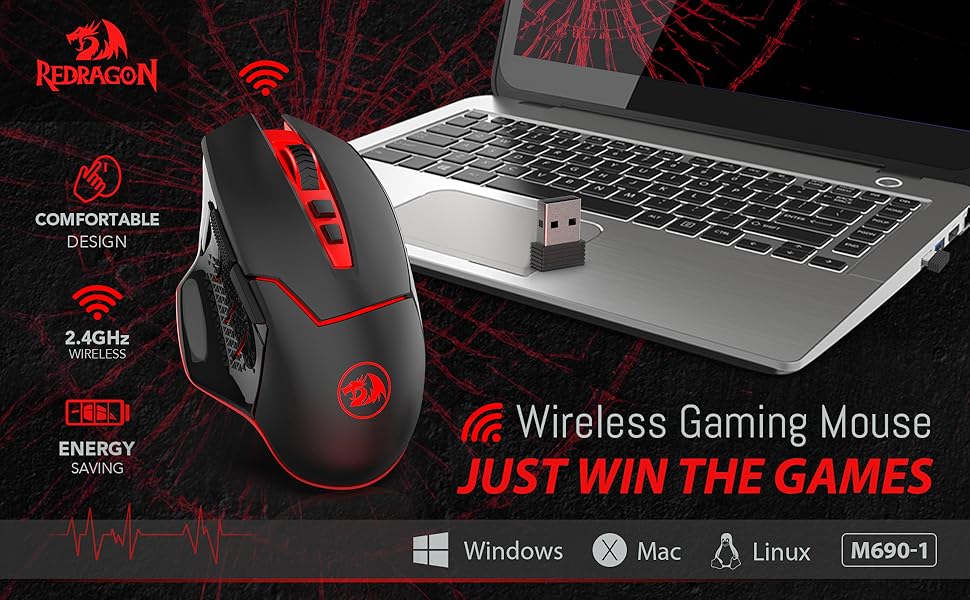
Troubleshooting Steps for wireless connectivity issues:
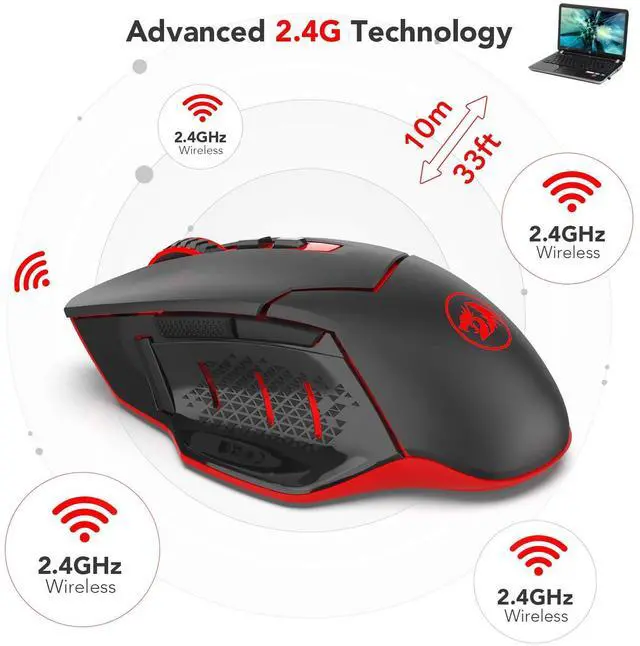
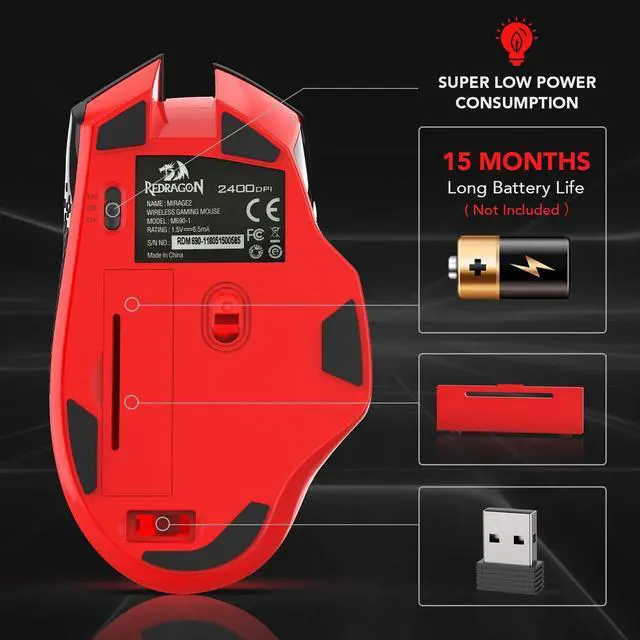
1. Turn on the button on the bottom of your mouse.
2. Make sure the mouse battery is full.
3. Connect the mouse to your device in one of the following ways:
-Take out the battery of your mouse, insert it again, and plug in the USB receiver repeatedly to establish a connection.
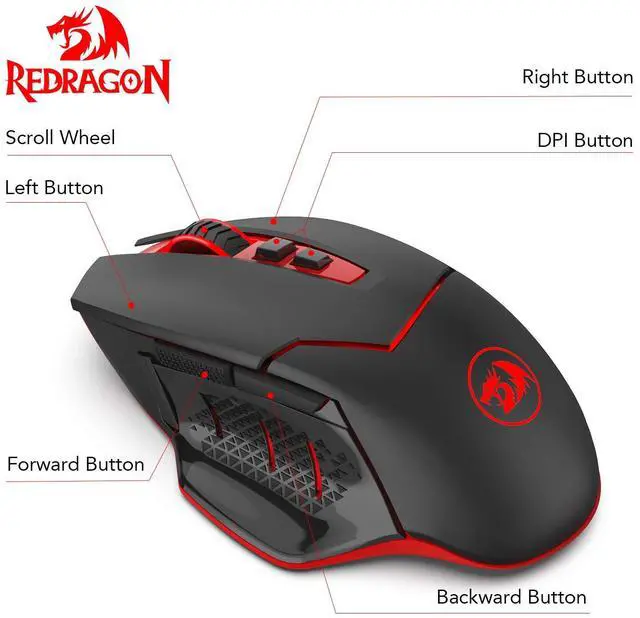
-Press the middle button (scroll wheel) and click the right mouse button at the same time, then connect the USB receiver.
4. You can also try another USB port or computer to see if the same problem exists.
Note: Wireless disconnection issues may also be caused by interference from nearby electronic devices, such as WiFi router, a wireless keyboard, or metal surfaces. Please use the mouse in an open area to check again.
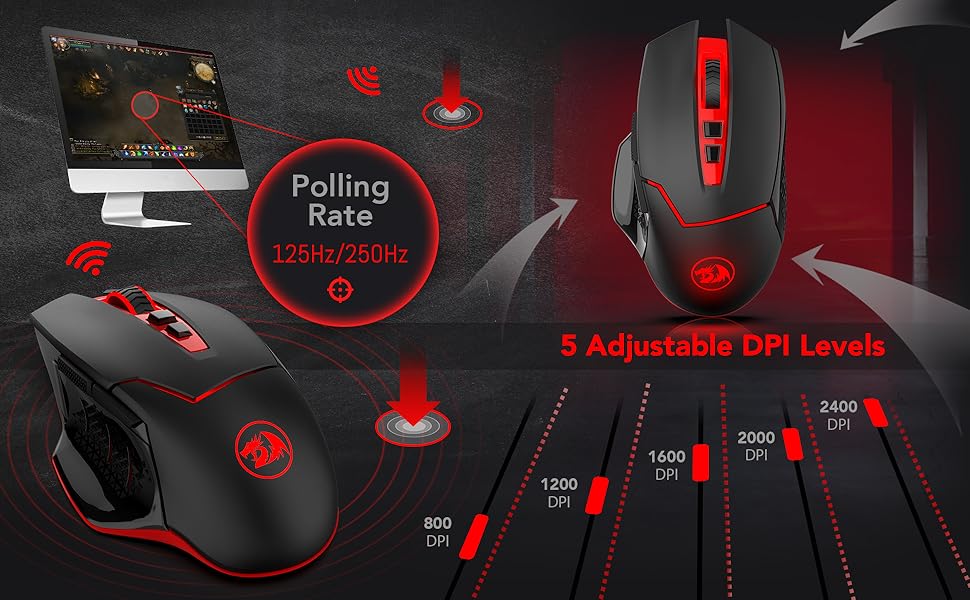
NOTE:
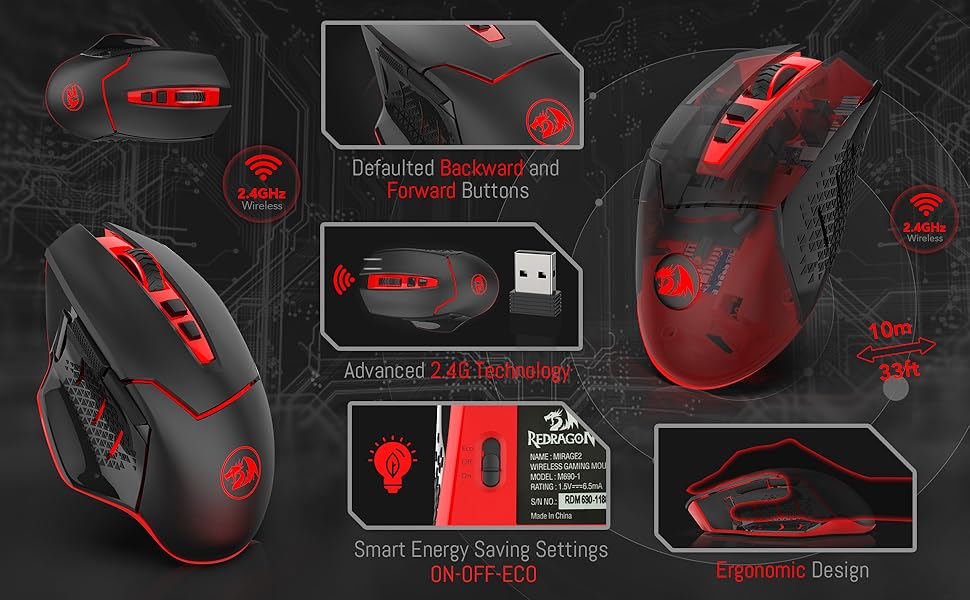
1. The Back and Forward Buttons are not available for Mac OS because the system itself is a closed one, not open to the public, but the other function can be used normally.
2. No any software is required.
Package Included:
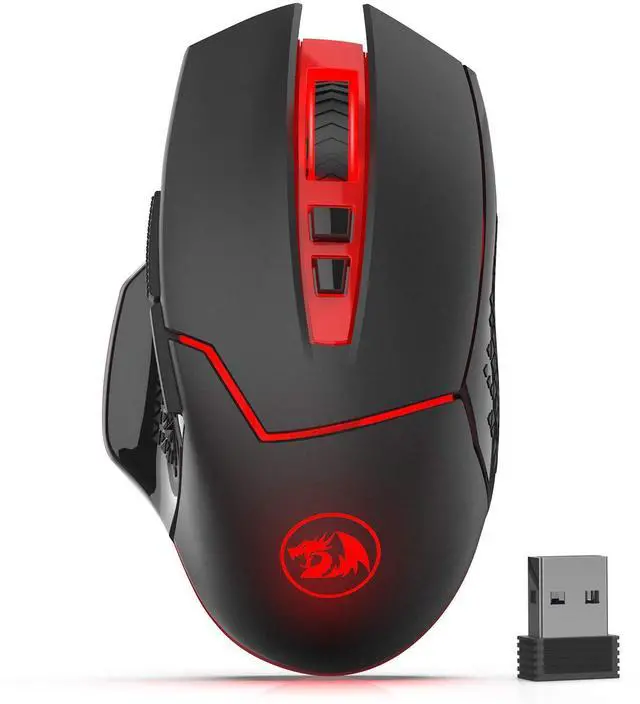
1 X Wireless Mouse (Battery is not included)
1 X USB Receiver
1 X User Manual
 M690-1 |  M686 |  M652 |  M913 |  M991 | |
|---|---|---|---|---|---|
| Customer Reviews | — | — | — | — | — |
| Price | — | — | — no data | — | — |
| Mode | Wireless | Wireless/Wired | Wireless | Wireless/Wired | 2.4G Wireless/Wired |
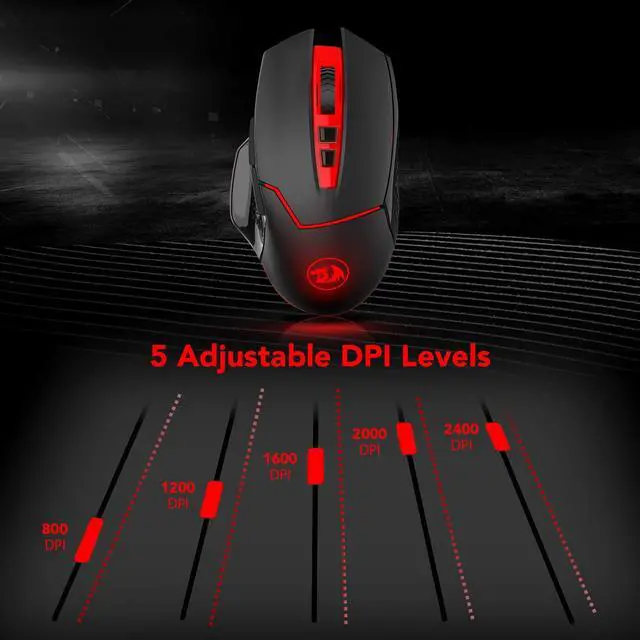
| DPI | 800-2,400 | 100-16,000 | 800-2,400 | 100-16,000 | 100-19,000 |
| Side Buttons | 3 | 3 | 2 | 12 | 2 |
| Backlit | Red | RGB | Red | RGB | RGB |
| Rechargeable | / | ? | / | ? | ? |
| Software | / | ? | / | ? | ? |
| Programmable | / | ? | / | ? | ? |

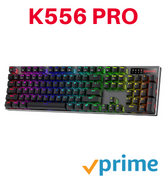
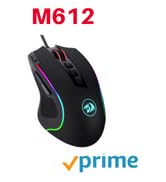
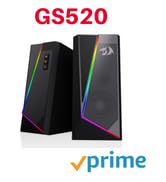
BIG SAVE
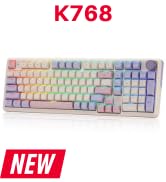
NEW ARRIVED GEAR
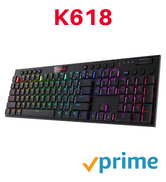
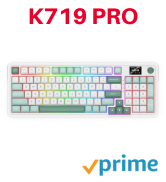
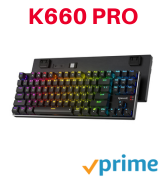
Gaming Keyboard
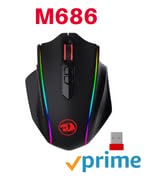
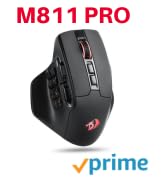
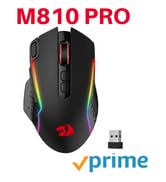
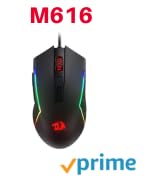
Gaming Mice


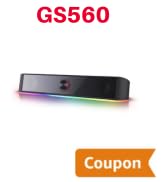
Audio Gear


Gaming Setup
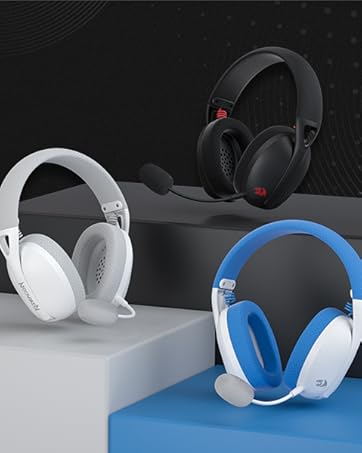
Redragon H848 Headset
Weighs only 178g (6.2 oz)
Comfortable to wear all day long!
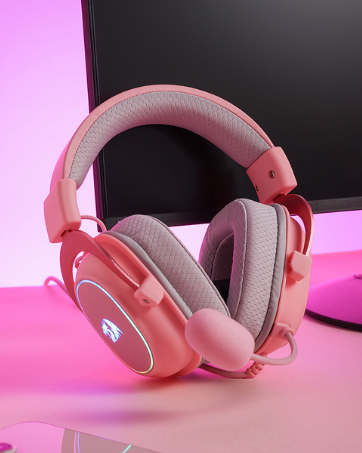
Redragon H510 RGB Series
Pink! Yes, that is PINK available now, cute & hot.
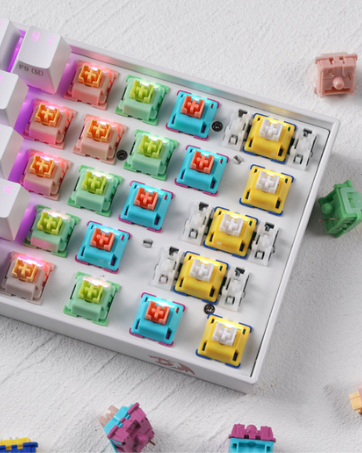
Redragon Custom Switches
6 Types Available for Any Keyboard Moding
Tactile, Linear, Silent, We Got What You Want
Troubleshooting Steps for wireless connectivity issues:
1. Turn on the button on the bottom of your mouse.
2. Make sure the mouse battery is full.
3. Connect the mouse to your device in one of the following ways:
-Take out the battery of your mouse, insert it again, and plug in the USB receiver repeatedly to establish a connection.
-Press the middle button (scroll wheel) and click the right mouse button at the same time, then connect the USB receiver.
4. You can also try another USB port or computer to see if the same problem exists.
Note: Wireless disconnection issues may also be caused by interference from nearby electronic devices, such as WiFi router, a wireless keyboard, or metal surfaces. Please use the mouse in an open area to check again.
NOTE:
1. The Back and Forward Buttons are not available for Mac OS because the system itself is a closed one, not open to the public, but the other function can be used normally.
2. No any software is required.
Package Included:
1 X Wireless Mouse (Battery is not included)
1 X USB Receiver
1 X User Manual
M690-1 | M686 | M652 | M913 | M991 | |
|---|---|---|---|---|---|
| Customer Reviews | — | — | — | — | — |
| Price | — | — | — no data | — | — |
| Mode | Wireless | Wireless/Wired | Wireless | Wireless/Wired | 2.4G Wireless/Wired |
| DPI | 800-2,400 | 100-16,000 | 800-2,400 | 100-16,000 | 100-19,000 |
| Side Buttons | 3 | 3 | 2 | 12 | 2 |
| Backlit | Red | RGB | Red | RGB | RGB |
| Rechargeable | / | ? | / | ? | ? |
| Software | / | ? | / | ? | ? |
| Programmable | / | ? | / | ? | ? |
BIG SAVE
NEW ARRIVED GEAR
Gaming Keyboard
Gaming Mice
Audio Gear
Gaming Setup
Redragon H848 Headset
Weighs only 178g (6.2 oz)
Comfortable to wear all day long!
Redragon H510 RGB Series
Pink! Yes, that is PINK available now, cute & hot.
Redragon Custom Switches
6 Types Available for Any Keyboard Moding
Tactile, Linear, Silent, We Got What You Want