




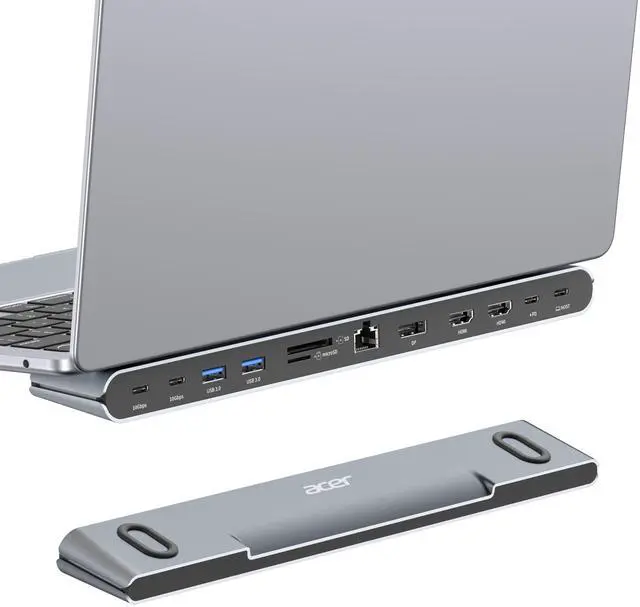
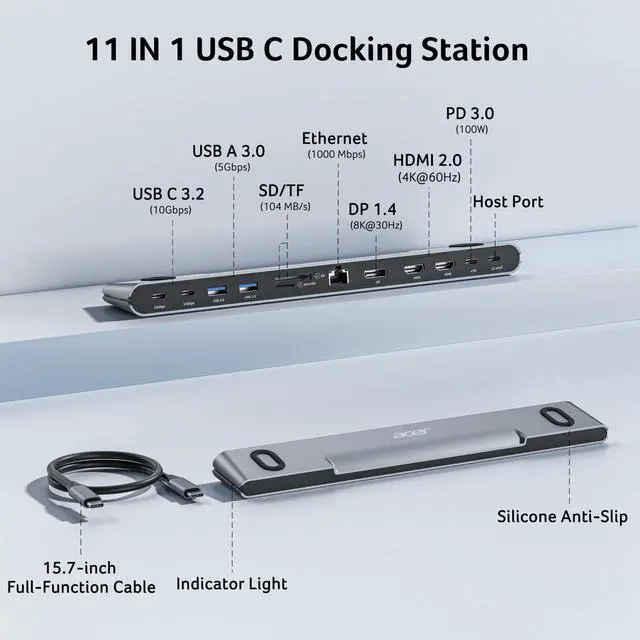
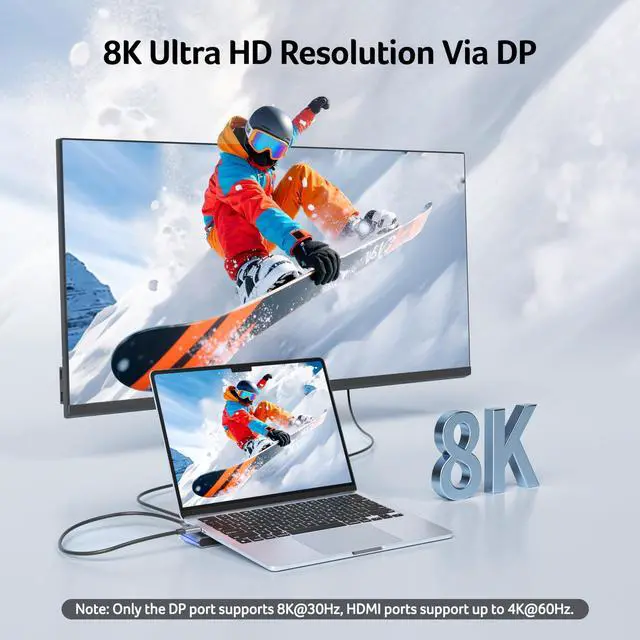


With DP1.4, the supported resolutions for display modes & systems are as follows


Usage Tips & QA
Is this docking station compatible with my laptop?
This docking station requires your laptop’s USB-C port to support DisplayPort Alternate Mode (DP Alt Mode) for video output. Most modern laptops with full-featured USB-C ports support this, but some do not.
Why is there no response after connecting the dock?
If there is no response after connecting, please allow a few seconds for initialization, ensure all cables are securely connected, check if the cables are working properly, and try unplugging and reconnecting, as these steps usually resolve the issue
Why am I not getting the expected resolution?
The output resolution depends on your laptop graphics, monitor specifications, cable quality, and display settings (mirror or extend), so ensure all devices support the desired resolution and are properly configured for best results.
Why do all external monitors show the same screen when connecting multiple displays on a Mac?
This is a macOS limitation where multiple external displays may only support screen mirroring instead of extended mode depending on the device and system configuration, and it is not caused by the docking station but by the Mac system itself.
What should I do if I encounter other issues during use?
If you encounter any other issues during use, please let us know and we will respond quickly and provide effective solutions to help resolve the problem and ensure a smooth user experience.

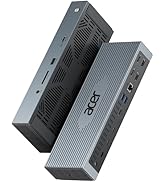
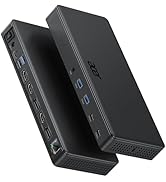



With DP1.4, the supported resolutions for display modes & systems are as follows


Usage Tips & QA
| ??Check before buy | ???????????? ???????? ???????? ???????? ????????????’?? ??????-?? ???????? ???????????????? ?????????????? ???????????????? (?????????????????????? ?????????????????? ????????). This means your USB-C port should support video output, data transfer, and Power Delivery (PD). So please check your device specs before purchasing. |
|---|---|
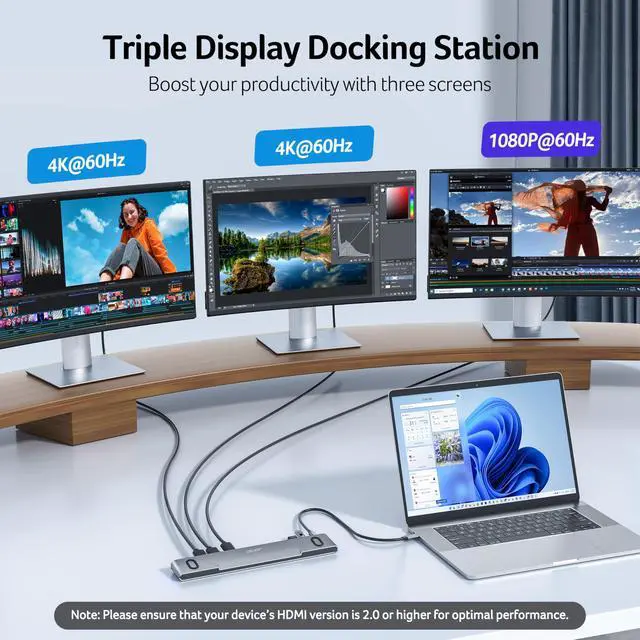
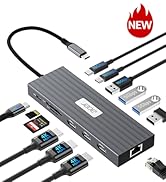
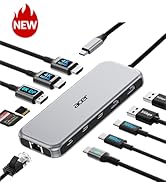
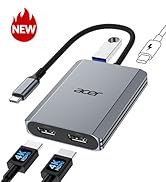
| ??Triple Display Support | This USB-C docking station supports up to 3 monitors with 2HDMI+DP, typically 4K@60Hz + 4K@60Hz + 1080P@60Hz. |
| !!! Note 1 | Please ensure that your device’s HDMI version is 2.0 or higher for optimal performance. |
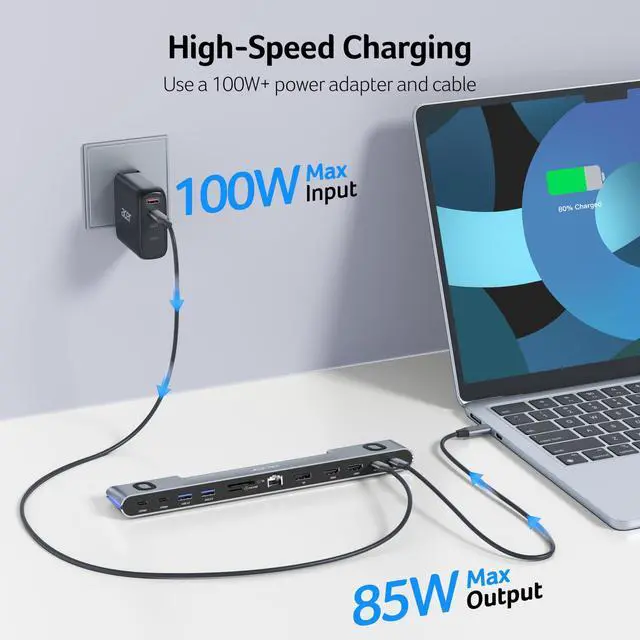
| !!! Note 2 | Please use a 100W or higher power adapter and cable (not included). Only the connected Host device receives up to 85W charging. |
| !!! Note 3 | For Mac Users: Triple display support is limited to A-AAA or A-BBB configurations and does not support A-BCD. |
| !!! Note 4 | **????????: ???? ?????? ?????? ?????? ????????, ???????????? ???????? ???????? ???? ?????? ???? ????????, ???? ?????? ???????? ???????? ???? ??????????. |
| Q1 | Why does my device show a “Slow Charging” message when connected to the dock? |
| A1 | Some devices may display a “Slow Charging” message when charging through a dock, but the actual charging performance remains normal. This message can be safely ignored. |
| Q2 | Why do connected devices disconnect when the dock’s power cable is unplugged or reconnected? |
| A2 | When the power cable is unplugged or reconnected, the USB-C Power Delivery system renegotiates power between the charger, dock, and host device. During this process, the dock may briefly reset, causing connected devices to momentarily disconnect and reconnect. This is normal behavior. |
Is this docking station compatible with my laptop?
This docking station requires your laptop’s USB-C port to support DisplayPort Alternate Mode (DP Alt Mode) for video output. Most modern laptops with full-featured USB-C ports support this, but some do not.
Why is there no response after connecting the dock?
If there is no response after connecting, please allow a few seconds for initialization, ensure all cables are securely connected, check if the cables are working properly, and try unplugging and reconnecting, as these steps usually resolve the issue
Why am I not getting the expected resolution?
The output resolution depends on your laptop graphics, monitor specifications, cable quality, and display settings (mirror or extend), so ensure all devices support the desired resolution and are properly configured for best results.
Why do all external monitors show the same screen when connecting multiple displays on a Mac?
This is a macOS limitation where multiple external displays may only support screen mirroring instead of extended mode depending on the device and system configuration, and it is not caused by the docking station but by the Mac system itself.
What should I do if I encounter other issues during use?
If you encounter any other issues during use, please let us know and we will respond quickly and provide effective solutions to help resolve the problem and ensure a smooth user experience.
Acer Dockings
Acer Dockings
