


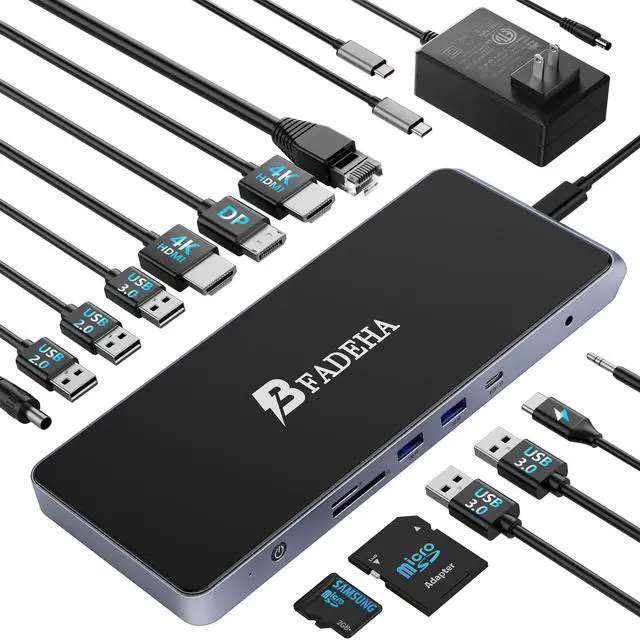


Docking Station Troubleshooting Guide
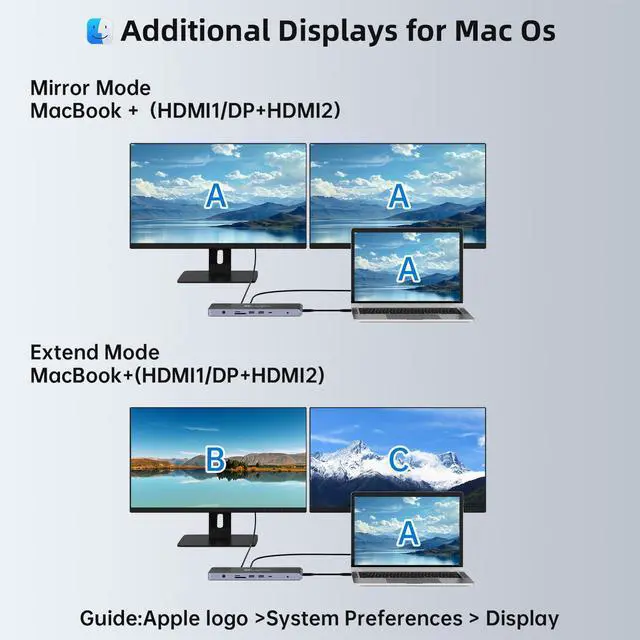
This product typically requires the installation of Displaylink drivers to enable video extension functionality. For potential issues you may encounter while using the product, please read the following Q&A carefully.
Q1: Can I use the display extension feature without downloading the driver?
A: If you're using a Google OS laptop, you can use the display extension feature without downloading the driver.However, for Mac and Windows systems, you must install the Displaylink driver to enable screen mirroring.
Q2: I'm not sure how to download and install the Displaylink driver.
A: Please visit the product details where we have uploaded instructional videos on driver download and installation. We have separate guidance videos for Mac and Windows users.
Q3: What should I do if I still can't screen mirror even after correctly installing the driver?
A: If you're still unable to screen mirror after installing the driver, first ensure all cables are securely connected and the docking station isn't overloaded—connect the charger before the laptop and other devices if necessary. Then, for Mac, open the driver interface by clicking the driver icon and try again; for Windows, the screen mirroring should activate automatically with the driver installed. If issues persist, reach out to our support team.
Q4: Does the resolution setting of the primary device affect the resolution of the additional monitor?
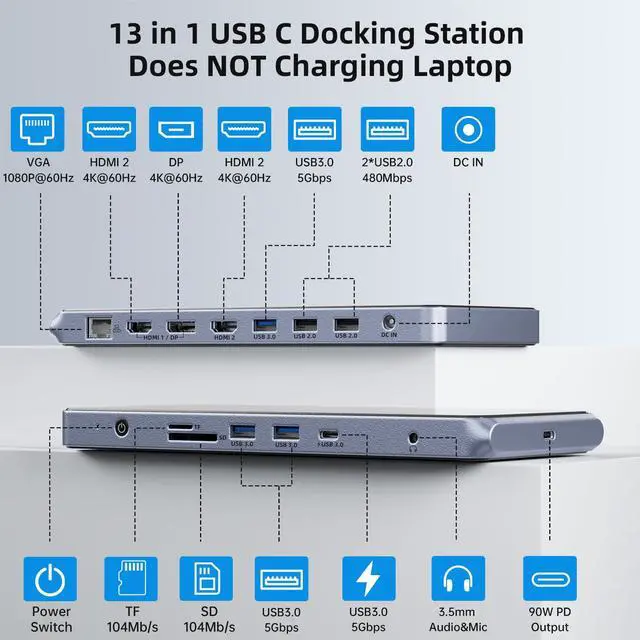
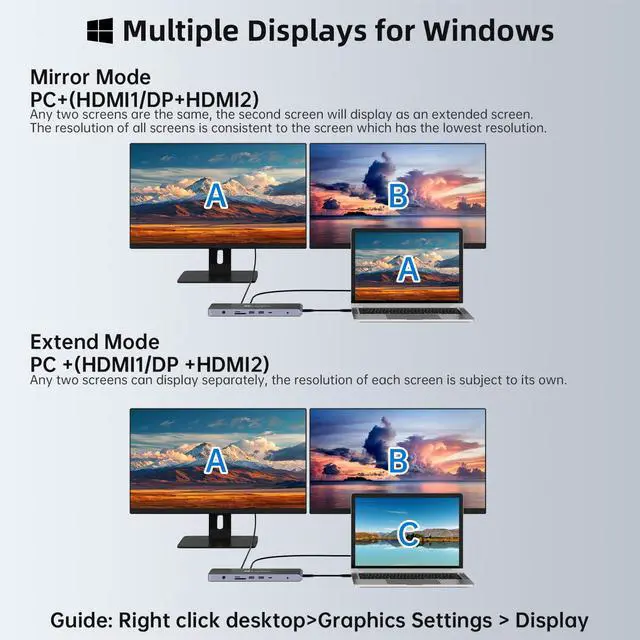
A:For Mac, lowering or raising the primary device's resolution will not affect screen mirroring. Windows systems, when connected to the docking station, can only have a maximum primary device resolution of 1920*1080(in triple screen mode). If you encounter issues with screen mirroring, you can try lowering the primary device's resolution for troubleshooting. Setting the primary device's resolution too low may result in the display not filling the screen. Additionally, you can adjust the resolution of the monitor connected to HDMI 1 through the primary device's settings, while the resolution for monitors connected to HDMI 2 and VGA is fixed at a maximum of 1920*1080 at 30Hz. Here are the settings methods:
Mac:Click System Settings?Displays?Select the corresponding monitor to adjust the resolution. Windows(Windows 11):Click Settings?System?Display?Select the corresponding monitor to adjust the resolution.


Docking Station Troubleshooting Guide
This product typically requires the installation of Displaylink drivers to enable video extension functionality. For potential issues you may encounter while using the product, please read the following Q&A carefully.
Q1: Can I use the display extension feature without downloading the driver?
A: If you're using a Google OS laptop, you can use the display extension feature without downloading the driver.However, for Mac and Windows systems, you must install the Displaylink driver to enable screen mirroring.
Q2: I'm not sure how to download and install the Displaylink driver.
A: Please visit the product details where we have uploaded instructional videos on driver download and installation. We have separate guidance videos for Mac and Windows users.
Q3: What should I do if I still can't screen mirror even after correctly installing the driver?
A: If you're still unable to screen mirror after installing the driver, first ensure all cables are securely connected and the docking station isn't overloaded—connect the charger before the laptop and other devices if necessary. Then, for Mac, open the driver interface by clicking the driver icon and try again; for Windows, the screen mirroring should activate automatically with the driver installed. If issues persist, reach out to our support team.
Q4: Does the resolution setting of the primary device affect the resolution of the additional monitor?
A:For Mac, lowering or raising the primary device's resolution will not affect screen mirroring. Windows systems, when connected to the docking station, can only have a maximum primary device resolution of 1920*1080(in triple screen mode). If you encounter issues with screen mirroring, you can try lowering the primary device's resolution for troubleshooting. Setting the primary device's resolution too low may result in the display not filling the screen. Additionally, you can adjust the resolution of the monitor connected to HDMI 1 through the primary device's settings, while the resolution for monitors connected to HDMI 2 and VGA is fixed at a maximum of 1920*1080 at 30Hz. Here are the settings methods:
Mac:Click System Settings?Displays?Select the corresponding monitor to adjust the resolution. Windows(Windows 11):Click Settings?System?Display?Select the corresponding monitor to adjust the resolution.