



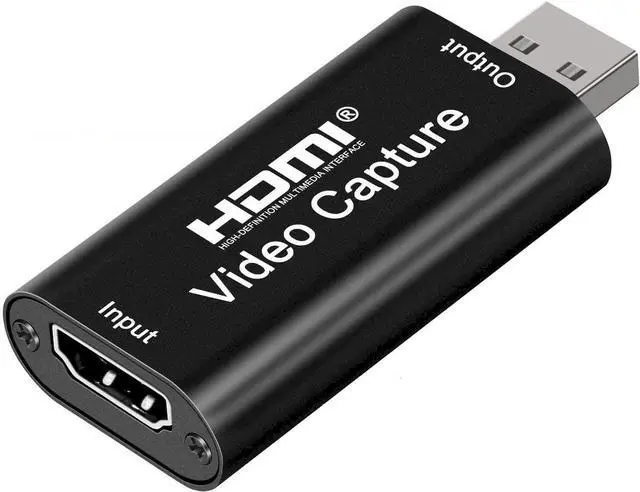
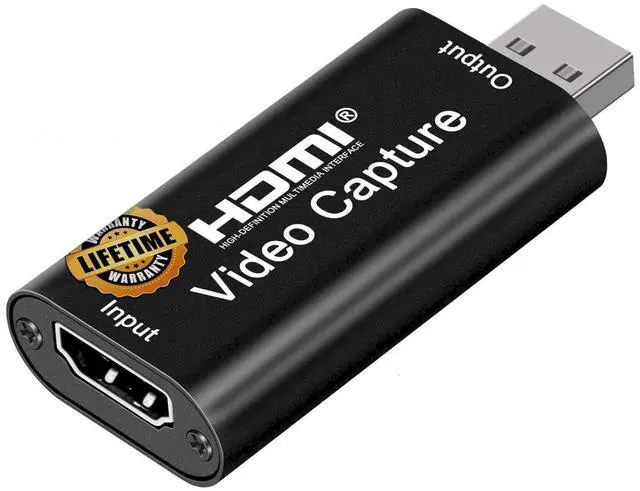


Audio Express HDMI to USB Video Capture Card

Unlock Unforgettable Moments - a great entry level device that helps out streamers on a low budget.
Effortlessly capture and stream your cherished memories in stunning 4K quality using the HDMI to USB 2.0 Audio Video Capture Card!
Great for elevating online gaming / streaming and live broadcasts with ease.
Smooth Connection, Effortless Operation:
1. Set Up in Seconds: Install OBS (Open Broadcaster Software) or Potplayer on your computer and dive into streaming seamlessly. Download the software swiftly from your browser.
2. Seamlessly Connect HDMI Source: Link your UHD signal source, like a DSLR or camera, to the HDMI input (4K) on the capture card using an HDMI cable.
3. Instant USB Link: Effortlessly connect the video capture card to your computer's USB port using a simple USB cable.
4. Streamline with OBS: Optimize your streaming setup by selecting "Video Capture Device" as your source, customizing the image size, activating "Studio Mode" for a dual-window layout, and launching your streaming journey with a single click.
Other Creative Applications:
Autosound Head Units: Add HDMI input into Android Car Stereo Head Units using the "USB Camera Pro" app from the Google Play store.
YouTube Start-Ups: Great low cost device for YouTube Gaming channels!
Firestick Compatible: Attach the HDMI to USB Video Capture card to a Firestick and watch content on your computer. Great for traveling!
Save Old VHS Memories: Use an RCA to HDMI adapter (not included) attach to the HDMI to USB Video Capture card and make digital copies of old VHS tapes!
Enhanced Webcam: Attach a DSLR for an improved Microsoft Teams/Zoom and others webcam!
___________________________________
FAQ - IF YOU HAVE ANY QUESTIONS
HELP CAN BE FOUND BELOW
___________________________________
WE UPDATE OUR FAQ REGULARLY! FEEL FREE TO REACH OUT TO US WITH ANY QUESTIONS.
We understand that some help might be required whenever a new tech product is purchased. The Audio Express HDMI to USB Video Capture Card is no different. Should you experience any issues that you feel are unusual or simply have a question, we are here to help.
General FAQ and Troubleshooting Help
- Frame Rate and Quality Settings: Ensure that you have optimized the frame rate and quality settings in your capture software. Adjusting these settings appropriately can significantly improve performance and video quality.
- USB Port Limitations: To prevent dropped frames or degraded performance, use a USB 2.0 port for your capture card. It's also recommended to avoid using hubs or shared ports, as they might impact the capture quality.
- Compatibility and Firmware: Check for the latest firmware updates for your capture card. Additionally, verify the compatibility of your gaming console, especially if you're using a Nintendo Switch model, to avoid any potential issues.
- Fast Motion and Frame Drops: During fast motion or scrolling in games, you might notice pixel misalignment. This can be related to frame drops. To mitigate this, try reducing the intensity of fast motion or scrolling in your gameplay, and ensure that your capture settings are optimized.
- Input Lag: Input lag can be influenced by various factors, including your computer's performance, HDMI cable quality, and capture software settings. Make sure your computer is capable of handling real-time video capture and consider using high-quality HDMI cables.
- Capture Software Settings: Adjust the settings within your capture software to match the requirements of your gameplay. Incorrect software settings can lead to synchronization issues, so take time to configure them properly.
- Other Factors: Keep in mind that specific games or consoles might have unique demands on your capture card. Test your device with a variety of games and devices to determine if the issues persist across different scenarios.
VLC for WINDOWS USERS:
If you're using VLC on Windows to stream, the card may not report the supported resolutions. If this happens you'll have to manually type them in on the Open Capture Device screen; here are the modes listed via ffmpeg: 640x480, 720x480, 720x576, 800x600, 1024x768, 1280x720, 1280x960, 1280x1024, 1360x768, 1600x1200, 1920x1080 The default output format 'mjpeg' supports 10-60 fps for all resolutions, and 'yuyv422' supports between 5-30 fps randomly per mode (1080 is 5fps) Note: the ffmpeg command to use is: ffmpeg.exe -f dshow -list_options true -i video="USB Video"
STILL FRAMES ONLY: There may be an incompatibility or driver issue with your system. You can solve this problem by using an HDMI switching device such as the Gana 8k or 4k/HDMI Switch.
STEREO ISSUES: If you are only seeing a single channel of audio on record or streaming you need to check HDMI Audio Settings: Make sure the source device you are connecting to the HDMI to USB Video Capture Card is set to output stereo audio. Many devices default to mono audio, and you might need to adjust the settings to ensure stereo output. In addition, see below:
- OBS Audio Settings: In OBS, when setting up your capture source, make sure to select the appropriate audio settings. You should be able to configure it to capture stereo audio by selecting the correct audio input source in the settings. If you're still experiencing issues, ensure that the source device's audio settings are correctly configured.
- HDMI Source Resolution: Ensure that the HDMI source is set to a resolution that HDMI to USB Video Capture Card supports.
- Firmware Updates: Check if there are any firmware updates available for the HDMI to USB Video Capture Card. Sometimes, updating the device's firmware can resolve compatibility and performance issues.
HANDHELD GAMING UNITS (ie, RG35XXH): To stream and capture from handheld gaming units, you may need a mini HDMI to full size HDMI adapter/cable. Then, as en example, running Windows 11 you will have to give OBS permission to access the Camera in settings. Once you do that, the video in OBS will display, however you may not have audio yet. Go to your Windows Advanced Audio Properties and chose Monitor Only (mute output) under Audio Monitoring. After that, the audio will work and you can capture content from your handheld gaming units via your laptop screen with both video and audio connected.
THE VIDEO CUTS IN AND OUT OR ISN'T STABLE. HOW CAN I FIX THIS?
Intermittent video or signal dropouts are usually caused by one of the following issues:
- High-resolution input on a USB 2.0 connection: This device supports 1080p input but downscales to 720p over USB 2.0. If you're feeding a high-bitrate 1080p or 4K signal, try lowering the source resolution to 720p or 1080i.
- Incompatible or long HDMI cable: Use a high-quality HDMI cable under 10 feet. Low-quality or overly long cables can cause signal loss.
- Power supply from USB port: Ensure you're using a USB port that provides sufficient and stable power (avoid front-panel or unpowered hubs).
- Software settings: In OBS or your capture software, check that the resolution and frame rate match the device's capabilities (720p at 30 or 60fps recommended). Avoid setting it to higher resolutions that the device can't support.
- Overloaded USB port: Disconnect other high-bandwidth USB devices if the video is stuttering or freezing.
THE CAPTURE CARD IS NOT SHOWING OR COMING UP:
I am trying to connect my Firestick to my laptop using the HDMI to USB video capture card, but nothing is showing up. How do I get it to work?
If you're using the capture card with a Firestick or other streaming device and it's not displaying on your laptop:
- Check Device Recognition: Make sure your laptop detects the capture card. It may appear as "USB Video" under your camera devices.
- Use a Compatible Media Player: We recommend using VLC Media Player. Open VLC Go to Media > Open Capture Device Under Video device name, select USB Video Click Play
- You should now see the Firestick output in VLC. Each time you want to view it, you'll need to repeat the steps in VLC.
If you're still facing difficulties, please feel free to reach out to us for further assistance. We can provide more specific guidance based on the product model and any potential troubleshooting steps.
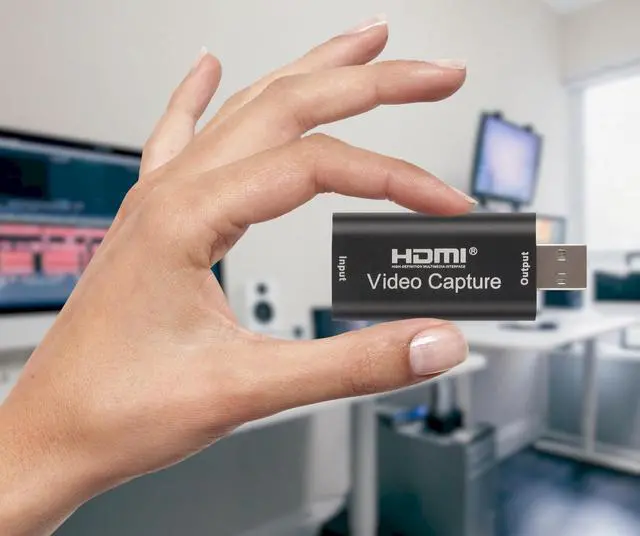
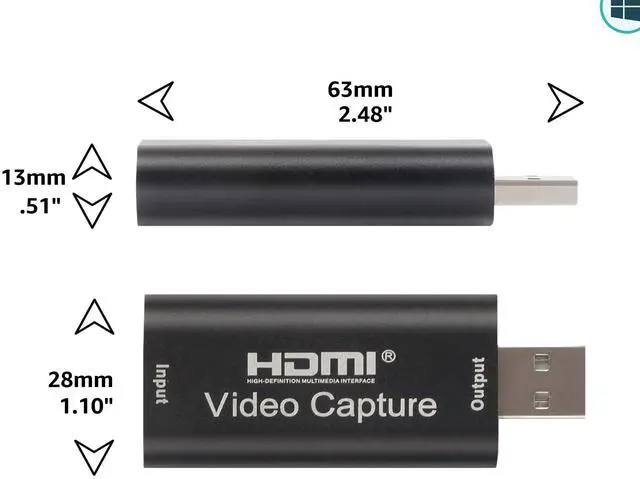
Tiny but MIGHTY!

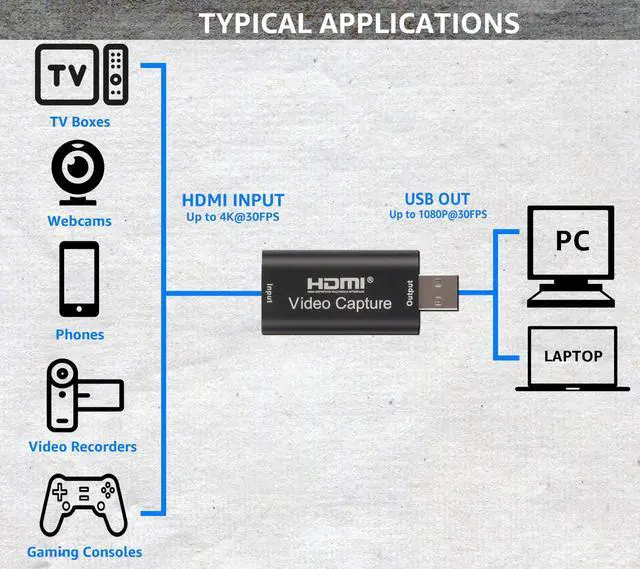
Exceptional 1080P Video Quality: Witness stunning video clarity with the HDMI capture card, supporting a maximum input resolution of 4K @30Hz and an impressive output resolution of 1080P @30Hz.
Gaming Excellence: Experience the prowess of high-speed USB 2.0 technology, effortlessly capturing high-definition HDMI video signals from a signal channel. This gaming capture card is tailor-made for devices boasting HDMI output, including PS4, Xbox One, Wii U, and Nintendo Switch.
Seamless "Plug and Play": Say goodbye to the hassle of external drivers or power supplies. Our USB capture card offers the ultimate convenience for low-latency gaming, fulfilling your live broadcasting, gaming, teaching, and video conferencing needs.
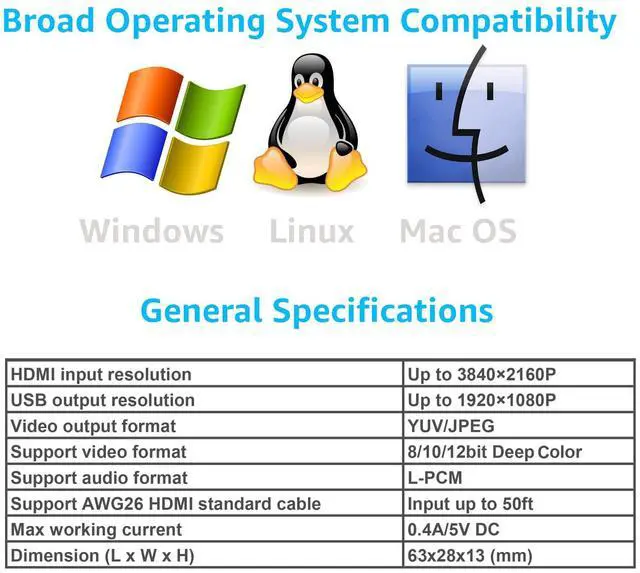
Extensive Compatibility: Unleash versatility with compatibility across Windows, Mac, and Linux platforms. Seamlessly connect your DSLR, camcorder, or action camera to your PC or Mac, enabling real-time streaming on platforms like Twitch, YouTube, OBS, Potplayer, and VLC.
Total Confidence:In the rare event of a quality issue, we are at your service. Reach out via : 1. Locate your order. 2. Click the "Contact Seller" button.

Broad Operating System Compatibility
Plug and Play operation across all operating systems.
Wide Variety of Applications and Uses

 Audio Express AXHDCAP 4K HDMI Video Capture Card, Cam Link Card Game Audio Ca... |  Audio Express AXHDCAP3 USB 3.0 4K HDMI Capture Card: SuperSpeed USB 3.0, 1080... | |
|---|---|---|
| Customer Reviews | — | — |
| Price | — | — no data |
| USB Version | USB 2.0 (High-Speed, 480 Mbps) | USB 3.0 (SuperSpeed, 5 Gbps) |
| Max Output Resolution | 1080p @ 30Hz | 1080p @ 60Hz |
| Frame Rate (Capture) | Up to 30 FPS (Lower Due to USB 2.0 Bandwidth) | Up to 60 FPS (Smoother and Faster) |
| Latency Performance | Moderate Latency | Low Latency (Ideal for Real-Time Streaming) |
| Best Use Case | Basic Streaming, Video Calls, Casual Content Creation | Professional Streaming, Gaming, High-Quality Recordings |
| Software Compatibility | Works with OBS, Zoom, YouTube, Twitch, Facebook Live, and More | Works with OBS, Zoom, YouTube, Twitch, Facebook Live, and More |
| Plug & Play | Yes, No Drivers Required | Yes, No Drivers Required |
| Audio Support | Integrated Audio Capture | Integrated Audio Capture |
| Build Quality | Aluminum Alloy Casing (Durable) | Aluminum Alloy Casing (Durable) |
| Performance Level | Standard Performance for General Use | Enhanced Performance for Demanding Applications |
Audio Express HDMI to USB Video Capture Card
Unlock Unforgettable Moments - a great entry level device that helps out streamers on a low budget.
Effortlessly capture and stream your cherished memories in stunning 4K quality using the HDMI to USB 2.0 Audio Video Capture Card!
Great for elevating online gaming / streaming and live broadcasts with ease.
Smooth Connection, Effortless Operation:
1. Set Up in Seconds: Install OBS (Open Broadcaster Software) or Potplayer on your computer and dive into streaming seamlessly. Download the software swiftly from your browser.
2. Seamlessly Connect HDMI Source: Link your UHD signal source, like a DSLR or camera, to the HDMI input (4K) on the capture card using an HDMI cable.
3. Instant USB Link: Effortlessly connect the video capture card to your computer's USB port using a simple USB cable.
4. Streamline with OBS: Optimize your streaming setup by selecting "Video Capture Device" as your source, customizing the image size, activating "Studio Mode" for a dual-window layout, and launching your streaming journey with a single click.
Other Creative Applications:
Autosound Head Units: Add HDMI input into Android Car Stereo Head Units using the "USB Camera Pro" app from the Google Play store.
YouTube Start-Ups: Great low cost device for YouTube Gaming channels!
Firestick Compatible: Attach the HDMI to USB Video Capture card to a Firestick and watch content on your computer. Great for traveling!
Save Old VHS Memories: Use an RCA to HDMI adapter (not included) attach to the HDMI to USB Video Capture card and make digital copies of old VHS tapes!
Enhanced Webcam: Attach a DSLR for an improved Microsoft Teams/Zoom and others webcam!
___________________________________
FAQ - IF YOU HAVE ANY QUESTIONS
HELP CAN BE FOUND BELOW
___________________________________
WE UPDATE OUR FAQ REGULARLY! FEEL FREE TO REACH OUT TO US WITH ANY QUESTIONS.
We understand that some help might be required whenever a new tech product is purchased. The Audio Express HDMI to USB Video Capture Card is no different. Should you experience any issues that you feel are unusual or simply have a question, we are here to help.
General FAQ and Troubleshooting Help
- Frame Rate and Quality Settings: Ensure that you have optimized the frame rate and quality settings in your capture software. Adjusting these settings appropriately can significantly improve performance and video quality.
- USB Port Limitations: To prevent dropped frames or degraded performance, use a USB 2.0 port for your capture card. It's also recommended to avoid using hubs or shared ports, as they might impact the capture quality.
- Compatibility and Firmware: Check for the latest firmware updates for your capture card. Additionally, verify the compatibility of your gaming console, especially if you're using a Nintendo Switch model, to avoid any potential issues.
- Fast Motion and Frame Drops: During fast motion or scrolling in games, you might notice pixel misalignment. This can be related to frame drops. To mitigate this, try reducing the intensity of fast motion or scrolling in your gameplay, and ensure that your capture settings are optimized.
- Input Lag: Input lag can be influenced by various factors, including your computer's performance, HDMI cable quality, and capture software settings. Make sure your computer is capable of handling real-time video capture and consider using high-quality HDMI cables.
- Capture Software Settings: Adjust the settings within your capture software to match the requirements of your gameplay. Incorrect software settings can lead to synchronization issues, so take time to configure them properly.
- Other Factors: Keep in mind that specific games or consoles might have unique demands on your capture card. Test your device with a variety of games and devices to determine if the issues persist across different scenarios.
VLC for WINDOWS USERS:
If you're using VLC on Windows to stream, the card may not report the supported resolutions. If this happens you'll have to manually type them in on the Open Capture Device screen; here are the modes listed via ffmpeg: 640x480, 720x480, 720x576, 800x600, 1024x768, 1280x720, 1280x960, 1280x1024, 1360x768, 1600x1200, 1920x1080 The default output format 'mjpeg' supports 10-60 fps for all resolutions, and 'yuyv422' supports between 5-30 fps randomly per mode (1080 is 5fps) Note: the ffmpeg command to use is: ffmpeg.exe -f dshow -list_options true -i video="USB Video"
STILL FRAMES ONLY: There may be an incompatibility or driver issue with your system. You can solve this problem by using an HDMI switching device such as the Gana 8k or 4k/HDMI Switch.
STEREO ISSUES: If you are only seeing a single channel of audio on record or streaming you need to check HDMI Audio Settings: Make sure the source device you are connecting to the HDMI to USB Video Capture Card is set to output stereo audio. Many devices default to mono audio, and you might need to adjust the settings to ensure stereo output. In addition, see below:
- OBS Audio Settings: In OBS, when setting up your capture source, make sure to select the appropriate audio settings. You should be able to configure it to capture stereo audio by selecting the correct audio input source in the settings. If you're still experiencing issues, ensure that the source device's audio settings are correctly configured.
- HDMI Source Resolution: Ensure that the HDMI source is set to a resolution that HDMI to USB Video Capture Card supports.
- Firmware Updates: Check if there are any firmware updates available for the HDMI to USB Video Capture Card. Sometimes, updating the device's firmware can resolve compatibility and performance issues.
HANDHELD GAMING UNITS (ie, RG35XXH): To stream and capture from handheld gaming units, you may need a mini HDMI to full size HDMI adapter/cable. Then, as en example, running Windows 11 you will have to give OBS permission to access the Camera in settings. Once you do that, the video in OBS will display, however you may not have audio yet. Go to your Windows Advanced Audio Properties and chose Monitor Only (mute output) under Audio Monitoring. After that, the audio will work and you can capture content from your handheld gaming units via your laptop screen with both video and audio connected.
THE VIDEO CUTS IN AND OUT OR ISN'T STABLE. HOW CAN I FIX THIS?
Intermittent video or signal dropouts are usually caused by one of the following issues:
- High-resolution input on a USB 2.0 connection: This device supports 1080p input but downscales to 720p over USB 2.0. If you're feeding a high-bitrate 1080p or 4K signal, try lowering the source resolution to 720p or 1080i.
- Incompatible or long HDMI cable: Use a high-quality HDMI cable under 10 feet. Low-quality or overly long cables can cause signal loss.
- Power supply from USB port: Ensure you're using a USB port that provides sufficient and stable power (avoid front-panel or unpowered hubs).
- Software settings: In OBS or your capture software, check that the resolution and frame rate match the device's capabilities (720p at 30 or 60fps recommended). Avoid setting it to higher resolutions that the device can't support.
- Overloaded USB port: Disconnect other high-bandwidth USB devices if the video is stuttering or freezing.
THE CAPTURE CARD IS NOT SHOWING OR COMING UP:
I am trying to connect my Firestick to my laptop using the HDMI to USB video capture card, but nothing is showing up. How do I get it to work?
If you're using the capture card with a Firestick or other streaming device and it's not displaying on your laptop:
- Check Device Recognition: Make sure your laptop detects the capture card. It may appear as "USB Video" under your camera devices.
- Use a Compatible Media Player: We recommend using VLC Media Player. Open VLC Go to Media > Open Capture Device Under Video device name, select USB Video Click Play
- You should now see the Firestick output in VLC. Each time you want to view it, you'll need to repeat the steps in VLC.
If you're still facing difficulties, please feel free to reach out to us for further assistance. We can provide more specific guidance based on the product model and any potential troubleshooting steps.
Tiny but MIGHTY!
Exceptional 1080P Video Quality: Witness stunning video clarity with the HDMI capture card, supporting a maximum input resolution of 4K @30Hz and an impressive output resolution of 1080P @30Hz.
Gaming Excellence: Experience the prowess of high-speed USB 2.0 technology, effortlessly capturing high-definition HDMI video signals from a signal channel. This gaming capture card is tailor-made for devices boasting HDMI output, including PS4, Xbox One, Wii U, and Nintendo Switch.
Seamless "Plug and Play": Say goodbye to the hassle of external drivers or power supplies. Our USB capture card offers the ultimate convenience for low-latency gaming, fulfilling your live broadcasting, gaming, teaching, and video conferencing needs.
Extensive Compatibility: Unleash versatility with compatibility across Windows, Mac, and Linux platforms. Seamlessly connect your DSLR, camcorder, or action camera to your PC or Mac, enabling real-time streaming on platforms like Twitch, YouTube, OBS, Potplayer, and VLC.
Total Confidence:In the rare event of a quality issue, we are at your service. Reach out via : 1. Locate your order. 2. Click the "Contact Seller" button.
Broad Operating System Compatibility
Plug and Play operation across all operating systems.
Wide Variety of Applications and Uses
Audio Express AXHDCAP 4K HDMI Video Capture Card, Cam Link Card Game Audio Ca... | Audio Express AXHDCAP3 USB 3.0 4K HDMI Capture Card: SuperSpeed USB 3.0, 1080... | |
|---|---|---|
| Customer Reviews | — | — |
| Price | — | — no data |
| USB Version | USB 2.0 (High-Speed, 480 Mbps) | USB 3.0 (SuperSpeed, 5 Gbps) |
| Max Output Resolution | 1080p @ 30Hz | 1080p @ 60Hz |
| Frame Rate (Capture) | Up to 30 FPS (Lower Due to USB 2.0 Bandwidth) | Up to 60 FPS (Smoother and Faster) |
| Latency Performance | Moderate Latency | Low Latency (Ideal for Real-Time Streaming) |
| Best Use Case | Basic Streaming, Video Calls, Casual Content Creation | Professional Streaming, Gaming, High-Quality Recordings |
| Software Compatibility | Works with OBS, Zoom, YouTube, Twitch, Facebook Live, and More | Works with OBS, Zoom, YouTube, Twitch, Facebook Live, and More |
| Plug & Play | Yes, No Drivers Required | Yes, No Drivers Required |
| Audio Support | Integrated Audio Capture | Integrated Audio Capture |
| Build Quality | Aluminum Alloy Casing (Durable) | Aluminum Alloy Casing (Durable) |
| Performance Level | Standard Performance for General Use | Enhanced Performance for Demanding Applications |