








VIXLW: Connecting Infinite Possibilities
Users usually encounter problems such as image delays and impaired image quality during video transmission and conversion. To solve these problems, VIXLW was born with a passion for video technology, determined to create the ultimate experience of video capture cards and converters.
Choosing VIXLW means choosing quality and professionalism to start a wonderful video journey together.
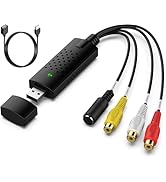
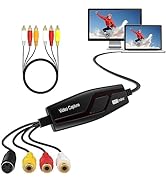
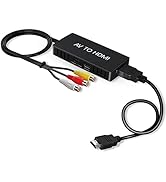
Video Converter
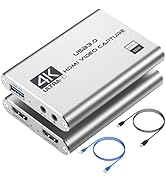
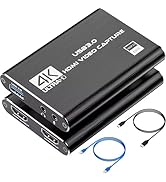
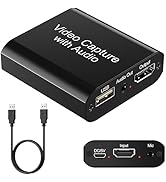
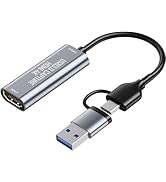
Capture Card
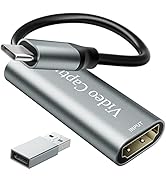
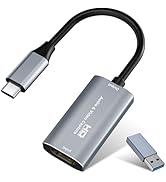
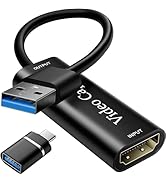
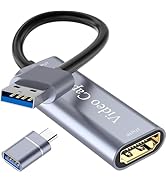
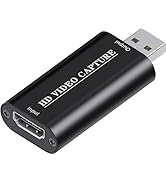
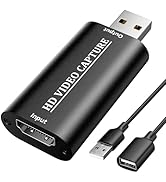
Video Capture Card
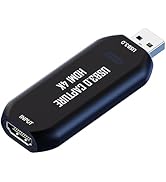
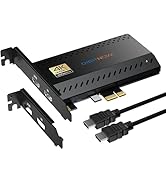
Cam Link 4K
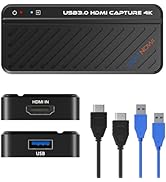
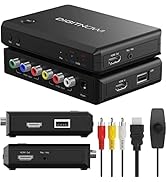
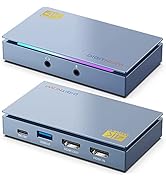
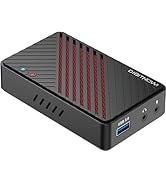
HDMI Capture Card

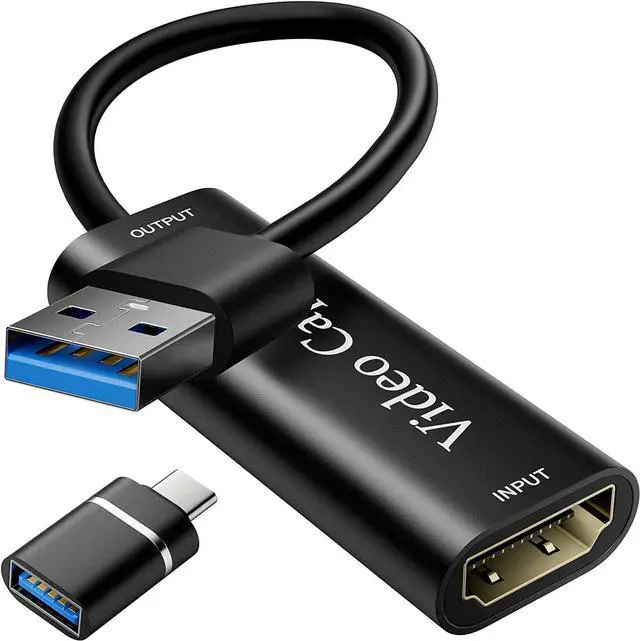
VIXLW Video Capture Card provides super picture quality while capturing, with high speed and without delay.
This 4k HDMI to USB 2.0 Video Capture Card is the easiest and most economical way to save your favorite memories, whether at work or in life.
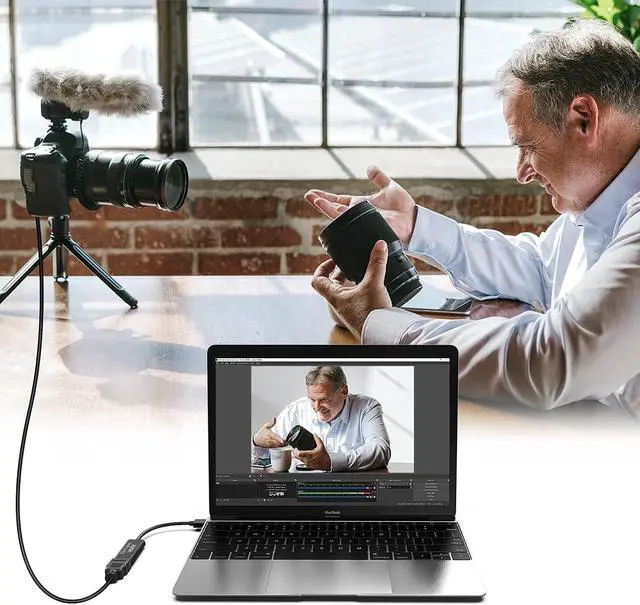
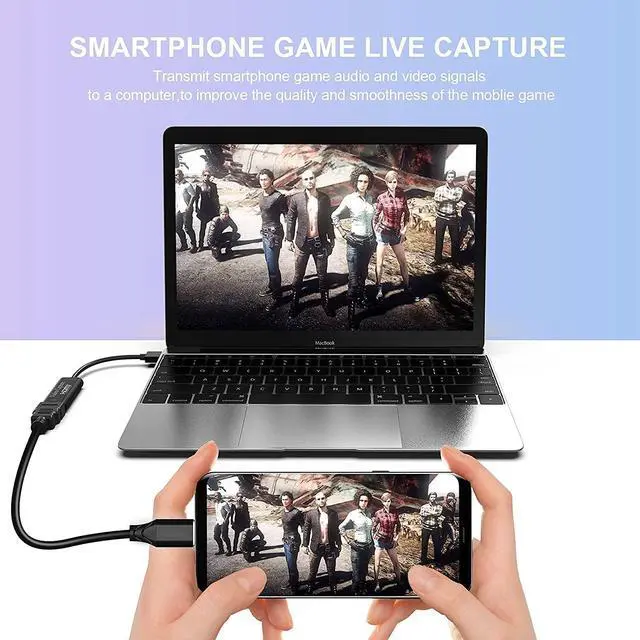
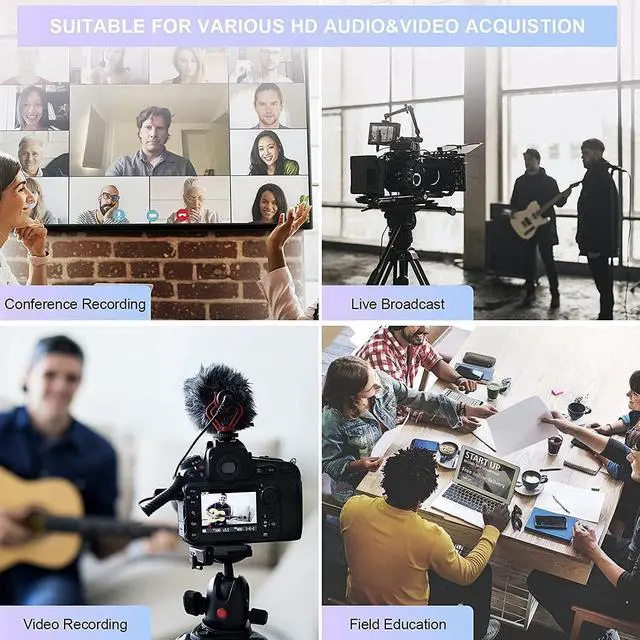
It captures and records your gaming, teaching or talking performance or happy party moments from a camcorder (ex.) and transmits them to your computer for storage and future viewing.
Also, If you wanna live stream on Facebook, Skype, Youtube or other social media, Just choose it.


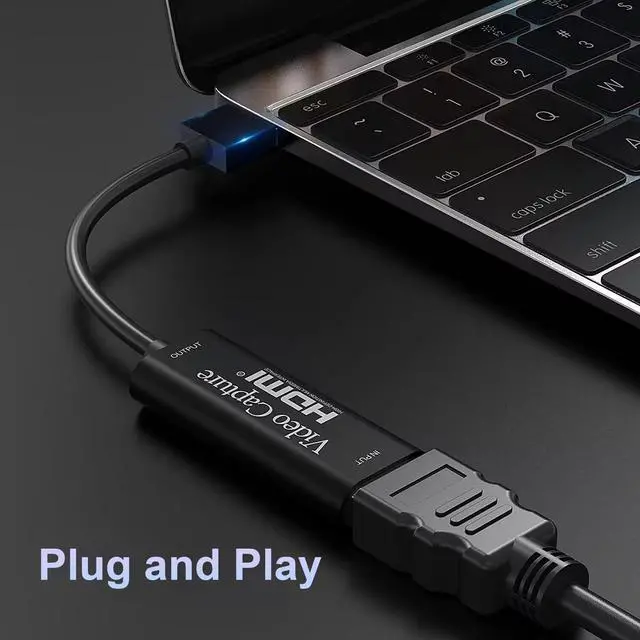
No Driver Required, Plug and Play
No other files or software are needed, and this
capture card can be easily plug and play. You
can plug it into a laptop, desktop, computer or
Smart TV with a USB 2.0 cable, then it's can
start and run on the video software immediately.

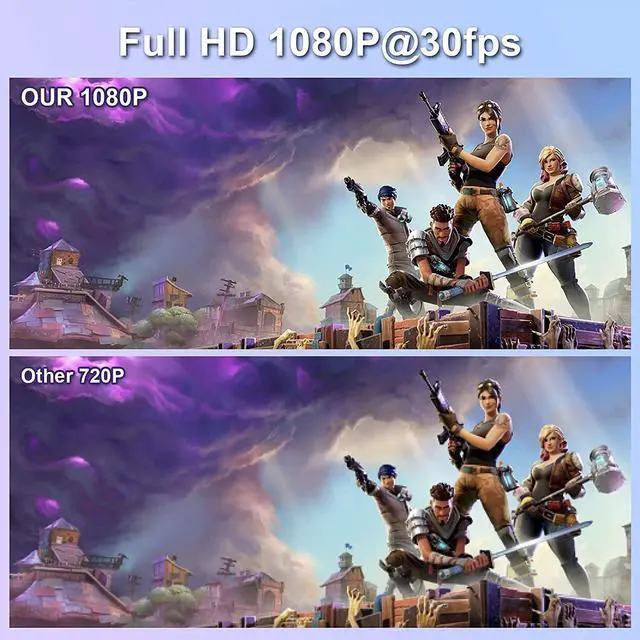
1080P FHD Video Capture Card
The Video capture card is up to 4K@60Hz
High Definition Input, output max resolution
1920*1080@30Hz. Offer 1080P 30fps High
Quality Recording and live steaming. The audio
video capture card is very suitable for living
games, Recording and etc.

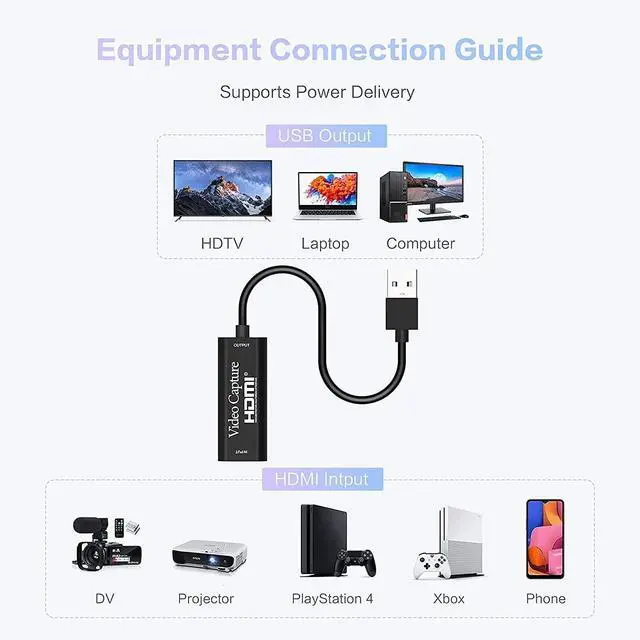
Strong Compatibility
The capture card is suituble for game consoles. Such as Webcam, PS4, Nintendo Switch, WiiU.Compatible with Windows Unix, Mac OS,Windows 7/8/10 and Twitch, Youtube, OBS, Potplayer,etc.


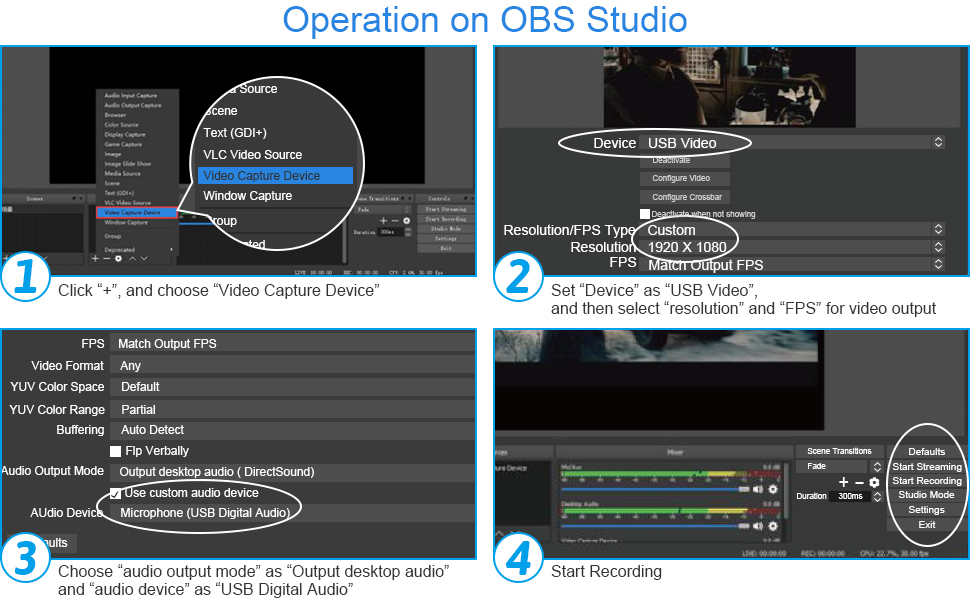
Note: If you can't get the audio, check if it's set correctly in step 3.
1. Open OBS, create a new source under Sources by clicking "+", select "Video Capture Device", name it, then set:
Device: USB3.0 Video
Audio Output Mode: Capture Mode Only; Use custom audio device: Digital Audio Interface (USB 3.0 Audio)
2. In OBS settings ? Audio:
Disable all Global Audio Settings except Mic/Auxiliary Audio; Set Mic/Auxiliary Audio to Digital Audio Interface (USB 3.0 Audio)
3. Under the Audio tab:
Right-click Mic/Auxiliary Audio ? Advanced Audio Properties ? Set Audio Monitoring to "Monitor Only (Mute Output)"
4. In PC settings ? System ? Sound:
Set Input to Laptop Microphone;
All Sound Devices ? Input Devices ? Digital Audio Interface. Ensure it is NOT set to default.
All Sound Devices ? Input Devices ? Laptop Microphone. Ensure it IS set to default.
5. In Discord:
If prompted to switch audio device, choose "don't switch"
User Settings > Voice & Video > Input > Laptop Microphone.
User Settings > Voice & Video > Output > Laptop Speakers.
VIXLW Video Capture Card provides super picture quality while capturing, with high speed and without delay.
This 4k HDMI to USB 2.0 Video Capture Card is the easiest and most economical way to save your favorite memories, whether at work or in life.
It captures and records your gaming, teaching or talking performance or happy party moments from a camcorder (ex.) and transmits them to your computer for storage and future viewing.
Also, If you wanna live stream on Facebook, Skype, Youtube or other social media, Just choose it.
No Driver Required, Plug and Play
No other files or software are needed, and this
capture card can be easily plug and play. You
can plug it into a laptop, desktop, computer or
Smart TV with a USB 2.0 cable, then it's can
start and run on the video software immediately.
1080P FHD Video Capture Card
The Video capture card is up to 4K@60Hz
High Definition Input, output max resolution
1920*1080@30Hz. Offer 1080P 30fps High
Quality Recording and live steaming. The audio
video capture card is very suitable for living
games, Recording and etc.
Strong Compatibility
The capture card is suituble for game consoles. Such as Webcam, PS4, Nintendo Switch, WiiU.Compatible with Windows Unix, Mac OS,Windows 7/8/10 and Twitch, Youtube, OBS, Potplayer,etc.
Note: If you can't get the audio, check if it's set correctly in step 3.
1. Open OBS, create a new source under Sources by clicking "+", select "Video Capture Device", name it, then set:
Device: USB3.0 Video
Audio Output Mode: Capture Mode Only; Use custom audio device: Digital Audio Interface (USB 3.0 Audio)
2. In OBS settings ? Audio:
Disable all Global Audio Settings except Mic/Auxiliary Audio; Set Mic/Auxiliary Audio to Digital Audio Interface (USB 3.0 Audio)
3. Under the Audio tab:
Right-click Mic/Auxiliary Audio ? Advanced Audio Properties ? Set Audio Monitoring to "Monitor Only (Mute Output)"
4. In PC settings ? System ? Sound:
Set Input to Laptop Microphone;
All Sound Devices ? Input Devices ? Digital Audio Interface. Ensure it is NOT set to default.
All Sound Devices ? Input Devices ? Laptop Microphone. Ensure it IS set to default.
5. In Discord:
If prompted to switch audio device, choose "don't switch"
User Settings > Voice & Video > Input > Laptop Microphone.
User Settings > Voice & Video > Output > Laptop Speakers.
VIXLW: Connecting Infinite Possibilities
Users usually encounter problems such as image delays and impaired image quality during video transmission and conversion. To solve these problems, VIXLW was born with a passion for video technology, determined to create the ultimate experience of video capture cards and converters.
Choosing VIXLW means choosing quality and professionalism to start a wonderful video journey together.
Video Converter
Capture Card
Video Capture Card
Cam Link 4K
HDMI Capture Card