
Your Browsing History


Dawen S.
Joined on 02/16/10
0
0
product reviews
- 2
Excellent Budget e-IPS (midrange) Monitor
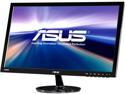
ASUS VS239H-P 23" Full HD 1920 x 1080 VGA DVI HDMI Splendid Video Intelligence Technology Backlit LED IPS Monitor
Pros: Price - Comparable e-IPS displays from other manufacturers are $200+ (see LG) e-IPS panel - Viewable from virtually any angle Matte display - Reflections from nearby lights do not impact the display. Great for nightime/sunlight users. Negligible ghosting - 5ms response time combined with the built in Trace-free feature set to 60 eliminates most ghosting. This makes the monitor great for gaming and HD video watching. Only professional FPS players would need a higher response time. Thin - Roughly the thickness of a MacBook Pro! Very slim on a desk or a mount 100mm VESA - Standard mounting holes w/ removable black rubber covers to hide the holes for users that prefer to rock the stand (blends in if not mounted) Power efficient - 24-30 W after calibration 3 yr warranty/exchange: Asus will replace your monitor within 3 years and pay for shipping both ways. I haven't tried this myself, but I hear Asus customer service is above average for the industry. Thinner than average bezel Matte back - Has a carbon-fiber-like texture on the back that makes it look modern
Cons: No built in gamma correction - Must be adjusted using your video card e-IPS - Unlike higher quality IPS panels there is a very small amount of color/gamma distortion if viewed at an angle. However it is still exponentially better than any TN panel. Higher quality panels that completely remove this effect cost $400+ currently and only graphic designers/photo editors really need that level of color accuracy. Costs $40 more than cheaper TN panels - Extra cost for the latest generation display. Better viewing angles and colors. You be the judge.
Overall Review: First off to address the complaints of "graininess" observed by some owners due to the matte finish: Lower your brightness! The pearly shimmery effect is only noticeble at the maximum 100% brightness which is around 270 cd/m2 (~20 cd/m2 higher than advertised). However, at the max brightness level, most users would find it uncomfortable to use for more than 30 minutes anyway. The factory settings are only set to this max limit to impress buyers in stores and when they turn on the monitor for the first time! The recommended comfortable brightness level for any monitor during regular use is 120 cd/m2 which translates to a setting of 35-40% brightness on this model. The user can easily change this setting through the OSD menu using the built in buttons. Recommended calibration settings: Brightness: 35 Contrast: 80 Red: 100 Green: 100 Blue: 98 Trace free: 60 These are the settings I came up with after calibration. They can be used as a starting point or ballpark figures if you don't feel like spending hours reading up on monitor calibration techniques. Your actual ideal monitor values might vary slightly. TL:DR Best price/value monitor currently on the market <$200
12/5/2012See more detail
Value Card
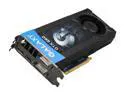
Galaxy GeForce GTX 660 2GB GDDR5 PCI Express 3.0 x16 SLI Support Graphics Card 66NPH7DN7DXZ
Pros: Scored 6700 on 3DMark11 under the "Performance" setting Temps stayed below 70 during stress tests Reference fan is not that loud, my case fans probably generate more noise (they're pretty quiet)
Cons: Galaxy did not ship the card with the plastic end protectors for the PCIe or SLI plugs (what does it cost them, 1-2 cents?). I can see some cards suffering shipping damage to the gold plated connections as a result. However, I personally did not notice any problems with mine.
Overall Review: I had an issue with a black screen on windows 8 after bootup and an initial installation of the drivers from Nvidia (3.10). After a few hours of digging, I finally found out that Windows 8 will automatically install an older driver (3.4) at the same time. This creates two binaries that will crash the card upon bootup. DO NOT RMA your card, it's probably fine. Here's the fix if you haven't installed the card yet: 1. Download the Nvidia drivers (do not install yet) 2. Disconnect your PC from the internet and shut it down 3. Disconnect power, install the card, and boot up 4. Install the drivers without internet 5. Reboot the system and re-enable internet (at this point, windows will recognize the driver and won't attempt to automatically install it) If you are already experiencing the black screen problem: 1. Boot into safe mode with networking (Shift+F8 during startup) 2. Download the nvidia drivers 3. Install driver fusion and use it to remove all previous nvidia drivers (freeware version works fine) 4. Disconnect from the internet and reboot your computer (it should boot up in low res at this point, avoiding the black screen) 5. Install the nvidia drivers 6. Reboot and re-enable internet Hope that helps! I spent hours today figuring out what was wrong. If the above steps don't work, you might want to consider an RMA.
12/7/2012See more detail