




 here!
here!
I’m your shopping assistant for PC builds, upgrades, and everything tech.
Got questions? Ask away!
Start a conversation
here!
I’m your shopping assistant for PC builds, upgrades, and everything tech.
Got questions? Ask away!
Start a conversation

Joined on 01/12/21
Near-flawless setup, minor documentation issues, excellent performance
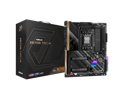
Pros: No surprises with installing CPU, memory, SATA drives, CPU cooler, or NVMe drive. It was more of a challenge to route cables! I had no issues with the BIOS Flashback feature. Note that the manual explicitly states that the USB flash drive must be FAT32 format, which means that the USB drive must be 16GB or smaller - I tried, and could not, format a 32GB drive using FAT32. I could not flash until my 16GB USB drive was formatted to FAT32. This was the only issue I had. BIOS options appear to be no better or worse than any of AsRock's competitors. I've now built 3 computers in the past year - 2 AM4 and this one - using AMI BIOS, and the biggest differences seem to be screen colors used.
Cons: Not an ASRock problem, yet something to be aware of if you are upgrading an older system: the X670E Taichi motherboard is an eATX motherboard. It is slightly larger than an ATX motherboard when measured from the "back" ports to the "front" power supply connection. It may not fit into a case that will comfortably fit an ATX motherboard - I ended up with a new case for this build. The Dr. Debug codes aren't very helpful to the average computer user. They're listed in a two-column table in the manual, with the 4-digit hex codes (remove the 0x, only the last two digits are shown on the LED readout) on the left, and an acronym that is difficult to figure out on the right. On first boot-up, I got d6 and d7 codes. They are listed as DXE_NO_CON_OUT and DXE_NO_CON_IN. Oh...NO CONSOLE OUT and NO CONSOLE IN. Terms I'd expect from a DEC minicomputer. Can't they just say "no monitor" and "no keyboard" instead? (Yes, my first boot was without keyboard, mouse, or monitor.)
Overall Review: System Specs: - Ryzen 9 7900X - Corsair DDR5 16GB x 2 - Crucial 2TB NVMe 4.0x4 SSD - Older Hitachi 3.5" SATA 1Tb HDD - Corsair H110i cooler - Corsair 5000D tower case - Segotep modular power supply I stopped buying name-brand PCs and have built my own for more than 15 years. I have used another manufacturer's motherboards for many years. The computer I built is a Linux workstation used for Linux games and ham radio activities such as antenna modeling. Fast video isn't as high a priority as compute power is. Some reviews have complained about the AM5 installation process. It is no more difficult than any current Intel processor. Just get Pin 1 in the correct orientation! Once I had BIOS settings completed, I was able to boot Fedora 37 (insecure boot) from my 1TB HDD, and everything was up and running immediately. No OS updates, no new drivers. WiFi, Bluetooth, video, USB ports...all working. I don't use wired Ethernet or sound, so I have no comments about those features. Secure booting was a bit more of a challenge. It took a while to find the right BIOS settings to enable Secure Boot mode. I've seen complaints about long boot (or memory check) times. I've noticed that newer generations of computers take longer to get through Power-On Self Test (POST). This system does not take significantly longer than the two AM4 machines that I built in the past year. Overall, I'm happy with the result. Software compiling and numerical calculations take far less time on my new system.
Avoid If Using Linux, Works Great In Windows
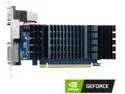
Pros: Works well with Windows 10. nVidia driver installs automatically through Windows Update and no further driver updates are _needed_ Full-featured nVidia driver (including additional features) can be downloaded from nVidia or Asus.
Cons: DOES NOT work with Linux 5.5.x kernels (Ubuntu 22.04, Mint 20.3)
Overall Review: Works great under Windows 10 for what I'm doing - mostly involving paint/draw programs and watching videos. I cannot comment on how it would perform for gaming, as I do very little gaming on Windows nowadays. AVOID this card if you use Linux. There are a lot of threads on a lot of different sites (including the Linux Mint forum) indicating that the low-end GT730 chip does not work correctly on Linux. One that I found indicated that the drivers fail with kernel 5.5.x and higher - which, unfortunately, is the only kernel series supported by Ubuntu 22.04 and Mint 19.03, and down-grading the kernel is beyond my expertise. While the card currently works with Fedora 36 - which is still using the 5.4.x series kernels - I think it is a matter of time before Fedora moves to the 5.5.x kernels. Just my opinion, I have far more experience with Ubuntu and Mint and I am now learning Fedora as it's the only Linux I could get to work with this video card.
Barely A Day Old, Already Having WiFi7 Issues
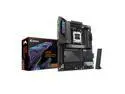
Pros: Overall, this is a very feature-packed motherboard for the ATX form factor. Upgrading an existing computer, based on an AM4 processor, to this motherboard took about 2 hours - with a lot of that time spent figuring out the CPU cooling. I am using this motherboard in a dual-boot Windows 11/Fedora Linux configuration. Windows installation worked fine, and I was able to update drivers and confirm that everything was working correctly. I reinstalled Fedora 43 from a Live USB stick, and even that worked okay. Flashing the BIOS on this motherboard was easy, once I followed Gigabyte's instructions. A USB flash drive MUST be formatted to FAT32 - a drive formatted to exFAT _will_not_work_.
Cons: The WiFi7 interface stopped working after updating to the latest (F12a) BIOS. The Qualcomm interface completely disappeared from Windows Device Manager. With the latest BIOS, there are three settings for the WiFi interface: Auto, Enabled, and Disabled. I have tried changing from Auto (the default) to Enabled with no change in behavior. And, unfortunately, there's no troubleshooting information for this specific problem on this specific motherboard - whether at Gigabyte's site or elsewhere. I may end up doing experiments - such as clearing CMOS - based on "what worked" to fix this problem for others with a similar Qualcomm chip on different brands of motherboard. Without something more official from Gigabyte or Qualcomm, it's difficult to know what happened - or what to do to correct the situation. UPDATED 5 April 2026 I reached out directly to Gigabyte and was advised to "clear the CMOS" to reset the WiFi 7. See my comments, below.
Overall Review: This is a solid motherboard, except for WiFi7. I can only give a 3 egg rating and a qualified "buy this" recommendation. UPDATED 5 April 2026: After extensive experimentation and research, I do not recommend this motherboard for anyone creating a dual-boot Linux/Windows system at this time. With the latest BIOS, any time Secure Boot is disabled - whether in the BIOS or by booting from a "Live ISO" USB stick - the WiFi7 interface is also disabled. After resetting the CMOS on this motherboard 5 times in one day, while trying to figure out why this motherboard would not load the Linux GRUB2 boot menu, I gave up on WiFi7. I have disabled the WiFi7 interface in the BIOS and installed an older WiFi6 add-on PCI card that I used with the previous motherboard in this case/system.
Great as an internal drive. Don't use with external USB to SATA enclosures.
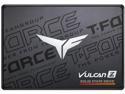
Pros: I purchased this drive to create a backup drive for a dual-boot Linux/Windows computer. It is installed in the computer case with a SATA connection to the motherboard, and has not experienced any issues as an internal drive.
Cons: My intention was to create a USB-based backup drive using one of the storage cases sold by NewEgg and other companies. I have experimented extensively with three different brands of enclosure, each of which uses a different version of the JMicron Technology USB-to-SATA interface chip. On Windows 11, all backup attempts using Windows Backup failed at 12% or lower completion. In addition, the Windows tools to format and partition drives fail. In Fedora Linux (versions 42 and 43), two of the three brands of external USB to SATA enclosures failed to work correctly with the Duplicity backup tool.
Overall Review: I recommend this drive only for installation inside a computer case - i.e., with a direct connection to a SATA interface. Based on my experience and extensive testing, this drive will not function correctly in an external USB-to-SATA case, and I do not recommend it for this purpose.
Works well with Windows disk formats - Linux disk formats not so well.
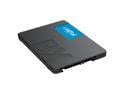
Pros: Reasonably-priced 2.5 inch SSD drive. Works well with Windows formats (NTFS, exFAT) Reasonable read-write speeds over USB3 No compatibility problems using this drive in an external USB3 enclosure
Cons: Failed with native Linux filesystem formats when set up as 2x 1TB partitions. Partition 1 was set to NTFS (Win 10/Win 11), partition 2 was set to EXT4 (Linux), and the drive ALWAYS errored out when trying to write to the EXT4 partition.
Overall Review: I purchased this drive to use in an external USB3 enclosure for backing up data a dual-boot (Windows 11 / Fedora 41) gaming laptop. This is not the first external SSD that I've built for this purpose. Installation was very simple and the drive was running quickly. NOTE: do not boot an operating system with an unformatted drive of any type plugged into a USB port; the operating system will likely NOT detect the drive. When the un-formatted drive was hot-plugged into a USB port, it was recognized by both Windows 11 and Linux operating systems. Using Windows' drive partitioning tools, I partitioned the drive into 2x 1TB drives and formatted the first partition with the NTFS file system. (I did not do a Windows backup at this time, though I did complete one later without issue.) I rebooted to Linux and formatted the second 1TB partition to use the EXT4 journaling file system using Linux' disk tools. I then attempted to back up data from the Linux system. Backups FAILED to the EXT4 partition on 4 different attempts. An attempt to benchmark the drive resulted in a hung system. On rebooting into Linux, the hardware logfiles revealed many HUNDREDS of write error messages (mostly time-outs). I converted the EXT4 partition and re-created it using the exFAT file format - a Windows format that is typically used with large (over 16GB size) USB flash drives. After that, the drive worked flawlessly for Linux backups. MINUS 1 EGG: The issue with Linux filesystems is particularly surprising, as all modern OSes using secure boot (including Windows 10, Windows 11, and Linux) will have at least two partitions on the bootable drive that are formatted differently. This is BY DESIGN. I'd be concerned about using the BX500 drive for a Linux-only or dual boot Windows 11 / Linux machine - particularly when Crucial's M.2 product line isn't exhibiting that kind of issue (the computer I'm writing this on is a Linux-only machine with an M.2 SSD). I made no attempt to use the Acronis TrueImage tool. I'm well aware of its issues and limitations. I did use Crucial's Storage Executive tool (Windows-only) to check for firmware updates. I can't use most of the other features with this drive, and will likely remove the tool from my computer.
Failed to work correctly
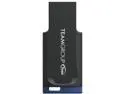
Cons: It's a good thing this was a "free" device - it never worked in 4 different computers and devices. My first use was to attempt to format it for use with a dual-boot Windows 11/Fedora 39 system, and neither Windows nor Fedora tools could format the drive. It shows up when plugged into a USB port and that's it - can't write to it, can't read from it.
Overall Review: Avoid if at all possible.


